
DIYables Bluetooth STEM User Manual
DIYables Bluetooth STEM — User Manual
Introduction
DIYables Bluetooth STEM is a mobile companion app for Arduino and ESP32 projects, available on both Android and iOS. It connects to your microcontroller over Bluetooth Low Energy (BLE) or Bluetooth Classic (SPP) and provides 11 ready-to-use interactive web apps — monitor, chat, joystick, sliders, plotter, gauges, and more — all without writing any mobile code.
Simply upload the matching Arduino sketch, open the app, connect, and start interacting with your hardware project.
> Platform Note: The iOS version supports BLE only. Bluetooth Classic (SPP) is available on Android only.
Supported Hardware
| Board | BLE (Android & iOS) | Classic Bluetooth (Android only) |
|---|---|---|
| Arduino Uno R4 WiFi | ✅ | ❌ |
| Arduino Nano 33 BLE | ✅ | ❌ |
| Arduino MRK WiFi 1010 | ✅ | ❌ |
| ESP32 / ESP32-S3 | ✅ | ✅ |
| Any ArduinoBLE-compatible board | ✅ | ❌ |
Note: Bluetooth Classic is only available on ESP32 boards and only on Android devices. The iOS app supports BLE only due to Apple platform restrictions.
Installation
Android:
- Download DIYables Bluetooth STEM from the Google Play Store.
iOS:
- Download DIYables Bluetooth STEM from the App Store.
Arduino Setup:
- Install the DIYables Bluetooth Arduino library via the Arduino IDE Library Manager or from GitHub.
- Upload one of the example sketches to your Arduino/ESP32 board.
Getting Started
Permissions
When you first open the app, it will request the following permissions:
Android:
| Permission | Android Version | Why It's Needed |
|---|---|---|
| Nearby Devices | Android 12+ | To scan for and connect to BLE/Classic Bluetooth devices |
| Location | Android 11 and below | Required by Android for BLE scanning. The app does NOT track your location. |
iOS:
| Permission | Why It's Needed |
|---|---|
| Bluetooth | To scan for and connect to BLE devices |
A dialog will explain why each permission is needed. Tap "Allow" to grant access. The app cannot function without these permissions.
Connecting to Your Arduino/ESP32
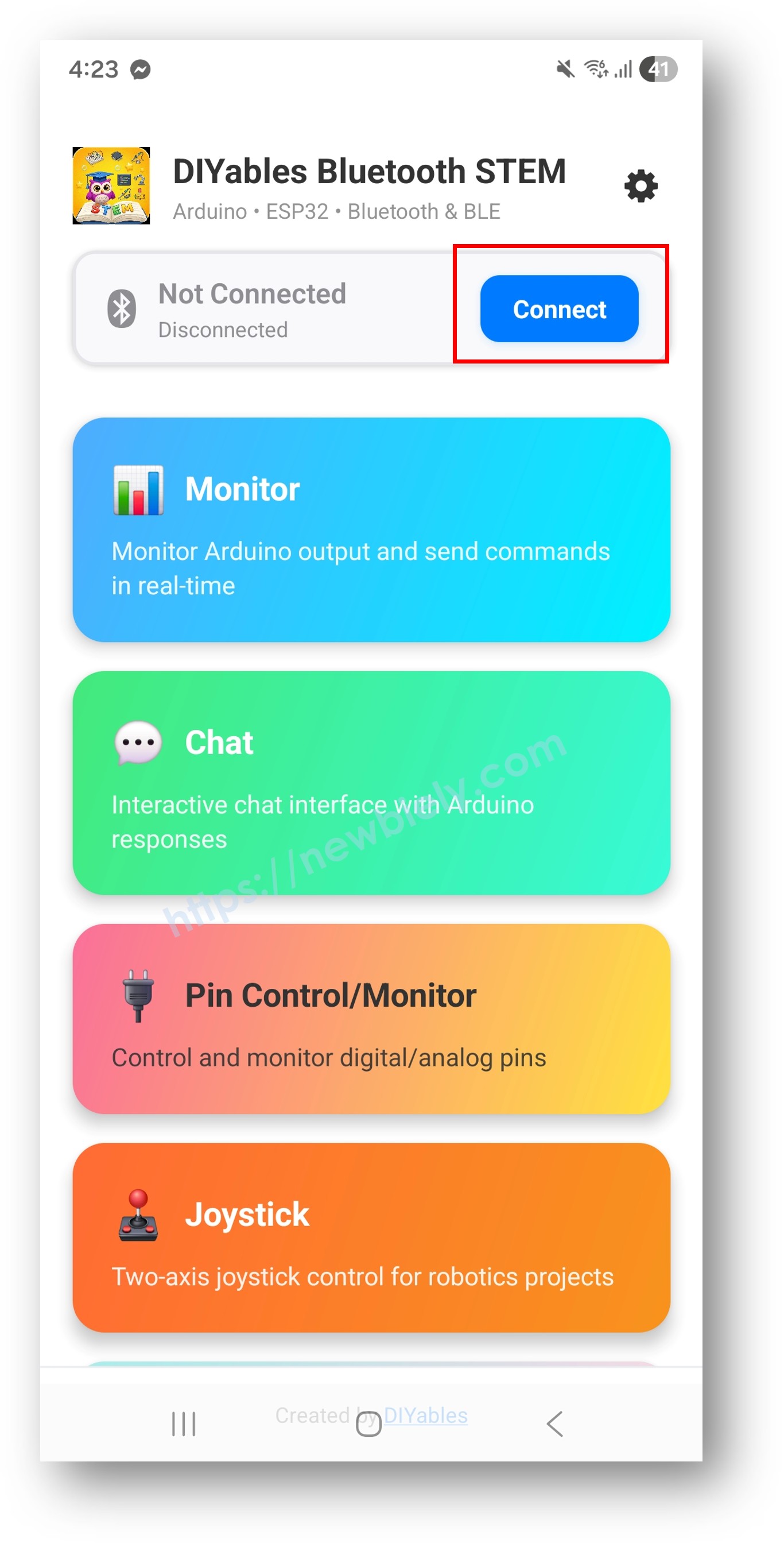
- Power on your Arduino/ESP32 board with the Bluetooth sketch uploaded.
- Open the DIYables Bluetooth STEM app.
- Tap the "Connect" button on the connection status bar (or tap the status bar itself).
- The app will automatically scan for nearby Bluetooth devices.
- Your Arduino/ESP32 will appear in the device list — tap it to connect.
- Once connected, you'll see the device name and connection type (BLE or CLASSIC) on the status bar.
- The app will navigate back to the Home screen automatically.
Tip: Make sure Bluetooth is enabled on your phone. If it's off, the app will prompt you to turn it on.
>
iOS users: Only BLE devices will appear in the scan results. Bluetooth Classic devices are not supported on iOS.
Auto-Reconnect
When enabled in Settings, the app will:
- On launch: Automatically scan for and reconnect to the last connected device.
- On disconnection: Automatically attempt to reconnect after 2 seconds.
Home Screen
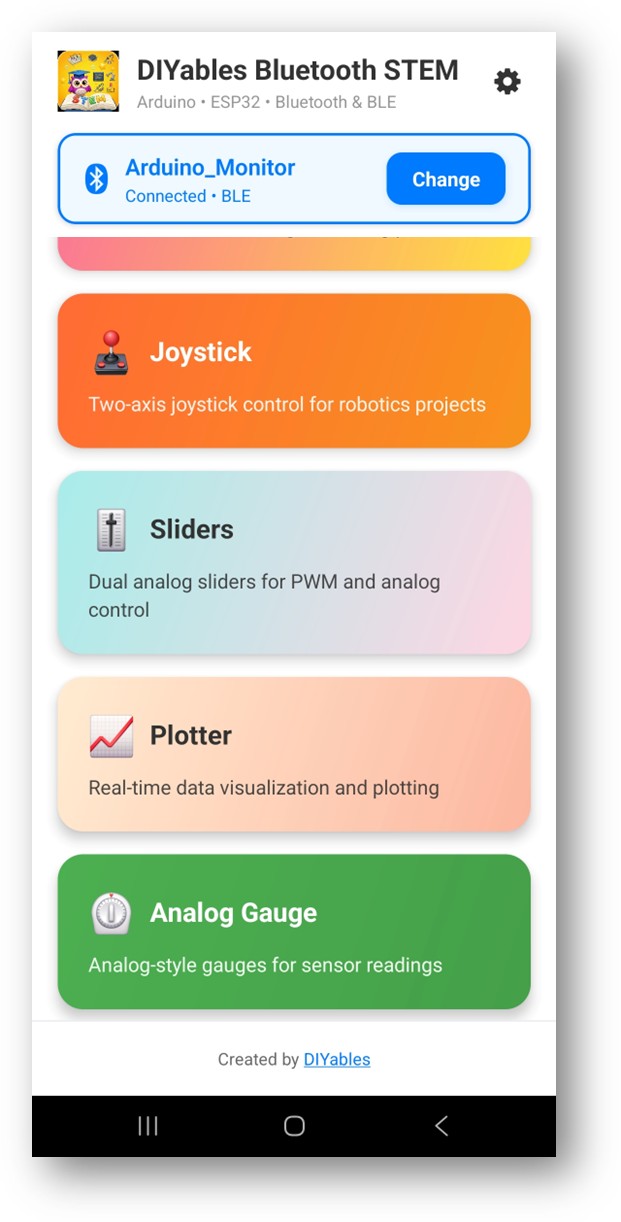
The Home screen is your main dashboard. It displays:
- Connection Status Bar — Shows the connected device name and type (BLE/CLASSIC), or "Not Connected" with a Connect button.
- App Grid — Colorful cards for each available web app. Tap a card to open that app.
- Settings ⚙️ — Tap the gear icon (top-right) to open Settings.
Each app card shows an icon, name, and short description. Only apps enabled in Settings are visible.
Settings
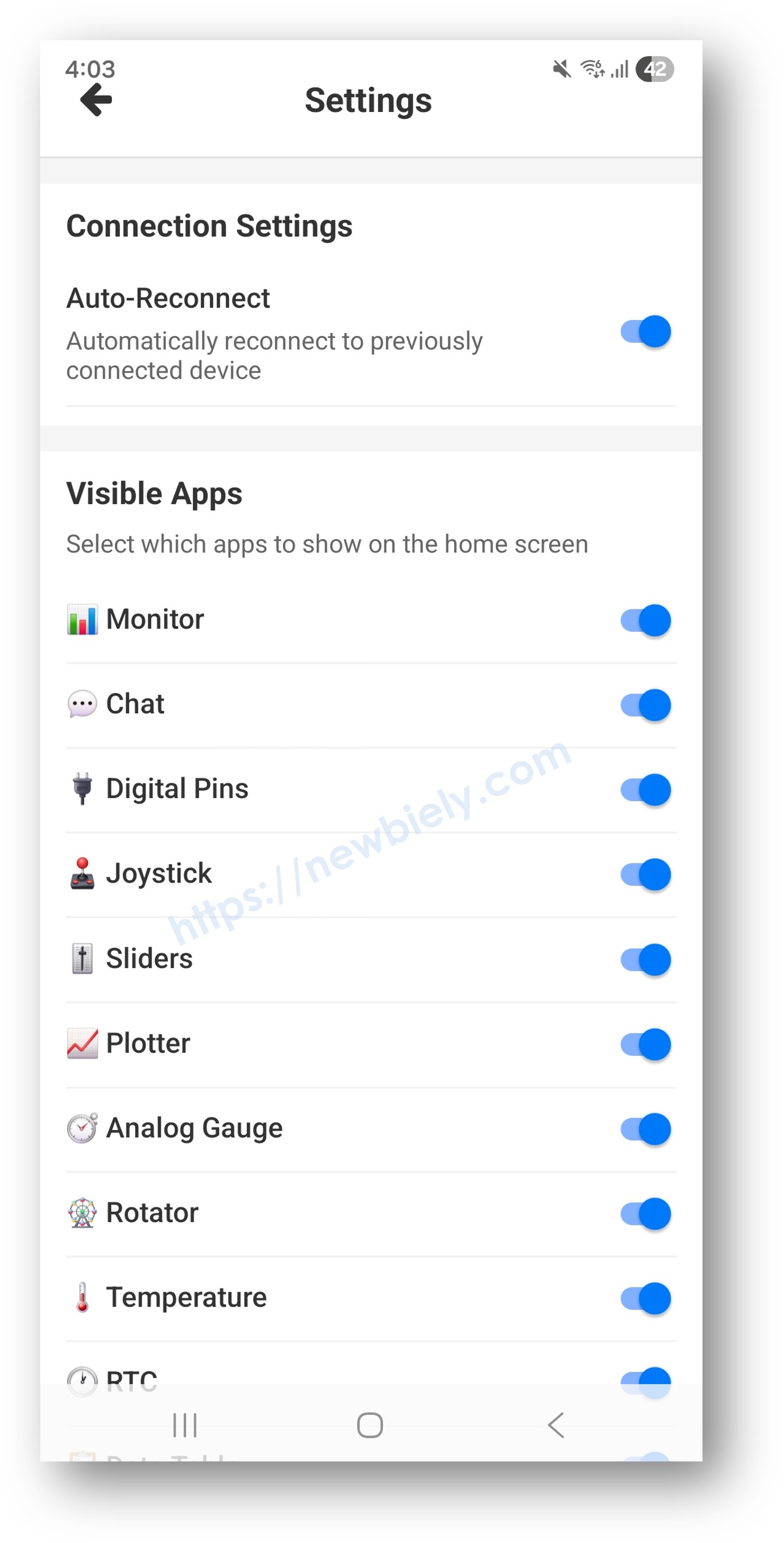
Access Settings by tapping the ⚙️ gear icon on the Home screen.
Connection Settings
- Auto-Reconnect — Toggle ON/OFF. When enabled, the app automatically reconnects to the last connected device on launch and after unexpected disconnections.
Visible Apps
Toggle the visibility of each web app on the Home screen:
- Monitor, Chat, Digital Pins, Joystick, Sliders, Plotter, Analog Gauge, Rotator, Temperature, RTC, Data Table
Settings are saved automatically and persist between app sessions.
Web Apps
Each web app communicates with your Arduino/ESP32 using a simple text-based protocol over Bluetooth. Upload the corresponding Arduino example sketch, connect, and start using the app.
Monitor
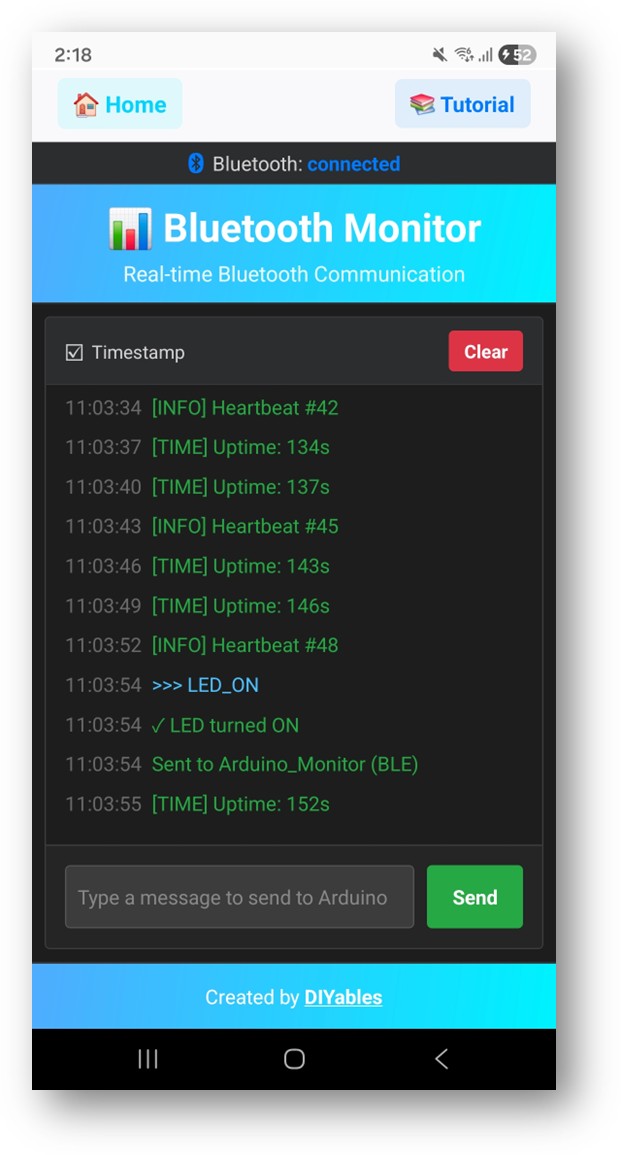
📊 Real-time serial monitor — View all Bluetooth messages and send commands.
What you see:
- A dark terminal-style output area showing all incoming messages.
- Color-coded messages: blue (info), green (received data), yellow (warning), red (error).
- A text input field and Send button at the bottom.
How to use:
- Connect to your Arduino/ESP32.
- Incoming messages appear automatically in the terminal.
- Type a command in the input field and tap Send.
- Toggle Timestamps to show/hide message timestamps.
- Tap Clear to clear the terminal.
Arduino example: ArduinoBLE_Monitor or ESP32BLE_Hello
Chat
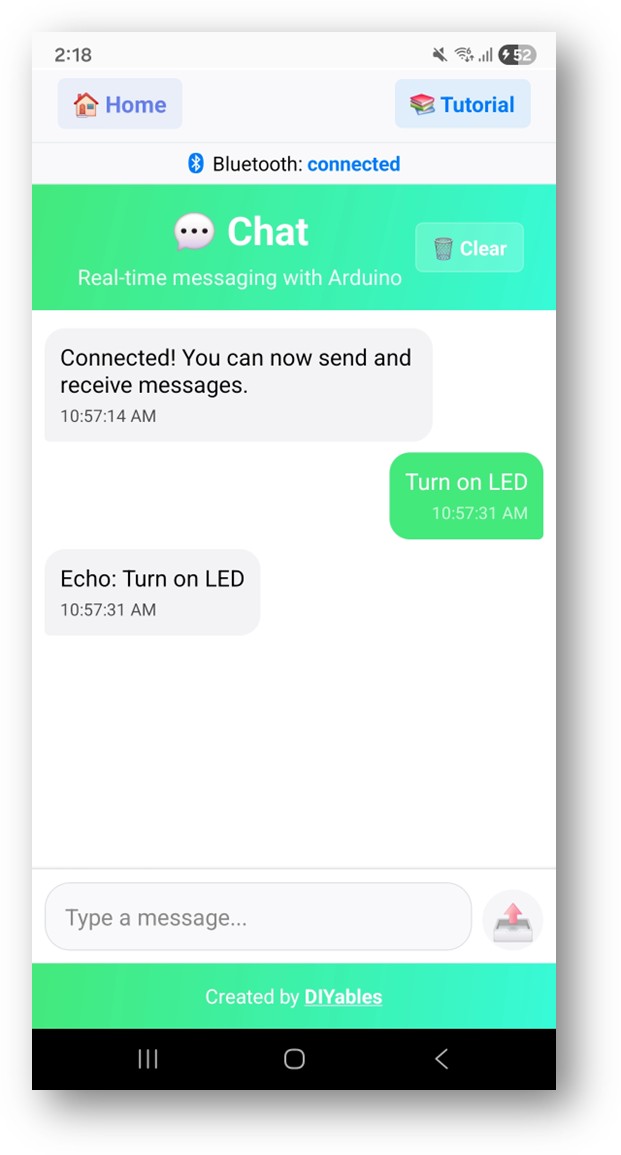
💬 Interactive chat interface — Send and receive messages in a chat bubble format.
What you see:
- Chat bubbles: your messages (green, right-aligned) and Arduino responses (gray, left-aligned).
- Timestamps on each message.
- A text input field and Send button.
How to use:
- Connect to your Arduino/ESP32.
- Type a message and tap Send.
- Arduino responses appear as incoming chat bubbles.
- Tap Clear (in the header) to clear the conversation.
Arduino example: ArduinoBLE_Chat or UnoR4ChatBLE
Digital Pin Control
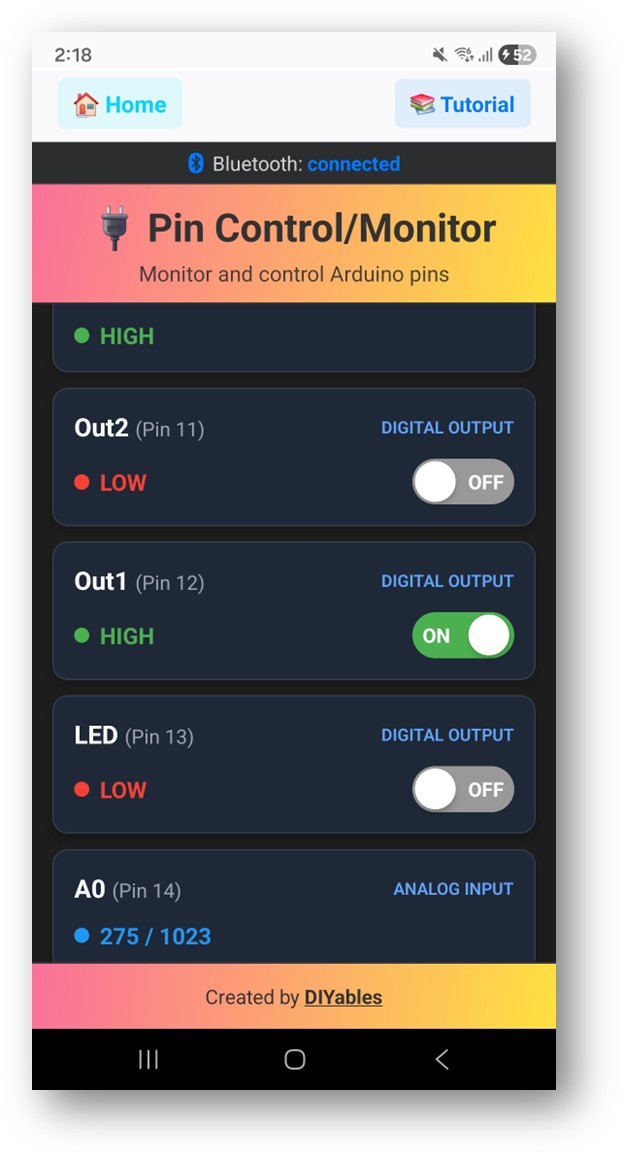
🔌 Control and monitor Arduino digital and analog pins.
What you see:
- A list of pin cards, each showing the pin number, custom name, and type.
- Output pins: An ON/OFF toggle button with HIGH/LOW status indicator.
- Digital input pins: A status indicator (HIGH = green, LOW = red).
- Analog input pins: A numeric value display (0–1023) with color indicator.
How to use:
- Connect to your Arduino/ESP32 (the app requests pin configuration automatically).
- Output pins: Tap the toggle to switch between ON (HIGH) and OFF (LOW).
- Input pins: Values update in real-time as the Arduino sends updates.
Arduino example: ArduinoBLE_PinControl or UnoR4DigitalPinsBLE
Joystick
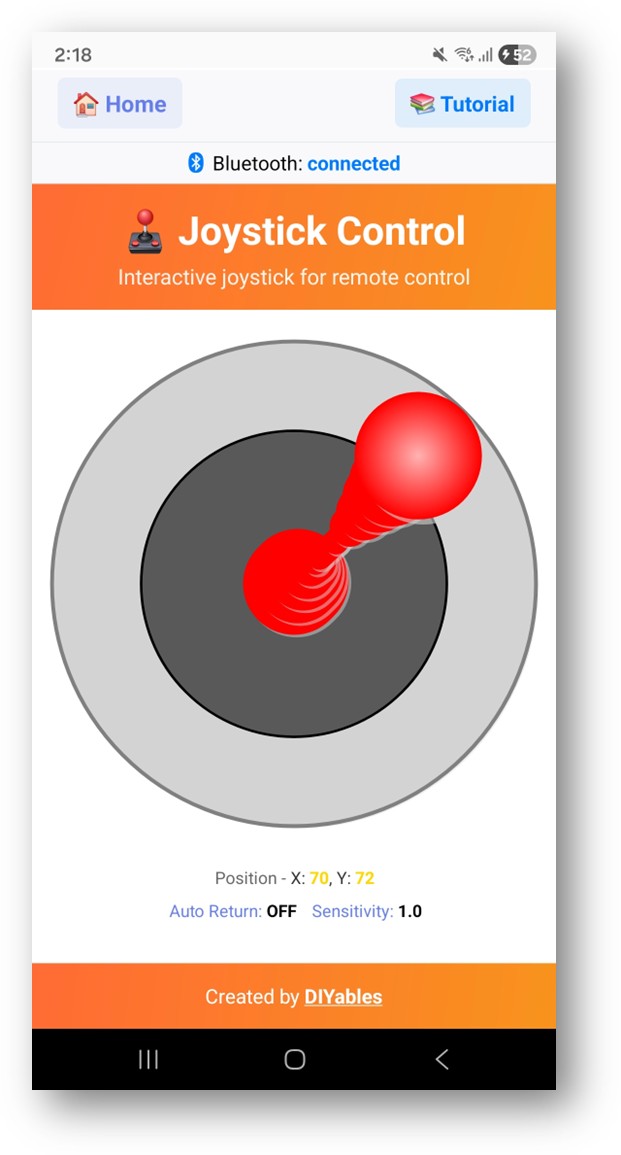
🕹️ Two-axis joystick for robotics and vehicle control.
What you see:
- A large circular joystick with a draggable handle.
- X and Y coordinate display (range: -100 to +100).
- Center position = (0, 0).
How to use:
- Connect to your Arduino/ESP32.
- Drag the joystick handle in any direction.
- X/Y values are sent to the Arduino in real-time.
- Release the handle — it returns to center automatically (if auto-return is enabled by the Arduino sketch).
Configuration from Arduino:
- Auto-return to center (on/off)
- Sensitivity level
Arduino example: ArduinoBLE_Joystick or UnoR4JoystickBLE
Sliders
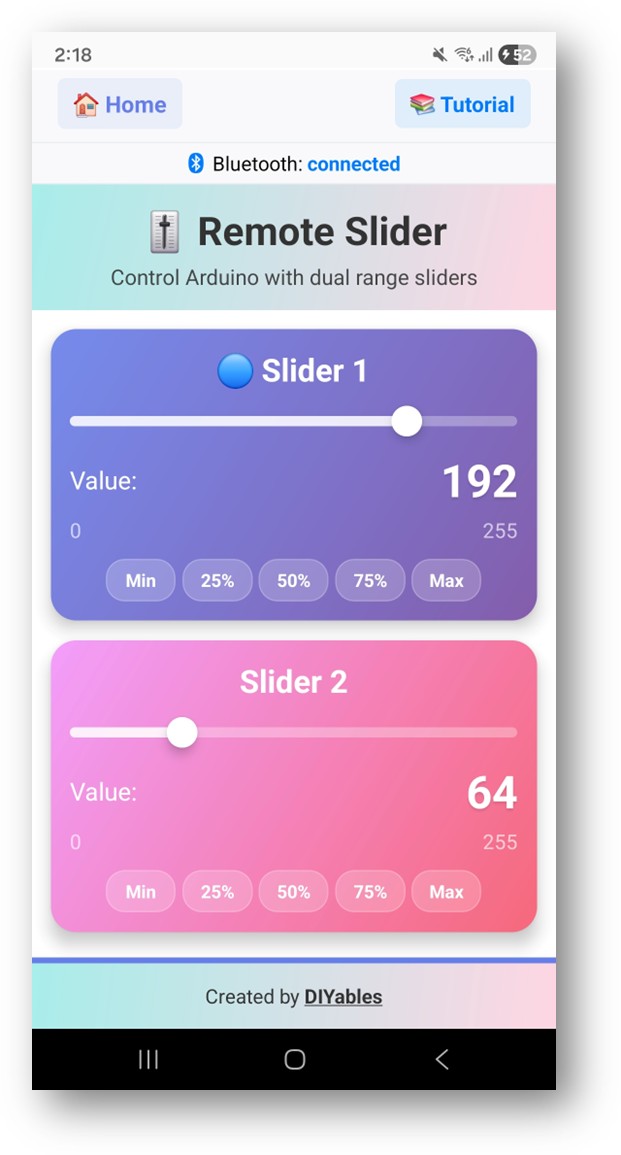
🎚️ Dual analog sliders for PWM and analog control.
What you see:
- Two slider cards (Slider 1 and Slider 2), each with a range of 0–255.
- Current value displayed for each slider.
- Preset buttons: Min, 25%, 50%, 75%, Max.
How to use:
- Connect to your Arduino/ESP32.
- Drag a slider to set a value (e.g., LED brightness, motor speed).
- Or tap a preset button for quick value selection.
- Values are sent to the Arduino immediately.
Arduino example: ArduinoBLE_Slider or UnoR4SliderBLE
Plotter
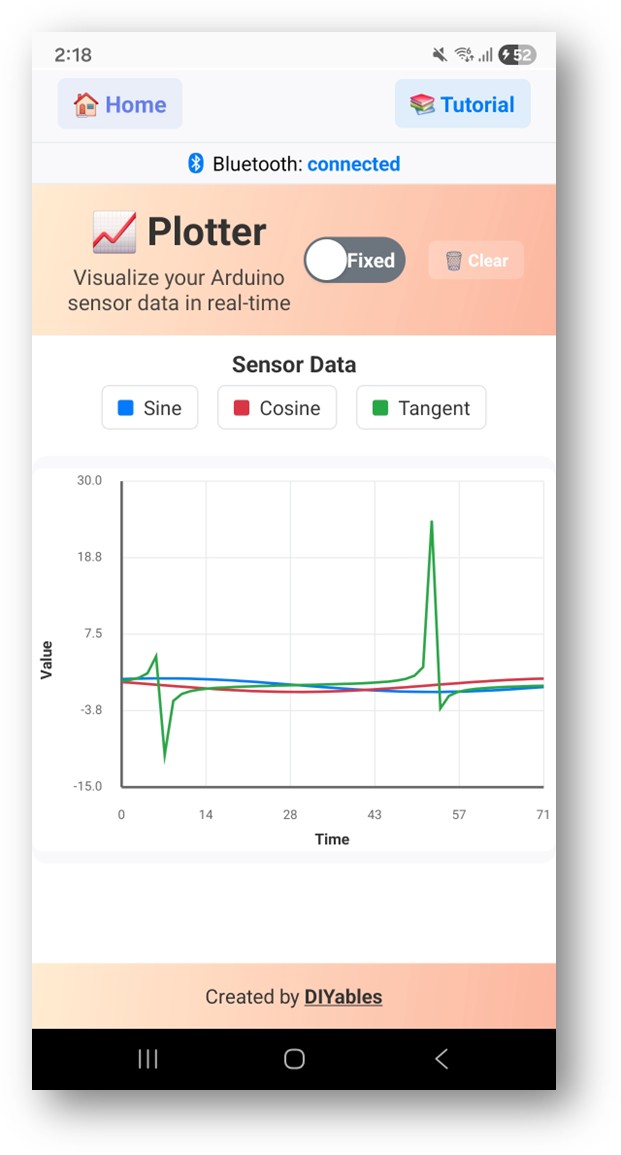
📈 Real-time data visualization and plotting.
What you see:
- A line chart with up to 8 color-coded data series.
- Auto-scaling or fixed Y-axis range.
- Legend showing series names and colors.
- Customizable title and axis labels (configured from Arduino).
How to use:
- Connect to your Arduino/ESP32.
- The Arduino sends comma-separated values (e.g., sensor readings).
- Data is plotted in real-time as it arrives.
- The chart scrolls automatically, showing the most recent data points (default: 50 samples).
Configuration from Arduino:
- Chart title, X/Y axis labels
- Number of data lines and their names
- Y-axis range (auto or fixed min/max)
- Maximum number of samples displayed
Arduino example: ArduinoBLE_Plotter or UnoR4PlotterBLE
Analog Gauge
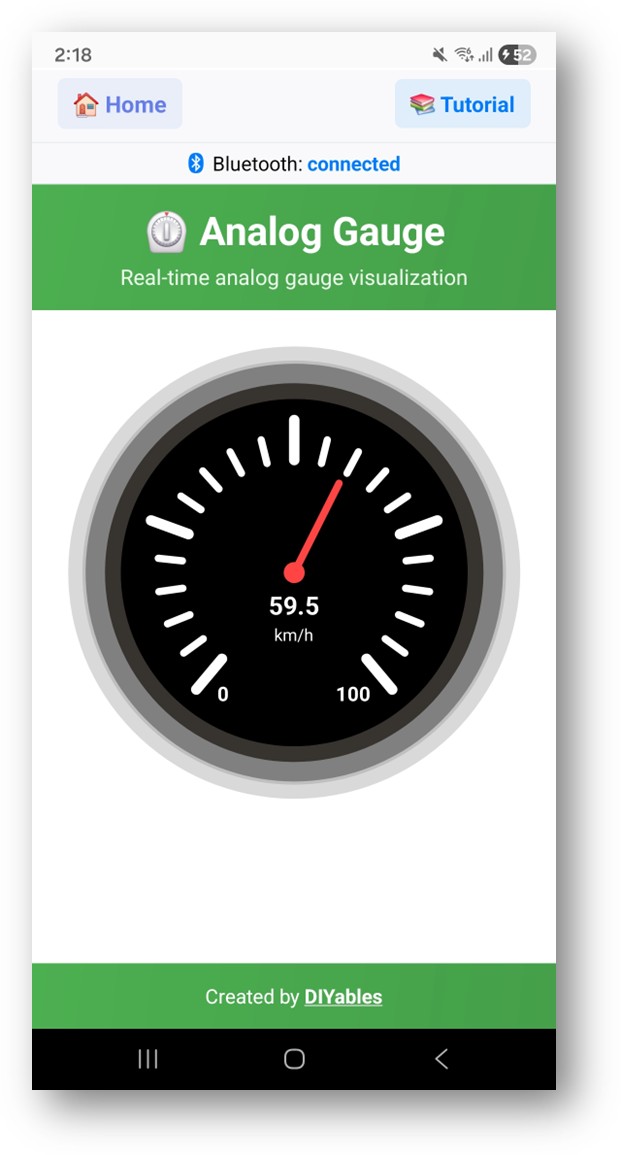
⏲️ Circular analog gauge for sensor monitoring.
What you see:
- A circular gauge with a 280° sweep, tick marks, and value labels.
- A red needle indicating the current sensor value.
- Digital readout in the center showing the exact value and unit.
How to use:
- Connect to your Arduino/ESP32.
- The Arduino sends sensor values (e.g., humidity, pressure, speed).
- The gauge needle and digital display update in real-time.
Configuration from Arduino:
- Minimum and maximum value range
- Display unit (e.g., "%", "kPa", "RPM")
Arduino example: ArduinoBLE_AnalogGauge
Rotator
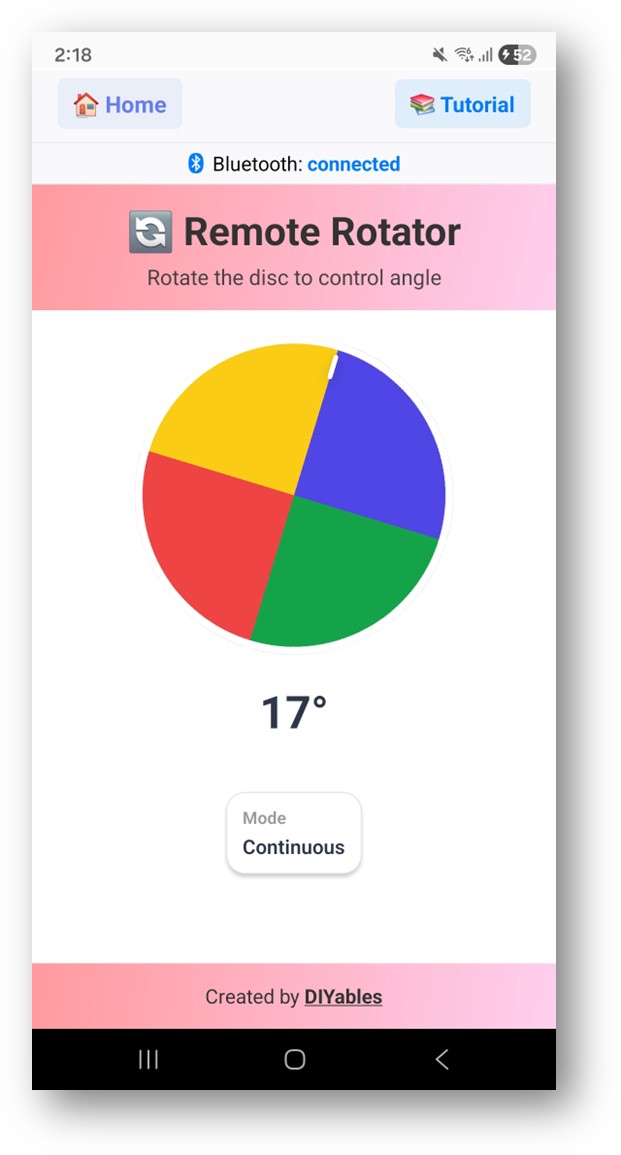
🔄 Rotary angle control for servos and stepper motors.
What you see:
- A colorful rotating disc with four quadrants and a white position indicator.
- Current angle display (in degrees).
- Mode indicator: Continuous (0°–360°) or Limited (custom range).
How to use:
- Connect to your Arduino/ESP32.
- Touch and drag the disc to rotate it.
- The selected angle is sent to the Arduino in real-time.
- The Arduino can configure the rotation mode and angle range.
Modes:
- Continuous: Full 360° rotation.
- Limited: Restricted to a custom angle range (e.g., 0°–180° for standard servos).
Arduino example: ArduinoBLE_Rotator
Temperature
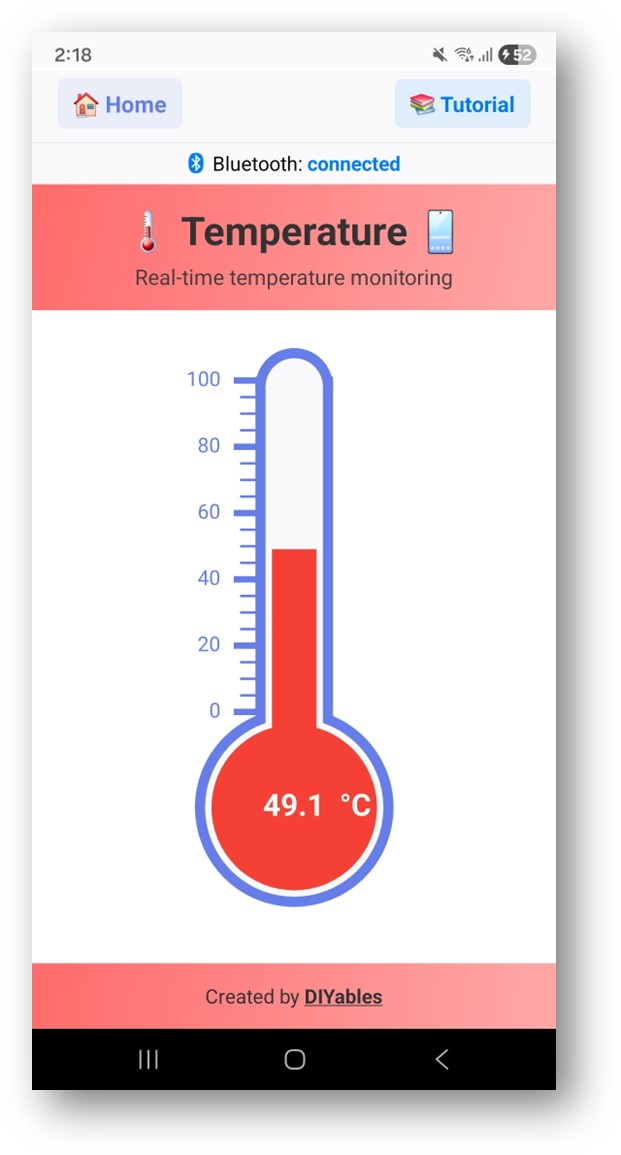
🌡️ Visual thermometer display for temperature monitoring.
What you see:
- A classic thermometer graphic with a bulb, tube, and mercury column.
- Scale markings with temperature labels.
- Digital temperature readout inside the bulb (e.g., "25.0°C").
How to use:
- Connect to your Arduino/ESP32.
- The Arduino sends temperature readings from a sensor.
- The mercury level and digital display update in real-time.
Configuration from Arduino:
- Temperature range (min/max)
- Unit: °C (Celsius), °F (Fahrenheit), or K (Kelvin)
Arduino example: ArduinoBLE_Temperature or UnoR4TemperatureBLE
RTC (Real-Time Clock)
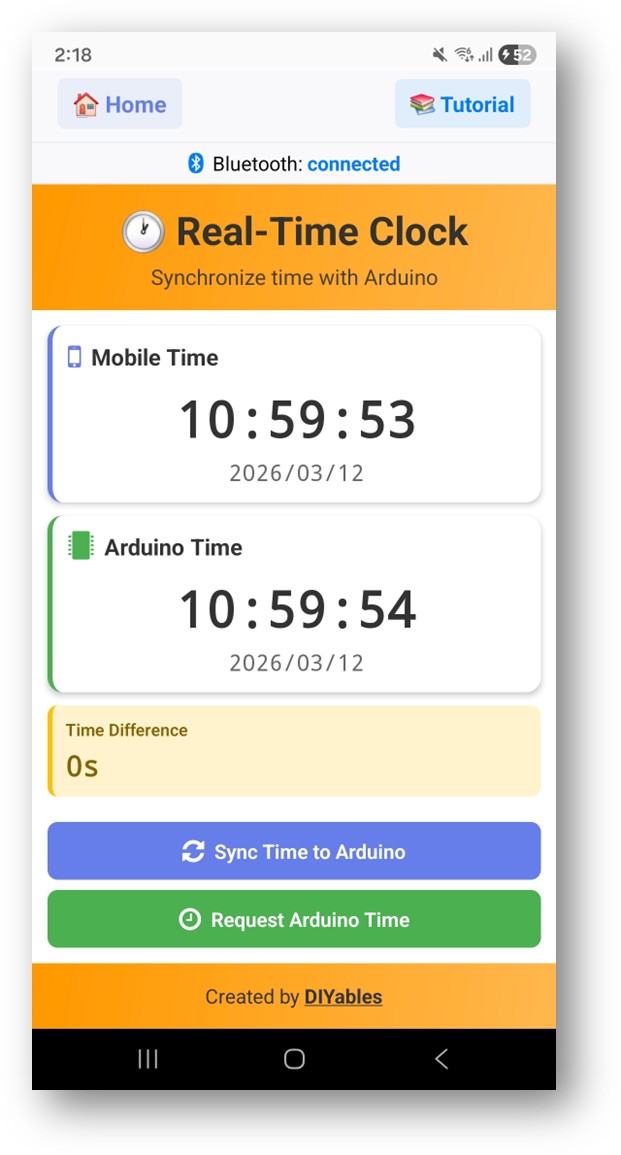
🕐 Synchronize the real-time clock between your phone and Arduino.
What you see:
- Mobile Time Card: Live clock from your phone (updates every second).
- Arduino Time Card: Current time from the Arduino's RTC module.
- Time Difference Card: Shows the sync accuracy between mobile and Arduino.
- Sync Time to Arduino button.
- Request Arduino Time button.
How to use:
- Connect to your Arduino/ESP32 (must have an RTC module, e.g., DS3231).
- Tap "Request Arduino Time" to read the current RTC time.
- Tap "Sync Time to Arduino" to push your phone's current time to the Arduino RTC.
- The time difference card shows how far apart the two clocks are.
Arduino example: ArduinoBLE_RTC
Data Table
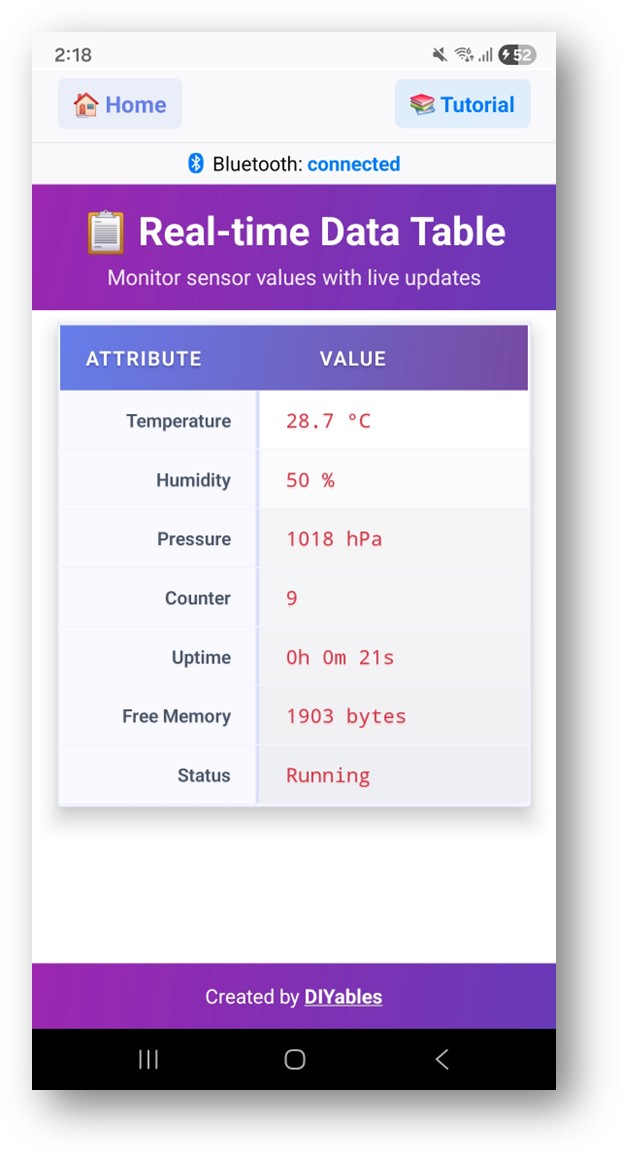
📋 Structured attribute-value data display.
What you see:
- A two-column table: ATTRIBUTE and VALUE.
- Values highlight briefly when they change (red flash for updates, blue for new entries).
How to use:
- Connect to your Arduino/ESP32.
- The Arduino sends structured data (e.g., sensor names and values).
- The table populates and updates in real-time.
- Tap Refresh to request the latest data.
Arduino example: ArduinoBLE_Table
Troubleshooting
App cannot find my device
- Make sure Bluetooth is enabled on your phone.
- Ensure your Arduino/ESP32 is powered on and the Bluetooth sketch is uploaded.
- Move your phone closer to the device (within 10 meters / 30 feet).
- Try restarting Bluetooth on your phone.
- Android 12+: Make sure "Nearby Devices" permission is granted.
- Android 11 and below: Make sure "Location" permission is granted.
- iOS: Make sure "Bluetooth" permission is granted in Settings → DIYables Bluetooth STEM → Bluetooth.
- iOS: Only BLE devices are supported. If your ESP32 sketch uses Classic Bluetooth, switch to a BLE sketch.
Connection drops frequently
- Move closer to your Arduino/ESP32 — BLE range is typically 10–30 meters.
- Reduce interference from other Bluetooth devices and Wi-Fi routers.
- Enable Auto-Reconnect in Settings to reconnect automatically.
- Check that your Arduino sketch is not calling delay() for long periods, which can block Bluetooth communication.
App crashes on launch
- Make sure you have the latest version from the Play Store (Android) or App Store (iOS).
- Android: Clear the app cache: Settings → Apps → DIYables Bluetooth STEM → Clear Cache.
- iOS: Offload and reinstall the app: Settings → General → iPhone Storage → DIYables Bluetooth STEM → Offload App, then reinstall.
- Uninstall and reinstall the app.
No data appearing in the web app
- Verify you are connected (check the status bar on the Home screen).
- Make sure you uploaded the correct Arduino sketch for the web app you're using.
- Open the Monitor app first to verify raw data is being received.
- Check that your Arduino sketch uses the correct protocol prefix (e.g., CHAT:, SLIDER:, PLOTTER:).
ESP32 Classic Bluetooth not working
- Classic Bluetooth is only available on Android — iOS supports BLE only.
- iOS users: Switch to a BLE-based Arduino sketch (e.g., ESP32BLE_Hello instead of ESP32Bluetooth_Hello).
- Make sure you're using an ESP32 board (not ESP32-S3, which may not support Classic BT).
- Pair the device first through Android Bluetooth Settings if needed.
Privacy & Permissions
- Android: The app requests Nearby Devices or Location permissions solely for Bluetooth scanning.
- iOS: The app requests Bluetooth permission solely for BLE scanning and connection.
- We do NOT track your location. Location permission on older Android versions is a system requirement for BLE scanning.
- The app does not collect, store, or transmit any personal data.
- All communication stays between your phone and your Arduino/ESP32 device.
- The app works identically on Android and iOS, except that iOS does not support Bluetooth Classic.
Support
- Website: https://diyables.io
- Arduino Library: DIYables_BluetoothApp on GitHub
- Tutorials: Tap the 📚 Tutorial link inside any web app screen to view the setup guide.
📖 Tutorials
Arduino UNO R4 WiFi
ESP32
Arduino MKR WiFi 1010
Arduino Nano 33 IoT
Arduino Nano ESP32
*Created by DIYables — Making Arduino & ESP32 projects accessible to everyone.*