
Arduino Nano 33 IoT - DIYables Bluetooth App Plotter
Overview
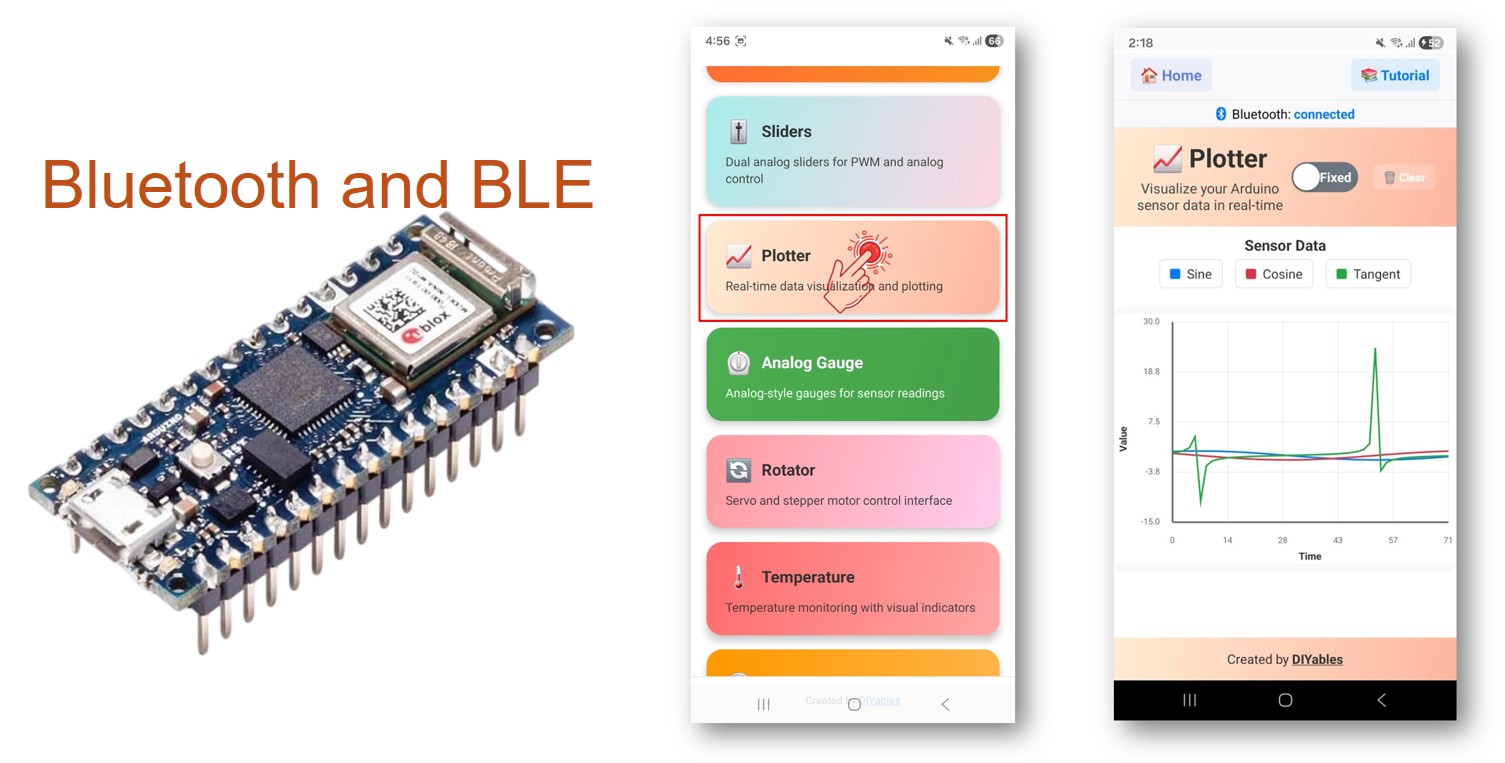
In this tutorial, we are going to learn how to use the Bluetooth Plotter feature with the Arduino Nano 33 IoT. The plotter streams numeric values from your Arduino to the app and draws them as a live scrolling graph on your phone — similar to the Arduino IDE Serial Plotter but fully wireless. The Nano 33 IoT also has a built-in IMU (LSM6DS3), so you can plot accelerometer or gyroscope data straight from the board without any extra sensors.
Note: The Arduino Nano 33 IoT only supports BLE (Bluetooth Low Energy). It does not support Classic Bluetooth. The DIYables Bluetooth App supports both BLE and Classic Bluetooth on Android, and BLE on iOS. Since this board uses BLE, the app works on both Android and iOS.
Features
- Multi-Channel Plotting: Up to 6 data channels simultaneously
- Configurable Axes: Custom titles, labels, and Y-axis range
- Legend Labels: Name each data channel for clarity
- Sample Limit: Set maximum samples to display
- Fast Streaming: Up to 10 updates per second (100ms interval)
- Works on Android & iOS: BLE is supported on both platforms
- No Pairing Required: BLE auto-connects without manual pairing
Hardware Preparation
Or you can buy the following kits:
| 1 | × | DIYables Sensor Kit (18 sensors/displays) |
Additionally, some of these links are for products from our own brand, DIYables .
Arduino Nano 33 IoT Code
Detailed Instructions
Follow these instructions step by step:
- If this is your first time using the Arduino Nano 33 IoT, refer to the Arduino Nano 33 IoT getting started guide.
- Connect the Arduino Nano 33 IoT board to your computer using a Micro USB cable.
- Launch the Arduino IDE on your computer.
- Select Arduino Nano 33 IoT board and the appropriate COM port.
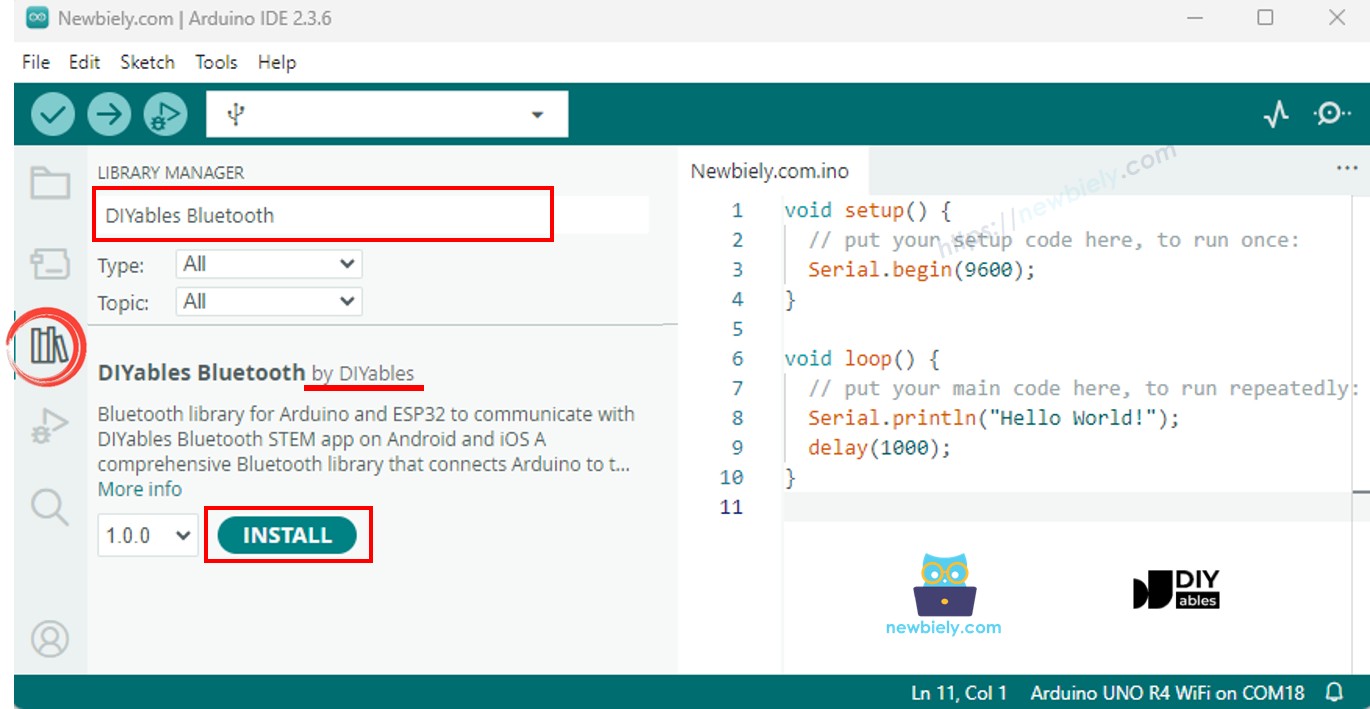
- Navigate to the Libraries icon on the left bar of the Arduino IDE.
- Search "DIYables Bluetooth", then find the DIYables Bluetooth library by DIYables
- Click Install button to install the library.
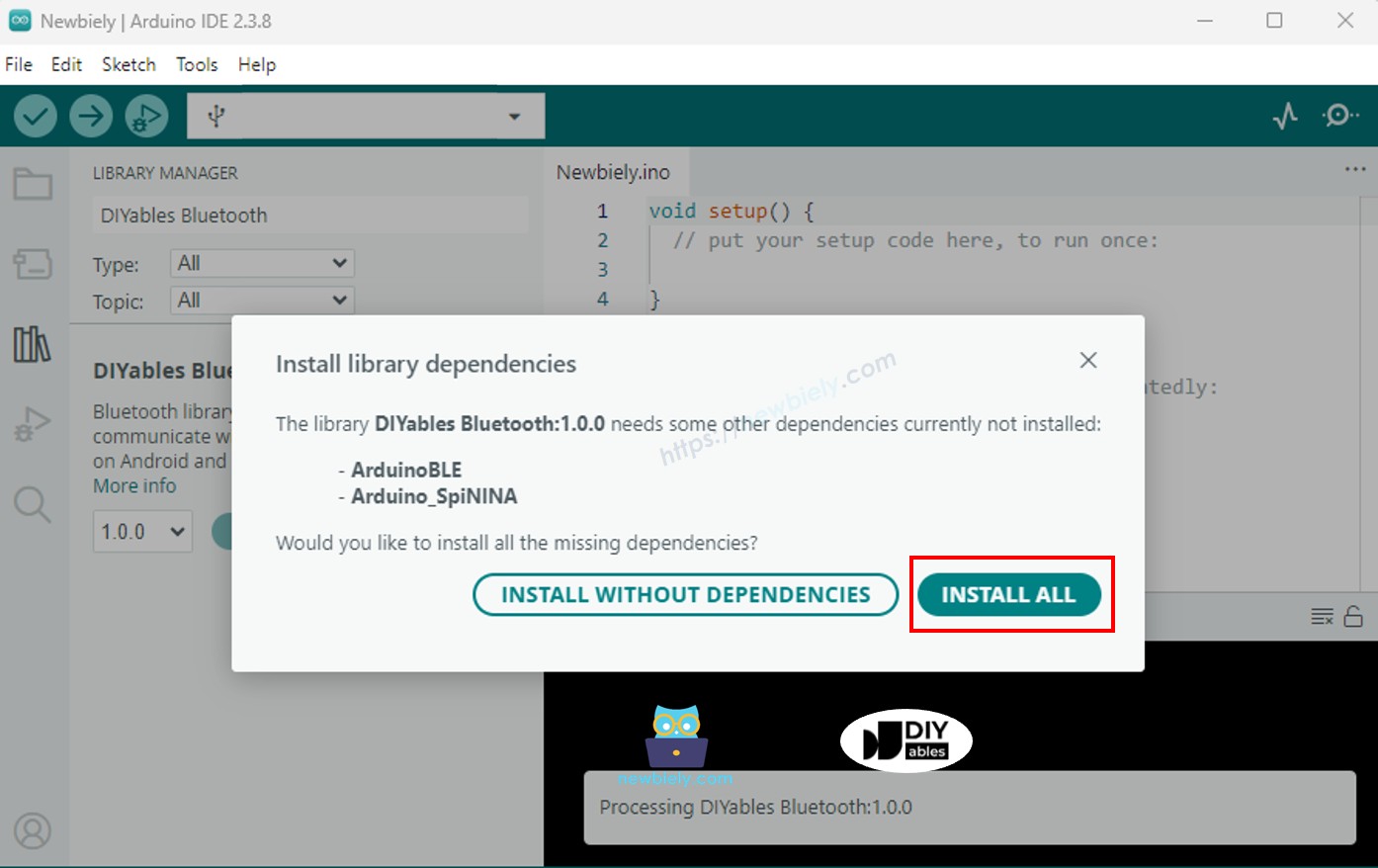
- You will be asked for installing some other library dependencies
- Click Install All button to install all library dependencies.
BLE Code
- On Arduino IDE, Go to File Examples DIYables Bluetooth ArduinoBLE_Plotter example, or copy the above code and paste it to the editor of Arduino IDE
- Click Upload button on Arduino IDE to upload code to Arduino Nano 33 IoT
- Open the Serial Monitor
- Check out the result on Serial Monitor. It looks like the below:
Mobile App
Note: The DIYables Bluetooth App supports both BLE and Classic Bluetooth on Android, and BLE on iOS. Since the Arduino Nano 33 IoT uses BLE, the app works on both Android and iOS. No manual pairing is needed for BLE — just scan and connect.
- Open the DIYables Bluetooth App
- When opening the app for the first time, it will ask for permissions. Please grant the following:
- Nearby Devices permission (Android 12+) / Bluetooth permission (iOS) - required to scan and connect to Bluetooth devices
- Location permission (Android 11 and below only) - required by older Android versions to scan for BLE devices
- Make sure Bluetooth is turned on on your phone
- On the home screen, tap the Connect button. The app will scan for BLE devices.
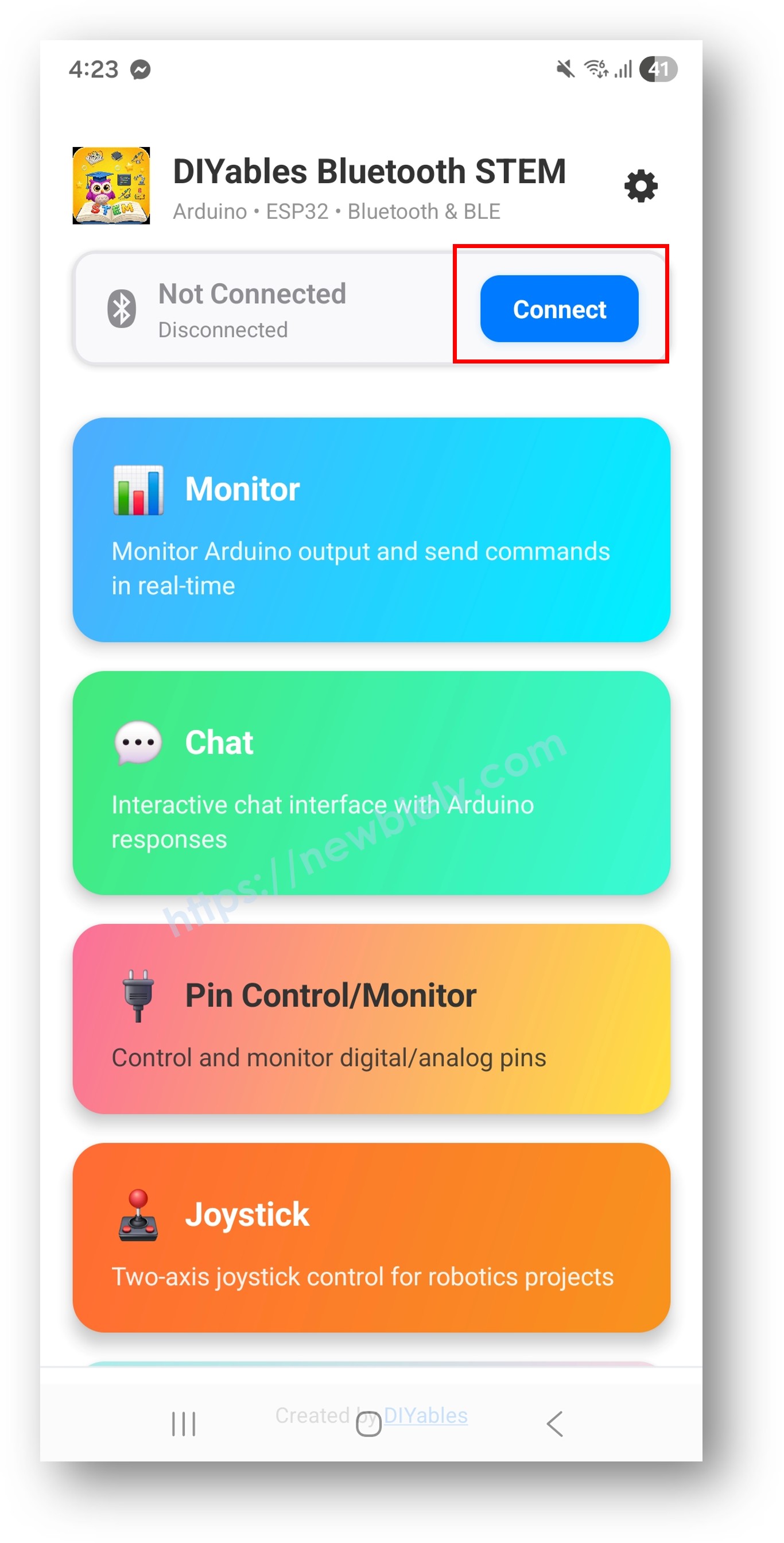
- Find and tap "Arduino_Plotter" in the scan results to connect.
- If not found, please update the firmware for the Bluetooth module following this guide on How to Upgrade the Firmware on Arduino Nano 33 IoT
- Once connected, the app automatically goes back to the home screen. Select the Plotter app from the app menu.
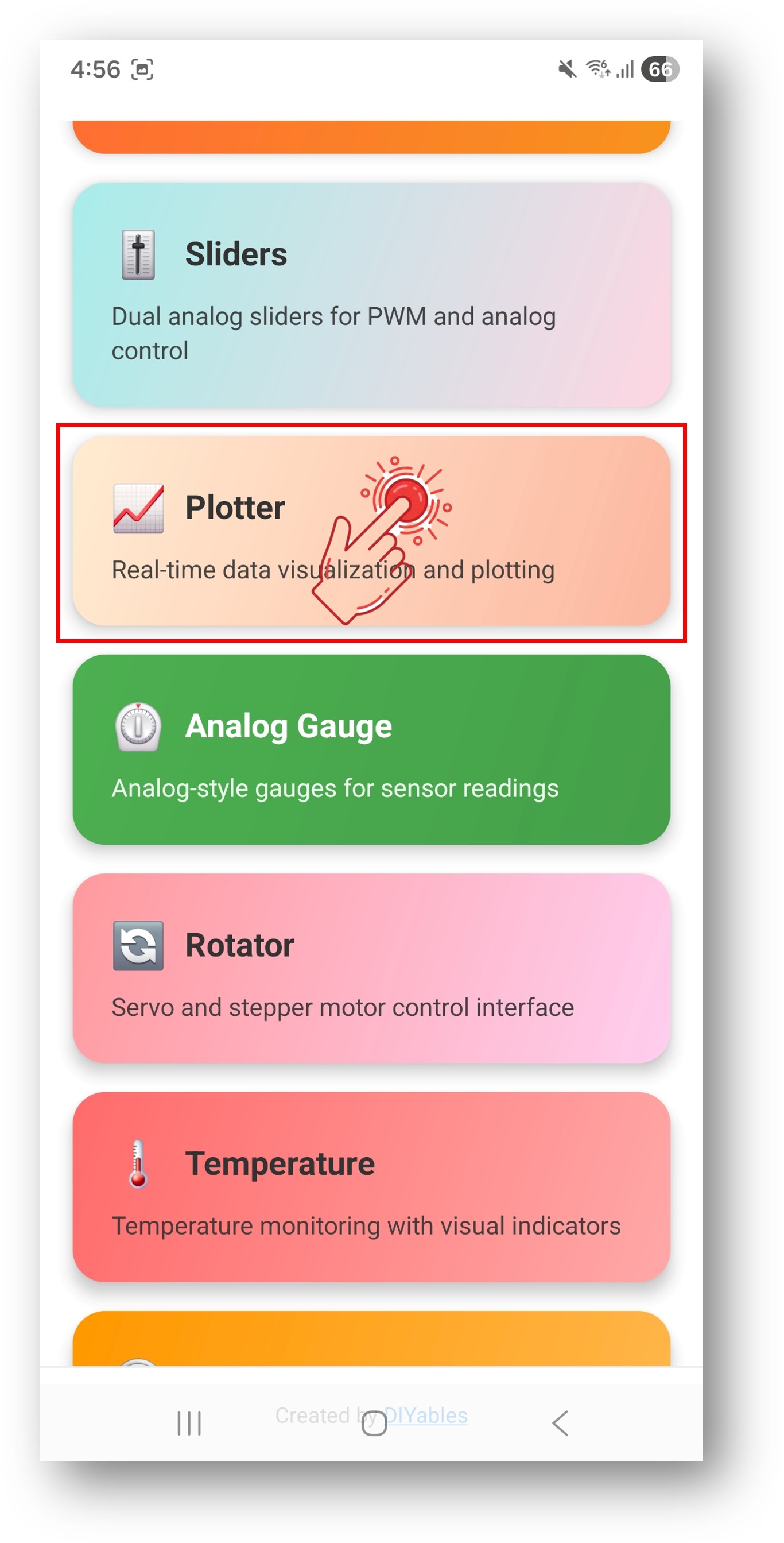
Note: You can tap the settings icon on the home screen to hide/show apps on the home screen. For more details, see the DIYables Bluetooth App User Manual.
- You will see a real-time plot of Sine, Cosine, and Tangent waveforms
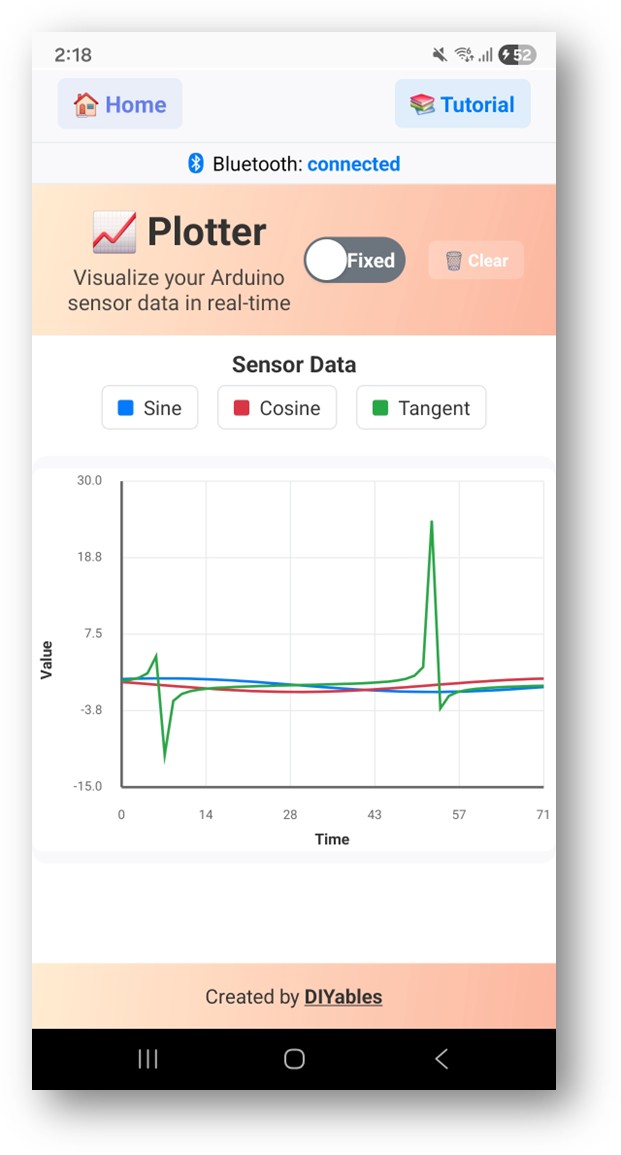
Now look back at the Serial Monitor on Arduino IDE. You will see:
Creative Customization - Adapt the Code to Your Project
Configure Plot Appearance
Send Data Points
Handle Data Request
Programming Examples
Temperature and Humidity Logger
Analog Input Plotter
Troubleshooting
Common Issues
1. Cannot find the device in the app
- Make sure the Arduino Nano 33 IoT is powered on and the sketch is uploaded
- Ensure your phone's Bluetooth is enabled
- On Android 11 and below, also enable Location services
2. Plot not updating
- Verify data is being sent in the loop() function
- Check that bluetoothServer.loop() is called
- Ensure the app is on the Plotter screen
3. Data looks wrong or noisy
- Check sensor wiring and readings
- Verify Y-axis range matches your data range
- Consider adding data smoothing/filtering
4. Plot title or labels not appearing
- Set plot configuration in setup() before connecting
- Make sure onDataRequest callback re-sends config if needed
5. Upload fails or board not recognized
- Install the latest Arduino SAMD Boards package via Boards Manager (≥ 1.8.13)
- Try a different USB cable or port
Project Ideas
- Environmental monitoring (temperature, humidity, pressure)
- Accelerometer/gyroscope data visualization
- Analog sensor calibration tool
- Signal analysis and comparison
- Science experiment data logger
Next Steps
After mastering the Bluetooth Plotter example, try:
- Bluetooth Table - For structured data display
- Bluetooth Monitor - For text-based data display
- Bluetooth Temperature - For gauge-style temperature display
- Multiple Bluetooth Apps - Combining plotter with other apps
Support
For additional help:
- Check the API Reference documentation
- Visit DIYables tutorials
- Arduino community forums