
Arduino MKR WiFi 1010 - DIYables Bluetooth App Chat
Overview
In this tutorial, we are going to learn how to use the Bluetooth Chat feature with the Arduino MKR WiFi 1010. The Arduino MKR WiFi 1010 is a popular choice for IoT projects that combine WiFi connectivity with wireless Bluetooth control. The chat interface lets you send text commands from your smartphone to your Arduino and receive replies back — all over BLE. This is useful for sending text commands to a deployed MKR WiFi 1010 installed inside a panel or enclosure, checking status messages on your phone, or building an interactive interface without needing a USB cable connected to the Serial Monitor.
Note: The Arduino MKR WiFi 1010 only supports BLE (Bluetooth Low Energy) for this library. It does not use Classic Bluetooth with this library. The DIYables Bluetooth App supports both BLE and Classic Bluetooth on Android, and BLE on iOS. Since this board uses BLE, the app works on both Android and iOS.
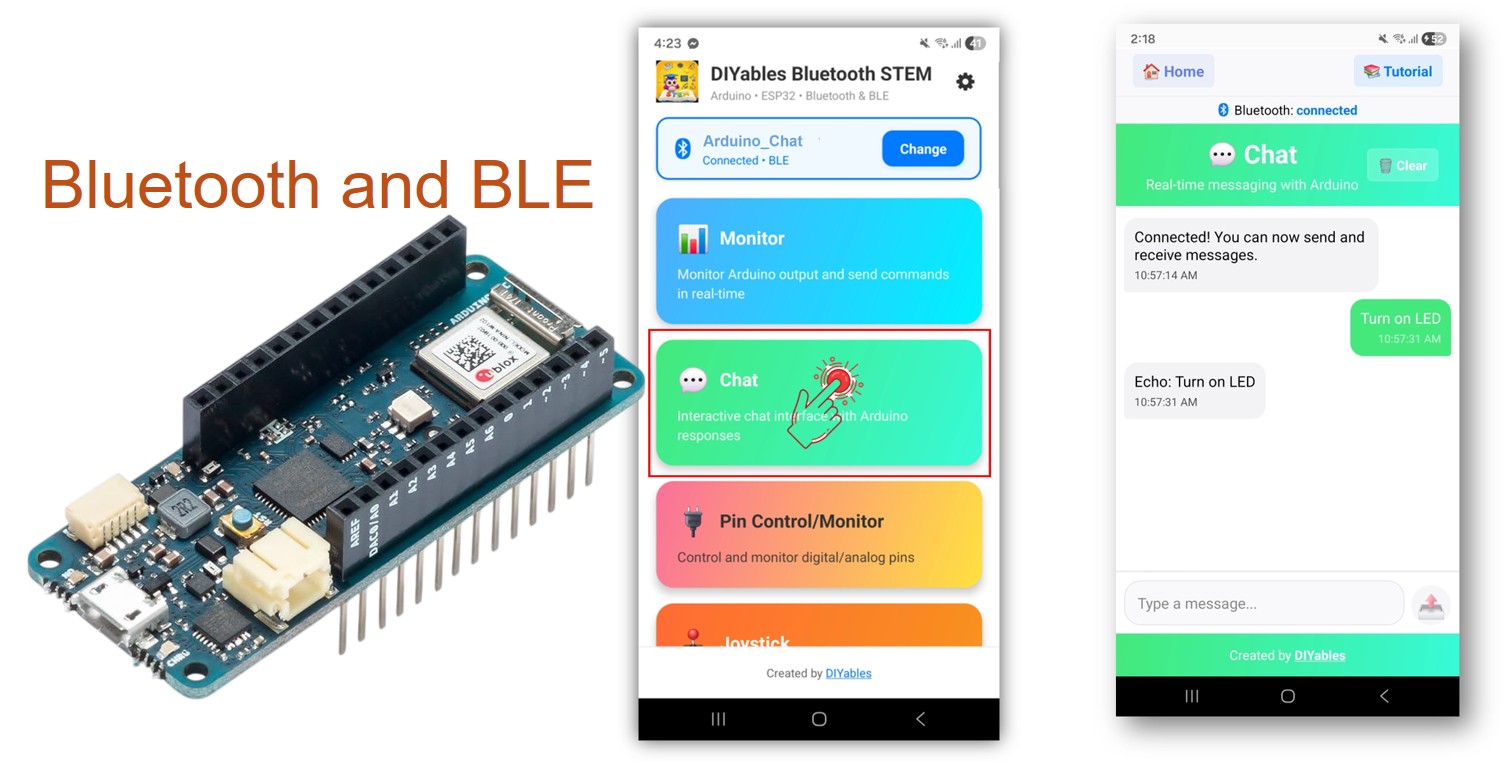
Features
- Two-Way Messaging: Send and receive text messages in real time
- Command Handling: Process text commands from the mobile app
- Serial Bridge: Forward messages between Serial Monitor and Bluetooth
- Custom Responses: Auto-reply with echoes or processed data
- Works on Android & iOS: BLE is supported on both platforms
- No Pairing Required: BLE auto-connects without manual pairing
- Low Power: BLE consumes less power than Classic Bluetooth
Hardware Preparation
| 1 | × | Arduino MKR WiFi 1010 | |
| 1 | × | Micro USB Cable |
Or you can buy the following kits:
| 1 | × | DIYables Sensor Kit (18 sensors/displays) |
Additionally, some of these links are for products from our own brand, DIYables .
Arduino MKR WiFi 1010 Code
Detailed Instructions
Follow these instructions step by step:
- If this is your first time using the Arduino MKR WiFi 1010, refer to the Arduino MKR WiFi 1010 getting started guide.
- Connect the Arduino MKR WiFi 1010 board to your computer using a Micro USB cable.
- Launch the Arduino IDE on your computer.
- Select Arduino MKR WiFi 1010 board and the appropriate COM port.
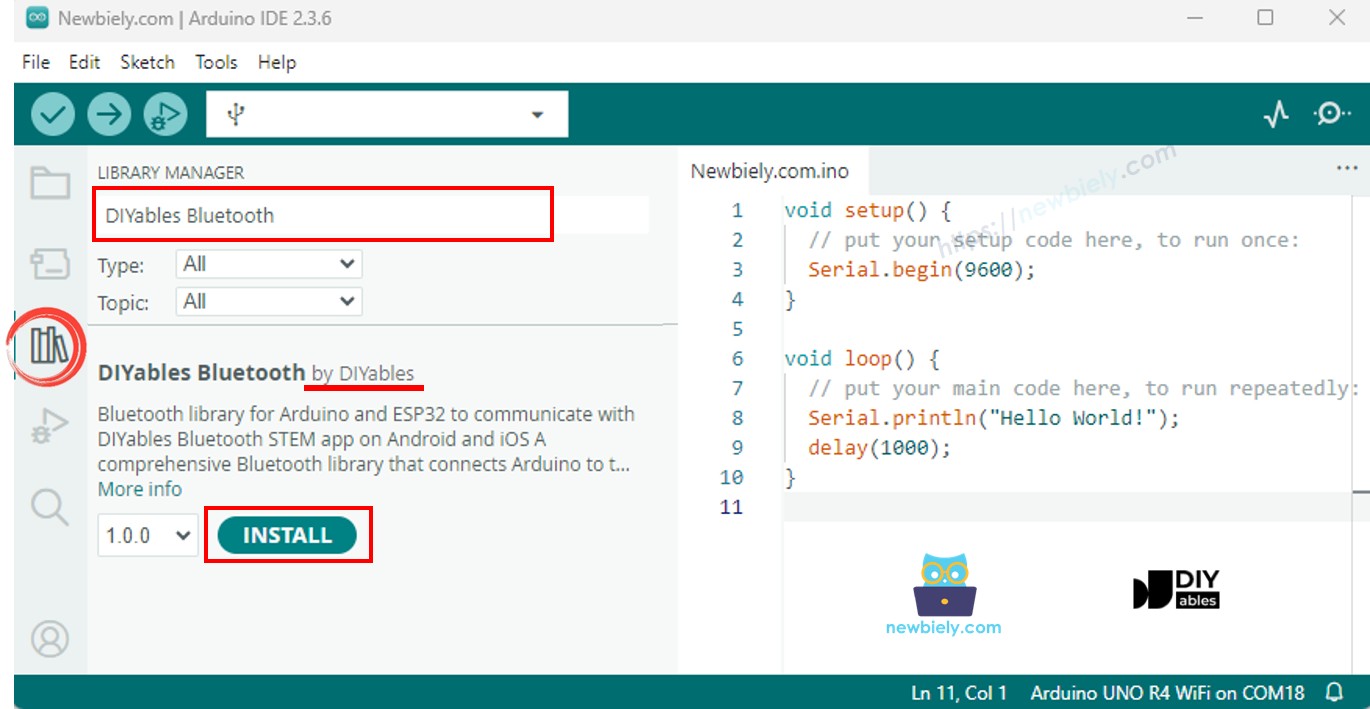
- Navigate to the Libraries icon on the left bar of the Arduino IDE.
- Search "DIYables Bluetooth", then find the DIYables Bluetooth library by DIYables
- Click Install button to install the library.
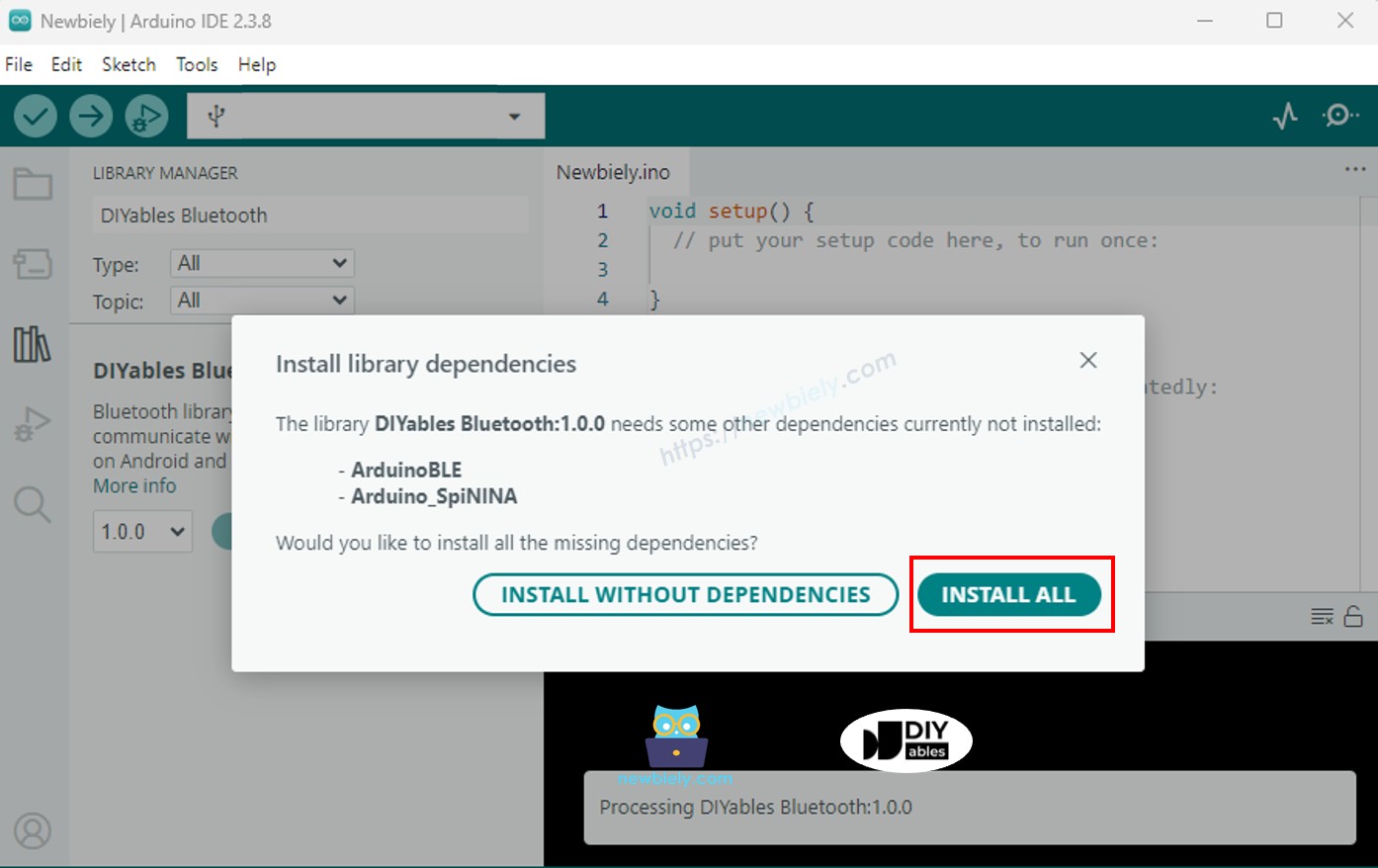
- You will be asked for installing some other library dependencies
- Click Install All button to install all library dependencies.
BLE Code
- On Arduino IDE, Go to File Examples DIYables Bluetooth ArduinoBLE_Chat example, or copy the above code and paste it to the editor of Arduino IDE
- Click Upload button on Arduino IDE to upload code to Arduino MKR WiFi 1010
- Open the Serial Monitor
- Check out the result on Serial Monitor. It looks like the below:
Mobile App
Note: The DIYables Bluetooth App supports both BLE and Classic Bluetooth on Android, and BLE on iOS. Since the Arduino MKR WiFi 1010 uses BLE, the app works on both Android and iOS. No manual pairing is needed for BLE — just scan and connect.
- Open the DIYables Bluetooth App
- When opening the app for the first time, it will ask for permissions. Please grant the following:
- Nearby Devices permission (Android 12+) / Bluetooth permission (iOS) - required to scan and connect to Bluetooth devices
- Location permission (Android 11 and below only) - required by older Android versions to scan for BLE devices
- Make sure Bluetooth is turned on on your phone
- On the home screen, tap the Connect button. The app will scan for BLE devices.
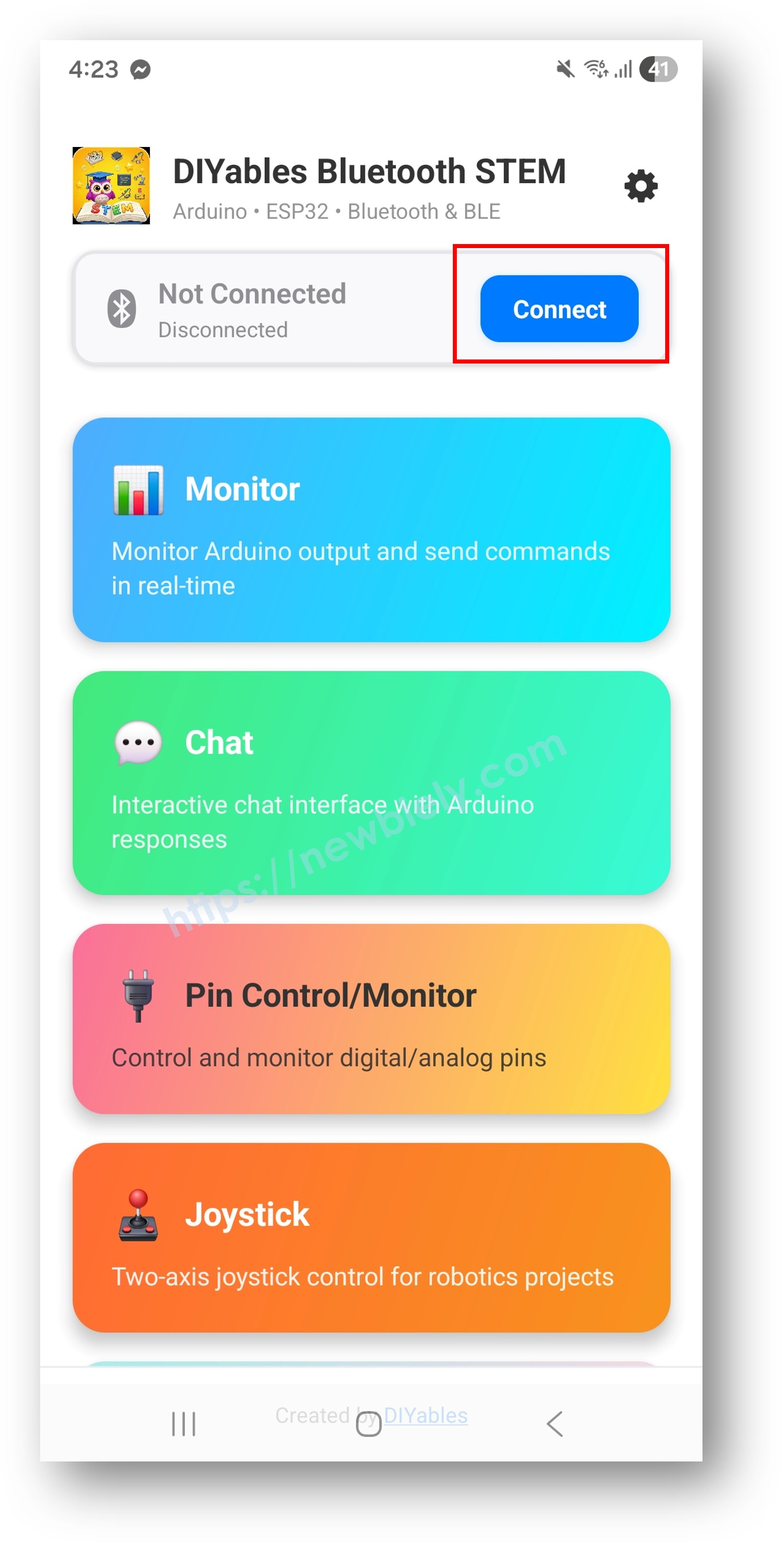
- Find and tap "Arduino_Chat" in the scan results to connect.
- Once connected, the app automatically goes back to the home screen. Select the Chat app from the app menu.
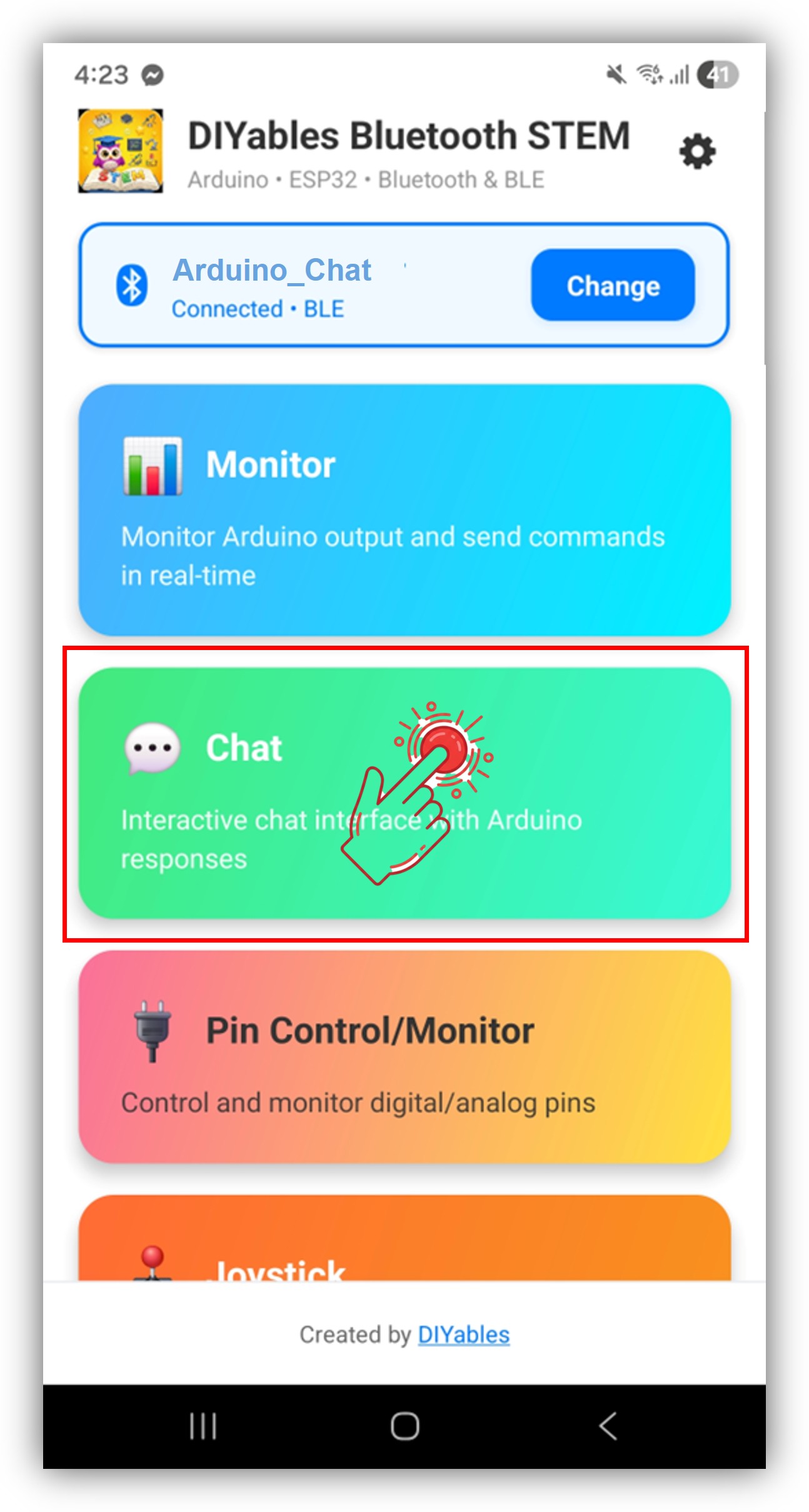
Note: You can tap the settings icon on the home screen to hide/show apps on the home screen. For more details, see the DIYables Bluetooth App User Manual.
- Type a message in the chat input and tap send
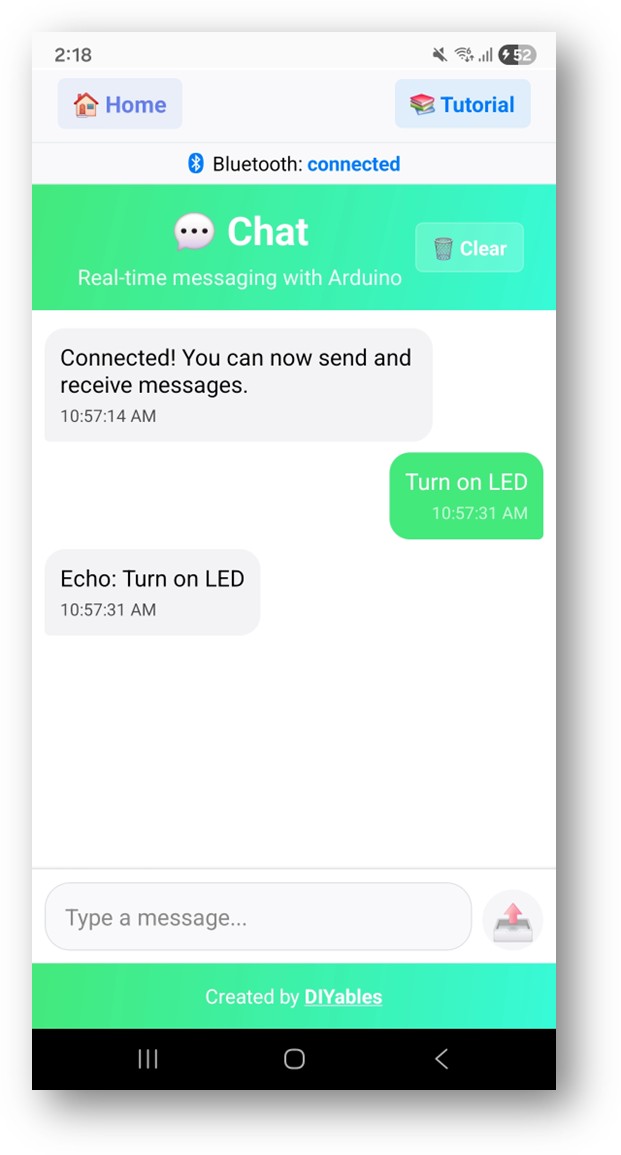
Now look back at the Serial Monitor on Arduino IDE. You will see:
- The Arduino echoes your message back, and you can see the reply in the app chat
Creative Customization - Adapt the Code to Your Project
Handle Chat Messages
Use the onChatMessage() callback to receive and process messages typed in the app. You can define any custom command words that make sense for your project — the Arduino will react accordingly:
You can add as many custom commands as you need by adding more else if blocks. For example, add LED_ON / LED_OFF to control a pin, or READ to trigger a sensor reading — any word you type in the app becomes a command.
Send Messages from Arduino
Serial-to-Bluetooth Bridge
Forward messages between Serial Monitor and Bluetooth:
Handle Connection Events
How to Use the Chat
App Interface
The chat interface in the DIYables Bluetooth App provides:
- Message List: Shows sent and received messages with timestamps
- Text Input: Type messages to send to the Arduino
- Send Button: Tap to send the message
Communication Flow
- Type a message in the app → Arduino receives it via onChatMessage() callback
- Arduino processes the message and optionally sends a reply via bluetoothChat.send()
- The reply appears in the app chat window
Programming Examples
Command Handler with Relay Control
Sensor Query System
Periodic Status Updates
Advanced Programming Techniques
Multi-Word Command Parsing
Chat Logger with Timestamps
Troubleshooting
Common Issues
1. Cannot find the device in the app
- Make sure the Arduino MKR WiFi 1010 is powered on and the sketch is uploaded
- Ensure your phone's Bluetooth is enabled
- On Android 11 and below, also enable Location services
- Try restarting Bluetooth on your phone
2. Messages not received by Arduino
- Check Bluetooth connection status in the app
- Verify the onChatMessage callback is set up correctly
- Check Serial Monitor for any error messages
3. Arduino replies not showing in app
- Ensure bluetoothChat.send() is being called
- Check that bluetoothServer.loop() is called in the main loop
- Verify connection is still active with bluetooth.isConnected()
4. Serial Monitor shows garbled text
- Ensure baud rate in Serial Monitor matches Serial.begin(9600)
- Check that the correct board is selected in Arduino IDE
5. Connection drops frequently
- Move closer to the Arduino (reduce distance)
- Check for interference from other BLE devices
- Ensure stable USB power supply
6. Upload fails or board not recognized
- Install the latest Arduino SAMD Boards package via Boards Manager (≥ 1.8.13)
- Try a different USB cable or port
- Press the reset button on the board before uploading
Project Ideas
Communication
- Text command interface for home automation
- Serial-to-Bluetooth bridge for wireless debugging
- Remote sensor query system
- Interactive quiz or trivia game
Control Systems
- Voice-to-text relay control
- Multi-device command router
- Configuration manager via chat commands
- Firmware version reporter
Logging & Monitoring
- Event logger with timestamps
- Alarm notification system