Arduino Nano ESP32 - DIYables Bluetooth App Monitor

Overview

This example implements a wireless serial monitor on the Arduino Nano ESP32 using BLE (Bluetooth Low Energy) via the DIYables Bluetooth STEM app. Stream real-time status messages, debug output, and sensor readings wirelessly to a smartphone, and receive text commands from the app. Suitable for wireless debugging, remote monitoring, and system logging.

Note: The Arduino Nano ESP32 supports BLE only — Classic Bluetooth is not supported. The DIYables Bluetooth App works on both Android and iOS with BLE.
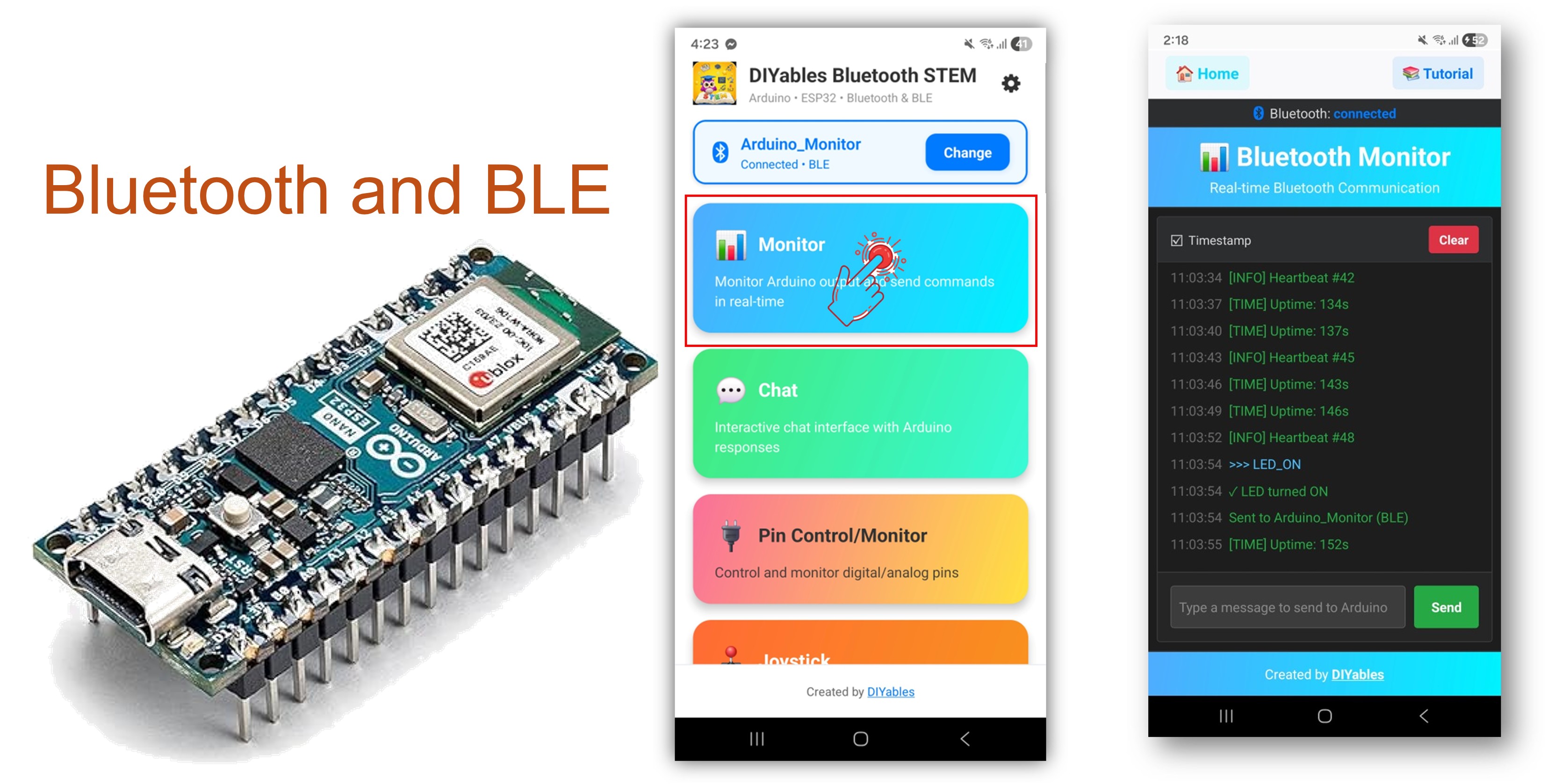
Arduino Nano ESP32 Bluetooth Monitor Example - Wireless Serial Monitor via BLE Tutorial

Features

  • Wireless Serial Monitor: Stream text messages to your smartphone
  • Two-Way Communication: Send commands from the app to the Arduino
  • Real-Time Streaming: Continuous output, similar to a wired Serial Monitor
  • Command Handling: Process text commands received from the app
  • Android & iOS Support: BLE is compatible with both platforms
  • No Pairing Required: BLE connects without manual pairing
  • Low Power: BLE consumes less power than Classic Bluetooth

Hardware Preparation

1×Arduino Nano ESP32
1×USB Cable Type-A to Type-C (for USB-A PC)
1×USB Cable Type-C to Type-C (for USB-C PC)
1×Recommended: Screw Terminal Expansion Board for Arduino Nano
1×Recommended: Breakout Expansion Board for Arduino Nano
1×Recommended: Power Splitter for Arduino Nano ESP32

Or you can buy the following kits:

1×DIYables Sensor Kit (30 sensors/displays)
1×DIYables Sensor Kit (18 sensors/displays)
Disclosure: Some of the links provided in this section are Amazon affiliate links. We may receive a commission for any purchases made through these links at no additional cost to you.
Additionally, some of these links are for products from our own brand, DIYables .

Arduino Nano ESP32 Code

Detailed Instructions

  • New to the Arduino Nano ESP32? Start with the Arduino Nano ESP32 getting started guide.
  • Connect the Arduino Nano ESP32 to your computer via USB.
  • Open Arduino IDE.
  • Select the Arduino Nano ESP32 board and the correct COM port.
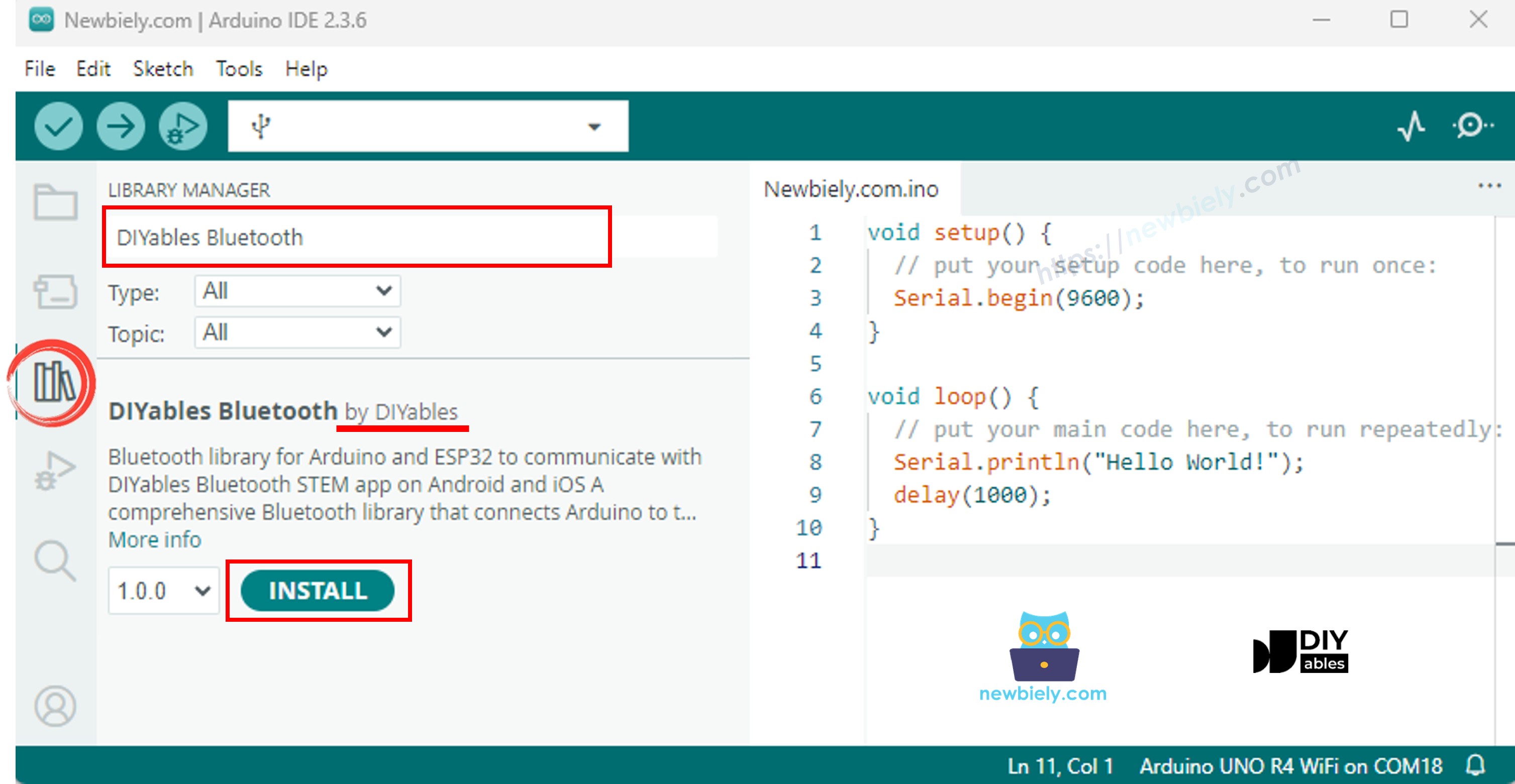
  • Click the Libraries icon in the left sidebar.
  • Search for "DIYables Bluetooth" and select the DIYables Bluetooth library by DIYables.
  • Click Install.
Arduino Nano ESP32 DIYables Bluetooth library
  • When prompted to install dependencies, click Install All.
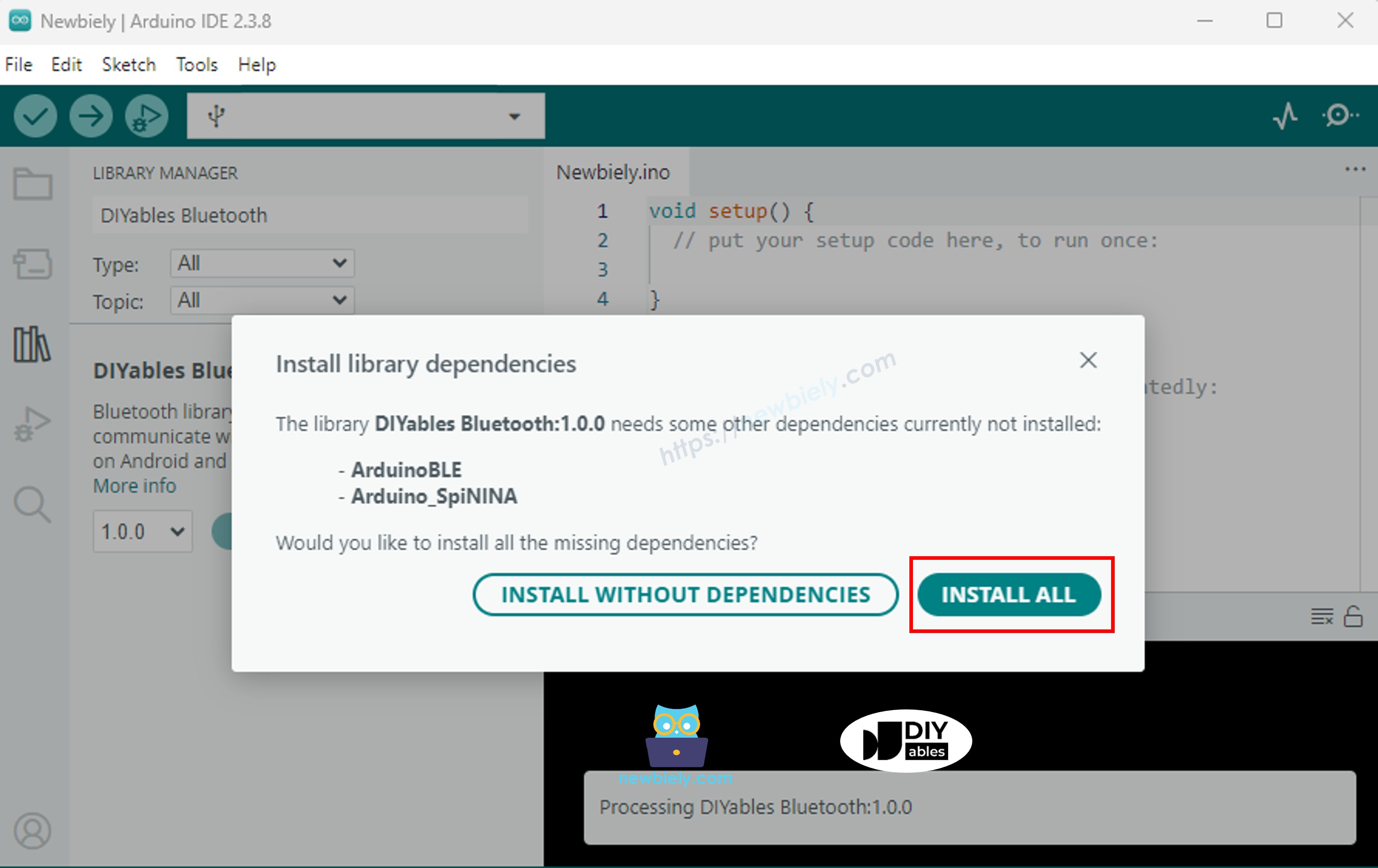
Arduino Nano ESP32 DIYables Bluetooth dependency

BLE Code

  • In Arduino IDE, open File Examples DIYables Bluetooth ArduinoBLE_Monitor, or paste the code into the editor.
/* * DIYables Bluetooth Library - ESP32 BLE Monitor Example * Works with DIYables Bluetooth STEM app on Android and iOS * * Tutorial: https://diyables.io/bluetooth-app * Author: DIYables */ #include <DIYables_BluetoothServer.h> #include <DIYables_BluetoothMonitor.h> #include <platforms/DIYables_Esp32BLE.h> // BLE Configuration const char* DEVICE_NAME = "ESP32BLE_Monitor"; const char* SERVICE_UUID = "19B10000-E8F2-537E-4F6C-D104768A1214"; const char* TX_UUID = "19B10001-E8F2-537E-4F6C-D104768A1214"; const char* RX_UUID = "19B10002-E8F2-537E-4F6C-D104768A1214"; // Create Bluetooth instances DIYables_Esp32BLE bluetooth(DEVICE_NAME, SERVICE_UUID, TX_UUID, RX_UUID); DIYables_BluetoothServer bluetoothServer(bluetooth); // Create Monitor app instance DIYables_BluetoothMonitor bluetoothMonitor; // Variables for demo unsigned long lastUpdate = 0; const unsigned long UPDATE_INTERVAL = 3000; int messageCount = 0; bool ledState = false; void setup() { Serial.begin(115200); delay(1000); Serial.println("DIYables Bluetooth - ESP32 BLE Monitor Example"); // Initialize built-in LED pinMode(2, OUTPUT); // ESP32 built-in LED is usually on GPIO 2 digitalWrite(2, LOW); // Initialize Bluetooth server with platform-specific implementation bluetoothServer.begin(); // Add monitor app to server bluetoothServer.addApp(&bluetoothMonitor); // Set up connection event callbacks bluetoothServer.setOnConnected([]() { Serial.println("Bluetooth connected!"); bluetoothMonitor.send("=== ESP32 BLE Monitor Connected ==="); bluetoothMonitor.send("System Ready"); bluetoothMonitor.send("Type HELP for available commands"); bluetoothMonitor.send(""); }); bluetoothServer.setOnDisconnected([]() { Serial.println("Bluetooth disconnected!"); }); // Set up message handler for incoming commands bluetoothMonitor.onMonitorMessage([](const String& message) { Serial.print("Received command: "); Serial.println(message); handleCommand(message); }); Serial.println("Waiting for Bluetooth connection..."); } void handleCommand(const String& cmd) { if (cmd == "HELP") { bluetoothMonitor.send("Available Commands:"); bluetoothMonitor.send(" LED_ON - Turn LED on"); bluetoothMonitor.send(" LED_OFF - Turn LED off"); bluetoothMonitor.send(" STATUS - Show system status"); bluetoothMonitor.send(" HEAP - Show free heap memory"); bluetoothMonitor.send(" HELP - Show this help"); } else if (cmd == "LED_ON") { digitalWrite(2, HIGH); ledState = true; bluetoothMonitor.send("LED turned ON"); } else if (cmd == "LED_OFF") { digitalWrite(2, LOW); ledState = false; bluetoothMonitor.send("LED turned OFF"); } else if (cmd == "STATUS") { showStatus(); } else if (cmd == "HEAP") { bluetoothMonitor.send("Free heap: " + String(ESP.getFreeHeap()) + " bytes"); } else { bluetoothMonitor.send("Unknown command: " + cmd); bluetoothMonitor.send("Type HELP for available commands"); } } void showStatus() { bluetoothMonitor.send("=== System Status ==="); bluetoothMonitor.send("LED State: " + String(ledState ? "ON" : "OFF")); unsigned long uptime = millis() / 1000; bluetoothMonitor.send("Uptime: " + String(uptime / 3600) + "h " + String((uptime % 3600) / 60) + "m " + String(uptime % 60) + "s"); bluetoothMonitor.send("Free Heap: " + String(ESP.getFreeHeap()) + " bytes"); bluetoothMonitor.send("Messages Sent: " + String(messageCount)); bluetoothMonitor.send("===================="); } void sendPeriodicUpdate() { messageCount++; if (messageCount % 3 == 0) { bluetoothMonitor.send("[INFO] Heartbeat #" + String(messageCount)); } else if (messageCount % 5 == 0) { bluetoothMonitor.send("[HEAP] Free: " + String(ESP.getFreeHeap()) + " bytes"); } else { bluetoothMonitor.send("[TIME] Uptime: " + String(millis() / 1000) + "s"); } Serial.print("Sent update #"); Serial.println(messageCount); } void loop() { bluetoothServer.loop(); if (bluetooth.isConnected() && millis() - lastUpdate >= UPDATE_INTERVAL) { lastUpdate = millis(); sendPeriodicUpdate(); } delay(10); }
  • Click Upload to flash the sketch to the board.
  • Open the Serial Monitor.
  • The Serial Monitor output should look like:
COM6
Send
DIYables Bluetooth - Monitor Example Waiting for Bluetooth connection...
Autoscroll Show timestamp
Clear output
9600 baud  
Newline  

Mobile App

  • Install the DIYables Bluetooth App on your smartphone: Android | iOS

Note: The DIYables Bluetooth App works on both Android and iOS with BLE. No manual pairing is required.

  • Launch the DIYables Bluetooth App.
  • On first launch, grant the following permissions:
    • Nearby Devices (Android 12+) / Bluetooth (iOS) — required to scan and connect to Bluetooth devices
    • Location (Android 11 and below only) — required by older Android versions to scan for BLE
  • Ensure Bluetooth is enabled on your device.
  • Tap Connect on the home screen. The app will scan for BLE devices.
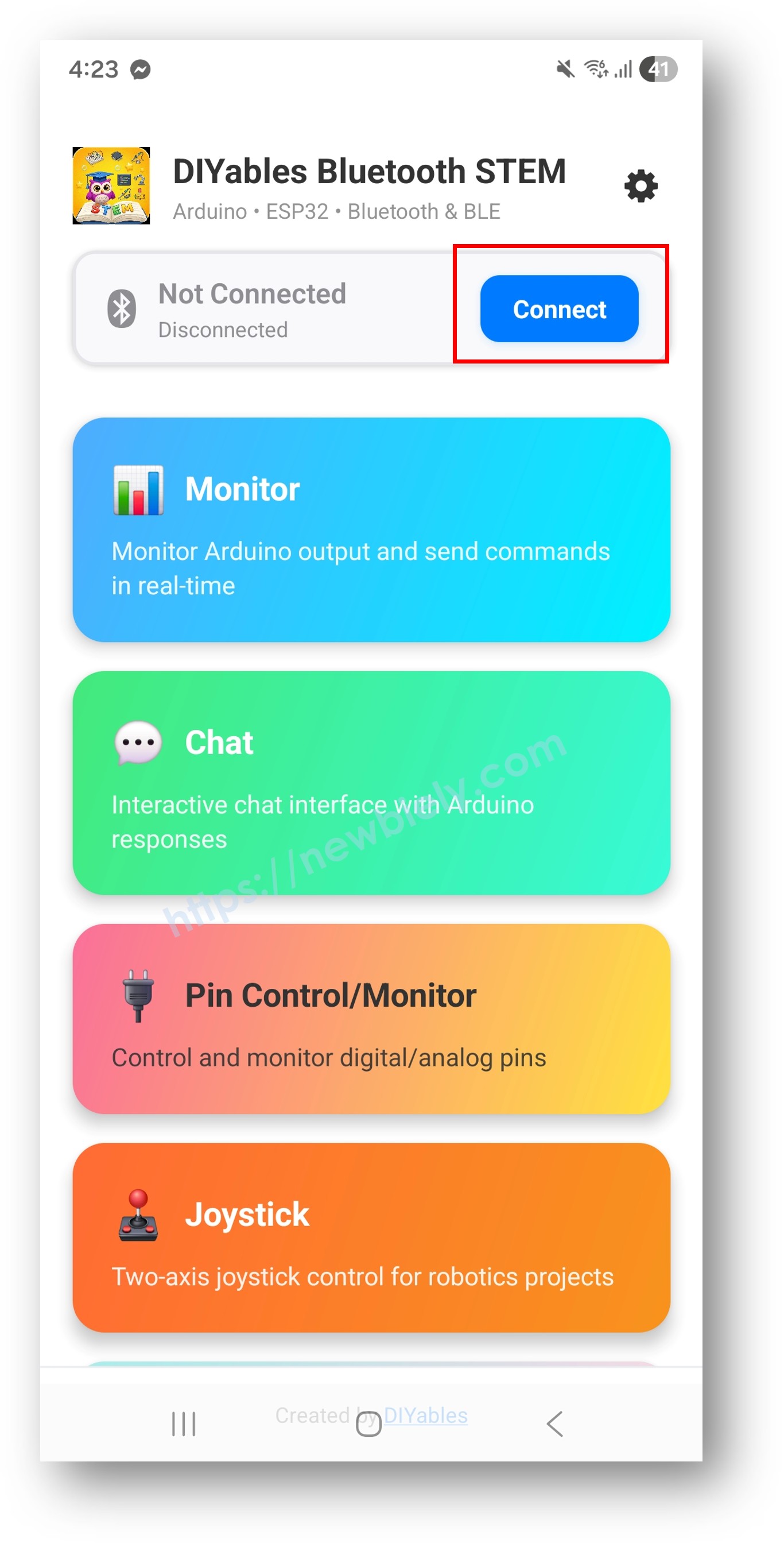
DIYables Bluetooth App - Home Screen with Scan Button
  • Tap "Arduino_Monitor" in the scan results.
  • After connecting, return to the home screen and open the Monitor app.
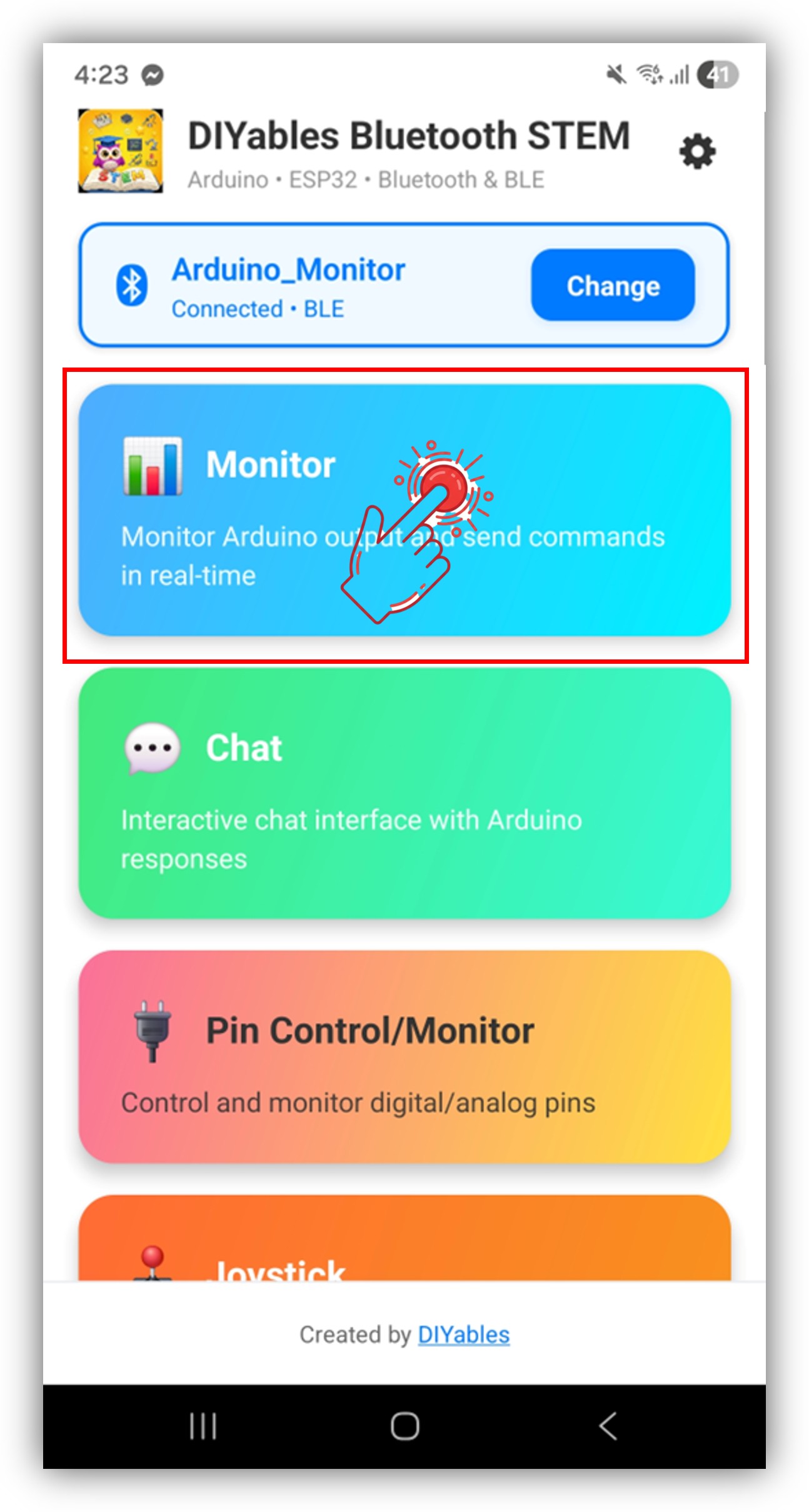
DIYables Bluetooth App - Home Screen with Monitor App

Tap the settings icon on the home screen to show or hide apps. See the DIYables Bluetooth App User Manual for details.

  • Status messages will stream in the monitor display.
  • Type LED_ON in the input field and tap Send — the built-in LED on the Arduino Nano ESP32 will turn on, and the monitor will display a confirmation.
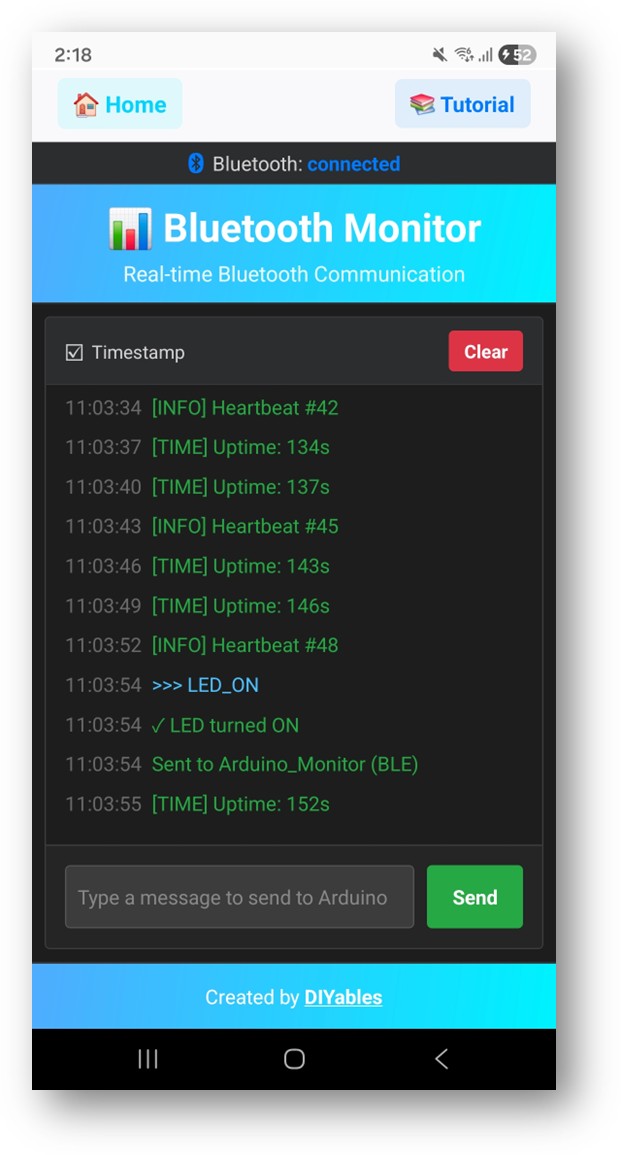
DIYables Bluetooth App - Monitor Screen

Now look back at the Serial Monitor on Arduino IDE. You will see:

COM6
Send
Bluetooth connected! Sent update #1 Sent update #2 Sent update #3
Autoscroll Show timestamp
Clear output
9600 baud  
Newline  

Creative Customization - Adapt the Code to Your Project

Send Messages

// Send text messages to the app bluetoothMonitor.send("System started"); bluetoothMonitor.send("Temperature: " + String(temp, 1) + " °C"); bluetoothMonitor.send("[ERROR] Sensor disconnected!");

Handle Incoming Commands

Use the onMonitorMessage() callback to receive and process commands typed in the Monitor app:

bluetoothMonitor.onMonitorMessage([](const String& message) { Serial.print("Received: "); Serial.println(message); if (message == "HELP") { bluetoothMonitor.send("Commands: LED_ON, LED_OFF, STATUS, HELP"); } else if (message == "LED_ON") { digitalWrite(LED_BUILTIN, HIGH); bluetoothMonitor.send("LED turned ON"); } else if (message == "LED_OFF") { digitalWrite(LED_BUILTIN, LOW); bluetoothMonitor.send("LED turned OFF"); } else if (message == "STATUS") { bluetoothMonitor.send("Uptime: " + String(millis() / 1000) + "s"); bluetoothMonitor.send("LED: " + String(digitalRead(LED_BUILTIN) ? "ON" : "OFF")); } else { bluetoothMonitor.send("Unknown command: " + message); } });

Add additional else if blocks for each command. For example, use RELAY_ON / RELAY_OFF to control a relay, or READ to trigger a sensor reading.

Programming Examples

Sensor Status Streaming

void loop() { bluetoothServer.loop(); static unsigned long lastUpdate = 0; if (bluetooth.isConnected() && millis() - lastUpdate >= 3000) { lastUpdate = millis(); int light = analogRead(A0); float voltage = analogRead(A1) * 5.0 / 1023.0; bluetoothMonitor.send("[SENSOR] Light: " + String(map(light, 0, 1023, 0, 100)) + "%"); bluetoothMonitor.send("[SENSOR] Voltage: " + String(voltage, 2) + "V"); bluetoothMonitor.send("[INFO] Uptime: " + String(millis() / 1000) + "s"); } delay(10); }

Event-Based Logging

const int BUTTON_PIN = 7; int lastButtonState = HIGH; void loop() { bluetoothServer.loop(); int buttonState = digitalRead(BUTTON_PIN); if (buttonState != lastButtonState) { lastButtonState = buttonState; if (buttonState == LOW) { bluetoothMonitor.send("[EVENT] Button pressed!"); } else { bluetoothMonitor.send("[EVENT] Button released"); } } delay(10); }

Troubleshooting

Common Issues

1. Device not visible in the app

  • Confirm the board is powered on and the sketch is uploaded
  • Verify Bluetooth is enabled on your phone
  • On Android 11 and below, enable Location services as well

2. No messages appearing in the app

  • Confirm bluetoothMonitor.send() is being called
  • Verify bluetoothServer.loop() is present in the main loop
  • Check the connection in Serial Monitor

3. Messages are delayed

  • Reduce the update interval for more frequent messages
  • Avoid sending too many messages in rapid succession (BLE has bandwidth limits)

4. Commands from the app not received

  • Confirm the onMonitorMessage callback is registered
  • Check Serial Monitor for received command output

5. Connection drops frequently

  • Reduce distance to the Arduino
  • Ensure a stable USB power supply

6. Upload fails or board not recognized

  • Install the latest Arduino Nano ESP32 board package via Board Manager
  • Try a different USB cable or port

Project Ideas

  • Wireless debug console
  • Sensor data logger
  • System health monitor
  • Event notification system
  • Remote command interface

Next Steps

After completing the Bluetooth Monitor example, explore:

  1. Bluetooth Chat — Interactive two-way messaging
  2. Bluetooth Table — Structured data display
  3. Bluetooth Plotter — Data visualization
  4. Multiple Bluetooth Apps — Combine monitor with other app widgets

Support

For additional help:

※ OUR MESSAGES

  • As freelancers, We are AVAILABLE for HIRE. See how to outsource your project to us
  • Please feel free to share the link of this tutorial. However, Please do not use our content on any other websites. We invested a lot of effort and time to create the content, please respect our work!