
Arduino Nano ESP32 - DIYables Bluetooth App Analog Gauge
Overview
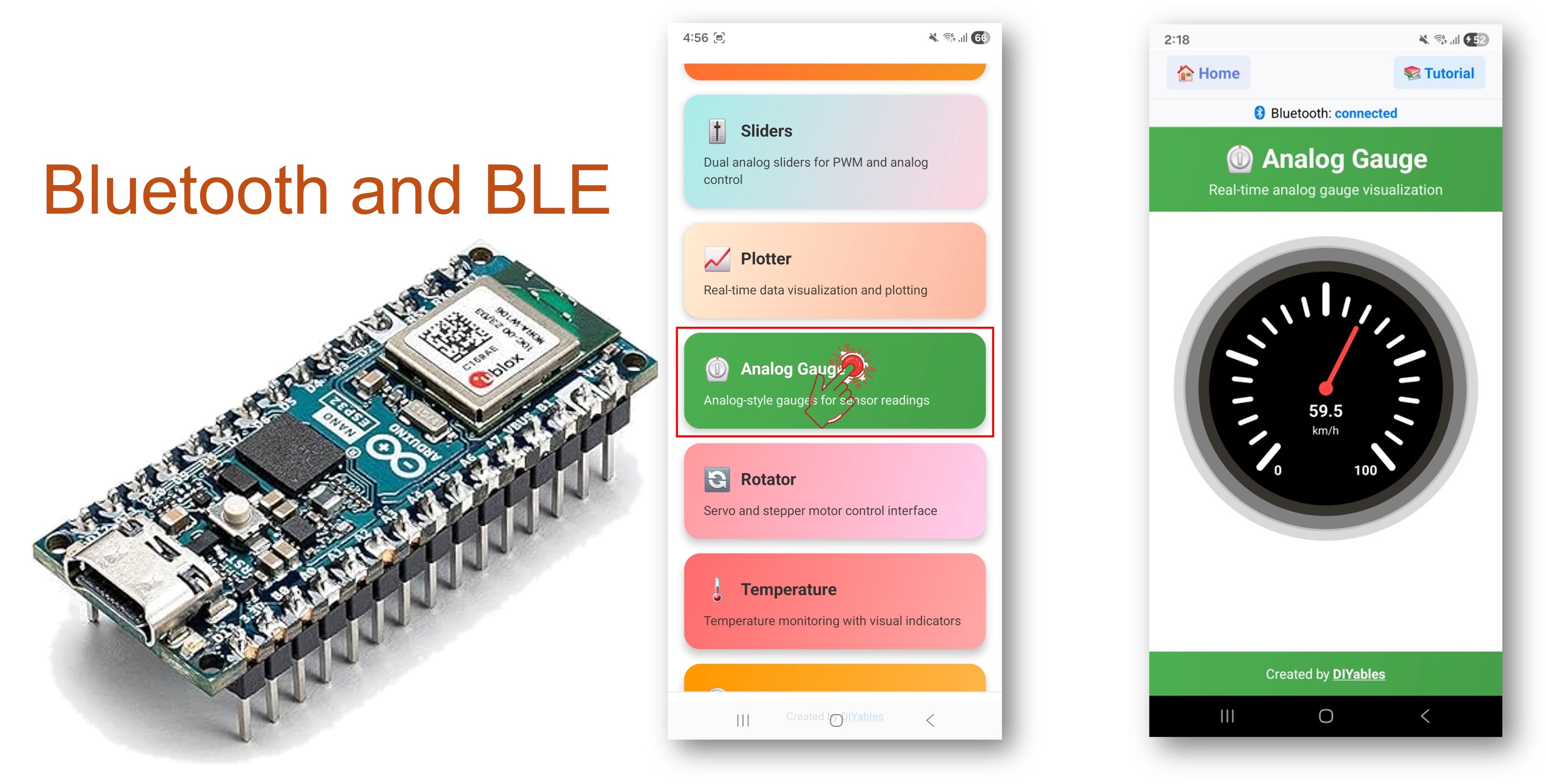
This example demonstrates an analog-style gauge display on the Arduino Nano ESP32 using BLE (Bluetooth Low Energy) via the DIYables Bluetooth STEM app. Display any value on a dial-style gauge with a configurable range and unit on your smartphone. Suitable for speedometers, pressure gauges, RPM displays, and similar applications.
Note: The Arduino Nano ESP32 supports BLE only — Classic Bluetooth is not supported. The DIYables Bluetooth App works on both Android and iOS with BLE.
Features
- Analog Gauge Display: Dial-style gauge on your smartphone
- Configurable Range: Set minimum and maximum values
- Custom Unit: Display km/h, RPM, PSI, or any custom unit
- Fast Updates: Up to 5 updates per second (200 ms interval)
- On-Demand Request: App can request the current value at any time
- Android & iOS Support: BLE is compatible with both platforms
- No Pairing Required: BLE connects without manual pairing
Hardware Preparation
Or you can buy the following kits:
| 1 | × | DIYables Sensor Kit (18 sensors/displays) |
Additionally, some of these links are for products from our own brand, DIYables .
Arduino Nano ESP32 Code
Detailed Instructions
- New to the Arduino Nano ESP32? Start with the Arduino Nano ESP32 getting started guide.
- Connect the Arduino Nano ESP32 to your computer via USB.
- Open Arduino IDE.
- Select the Arduino Nano ESP32 board and the correct COM port.
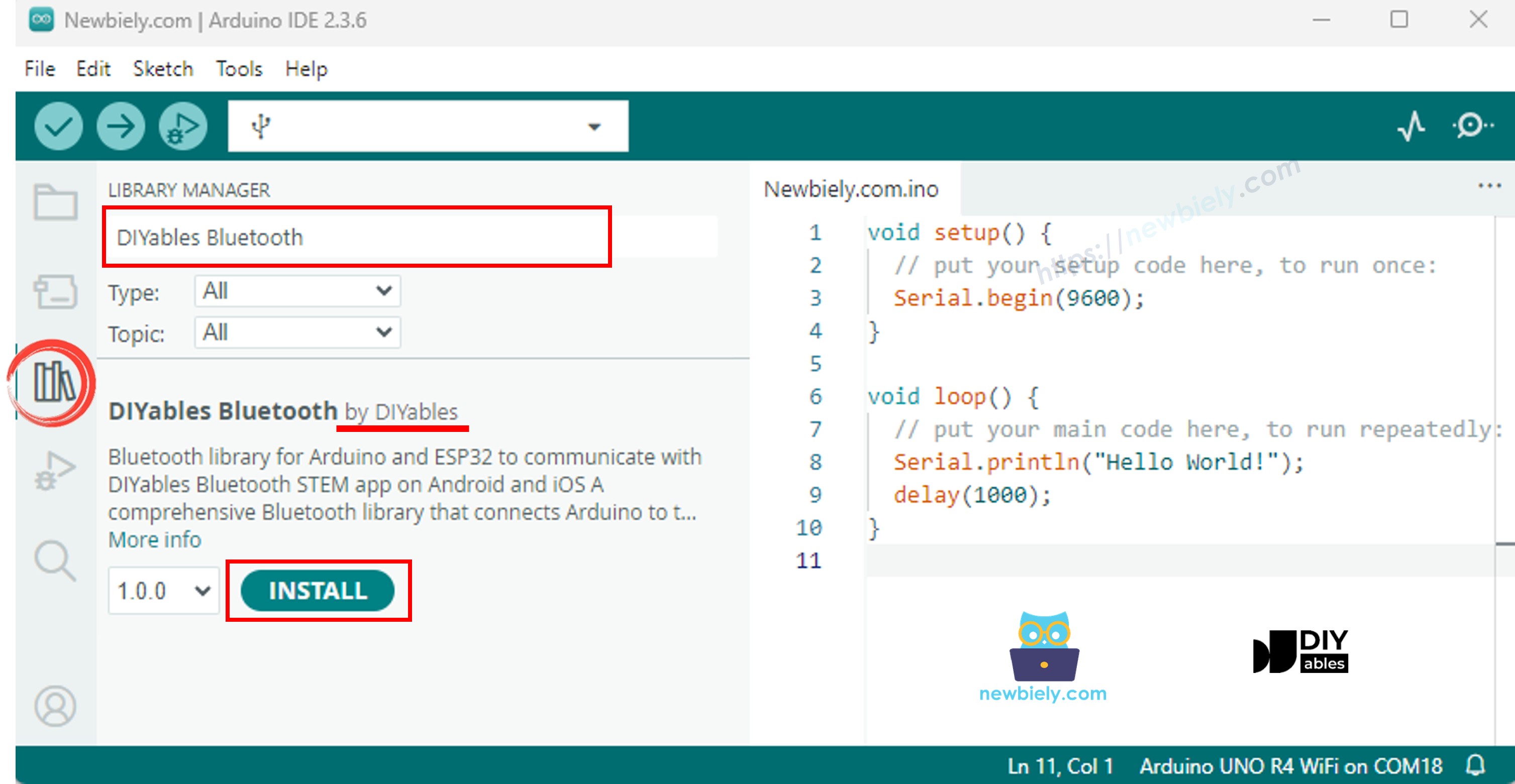
- Click the Libraries icon in the left sidebar.
- Search for "DIYables Bluetooth" and select the DIYables Bluetooth library by DIYables.
- Click Install.
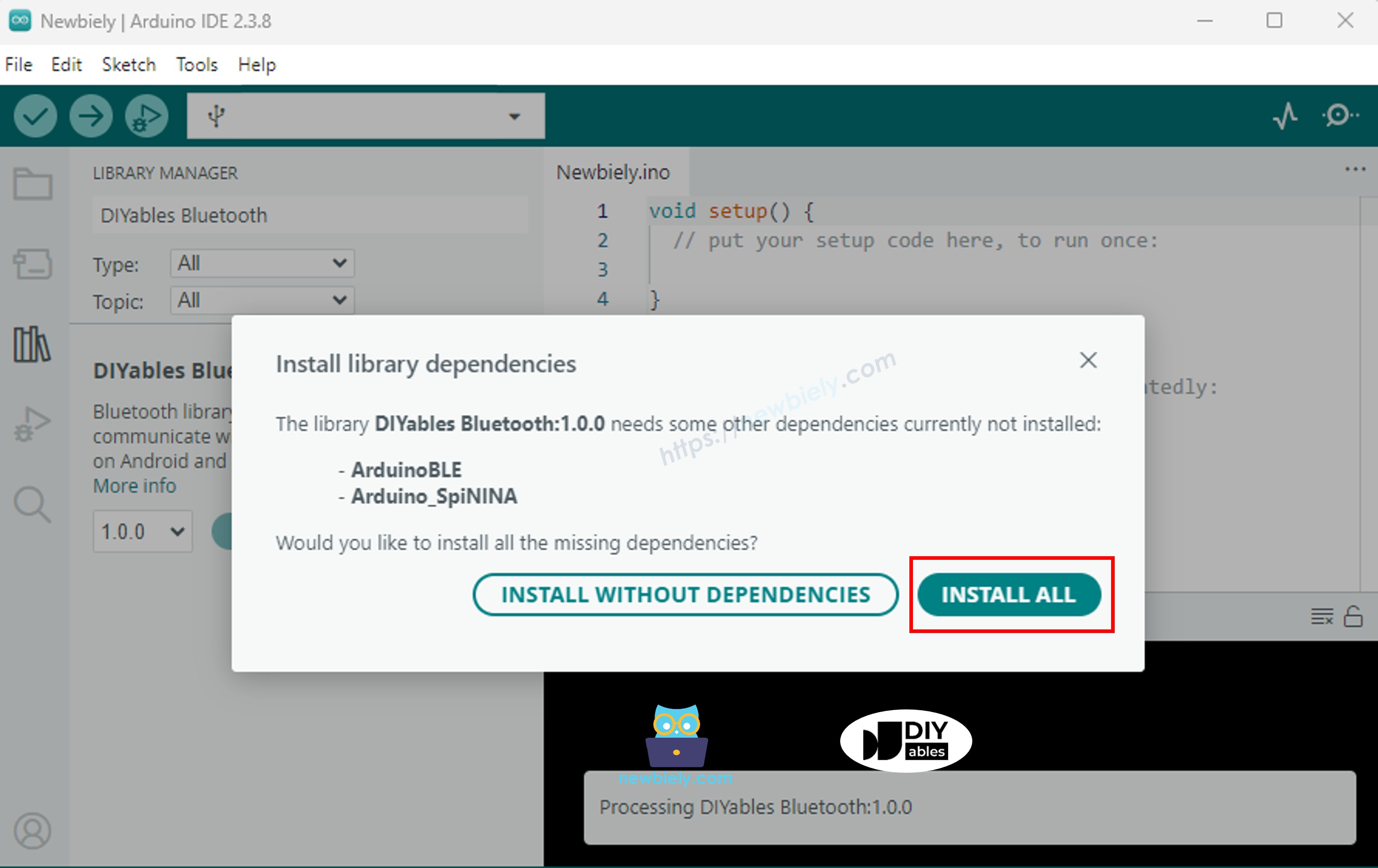
- When prompted to install dependencies, click Install All.
BLE Code
- In Arduino IDE, open File Examples DIYables Bluetooth ArduinoBLE_AnalogGauge, or paste the code into the editor.
- Click Upload to flash the sketch to the board.
- Open the Serial Monitor.
- The Serial Monitor output should look like:
Mobile App
Note: The DIYables Bluetooth App works on both Android and iOS with BLE. No manual pairing is required.
- Launch the DIYables Bluetooth App.
- On first launch, grant the following permissions:
- Nearby Devices (Android 12+) / Bluetooth (iOS) — required to scan and connect to Bluetooth devices
- Location (Android 11 and below only) — required by older Android versions to scan for BLE
- Ensure Bluetooth is enabled on your device.
- Tap Connect on the home screen. The app will scan for BLE devices.
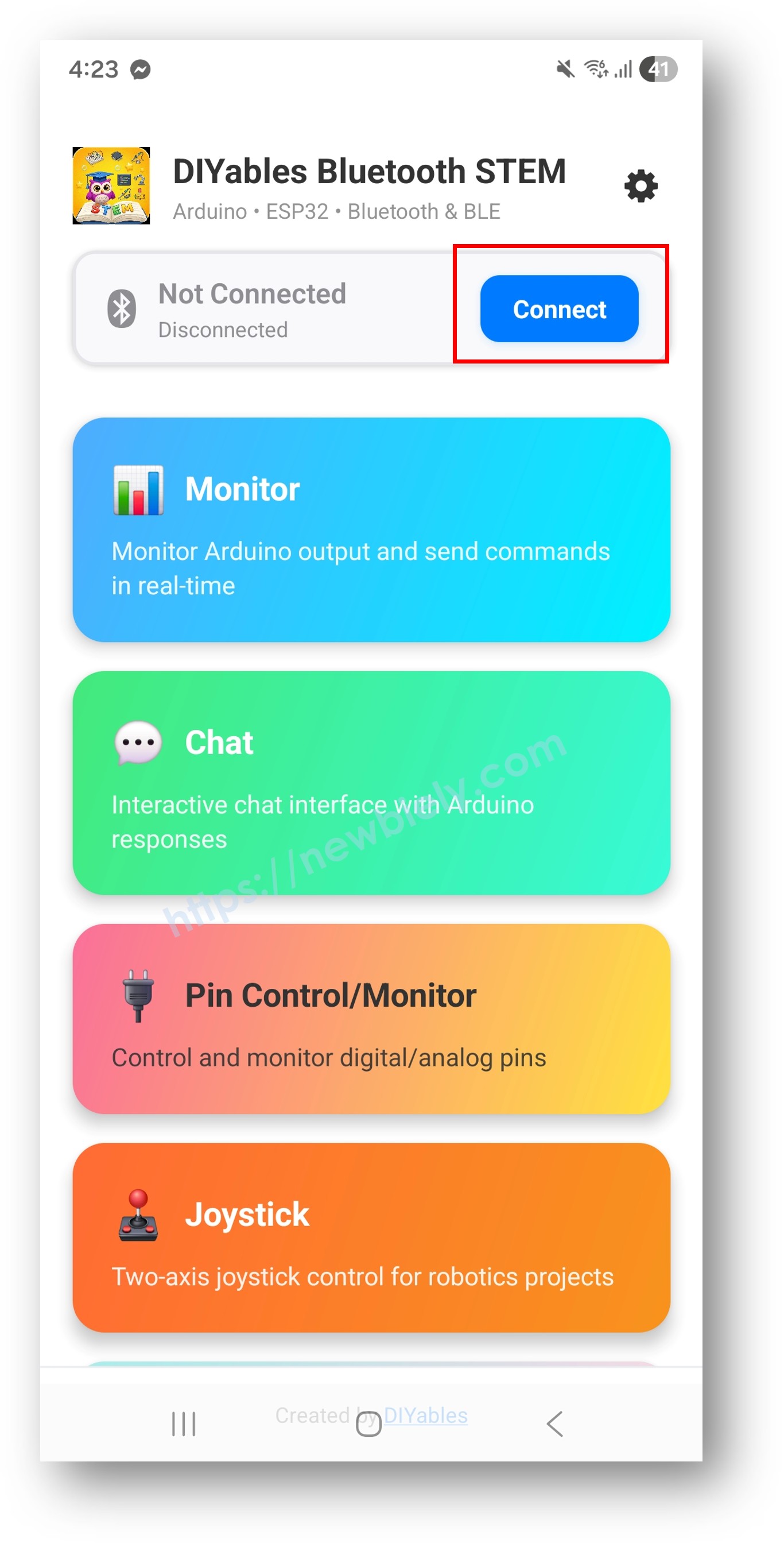
- Tap "Arduino_Gauge" in the scan results.
- After connecting, return to the home screen and open the Analog Gauge app.
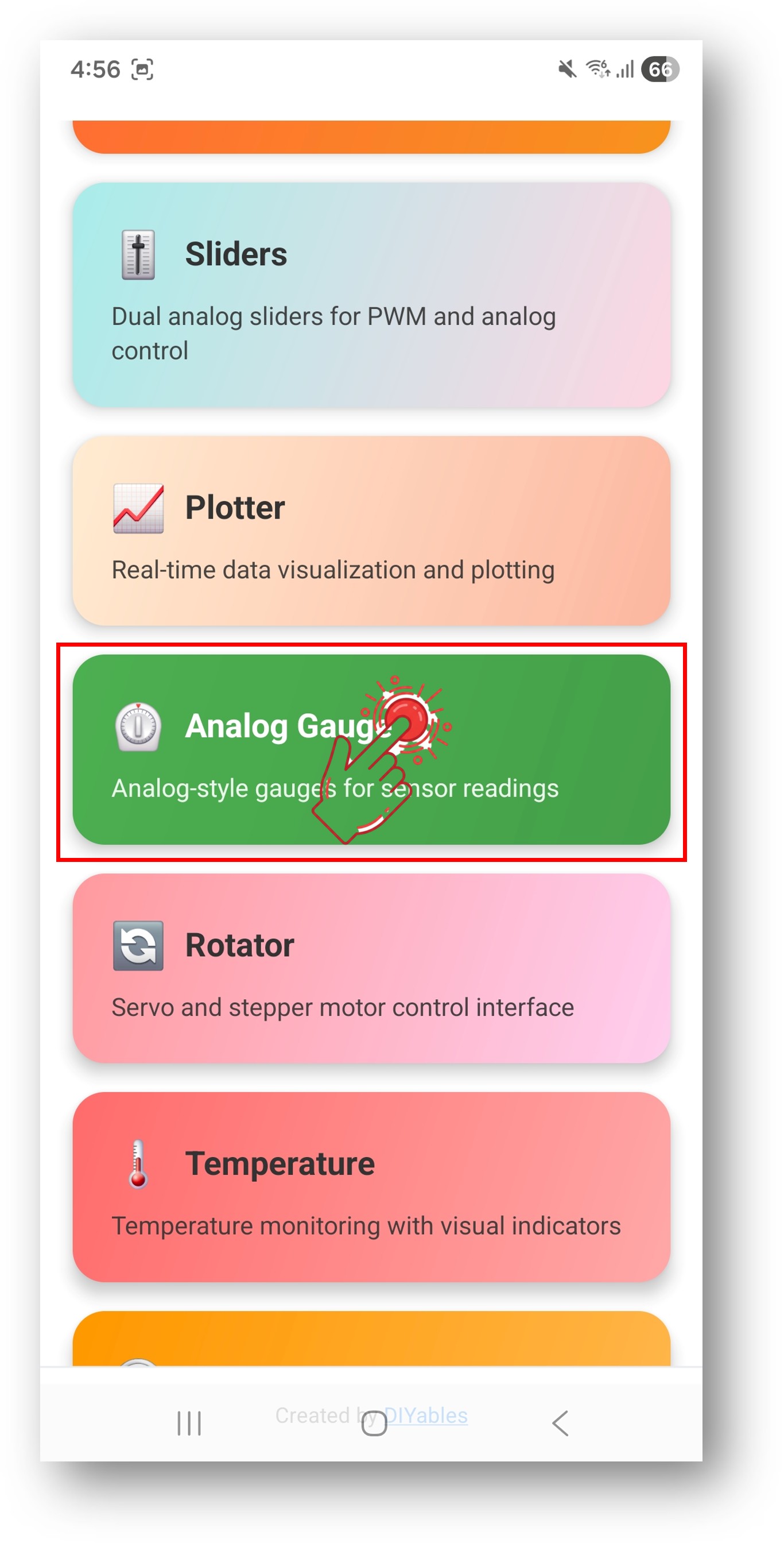
Tap the settings icon on the home screen to show or hide apps. See the DIYables Bluetooth App User Manual for details.
- The analog gauge displays values with smooth needle movement, simulating a speedometer.
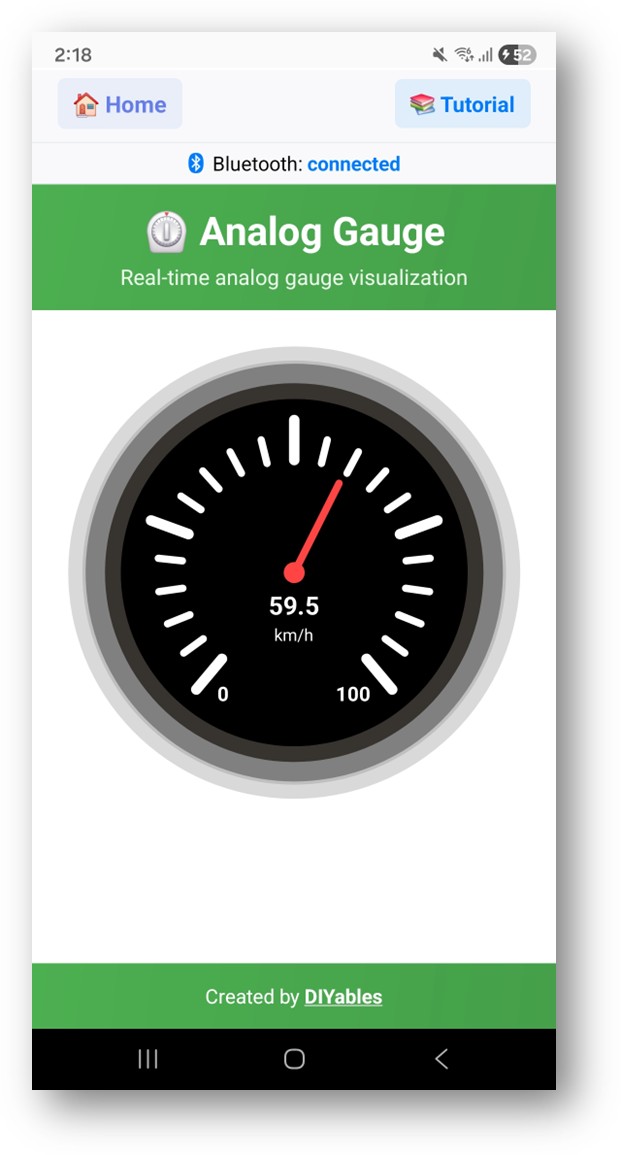
Now look back at the Serial Monitor on Arduino IDE. You will see:
Creative Customization - Adapt the Code to Your Project
Configure Gauge Range and Unit
Send Gauge Values
Handle Value Requests
Programming Examples
Potentiometer Gauge
Battery Level Monitor
Troubleshooting
Common Issues
1. Device not visible in the app
- Confirm the board is powered on and the sketch is uploaded
- Verify Bluetooth is enabled on your phone
- On Android 11 and below, enable Location services as well
2. Gauge not updating
- Verify send() is called inside the loop
- Check the update interval timing
- Confirm bluetoothServer.loop() is called each iteration
3. Gauge displays incorrect range
- Review the min/max values in the constructor
- Confirm the unit string is correct
- Values outside the configured range will be clamped
4. Needle jumps erratically
- Apply smoothing or averaging to sensor readings
- Reduce the update frequency if needed
- Check for noisy analog inputs
5. Upload fails or board not recognized
- Install the latest Arduino Nano ESP32 board package via Board Manager
- Try a different USB cable or port
Project Ideas
- Speedometer for RC car
- Pressure gauge for pneumatic systems
- Battery level indicator
- RPM gauge for motors
- Signal strength meter
Next Steps
After completing the Bluetooth Analog Gauge example, explore:
- Bluetooth Temperature — Temperature-specific gauge display
- Bluetooth Plotter — Visualize data over time
- Bluetooth Slider — Send values back to the Arduino
- Multiple Bluetooth Apps — Combine gauge with other app widgets
Support
For additional help:
- Check the API Reference documentation
- Visit DIYables tutorials
- Arduino community forums