Arduino Nano ESP32 - DIYables Bluetooth App Joystick

Overview

This example implements an interactive 2D joystick control on the Arduino Nano ESP32 using BLE (Bluetooth Low Energy) via the DIYables Bluetooth STEM app. Receive real-time X/Y coordinates (-100 to +100) for directional control. Suitable for robot navigation, pan-tilt servos, motor control, and game controllers.

Note: The Arduino Nano ESP32 supports BLE only — Classic Bluetooth is not supported. The DIYables Bluetooth App works on both Android and iOS with BLE.
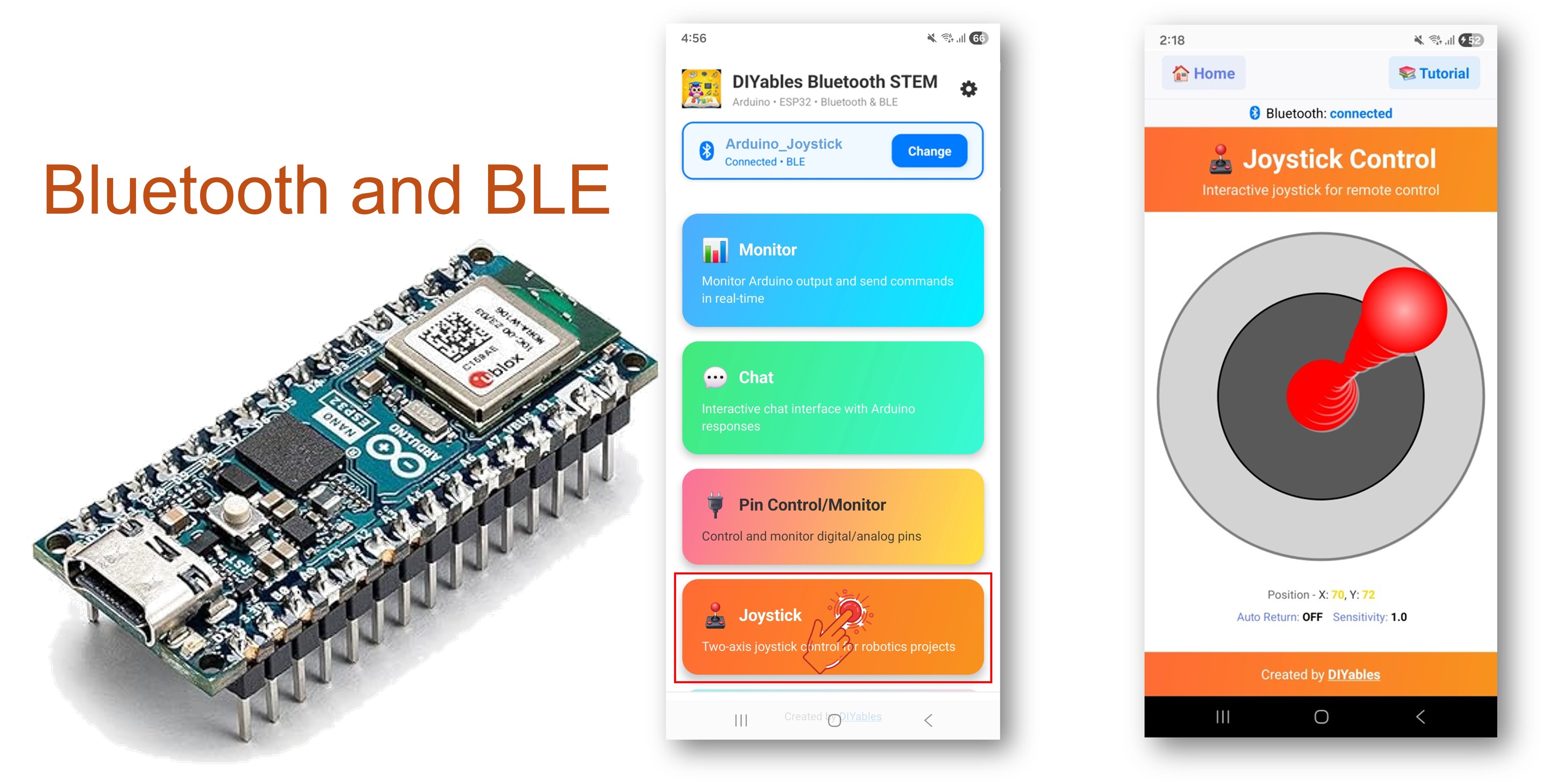
Arduino Nano ESP32 Bluetooth Joystick Example - 2D Directional Control via BLE Tutorial

Features

  • 2D Control: X and Y axes with range −100 to +100
  • Configurable Sensitivity: Minimum movement threshold before triggering updates
  • Auto-Return Option: Joystick can auto-center when released
  • Real-Time Values: Continuous position updates while dragging
  • Android & iOS Support: BLE is compatible with both platforms
  • No Pairing Required: BLE connects without manual pairing
  • Low Power: BLE consumes less power than Classic Bluetooth

Hardware Preparation

1×Arduino Nano ESP32
1×USB Cable Type-A to Type-C (for USB-A PC)
1×USB Cable Type-C to Type-C (for USB-C PC)
1×Breadboard
1×Jumper Wires
1×Recommended: Screw Terminal Expansion Board for Arduino Nano
1×Recommended: Breakout Expansion Board for Arduino Nano
1×Recommended: Power Splitter for Arduino Nano ESP32

Or you can buy the following kits:

1×DIYables Sensor Kit (30 sensors/displays)
1×DIYables Sensor Kit (18 sensors/displays)
Disclosure: Some of the links provided in this section are Amazon affiliate links. We may receive a commission for any purchases made through these links at no additional cost to you.
Additionally, some of these links are for products from our own brand, DIYables .

Arduino Nano ESP32 Code

Detailed Instructions

  • New to the Arduino Nano ESP32? Start with the Arduino Nano ESP32 getting started guide.
  • Connect the Arduino Nano ESP32 to your computer via USB.
  • Open Arduino IDE.
  • Select the Arduino Nano ESP32 board and the correct COM port.
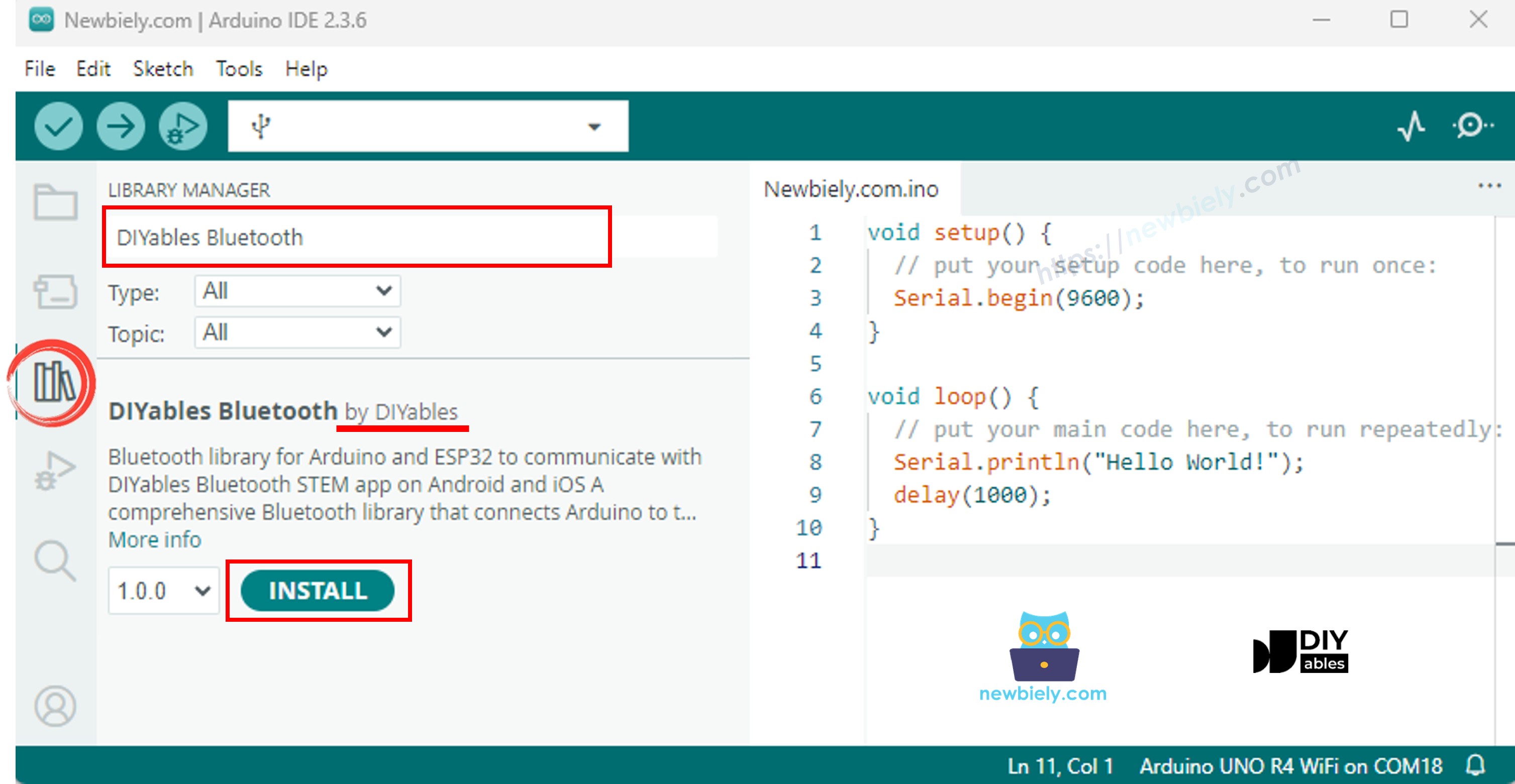
  • Click the Libraries icon in the left sidebar.
  • Search for "DIYables Bluetooth" and select the DIYables Bluetooth library by DIYables.
  • Click Install.
Arduino Nano ESP32 DIYables Bluetooth library
  • When prompted to install dependencies, click Install All.
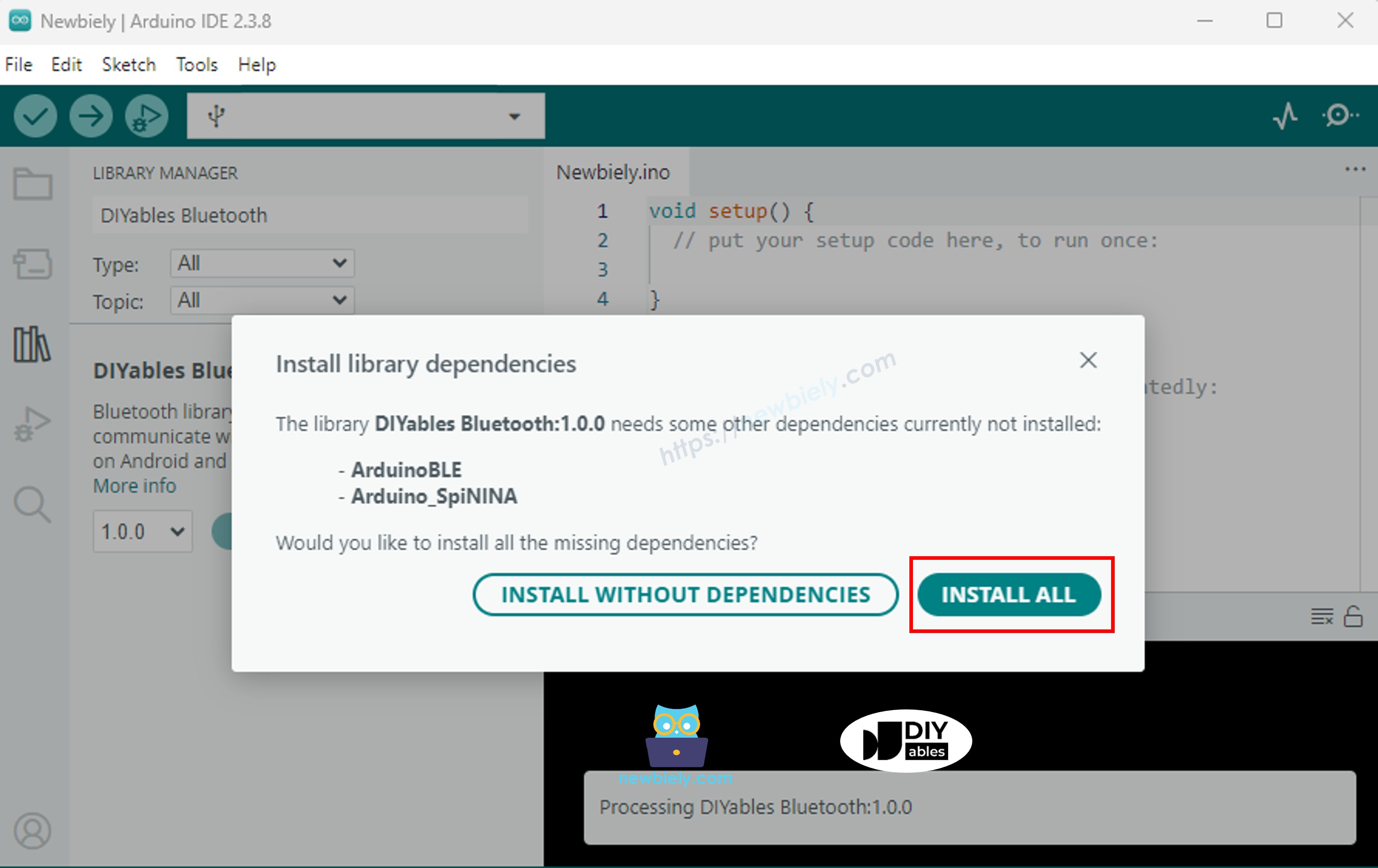
Arduino Nano ESP32 DIYables Bluetooth dependency

BLE Code

  • In Arduino IDE, open File Examples DIYables Bluetooth ArduinoBLE_Joystick, or paste the code into the editor.
/* * DIYables Bluetooth Library - ESP32 BLE Joystick Example * Works with DIYables Bluetooth STEM app on Android and iOS * * This example demonstrates the Bluetooth Joystick feature: * - Interactive joystick control via Bluetooth * - Real-time X/Y coordinate values (-100 to +100) * - Control pins based on joystick position * * Tutorial: https://diyables.io/bluetooth-app * Author: DIYables */ #include <DIYables_BluetoothServer.h> #include <DIYables_BluetoothJoystick.h> #include <platforms/DIYables_Esp32BLE.h> // BLE Configuration const char* DEVICE_NAME = "ESP32BLE_Joystick"; const char* SERVICE_UUID = "19B10000-E8F2-537E-4F6C-D104768A1214"; const char* TX_UUID = "19B10001-E8F2-537E-4F6C-D104768A1214"; const char* RX_UUID = "19B10002-E8F2-537E-4F6C-D104768A1214"; // Create Bluetooth instances DIYables_Esp32BLE bluetooth(DEVICE_NAME, SERVICE_UUID, TX_UUID, RX_UUID); DIYables_BluetoothServer bluetoothServer(bluetooth); // Create Joystick app instance DIYables_BluetoothJoystick bluetoothJoystick(false, 5); // Variables to store current joystick values int currentJoystickX = 0; int currentJoystickY = 0; void setup() { Serial.begin(115200); delay(1000); Serial.println("DIYables Bluetooth - ESP32 BLE Joystick Example"); // Initialize Bluetooth server with platform-specific implementation bluetoothServer.begin(); // Add joystick app to server bluetoothServer.addApp(&bluetoothJoystick); // Set up connection event callbacks bluetoothServer.setOnConnected([]() { Serial.println("Bluetooth connected!"); }); bluetoothServer.setOnDisconnected([]() { Serial.println("Bluetooth disconnected!"); }); // Set up joystick callback for position changes bluetoothJoystick.onJoystickValue([](int x, int y) { currentJoystickX = x; currentJoystickY = y; Serial.print("Joystick - X: "); Serial.print(x); Serial.print(", Y: "); Serial.println(y); // TODO: Add your control logic here based on joystick position }); bluetoothJoystick.onGetConfig([]() { bluetoothJoystick.send(currentJoystickX, currentJoystickY); Serial.print("App requested values - Sent: X="); Serial.print(currentJoystickX); Serial.print(", Y="); Serial.println(currentJoystickY); }); Serial.println("Waiting for Bluetooth connection..."); } void loop() { bluetoothServer.loop(); delay(10); }
  • Click Upload to flash the sketch to the board.
  • Open the Serial Monitor.
  • The Serial Monitor output should look like:
COM6
Send
DIYables Bluetooth - Joystick Example Waiting for Bluetooth connection...
Autoscroll Show timestamp
Clear output
9600 baud  
Newline  

Mobile App

  • Install the DIYables Bluetooth App on your smartphone: Android | iOS

Note: The DIYables Bluetooth App works on both Android and iOS with BLE. No manual pairing is required.

  • Launch the DIYables Bluetooth App.
  • On first launch, grant the following permissions:
    • Nearby Devices (Android 12+) / Bluetooth (iOS) — required to scan and connect to Bluetooth devices
    • Location (Android 11 and below only) — required by older Android versions to scan for BLE
  • Ensure Bluetooth is enabled on your device.
  • Tap Connect on the home screen. The app will scan for BLE devices.
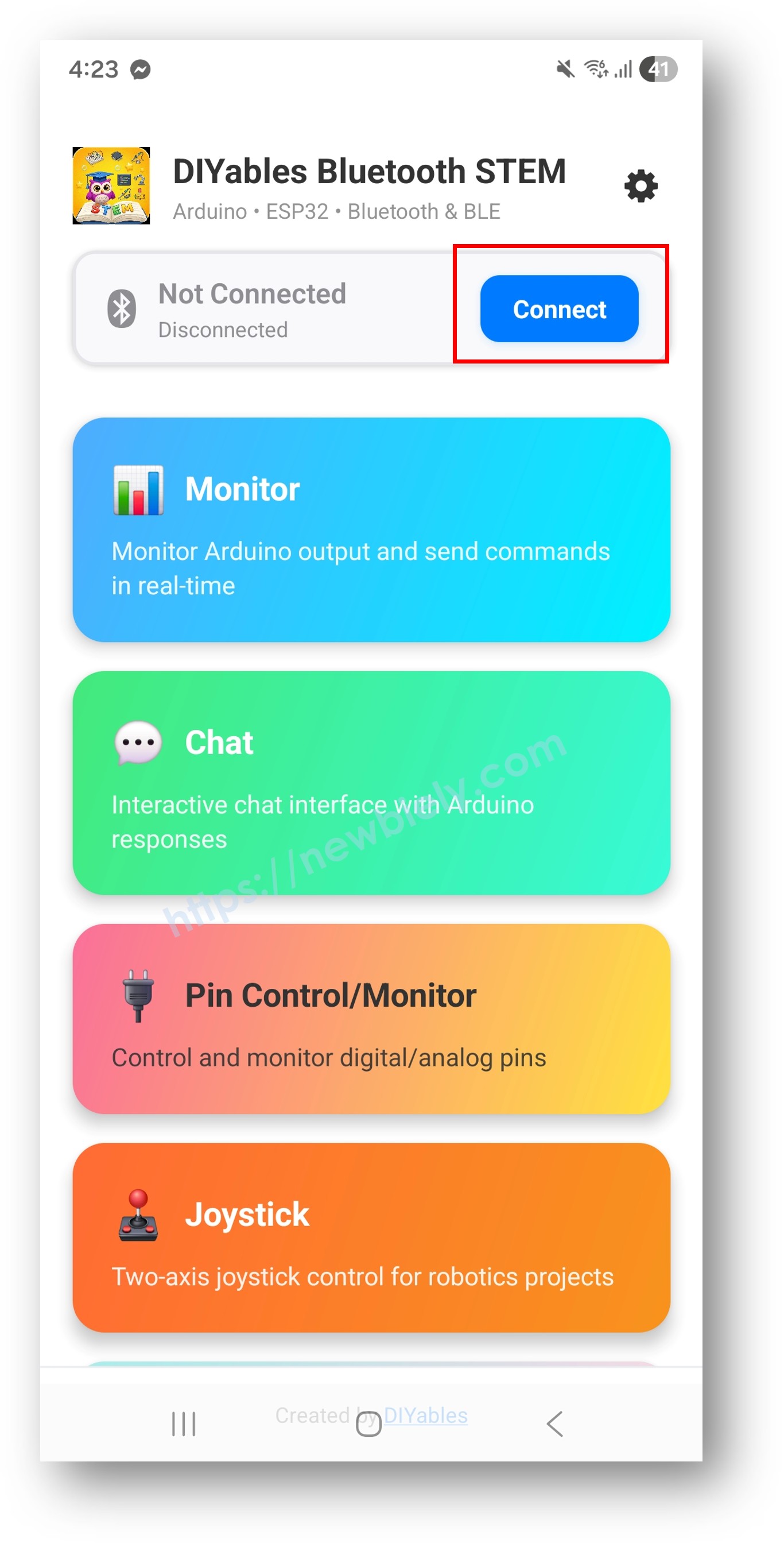
DIYables Bluetooth App - Home Screen with Scan Button
  • Tap "Arduino_Joystick" in the scan results.
  • After connecting, return to the home screen and open the Joystick app.
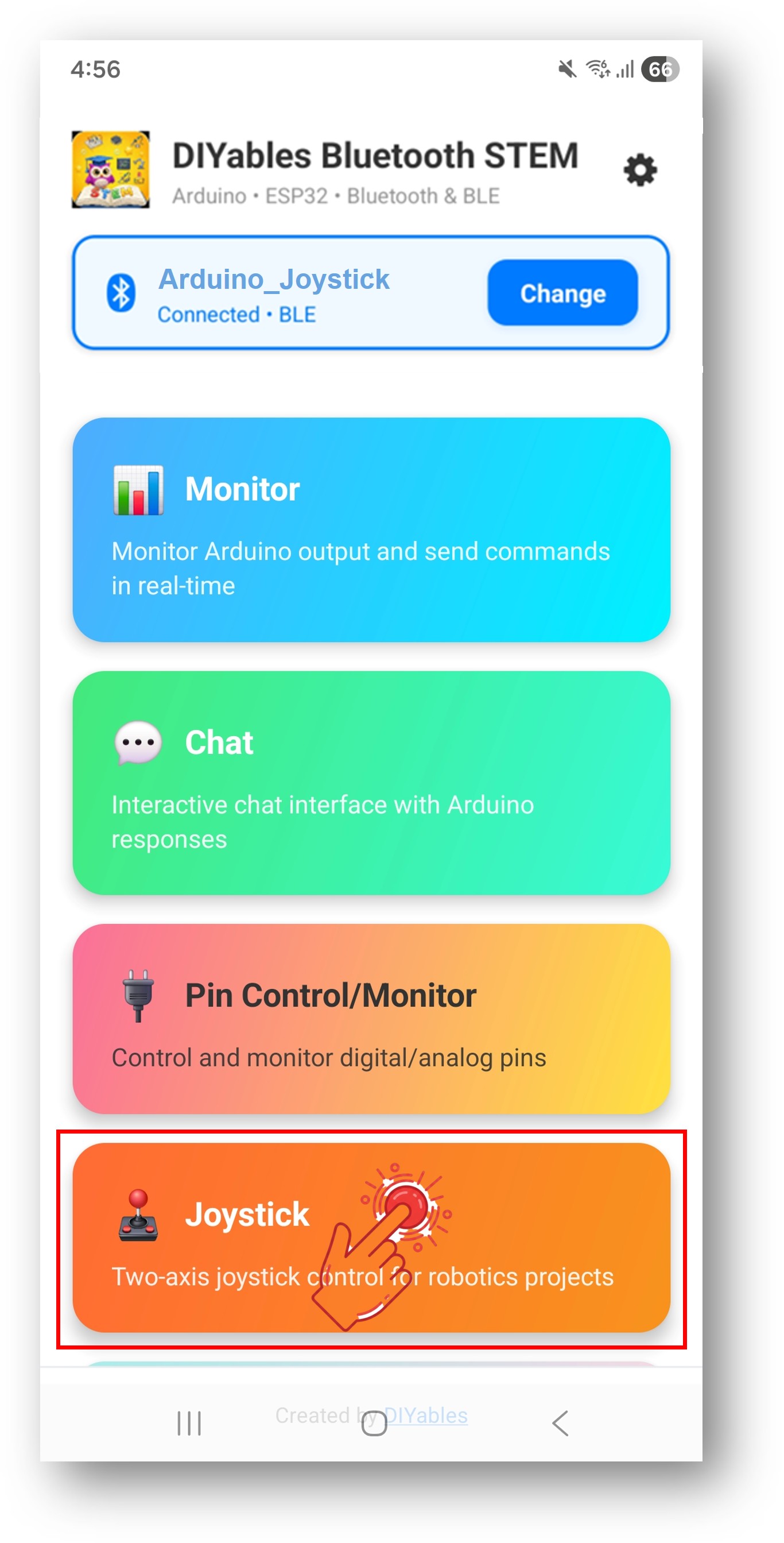
DIYables Bluetooth App - Home Screen with Joystick App

Tap the settings icon on the home screen to show or hide apps. See the DIYables Bluetooth App User Manual for details.

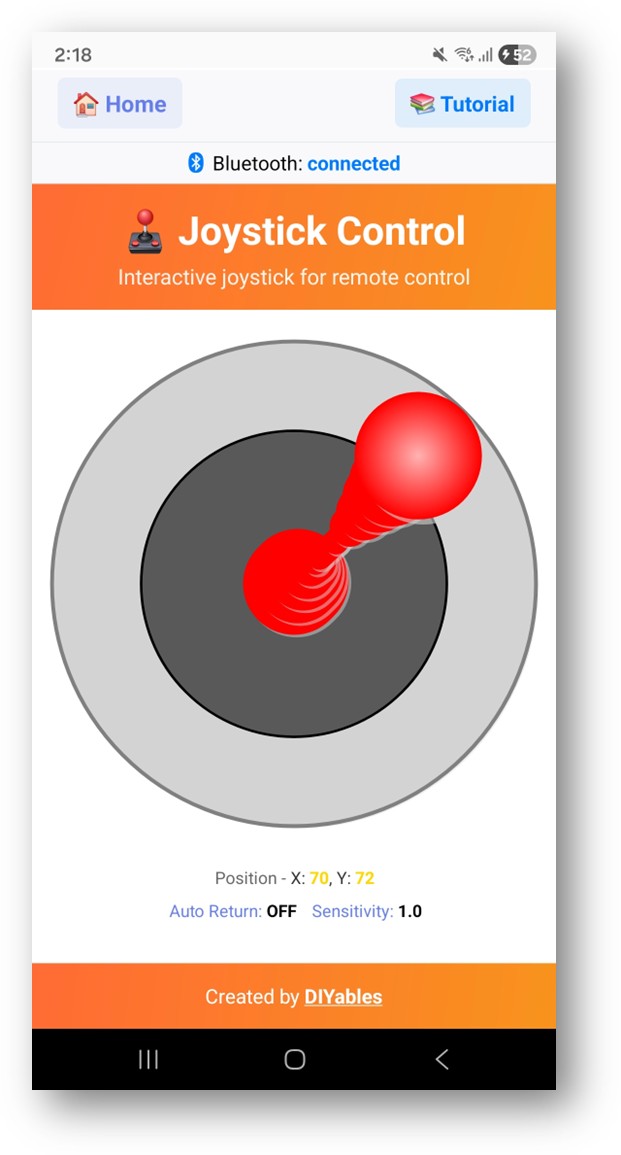
  • Drag the joystick in any direction.
DIYables Bluetooth App - Joystick Screen

Now look back at the Serial Monitor on Arduino IDE. You will see:

COM6
Send
Bluetooth connected! Joystick - X: 50, Y: 0 Joystick - X: 100, Y: 50 Joystick - X: 0, Y: -75 Joystick - X: 0, Y: 0
Autoscroll Show timestamp
Clear output
9600 baud  
Newline  

Creative Customization - Adapt the Code to Your Project

Handle Joystick Values

bluetoothJoystick.onJoystickValue([](int x, int y) { currentJoystickX = x; currentJoystickY = y; Serial.print("Joystick - X: "); Serial.print(x); Serial.print(", Y: "); Serial.println(y); // TODO: Add your control logic here });

Configure Joystick Settings

// Constructor: DIYables_BluetoothJoystick(autoReturn, sensitivity) DIYables_BluetoothJoystick bluetoothJoystick(false, 5); // Change settings at runtime bluetoothJoystick.setAutoReturn(true); // Auto-center when released bluetoothJoystick.setSensitivity(10.0); // Only update when moved >10%

Handle Config Request

bluetoothJoystick.onGetConfig([]() { bluetoothJoystick.send(currentJoystickX, currentJoystickY); });

Programming Examples

Differential Drive Robot

const int LEFT_MOTOR_PIN = 9; const int RIGHT_MOTOR_PIN = 10; const int LEFT_DIR_PIN = 7; const int RIGHT_DIR_PIN = 8; bluetoothJoystick.onJoystickValue([](int x, int y) { // Differential drive: mix X and Y int leftSpeed = constrain(y + x, -100, 100); int rightSpeed = constrain(y - x, -100, 100); // Set direction digitalWrite(LEFT_DIR_PIN, leftSpeed >= 0 ? HIGH : LOW); digitalWrite(RIGHT_DIR_PIN, rightSpeed >= 0 ? HIGH : LOW); // Set speed (PWM) analogWrite(LEFT_MOTOR_PIN, map(abs(leftSpeed), 0, 100, 0, 255)); analogWrite(RIGHT_MOTOR_PIN, map(abs(rightSpeed), 0, 100, 0, 255)); });

Pan-Tilt Servo

#include <Servo.h> Servo panServo, tiltServo; void setup() { panServo.attach(9); tiltServo.attach(10); bluetoothJoystick.onJoystickValue([](int x, int y) { int panAngle = map(x, -100, 100, 0, 180); int tiltAngle = map(y, -100, 100, 0, 180); panServo.write(panAngle); tiltServo.write(tiltAngle); }); }

Direction with Dead Zone

const int DEAD_ZONE = 15; bluetoothJoystick.onJoystickValue([](int x, int y) { if (abs(x) < DEAD_ZONE && abs(y) < DEAD_ZONE) { Serial.println("STOPPED"); return; } if (abs(y) > abs(x)) { Serial.println(y > 0 ? "FORWARD" : "BACKWARD"); } else { Serial.println(x > 0 ? "RIGHT" : "LEFT"); } });

Troubleshooting

Common Issues

1. Device not visible in the app

  • Confirm the board is powered on and the sketch is uploaded
  • Verify Bluetooth is enabled on your phone
  • On Android 11 and below, enable Location services as well

2. Joystick not responding

  • Check the Bluetooth connection status in the app
  • Confirm the onJoystickValue callback is registered correctly
  • Review the Serial Monitor for connection messages

3. Movement feels laggy

  • Lower the sensitivity value for more frequent updates
  • Ensure bluetoothServer.loop() runs without long delays

4. Values jump or are inconsistent

  • Add a dead zone filter for small movements
  • Review the sensitivity setting

5. Connection drops frequently

  • Reduce distance to the Arduino
  • Ensure a stable USB power supply

6. Upload fails or board not recognized

  • Install the latest Arduino Nano ESP32 board package via Board Manager
  • Try a different USB cable or port

Project Ideas

  • Wireless robot controller
  • Camera pan-tilt mount
  • Robotic arm 2-axis control
  • LED matrix position controller
  • Game controller for Arduino games

Next Steps

After completing the Bluetooth Joystick example, explore:

  1. Bluetooth Slider — Linear value control
  2. Bluetooth Rotator — Angular control
  3. Bluetooth Monitor — Status feedback
  4. Multiple Bluetooth Apps — Combine joystick with other controls

Support

For additional help:

※ OUR MESSAGES

  • As freelancers, We are AVAILABLE for HIRE. See how to outsource your project to us
  • Please feel free to share the link of this tutorial. However, Please do not use our content on any other websites. We invested a lot of effort and time to create the content, please respect our work!