Arduino Nano 33 IoT - DIYables Bluetooth App Multiple Apps
Overview
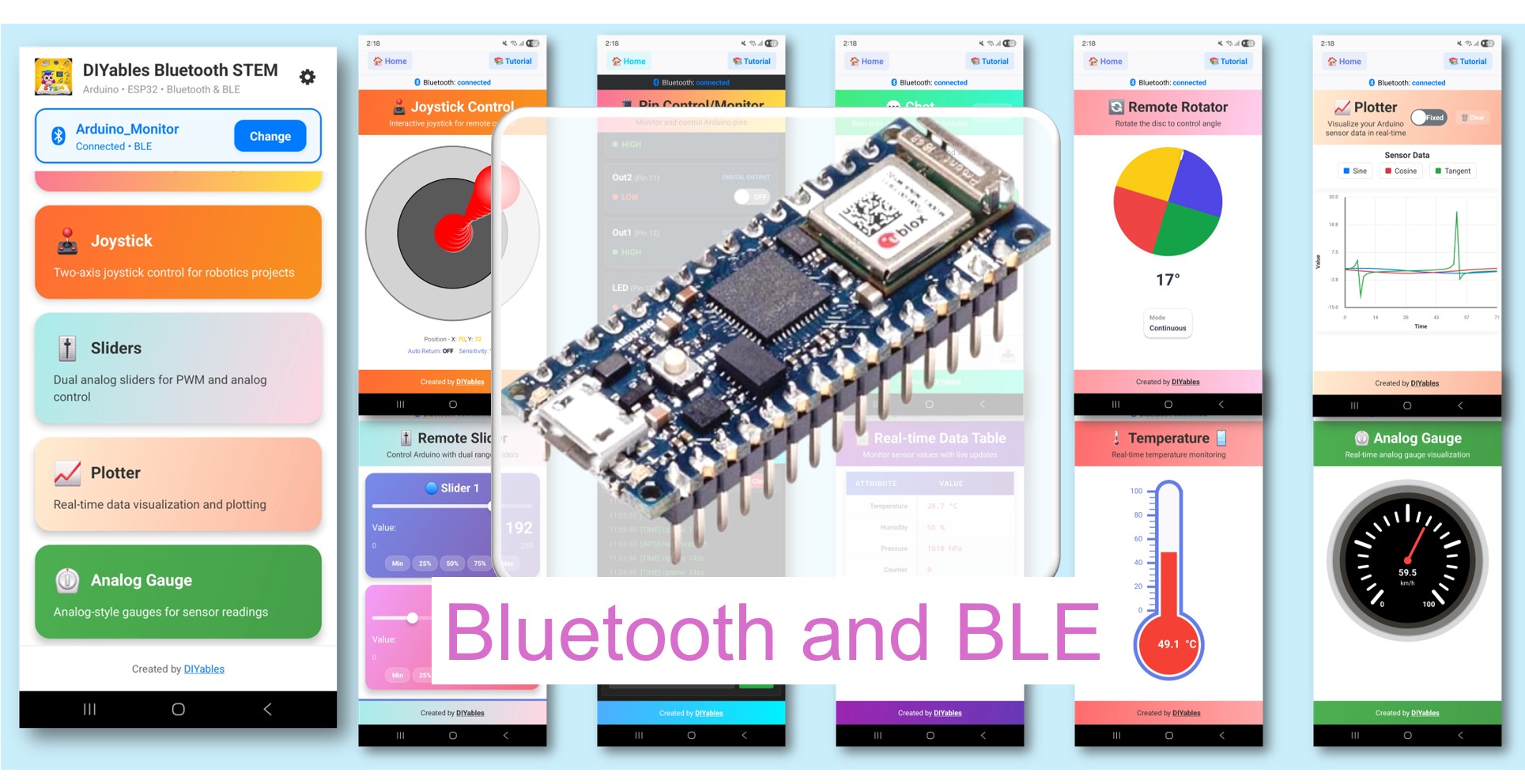
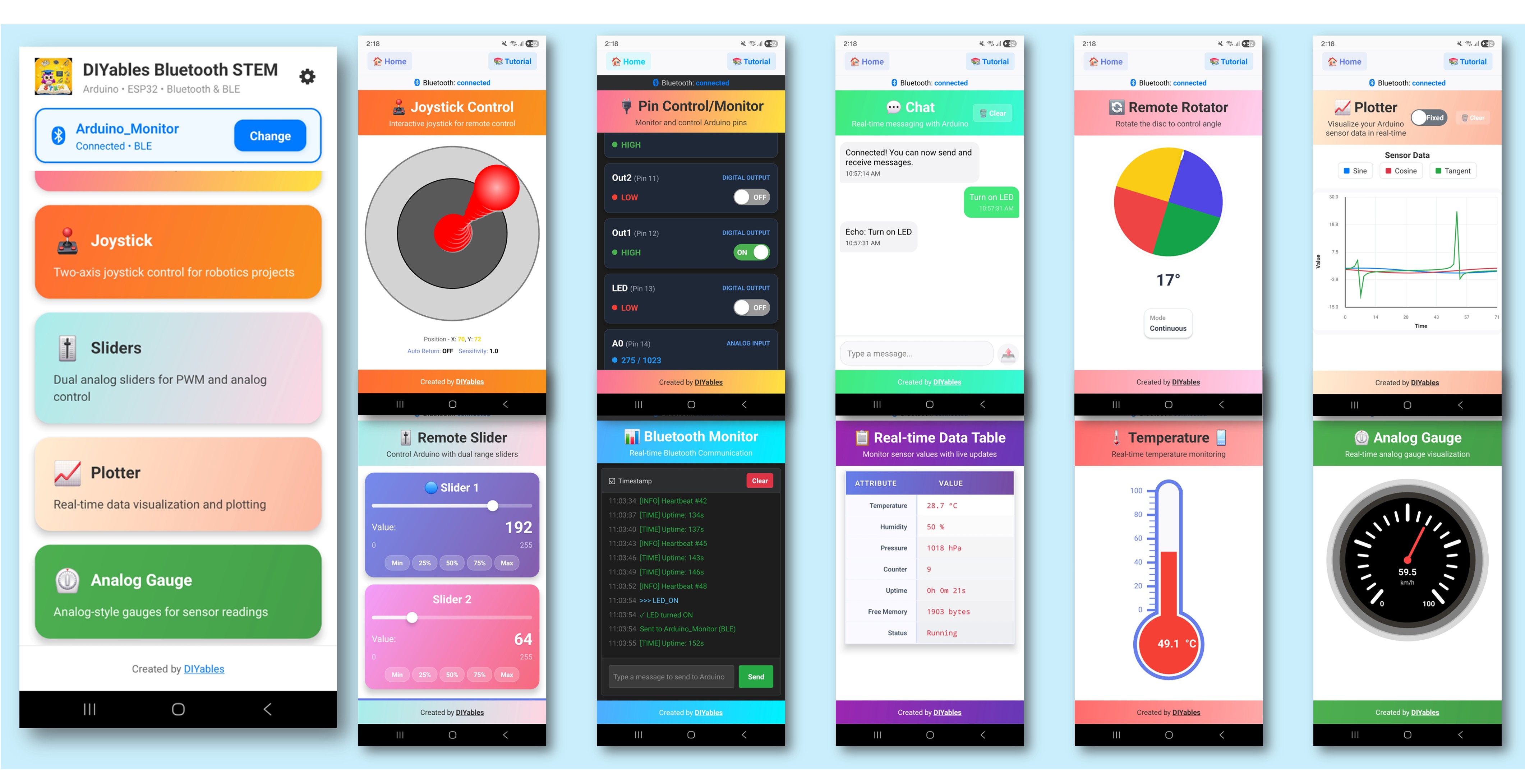
In this tutorial, we are going to learn how to run multiple Bluetooth app widgets simultaneously on the Arduino Nano 33 IoT. Instead of one app per sketch, this example combines Monitor, Chat, Slider, Joystick, Temperature, Plotter, Table, Analog Gauge, and Rotator — all running over a single BLE connection at the same time. The Arduino Nano 33 IoT's efficient SAMD21 processor handles all nine apps without issues, making it great for building a comprehensive wireless dashboard in one compact board.
Note: The Arduino Nano 33 IoT only supports BLE (Bluetooth Low Energy). It does not support Classic Bluetooth. The DIYables Bluetooth App supports both BLE and Classic Bluetooth on Android, and BLE on iOS. Since this board uses BLE, the app works on both Android and iOS.
Features
9 Apps in One: Monitor, Chat, Slider, Joystick, Temperature, Plotter, Table, Analog Gauge, Rotator
Cross-App Interaction: Slider value updates gauge and table, joystick updates table, etc.
Single BLE Connection: All apps share one connection efficiently
Real-Time Updates: Each app updates at its own interval
Comprehensive Dashboard: View all data from one device
Works on Android & iOS: BLE is supported on both platforms
No Pairing Required: BLE auto-connects without manual pairing
Disclosure: Some of the links provided in this section are Amazon affiliate links. We may receive a commission for any purchases made through these links at no additional cost to you. Additionally, some of these links are for products from our own brand, DIYables .
Connect the Arduino Nano 33 IoT board to your computer using a Micro USB cable.
Launch the Arduino IDE on your computer.
Select Arduino Nano 33 IoT board and the appropriate COM port.
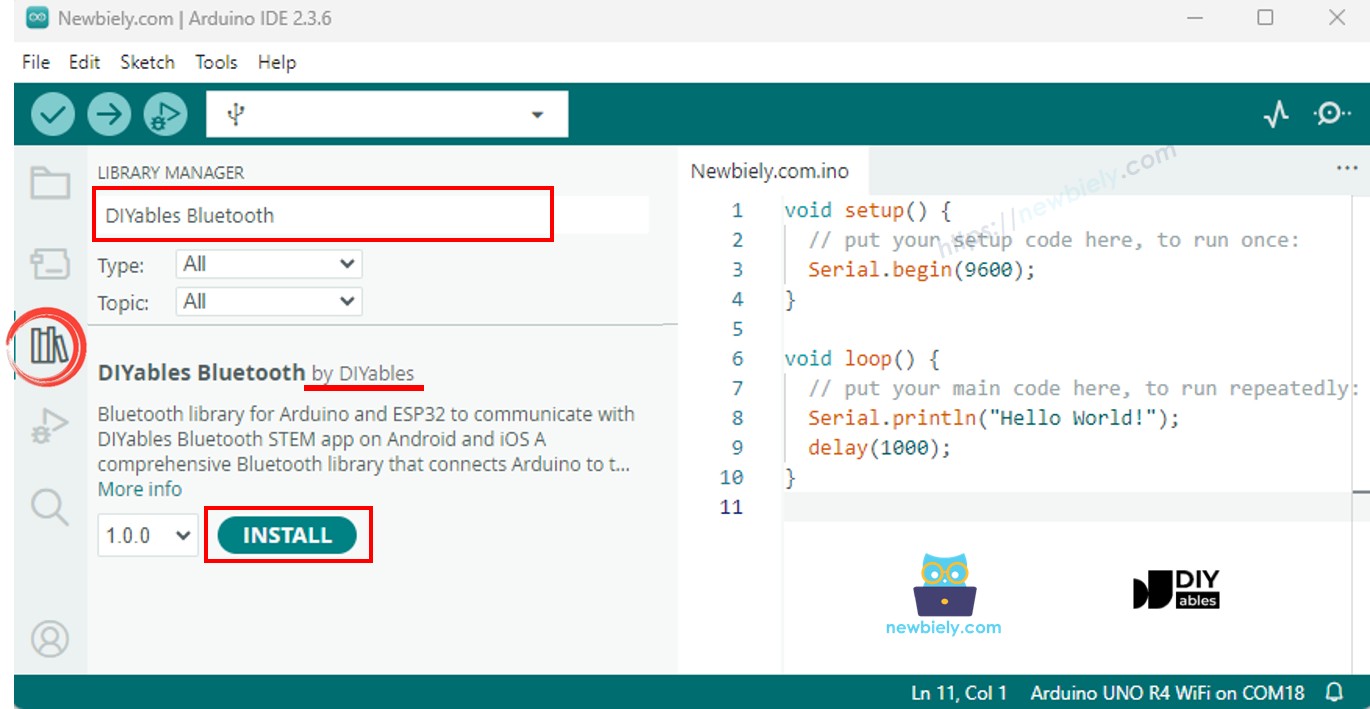
Navigate to the Libraries icon on the left bar of the Arduino IDE.
Search "DIYables Bluetooth", then find the DIYables Bluetooth library by DIYables
Click Install button to install the library.
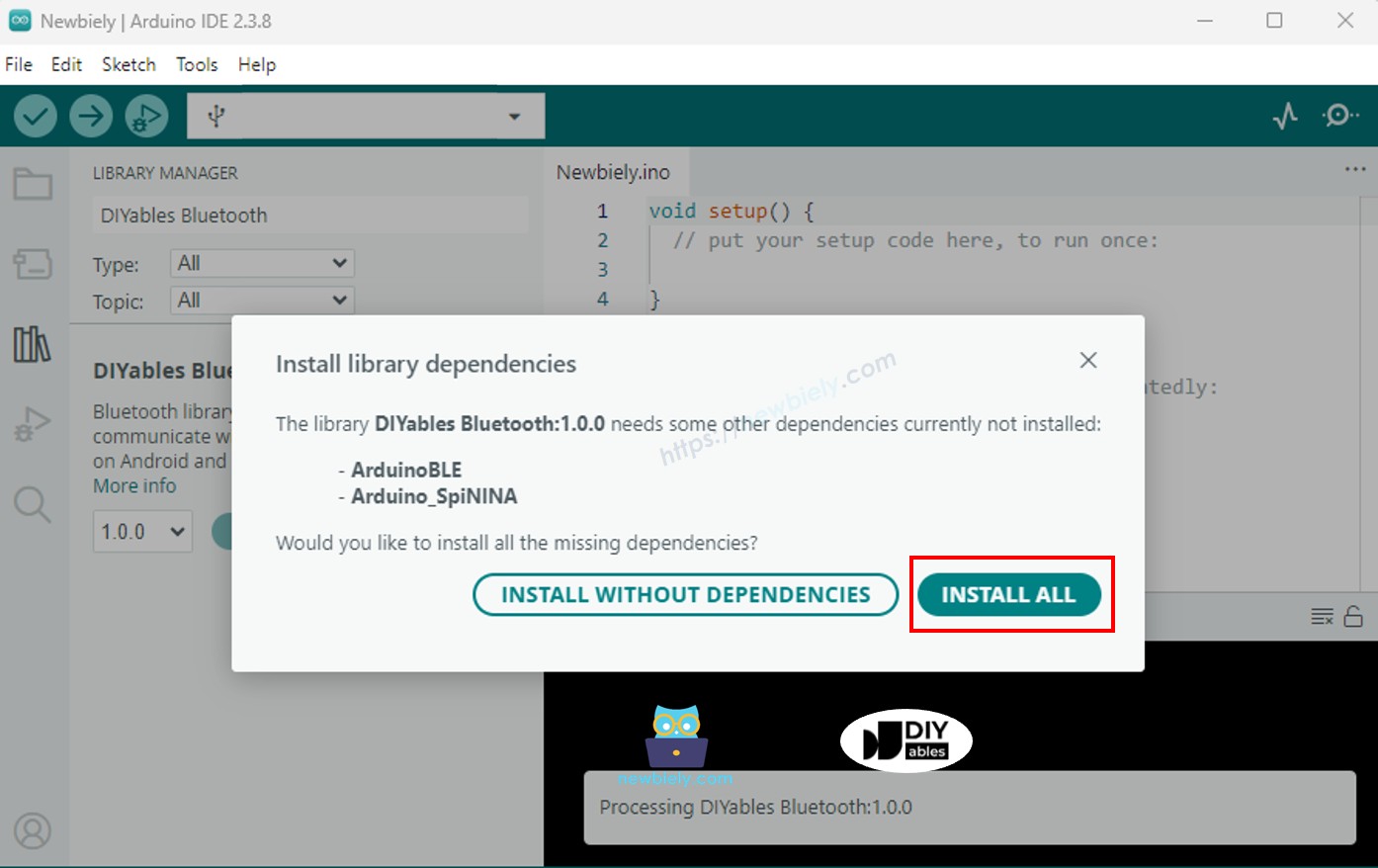
You will be asked for installing some other library dependencies
Click Install All button to install all library dependencies.
BLE Code
On Arduino IDE, Go to File Examples DIYables Bluetooth ArduinoBLE_MultipleApps example, or copy the above code and paste it to the editor of Arduino IDE
Click Upload button on Arduino IDE to upload code to Arduino Nano 33 IoT
Open the Serial Monitor
Check out the result on Serial Monitor. It looks like the below:
Newbiely | Arduino IDE 2.3.8
──
☐
✕
File
Edit
Sketch
Tools
Help
Arduino Nano 33 IoT
Newbiely.ino
···
8Serial.println("Hello World!");
Output
Serial Monitor
Message (Enter to send message to 'Arduino Nano 33 IoT' on 'COM15')
New Line
9600 baud
DIYables Bluetooth - Multiple Apps Example
Waiting for Bluetooth connection...
Ln 11, Col 1
Arduino Nano 33 IoT on COM15
2
Mobile App
Install the DIYables Bluetooth App on your smartphone: Android | iOS
Note: The DIYables Bluetooth App supports both BLE and Classic Bluetooth on Android, and BLE on iOS. Since the Arduino Nano 33 IoT uses BLE, the app works on both Android and iOS. No manual pairing is needed for BLE — just scan and connect.
Open the DIYables Bluetooth App
When opening the app for the first time, it will ask for permissions. Please grant the following:
Nearby Devices permission (Android 12+) / Bluetooth permission (iOS) - required to scan and connect to Bluetooth devices
Location permission (Android 11 and below only) - required by older Android versions to scan for BLE devices
Make sure Bluetooth is turned on on your phone
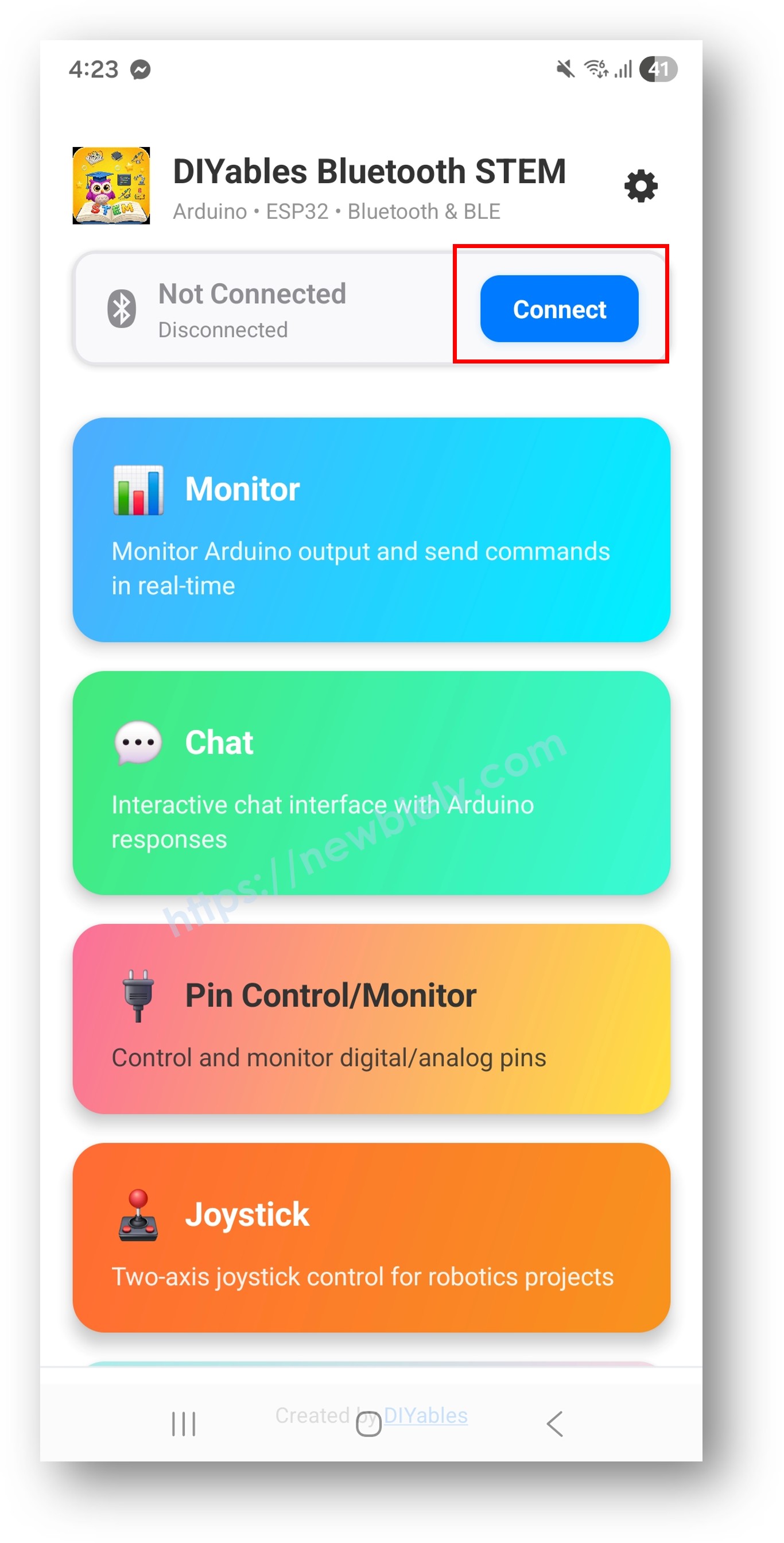
On the home screen, tap the Connect button. The app will scan for BLE devices.
Find and tap "DIYables Multi-App" in the scan results to connect.
Once connected, the app automatically goes back to the home screen. The home screen shows all available apps. The 9 apps initialized in the Arduino code will respond and work — other apps on the home screen will appear but will not function with this sketch.
Note: You can tap the settings icon on the home screen to hide/show apps on the home screen. For more details, see the DIYables Bluetooth App User Manual.
Tap some of the following apps to open and interact with the Arduino: Monitor, Chat, Slider, Joystick, Temperature, Plotter, Table, Analog Gauge, Rotator
Switch between apps freely — they all share the same BLE connection
Now look back at the Serial Monitor on Arduino IDE. You will see:
Newbiely | Arduino IDE 2.3.8
──
☐
✕
File
Edit
Sketch
Tools
Help
Arduino Nano 33 IoT
Newbiely.ino
···
8Serial.println("Hello World!");
Output
Serial Monitor
Message (Enter to send message to 'Arduino Nano 33 IoT' on 'COM15')
New Line
9600 baud
Bluetooth connected!
Monitor: System running, uptime: 5s
Chat message: Hello
Slider value: 128
Joystick: X=0.50, Y=-0.30
Temperature: 22.50 °C
Ln 11, Col 1
Arduino Nano 33 IoT on COM15
2
How It Works
App Initialization
Each app is created with its own configuration and callbacks:
// All apps share the same Bluetooth serverDIYables_BluetoothServer bluetoothServer(bluetooth);// Create individual appsDIYables_BluetoothMonitor bluetoothMonitor(bluetoothServer);DIYables_BluetoothChat bluetoothChat(bluetoothServer);DIYables_BluetoothSlider bluetoothSlider(bluetoothServer, 0, 255, 1);DIYables_BluetoothJoystick bluetoothJoystick(bluetoothServer, false, 5);DIYables_BluetoothTemperature bluetoothTemp(bluetoothServer, -10.0, 50.0, "°C");DIYables_BluetoothPlotter bluetoothPlotter(bluetoothServer);DIYables_BluetoothTable bluetoothTable(bluetoothServer);DIYables_BluetoothAnalogGauge bluetoothGauge(bluetoothServer, 0.0, 100.0, "%");DIYables_BluetoothRotator bluetoothRotator(bluetoothServer, ROTATOR_MODE_CONTINUOUS);
Cross-App Interaction
Apps can interact with each other — when one app receives input, it can update other apps:
The example creates a table with 10 rows showing data from all apps:
Row
Label
Description
0
Status
Connection/running status
1
Uptime
Time since boot
2
Slider 1
Current slider value
3
Slider 2
Second slider value
4
Joystick X
Joystick X position
5
Joystick Y
Joystick Y position
6
Temperature
Current temperature
7
Gauge Value
Current gauge percentage
8
Rotator Angle
Current rotation angle
9
Messages
Chat message count
Creative Customization - Adapt the Code to Your Project
Add or Remove Apps
You don't need all 9 apps. Simply include only the ones you need:
// Minimal setup: just Monitor and SliderDIYables_BluetoothMonitor bluetoothMonitor(bluetoothServer);DIYables_BluetoothSlider bluetoothSlider(bluetoothServer, 0, 100, 1);// That's it! The app will only show these two
Custom Cross-App Logic
// Example: Temperature alarm via Monitorvoid checkTemperatureAlarm(float temp) {if (temp > 40.0) { bluetoothMonitor.send("⚠️ HIGH TEMP ALERT: " + String(temp, 1) + "°C"); bluetoothChat.send("Temperature alarm triggered!"); }}
Troubleshooting
Common Issues
1. Cannot find the device in the app
Make sure the Arduino Nano 33 IoT is powered on and the sketch is uploaded
Ensure your phone's Bluetooth is enabled
On Android 11 and below, also enable Location services
2. Some apps not showing in the menu
All apps that are initialized will appear automatically
Check that each app object is properly created
The app discovers available apps from the Arduino
3. Updates seem slow
Each app has different update intervals — this is by design
BLE has limited bandwidth; too many fast updates can cause congestion
Reduce update frequency for apps that don't need real-time data
4. Cross-app updates not working
Verify the callback functions are properly set up
Check that table row names match exactly (case-sensitive)
Ensure the target app object is accessible in the callback scope
5. Memory issues or crashes
Running 9 apps uses significant memory
Remove unused apps to free resources
Reduce table row count if needed
6. Upload fails or board not recognized
Install the latest Arduino SAMD Boards package via Boards Manager (≥ 1.8.13)
Try a different USB cable or port
Project Ideas
Comprehensive IoT dashboard
Robot control panel (joystick + monitor + sliders)
Weather station (temperature + gauge + plotter + table)
Home automation hub (sliders + pins + monitor + chat)
STEM learning platform (all apps for experimentation)
Next Steps
After mastering the Multiple Apps example, explore individual app tutorials for deeper understanding:
Bluetooth Chat - For messaging details
Bluetooth Slider - For value control details
Bluetooth Plotter - For data visualization details
Bluetooth RTC - For time synchronization (uses built-in hardware RTC)
Please feel free to share the link of this tutorial. However, Please do not use our content on any other websites. We invested a lot of effort and time to create the content, please respect our work!