
Raspberry Pi Pico - TCS3200D/TCS230 Color Sensor
This comprehensive guide shows you how to connect the TCS3200D/TCS230 color sensor to Raspberry Pi Pico for precise color measurement and RGB value extraction. Master calibration procedures and develop color recognition capabilities in your projects.
Learning objectives:
- Establishing connections between TCS3200D/TCS230 and Raspberry Pi Pico
- Executing sensor calibration to eliminate environmental noise
- Developing Raspberry Pi Pico programs for RGB color measurement using MicroPython
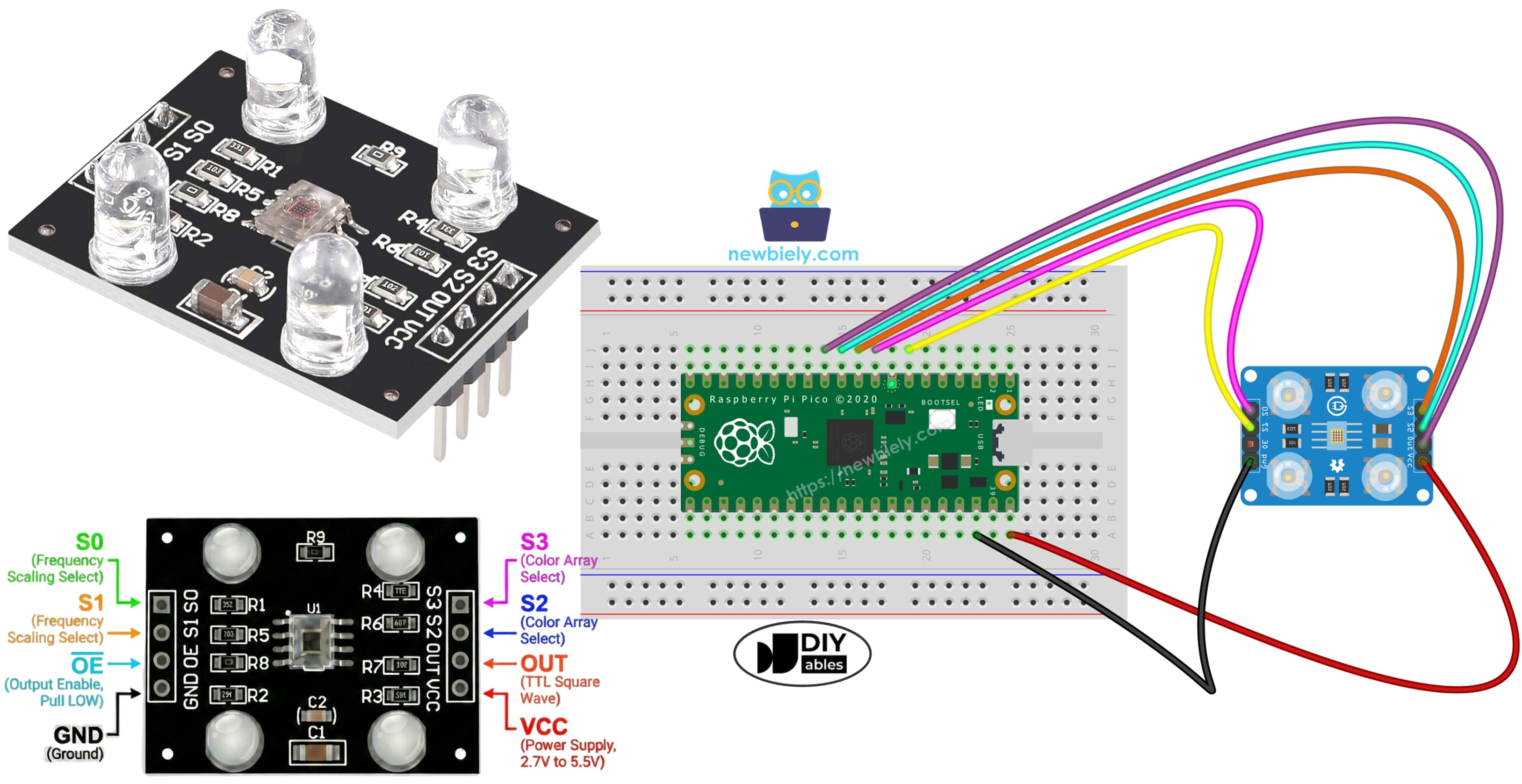
Hardware Preparation
Or you can buy the following kits:
| 1 | × | DIYables Sensor Kit (18 sensors/displays) |
Additionally, some of these links are for products from our own brand, DIYables .
Overview of TCS3200D/TCS230 Color Sensor
The TCS3200D/TCS230 sensor utilizes a photodiode matrix arranged in an 8×8 grid for color detection through optical filtering. Within this 64-element array, 16 photodiodes feature red spectral filters, another 16 use green filters, 16 employ blue filters, and the remaining 16 operate without filters (clear response). Color measurement happens by activating specific filter sets and analyzing the resulting frequency-modulated square-wave output.
Built-in white LED arrays on typical modules deliver constant illumination to targets, maintaining reading stability regardless of external lighting variations and enhancing performance in dim environments.
Pinout
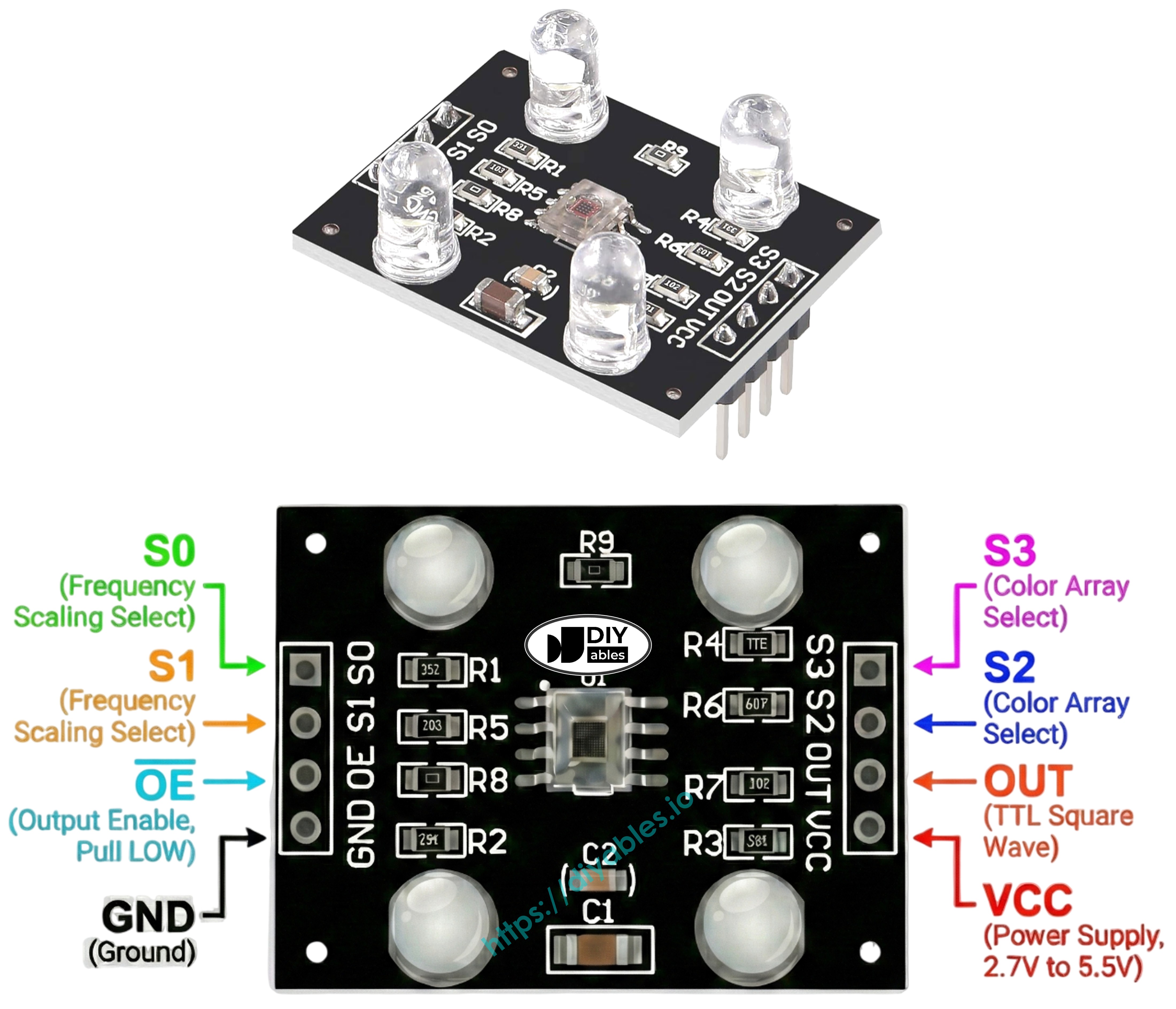
Available connections on the TCS3200D/TCS230 sensor board:
- VCC pin: Supply voltage input (+5V).
- GND pin: Ground reference (0V).
- S0, S1 pins: Output frequency scaling selectors.
- S2, S3 pins: Color channel filter selectors.
- OUT pin: Frequency-modulated square wave output.
- OE pin: Output enable input (enables when LOW). Standard modules typically hard-wire this to GND internally. If not connected, manually wire to GND.
How It Works
Two critical settings control sensor behavior: which color channel to activate and what output signal strength to generate. Two pairs of control inputs manage these functions:
Frequency scaling control (S0 and S1 pins):
- S0=LOW, S1=LOW: Power down state
- S0=LOW, S1=HIGH: 2% scaling factor
- S0=HIGH, S1=LOW: 20% scaling factor
- S0=HIGH, S1=HIGH: 100% scaling factor (full speed)
Color channel selection (S2 and S3 pins):
- S2=LOW, S3=LOW: Red photodiodes active
- S2=LOW, S3=HIGH: Blue photodiodes active
- S2=HIGH, S3=LOW: Clear photodiodes active (no filtering)
- S2=HIGH, S3=HIGH: Green photodiodes active
The OUT pin delivers square-wave frequencies spanning approximately 2 Hz to 500 kHz range. Frequency increases with light intensity—brighter illumination produces higher frequency output. By measuring pulse duration (which correlates inversely—shorter durations indicate stronger light), we can translate these measurements into conventional 0-255 RGB format through calibration.
Achieving Optimal Precision
- Keep sensor positioned 1-3 cm from measurement target with stable angular alignment.
- Utilize integrated white LED illumination for repeatable lighting.
- Shield sensor from variable ambient light to enhance measurement consistency.
Wiring Diagram
TCS3200 color sensor to Raspberry Pi Pico wiring configuration:
| TCS3200 Color Sensor | Raspberry Pi Pico |
|---|---|
| VCC | VBUS (5V) |
| GND | GND |
| OUT | GP9 |
| S0 | GP6 |
| S1 | GP5 |
| S2 | GP8 |
| S3 | GP7 |
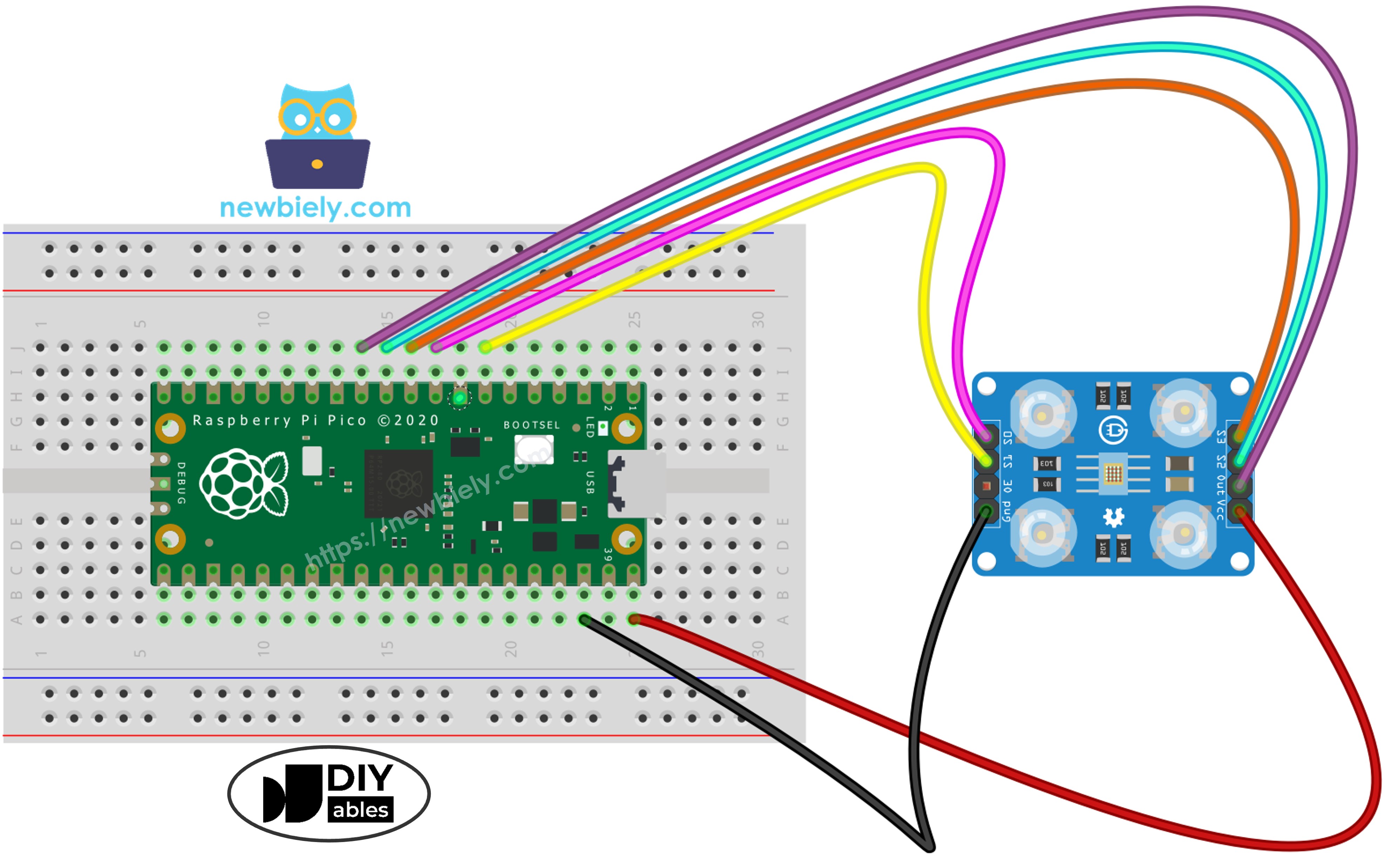
This image is created using Fritzing. Click to enlarge image
Raspberry Pi Pico Code - Pulse Width Calibration
Calibration eliminates environmental interference from raw measurements. Variables including LED output strength, target spacing, material reflectivity, and room lighting all affect readings. Think of these as systematic errors requiring measurement. The calibration routine identifies minimum and maximum pulse widths across all color channels, establishing reference boundaries for converting raw data into accurate 0–255 RGB values matched to your deployment environment.
Detailed Instructions
Please follow these instructions step by step:
- Ensure that Thonny IDE is installed on your computer.
- Ensure that MicroPython firmware is installed on your Raspberry Pi Pico.
- If this is your first time using a Raspberry Pico, refer to the Raspberry Pi Pico - Getting Started tutorial for detailed instructions.
- Connect the Raspberry Pi Pico to the TCS3200 sensor according to the provided diagram.
- Connect the Raspberry Pi Pico to your computer using a USB cable.
- Launch the Thonny IDE on your computer.
- On Thonny IDE, select MicroPython (Raspberry Pi Pico) Interpreter by navigating to Tools Options.
- In the Interpreter tab, select MicroPython (Raspberry Pi Pico) from the drop-down menu.
- Ensure the correct port is selected. Thonny IDE should automatically detect the port, but you may need to select it manually (e.g., COM3 on Windows or /dev/ttyACM0 on Linux).
- Copy the above code and paste it to the Thonny IDE's editor.
- Save the script to your Raspberry Pi Pico by:
- Click the Save button, or use Ctrl+S keys.
- In the save dialog, you will see two sections: This computer and Raspberry Pi Pico. Select Raspberry Pi Pico
- Save the file as tcs3200_calibration.py
- Click the green Run button (or press F5) to run the script. The script will execute.
- Expose sensor to diverse surfaces: white materials (printer paper), black objects, plus multi-colored items
- Watch Min/Max boundaries update automatically as extremes are detected
- Once values stabilize (generally 10-20 seconds), press Stop button or Ctrl+C to stop
- Document all six calibration parameters displayed
Sample calibration parameters extracted from above output:
- RedMin = 42, redMax = 210
- GreenMin = 55, greenMax = 185
- BlueMin = 60, blueMax = 172
Raspberry Pi Pico Code - RGB Value Measurement
Detailed Instructions
- Identify calibration variables at code start:
- Substitute all six zero placeholders with measured calibration data. Example using values redMin = 42, redMax = 210, greenMin = 55, greenMax = 185, blueMin = 60, blueMax = 172:
- Copy the updated code and paste it to Thonny IDE's editor
- Save the script to your Raspberry Pi Pico as tcs3200_sensor.py
- Click the green Run button (or press F5) to execute the script
- Arrange colored sample before sensor
- Check RGB output in the Shell at the bottom of Thonny
Displayed RGB values conform to standard 0-255 scaling. Reduced pulse widths (indicating brighter reflections) generate higher RGB outputs; extended pulse widths (dimmer reflections) yield lower values.
Project Applications
With operational RGB measurement capability, you can develop:
- Chromatic sorting system: Categorize objects by color (red/green/blue differentiation)
- Color verification device: Confirm color consistency between samples
- Colored path follower: Robots that navigate along chromatic markers
- Visual quality inspection: Detect production defects via color analysis
- Color-triggered automation: Execute actions when specific hues are detected