
Arduino MicroPython Button Module

Your Arduino Giga R1 WiFi can do a lot on its own, but sometimes a person has to tell it something: "a player buzzed in", "save a reading now", "pause the logger". One press on a button module is the simplest way to send that message. In this MicroPython guide, you will find out:

https://newbiely.com/images/cover/arduino-button-module-micropython.jpg

Hardware Preparation

1×Arduino Giga R1 WiFi
1×USB Cable Type-A to Type-C (for USB-A PC)
1×USB Cable Type-C to Type-C (for USB-C PC)
1×Button Module
1×Jumper Wires
1×Recommended: Screw Terminal Block Shield for Arduino Uno/Mega/Giga
1×Recommended: Sensors/Servo Expansion Shield for Arduino Mega/Giga
1×Recommended: Breadboard Shield for Arduino Mega/Giga
1×Recommended: Enclosure for Arduino Giga
1×Recommended: Power Splitter for Arduino Giga

Or you can buy the following kits:

1×DIYables Sensor Kit (18 sensors/displays)
Disclosure: Some of the links provided in this section are Amazon affiliate links. We may receive a commission for any purchases made through these links at no additional cost to you.
Additionally, some of these links are for products from our own brand, DIYables .

Overview of Button Module and Pinout

In short, the button module is a push button that brings its own resistor. A small tactile key with a colored cap sits on a little PCB, together with a pull-down resistor that holds the output at 0 while nobody touches it. The key is momentary: it is "on" only while your finger stays on it. DIYables sells the modules in a pack of five, one each in red, yellow, green, blue and white, which is handy when each key needs its own job.
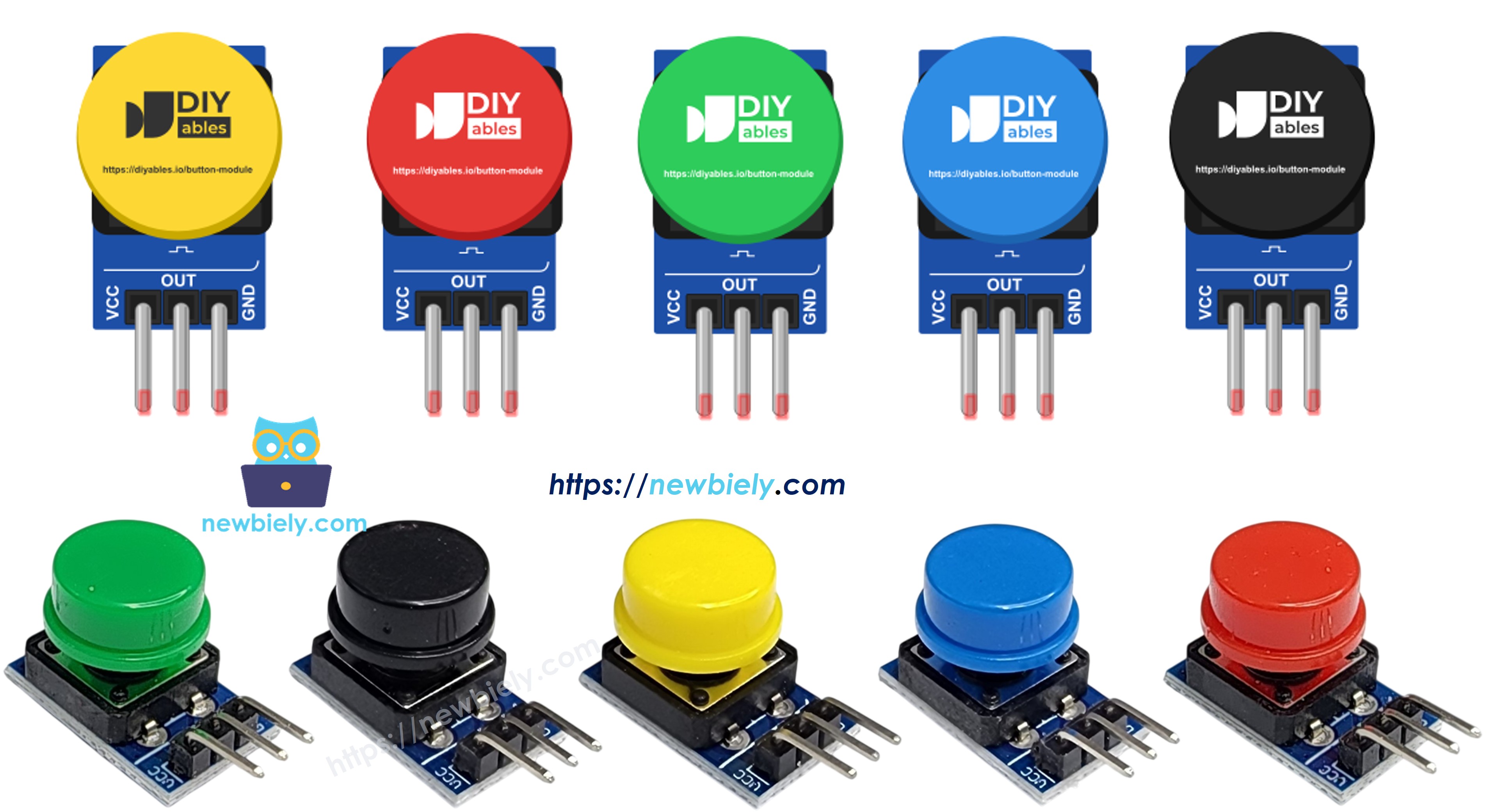
Button Module Pinout
image source: diyables.io

A 3-pin 2.54mm header comes out of the board. Read the labels from one end to the other:

  • VCC pin: the supply pin. The module accepts 3.3V to 5V DC, but on the Arduino Giga it goes to 3.3V.
  • OUT pin: the signal pin. Wire it to any digital pin of the Arduino. We use D2.
  • GND pin: wire it to a GND pin of the Arduino.

What MicroPython sees on OUT:

  • Key not touched: the resistor pulls OUT down, so value() returns 0.
  • Key held down: OUT is joined to VCC, so value() returns 1.

So the logic is "1 = pressed", the natural way round. You do not need Pin.PULL_UP here. In fact, turning on the internal pull-up would work against the resistor on the module.

※ NOTE THAT:

When the key is down, the OUT pin carries the same voltage you put on VCC. The I/O pins of the Giga R1 WiFi are 3.3V pins. If VCC were tied to 5V, every press would push 5V into pin D2, which can damage the board. Keep VCC on 3.3V.

One more thing about mechanical keys: the metal contacts bounce for a few milliseconds when they close or open. To a fast board, one push can look like several quick pushes. Examples 2 and 3 below show two ways to fix that.

Wiring Diagram

Three jumper wires are all you need, no breadboard. Pin D2 is the same pin the other button tutorials in this series use, so you can reuse their code later.
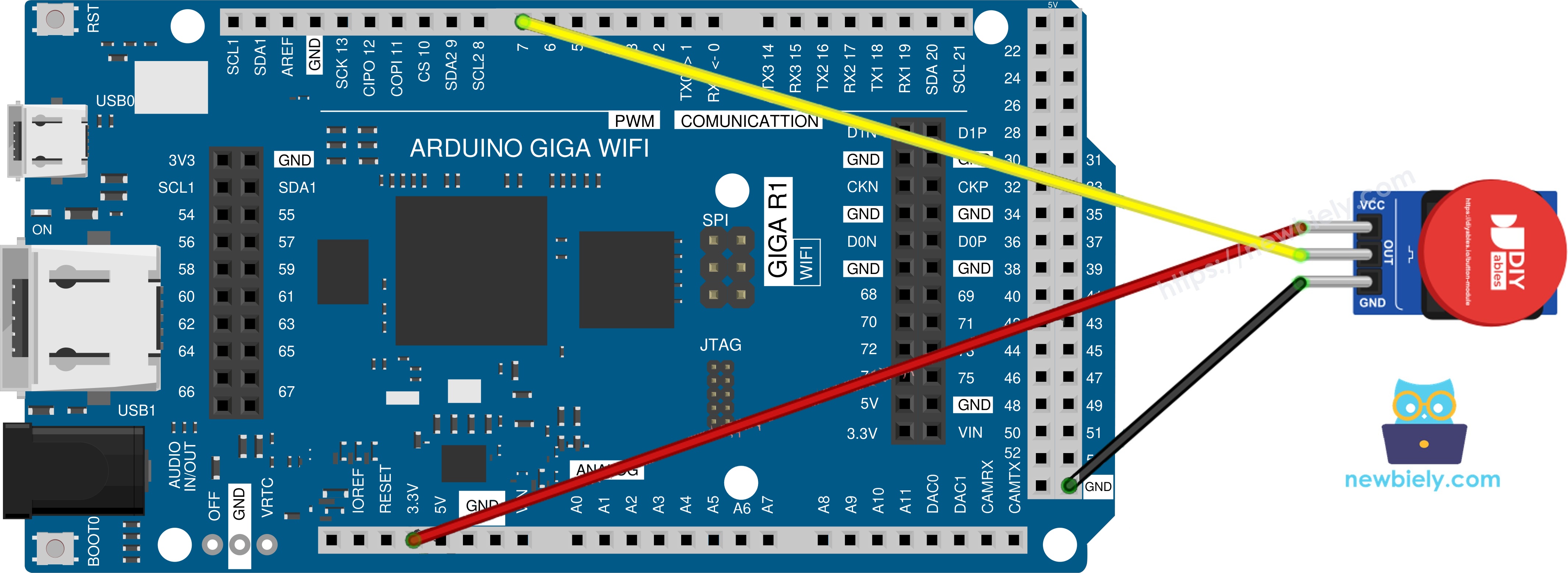
The wiring diagram between Arduino MicroPython Button Module

This image is created using Fritzing. Click to enlarge image

Button Module Arduino Giga R1 WiFi
VCC 3.3V (do not use 5V)
OUT D2
GND GND

How To Program Button Module With MicroPython

For the first two examples, the machine module that ships with MicroPython is enough.

  • Set D2 as a plain input. No pull resistor is needed in the code:
button_module = Pin('D2', Pin.IN)
  • Read the key. You get 1 when it is held and 0 when it is free:
level = button_module.value()
  • For the third example, the library object takes the pin name and the pull mode. Pin.PULL_DOWN tells it that 1 means "pressed":
button = Button('D2', Pin.PULL_DOWN)

Arduino MicroPython Code - Read the Raw Button State

The first script just shows what the board sees. Five times per second, it reads OUT and prints the value with a short label.

""" This Arduino MicroPython script was developed by newbiely.com This Arduino MicroPython script is made available for public use without any restriction For comprehensive instructions and wiring diagrams, please visit: https://newbiely.com/tutorials/arduino-micropython/arduino-micropython-button-module """ from machine import Pin import time BUTTON_MODULE_PIN = 'D2' # The Arduino Giga WiFi pin D2 connected to the OUT pin of the button module # The module has its own pull-down resistor, so a plain input is enough. # OUT gives 1 while the key is held down and 0 when it is let go. button_module = Pin(BUTTON_MODULE_PIN, Pin.IN) while True: level = button_module.value() # Read the OUT pin: 1 or 0 if level == 1: print("OUT = 1 -> key is down") else: print("OUT = 0 -> key is up") time.sleep(0.2) # Print 5 lines per second so the Shell stays readable

Detailed Instructions

Here’s instructions on how to run the above MicroPython code on Arduino with Thonny IDE:

  • Make sure Thonny IDE is installed on your computer.
  • Make sure MicroPython firmware is installed on your Arduino board.
  • If you are new to Arduino with MicroPython, see the Getting Started with Arduino and MicroPython.
  • Connect VCC to 3.3V, OUT to D2 and GND to GND, as in the wiring diagram.
  • Plug the Arduino Giga into your computer with the USB Type-C cable.
  • Open Thonny IDE and go to Tools Options.
  • Under the Interpreter tab, select MicroPython (generic) from the dropdown menu.
  • Select the COM port corresponding to your Arduino board (e.g., COM33 on Windows or /dev/ttyACM0 on Linux).
  • Copy the provided Arduino MicroPython code and paste it into Thonny's editor.
  • Save the MicroPython code to your Arduino by:
    • Clicking the Save button or pressing Ctrl+S.
    • In the save dialog, choose MicroPython device and name the file main.py.
  • Click the green Run button (or press F5) to execute the code.
  • Hold the key down for about one second, then let it go, and look at the Shell at the bottom of Thonny.
Shell x
>>> %Run -c $EDITOR_CONTENT
MPY: soft reboot OUT = 0 -> key is up OUT = 0 -> key is up OUT = 1 -> key is down OUT = 1 -> key is down OUT = 1 -> key is down OUT = 1 -> key is down OUT = 1 -> key is down OUT = 0 -> key is up OUT = 0 -> key is up
MicroPython (generic) • Giga Virtual Comm Port in FS Mode @ COM33 ≡

While your finger stays on the key, the Shell keeps showing 1. If you see only 0, check the OUT wire on D2 and the 3.3V wire. If the value jumps around with nothing pressed, the GND wire is probably loose.

Arduino MicroPython Code - Press and Release Events With Delay Debounce

Most projects do not care about the level itself. They want to act once at the moment the key goes down, or once when it comes up. This script remembers the last state. When a new reading is different, it waits 50 ms for the bounce to die out, reads again, and prints a message only if the change is still there.

""" This Arduino MicroPython script was developed by newbiely.com This Arduino MicroPython script is made available for public use without any restriction For comprehensive instructions and wiring diagrams, please visit: https://newbiely.com/tutorials/arduino-micropython/arduino-micropython-button-module """ from machine import Pin import time BUTTON_MODULE_PIN = 'D2' # The Arduino Giga WiFi pin D2 connected to the OUT pin of the button module SETTLE_MS = 50 # Time to wait for the contacts to stop bouncing (milliseconds) button_module = Pin(BUTTON_MODULE_PIN, Pin.IN) # The pull-down is on the module last_state = button_module.value() # 0 at start, because nobody is pressing the key while True: reading = button_module.value() if reading != last_state: # The level just changed. It may be a real press or only a bounce. time.sleep_ms(SETTLE_MS) # Wait until the contacts settle (this blocks the loop) reading = button_module.value() # Read again after the wait if reading != last_state: # Still different, so the change is real last_state = reading if reading == 1: print("The button is pressed") else: print("The button is released")

Detailed Instructions

  • The wiring stays the same.
  • Paste the new code into Thonny and save it to the Arduino as main.py, over the old file.
  • Press Run (F5).
  • Give the key three short taps.
Shell x
>>> %Run -c $EDITOR_CONTENT
MPY: soft reboot The button is pressed The button is released The button is pressed The button is released The button is pressed The button is released
MicroPython (generic) • Giga Virtual Comm Port in FS Mode @ COM33 ≡

Three taps, three pairs of lines. There are no extra "pressed" lines from bouncing. The only cost is that time.sleep_ms(50) stops the whole loop while it waits, so nothing else can run during those 50 ms.

Arduino MicroPython Code - Button Module With the DIYables Library

The third way hands the debounce job to the DIYables-MicroPython-Button library. It keeps track of time on its own, so button.loop() returns at once and the rest of your loop never gets stuck. You call is_pressed() and is_released() for the events, and get_state() for the steady level after debouncing.

""" This Arduino MicroPython script was developed by newbiely.com This Arduino MicroPython script is made available for public use without any restriction For comprehensive instructions and wiring diagrams, please visit: https://newbiely.com/tutorials/arduino-micropython/arduino-micropython-button-module """ from DIYables_MicroPython_Button import Button from machine import Pin BUTTON_MODULE_PIN = 'D2' # The Arduino Giga WiFi pin D2 connected to the OUT pin of the button module # Pin.PULL_DOWN matches the resistor on the module: 1 = pressed, 0 = released button = Button(BUTTON_MODULE_PIN, Pin.PULL_DOWN) button.set_debounce_time(50) # Ignore changes shorter than 50 milliseconds while True: button.loop() # Must be called first in every loop. It never waits. if button.is_pressed(): print("The button is pressed | steady state:", button.get_state()) if button.is_released(): print("The button is released | steady state:", button.get_state()) # Other work can run here without being delayed by the button

Detailed Instructions

  • In Thonny IDE, open Tools Manage packages.
  • Type “DIYables-MicroPython-Button” in the search box and find the Button library created by DIYables.
  • Click DIYables-MicroPython-Button, then click the Install button.
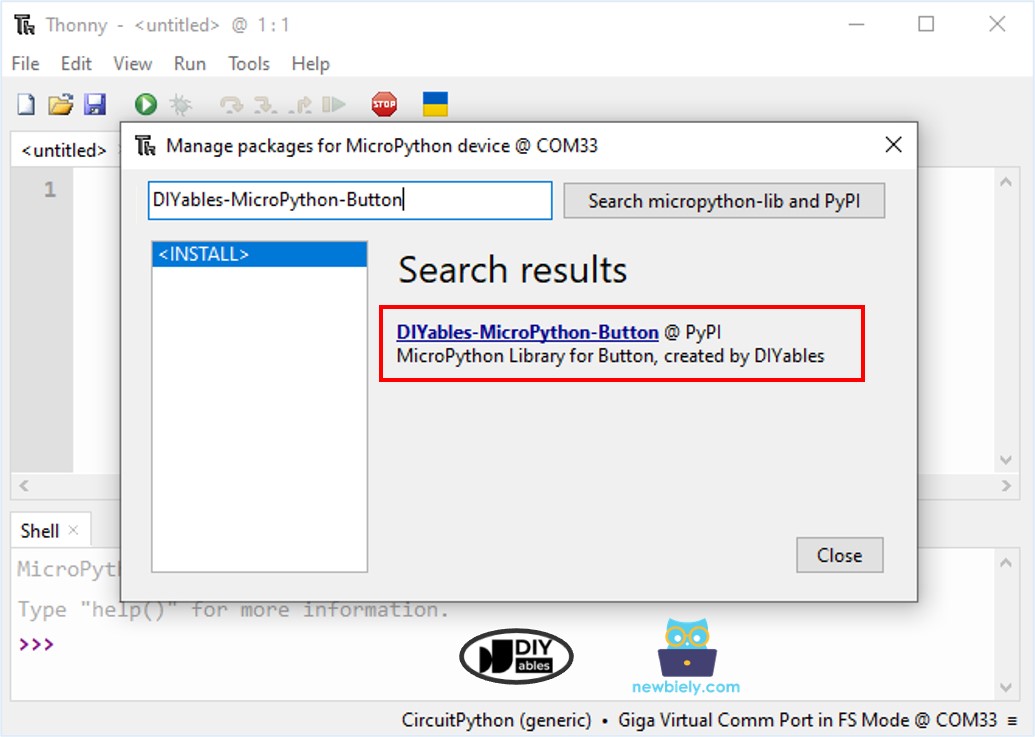
Arduino MicroPython Button library
  • Paste the code above into the editor and save it to the Arduino as main.py.
  • Click Run (F5).
  • Press the key, hold it a moment, and let go. Do it twice.
Shell x
>>> %Run -c $EDITOR_CONTENT
MPY: soft reboot The button is pressed | steady state: 1 The button is released | steady state: 0 The button is pressed | steady state: 1 The button is released | steady state: 0
MicroPython (generic) • Giga Virtual Comm Port in FS Mode @ COM33 ≡

Each event shows up exactly once, and the steady state agrees with it. If you want the board to react even less to very short touches, raise the number in set_debounce_time(), for example to 100.

※ NOTE THAT:

If you see "pressed" when you let go and "released" when you push, the library is in pull-up mode. Check that you passed Pin.PULL_DOWN as the second argument.

Why Not a Bare Push Button?

You can also wire a loose 4-leg push button to the Giga, as in the Arduino MicroPython Button tutorial. Here is what changes when you switch to the module:

  • The bare button has four legs joined in pairs, and it is easy to plug it in the wrong way round. The module has three clearly labeled pins.
  • The bare button needs a resistor, or the internal pull-up with Pin.PULL_UP. The module already has its pull-down on board.
  • With the internal pull-up, a press reads as 0, which feels upside down. The module reads 1 for a press.
  • The bare button usually needs a breadboard. The module connects straight to the Giga with jumper wires.

The debouncing ideas are the same for both. To go further, see the Button Debounce tutorial, or the Button LED tutorial to switch a light with your key.

Video Tutorial

※ OUR MESSAGES

  • As freelancers, We are AVAILABLE for HIRE. See how to outsource your project to us
  • Please feel free to share the link of this tutorial. However, Please do not use our content on any other websites. We invested a lot of effort and time to create the content, please respect our work!