
Arduino MicroPython GUVA-S12SD UV Sensor
Clouds hide the sun, but they do not stop all of its ultraviolet light. That is why people still get sunburned on a grey summer day. With a GUVA-S12SD UV sensor and a few lines of MicroPython, your Arduino Giga R1 WiFi can put a number on that invisible light. Step by step, this page shows:
- What the GUVA-S12SD module is made of, and why it shows nearly nothing inside your room.
- Which three pins of the Giga to use (3.3V, GND and A0).
- How read_u16() gives you a value from 0 to 65535, and how to turn it into volts.
- How to change those volts into an approximate UV index, with a level name from "Low" to "Extreme".
https://newbiely.com/images/cover/arduino-guva-s12sd-uv-sensor-micropython.jpg
Hardware Preparation
Or you can buy the following kits:
| 1 | × | DIYables Sensor Kit (18 sensors/displays) |
Additionally, some of these links are for products from our own brand, DIYables .
Overview of GUVA-S12SD UV Sensor and Pinout
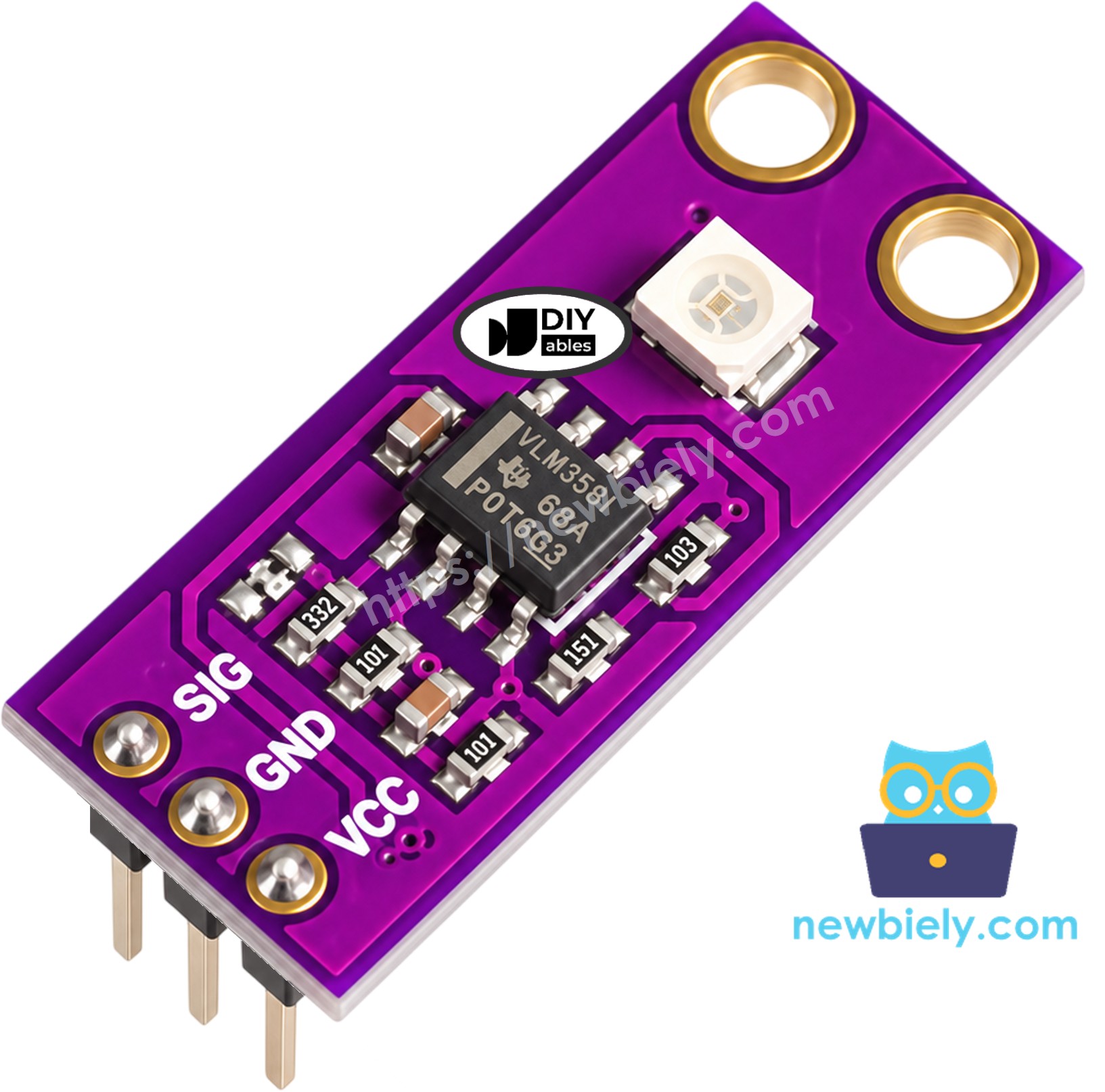
This is a tiny purple PCB, roughly 11mm by 27mm, with a mounting hole at each end. Two parts do all the work. The small white square is the GUVA-S12SD photodiode. The 8-pin chip next to it is a VLM358 op-amp. When UV light hits the photodiode, it lets a very small current flow. That current is much too weak to measure directly, so the op-amp turns it into a voltage on the SIG pin. The Giga reads that voltage with its ADC. Brighter UV means a higher voltage. That is all you need to know to use it.
| Feature | Value |
|---|---|
| UV range | 240nm to 370nm (UV-A and UV-B) |
| Field of view | 130 degrees |
| Power | 2.5V to 5V DC |
| SIG output | about 0V with no UV, up to about 1V or a bit more in strong sun |
| Size | about 11mm x 27mm |
| Comes as | pack of 2, header already soldered |
The header has three pins. From one end they read SIG, GND, VCC:
- SIG pin: the analog output. It goes to pin A0 of the Giga.
- GND pin: the ground. It goes to any GND pin of the Giga.
- VCC pin: the power input. The module is happy with 2.5V to 5V, but on the Giga we use 3.3V, the same level as the Giga's own pins.
Do not worry if the reading is close to zero at your desk. The sensor ignores visible light, and LED or fluorescent room lamps send out almost no UV. Even a sunny window is a poor test, because glass blocks a big part of the UV. To see real numbers, take the board outside, or point a UV flashlight at the white square.
From voltage to UV index
Hobby makers use a simple rule with this sensor: UV index ≈ SIG voltage ÷ 0.1. In other words, each 0.1V on SIG is about one UV index point. A reading of 0.42V means roughly UV index 4. This rule is good enough for a fun project or a reminder, but the module is not a calibrated UV meter. The levels below come from the World Health Organization:
| UV index | Level | Sun advice |
|---|---|---|
| 0 to 2 | Low | no special care needed |
| 3 to 5 | Moderate | sunscreen, seek shade near noon |
| 6 to 7 | High | hat, sunglasses and sunscreen |
| 8 to 10 | Very High | keep out of the midday sun |
| 11 and above | Extreme | avoid the sun if you can |
Wiring Diagram
No breadboard and no extra parts are needed. Plug three female-to-male jumper wires from the module header into the Giga.
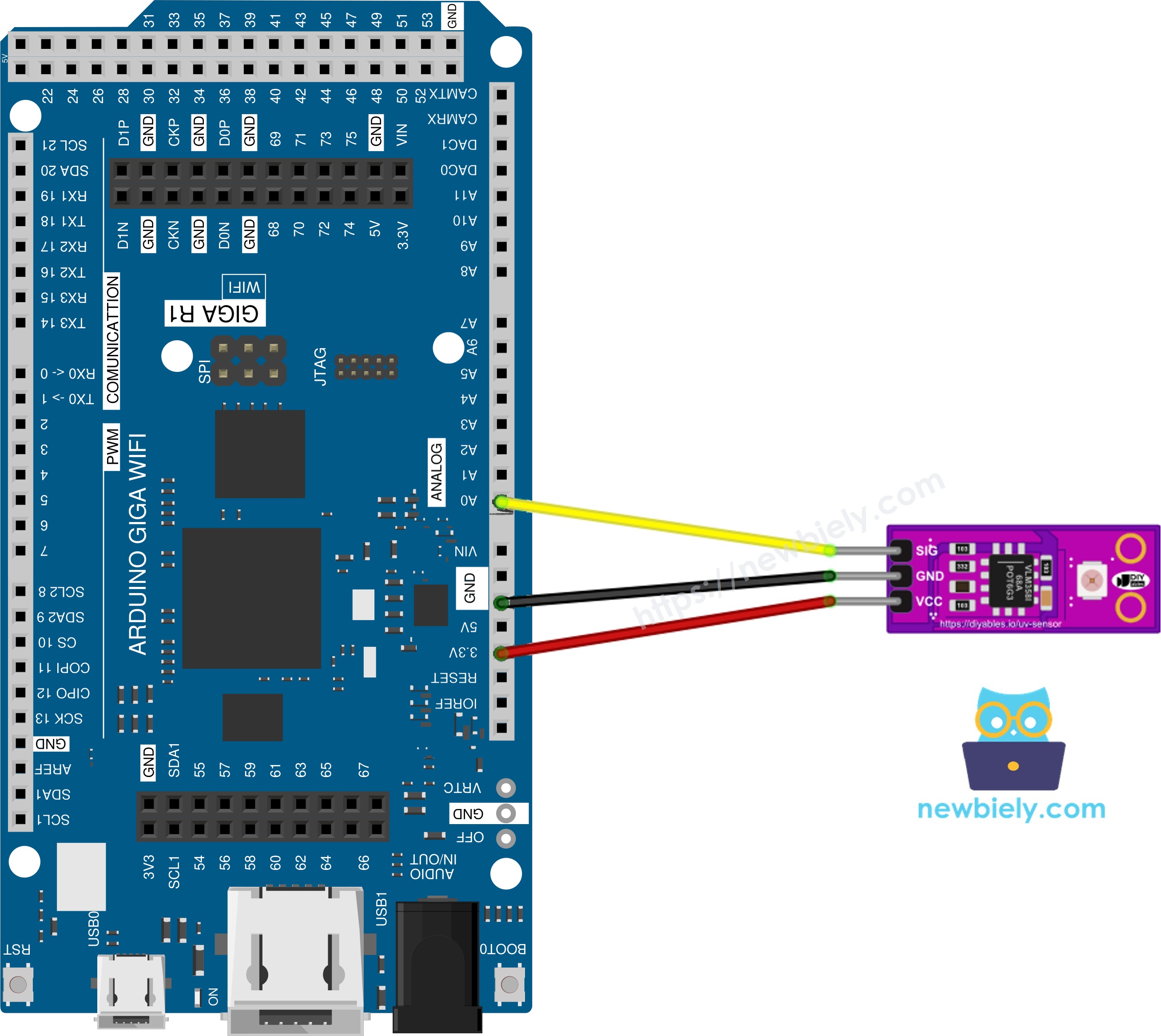
This image is created using Fritzing. Click to enlarge image
| GUVA-S12SD UV Sensor | Arduino Giga R1 WiFi |
|---|---|
| SIG | A0 |
| GND | GND |
| VCC | 3.3V |
Keep the white photodiode on top and nothing in front of it. Your fingers, a plastic case or a sticker over the square will cut the reading.
How To Program GUVA-S12SD UV Sensor With MicroPython
You do not need any library. The machine module already has everything.
- Create an ADC object on A0, the pin that listens to SIG:
- Take one reading. read_u16() always gives a 16-bit number, where 0 means 0V and 65535 means 3.3V:
- Scale it to volts:
- Divide by 0.1 to get the approximate UV index:
Want to try it before you write a file? Type these two lines into the Thonny Shell, one at a time, and press Enter after each. The second line prints one reading right away:
Arduino MicroPython Code - GUVA-S12SD Raw Reading and Voltage
This first script is a wiring test. Every second it shows the 16-bit number from A0 next to the voltage it stands for.
Detailed Instructions
Here’s instructions on how to run the above MicroPython code on Arduino with Thonny IDE:
- Make sure Thonny IDE is installed on your computer.
- Make sure MicroPython firmware is installed on your Arduino board.
- If you are new to Arduino with MicroPython, see the Getting Started with Arduino and MicroPython.
- Wire SIG to A0, GND to GND and VCC to 3.3V, as in the diagram above.
- Plug the Arduino Giga into your computer with the USB Type-C cable. A laptop is best, because you will carry it outside.
- Open Thonny IDE and go to Tools Options.
- Under the Interpreter tab, select MicroPython (generic) from the dropdown menu.
- Select the COM port corresponding to your Arduino board (e.g., COM33 on Windows or /dev/ttyACM0 on Linux).
- Copy the provided Arduino MicroPython code and paste it into Thonny's editor.
- Save the MicroPython code to your Arduino by:
- Clicking the Save button or pressing Ctrl+S.
- In the save dialog, choose MicroPython device and name the file main.py.
- Click the green Run button (or press F5) to execute the code.
- Read a few lines indoors. Then go out into the sun, turn the white square toward the sky, and watch the Shell.
The first three lines were taken next to a desk lamp: only around 10 millivolts. The rest were taken outside around noon, where SIG rose to about 0.5V to 0.7V. If the raw value stays near zero even in bright sun, check that the SIG wire sits on A0 and that VCC really goes to 3.3V.
※ NOTE THAT:
read_u16() always returns a number from 0 to 65535, even though the hardware ADC inside the Giga may use fewer bits. MicroPython scales the result for you, so the formula raw * 3.3 / 65535 stays the same.
Arduino MicroPython Code - GUVA-S12SD UV Index With Level Name
A single reading can jump a little because of electrical noise or a moving shadow. This script takes 20 readings in a row, uses their average, and then prints the voltage, the approximate UV index (one decimal) and the WHO level.
Detailed Instructions
- Do not change the wires.
- Paste this code into Thonny and save it to the Arduino as main.py, replacing the first script.
- Click Run (F5).
- Outside, hold the sensor in the shade of a tree, then in open sun, and then put your palm over it for a second.
Shade gives a Moderate level, full sun pushes it to High or even Very High, and your palm brings it straight back to Low. Check your numbers against the UV index in a local weather app. If your sensor always reads a bit high or low, change the 0.1 in the code until the two agree.
Project Ideas With the UV Sensor
The Giga has WiFi and plenty of pins, so the UV value can drive many small projects:
- Sunburn reminder: blink an LED or sound a buzzer when the index stays above 5 for a few minutes.
- UV lamp checker: see if the UV lamp in a reptile tank or a resin-curing box still gives out enough UV.
- Smart window blind: move a servo motor to close the blind when strong UV hits the window side of the house.
- Garden weather station: add the UV index to temperature and humidity readings and log them every few minutes.
To measure normal visible light instead of UV, see the Arduino MicroPython Light Sensor tutorial.