
Arduino MicroPython LED Module
Need a clear light on your Arduino Giga R1 WiFi project that shows "running", "error" or "done"? A 10mm LED module is a quick way to get one. This guide uses MicroPython and covers:
- Which parts the module already carries, so you can skip the series resistor.
- How to connect its three pins (GND, VCC, IN) to the Arduino Giga.
- How to write MicroPython code that blinks the LED module and prints its state in the Thonny Shell.
- How to make the light fade in and out smoothly with PWM.
https://newbiely.com/images/cover/arduino-led-module-micropython.jpg
Hardware Preparation
Or you can buy the following kits:
| 1 | × | DIYables Sensor Kit (18 sensors/displays) |
Additionally, some of these links are for products from our own brand, DIYables .
Buy Note: Use the LED Module for easier wiring. It includes an integrated resistor.
Overview of LED Module and Pinout
Think of the LED module as an LED that comes with its own helpers. On a small 20mm x 20mm black board, there is a big 10mm diffused LED, a 330Ω resistor that limits the LED current, a 1KΩ resistor on the IN line, and a tiny transistor that works as a switch. The power for the LED comes from the VCC pin. The IN pin only tells the transistor to open or close. The DIYables pack has five of these boards: red, yellow, blue, green and white.
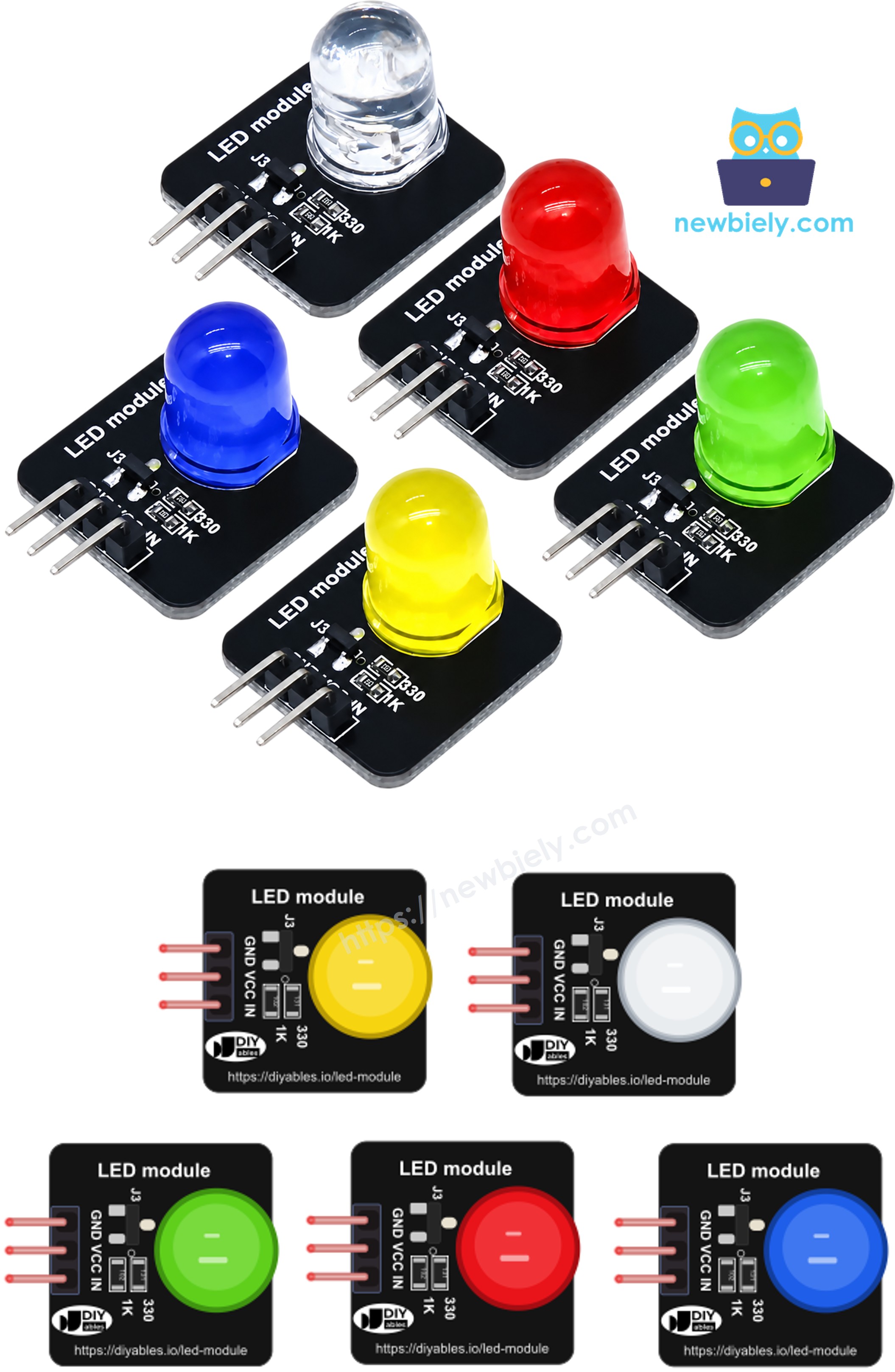
The module has a 3-pin right-angle header. The pins are labeled in this order:
- GND pin: goes to GND (0V) of the Arduino.
- VCC pin: goes to 5V or 3.3V of the Arduino. The module works from 3.3V to 5V DC.
- IN pin: the control pin. Connect it to a digital pin of the Arduino. Pick a PWM pin if you want to change the brightness.
How the IN pin works:
- IN = HIGH (value(1)): the transistor turns on and the LED lights up.
- IN = LOW (value(0)): the LED is off.
- A PWM signal on IN: the LED is on for part of each very short cycle, so it looks dimmer. A bigger duty value makes it brighter.
The pins of the Giga R1 WiFi work at 3.3V. With this module, that is not a problem. The pin only drives the small transistor, so it gives very little current, and the LED still gets its full current from VCC.
Wiring Diagram
The module plugs in with just three jumper wires. We use pin D2 because it can make PWM, so the same wiring works for both examples on this page.
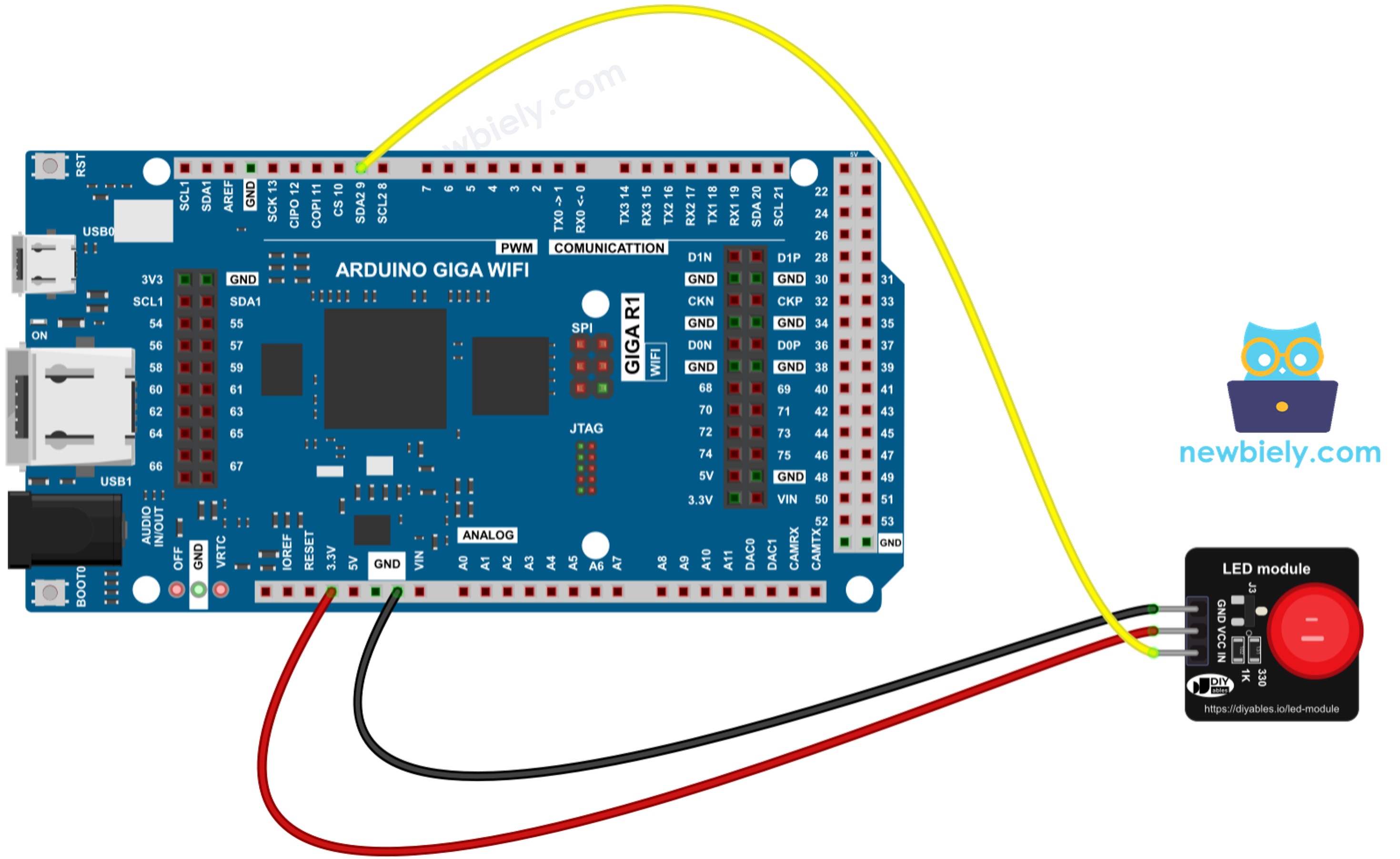
This image is created using Fritzing. Click to enlarge image
| LED Module | Arduino Giga R1 WiFi |
|---|---|
| GND | GND |
| VCC | 5V (3.3V also works, the light is a bit dimmer) |
| IN | D2 |
How To Program LED Module With MicroPython
No library is needed. Everything comes from the machine module that is built into MicroPython.
- Make pin D2 a digital output:
- Turn the LED module on and off:
- For brightness, use the same pin as a PWM output. duty_u16() takes a number from 0 (off) to 65535 (full brightness):
Arduino MicroPython Code - Blink LED Module
This code turns the LED module on for one second, then off for one second, and repeats. Each time, it prints the new state.
Detailed Instructions
Here’s instructions on how to run the above MicroPython code on Arduino with Thonny IDE:
- Make sure Thonny IDE is installed on your computer.
- Make sure MicroPython firmware is installed on your Arduino board.
- If you are new to Arduino with MicroPython, see the Getting Started with Arduino and MicroPython.
- Plug the three pins of the LED module into the Arduino as shown in the wiring diagram.
- Connect the Arduino board to your computer with a USB cable.
- Open Thonny IDE and go to Tools Options.
- Under the Interpreter tab, select MicroPython (generic) from the dropdown menu.
- Select the COM port corresponding to your Arduino board (e.g., COM33 on Windows or /dev/ttyACM0 on Linux).
- Copy the provided Arduino MicroPython code and paste it into Thonny's editor.
- Save the MicroPython code to your Arduino by:
- Clicking the Save button or pressing Ctrl+S.
- In the save dialog, choose MicroPython device and name the file main.py.
- Click the green Run button (or press F5) to execute the code.
- Watch the LED module, and the Shell at the bottom of Thonny.
The light and the text should change together, once per second. If the text changes but the LED stays dark, check the VCC and GND wires. If the LED is always on, check that the IN wire is on D2.
Arduino MicroPython Code - Fade LED Module
Now let's change the brightness. The code raises the PWM duty step by step until the LED is fully bright, then lowers it back to zero.
Detailed Instructions
- Keep the same wiring (D2 is a PWM pin).
- Copy the code above and paste it into Thonny's editor.
- Save it to the Arduino as main.py (replace the blink file).
- Click the green Run button (or press F5).
- The LED module slowly gets brighter, then slowly gets darker. The Shell shows each phase.
To make the fade slower, raise DELAY or make STEP smaller. To limit the top brightness, stop the loop at a lower duty, for example 30000.
※ NOTE THAT:
Both examples use time.sleep(), so the Arduino does nothing else while it waits. For a project that must also read buttons or sensors at the same time, see blink without sleep.
LED Module or Bare LED?
If you have done the Blink LED or Fade LED tutorial, you used a bare LED. The MicroPython code is almost the same. The difference is in the wiring:
| Bare LED | LED Module | |
|---|---|---|
| Resistor | you add one (e.g. 220Ω) | already on the board |
| Polarity | find the long leg (anode) and short leg (cathode) | pins are labeled GND, VCC, IN |
| Current from the Arduino pin | all of the LED current | very small (only drives the transistor) |
| Breadboard | usually needed | not needed, plug in jumper wires |
So the module is a good choice when you want a fast, clean setup, for example a status light, a fault alarm, a traffic light model or a "heartbeat" light that shows your code is still running.