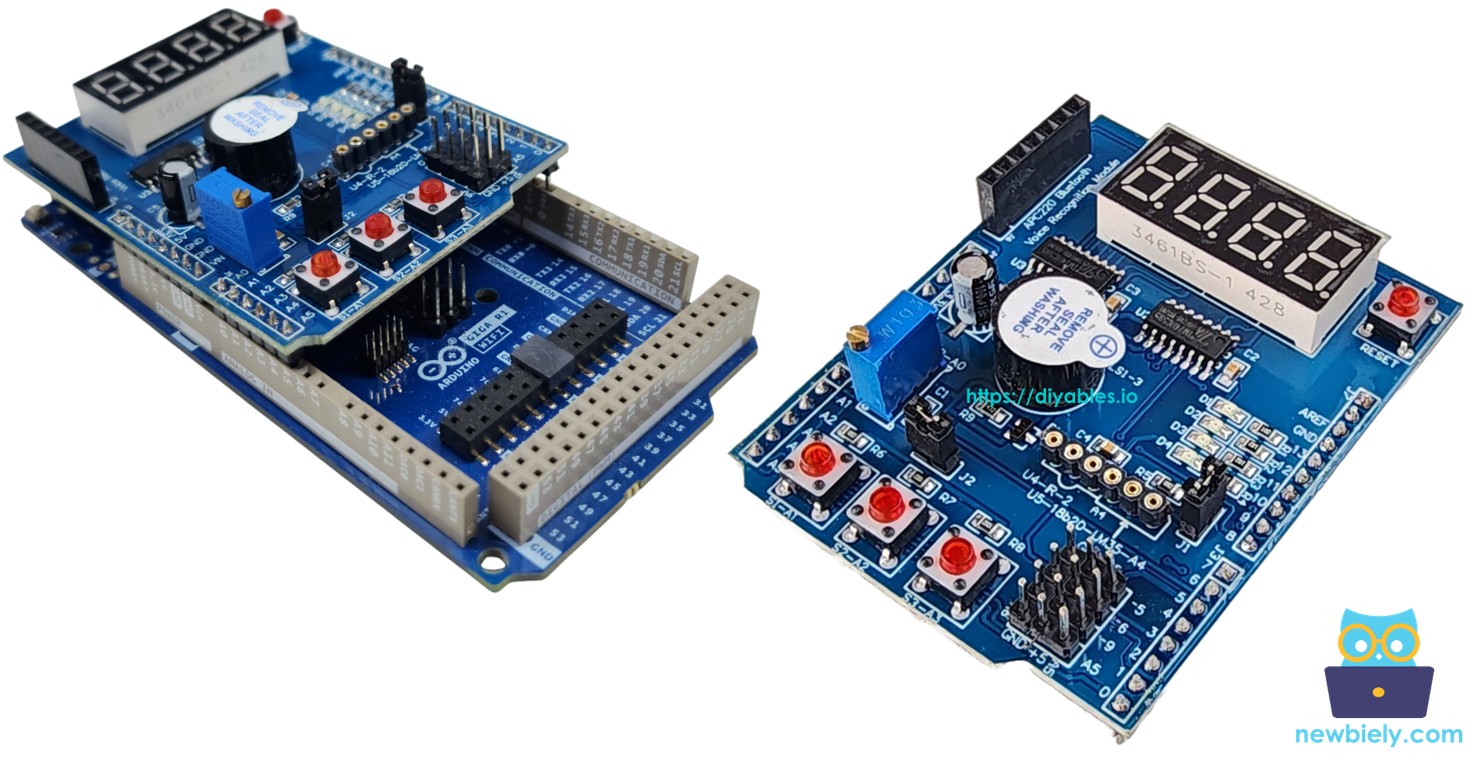
Arduino Giga R1 WiFi Multi-Function Shield

The Arduino Giga R1 WiFi is one of the most powerful boards in the Arduino ecosystem — featuring a dual-core STM32H747 processor, built-in Wi-Fi and Bluetooth, and a generous amount of RAM and flash. Despite its advanced capabilities, the Giga R1 WiFi retains the Mega/Uno-compatible header layout, which means the Multi-Function Shield fits right on top.

By following this tutorial, you will be able to:

Arduino Giga R1 WiFi Multi-Function Shield

Hardware Preparation

1×Arduino Giga R1 WiFi
1×USB Cable Type-A to Type-C (for USB-A PC)
1×USB Cable Type-C to Type-C (for USB-C PC)
1×DIYables Multi-Function Shield
1×Recommended: Screw Terminal Block Shield for Arduino Uno/Mega/Giga
1×Recommended: Sensors/Servo Expansion Shield for Arduino Uno/Mega/Giga
1×Recommended: Breadboard Shield for Arduino Mega/Giga
1×Recommended: Enclosure for Arduino Giga
1×Recommended: Power Splitter for Arduino Giga

Or you can buy the following kits:

1×DIYables Sensor Kit (18 sensors/displays)
Disclosure: Some of the links provided in this section are Amazon affiliate links. We may receive a commission for any purchases made through these links at no additional cost to you.
Additionally, some of these links are for products from our own brand, DIYables .

Overview of Multi-Function Shield

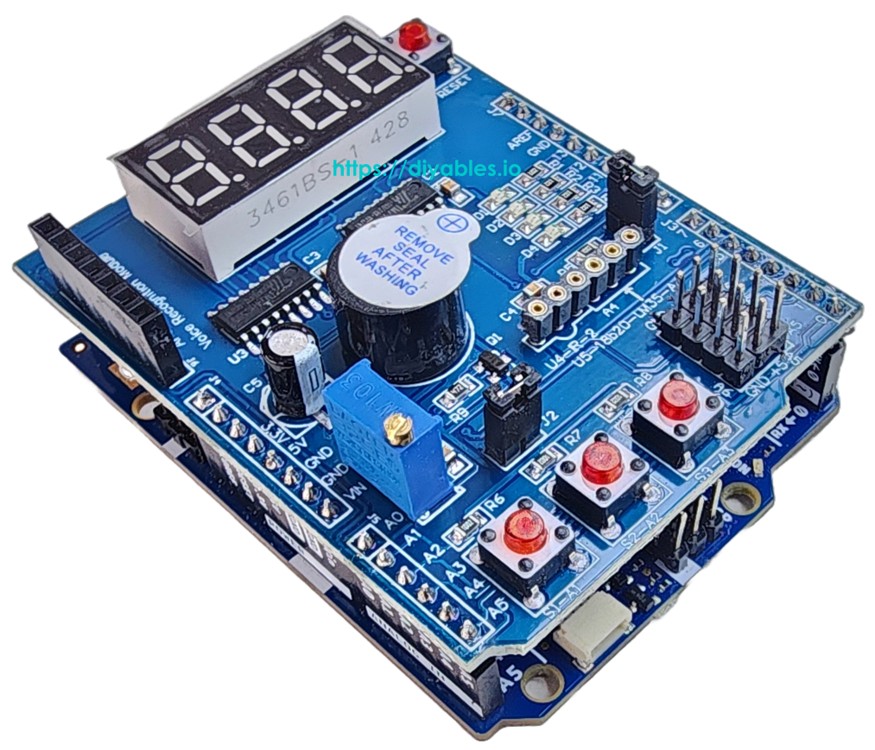
The Multi-Function Shield consolidates several frequently used peripherals into a single stackable board. Once placed on the Giga R1 WiFi, you get instant access to all of the following without wiring a single jumper:

  • 4-Digit 7-Segment Display — Shift-register driven (74HC595). Renders numbers, floating-point values, A–Z text, and symbols like the degree character (°).
  • 3 Push Buttons (S1, S2, S3) — Each is active LOW; internal pullup resistors and software debouncing are managed by the library.
  • 4 LEDs (D1–D4) — Active LOW digital outputs supporting on, off, toggle, and configurable blink intervals.
  • Buzzer — Active LOW. Programmable beep duration with an optional pre-delay.
  • Potentiometer — Wired to analog input A0. Provides either a raw ADC value or a percentage.
  • LM35 Temperature Sensor — Wired to analog input A4. Reports temperature in degrees Celsius. The jumper J1 must be removed before using this sensor.

The shield occupies these pins on the Giga R1 WiFi (matching the standard Uno/Mega layout):

Function Pin Function Pin
LED D1 13 Button S1 A1
LED D2 12 Button S2 A2
LED D3 11 Button S3 A3
LED D4 10 Potentiometer A0
Buzzer 3 LM35 Temp Sensor A4
Display LATCH 4
Display CLOCK 7
Display DATA 8
Multi-Function Shield Pinout

Wiring Diagram

The Giga R1 WiFi's Uno-compatible headers accept the Multi-Function Shield directly. Line up the pins carefully and press down — no soldering and no breadboard required.
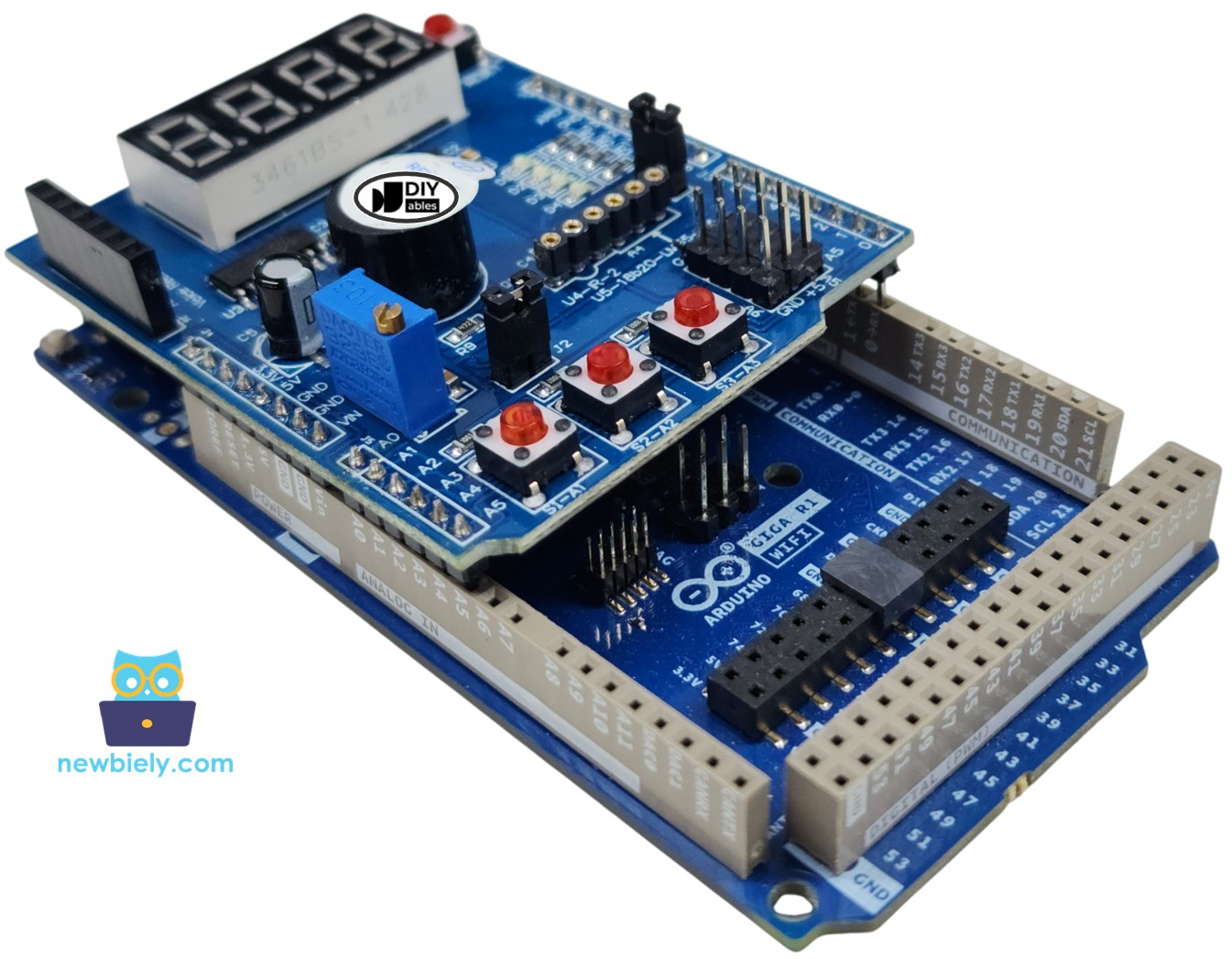
The wiring diagram between Arduino Giga R1 WiFi Multi-Function Shield

This image is created using Fritzing. Click to enlarge image

Setting Up the Library

  1. Connect the Giga R1 WiFi to your computer through the USB Type-C port.
  2. Launch the Arduino IDE, then select Arduino Giga R1 WiFi from the board menu and pick the appropriate port.
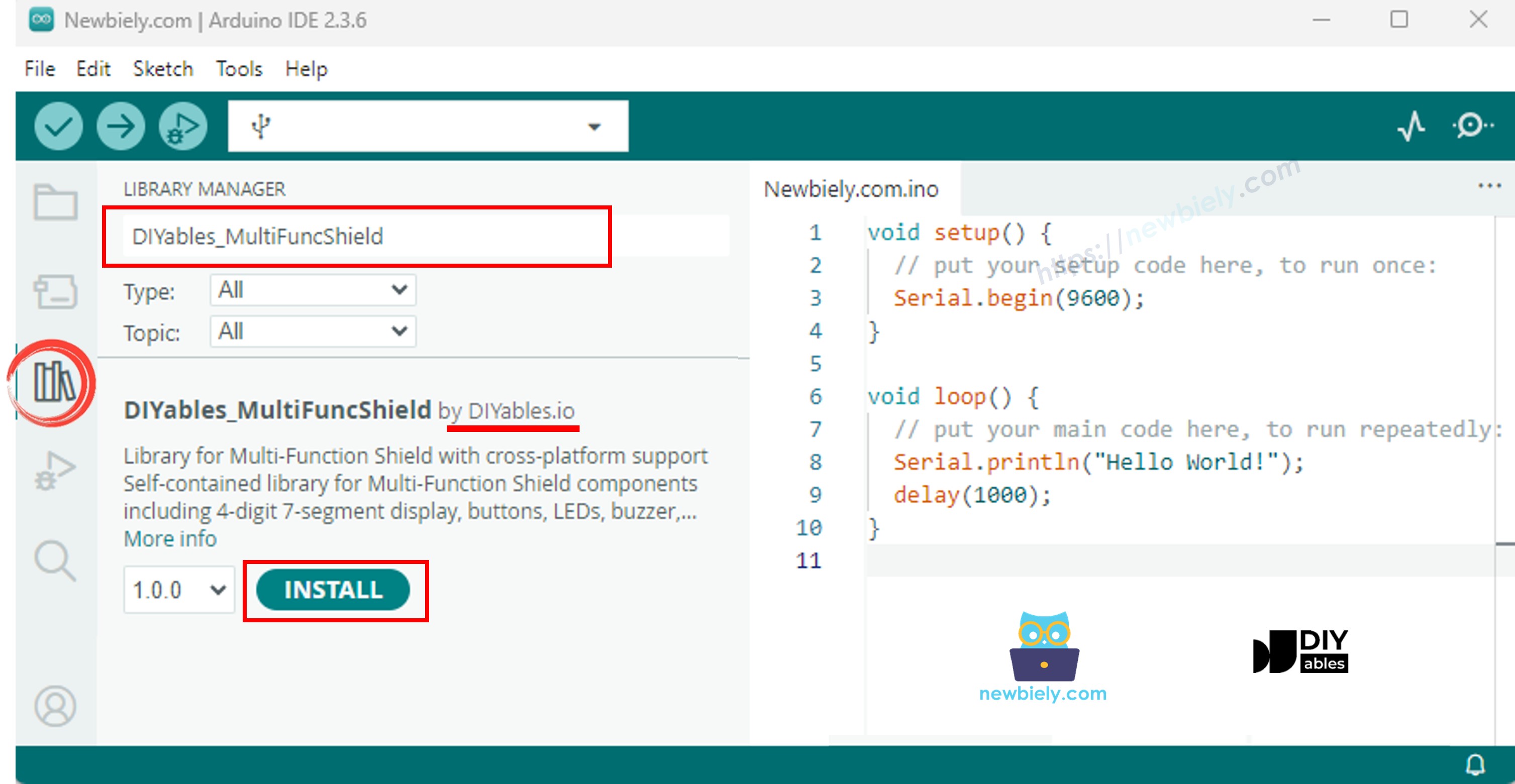
  3. Open the Libraries panel.
  4. Enter "DIYables_MultiFuncShield" in the search field. The library from DIYables should appear.
  5. Click Install.
Arduino Multi-Function Shield library

Everything is included in the library package — there are no extra dependencies to install.

Program Template

The following template is the starting point for every Multi-Function Shield sketch:

#include <DIYables_MultiFuncShield.h> void setup() { MFS.begin(); // Prepare all shield components } void loop() { MFS.loop(); // Drive display, scan buttons, manage LEDs and buzzer }

MFS.begin() initializes the hardware once. MFS.loop() must execute repeatedly to keep the display refreshed, the buttons polled, the LED blink engine ticking, and the buzzer scheduler running.

Driving the 7-Segment Display

The code below puts the display through its paces — integers, leading zeros, decimal numbers, text, dotted text, the degree symbol, and dashes.

/* * This Arduino Giga R1 WiFi code was developed by newbiely.com * * This Arduino Giga R1 WiFi code is made available for public use without any restriction * * For comprehensive instructions and wiring diagrams, please visit: * https://newbiely.com/tutorials/arduino-giga/arduino-giga-r1-wifi-multi-function-shield */ /* * Multi-Function Shield - Display Example * * Cycles through display features every 3 seconds: * 1. Integer number * 2. Integer with leading zeros * 3. Float number * 4. Text string with letters * 5. Text string with dot * 6. Degree symbol + C (special chars) * 7. Dashes * * Hardware: DIYables Multi-Function Shield * * COMPATIBLE Multi-Function Shield: * - https://diyables.io/products/multi-function-shield-for-arduino-uno-mega * * TESTED HARDWARE: * - Arduino Uno R3 * - Arduino Uno R4 WiFi * - Arduino Uno R4 Minima * - Arduino Mega * - Arduino Due * - Arduino Giga * - DIYables STEM V3: https://diyables.io/stem-v3 * - DIYables STEM V4 IoT: https://diyables.io/stem-v4-iot * - DIYables STEM V4B IoT: https://diyables.io/stem-v4b-iot * - DIYables STEM V4 Edu: https://diyables.io/stem-v4-edu * - DIYables MEGA2560 R3: https://diyables.io/atmega2560-board * - DIYables ESP32 S3, Uno-form factor: https://diyables.io/esp32-s3-uno * - It is expected to work with other boards */ #include <DIYables_MultiFuncShield.h> uint8_t step = 0; unsigned long lastUpdate = 0; void setup() { MFS.begin(); } void loop() { MFS.loop(); if (millis() - lastUpdate >= 3000) { lastUpdate = millis(); switch (step) { case 0: // Integer: " 42" MFS.display.print(42); break; case 1: // Integer with leading zeros: "0042" MFS.display.print(42, true); break; case 2: // Float with 2 decimals: "3.14" MFS.display.print(3.14, 2); break; case 3: // Text string: "HELP" MFS.display.print("HELP"); break; case 4: // Text with dot: "Ab.Cd" MFS.display.print("Ab.Cd"); break; case 5: // Degree + C using special chars: "25°C" MFS.display.clear(); MFS.display.setNumber(1, 2); MFS.display.setNumber(2, 5); MFS.display.setChar(3, SegChars::DEGREE); MFS.display.setChar(4, SegChars::C); MFS.display.show(); break; case 6: // Dashes: "----" MFS.display.print("----"); break; } step = (step + 1) % 7; } }

Getting Started

  • Seat the Multi-Function Shield onto the Giga R1 WiFi.
  • Plug in the USB Type-C cable.
  • In Arduino IDE, confirm the board and port settings.
  • Copy the code above into the editor.
  • Tap Upload.

Seven presentation modes cycle at 3-second intervals, demonstrating each display capability.

Display — Quick Reference

Method Description Example
print(int) Integer output MFS.display.print(42)
print(int, true) Zero-padded integer MFS.display.print(42, true) → 0042
print(float, dp) Decimal number with dp fractional digits MFS.display.print(3.14, 2)
print(text) String output (A-Z, 0-9, -, _) MFS.display.print("HELP")
setNumber(pos, val) Assign a digit to position 1–4 MFS.display.setNumber(1, 5)
setChar(pos, ch) Assign a character to a position MFS.display.setChar(2, 'A')
setChar(pos, SegChars) Assign a predefined symbol MFS.display.setChar(3, SegCharsDEGREE)
setDot(pos) Enable the dot at a position MFS.display.setDot(2)
clear() Reset all segments MFS.display.clear()
show() Flush pending changes to hardware MFS.display.show()

All print() variants invoke show() automatically. For fine-grained composition: clear() → set digits/chars/dots → show().

Predefined symbols in SegChars: DASH, UNDERSCORE, C, E, F, DEGREE.

Handling Button Input

Print press and release events to the Serial Monitor.

/* * This Arduino Giga R1 WiFi code was developed by newbiely.com * * This Arduino Giga R1 WiFi code is made available for public use without any restriction * * For comprehensive instructions and wiring diagrams, please visit: * https://newbiely.com/tutorials/arduino-giga/arduino-giga-r1-wifi-multi-function-shield */ /* * Multi-Function Shield - Buttons Example * * Detects button presses and releases, prints to Serial Monitor. * * Hardware: DIYables Multi-Function Shield * * COMPATIBLE Multi-Function Shield: * - https://diyables.io/products/multi-function-shield-for-arduino-uno-mega * * TESTED HARDWARE: * - Arduino Uno R3 * - Arduino Uno R4 WiFi * - Arduino Uno R4 Minima * - Arduino Mega * - Arduino Due * - Arduino Giga * - DIYables STEM V3: https://diyables.io/stem-v3 * - DIYables STEM V4 IoT: https://diyables.io/stem-v4-iot * - DIYables STEM V4B IoT: https://diyables.io/stem-v4b-iot * - DIYables STEM V4 Edu: https://diyables.io/stem-v4-edu * - DIYables MEGA2560 R3: https://diyables.io/atmega2560-board * - DIYables ESP32 S3, Uno-form factor: https://diyables.io/esp32-s3-uno * - It is expected to work with other boards */ #include <DIYables_MultiFuncShield.h> void setup() { Serial.begin(9600); MFS.begin(); } void loop() { MFS.loop(); if (MFS.button1.isPressed()) Serial.println("Button 1 pressed"); if (MFS.button1.isReleased()) Serial.println("Button 1 released"); if (MFS.button2.isPressed()) Serial.println("Button 2 pressed"); if (MFS.button2.isReleased()) Serial.println("Button 2 released"); if (MFS.button3.isPressed()) Serial.println("Button 3 pressed"); if (MFS.button3.isReleased()) Serial.println("Button 3 released"); }

Getting Started

  • Upload the sketch via Upload.
  • Open the Serial Monitor.
  • Press the three buttons on the shield and watch the events appear.

Buttons — Quick Reference

Method Description
isPressed() Triggers once at the moment of a press
isReleased() Triggers once at the moment of a release
setDebounceTime(ms) Override the debounce interval (default 50 ms)

Buttons are available as MFS.button1, MFS.button2, MFS.button3 or via index: MFS.button(1) through MFS.button(3). Pullup configuration and debouncing are automatic.

Controlling the LEDs

Sequentially illuminate each LED, then engage a synchronized blink across all four.

/* * This Arduino Giga R1 WiFi code was developed by newbiely.com * * This Arduino Giga R1 WiFi code is made available for public use without any restriction * * For comprehensive instructions and wiring diagrams, please visit: * https://newbiely.com/tutorials/arduino-giga/arduino-giga-r1-wifi-multi-function-shield */ /* * Multi-Function Shield - LEDs Example * * Demonstrates turn on, turn off, and blink for each LED. * * Hardware: DIYables Multi-Function Shield * * COMPATIBLE Multi-Function Shield: * - https://diyables.io/products/multi-function-shield-for-arduino-uno-mega * * TESTED HARDWARE: * - Arduino Uno R3 * - Arduino Uno R4 WiFi * - Arduino Uno R4 Minima * - Arduino Mega * - Arduino Due * - Arduino Giga * - DIYables STEM V3: https://diyables.io/stem-v3 * - DIYables STEM V4 IoT: https://diyables.io/stem-v4-iot * - DIYables STEM V4B IoT: https://diyables.io/stem-v4b-iot * - DIYables STEM V4 Edu: https://diyables.io/stem-v4-edu * - DIYables MEGA2560 R3: https://diyables.io/atmega2560-board * - DIYables ESP32 S3, Uno-form factor: https://diyables.io/esp32-s3-uno * - It is expected to work with other boards */ #include <DIYables_MultiFuncShield.h> void setup() { Serial.begin(9600); MFS.begin(); // Turn on all LEDs one by one Serial.println("Turn ON LEDs one by one"); for (uint8_t i = 1; i <= 4; i++) { MFS.led(i).turnON(); delay(500); } delay(1000); // Turn off all LEDs one by one Serial.println("Turn OFF LEDs one by one"); for (uint8_t i = 1; i <= 4; i++) { MFS.led(i).turnOFF(); delay(500); } delay(1000); // Blink individual LED (LED 1 only) Serial.println("Blink LED 1 individually"); MFS.led(1).blink(300); unsigned long start = millis(); while (millis() - start < 3000) MFS.loop(); MFS.led(1).turnOFF(); delay(1000); // Blink all LEDs together Serial.println("Blink all LEDs together"); MFS.allLedsBlink(500); } void loop() { MFS.loop(); }

Getting Started

  • Upload the sketch.

D1 through D4 activate in order, half a second apart, then all four blink together.

LEDs — Quick Reference

Method Description
turnON() Activate the LED
turnOFF() Deactivate the LED
toggle() Invert the current state
blink(interval) Symmetric blinking
blink(onTime, offTime) Asymmetric blinking
isOn() True when the LED is active

Batch operations on MFS:

Method Description
allLedsOn() Activate all four LEDs
allLedsOff() Deactivate all four LEDs
allLedsBlink(interval) Blink all symmetrically
allLedsBlink(onTime, offTime) Blink all asymmetrically

The LEDs are wired active LOW. Refer to them as MFS.led1MFS.led4 or MFS.led(1)MFS.led(4).

Using the Buzzer

Emit a periodic beep.

/* * This Arduino Giga R1 WiFi code was developed by newbiely.com * * This Arduino Giga R1 WiFi code is made available for public use without any restriction * * For comprehensive instructions and wiring diagrams, please visit: * https://newbiely.com/tutorials/arduino-giga/arduino-giga-r1-wifi-multi-function-shield */ /* * Multi-Function Shield - Buzzer Example * * Beeps the buzzer every 2 seconds. * * Hardware: DIYables Multi-Function Shield * * COMPATIBLE Multi-Function Shield: * - https://diyables.io/products/multi-function-shield-for-arduino-uno-mega * * TESTED HARDWARE: * - Arduino Uno R3 * - Arduino Uno R4 WiFi * - Arduino Uno R4 Minima * - Arduino Mega * - Arduino Due * - Arduino Giga * - DIYables STEM V3: https://diyables.io/stem-v3 * - DIYables STEM V4 IoT: https://diyables.io/stem-v4-iot * - DIYables STEM V4B IoT: https://diyables.io/stem-v4b-iot * - DIYables STEM V4 Edu: https://diyables.io/stem-v4-edu * - DIYables MEGA2560 R3: https://diyables.io/atmega2560-board * - DIYables ESP32 S3, Uno-form factor: https://diyables.io/esp32-s3-uno * - It is expected to work with other boards */ #include <DIYables_MultiFuncShield.h> unsigned long lastBeep = 0; void setup() { MFS.begin(); } void loop() { MFS.loop(); if (millis() - lastBeep >= 2000) { lastBeep = millis(); MFS.buzzer.beep(100); } }

Getting Started

  • Upload the sketch.

A short beep plays every 2 seconds.

Buzzer — Quick Reference

Method Description
beep(ms) Buzz for the specified number of milliseconds
beep(ms, delayMs) Pause for delayMs, then buzz for ms
stop() Silence the buzzer instantly
isBeeping() True during an active beep

Reading the Potentiometer

Read the potentiometer and print the value and percentage to Serial.

/* * This Arduino Giga R1 WiFi code was developed by newbiely.com * * This Arduino Giga R1 WiFi code is made available for public use without any restriction * * For comprehensive instructions and wiring diagrams, please visit: * https://newbiely.com/tutorials/arduino-giga/arduino-giga-r1-wifi-multi-function-shield */ /* * Multi-Function Shield - Potentiometer Example * * Reads the potentiometer and shows the percentage on the display. * * NOTE: The potentiometer on the shield is a multi-turn trimmer. * You need to rotate it MANY turns to go from 0% to 100%. * If the value stays at 0% or 100%, rotate in the opposite direction. * * Hardware: DIYables Multi-Function Shield * * COMPATIBLE Multi-Function Shield: * - https://diyables.io/products/multi-function-shield-for-arduino-uno-mega * * TESTED HARDWARE: * - Arduino Uno R3 * - Arduino Uno R4 WiFi * - Arduino Uno R4 Minima * - Arduino Mega * - Arduino Due * - Arduino Giga * - DIYables STEM V3: https://diyables.io/stem-v3 * - DIYables STEM V4 IoT: https://diyables.io/stem-v4-iot * - DIYables STEM V4B IoT: https://diyables.io/stem-v4b-iot * - DIYables STEM V4 Edu: https://diyables.io/stem-v4-edu * - DIYables MEGA2560 R3: https://diyables.io/atmega2560-board * - DIYables ESP32 S3, Uno-form factor: https://diyables.io/esp32-s3-uno * - It is expected to work with other boards */ #include <DIYables_MultiFuncShield.h> unsigned long lastUpdate = 0; float lastPct = -1; void setup() { Serial.begin(9600); MFS.begin(); Serial.println("Rotate potentiometer knob (multi-turn trimmer)."); Serial.println("It requires many turns to go from 0% to 100%."); } void loop() { MFS.loop(); if (millis() - lastUpdate >= 500) { lastUpdate = millis(); int raw = MFS.readPot(); float pct = MFS.readPotPercent(); Serial.print("Raw: "); Serial.print(raw); Serial.print(" Percent: "); Serial.print(pct, 1); Serial.print("%"); if (pct <= 0.1) Serial.print(" ← MIN (rotate clockwise to increase)"); else if (pct >= 99.9) Serial.print(" ← MAX (rotate counter-clockwise to decrease)"); Serial.println(); lastPct = pct; } }

Getting Started

  • Upload the sketch and open the Serial Monitor.
  • Turn the knob and observe the percentage change in real time.

Potentiometer — Quick Reference

Method Return Type Description
readPot() int Unscaled ADC value (0–1023 on Giga R1 WiFi)
readPotPercent() float Percentage from 0.0 to 100.0

Measuring Temperature (LM35)

Display the LM35's Celsius output on the 7-segment display and print it to Serial.

Prerequisite: Remove jumper J1 on the shield. Pin A4 is shared with the I2C SDA signal, and J1 routes it to I2C by default.

/* * This Arduino Giga R1 WiFi code was developed by newbiely.com * * This Arduino Giga R1 WiFi code is made available for public use without any restriction * * For comprehensive instructions and wiring diagrams, please visit: * https://newbiely.com/tutorials/arduino-giga/arduino-giga-r1-wifi-multi-function-shield */ /* * Multi-Function Shield - Temperature Example * * Reads the LM35 temperature sensor and shows Celsius on the display. * Note: Requires jumper J1 removed (pin A4). * * Hardware: DIYables Multi-Function Shield * * COMPATIBLE Multi-Function Shield: * - https://diyables.io/products/multi-function-shield-for-arduino-uno-mega * * TESTED HARDWARE: * - Arduino Uno R3 * - Arduino Uno R4 WiFi * - Arduino Uno R4 Minima * - Arduino Mega * - Arduino Due * - Arduino Giga * - DIYables STEM V3: https://diyables.io/stem-v3 * - DIYables STEM V4 IoT: https://diyables.io/stem-v4-iot * - DIYables STEM V4B IoT: https://diyables.io/stem-v4b-iot * - DIYables STEM V4 Edu: https://diyables.io/stem-v4-edu * - DIYables MEGA2560 R3: https://diyables.io/atmega2560-board * - DIYables ESP32 S3, Uno-form factor: https://diyables.io/esp32-s3-uno * - It is expected to work with other boards */ #include <DIYables_MultiFuncShield.h> unsigned long lastUpdate = 0; void setup() { Serial.begin(9600); MFS.begin(); MFS.display.print(0); } void loop() { MFS.loop(); if (millis() - lastUpdate >= 500) { lastUpdate = millis(); float temp = MFS.readTemperature(); MFS.display.print(temp, 1); Serial.print("Temp: "); Serial.print(temp, 1); Serial.println(" C"); } }

Getting Started

  • Remove jumper J1.
  • Upload the sketch and open the Serial Monitor.
  • The temperature updates continuously on the display and in the Serial output.

Readings are passed through a 4-sample moving average filter. The buffer is pre-loaded on the first sample to prevent an inaccurate cold-start value.

Platform Support

The library supports all Arduino platforms (architectures=*).

Learn More

※ OUR MESSAGES

  • As freelancers, We are AVAILABLE for HIRE. See how to outsource your project to us
  • Please feel free to share the link of this tutorial. However, Please do not use our content on any other websites. We invested a lot of effort and time to create the content, please respect our work!