
Arduino MKR WiFi 1010 - Button - Long Press Short Press
Welcome to this advanced button tutorial! Learn how to detect different types of button presses—short taps versus long holds—enabling sophisticated user interfaces with just a single button.
What You'll Master:
- Detecting short button presses (quick taps)
- Detecting long button presses (held down)
- Distinguishing between short and long presses in the same program
- Implementing reliable detection with proper debouncing
Why This Matters:
Differentiating between short and long presses dramatically expands what you can do with a single button:
Practical Applications:
- Save GPIO pins: One button performs multiple functions (short press = turn on light, long press = start fan)
- Prevent accidents: Critical actions require long press (avoiding accidental resets or deletions)
- Enhanced UX: Modern interface patterns (short = next item, long = enter menu)
- Power saving: Long press to power off, short press for wake
Two Detection Approaches:
- Detect on release: Measure press duration when button is released
- Detect during press: Trigger action while button is still held (more responsive for long presses)
Hardware Preparation
Or you can buy the following kits:
| 1 | × | DIYables Sensor Kit (18 sensors/displays) |
Additionally, some of these links are for products from our own brand, DIYables .
Wiring Diagram
Connect a button to your Arduino MKR WiFi 1010 as shown. This simple circuit enables all the press detection examples in this tutorial.
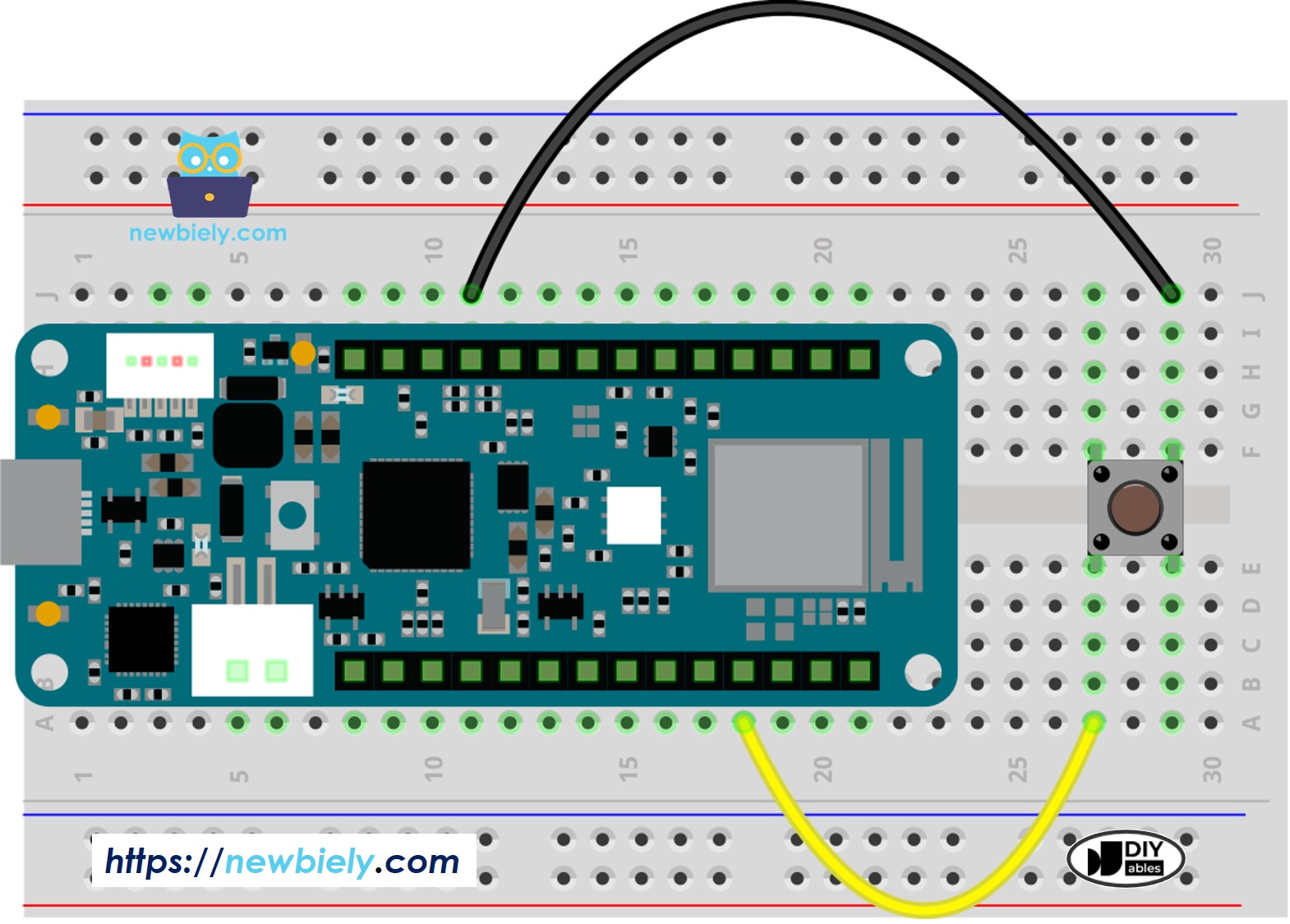
This image is created using Fritzing. Click to enlarge image
Configuration Note: This tutorial uses the Arduino's internal pull-up resistor (enabled in code with INPUT_PULLUP). With this configuration:
- Button NOT pressed = pin reads HIGH
- Button pressed = pin reads LOW
This inverted logic is normal and handled in the code!
How To Detect Short Press
Concept: A short press is detected by measuring the duration between button press and release. If the duration is below your threshold, it's a short press.
Algorithm:
- Detect button press (HIGH to LOW transition)
- Record the press timestamp
- Detect button release (LOW to HIGH transition)
- Record the release timestamp
- Calculate duration = release time - press time
- If duration < SHORT_PRESS_TIME threshold → It's a short press!
Let's implement this step by step:
Step 1: Define the short press threshold
This threshold is customizable based on your application. 500ms is a good default that feels natural to users.
Step 2: Detect button press and record timestamp
We use millis() to get the current time in milliseconds since the Arduino started.
Step 3: Detect button release and record timestamp
Step 4: Calculate press duration
This gives us how many milliseconds the button was held.
Step 5: Determine if it's a short press
Arduino MKR WiFi 1010 Code for detecting the short press
Detailed Instructions
New to Arduino MKR WiFi 1010? Complete our Getting Started with Arduino MKR WiFi 1010 tutorial first to set up your development environment.
- Connect the components to the Arduino MKR WiFi 1010 board as depicted in the diagram
- Plug your Arduino MKR WiFi 1010 into your computer's USB port
- Launch the Arduino IDE on your computer
- Select the Arduino MKR WiFi 1010 board and its COM port
- Upload the code above to your Arduino MKR WiFi 1010 using the Arduino IDE.
- Press the button quickly a few times.
- Look at the result on the Serial Monitor. It should look like this:
※ NOTE THAT:
Important: The Serial Monitor may show multiple "short press" messages for a single button press. This is the chattering phenomenon—mechanical bouncing causing multiple detections.
This is expected without debouncing! We'll fix this issue in the final section using the ezButton library. For now, focus on understanding the timing logic.
How To Detect Long Press
Two Approaches: Long press detection can be implemented two different ways, each with distinct advantages:
Approach 1: Detect After Release
- Wait until button is released
- Measure the total press duration
- If duration > threshold → Long press
- Advantage: Simple logic, complete duration known
- Disadvantage: User must wait until release for feedback
Approach 2: Detect During Press
- Continuously check press duration while button is held
- Trigger action as soon as threshold is exceeded (while still pressed)
- Advantage: Immediate feedback, more responsive UX
- Disadvantage: Slightly more complex logic
Let's implement both approaches!
Arduino MKR WiFi 1010 Code for detecting long press when released
Detailed Instructions
- Upload the code to the Arduino MKR WiFi 1010 using the Arduino IDE.
- After one second, press the button and then let go.
- Look at the result on the Serial Monitor. It should look like the image below.
Arduino MKR WiFi 1010 Code for detecting long press during pressing
Detailed Instructions
- Load the code above onto your Arduino MKR WiFi 1010 using the Arduino IDE.
- Wait a few seconds, then press and release the button.
- Open the Serial Monitor to see the result. It should look like this.
How To Detect Both Long Press and Short Press
Now let's combine both detection methods! Your program can respond differently based on whether the user taps quickly or holds the button down.
Use Cases:
- Short press = Turn on LED, Long press = Start motor
- Short press = Next menu item, Long press = Select item
- Short press = Snooze alarm, Long press = Turn off alarm
Short Press and Long Press after released
This approach detects the press type when the button is released:
Detailed Instructions
- Use Arduino IDE to upload the code to your Arduino MKR WiFi 1010.
- Press the button quickly and then hold it down.
- Open the Serial Monitor to see the result. It should look like the example shown.
※ NOTE THAT:
The Serial Monitor might show several quick presses when you hold the button down. This is normal and is called the bouncing effect. We will explain how to fix it at the end of this guide.
Short Press and Long Press During pressing
Detailed Instructions
- Upload the code above to the Arduino MKR WiFi 1010 using the Arduino IDE.
- Press the button quickly and then press it for a longer time.
- Open the Serial Monitor to see the result. It should look like this:
Long Press and Short Press with Debouncing
Critical for Production Code: All the examples above work conceptually, but they suffer from button chattering. For reliable, professional applications, debouncing is absolutely essential!
Implementing timing-based detection AND debouncing manually is complex. The ezButton library handles both automatically, providing:
- Built-in debouncing
- Clean press/release detection
- Press duration tracking
- Simple, readable API
Let's see how clean the code becomes with ezButton!
Short Press and Long Press with debouncing after released
Detailed Instructions
- Install the ezButton library. For instruction, visit ezButton Library Reference
- Upload the code to your Arduino MKR WiFi 1010 using the Arduino IDE.
- Press the button briefly and press it for a long time.
- Look at the Serial Monitor to see the results, which should look similar to the example below.
Short Press and Long Press with debouncing During Pressing
Detailed Instructions
- Copy and upload the code above to your Arduino MKR WiFi 1010 using the Arduino IDE.
- Press the button briefly and then press it for a longer time.
- Look at the result in the Serial Monitor. It will appear similar to the example shown below.
Video Tutorial
Why Use Long Press and Short Press?
1. Maximize Button Functionality (Save GPIO Pins)
Each button can perform multiple functions, reducing the number of physical buttons and GPIO pins needed:
- Example: Smart home controller
- Short press = Toggle room light
- Long press = Activate dimming mode
- Benefit: One button replaces two, freeing a GPIO pin for other sensors
2. Prevent Accidental Actions
Critical or destructive operations should require deliberate long presses to avoid accidents:
- Example: Factory reset button
- Short press = Ignored (prevents accidental resets)
- Long press (3+ seconds) = Initiate reset sequence
- Benefit: User must intentionally hold button, reducing errors
3. Intuitive User Interfaces
Modern users understand long-press conventions from smartphones and appliances:
- Example: Menu navigation
- Short press = Scroll through options
- Long press = Select current option
- Benefit: Familiar interaction pattern
4. Contextual Actions
Different press types can trigger related but distinct actions:
- Example: Media player
- Short press = Pause/Play
- Long press = Skip to next track
- Benefit: Related functions grouped on one button
This technique transforms simple buttons into sophisticated input devices!