
Arduino MKR WiFi 1010 - Control Pump
Learn to control 12V water pumps with your Arduino MKR WiFi 1010! Master relay-based pump switching to build automated watering systems, aquarium controllers, cocktail makers, and fluid management projects. This fundamental tutorial teaches safe high-power pump control—essential for any liquid-handling automation.
Two parts can sit between the MKR board and the pump: a relay or a MOSFET module. With the relay, the pump is either running or stopped. With the MOSFET module, the pump can also run slowly for a gentle flow or fast for a strong flow, and it switches without any click. This tutorial teaches you both.
What You'll Learn:
- Safe relay-based control of 12V submersible pumps
- Pump control with a MOSFET module, including flow (pump speed) control by PWM
- Proper power distribution for pump circuits
- Programming timed pump activation cycles
- Foundation for sensor-triggered pumping systems
Real-World Applications:
- Automatic plant watering: Moisture sensor triggers pump for irrigation
- Aquarium systems: Timed water changes, filter circulation
- Cocktail/beverage makers: Precise liquid dispensing
- Coffee machines: Automated brewing cycles
- Hydroponics: Nutrient solution circulation
- Lab automation: Chemical reagent dosing
- Water features: Fountain control, waterfall pumps
- Cooling systems: Liquid cooling loop management
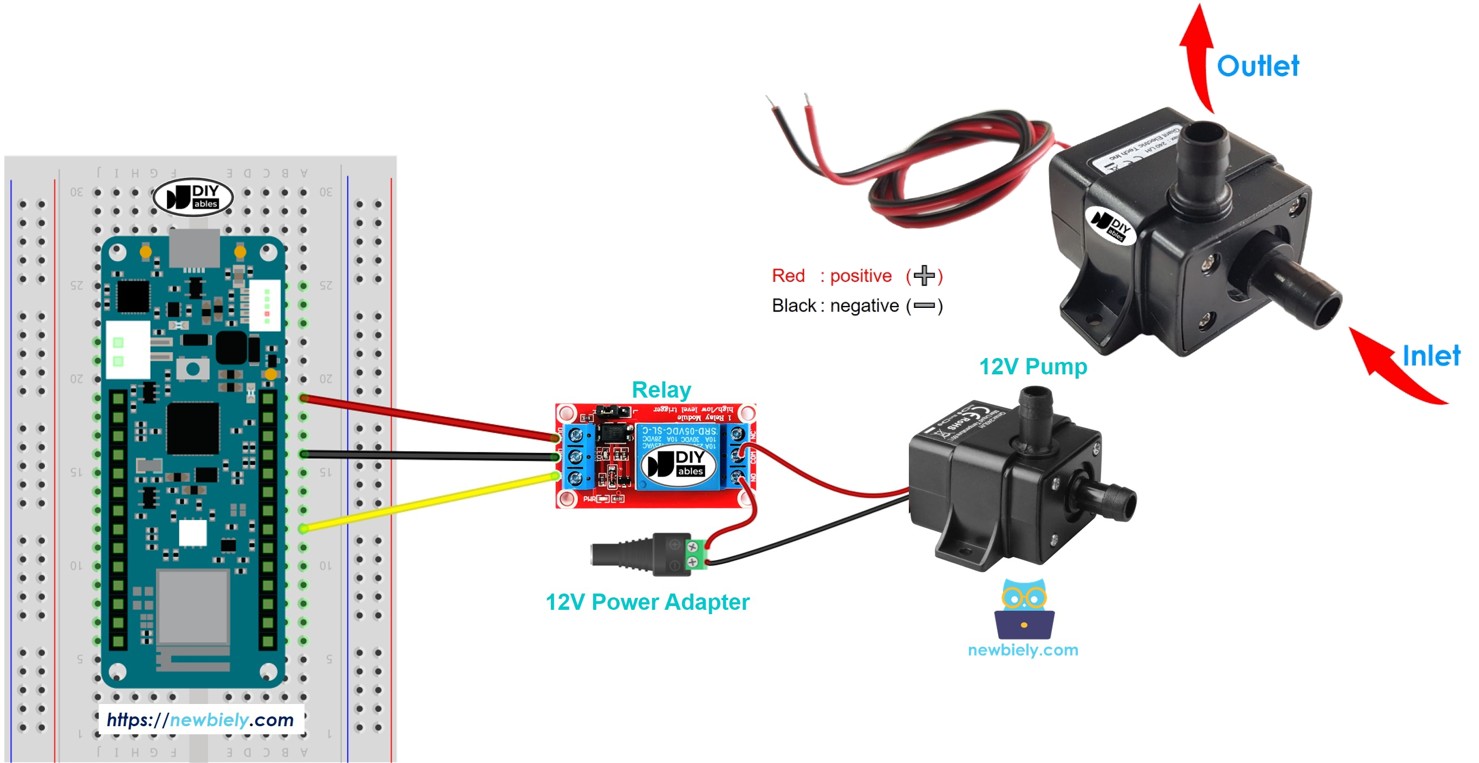
Safety Note: Always use submersible pumps rated for your liquid (water pumps for water only!). Never run pumps dry—they require liquid for cooling and lubrication.
Tutorial Scope: This guide covers basic ON/OFF timing. For advanced sensor-triggered pumping (moisture-based watering, level-controlled filling), see our project tutorials listed at the end.
Hardware Preparation
Or you can buy the following kits:
| 1 | × | DIYables Sensor Kit (18 sensors/displays) |
Additionally, some of these links are for products from our own brand, DIYables .
Overview of 12V Submersible Pumps
12V DC submersible pumps are compact, low-voltage water pumps designed for Arduino projects. Understanding their specifications ensures reliable operation and proper power system design.
Pump Pinout and Specifications
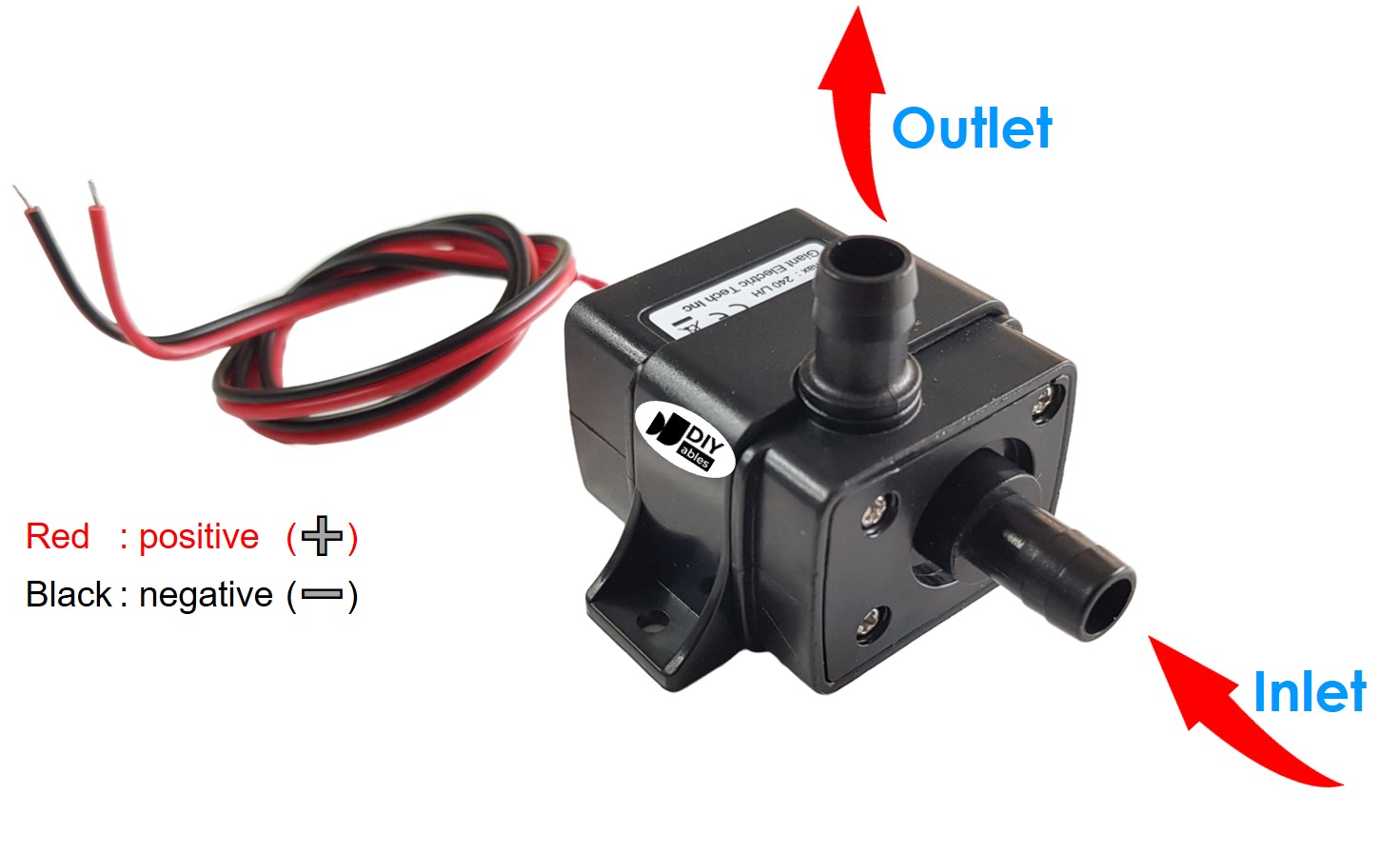
Electrical Connections:
- Red wire (+) - Positive terminal:
- Connects to +12V of DC power supply
- Polarity-sensitive—reversing damages internal electronics!
- Black wire (-) - Negative terminal:
- Connects to GND (ground) of DC power supply
- Completes circuit for motor operation
- Voltage: Typically 12V DC (operating range: 9-13.5V)
- Current draw: 0.5-2A depending on pump size and load
- Flow rate: 2-6 liters/minute (L/min) or 120-360 L/hour
- Max head height: 1-3 meters (vertical pumping capability)
- Power consumption: 6-24W typical
- Duty cycle: Some pumps require rest periods (check specs!)
- Submersible design: Must be submerged in liquid for cooling—running dry damages seals and motor
- Water only: Use water-rated pumps for water; chemical pumps for other liquids
- Inlet filter: Keep inlet screen clean to maintain flow rate and prevent clogging
- Priming: Some pumps need priming (filling tubing before operation) to start pumping
- Voltage incompatibility: Pump requires 12V; Arduino pins output only 3.3V
- Current demand: Pumps draw 0.5-2A; Arduino pins supply maximum 15mA
- Electrical isolation: Keeps high-power pump circuit separate from Arduino logic
- Fail to start the pump (insufficient voltage)
- Overload and destroy the Arduino pin (excessive current)
- Risk damaging the entire Arduino board
- Arduino sends LOW signal → Relay coil deactivated → Relay contacts open → Pump OFF (no 12V connection)
- Arduino sends HIGH signal → Relay coil activated → Relay contacts close → Pump ON (12V applied to pump)
- Low-power side: Arduino pin → Relay coil (3.3V, ~50mA)
- High-power side: 12V supply → Relay switch → Pump (12V, 0.5-2A)
- Coil voltage: 5V or 12V compatible with your Arduino setup
- Contact rating: Minimum 10A @ 12V DC (safety margin above pump current)
- Example: SRD-05VDC-SL-C relay (10A contact rating) works perfectly
- Relay pinout and electromagnetic operation principles
- How coils control switch contacts
- Wiring diagrams for NO (Normally Open) and NC (Normally Closed) configurations
- Programming relay control with digitalWrite()
- Selecting appropriate relay ratings
- Troubleshooting common relay issues
Key Specifications (check your pump's label/datasheet):
Important Notes:
How to Control Pump with Arduino MKR WiFi 1010
Direct Power Operation: Connect 12V power supply directly to pump → Pump runs continuously at full speed.
Arduino-Controlled Operation: We need a relay as an electronic switch.
Why Relay Control is Necessary:
Direct connection would:
The Relay Solution:
The relay acts as an electrically-isolated switch controlled by low-power Arduino signals:
Control Circuit:
Relay Selection: Choose relay rated for at least:
Not Familiar with Relays? Our Arduino MKR WiFi 1010 - Relay tutorial provides comprehensive coverage:
Master those concepts first, then return here to apply them to pump control!
Going with a MOSFET module? First see the Arduino MKR WiFi 1010 - MOSFET Module tutorial. It explains the module's screw terminals, the PWM pin and the three chip versions.
Which One for Your Pump: Relay or MOSFET Module?
| Relay | MOSFET Module | |
|---|---|---|
| What you can do | start or stop the pump | start, stop, and change the flow (pump speed) with PWM |
| Sound when switching | a click | none |
| Speed of switching | slow (some milliseconds) | very fast |
| Lifetime | contacts get worn over time | no moving parts inside |
| Pump type | AC or DC pumps | DC pumps only |
| Pump supply | any, within the relay rating | at least about 6V (needed by the gate) |
| Isolation from the MKR | yes, coil and contacts are apart | yes, through a PC817 optocoupler |
| Pick it for | AC pumps or plain ON/OFF | 12V DC pumps, flow control, frequent switching |
For a 12V DC pump, the MOSFET module is a nice upgrade. A plant waterer can give a slow flow so water does not splash, and a fountain can change its height. If your pump runs on AC, the relay is the only choice of the two.
Wiring Diagram between Arduino MKR WiFi 1010, Relay and Pump
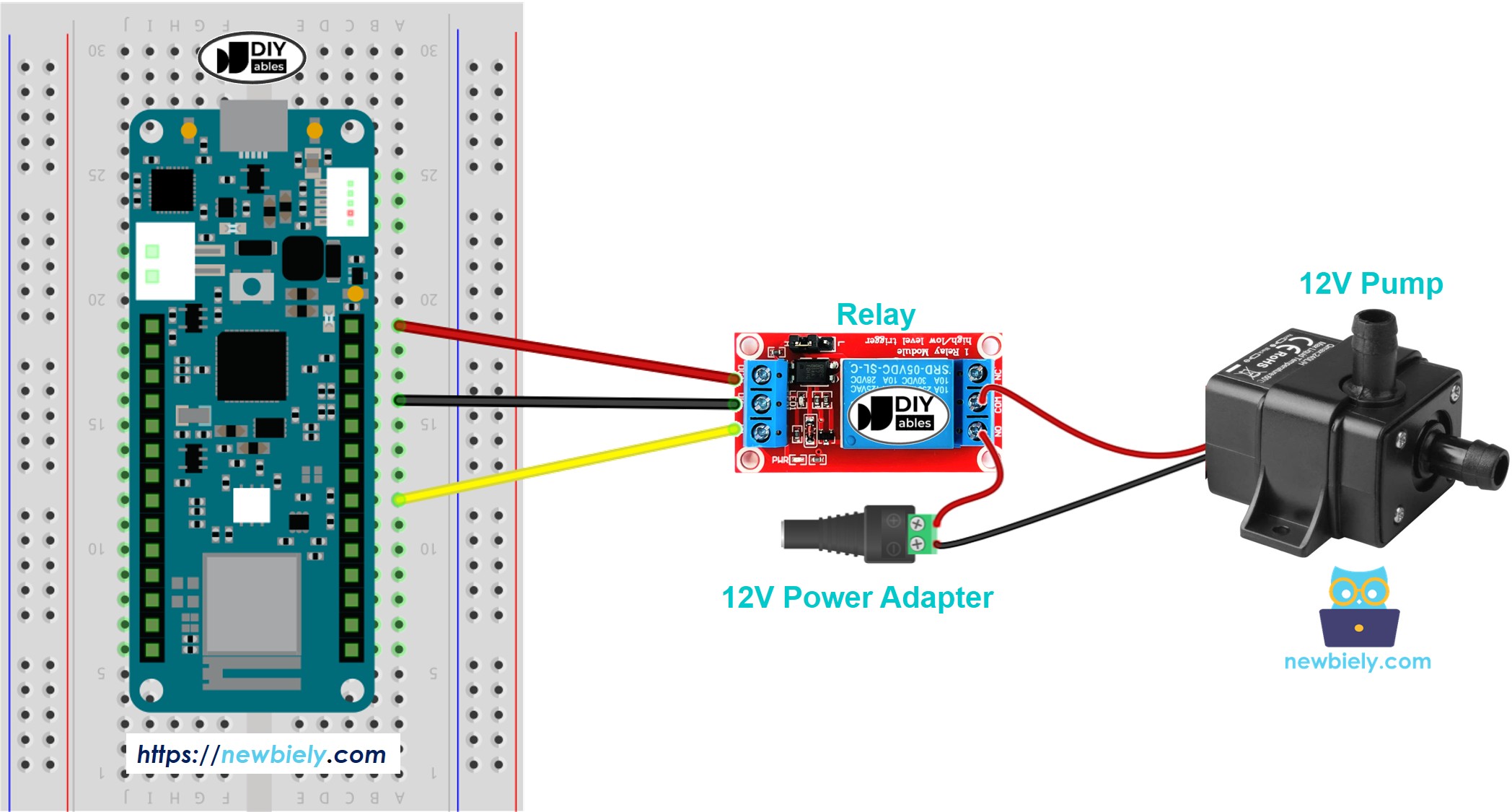
This image is created using Fritzing. Click to enlarge image
Arduino MKR WiFi 1010 - Pump Code
The code below turns the pump on and off every 4 seconds.
Detailed Instructions
New to Arduino MKR WiFi 1010? Complete our Getting Started with Arduino MKR WiFi 1010 tutorial first to set up your development environment.
- Connect the components to the Arduino MKR WiFi 1010 board as depicted in the diagram
- Plug your Arduino MKR WiFi 1010 into your computer's USB port
- Launch the Arduino IDE on your computer
- Select the Arduino MKR WiFi 1010 board and its COM port
- Copy the above code and paste it into the Arduino IDE.
- Compile and upload the code to the Arduino MKR WiFi 1010 board by clicking the Upload button in the Arduino IDE.
- Check the pump’s status.
Line-by-line Code Explanation
The Arduino MKR WiFi 1010 code above explains each line. Please read the comments in the code!
How to Control Pump Flow with MOSFET Module
The relay version only turns the pump on and off. Here, the MOSFET module lets the Arduino MKR WiFi 1010 also choose the pump speed, so you get more or less water flow.
Wiring Diagram between Arduino MKR WiFi 1010, MOSFET Module and Pump
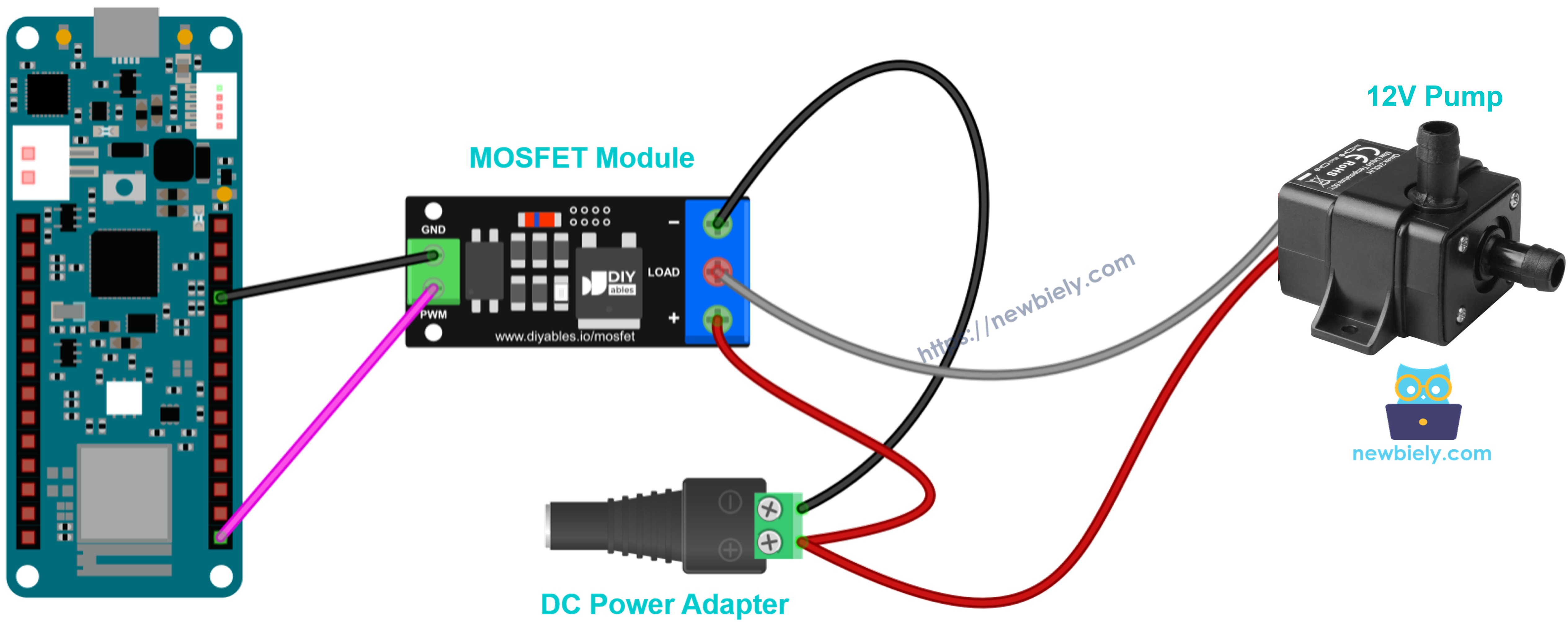
This image is created using Fritzing. Click to enlarge image
- Control side: MKR pin 6 goes to PWM, and an MKR GND pin goes to GND.
- Power side: the pump red wire and the 12V adapter + both go into the + terminal. The pump black wire goes into LOAD. The 12V adapter − goes into −.
- Flyback diode: the pump has a motor coil, so place a 1N4007 or 1N5819 diode across the pump wires, with the stripe (cathode) on the pump + side.
Arduino MKR WiFi 1010 - Pump Flow Code
First the pump runs at full flow for 2 seconds, then it stops for 2 seconds. Next the power rises from 10% to 100%, so the water flow gets stronger, and then it falls back, so the flow gets weaker. At low power, a pump may only hum and not push water.
Detailed Instructions
- Use the same IDE and board setup as in the relay Quick Steps above.
- Put the pump in water, then wire it with the MOSFET module as in the diagram.
- Upload the code above to the MKR board.
- Connect the 12V power adapter.
- Open the Serial Monitor with 9600 baud and watch the water flow.
Tip: The MOSFET module is for DC pumps with a supply of about 6V or more. Keep the relay for AC pumps.