
Arduino MKR WiFi 1010 - LCD
This guide explains how to use the Arduino MKR WiFi 1010 with an LCD I2C. We will learn:
- How to display text on an LCD I2C screen using the Arduino MKR WiFi 1010 board.
- How to display special symbols on an LCD I2C screen using the Arduino MKR WiFi 1010 board.
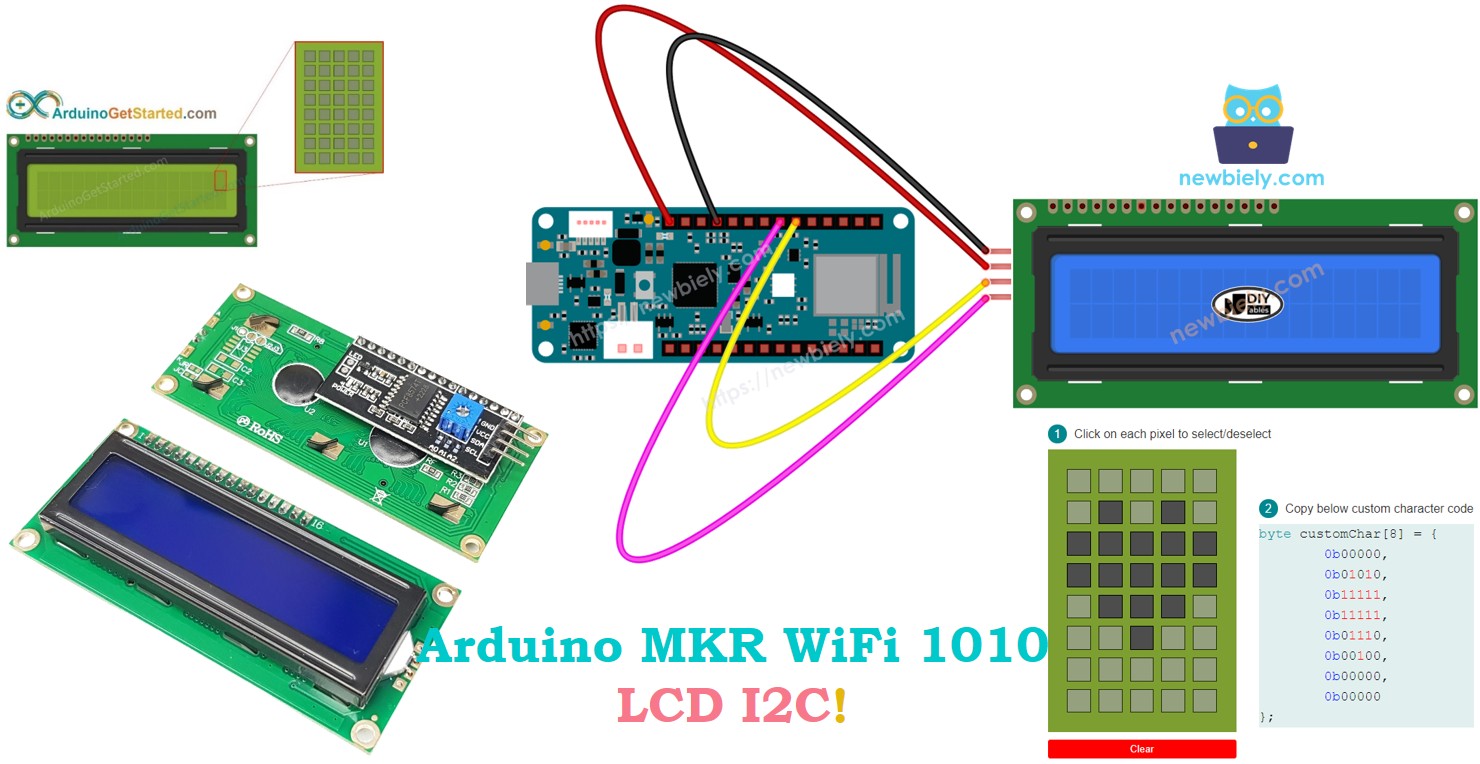
Hardware Preparation
| 1 | × | Arduino MKR WiFi 1010 | |
| 1 | × | Micro USB Cable | |
| 1 | × | LCD I2C Display 3.3V | |
| 1 | × | Alternatively, LCD I2C 20x4 | |
| 1 | × | Breadboard | |
| 1 | × | Jumper Wires | |
| 1 | × | Optionally, DC Power Jack |
Or you can buy the following kits:
| 1 | × | DIYables Sensor Kit (18 sensors/displays) |
Additionally, some of these links are for products from our own brand, DIYables .
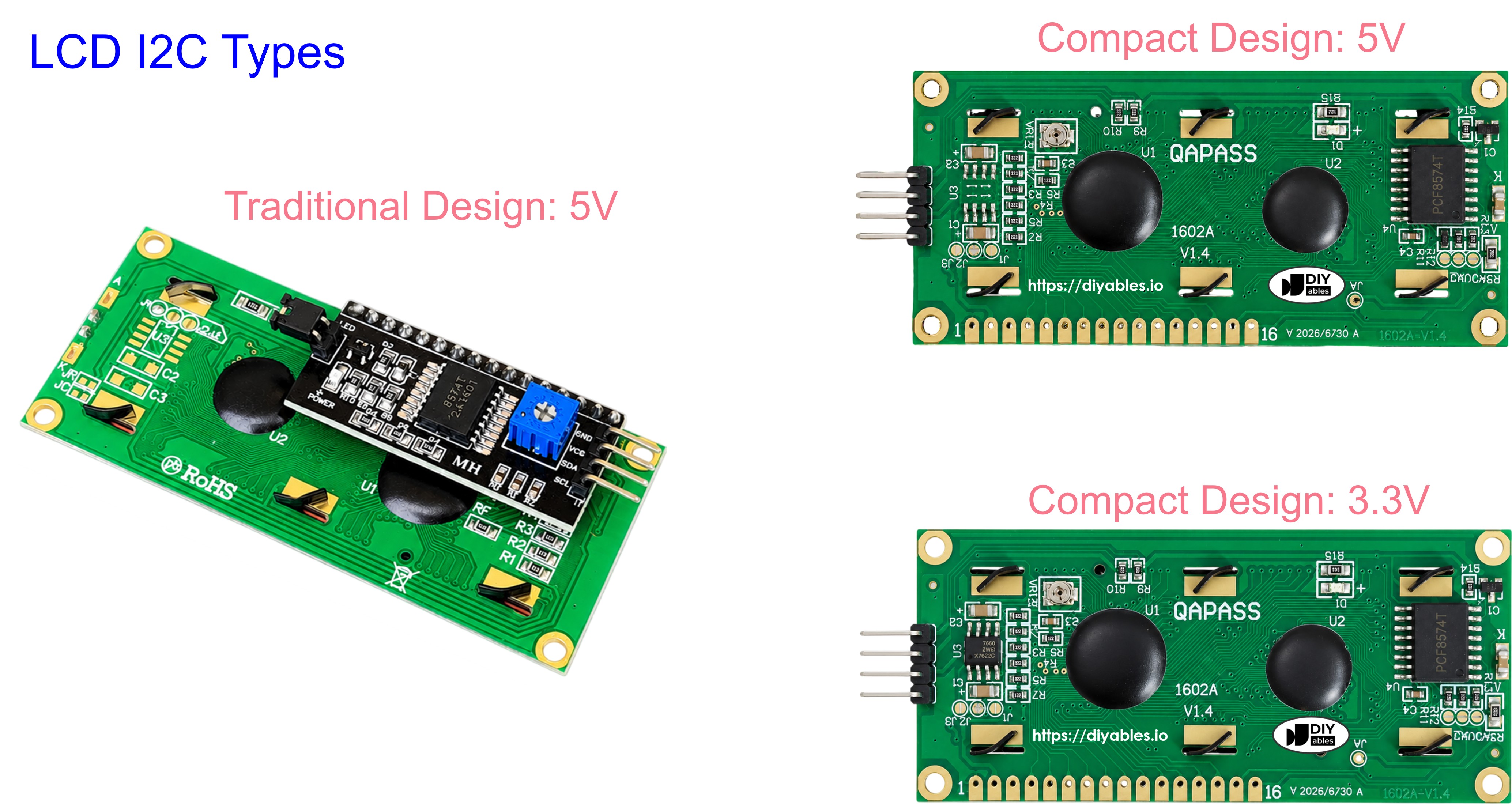
Buy Note: Most LCD I2C displays available on the market are 5V displays. They may work with this board, but it is unsafe and can damage the board. We strongly recommend using the 3.3V LCD I2C display recommended above.
Overview of LCD I2C 16x2
LCD I2C Pinout
The LCD display that uses I2C has four pins.
- VCC pin: This pin provides power to the LCD and should be connected to 5V.
- GND pin: Connect this pin to ground (0V).
- SCL pin: This pin is for the I2C clock signal.
- SDA pin: This pin is for the I2C data signal.
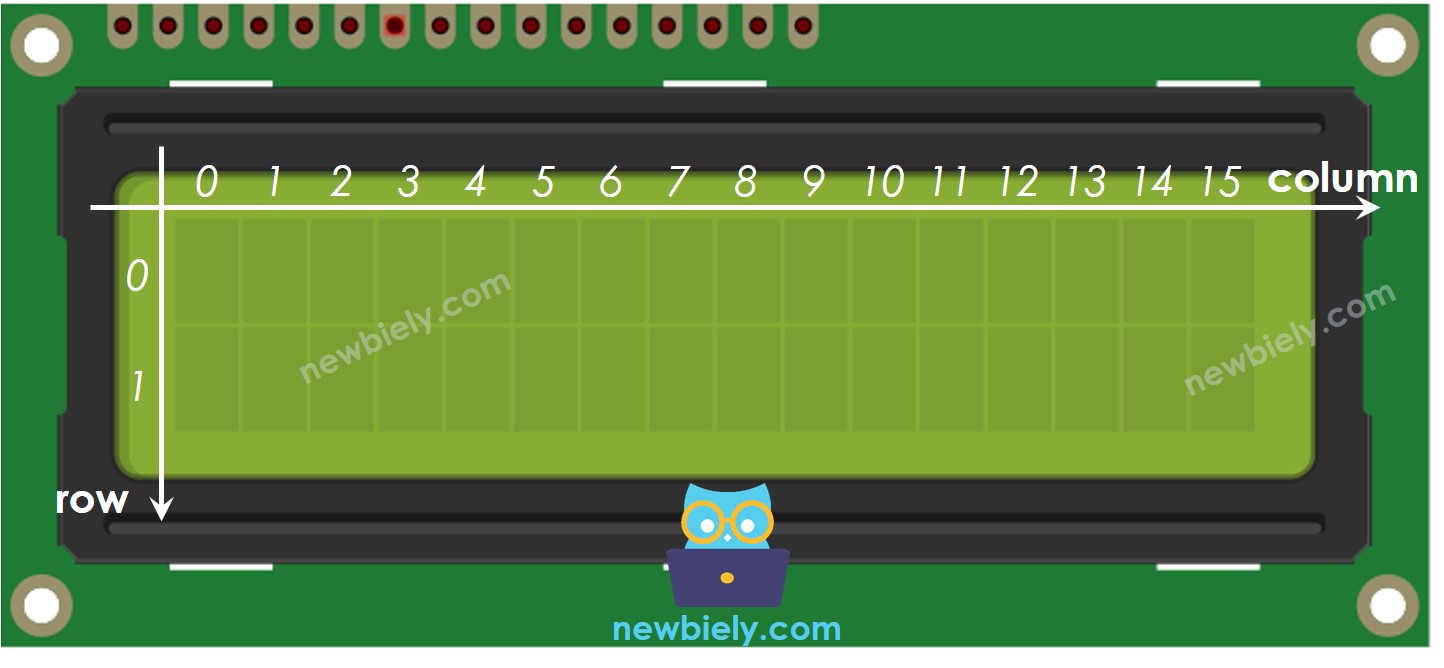
LCD 16x2 Coordinates
LCD I2C 16x2 has two rows and sixteen columns, and the numbers start at 0.
Wiring Diagram between LCD I2C and Arduino MKR WiFi 1010
- When you use the USB port to give power to the Arduino MKR WiFi 1010 board.
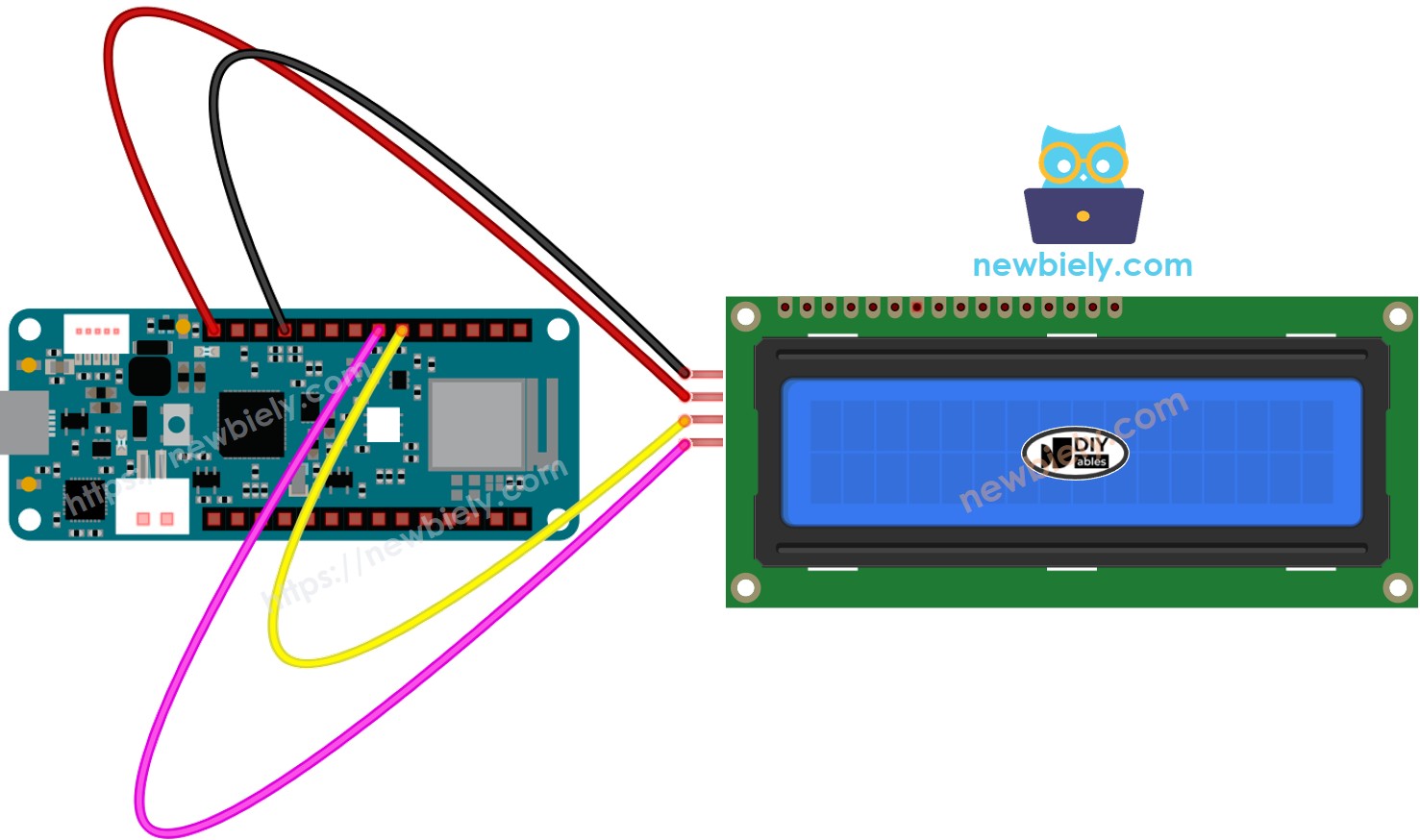
This image is created using Fritzing. Click to enlarge image
- When you power the Arduino MKR WiFi 1010 board using the Vin pin.
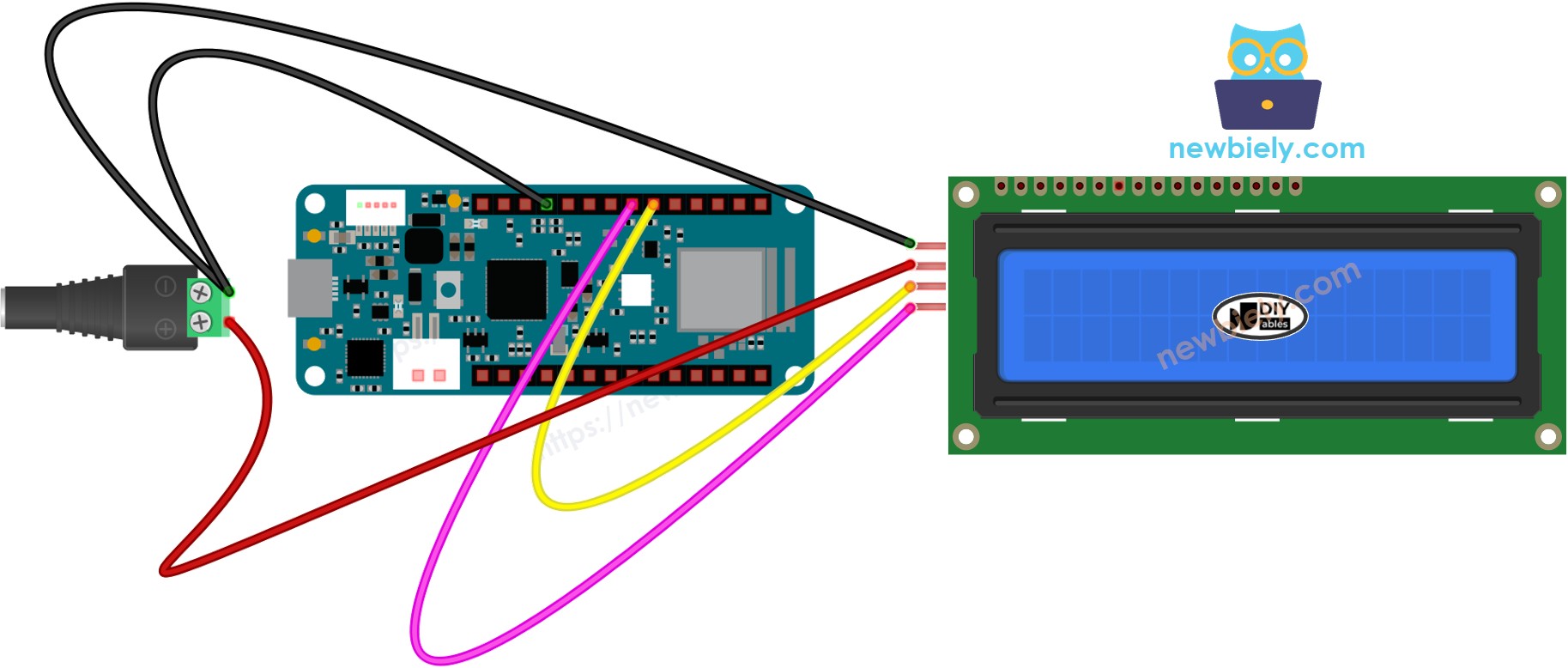
This image is created using Fritzing. Click to enlarge image
※ NOTE THAT:
When you power the Arduino MKR WiFi 1010 through the USB port, you can try powering the LCD display using the VBUS pin. This means you don't need an extra power source. However, keep in mind that the VBUS pin may not provide enough power for the LCD display to work properly.
How To Program LCD I2C using Arduino MKR WiFi 1010
- Add the DIYables_LCD_I2C library:
- Create a DIYables_LCD_I2C object:
- Set up the LCD.
- Place the cursor at your chosen spot (column number, row number)
- Show a message on the LCD screen.
※ NOTE THAT:
The LCD I2C address may vary between manufacturers. In the code, we used the 0x27 address provided by the DIYables manufacturer.
Arduino MKR WiFi 1010 Code
Detailed Instructions
New to Arduino MKR WiFi 1010? Complete our Getting Started with Arduino MKR WiFi 1010 tutorial first to set up your development environment.
- Connect the components to the Arduino MKR WiFi 1010 board as depicted in the diagram
- Plug your Arduino MKR WiFi 1010 into your computer's USB port
- Launch the Arduino IDE on your computer
- Select the Arduino MKR WiFi 1010 board and its COM port
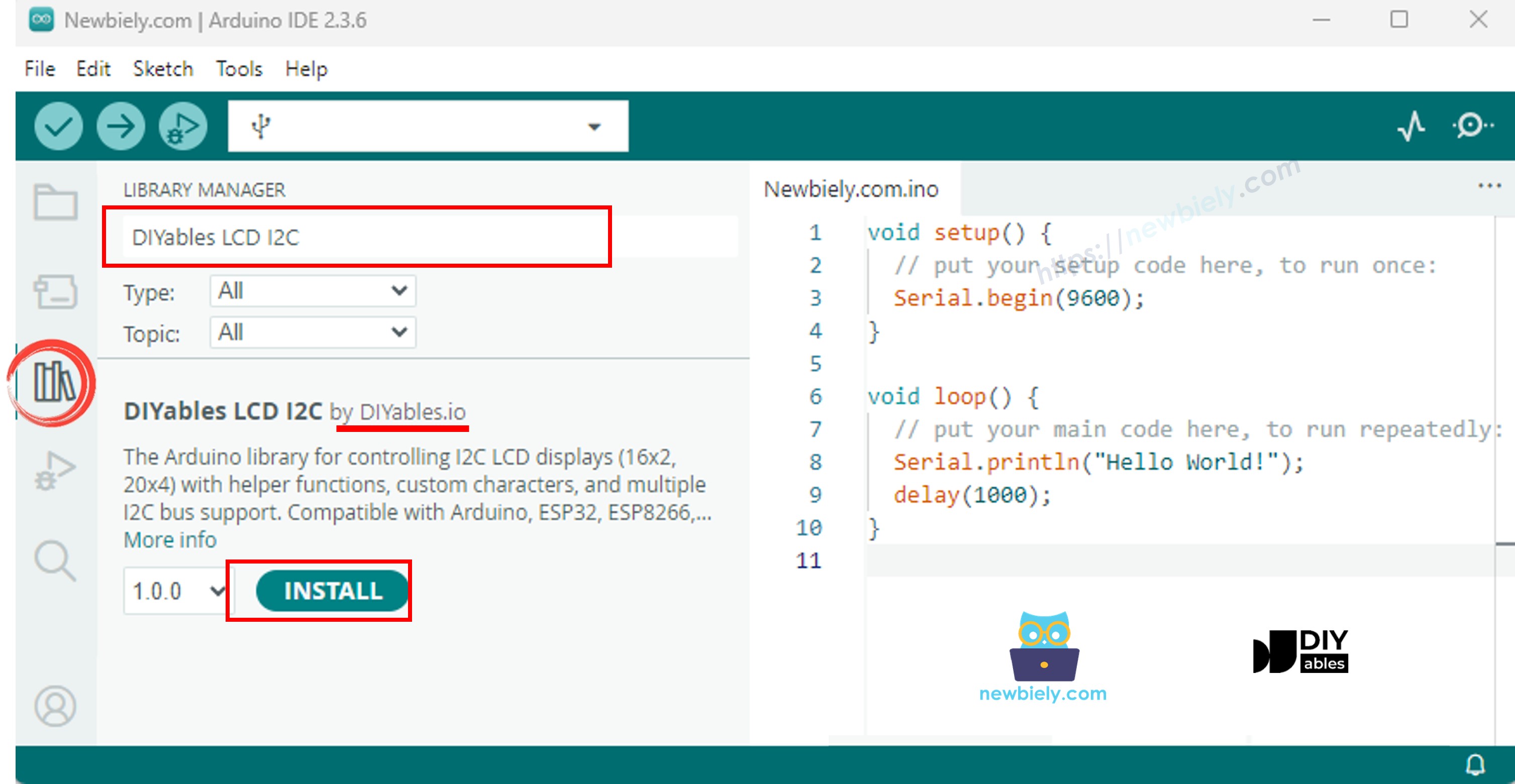
- Open the Library Manager by clicking the Library Manager icon on the left side of Arduino IDE.
- In the search box, type DIYables LCD I2C and find the DIYables_LCD_I2C library by DIYables. Click the Install button to add the DIYables_LCD_I2C library.
- Copy the code above and paste it into the Arduino IDE
- Compile and upload the code to your Arduino MKR WiFi 1010 board by clicking the Upload button.
- See the result on the LCD screen.
- Try changing the text and its position.
Video Tutorial
Do More with LCD
Custom Character
If you want to show special characters or symbols (for example, emoticons), check out this guide on how to display special characters on an LCD.
Troubleshooting on LCD I2C
If your LCD screen is blank, please check this link: LCD does not work!- Checklist