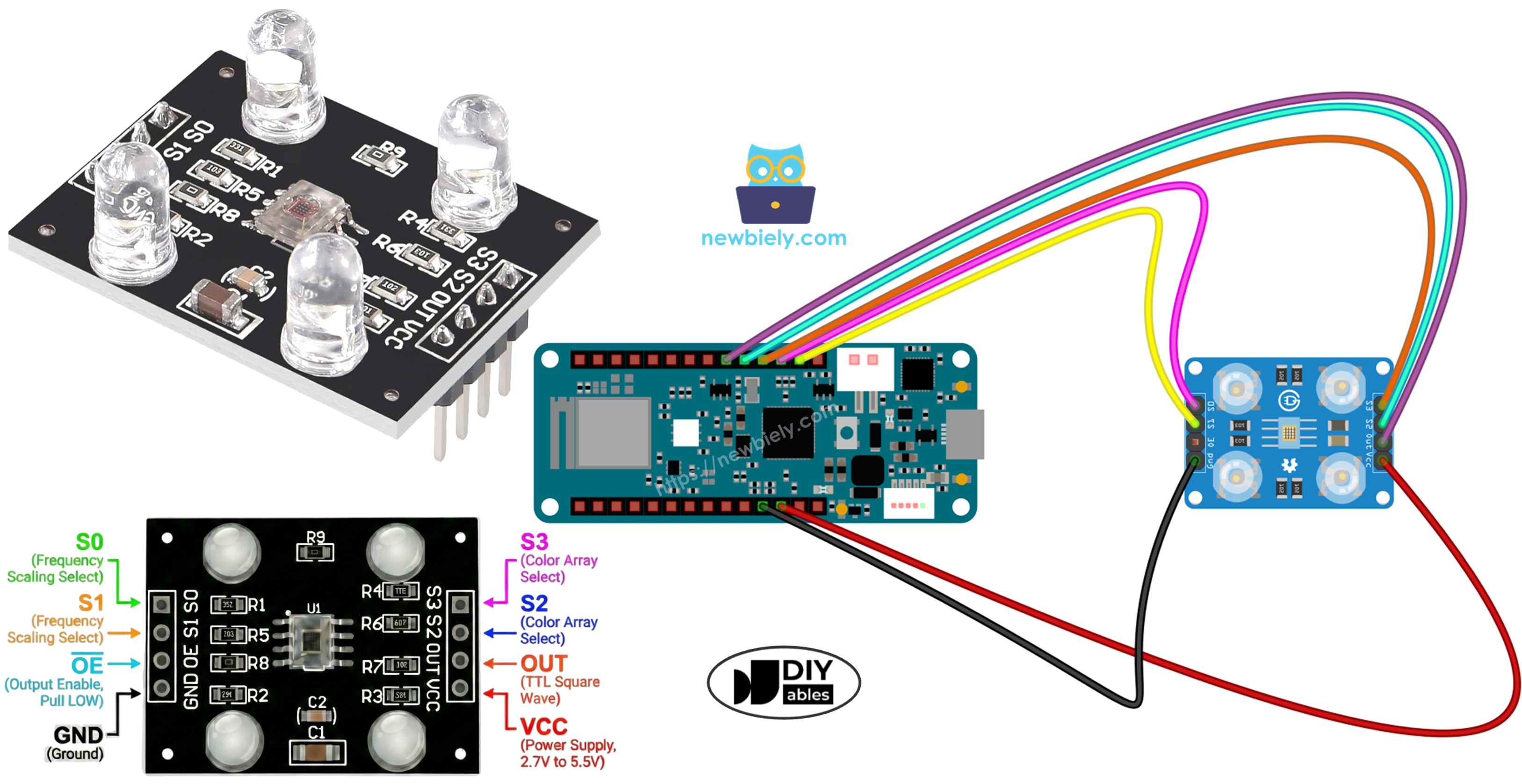
Arduino MKR WiFi 1010 - TCS3200D/TCS230 Color Sensor

This guide demonstrates how to interface the TCS3200D/TCS230 color recognition sensor with your Arduino MKR WiFi 1010. Learn calibration techniques and RGB value extraction for accurate color measurement in your projects.

What you'll learn:

Arduino MKR WiFi 1010 with TCS3200D TCS230 color sensor module tutorial

Hardware Preparation

1×Arduino MKR WiFi 1010
1×Micro USB Cable
1×TCS3200D/TCS230 Color Recognition Sensor Module
1×Breadboard
1×Jumper Wires
1×Optionally, 5V Power Adapter for Arduino MKR WiFi 1010

Or you can buy the following kits:

1×DIYables Sensor Kit (30 sensors/displays)
1×DIYables Sensor Kit (18 sensors/displays)
Disclosure: Some of the links provided in this section are Amazon affiliate links. We may receive a commission for any purchases made through these links at no additional cost to you.
Additionally, some of these links are for products from our own brand, DIYables .

Overview of TCS3200D/TCS230 Color Sensor

The TCS3200D/TCS230 color sensor features an 8×8 array of photodiodes configured for color detection via optical filtering. This 64-diode array contains 16 red-filtered photodiodes, 16 green-filtered photodiodes, 16 blue-filtered photodiodes, and 16 unfiltered (clear) photodiodes. Color sensing operates by selecting specific filter groups and measuring the resulting square wave frequency output.

Most TCS3200D modules include integrated white LEDs that illuminate the target surface, ensuring consistent measurements independent of ambient lighting conditions and improving accuracy in low-light scenarios.

Pinout

The TCS3200D/TCS230 module provides the following connections:

  • VCC pin: Power supply input (+5V).
  • GND pin: Ground connection (0V).
  • S0, S1 pins: Output frequency scaling control.
  • S2, S3 pins: Photodiode color filter selection.
  • OUT pin: Square wave frequency output.
  • OE pin: Output enable control (active LOW). Most modules pre-wire this to GND. If unconnected, wire to GND manually.
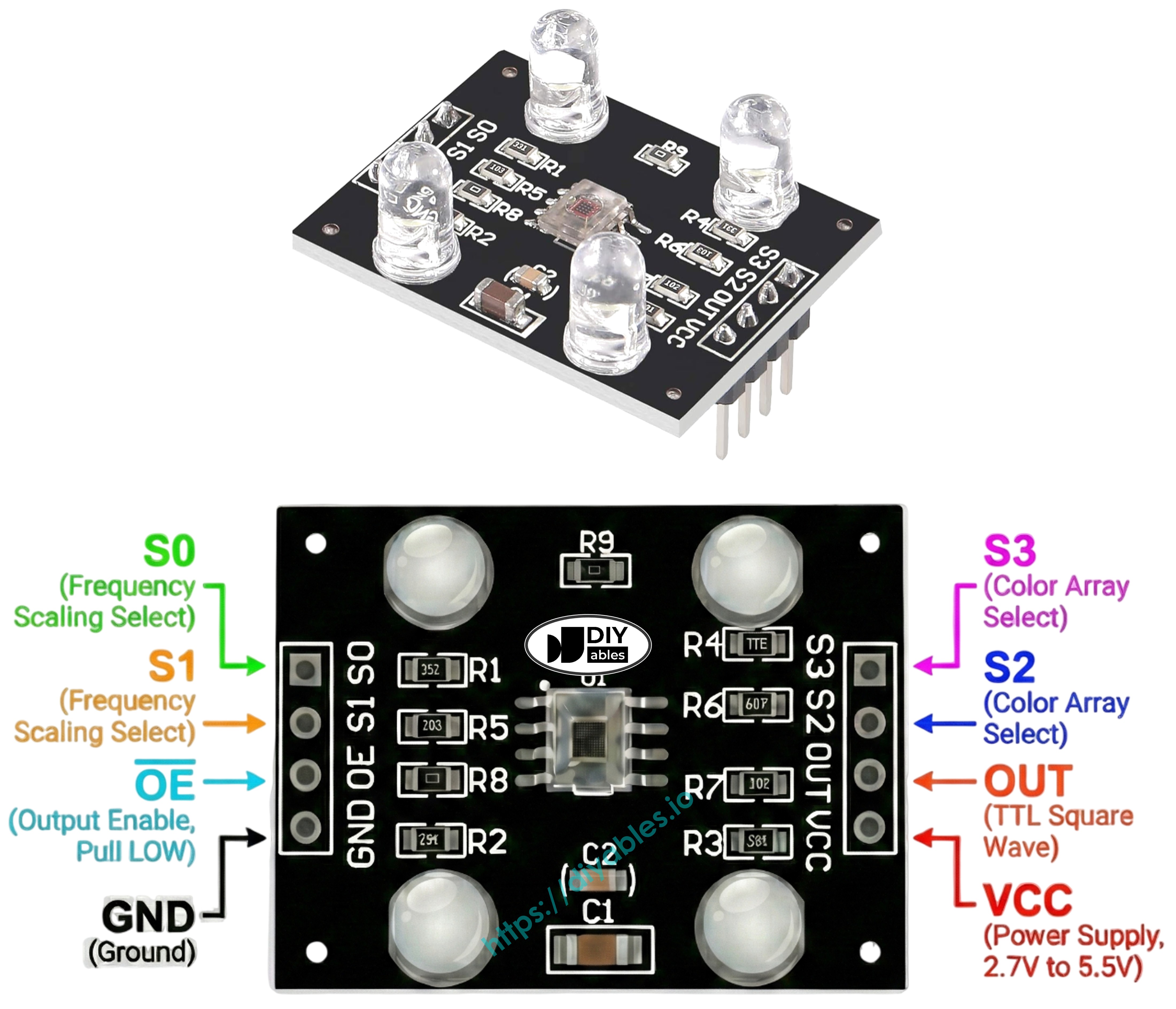
TCS3200 TCS230 color sensor module pinout diagram showing VCC GND S0 S1 S2 S3 OUT pins

How It Works

The sensor's operation depends on two control mechanisms: selecting which color channel to measure and setting the output frequency scaling. These are controlled by two pin pairs:

Output frequency scaling (S0 and S1 pins):

  • S0=LOW, S1=LOW: Power down mode
  • S0=LOW, S1=HIGH: 2% frequency scaling
  • S0=HIGH, S1=LOW: 20% frequency scaling
  • S0=HIGH, S1=HIGH: 100% frequency scaling (maximum)

Color filter selection (S2 and S3 pins):

  • S2=LOW, S3=LOW: Red filter activated
  • S2=LOW, S3=HIGH: Blue filter activated
  • S2=HIGH, S3=LOW: Clear filter (no filtering)
  • S2=HIGH, S3=HIGH: Green filter activated

The OUT pin outputs a square wave with frequencies typically ranging from 2 Hz to 500 kHz. Higher light intensity produces higher frequency output. The Arduino's pulseIn() function measures pulse width (duration), which varies inversely—stronger light creates shorter pulses. After calibration, these measurements convert to standard 0-255 RGB values.

Best Practices for Accuracy

  • Maintain consistent sensor-to-target distance (1-3 cm) and angle.
  • Use the built-in white LEDs for stable illumination.
  • Minimize exposure to varying ambient light sources.

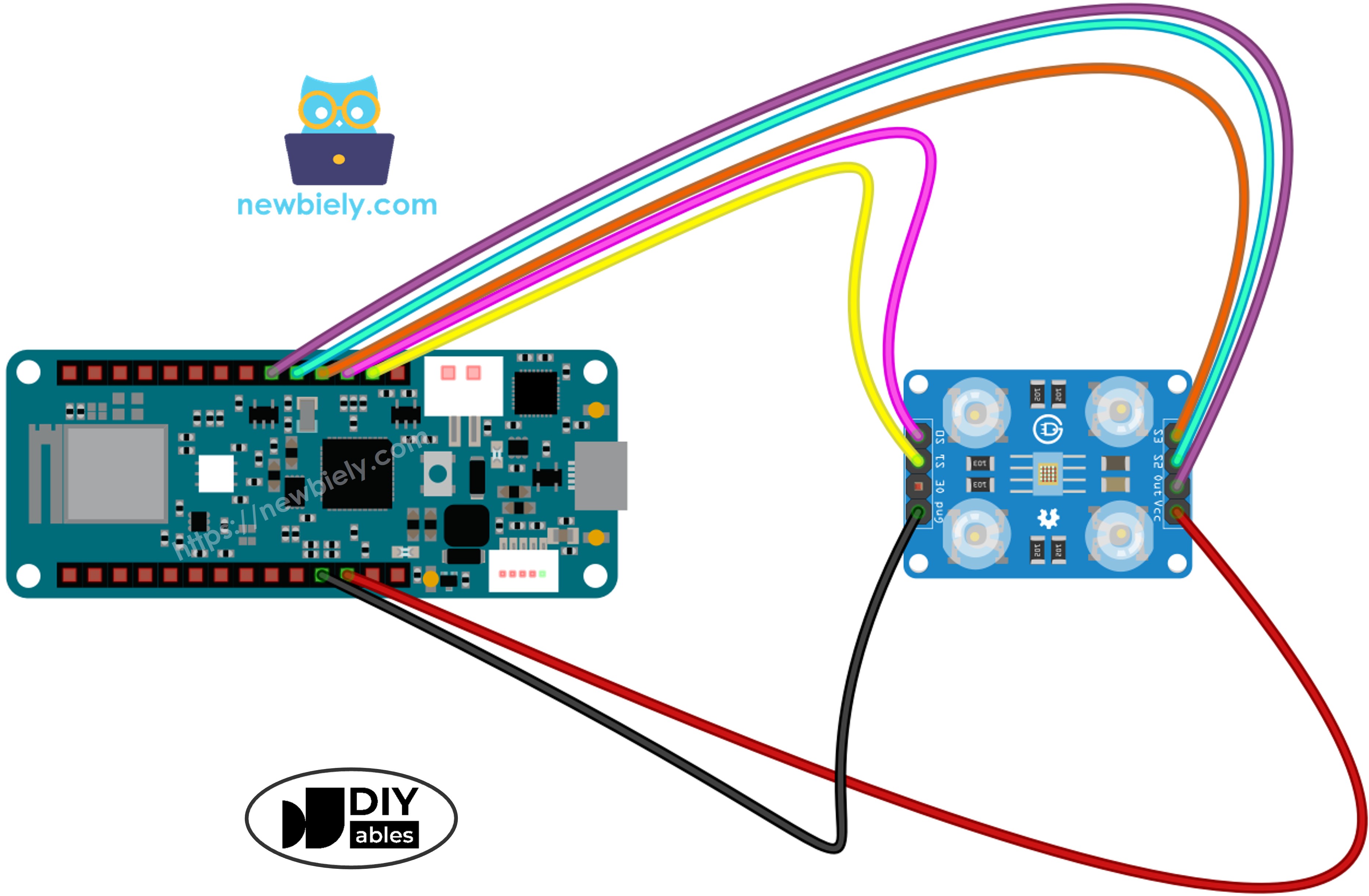
Wiring Diagram

Connect the TCS3200 color sensor to Arduino MKR WiFi 1010 as follows:

TCS3200 Color SensorArduino MKR WiFi 1010
VCCVCC (5V)
GNDGND
S0D16
S1D15
S2D18
S3D17
OUTD19
The wiring diagram between Arduino MKR WiFi 1010 and TCS3200 color sensor

This image is created using Fritzing. Click to enlarge image

Arduino MKR WiFi 1010 Code - Calibration

Calibration compensates for environmental variations that affect sensor readings. Factors like LED brightness, target distance, surface reflectivity, and ambient lighting all influence raw measurements. The calibration process measures the minimum and maximum pulse widths for each color channel, establishing reference points that enable accurate conversion of raw sensor data to standardized 0–255 RGB values for your specific setup.

/* * This Arduino MKR WiFi 1010 code was developed by newbiely.com * * This Arduino MKR WiFi 1010 code is made available for public use without any restriction * * For comprehensive instructions and wiring diagrams, please visit: * https://newbiely.com/tutorials/arduino-mkr/arduino-mkr-wifi-1010-tcs3200d-tcs230-color-sensor */ // Define color sensor pins #define PIN_S0 16 // The Arduino MKR WiFi 1010 pin connected to the S0 of the color module #define PIN_S1 15 // The Arduino MKR WiFi 1010 pin connected to the S1 of the color module #define PIN_S2 18 // The Arduino MKR WiFi 1010 pin connected to the S2 of the color module #define PIN_S3 17 // The Arduino MKR WiFi 1010 pin connected to the S3 of the color module #define PIN_sensorOut 19 // The Arduino MKR WiFi 1010 pin connected to the OUT of the color module // Variables for Color Pulse Width Measurements int redPW = 0; int greenPW = 0; int bluePW = 0; // Variables to track min and max pulse widths for calibration int redMin = 10000, redMax = 0; int greenMin = 10000, greenMax = 0; int blueMin = 10000, blueMax = 0; void setup() { // Set S0 - S3 as outputs pinMode(PIN_S0, OUTPUT); pinMode(PIN_S1, OUTPUT); pinMode(PIN_S2, OUTPUT); pinMode(PIN_S3, OUTPUT); // Set Pulse Width scaling to 20% digitalWrite(PIN_S0, HIGH); digitalWrite(PIN_S1, LOW); // Set Sensor output as input pinMode(PIN_sensorOut, INPUT); // Setup Serial Monitor Serial.begin(9600); Serial.println("=== TCS3200 Calibration ==="); Serial.println("Point the sensor at different objects (white, black, colors)."); Serial.println("Min and Max values are tracked automatically."); Serial.println("When values look stable, note them down for the next code."); Serial.println("------------------------------------------"); } void loop() { // Read Red Pulse Width redPW = getRedPW(); // Delay to stabilize sensor delay(200); // Read Green Pulse Width greenPW = getGreenPW(); // Delay to stabilize sensor delay(200); // Read Blue Pulse Width bluePW = getBluePW(); // Delay to stabilize sensor delay(200); // Update min and max values if (redPW < redMin) redMin = redPW; if (redPW > redMax) redMax = redPW; if (greenPW < greenMin) greenMin = greenPW; if (greenPW > greenMax) greenMax = greenPW; if (bluePW < blueMin) blueMin = bluePW; if (bluePW > blueMax) blueMax = bluePW; // Print the pulse width values with min/max Serial.print("Red PW = "); Serial.print(redPW); Serial.print(" - Green PW = "); Serial.print(greenPW); Serial.print(" - Blue PW = "); Serial.println(bluePW); Serial.print(" Min -> R:"); Serial.print(redMin); Serial.print(" G:"); Serial.print(greenMin); Serial.print(" B:"); Serial.println(blueMin); Serial.print(" Max -> R:"); Serial.print(redMax); Serial.print(" G:"); Serial.print(greenMax); Serial.print(" B:"); Serial.println(blueMax); Serial.println("------------------------------------------"); delay(1000); } // Function to read Red Pulse Widths int getRedPW() { // Set sensor to read Red only digitalWrite(PIN_S2, LOW); digitalWrite(PIN_S3, LOW); // Read the Pulse Width int PW = pulseIn(PIN_sensorOut, LOW); // Return the value return PW; } // Function to read Green Pulse Widths int getGreenPW() { // Set sensor to read Green only digitalWrite(PIN_S2, HIGH); digitalWrite(PIN_S3, HIGH); // Read the Pulse Width int PW = pulseIn(PIN_sensorOut, LOW); // Return the value return PW; } // Function to read Blue Pulse Widths int getBluePW() { // Set sensor to read Blue only digitalWrite(PIN_S2, LOW); digitalWrite(PIN_S3, HIGH); // Read the Pulse Width int PW = pulseIn(PIN_sensorOut, LOW); // Return the value return PW; }

Detailed Instructions

  • Open the calibration code in Arduino IDE
  • Connect your Arduino MKR WiFi 1010 and click the Upload button
  • Open Serial Monitor to view live calibration data
  • Point the sensor at various surfaces: white (paper), black, and different colors
  • Observe as the Min/Max values update automatically
  • After readings stabilize (typically 10-20 seconds), record all six calibration values
COM6
Send
=== TCS3200 Calibration === Point the sensor at different objects (white, black, colors). Min and Max values are tracked automatically. When values look stable, note them down for the next code. ------------------------------------------ Red PW = 42 - Green PW = 55 - Blue PW = 60 Min -> R:42 G:55 B:60 Max -> R:42 G:55 B:60 ------------------------------------------ Red PW = 210 - Green PW = 185 - Blue PW = 172 Min -> R:42 G:55 B:60 Max -> R:210 G:185 B:172 ------------------------------------------ Red PW = 44 - Green PW = 57 - Blue PW = 61 Min -> R:42 G:55 B:60 Max -> R:210 G:185 B:172 ------------------------------------------
Autoscroll Show timestamp
Clear output
9600 baud  
Newline  

Example calibration values from the output above:

  • RedMin = 42, redMax = 210
  • GreenMin = 55, greenMax = 185
  • BlueMin = 60, blueMax = 172

Arduino MKR WiFi 1010 Code - Reading RGB Values

/* * This Arduino MKR WiFi 1010 code was developed by newbiely.com * * This Arduino MKR WiFi 1010 code is made available for public use without any restriction * * For comprehensive instructions and wiring diagrams, please visit: * https://newbiely.com/tutorials/arduino-mkr/arduino-mkr-wifi-1010-tcs3200d-tcs230-color-sensor */ // Define color sensor pins #define PIN_S0 16 // The Arduino MKR WiFi 1010 pin connected to the S0 of the color module #define PIN_S1 15 // The Arduino MKR WiFi 1010 pin connected to the S1 of the color module #define PIN_S2 18 // The Arduino MKR WiFi 1010 pin connected to the S2 of the color module #define PIN_S3 17 // The Arduino MKR WiFi 1010 pin connected to the S3 of the color module #define PIN_sensorOut 19 // The Arduino MKR WiFi 1010 pin connected to the OUT of the color module // Calibration Values // Replace these values with your actual calibration data from the previous step int redMin = 0; // Red minimum pulse width int redMax = 0; // Red maximum pulse width int greenMin = 0; // Green minimum pulse width int greenMax = 0; // Green maximum pulse width int blueMin = 0; // Blue minimum pulse width int blueMax = 0; // Blue maximum pulse width // Variables for Color Pulse Width Measurements int redPW = 0; int greenPW = 0; int bluePW = 0; // Variables for final Color values int redValue; int greenValue; int blueValue; void setup() { // Set S0 - S3 as outputs pinMode(PIN_S0, OUTPUT); pinMode(PIN_S1, OUTPUT); pinMode(PIN_S2, OUTPUT); pinMode(PIN_S3, OUTPUT); // Set Pulse Width scaling to 20% digitalWrite(PIN_S0, HIGH); digitalWrite(PIN_S1, LOW); // Set Sensor output as input pinMode(PIN_sensorOut, INPUT); // Setup Serial Monitor Serial.begin(9600); } void loop() { // Read Red value redPW = getRedPW(); // Map to value from 0-255 redValue = map(redPW, redMin, redMax, 255, 0); // Delay to stabilize sensor delay(200); // Read Green value greenPW = getGreenPW(); // Map to value from 0-255 greenValue = map(greenPW, greenMin, greenMax, 255, 0); // Delay to stabilize sensor delay(200); // Read Blue value bluePW = getBluePW(); // Map to value from 0-255 blueValue = map(bluePW, blueMin, blueMax, 255, 0); // Delay to stabilize sensor delay(200); // Print output to Serial Monitor Serial.print("Red = "); Serial.print(redValue); Serial.print(" - Green = "); Serial.print(greenValue); Serial.print(" - Blue = "); Serial.println(blueValue); } // Function to read Red Pulse Widths int getRedPW() { // Set sensor to read Red only digitalWrite(PIN_S2, LOW); digitalWrite(PIN_S3, LOW); // Read the Pulse Width int PW = pulseIn(PIN_sensorOut, LOW); // Return the value return PW; } // Function to read Green Pulse Widths int getGreenPW() { // Set sensor to read Green only digitalWrite(PIN_S2, HIGH); digitalWrite(PIN_S3, HIGH); // Read the Pulse Width int PW = pulseIn(PIN_sensorOut, LOW); // Return the value return PW; } // Function to read Blue Pulse Widths int getBluePW() { // Set sensor to read Blue only digitalWrite(PIN_S2, LOW); digitalWrite(PIN_S3, HIGH); // Read the Pulse Width int PW = pulseIn(PIN_sensorOut, LOW); // Return the value return PW; }

Detailed Instructions

  • Locate the calibration variables at the top of the code:
int redMin = 0; // Red minimum pulse width int redMax = 0; // Red maximum pulse width int greenMin = 0; // Green minimum pulse width int greenMax = 0; // Green maximum pulse width int blueMin = 0; // Blue minimum pulse width int blueMax = 0; // Blue maximum pulse width
  • Replace the zero values with your actual calibration data. For example, using redMin = 42, redMax = 210, greenMin = 55, greenMax = 185, blueMin = 60, blueMax = 172:
int redMin = 42; int redMax = 210; int greenMin = 55; int greenMax = 185; int blueMin = 60; int blueMax = 172;
  • Upload the modified code to your Arduino MKR WiFi 1010
  • Position a colored object in front of the sensor
  • View the RGB values in Serial Monitor
COM6
Send
Red = 210 - Green = 35 - Blue = 20 Red = 25 - Green = 200 - Blue = 40 Red = 30 - Green = 45 - Blue = 215
Autoscroll Show timestamp
Clear output
9600 baud  
Newline  

The displayed RGB values follow the standard 0-255 range. Lower pulse widths (brighter colors) produce higher RGB values, while higher pulse widths (darker colors) produce lower values.

Project Applications

With RGB color detection working, you can create:

  • Color sorting machine: Separate objects by color (red/green/blue detection)
  • Color matching system: Compare colors between different objects
  • Line following robot: Track colored lines or markers
  • Color quality control: Detect color variations in manufacturing
  • Color-based triggers: Activate different actions based on detected colors

Video Tutorial

Learn More

※ OUR MESSAGES

  • As freelancers, We are AVAILABLE for HIRE. See how to outsource your project to us
  • Please feel free to share the link of this tutorial. However, Please do not use our content on any other websites. We invested a lot of effort and time to create the content, please respect our work!