
Arduino MKR WiFi 1010 - Sound Sensor
A sound sensor is a fascinating component that detects noise and vibrations in its surroundings! You can create amazing sound-activated projects with the Arduino MKR WiFi 1010 and a sound sensor, like lights that turn on when you clap, voice-controlled devices, or even a pet feeder that responds to specific sounds.
In this comprehensive guide, you'll learn how to use the Arduino MKR WiFi 1010 with a sound sensor to build interactive projects. We'll cover everything you need to know about connecting a sound sensor to the Arduino MKR WiFi 1010 and programming it to respond to audio input.
What You'll Learn:
- Connecting a sound sensor to the Arduino MKR WiFi 1010 board
- Understanding digital and analog sound sensor modules with Arduino MKR WiFi 1010
- Programming the Arduino MKR WiFi 1010 to detect sound using the sound sensor
- Reading sound sensor values on the Arduino MKR WiFi 1010 Serial Monitor
- Adjusting sound sensor sensitivity for Arduino MKR WiFi 1010 projects
- Using the Arduino MKR WiFi 1010 and sound sensor for sound-activated applications
Real-World Applications:
- Home automation: Use the Arduino MKR WiFi 1010 with a sound sensor for clap-activated lights
- Security systems: Arduino MKR WiFi 1010 and sound sensor projects for noise detection alerts
- Interactive art: Create Arduino MKR WiFi 1010 sound sensor installations that respond to music
- Learning projects: Perfect sound sensor project for Arduino MKR WiFi 1010 beginners
- Voice control: Build voice-activated devices with the Arduino MKR WiFi 1010 and sound sensor
Once you've mastered the basics, you can easily extend your Arduino MKR WiFi 1010 sound sensor project to control LEDs, activate relays for high-power devices, or even trigger servo motors based on detected sounds!
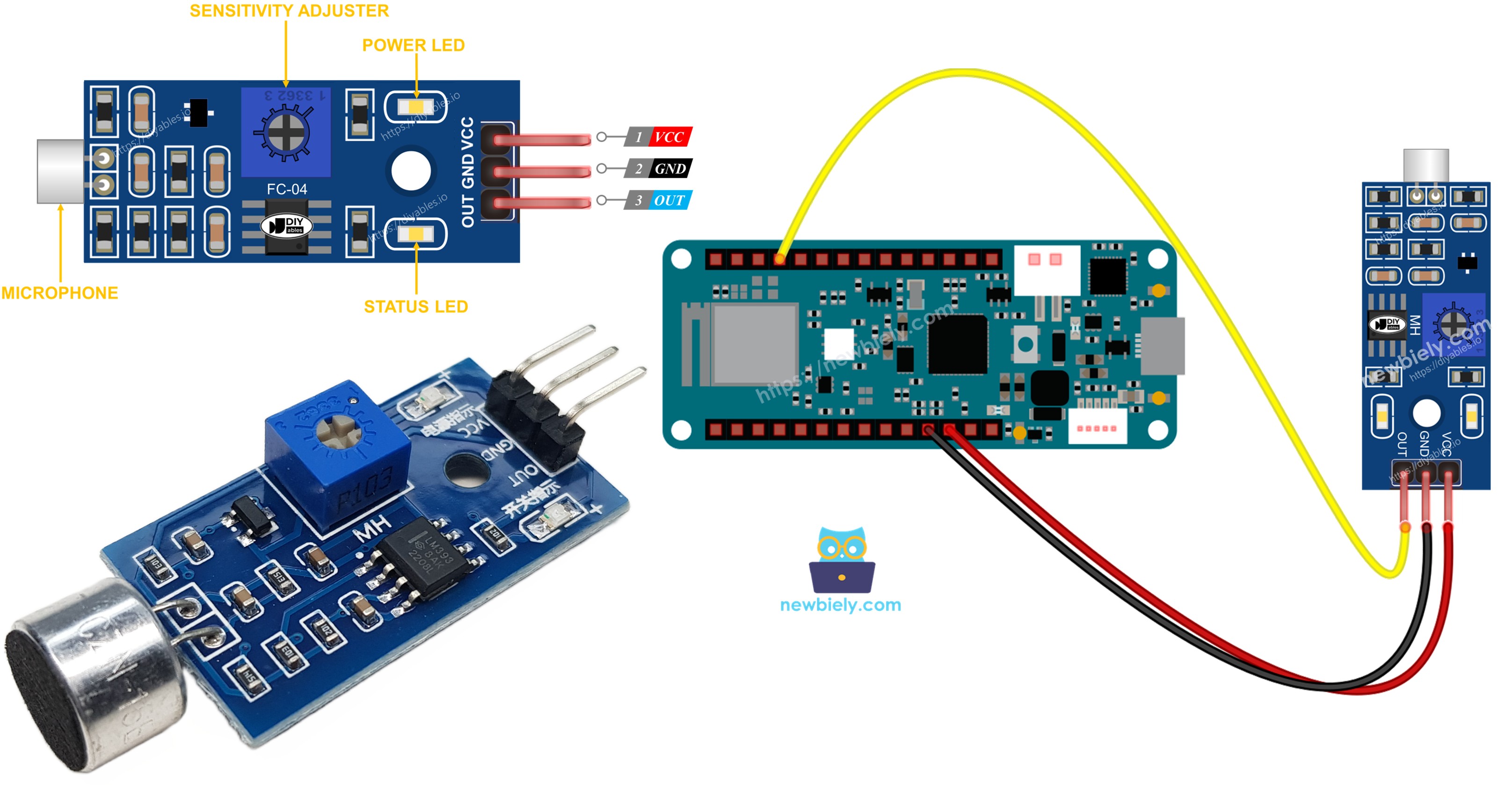
Hardware Preparation
| 1 | × | Arduino MKR WiFi 1010 | |
| 1 | × | Micro USB Cable | |
| 1 | × | Digital Sound Sensor | |
| 1 | × | Analog Sound Sensor | |
| 1 | × | Breadboard | |
| 1 | × | Jumper Wires | |
| 1 | × | Optionally, 5V Power Adapter for ESP8266 |
Or you can buy the following kits:
| 1 | × | DIYables Sensor Kit (18 sensors/displays) |
Additionally, some of these links are for products from our own brand, DIYables .
Overview of Sound Sensor
A sound sensor is a simple yet powerful component that detects audio vibrations in its environment. Think of it as an electronic "ear" for your Arduino MKR WiFi 1010 projects!
There are two types of sound sensor modules available:
- Digital sound sensor module: Provides a simple binary signal (HIGH or LOW). Perfect for projects that just need to know "was there a sound?" without measuring how loud it was.
- Analog sound sensor module: Offers both analog output (measures sound intensity) and digital output (ON/OFF detection). This gives you more flexibility - you can measure how loud the sound is or just detect if any sound occurred.
Both types feature a built-in potentiometer (a small adjustable knob) that lets you easily adjust the sensitivity threshold. This is incredibly useful for fine-tuning your Arduino MKR WiFi 1010 sound sensor project to respond only to sounds above a certain volume level.
The Digital Sound Sensor Pinout
The digital sound sensor module has three pins that you'll connect to your Arduino MKR WiFi 1010:
- VCC pin: Connects to your power supply. Works with both 3.3V and 5V, making it compatible with the Arduino MKR WiFi 1010's voltage levels.
- GND pin: Connects to ground (0V) - complete the circuit by connecting this to your Arduino MKR WiFi 1010's GND pin.
- OUT pin: The digital output pin that sends the detection signal to your Arduino MKR WiFi 1010. This pin stays HIGH when it's quiet and goes LOW when sound is detected. Connect this to any digital input pin on your Arduino MKR WiFi 1010.
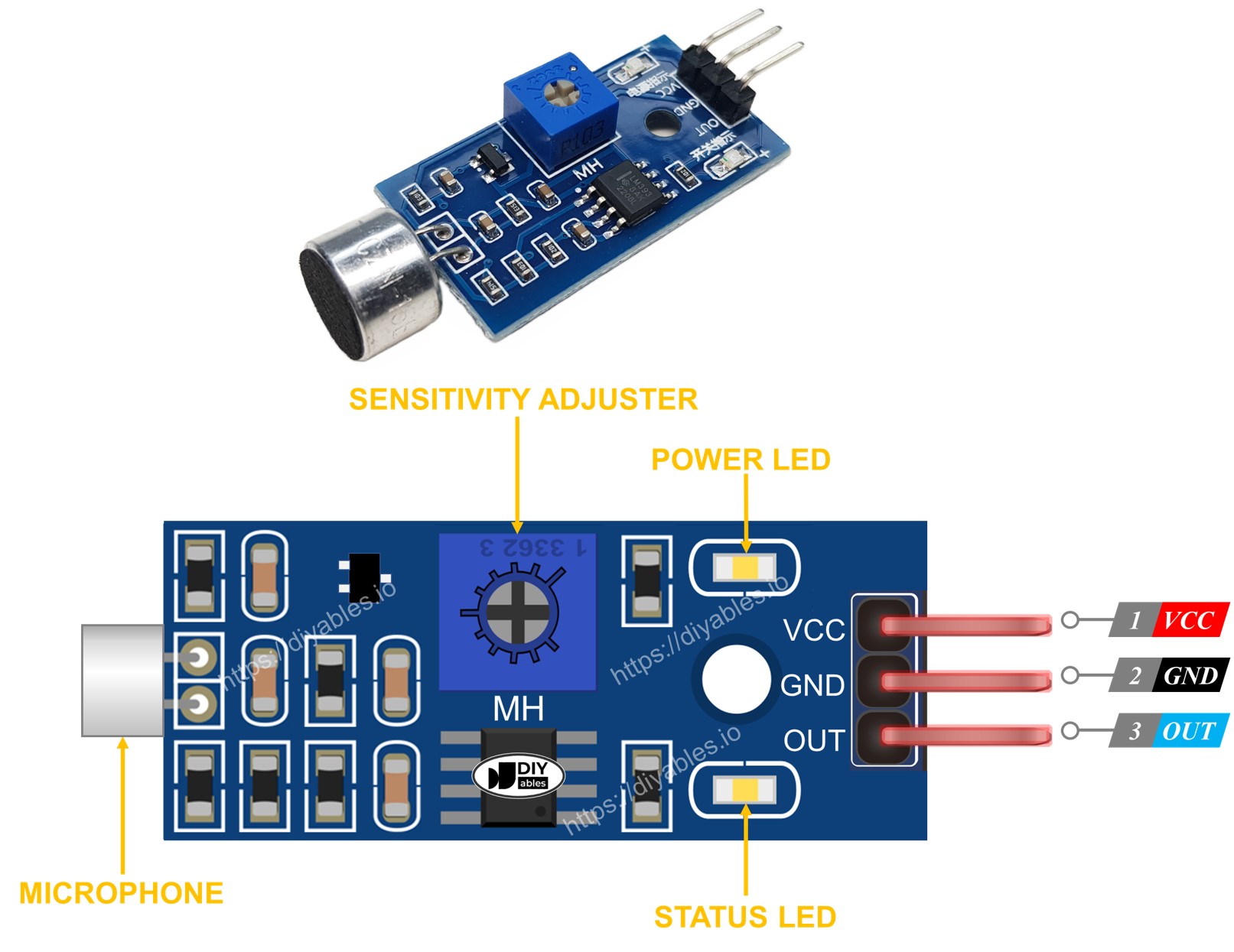
Helpful Features:
- Sensitivity knob: The built-in potentiometer (small screw on the module) allows you to adjust how sensitive the sensor is. Turn it clockwise to make it less sensitive, counterclockwise to make it more sensitive.
- LED indicators: Two helpful LEDs on the board:
- Power LED: Lights up when the module is powered, confirming proper connection
- Status LED: Lights up when sound is detected, making it easy to test and calibrate your sensor
- + pin: Connects to 5V power supply.
- G pin: Connects to ground (0V).
- DO pin: Digital output pin. Works the same as the digital sound sensor - HIGH when quiet, LOW when sound is detected. Connect this to a digital input pin on your Arduino MKR WiFi 1010.
- AO pin: Analog output pin. This is the special feature of this module! It provides an analog voltage that varies with the sound intensity, letting you measure not just if there's sound, but how loud it is. Connect this to an analog input pin (A0-A5) on your Arduino MKR WiFi 1010.
- When sound is heard, the output pin is set to LOW.
- When no sound is heard, the output pin is set to HIGH.
The Analog Sound Sensor Pinout
The analog sound sensor module offers more versatility with four pins:
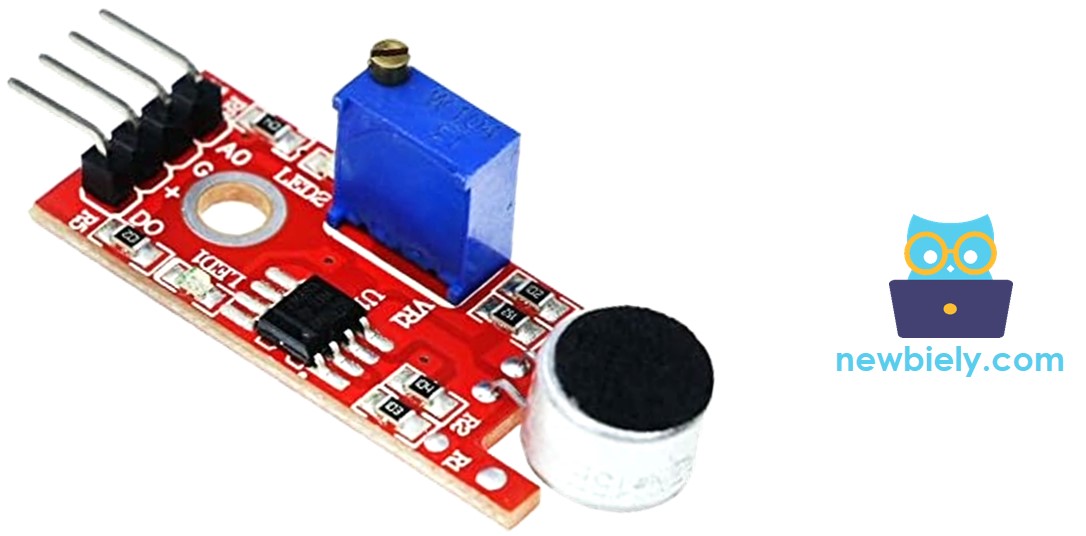
The analog sensor gives you the best of both worlds - simple sound detection (digital output) and detailed sound level measurement (analog output). This makes it perfect for advanced Arduino MKR WiFi 1010 projects where you want to respond differently to quiet sounds versus loud sounds!
How It Works
This module has an easy-to-use built-in knob that lets you change the sound sensitivity. Here is how the sensor's output pin works:
Wiring Diagram
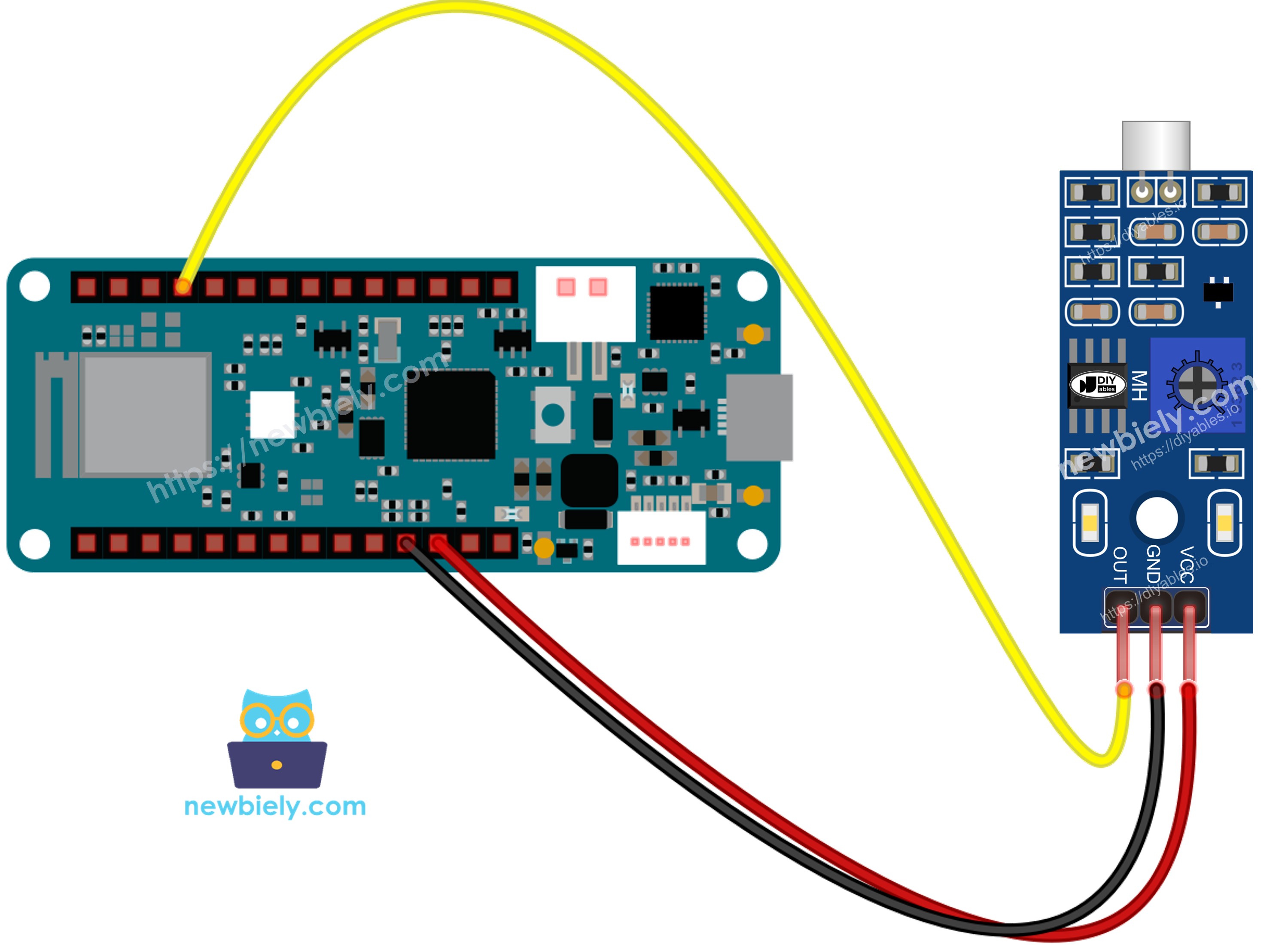
This image is created using Fritzing. Click to enlarge image
How To Program For Sound Sensor
- This sets the Arduino MKR WiFi 1010 pin to act as a digital input using the pinMode() function. For example, you can use pin D3.
- It checks if the Arduino MKR WiFi 1010 pin is on or off using the digitalRead() function, which you can learn more about at [digitalRead()].
Arduino MKR WiFi 1010 Code - Detecting the sound
Detailed Instructions
New to Arduino MKR WiFi 1010? Complete our Getting Started with Arduino MKR WiFi 1010 tutorial first to set up your development environment.
- Connect the components to the Arduino MKR WiFi 1010 board as depicted in the diagram
- Plug your Arduino MKR WiFi 1010 into your computer's USB port
- Launch the Arduino IDE on your computer
- Select the Arduino MKR WiFi 1010 board and its COM port
- Copy the above code and open it in the Arduino IDE.
- Click the Upload button in the Arduino IDE to send the code to the Arduino MKR WiFi 1010.
- Clap your hands near the sound sensor.
- Check the result in the Serial Monitor.
If you see the LED staying on or off, even when there is sound, you might need to adjust the potentiometer to change how sensitive the sensor is to sound.
Now, we can change the code to make an LED or light turn on when sound is heard. We can even make a servo motor move depending on the sound. For more details and easy step-by-step instructions, check the tutorials at the end of this guide.
Troubleshooting
If you have any problem with the sound sensor, please try these steps to fix it:
- Reduce vibrations: Mechanical shaking and wind can affect the sound sensor. To lessen these issues, mount the sensor on a solid, steady surface.
- Consider the sensing range: This sound sensor only detects sounds within about 10 inches. For best results, keep the sound source close to the sensor.
- Check the power supply: Make sure the power supply is clean and free from interference since the sensor is sensitive to any noise in the power signal.