
Arduino MKR WiFi 1010 - Water Sensor

Learn how to use the Arduino MKR WiFi 1010 with a water sensor to detect water leaks, monitor rainfall, prevent tank overflows, and measure water levels in your projects. Water sensors are essential components for building smart home systems, flood detection alarms, automatic plant watering, aquarium monitoring, basement leak detection, rain gauges, washing machine overflow protection, and agricultural irrigation control. In this comprehensive tutorial, you'll discover how to connect a water sensor to your Arduino MKR WiFi 1010 board, read analog water level values, detect water presence, calibrate sensitivity, implement corrosion-resistant power control, set up leak alerts with LEDs and buzzers, and create multi-level monitoring systems. This guide includes complete wiring diagrams, working example code with detailed explanations, troubleshooting tips for sensor corrosion and inaccurate readings, and 10 creative challenge projects to expand your Arduino MKR WiFi 1010 water sensor applications. Whether you're building a basement flood alarm, plant watering system, water tank monitor, rain gauge, or leak detector for your Arduino MKR WiFi 1010, this tutorial provides everything you need to work with water sensors effectively.
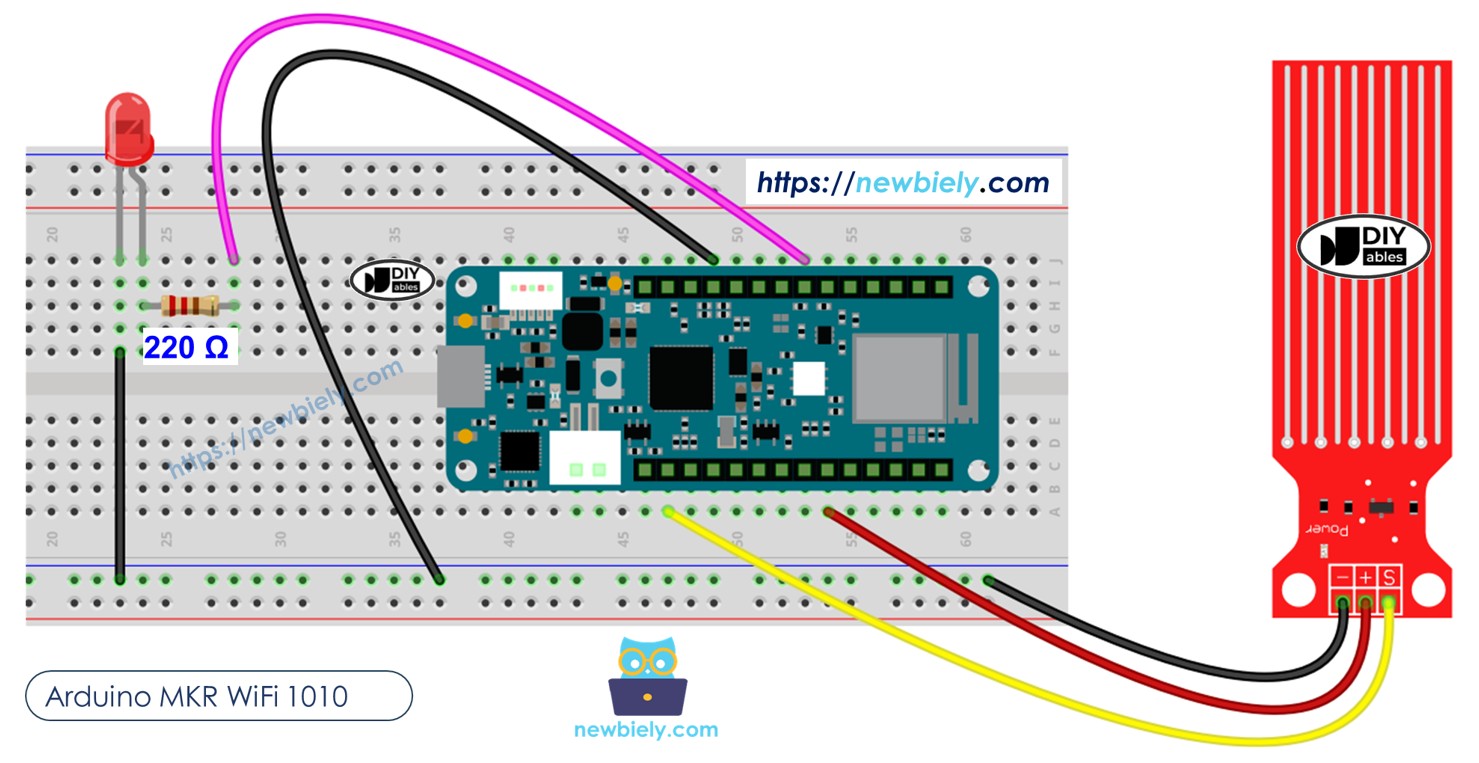
Arduino MKR WiFi 1010 water sensor

Hardware Preparation

1×Arduino MKR WiFi 1010
1×Micro USB Cable
1×Water level sensor
1×Breadboard
1×Jumper Wires
1×Optionally, DC Power Jack

Or you can buy the following kits:

1×DIYables Sensor Kit (30 sensors/displays)
1×DIYables Sensor Kit (18 sensors/displays)
Disclosure: Some of the links provided in this section are Amazon affiliate links. We may receive a commission for any purchases made through these links at no additional cost to you.
Additionally, some of these links are for products from our own brand, DIYables .

Overview of Water Level Sensor

A water sensor (also called water level sensor or water detector) is an analog sensor that detects the presence and level of water by measuring electrical conductivity between exposed traces on its circuit board. When water bridges these conductive traces, it creates electrical pathways that produce a proportional voltage output. Water sensors are commonly used in leak detection systems, flood alarms, rain gauges, aquarium monitors, plant watering automation, and tank overflow prevention. The Arduino MKR WiFi 1010 reads this analog voltage through its ADC (Analog-to-Digital Converter) to determine water presence and approximate depth.

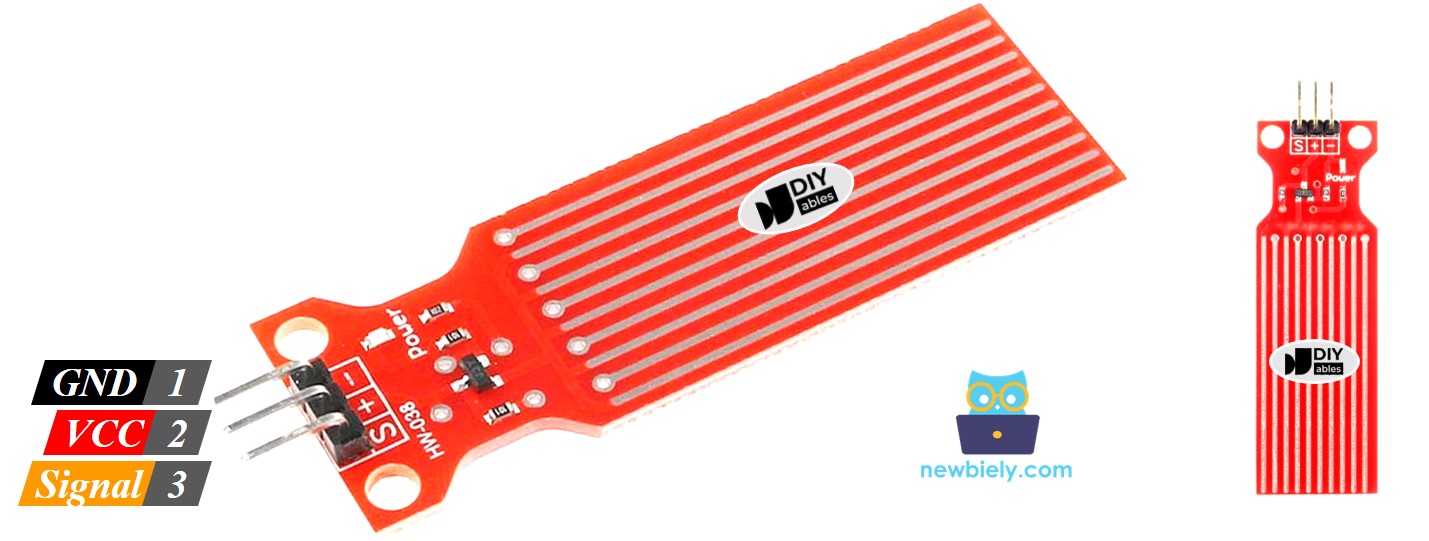
Water Level Sensor Pinout

The water level sensor has 3 pins:

  • S (Signal) pin: Analog output that provides voltage proportional to water level
    • Voltage increases as more traces are submerged
    • Range: 0V (dry) to ~5V (fully submerged)
    • Connect to any Arduino MKR WiFi 1010 analog pin (A0-A6)
    • Arduino reads as 0-1023 value (10-bit ADC)
  • + (VCC) pin: Power supply input
    • Accepts 3.3V or 5V power
    • Current consumption: ~20mA when active
    • Important: Control power with digital pin to prevent corrosion
    • Constant power causes rapid sensor degradation
  • - (GND) pin: Ground connection
    • Connect to Arduino GND pin
    • Completes circuit for measurements
    water sensor pinout

    How Water Level Sensor Works

    The water sensor operates using conductivity-based detection:

    Water Sensor Operating Principle: *i. Exposed Traces on PCB ┌─────────────────────┐ │ ||||||||||||||||||| │ ← Parallel conductive traces │ ||||||||||||||||||| │ │ ||||||||||||||||||| │ └─────────────────────┘ *i. Dry Sensor (No Water) Traces: | | | | | | ← Air gaps (high resistance) Output: 0V (no current flow) Reading: 0-50 *i. Partial Submersion (Some Water) Traces: |~~|~~|~~| | | ← Water bridges some gaps Output: 1-3V (partial conductivity) Reading: 200-600 *i. Full Submersion (Maximum Water) Traces: |~~|~~|~~|~~|~~| ← Water bridges all gaps Output: 4-5V (high conductivity) Reading: 800-1023 Water acts as conductor → More traces bridged → Higher current → Higher voltage → Larger ADC value

    Detection Process:

    1. Dry state: Traces are separated by air (insulator), minimal current flows → Output: 0V
    2. Water contact: Water bridges conductive traces, creating electrical pathways
    3. Increasing depth: More traces get submerged → More parallel pathways → Higher conductivity
    4. Voltage output: Signal voltage increases proportionally to water coverage area
    5. Arduino reads: ADC converts analog voltage (0-5V) to digital value (0-1023)
    6. Level interpretation: Software maps reading to water levels (empty, low, medium, high)

    Key Characteristics:

    • Detection range: 0-40mm water depth on sensing area
    • Response time: ~50ms (nearly instant detection)
    • Sensitivity: Proportional to trace coverage (not absolute depth)
    • Limitations: Detects presence and approximate level, not precise depth
    • Water quality: Readings vary with conductivity (pure water vs. tap water vs. saltwater)
    • Corrosion issue: Electrolysis occurs when continuously powered in water → Trace degradation
Wiring Diagram

Power Options:

You can power the water sensor by connecting its VCC pin to the 3.3V or 5V pin and its GND pin to GND on the Arduino MKR WiFi 1010.

⚠️ Important - Prevent Corrosion:

Constantly powering the water sensor causes rapid corrosion and sensor failure. When VCC is connected continuously, electrolysis degrades the conductive traces within hours to days, especially in tap water or saltwater. Best practice: Connect the sensor's VCC pin to a digital pin on the Arduino MKR WiFi 1010 (instead of the 3.3V pin). Program that pin HIGH only when taking readings, then LOW immediately after. This extends sensor lifespan from days to months.

Corrosion-Resistant Wiring:

Best Practice Wiring: Arduino MKR WiFi 1010 Water Sensor ┌─────────────────┐ ┌──────────┐ │ │ │ │ │ Digital Pin 7──┼────────→│ + (VCC) │ ← Controlled power │ Analog Pin A1──┼────────→│ S (SIG) │ ← Analog reading │ GND ├────────→│ - (GND) │ │ │ │ │ └─────────────────┘ └──────────┘ Code pattern: digitalWrite(7, HIGH); // Power ON delay(10); // Stabilize int value = analogRead(A1); // Read digitalWrite(7, LOW); // Power OFF (prevents corrosion)

Simple Wiring (Not Recommended for Long-Term):

For quick testing only, you can connect VCC directly to 3.3V, but expect sensor degradation.
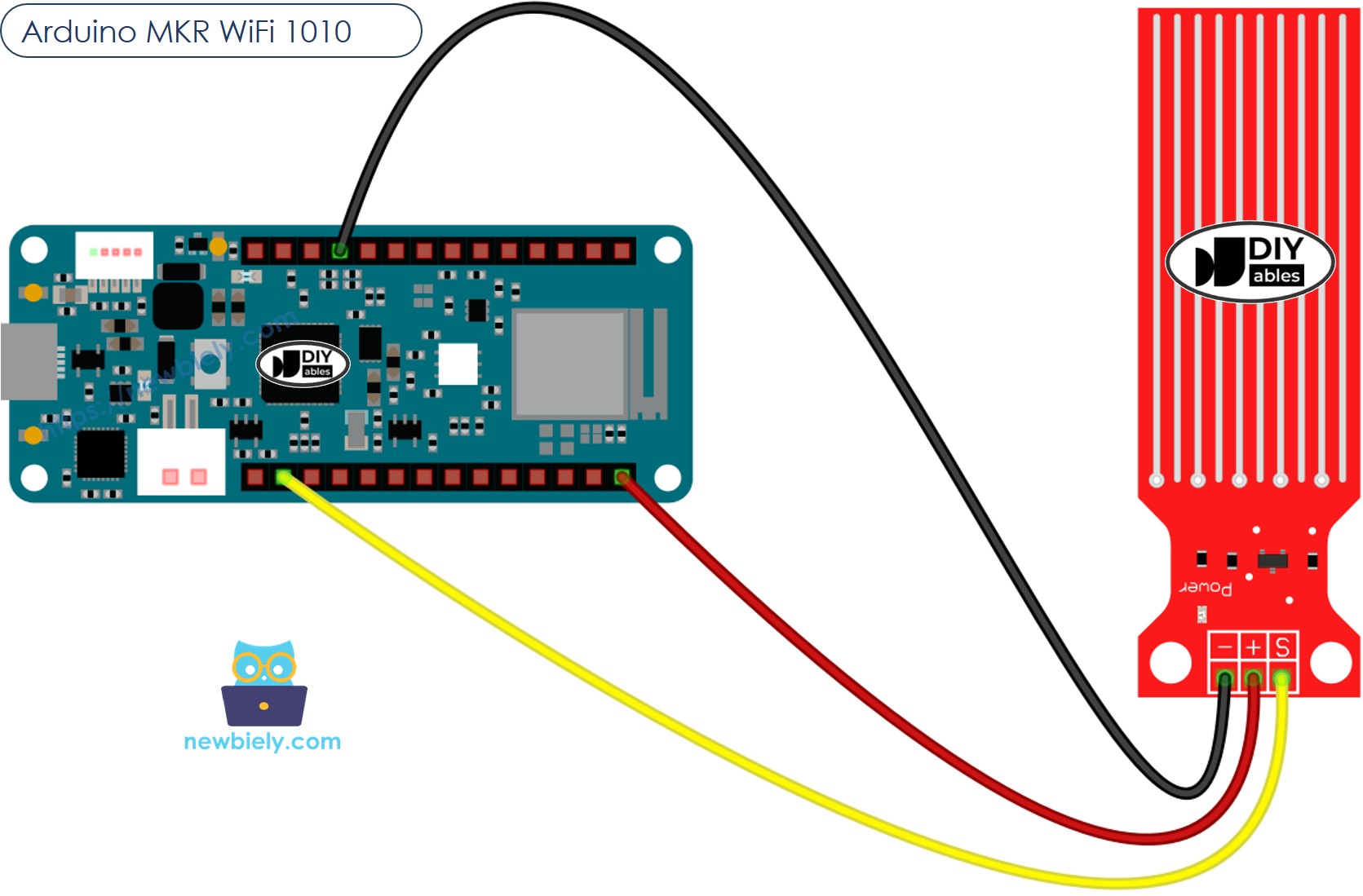
The wiring diagram between Arduino MKR WiFi 1010 Water Sensor

This image is created using Fritzing. Click to enlarge image

Power Supply Notes:

  • Simply plug your Arduino MKR WiFi 1010 into your computer's USB port
  • The water sensor draws only 20mA when active, well within USB power limits
  • Use 5V power for maximum sensitivity (wider voltage range)
  • 3.3V power works but provides lower maximum readings

Arduino MKR WiFi 1010 Code - Reading Value from Water Sensor

/* * This Arduino MKR WiFi 1010 code was developed by newbiely.com * * This Arduino MKR WiFi 1010 code is made available for public use without any restriction * * For comprehensive instructions and wiring diagrams, please visit: * https://newbiely.com/tutorials/arduino-mkr/arduino-mkr-wifi-1010-water-sensor */ #define POWER_PIN 4 // Arduino Nano 33 IoT pin D4 connected to sensor's VCC pin #define SIGNAL_PIN A0 // Arduino Nano 33 IoT pin A0 connected to sensor's signal pin int value = 0; // variable to store the sensor value void setup() { Serial.begin(9600); pinMode(POWER_PIN, OUTPUT); // Configure pin as an OUTPUT digitalWrite(POWER_PIN, LOW); // turn the sensor OFF } void loop() { digitalWrite(POWER_PIN, HIGH); // turn the sensor ON delay(10); // wait 10 milliseconds value = analogRead(SIGNAL_PIN); // read the analog value from sensor digitalWrite(POWER_PIN, LOW); // turn the sensor OFF Serial.print("The water sensor value: "); Serial.println(value); delay(1000); }

Detailed Instructions

New to Arduino MKR WiFi 1010? Complete our Getting Started with Arduino MKR WiFi 1010 tutorial first to set up your development environment.

  • Connect the components to the Arduino MKR WiFi 1010 board as depicted in the diagram
  • Plug your Arduino MKR WiFi 1010 into your computer's USB port
  • Launch the Arduino IDE on your computer
  • Select the Arduino MKR WiFi 1010 board and its COM port
  • Copy the code above and paste it into the Arduino IDE
  • Click the Upload button to compile and upload
  • Slowly lower the sensor into a glass of water (do not fully submerge the circuit board)
  • Watch the Serial Monitor as readings change from 0 (dry) to higher values (wet)
COM6
Send
The water sensor value: 0 The water sensor value: 0 The water sensor value: 0 The water sensor value: 25 The water sensor value: 196 The water sensor value: 587 The water sensor value: 625 The water sensor value: 1434 The water sensor value: 1449 The water sensor value: 1454 The water sensor value: 1469 The water sensor value: 2525 The water sensor value: 2526 The water sensor value: 2558
Autoscroll Show timestamp
Clear output
9600 baud  
Newline  

※ NOTE THAT:

The water sensor is not meant to be completely underwater. Only the parts that are meant to be wet on the circuit board can touch the water. Please be careful when installing it.

How To Detect Water Leakage

To find water leaks, rain, or a tank overflow, you only need to compare the sensor reading with a set limit. This limit is chosen during the calibration step of this guide.

Let's program the Arduino MKR WiFi 1010 to turn on an LED when it detects a water leak.

Wiring Diagram
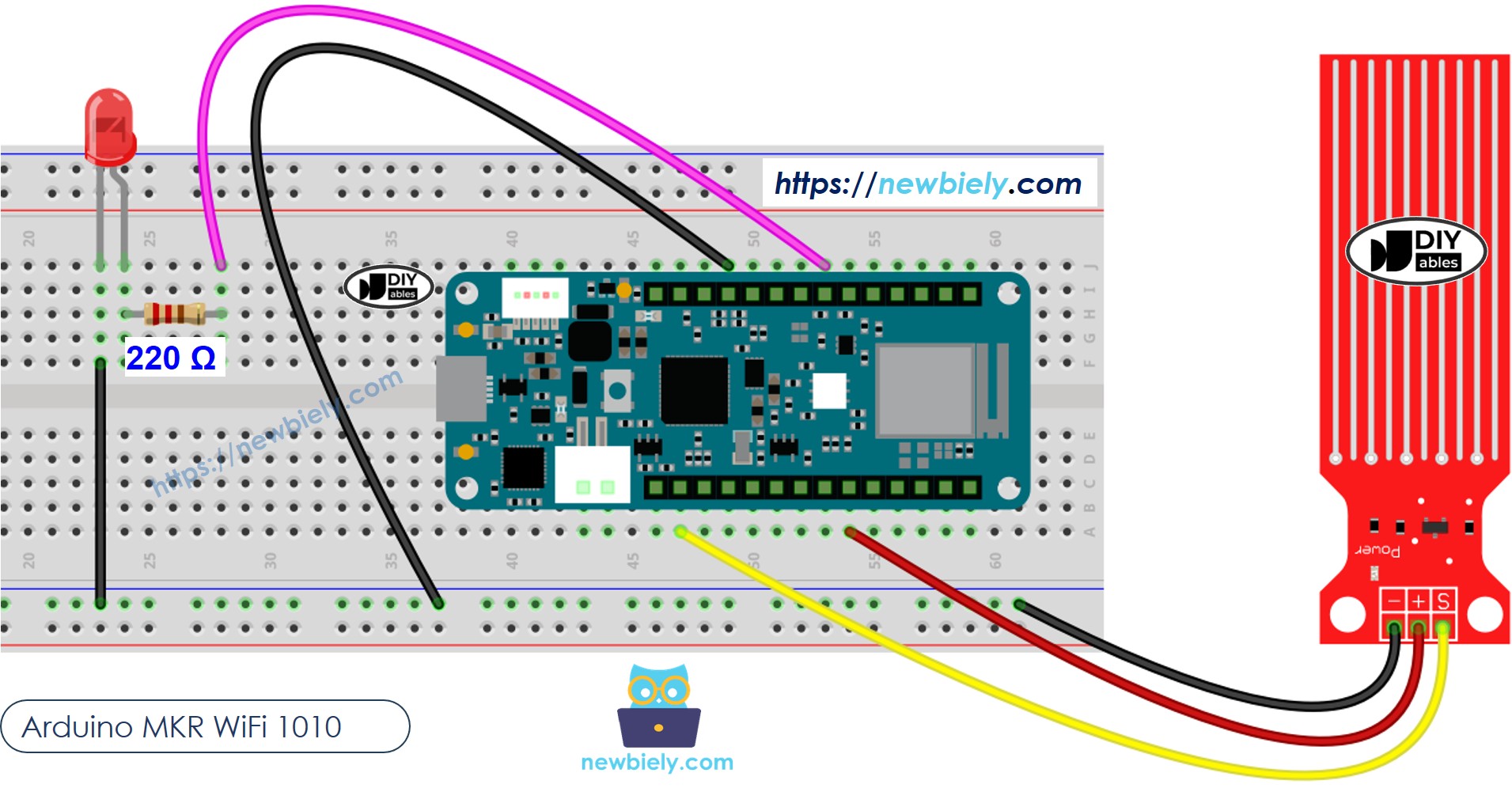
The wiring diagram between Arduino MKR WiFi 1010 Water Sensor LED

This image is created using Fritzing. Click to enlarge image

Arduino MKR WiFi 1010 Code - Detecting Water Leakage

/* * This Arduino MKR WiFi 1010 code was developed by newbiely.com * * This Arduino MKR WiFi 1010 code is made available for public use without any restriction * * For comprehensive instructions and wiring diagrams, please visit: * https://newbiely.com/tutorials/arduino-mkr/arduino-mkr-wifi-1010-water-sensor */ #define LED_PIN 9 // Arduino Nano 33 IoT pin D9 connected to LED pin #define POWER_PIN 4 // Arduino Nano 33 IoT pin D4 connected to sensor's VCC pin #define SIGNAL_PIN A0 // Arduino Nano 33 IoT pin A0 connected to sensor's signal pin #define THRESHOLD 1000 int value = 0; // variable to store the sensor value void setup() { Serial.begin(9600); pinMode(LED_PIN, OUTPUT); // Configure pin as an OUTPUT pinMode(POWER_PIN, OUTPUT); // Configure pin as an OUTPUT digitalWrite(POWER_PIN, LOW); // turn the sensor OFF digitalWrite(LED_PIN, LOW); // turn LED OFF } void loop() { digitalWrite(POWER_PIN, HIGH); // turn the sensor ON delay(10); // wait 10 milliseconds value = analogRead(SIGNAL_PIN); // read the analog value from sensor digitalWrite(POWER_PIN, LOW); // turn the sensor OFF if (value > THRESHOLD) { Serial.print("The water is detected"); digitalWrite(LED_PIN, HIGH); // turn LED ON } else { digitalWrite(LED_PIN, LOW); // turn LED OFF } }

How To Measure The Water Level

The following code splits the water level into four parts.

/* * This Arduino MKR WiFi 1010 code was developed by newbiely.com * * This Arduino MKR WiFi 1010 code is made available for public use without any restriction * * For comprehensive instructions and wiring diagrams, please visit: * https://newbiely.com/tutorials/arduino-mkr/arduino-mkr-wifi-1010-water-sensor */ #define LED_PIN 9 // Arduino Nano 33 IoT pin D9 connected to LED pin #define POWER_PIN 4 // Arduino Nano 33 IoT pin D4 connected to sensor's VCC pin #define SIGNAL_PIN A0 // Arduino Nano 33 IoT pin A0 connected to sensor's signal pin #define THRESHOLD 1000 int value = 0; // variable to store the sensor value void setup() { Serial.begin(9600); pinMode(LED_PIN, OUTPUT); // Configure pin as an OUTPUT pinMode(POWER_PIN, OUTPUT); // Configure pin as an OUTPUT digitalWrite(POWER_PIN, LOW); // turn the sensor OFF digitalWrite(LED_PIN, LOW); // turn LED OFF } void loop() { digitalWrite(POWER_PIN, HIGH); // turn the sensor ON delay(10); // wait 10 milliseconds value = analogRead(SIGNAL_PIN); // read the analog value from sensor digitalWrite(POWER_PIN, LOW); // turn the sensor OFF if (value > THRESHOLD) { Serial.print("The water is detected"); digitalWrite(LED_PIN, HIGH); // turn LED ON } else { digitalWrite(LED_PIN, LOW); // turn LED OFF } }

※ NOTE THAT:

SENSOR_MIN and SENSOR_MAX are set during the calibration process. The mapping method above is not perfectly accurate, but it works well for many uses.

Water Level Sensor Calibration

Check out this guide to learn how to adjust the water level sensor: https://arduinogetstarted.com/tutorials/arduino-water-sensor#content_water_level_sensor_calibration

Troubleshooting

Problem: Sensor always reads 0 even when in water

  • Check wiring: Verify S pin is connected to analog pin (A1 not D1)
  • Check power: If using controlled power, ensure digitalWrite(powerPin, HIGH) before reading
  • Verify analog pin: Use A0-A6 (not digital pins) for analogRead()
  • Test with Serial Monitor:
void setup() { Serial.begin(9600); pinMode(7, OUTPUT); // Power pin } void loop() { digitalWrite(7, HIGH); delay(10); int value = analogRead(A1); Serial.print("Raw value: "); Serial.println(value); digitalWrite(7, LOW); delay(1000); }
  • Check dry reading: Should be 0-50 when completely dry
  • Test with wet finger: Touch sensor traces, value should increase

Problem: Readings are erratic or jumping around

  • Use averaging: Take multiple readings and calculate average:
int getAverageReading(int pin, int samples) { long sum = 0; for (int i = 0; i < samples; i++) { sum += analogRead(pin); delay(10); } return sum / samples; } int value = getAverageReading(A1, 10); // Average of 10 readings
  • Add stabilization delay: Wait 10-50ms after power-on before reading
  • Check water quality: Pure distilled water conducts poorly (add tiny pinch of salt)
  • Electromagnetic interference: Keep away from motors, relays during reading

Problem: Sensor stops working after a few days

  • Corrosion damage: Traces oxidized from constant power
  • Solution: Use controlled power (HIGH only during reading, LOW after)
  • Prevention code:
// Power pin setup const int POWER_PIN = 7; void setup() { pinMode(POWER_PIN, OUTPUT); digitalWrite(POWER_PIN, LOW); // Keep OFF by default } void loop() { // Only power ON when needed digitalWrite(POWER_PIN, HIGH); delay(10); // Stabilize int value = analogRead(A1); digitalWrite(POWER_PIN, LOW); // Immediately turn OFF delay(1000); // Long delay between readings }
  • Coating option: Apply clear nail polish to traces (reduces sensitivity but prevents corrosion)
  • Replacement: Keep spare sensors if used in critical applications

Problem: Readings don't reach maximum value (stuck at 200-400)

  • Insufficient submersion: Lower sensor deeper into water
  • Power issue: Use 5V instead of 3.3V for higher voltage range:
// If using 3.3V power const int MAX_VALUE = 680; // ~3.3V max instead of 1023 (5V) // Adjust mapping accordingly int level = map(value, 0, 680, 0, 100);
  • Recalibrate: Adjust SENSOR_MAX value in code to match your actual maximum reading
  • Water conductivity: Tap water gives higher readings than distilled water

Problem: False triggers (detects water when dry)

  • Add threshold: Set minimum detection value (ignore noise):
const int WATER_THRESHOLD = 100; // Adjust based on testing int value = analogRead(A1); if (value > WATER_THRESHOLD) { Serial.println("Water detected!"); } else { Serial.println("Dry"); }
  • Humidity issue: High humidity can cause low readings even when dry
  • Test in target environment: Calibrate threshold for your specific conditions
  • Dry thoroughly: Ensure sensor is completely dry for baseline reading

Challenge Extensions

Ready to take your water sensor project to the next level? Try these challenges:

Challenge 1: Basement Flood Alarm

Create a loud alarm system that activates when water is detected:

const int BUZZER_PIN = 8; const int LED_PIN = 9; const int FLOOD_THRESHOLD = 200; void loop() { digitalWrite(POWER_PIN, HIGH); delay(10); int waterLevel = analogRead(A1); digitalWrite(POWER_PIN, LOW); if (waterLevel > FLOOD_THRESHOLD) { // Sound alarm! digitalWrite(LED_PIN, HIGH); tone(BUZZER_PIN, 1000); // 1kHz tone delay(500); noTone(BUZZER_PIN); delay(500); } else { digitalWrite(LED_PIN, LOW); noTone(BUZZER_PIN); } }

Challenge 2: Automatic Plant Watering System

Control a water pump based on soil moisture:

const int PUMP_PIN = 10; const int DRY_THRESHOLD = 300; const int WET_THRESHOLD = 600; void loop() { int soilMoisture = readWaterSensor(); if (soilMoisture < DRY_THRESHOLD) { digitalWrite(PUMP_PIN, HIGH); // Turn pump ON Serial.println("Watering plants..."); } else if (soilMoisture > WET_THRESHOLD) { digitalWrite(PUMP_PIN, LOW); // Turn pump OFF Serial.println("Soil is wet enough"); } delay(60000); // Check every minute }

Challenge 3: Multi-Level Water Tank Monitor

Use multiple sensors at different heights to monitor tank levels:

const int SENSOR_BOTTOM = A1; const int SENSOR_MIDDLE = A2; const int SENSOR_TOP = A3; void loop() { int bottom = readSensor(SENSOR_BOTTOM); int middle = readSensor(SENSOR_MIDDLE); int top = readSensor(SENSOR_TOP); if (top > 200) { Serial.println("Tank: FULL (100%)"); } else if (middle > 200) { Serial.println("Tank: 50-75%"); } else if (bottom > 200) { Serial.println("Tank: 25-50%"); } else { Serial.println("Tank: EMPTY (0-25%)"); } }

Challenge 4: WiFi-Connected Leak Notifier

Send notifications to your phone when leaks are detected:

#include <WiFiNINA.h> const char* ssid = "YourWiFi"; const char* password = "YourPassword"; void loop() { int waterLevel = readWaterSensor(); if (waterLevel > LEAK_THRESHOLD) { sendNotification("LEAK DETECTED!"); delay(300000); // Wait 5 minutes before next alert } } void sendNotification(String message) { // Send email via WiFi or use IFTTT webhook Serial.println("Sending alert: " + message); }

Challenge 5: Rain Gauge with LCD Display

Measure rainfall and display accumulation on LCD:

#include <LiquidCrystal.h> LiquidCrystal lcd(12, 11, 5, 4, 3, 2); float totalRainfall = 0; void loop() { int rain = readWaterSensor(); if (rain > 100) { float increment = map(rain, 100, 1000, 0, 10) / 100.0; totalRainfall += increment; } lcd.setCursor(0, 0); lcd.print("Rainfall: "); lcd.setCursor(0, 1); lcd.print(totalRainfall); lcd.print(" mm "); }

Challenge 6: Water Level Bar Graph with LEDs

Display water level visually using LED strip:

const int ledPins[] = {2, 3, 4, 5, 6, 7, 8, 9}; // 8 LEDs void loop() { int waterLevel = readWaterSensor(); int numLEDs = map(waterLevel, 0, 1000, 0, 8); for (int i = 0; i < 8; i++) { digitalWrite(ledPins[i], i < numLEDs ? HIGH : LOW); } }

Challenge 7: Data Logger to SD Card

Log water level readings with timestamps:

#include <SD.h> #include <SPI.h> File dataFile; void loop() { int waterLevel = readWaterSensor(); dataFile = SD.open("water_log.txt", FILE_WRITE); if (dataFile) { dataFile.print(millis()); dataFile.print(","); dataFile.println(waterLevel); dataFile.close(); } delay(60000); // Log every minute }

Challenge 8: Washing Machine Overflow Protection

Shut off water valve when overflow detected:

const int VALVE_PIN = 10; // Solenoid valve control const int OVERFLOW_THRESHOLD = 800; void loop() { int waterLevel = readWaterSensor(); if (waterLevel > OVERFLOW_THRESHOLD) { digitalWrite(VALVE_PIN, LOW); // Close valve Serial.println("OVERFLOW! Valve closed"); } else { digitalWrite(VALVE_PIN, HIGH); // Open valve } }

Challenge 9: Aquarium Auto-Top-Off System

Maintain constant water level in aquarium:

const int MIN_LEVEL = 400; const int MAX_LEVEL = 600; const int PUMP_PIN = 10; void loop() { int waterLevel = readWaterSensor(); if (waterLevel < MIN_LEVEL) { digitalWrite(PUMP_PIN, HIGH); // Add water Serial.println("Adding water..."); } else if (waterLevel > MAX_LEVEL) { digitalWrite(PUMP_PIN, LOW); // Stop adding Serial.println("Water level OK"); } delay(5000); }

Challenge 10: Smart Sump Pump Controller

Activate sump pump based on water level with safety features:

const int PUMP_RELAY = 10; const int ACTIVATE_LEVEL = 600; const int DEACTIVATE_LEVEL = 200; const unsigned long MAX_RUN_TIME = 300000; // 5 minutes unsigned long pumpStartTime = 0; bool pumpRunning = false; void loop() { int waterLevel = readWaterSensor(); // Activate pump if water too high if (waterLevel > ACTIVATE_LEVEL && !pumpRunning) { digitalWrite(PUMP_RELAY, HIGH); pumpRunning = true; pumpStartTime = millis(); Serial.println("Pump ON"); } // Deactivate pump if water low enough if (waterLevel < DEACTIVATE_LEVEL && pumpRunning) { digitalWrite(PUMP_RELAY, LOW); pumpRunning = false; Serial.println("Pump OFF"); } // Safety: Turn off pump if running too long if (pumpRunning && (millis() - pumpStartTime > MAX_RUN_TIME)) { digitalWrite(PUMP_RELAY, LOW); pumpRunning = false; Serial.println("ALERT: Pump ran too long! Check for issues"); } }

Video Tutorial

※ OUR MESSAGES

  • As freelancers, We are AVAILABLE for HIRE. See how to outsource your project to us
  • Please feel free to share the link of this tutorial. However, Please do not use our content on any other websites. We invested a lot of effort and time to create the content, please respect our work!