Raspberry Pi Pico - Write Variable to SD Card

This tutorial walks you through storing various MicroPython data types on a Micro SD Card using the Raspberry Pi Pico. Topics covered:

For the reverse process — reading key-value pairs from the Micro SD Card and converting them into int, float, or string variables — see the Raspberry Pi Pico - Read Config from SD Card tutorial.
Raspberry Pi Pico Micro SD Card

Hardware Preparation

1×Raspberry Pi Pico W
1×Raspberry Pi Pico Alternatively,
1×Micro USB Cable
1×Micro SD Card
1×Micro SD Card Module
1×Jumper Wires
1×Breadboard
1×Optionally, MicroSD to SD Memory Card Adapter
1×Recommended: Screw Terminal Expansion Board for Raspberry Pi Pico

Or you can buy the following kits:

1×DIYables Sensor Kit (30 sensors/displays)
1×DIYables Sensor Kit (18 sensors/displays)
Disclosure: Some of the links provided in this section are Amazon affiliate links. We may receive a commission for any purchases made through these links at no additional cost to you.
Additionally, some of these links are for products from our own brand, DIYables .

Overview of Micro SD Card Module

To learn about the Micro SD Card Module — including pin descriptions, wiring, and example code — refer to the Raspberry Pi Pico - Micro SD Card tutorial.

Wiring Diagram
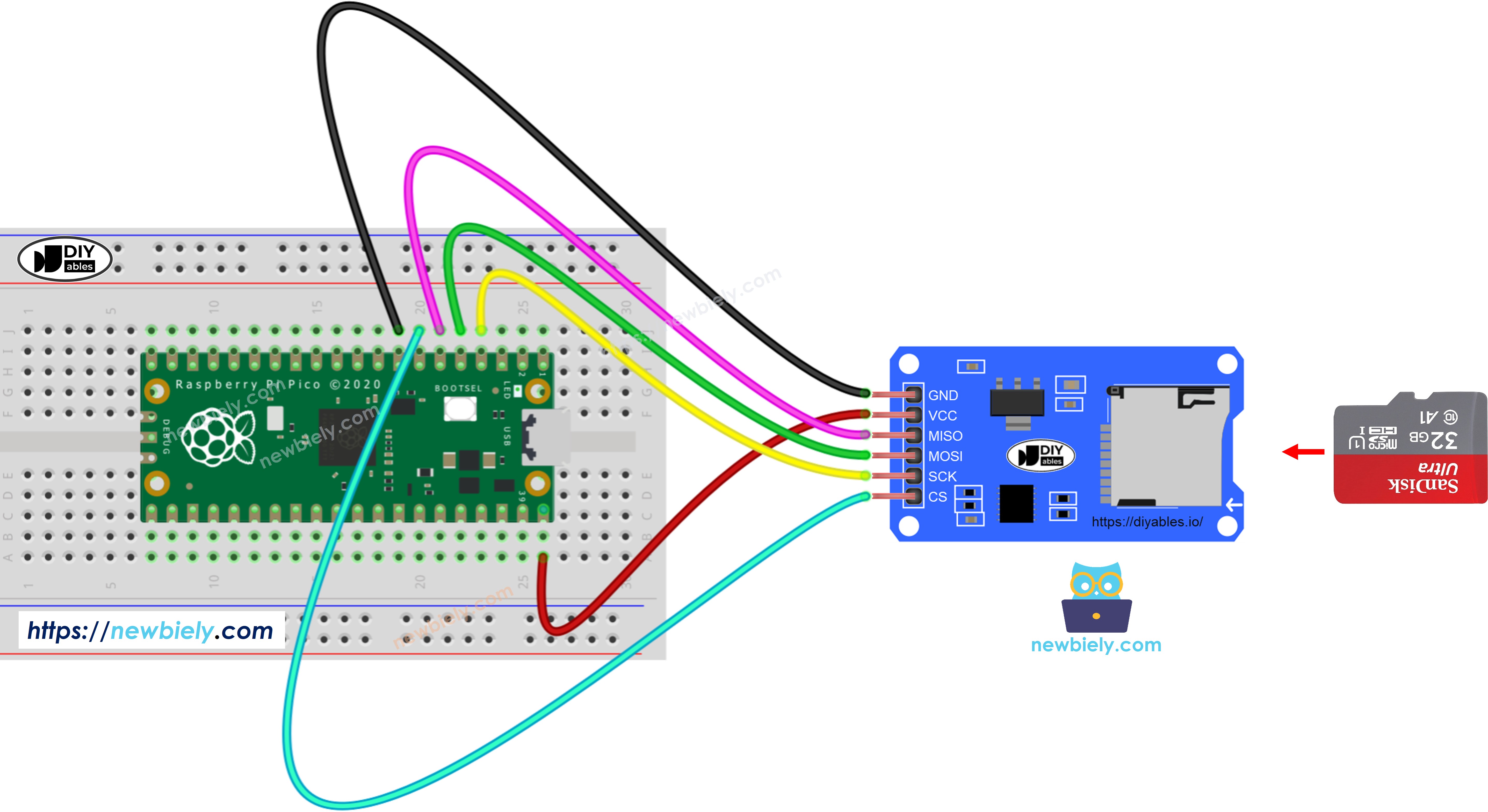
The wiring diagram between Raspberry Pi and Pico Micro SD Card Module

This image is created using Fritzing. Click to enlarge image

The wiring table below shows how to connect the Micro SD Card Module to the Raspberry Pi Pico:

Micro SD Card Module Raspberry Pi Pico
VCC VBUS (5V)
GND GND
MISO GP4
MOSI GP3
SCK GP2
CS GP5

※ NOTE THAT:

When using a shield that already includes a Micro SD Card slot (for example, an Ethernet shield), no additional SD Card Module is required — just slide the card straight into the shield's built-in slot.

Raspberry Pi Pico - Saving Variables to a File on Micro SD Card

This MicroPython code demonstrates how to write different data types to a file:

  • Save an int value to the Micro SD Card
  • Save a float value to the Micro SD Card
  • Save a string to the Micro SD Card
  • Save a byte array to the Micro SD Card
""" This Raspberry Pi Pico MicroPython code was developed by newbiely.com This Raspberry Pi Pico code is made available for public use without any restriction For comprehensive instructions and wiring diagrams, please visit: https://newbiely.com/tutorials/raspberry-pico/raspberry-pi-pico-write-variable-to-sd-card """ import machine import os import sdcard # Define SPI pins for the Micro SD Card module SPI_SCK_PIN = 2 # The Raspberry Pi Pico pin GP2 connected to SCK SPI_MOSI_PIN = 3 # The Raspberry Pi Pico pin GP3 connected to MOSI SPI_MISO_PIN = 4 # The Raspberry Pi Pico pin GP4 connected to MISO SPI_CS_PIN = 5 # The Raspberry Pi Pico pin GP5 connected to SS (CS) # Initialize SD card using SoftSPI and sdcard driver spi = machine.SoftSPI(baudrate=1000000, polarity=0, phase=0, sck=machine.Pin(SPI_SCK_PIN), mosi=machine.Pin(SPI_MOSI_PIN), miso=machine.Pin(SPI_MISO_PIN)) cs = machine.Pin(SPI_CS_PIN, machine.Pin.OUT) try: sd = sdcard.SDCard(spi, cs) os.mount(sd, "/sd") print("SD CARD INITIALIZED.") except Exception as e: print("SD CARD FAILED, OR NOT PRESENT!", e) raise SystemExit print("--------------------") file_path = "/sd/pico.txt" # Variables to write my_int = -52 my_float = -12.7 my_string = "HELLO" my_char_array = "newbiely.com" my_byte_array = bytearray(b'12345') # Delete the file if it exists try: os.remove(file_path) except OSError: pass # Create new file and write variables try: f = open(file_path, "w") f.write("{}\n".format(my_int)) # write int variable to SD card in line f.write("{:.2f}\n".format(my_float)) # write float variable to SD card in line f.write("{}\n".format(my_string)) # write string variable to SD card in line f.write("{}\n".format(my_char_array)) # write char array to SD card in line f.write(my_byte_array.decode()) # write byte array to SD card f.write("\n") # new line f.write(",".join(str(ch) for ch in my_byte_array.decode())) # write byte array with comma f.write("\n") # new line f.close() except Exception as e: print("SD Card: Issue encountered while attempting to open the file pico.txt", e) # Open file for reading try: f = open(file_path, "r") while True: ch = f.read(1) # read characters one by one from Micro SD Card if not ch: break print(ch, end="") # print the character to the Shell f.close() except Exception as e: print("SD Card: Issue encountered while attempting to open the file pico.txt", e) os.umount("/sd")

Detailed Instructions

Follow the steps below to set up and run the code:

  • Verify that Thonny IDE is installed on your PC.
  • Make sure MicroPython firmware has been flashed onto your Raspberry Pi Pico.
  • First-time users should consult the Raspberry Pi Pico - Getting Started guide for setup details.
  • Assemble the circuit following the wiring diagram above.
  • Plug the Raspberry Pi Pico into your computer via USB cable.
  • Open Thonny IDE.
  • Go to Tools Options, then in the Interpreter tab pick MicroPython (Raspberry Pi Pico).
  • Check that the correct serial port is selected — Thonny usually finds it automatically, but manual selection may be needed (for example COM3 on Windows or /dev/ttyACM0 on Linux).
  • Paste the code above into the Thonny editor window.
  • Save the file to the Raspberry Pi Pico:
    • Press Ctrl+S or click Save.
    • When prompted, select the Raspberry Pi Pico location.
    • Name the file main.py.
  • Hit the green Run button (or press F5). The script will start executing.
  • Review the output in the Shell panel at the bottom of Thonny.

Saving your script as main.py in the Pico's root directory means it will launch automatically whenever the board powers up or resets — ideal for standalone projects. Scripts saved under a different name must be started manually through the Thonny Shell.

  • Make sure the Micro SD Card is formatted as FAT16 or FAT32 (look up instructions online)
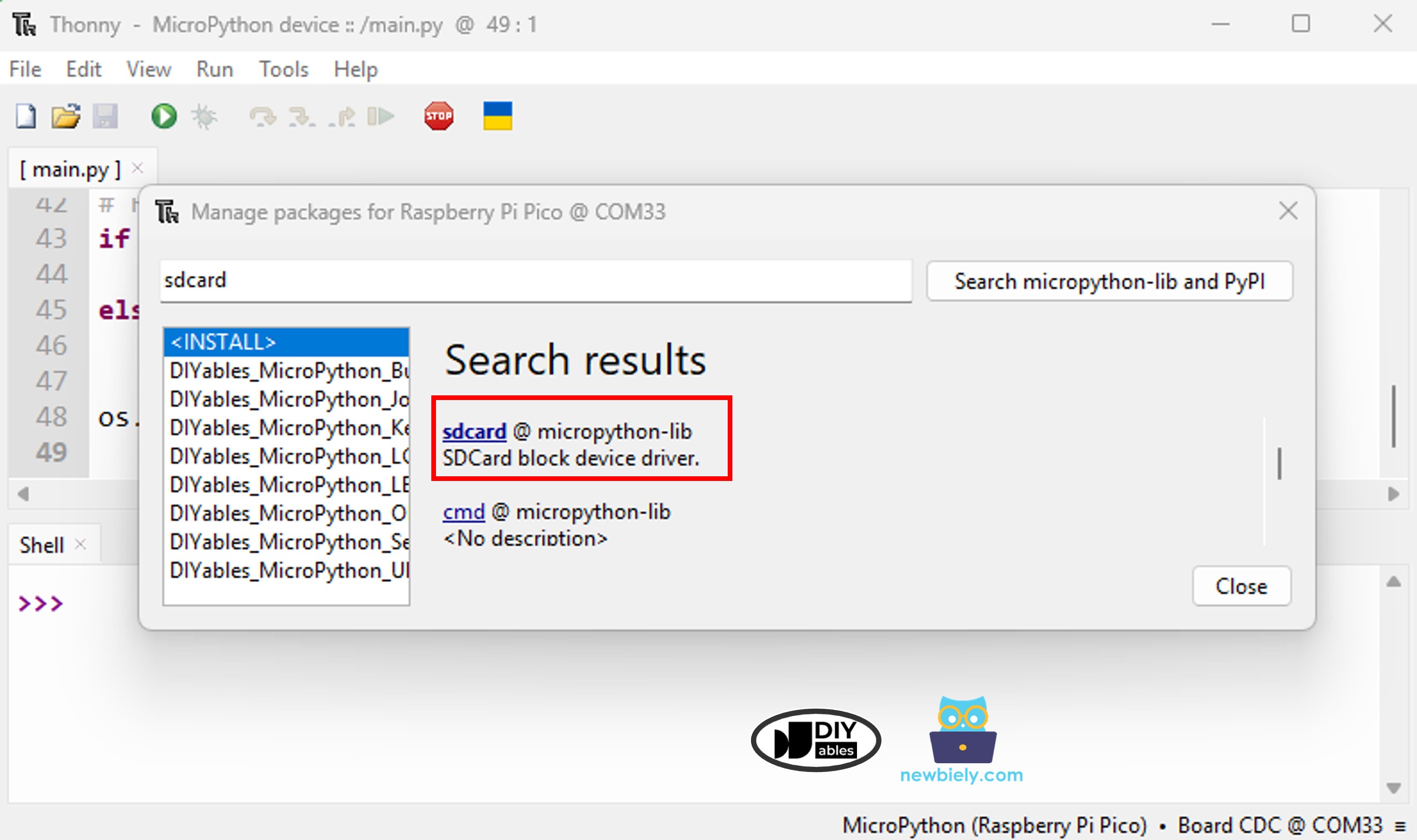
  • Install the sdcard library on the Raspberry Pi Pico via Thonny IDE:
    • Go to Tools Manage packages in Thonny IDE.
    • Type sdcard in the search box and install the micropython-sdcard package.
    Raspberry Pi Pico SD Card library
    • Paste the code into Thonny's editor
    • Click Run to execute the code on the Raspberry Pi Pico
    • Check the Shell for the output:
    Shell x
    >>> %Run -c $EDITOR_CONTENT
    MPY: soft reboot SD CARD INITIALIZED. -------------------- -52 -12.70 HELLO newbiely.com 12345 1,2,3,4,5
    MicroPython (Raspberry Pi Pico) • Board CDC @ COM29 ≡
    • Remove the Micro SD Card from the module.
    • Plug it into a USB SD Card reader connected to your PC.
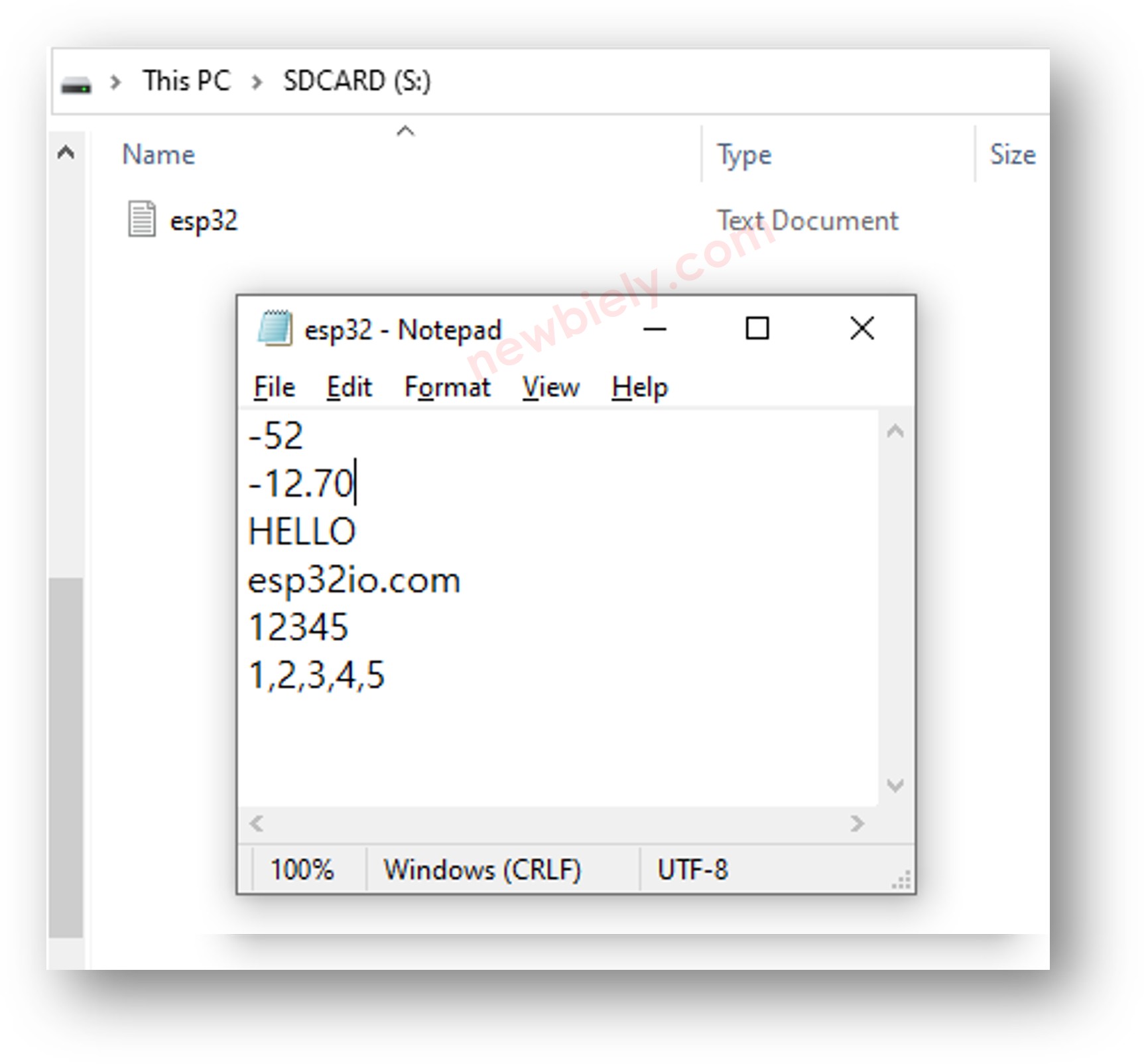
    • Open the pico.txt file — its content should match the Shell output:
    Raspberry Pi Pico writes variable to Micro SD Card

Raspberry Pi Pico - Storing Key-Value Pairs on Micro SD Card

""" This Raspberry Pi Pico MicroPython code was developed by newbiely.com This Raspberry Pi Pico code is made available for public use without any restriction For comprehensive instructions and wiring diagrams, please visit: https://newbiely.com/tutorials/raspberry-pico/raspberry-pi-pico-write-variable-to-sd-card """ import machine import os import sdcard # Define SPI pins for the Micro SD Card module SPI_SCK_PIN = 2 # The Raspberry Pi Pico pin GP2 connected to SCK SPI_MOSI_PIN = 3 # The Raspberry Pi Pico pin GP3 connected to MOSI SPI_MISO_PIN = 4 # The Raspberry Pi Pico pin GP4 connected to MISO SPI_CS_PIN = 5 # The Raspberry Pi Pico pin GP5 connected to SS (CS) # Initialize SD card using SoftSPI and sdcard driver spi = machine.SoftSPI(baudrate=1000000, polarity=0, phase=0, sck=machine.Pin(SPI_SCK_PIN), mosi=machine.Pin(SPI_MOSI_PIN), miso=machine.Pin(SPI_MISO_PIN)) cs = machine.Pin(SPI_CS_PIN, machine.Pin.OUT) try: sd = sdcard.SDCard(spi, cs) os.mount(sd, "/sd") print("SD CARD INITIALIZED.") except Exception as e: print("SD CARD FAILED, OR NOT PRESENT!", e) raise SystemExit print("--------------------") file_path = "/sd/pico.txt" # Variables to write my_int = -52 my_float = -12.7 my_string = "HELLO" my_char_array = "newbiely.com" my_byte_array = bytearray(b'12345') # Delete the file if it exists try: os.remove(file_path) except OSError: pass # Create new file and write key-value pairs try: f = open(file_path, "w") f.write("myInt={}\n".format(my_int)) # write key=int to SD card f.write("myFloat={:.2f}\n".format(my_float)) # write key=float to SD card f.write("myString={}\n".format(my_string)) # write key=string to SD card f.write("myCharArray={}\n".format(my_char_array)) # write key=char array to SD card f.write("myByteArray={}\n".format(my_byte_array.decode())) # write key=byte array f.write("myByteArray2={}\n".format(",".join(str(ch) for ch in my_byte_array.decode()))) # write key=byte array with comma f.close() except Exception as e: print("SD Card: Issue encountered while attempting to open the file pico.txt", e) # Open file for reading try: f = open(file_path, "r") while True: ch = f.read(1) # read characters one by one from Micro SD Card if not ch: break print(ch, end="") # print the character to the Shell f.close() except Exception as e: print("SD Card: Issue encountered while attempting to open the file pico.txt", e) os.umount("/sd")

Detailed Instructions

  • Paste the above code into Thonny's editor.
  • Click Run to execute the script on the Raspberry Pi Pico.
  • Observe the results in the Shell:
Shell x
>>> %Run -c $EDITOR_CONTENT
MPY: soft reboot SD CARD INITIALIZED. -------------------- myInt=-52 myFloat=-12.70 myString=HELLO myCharArray=newbiely.com myByteArray=12345 myByteArray2=1,2,3,4,5
MicroPython (Raspberry Pi Pico) • Board CDC @ COM29 ≡
  • Eject the Micro SD Card from the module, insert it into a USB reader, and connect it to your PC. Open the pico.txt file to verify its contents match the output shown above.
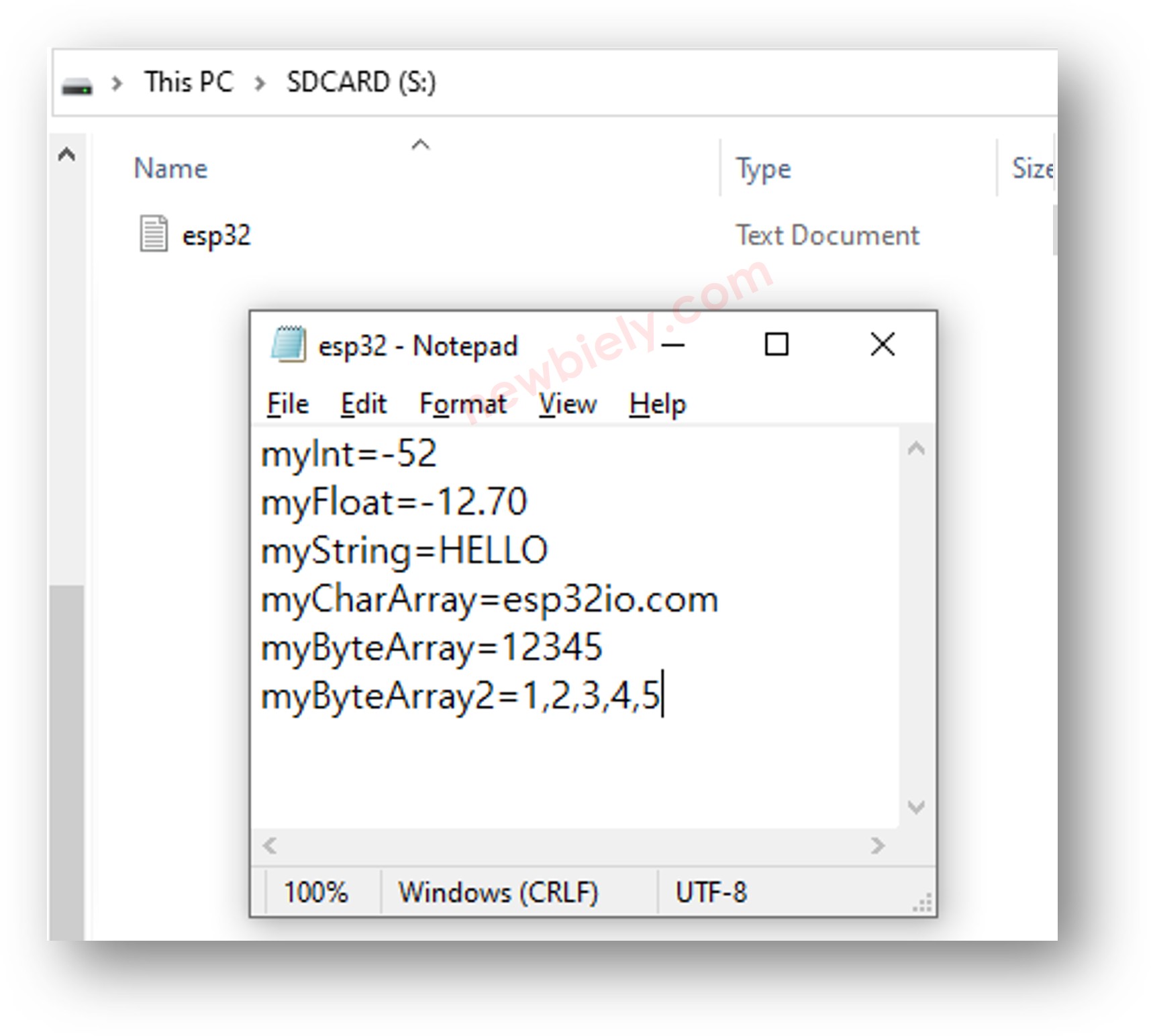
Raspberry Pi Pico writes variable to Micro SD Card

Video Tutorial

※ OUR MESSAGES

  • As freelancers, We are AVAILABLE for HIRE. See how to outsource your project to us
  • Please feel free to share the link of this tutorial. However, Please do not use our content on any other websites. We invested a lot of effort and time to create the content, please respect our work!