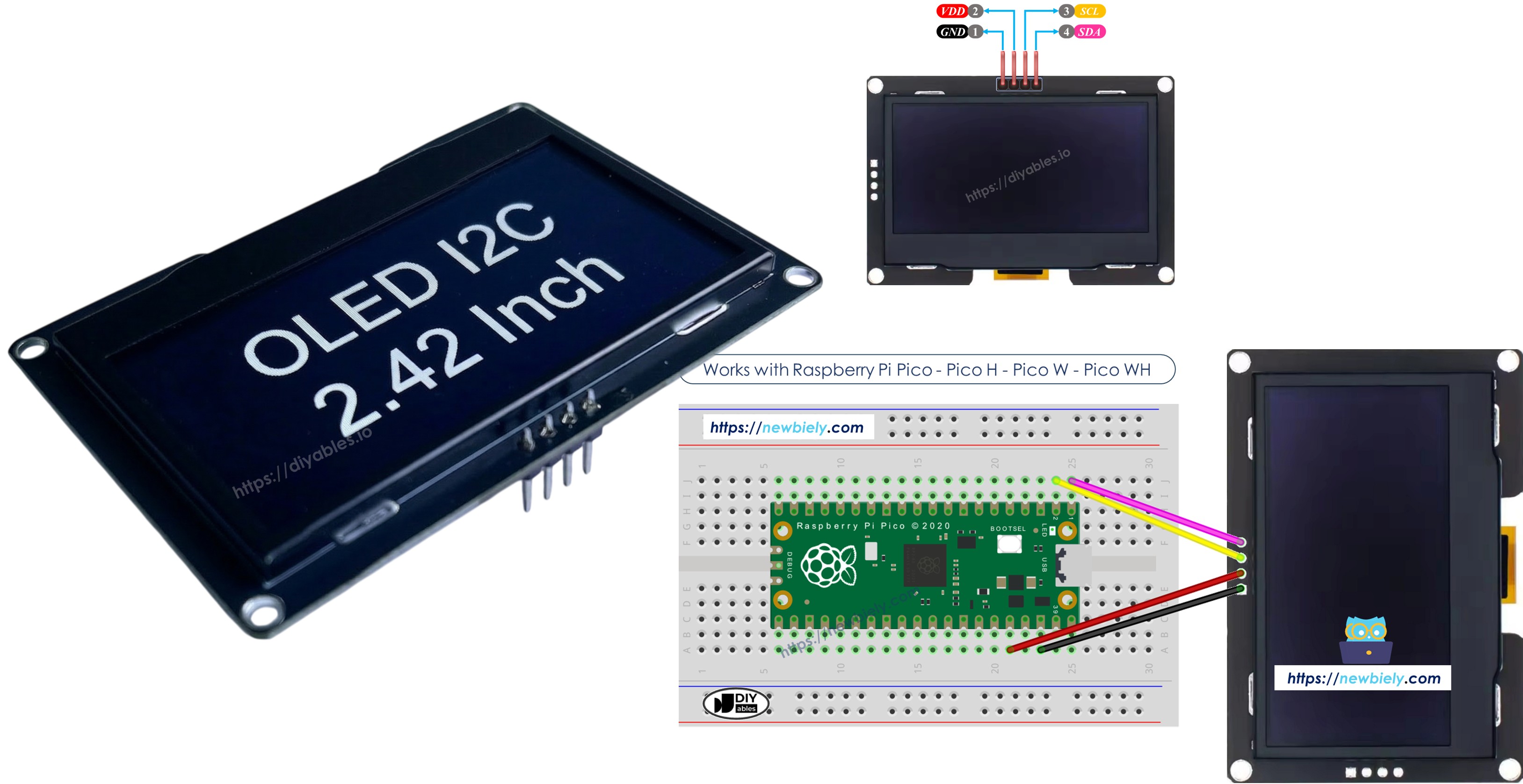
Raspberry Pi Pico - SSD1309 OLED Display

The Raspberry Pi Pico is a low-cost, high-performance microcontroller board built on the RP2040 chip. Paired with MicroPython and the DIYables OLED SSD1309 library, you can easily add a crisp monochrome OLED display to your project.

This tutorial walks you through:

Raspberry Pi Pico MicroPython OLED SSD1309

Components Needed

1×Raspberry Pi Pico W
1×Raspberry Pi Pico Alternatively,
1×Micro USB Cable
1×SSD1309 I2C OLED Display 128x64 (2.42 inch)
1×Jumper Wires
1×Breadboard
1×Recommended: Screw Terminal Expansion Board for Raspberry Pi Pico

Or you can buy the following kits:

1×DIYables Sensor Kit (18 sensors/displays)
Disclosure: Some of the links provided in this section are Amazon affiliate links. We may receive a commission for any purchases made through these links at no additional cost to you.
Additionally, some of these links are for products from our own brand, DIYables .

The OLED SSD1309

The SSD1309 is a single-chip CMOS OLED/PLED driver with controller for organic/polymer light emitting diode dot-matrix graphic display systems. It connects to a microcontroller using the I2C (two-wire) protocol, making wiring minimal — only SDA and SCL lines are required in addition to power.

The display is self-luminous (no backlight needed), offers high contrast, a wide viewing angle, and is readable in both bright and dim environments. It is commonly available in 128×64 and 128×32 pixel variants.

Key features:

  • I2C interface (default address 0x3C)
  • 128×64 pixel resolution (or 128×32, 96×16, 64×48, 64×32)
  • Built-in hardware scrolling in horizontal and diagonal directions
  • Adjustable contrast (0–255)
  • Extends framebuf.FrameBuffer — all MicroPython drawing primitives work out of the box

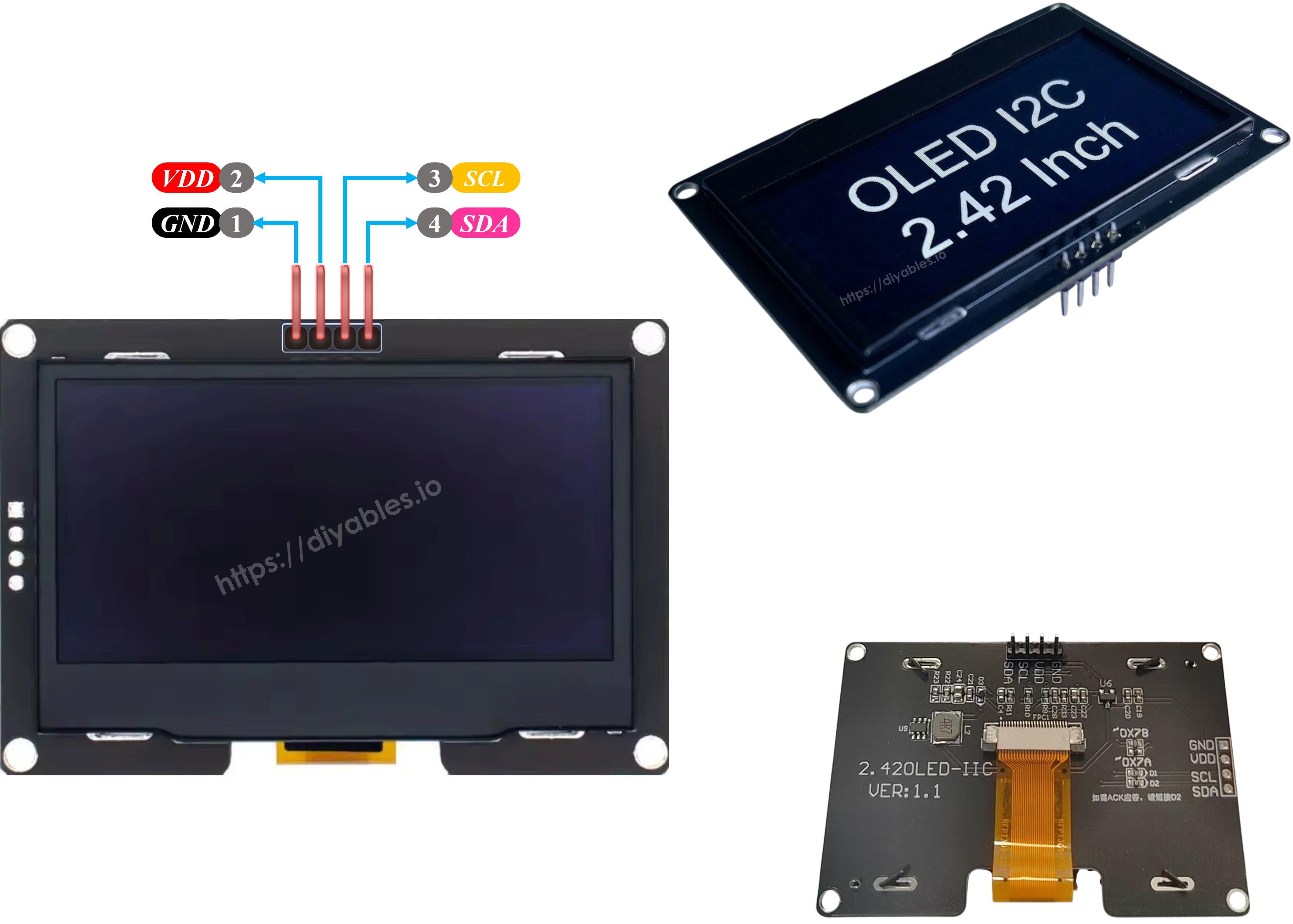
Pin Description

Pin Purpose Raspberry Pi Pico Connection
SDA I2C data line Connect to GP0 (pin 1)
SCL I2C clock line Connect to GP1 (pin 2)
VCC 3.3 V to 5 V power input Connect to 3V3(OUT)
GND Ground Connect to GND
OLED SSD1309 Pinout

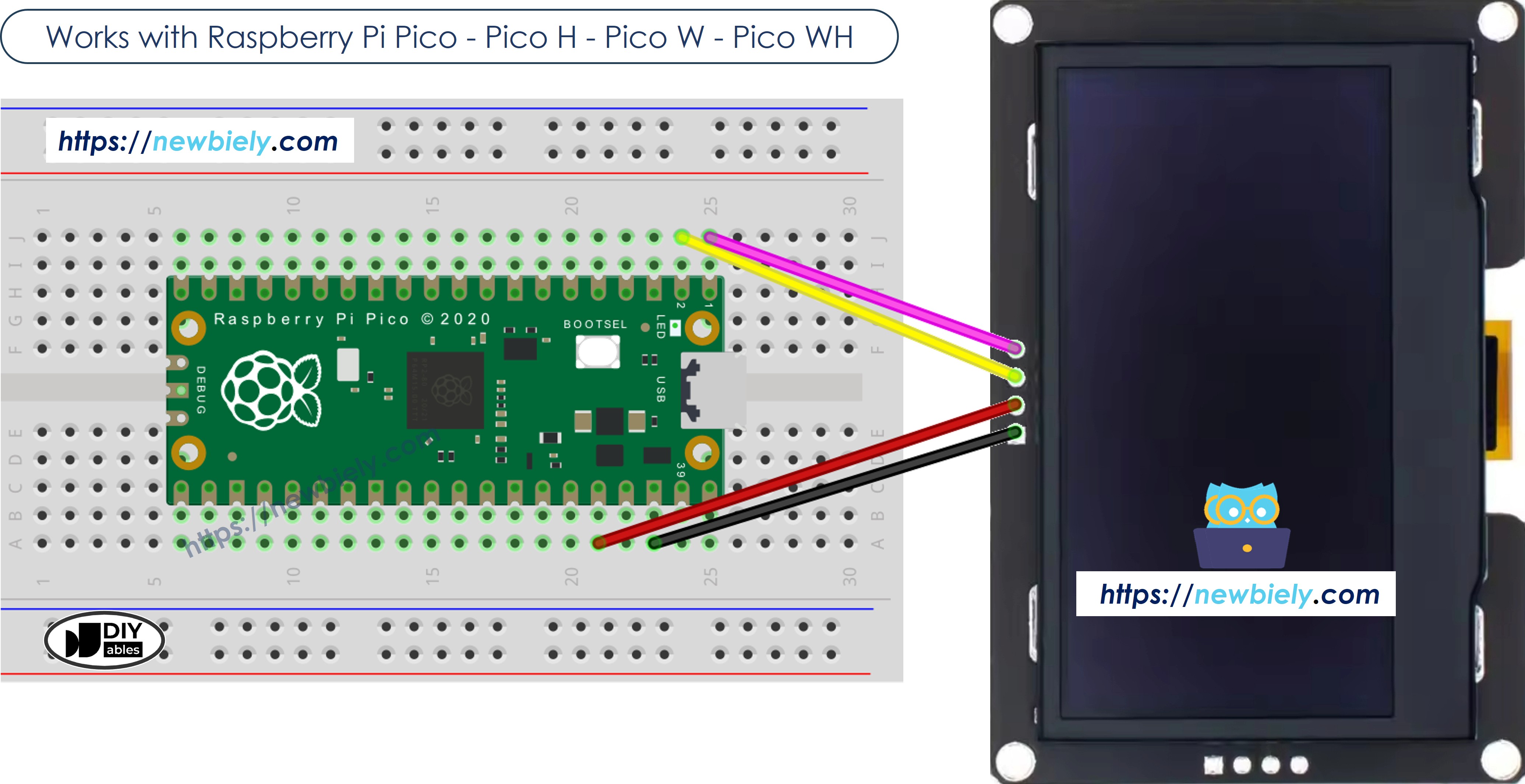
Wiring

The Raspberry Pi Pico operates at 3.3 V logic natively, which is compatible with the SSD1309 display.

OLED SSD1309 Raspberry Pi Pico Notes
SDA GP0 (pin 1) I2C data
SCL GP1 (pin 2) I2C clock
VCC 3V3(OUT) (pin 36) Power (3.3 V)
GND GND (pin 38) Ground
The wiring diagram between Raspberry Pi and Pico OLED SSD1309

This image is created using Fritzing. Click to enlarge image

Tip: You can use any available I2C-capable GP pins on the Pico. Just update the SCL_PIN and SDA_PIN values in the code.

Detailed Instructions

Here's instructions on how to set up and run your MicroPython code on the Raspberry Pi Pico using Thonny IDE:

  • Make sure Thonny IDE is installed on your computer.
  • Confirm that MicroPython firmware is loaded on your Raspberry Pi Pico board.
  • If this is your first time using a Raspberry Pi Pico with MicroPython, check out the Raspberry Pi Pico MicroPython Getting Started guide for step-by-step instructions.
  • Connect the Raspberry Pi Pico board to the OLED SSD1309 according to the provided diagram.
  • Connect the Raspberry Pi Pico board to your computer with a USB cable.
  • Open Thonny IDE on your computer.
  • In Thonny IDE, go to Tools Options.
  • Under the Interpreter tab, choose MicroPython (Raspberry Pi Pico) from the dropdown menu.
  • Make sure the correct port is selected. Thonny IDE usually detects it automatically, but you might need to select it manually (like COM12 on Windows or /dev/ttyACM0 on Linux).
  • Navigate to the Tools Manage packages on the Thonny IDE.
  • Search "DIYables-MicroPython-OLED-SSD1309", then find the OLED SSD1309 library created by DIYables.
  • Click on DIYables-MicroPython-OLED-SSD1309, then click Install button to install the library.
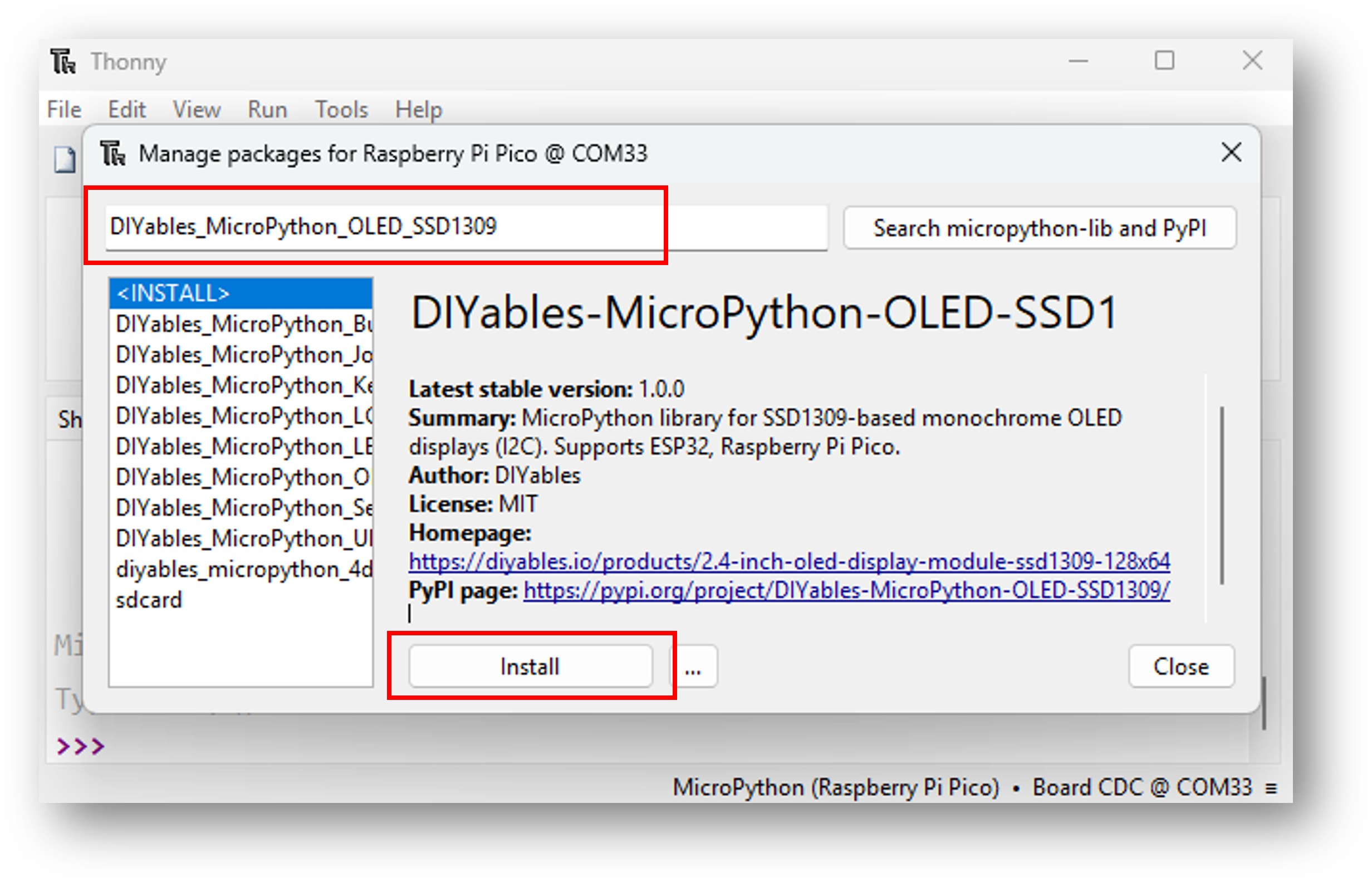
Raspberry Pi Pico OLED SSD1309 library
  • Copy the provided MicroPython code and paste it into Thonny's editor.
  • Save the code to your Raspberry Pi Pico by:
    • Clicking the Save button or pressing Ctrl+S.
    • In the save dialog, choose MicroPython device.
    • Name the file main.py.
  • Click the green Run button (or press F5) to execute the script.
  • Observe the result — text and graphics should appear on the OLED display.

Starter Code Template

from machine import I2C, Pin from DIYables_MicroPython_OLED_SSD1309 import OLED_SSD1309 # Pin configuration — change to match your wiring SCL_PIN = 1 # GP1 SDA_PIN = 0 # GP0 SCREEN_WIDTH = 128 SCREEN_HEIGHT = 64 SCREEN_ADDRESS = 0x3C i2c = I2C(0, scl=Pin(SCL_PIN), sda=Pin(SDA_PIN), freq=400_000) oled = OLED_SSD1309(SCREEN_WIDTH, SCREEN_HEIGHT, i2c, addr=SCREEN_ADDRESS) # Clear the display, draw something, then push to screen oled.fill(0) oled.text("Hello, World!", 0, 0) oled.show()

Raspberry Pi Pico Code — Hello World

""" Example: Hello World – basic text on SSD1309 OLED Works with: Raspberry Pi Pico Product page: https://diyables.io/products/2.4-inch-oled-display-module-ssd1309-128x64 Wiring guide: Raspberry Pi Pico: OLED SSD1309 Raspberry Pi Pico ──────────── ───────────────── SDA -> GP0 (pin 1) SCL -> GP1 (pin 2) VCC -> 3V3(OUT) (pin 36) GND -> GND (pin 38) """ from machine import I2C, Pin from DIYables_MicroPython_OLED_SSD1309 import OLED_SSD1309 # ── Pin configuration ──────────────────────────────────────────────────────── SCL_PIN = 1 # GP1 SDA_PIN = 0 # GP0 SCREEN_WIDTH = 128 SCREEN_HEIGHT = 64 SCREEN_ADDRESS = 0x3C # ── Setup ──────────────────────────────────────────────────────────────────── i2c = I2C(0, scl=Pin(SCL_PIN), sda=Pin(SDA_PIN), freq=400_000) oled = OLED_SSD1309(SCREEN_WIDTH, SCREEN_HEIGHT, i2c, addr=SCREEN_ADDRESS) # ── Draw ───────────────────────────────────────────────────────────────────── oled.fill(0) # Line 1 – normal 8×8 font oled.text("Hello, World!", 0, 0) # Line 3 oled.text("DIYables", 0, 16) # Line 4 oled.text("SSD1309 OLED", 0, 32) oled.text("128 x 64", 0, 40) oled.show()

Try It

  • Wire the OLED SSD1309 to the Raspberry Pi Pico according to the diagram above.
  • Upload the code using Thonny IDE.
  • You should see "Hello, World!", "DIYables", and "SSD1309 OLED 128 x 64" displayed on screen.

Text Drawing Reference

Method Call What It Does Notes
oled.fill(0) Clear the entire screen (all pixels off) Always call before drawing a fresh frame
oled.text("Hello!", 0, 0) Draw text at column 0, row 0 Built-in 8×8 pixel font; 16 chars per row, 8 rows on 64px display
oled.text("Line 2", 0, 16) Draw text on the second line Rows are 8 px tall; next line is y+8 or y+16 for spacing
oled.show() Push framebuffer to the physical display Nothing is visible until show() is called

Raspberry Pi Pico Code — Draw Shapes

""" Example: Draw Shapes – lines, rectangles, and circles on SSD1309 OLED Works with: Raspberry Pi Pico Product page: https://diyables.io/products/2.4-inch-oled-display-module-ssd1309-128x64 Wiring guide: Raspberry Pi Pico: OLED SSD1309 Raspberry Pi Pico ──────────── ───────────────── SDA -> GP0 (pin 1) SCL -> GP1 (pin 2) VCC -> 3V3(OUT) (pin 36) GND -> GND (pin 38) Note: framebuf.FrameBuffer provides: pixel, fill, fill_rect, rect, line, hline, vline, text, blit, scroll, and (on newer MicroPython) ellipse & poly. Circles and triangles require manual drawing or the ellipse/poly helpers. """ from machine import I2C, Pin from DIYables_MicroPython_OLED_SSD1309 import OLED_SSD1309 import time # ── Pin configuration ──────────────────────────────────────────────────────── SCL_PIN = 1 # GP1 SDA_PIN = 0 # GP0 SCREEN_WIDTH = 128 SCREEN_HEIGHT = 64 SCREEN_ADDRESS = 0x3C # ── Setup ──────────────────────────────────────────────────────────────────── i2c = I2C(0, scl=Pin(SCL_PIN), sda=Pin(SDA_PIN), freq=400_000) oled = OLED_SSD1309(SCREEN_WIDTH, SCREEN_HEIGHT, i2c, addr=SCREEN_ADDRESS) def demo_pixels(): """Scatter individual pixels diagonally.""" oled.fill(0) w, h = SCREEN_WIDTH, SCREEN_HEIGHT for i in range(0, w, 4): oled.pixel(i, i * h // w, 1) oled.show() time.sleep_ms(1500) def demo_lines(): """Fan of lines from the top-left corner. """ oled.fill(0) w, h = SCREEN_WIDTH, SCREEN_HEIGHT for i in range(0, w, 8): oled.line(0, 0, i, h - 1, 1) for i in range(0, h, 8): oled.line(0, 0, w - 1, i, 1) oled.show() time.sleep_ms(1500) def demo_h_v_lines(): """Horizontal and vertical lines.""" oled.fill(0) w, h = SCREEN_WIDTH, SCREEN_HEIGHT # horizontal lines for y in range(0, h, 8): oled.hline(0, y, w, 1) # vertical lines for x in range(0, w, 16): oled.vline(x, 0, h, 1) oled.show() time.sleep_ms(1500) def demo_rectangles(): """Nested rectangle outlines. """ oled.fill(0) w, h = SCREEN_WIDTH, SCREEN_HEIGHT for i in range(0, h // 2, 4): oled.rect(i, i, w - 2 * i, h - 2 * i, 1) oled.show() time.sleep_ms(1500) def demo_filled_rects(): """Alternating filled rectangles.""" oled.fill(0) w, h = SCREEN_WIDTH, SCREEN_HEIGHT for i in range(0, h // 2, 6): color = 1 if (i // 6) % 2 == 0 else 0 oled.fill_rect(i, i, w - 2 * i, h - 2 * i, color) oled.show() time.sleep_ms(1500) def demo_ellipse(): """Ellipses (requires MicroPython 1.20+ for framebuf.ellipse). """ oled.fill(0) cx, cy = SCREEN_WIDTH // 2, SCREEN_HEIGHT // 2 try: for r in range(4, min(cx, cy), 8): oled.ellipse(cx, cy, r, r, 1) # circle outline oled.show() except AttributeError: # ellipse not available; fall back to a manual Bresenham circle _draw_circle(cx, cy, 20, 1) oled.show() time.sleep_ms(1500) def _draw_circle(cx, cy, r, c): """Bresenham circle (fallback when framebuf.ellipse is unavailable).""" x, y, err = r, 0, 1 - r while x >= y: for dx, dy in [(x, y), (y, x), (-y, x), (-x, y), (-x, -y), (-y, -x), (y, -x), (x, -y)]: oled.pixel(cx + dx, cy + dy, c) y += 1 if err < 0: err += 2 * y + 1 else: x -= 1 err += 2 * (y - x) + 1 # ── Main loop ──────────────────────────────────────────────────────────────── while True: demo_pixels() demo_lines() demo_h_v_lines() demo_rectangles() demo_filled_rects() demo_ellipse() """

Try It

  • Upload the code using Thonny IDE.
  • The display cycles through demos: diagonal pixels, line fans, grid lines, rectangle outlines, and filled rectangles.

Drawing Methods Reference

Method Call What It Draws Notes
oled.pixel(x, y, 1) Single pixel at (x, y) 0 = off, 1 = on
oled.line(x1, y1, x2, y2, 1) Line between two points Bresenham algorithm
oled.hline(x, y, w, 1) Horizontal line of width w Faster than line() for horizontal
oled.vline(x, y, h, 1) Vertical line of height h Faster than line() for vertical
oled.rect(x, y, w, h, 1) Rectangle outline Top-left corner at (x, y)
oled.fill_rect(x, y, w, h, 1) Filled rectangle Same parameters as rect()

Raspberry Pi Pico Code — Scroll Text

""" Example: Scroll Text – hardware scrolling on SSD1309 OLED Works with: Raspberry Pi Pico Product page: https://diyables.io/products/2.4-inch-oled-display-module-ssd1309-128x64 Wiring guide: Raspberry Pi Pico: OLED SSD1309 Raspberry Pi Pico ──────────── ───────────────── SDA -> GP0 (pin 1) SCL -> GP1 (pin 2) VCC -> 3V3(OUT) (pin 36) GND -> GND (pin 38) """ from machine import I2C, Pin from DIYables_MicroPython_OLED_SSD1309 import OLED_SSD1309 import time # ── Pin configuration ──────────────────────────────────────────────────────── SCL_PIN = 1 # GP1 SDA_PIN = 0 # GP0 SCREEN_WIDTH = 128 SCREEN_HEIGHT = 64 SCREEN_ADDRESS = 0x3C # ── Setup ──────────────────────────────────────────────────────────────────── i2c = I2C(0, scl=Pin(SCL_PIN), sda=Pin(SDA_PIN), freq=400_000) oled = OLED_SSD1309(SCREEN_WIDTH, SCREEN_HEIGHT, i2c, addr=SCREEN_ADDRESS) # ── Draw static content ─────────────────────────────────────────────────────── oled.fill(0) oled.text("DIYables", 20, 28) # centred-ish on 128×64 oled.show() time.sleep_ms(2000) # ── Scroll loop ─────────────────────────────────────────────────────────────── while True: # Scroll right across all pages (0–7) oled.scroll_right(0x00, 0x07) time.sleep_ms(3000) oled.stop_scroll() time.sleep_ms(500) # Scroll left oled.scroll_left(0x00, 0x07) time.sleep_ms(3000) oled.stop_scroll() time.sleep_ms(500) # Diagonal scroll right oled.scroll_diag_right(0x00, 0x07) time.sleep_ms(3000) oled.stop_scroll() time.sleep_ms(500) # Diagonal scroll left oled.scroll_diag_left(0x00, 0x07) time.sleep_ms(3000) oled.stop_scroll() time.sleep_ms(500)

Try It

  • Upload the code using Thonny IDE.
  • The display scrolls right, then left, then diagonally right, then diagonally left, and repeats.

Hardware Scroll Reference

Method Call Scroll Direction Notes
oled.scroll_right(0x00, 0x07) Right Pages 0–7 = all rows on a 64 px display
oled.scroll_left(0x00, 0x07) Left Pages 0–7 covers the full screen height
oled.scroll_diag_right(0x00, 0x07) Diagonal right (right + down) Combines horizontal and vertical scrolling
oled.scroll_diag_left(0x00, 0x07) Diagonal left (left + down) Combines horizontal and vertical scrolling
oled.stop_scroll() Stop scrolling Call before drawing new content

Note: Modify the framebuffer (e.g. call oled.fill() + oled.show()) before starting a new scroll to update the scrolling content. Always call stop_scroll() before sending new draw commands.

Raspberry Pi Pico Code — Contrast & Dim

""" Example: Contrast & Dim – contrast control on SSD1309 OLED Works with: Raspberry Pi Pico Product page: https://diyables.io/products/2.4-inch-oled-display-module-ssd1309-128x64 Wiring guide: Raspberry Pi Pico: OLED SSD1309 Raspberry Pi Pico ──────────── ───────────────── SDA -> GP0 (pin 1) SCL -> GP1 (pin 2) VCC -> 3V3(OUT) (pin 36) GND -> GND (pin 38) """ from machine import I2C, Pin from DIYables_MicroPython_OLED_SSD1309 import OLED_SSD1309 import time # ── Pin configuration ──────────────────────────────────────────────────────── SCL_PIN = 1 # GP1 SDA_PIN = 0 # GP0 SCREEN_WIDTH = 128 SCREEN_HEIGHT = 64 SCREEN_ADDRESS = 0x3C # ── Setup ──────────────────────────────────────────────────────────────────── i2c = I2C(0, scl=Pin(SCL_PIN), sda=Pin(SDA_PIN), freq=400_000) oled = OLED_SSD1309(SCREEN_WIDTH, SCREEN_HEIGHT, i2c, addr=SCREEN_ADDRESS) # ── Draw a test pattern ─────────────────────────────────────────────────────── oled.fill(0) oled.fill_rect(0, 0, 64, 32, 1) # top-left filled block oled.fill_rect(64, 32, 64, 32, 1) # bottom-right filled block oled.text("Contrast Demo", 8, 28) # label over the blocks oled.show() time.sleep_ms(2000) # ── Contrast / dim loop ─────────────────────────────────────────────────────── while True: # Gradually increase contrast 0 → 255 for c in range(0, 256, 5): oled.set_contrast(c) time.sleep_ms(30) time.sleep_ms(1000) # Gradually decrease contrast 255 → 0 for c in range(255, -1, -5): oled.set_contrast(c) time.sleep_ms(30) time.sleep_ms(1000) # Dim on / off toggle oled.dim(True) time.sleep_ms(2000) oled.dim(False) time.sleep_ms(2000)

Try It

  • Upload the code using Thonny IDE.
  • Watch the display brightness ramp up and down, then toggle between dimmed and full brightness.

Contrast & Dim Reference

Method Call Effect Notes
oled.set_contrast(0) Minimum brightness Value range 0–255
oled.set_contrast(128) Medium brightness Value is saved internally for dim/restore
oled.set_contrast(255) Maximum brightness Default after init is 0xCF (207)
oled.dim(True) Drop contrast to 0 (dim) Does not modify the saved contrast value
oled.dim(False) Restore saved contrast Restores the value set by set_contrast()
oled.invert(True) Invert all pixels at hardware level No framebuffer change
oled.invert(False) Restore normal pixel polarity

Raspberry Pi Pico Code — Bitmap

""" Example: Bitmap – display a monochrome bitmap image on SSD1309 OLED Works with: Raspberry Pi Pico Product page: https://diyables.io/products/2.4-inch-oled-display-module-ssd1309-128x64 Wiring guide: Raspberry Pi Pico: OLED SSD1309 Raspberry Pi Pico ──────────── ───────────────── SDA -> GP0 (pin 1) SCL -> GP1 (pin 2) VCC -> 3V3(OUT) (pin 36) GND -> GND (pin 38) How bitmap drawing works: framebuf.FrameBuffer.blit() copies one FrameBuffer onto another. Bitmap data must be stored row-by-row, MSB first → use framebuf.MONO_HMSB. The blit() call then handles the conversion into the display's MONO_VLSB layout automatically. """ import framebuf from machine import I2C, Pin from DIYables_MicroPython_OLED_SSD1309 import OLED_SSD1309 import time # ── Pin configuration ──────────────────────────────────────────────────────── SCL_PIN = 1 # GP1 SDA_PIN = 0 # GP0 SCREEN_WIDTH = 128 SCREEN_HEIGHT = 64 SCREEN_ADDRESS = 0x3C # ── Bitmap data – 16 × 16 heart, stored row-by-row MSB first ───────────────── # Each row uses 2 bytes (ceil(16 / 8) = 2). HEART_W = 16 HEART_H = 16 heart_data = bytearray([ 0x00, 0x00, # ................ 0x0C, 0x30, # ....##....##.... 0x1E, 0x78, # ...####..####... 0x3F, 0xFC, # ..############.. 0x7F, 0xFE, # .##############. 0x7F, 0xFE, # .##############. 0xFF, 0xFF, # ################ 0xFF, 0xFF, # ################ 0xFF, 0xFF, # ################ 0x7F, 0xFE, # .##############. 0x3F, 0xFC, # ..############.. 0x1F, 0xF8, # ...##########... 0x0F, 0xF0, # ....########.... 0x07, 0xE0, # .....######..... 0x03, 0xC0, # ......####...... 0x01, 0x80, # .......##....... ]) # ── Setup ──────────────────────────────────────────────────────────────────── i2c = I2C(0, scl=Pin(SCL_PIN), sda=Pin(SDA_PIN), freq=400_000) oled = OLED_SSD1309(SCREEN_WIDTH, SCREEN_HEIGHT, i2c, addr=SCREEN_ADDRESS) # Wrap the raw bytes in a FrameBuffer using MONO_HMSB (row-major, MSB first) heart_fb = framebuf.FrameBuffer(heart_data, HEART_W, HEART_H, framebuf.MONO_HMSB) # ── Draw and animate ────────────────────────────────────────────────────────── while True: # Draw the heart centred on the display x = (SCREEN_WIDTH - HEART_W) // 2 y = (SCREEN_HEIGHT - HEART_H) // 2 oled.fill(0) oled.blit(heart_fb, x, y) oled.text("DIYables", 24, 50) oled.show() time.sleep_ms(800) # Invert colours for a "pulse" effect oled.fill(1) oled.blit(heart_fb, x, y, 1) # key=1 → blit only pixels that are OFF in source oled.show() time.sleep_ms(400)

Try It

  • Upload the code using Thonny IDE.
  • A 16×16 heart icon appears centred on the display. It pulses by alternating normal and inverted frames.

Bitmap Drawing Reference

Method Call Description Notes
framebuf.FrameBuffer(data, w, h, framebuf.MONO_HMSB) Wrap raw bytes as a bitmap FrameBuffer Use MONO_HMSB for row-major MSB-first data
oled.blit(icon_fb, x, y) Copy bitmap onto display framebuffer at (x, y) All pixels are copied (no transparency)
oled.blit(icon_fb, x, y, 1) Blit with key=1 — skip pixels with value 1 Useful for XOR-style effects on filled backgrounds

How bitmap data is stored: Each row is stored left-to-right, most-significant bit first (MONO_HMSB). The byte count per row is ceil(width / 8). For a 16-wide image that is 2 bytes per row.

Library Reference

See DIYables MicroPython OLED SSD1309 Library Reference for the complete API documentation including all constructors, methods, and constants.

Next Steps

  • Combine with a DHT11 or DHT22 sensor to display real-time temperature and humidity readings.
  • Add a button to cycle between multiple display screens.
  • Use framebuf.FrameBuffer.blit() to build an animated sprite display.

※ OUR MESSAGES

  • As freelancers, We are AVAILABLE for HIRE. See how to outsource your project to us
  • Please feel free to share the link of this tutorial. However, Please do not use our content on any other websites. We invested a lot of effort and time to create the content, please respect our work!