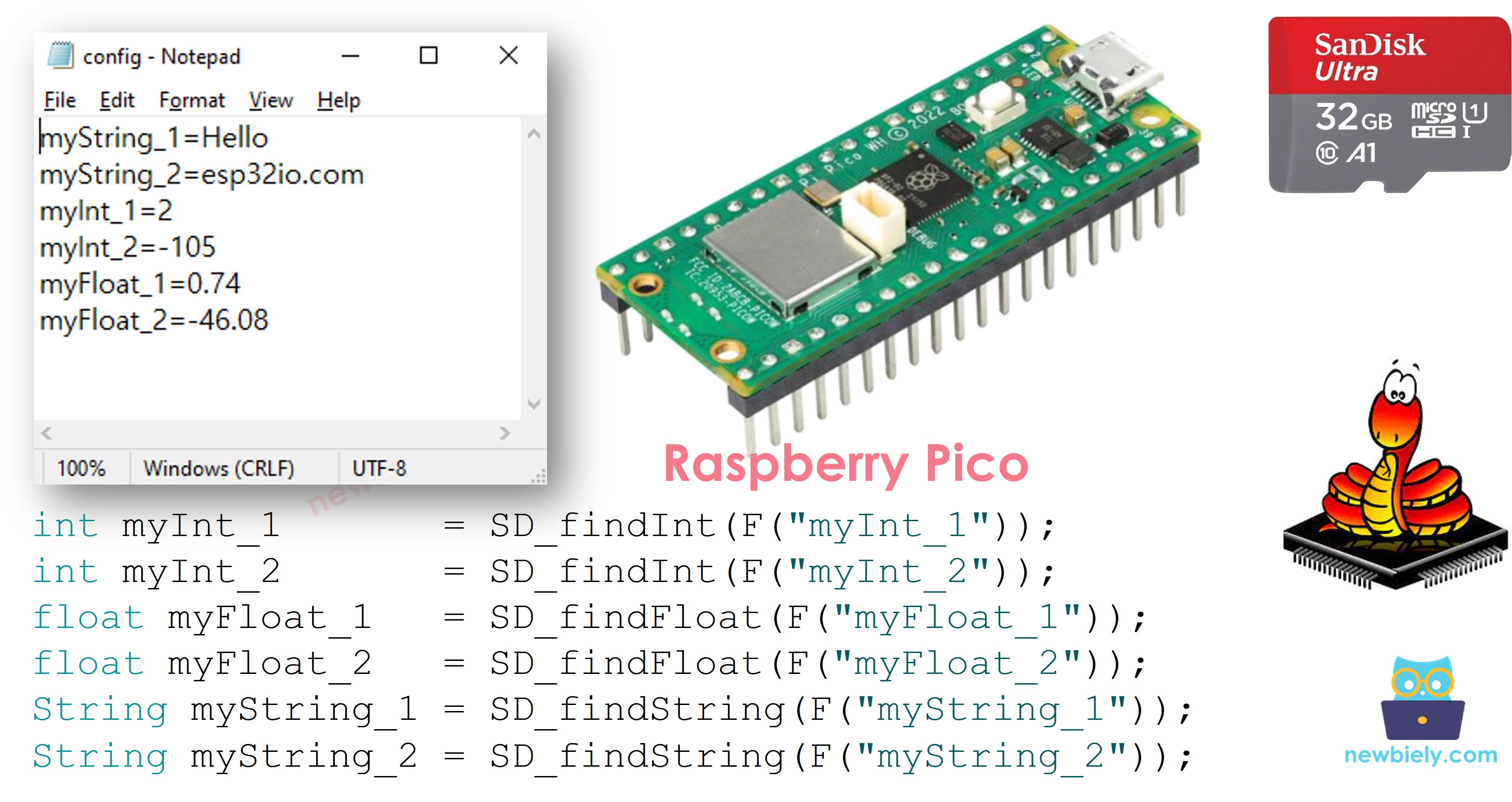
Raspberry Pi Pico - Read Config from SD Card

This tutorial explains how to read configuration settings from a file stored on a Micro SD Card using the Raspberry Pi Pico with MicroPython. You will learn to:

Raspberry Pi Pico Micro SD Card Config File

Hardware Preparation

1×Raspberry Pi Pico W
1×Raspberry Pi Pico Alternatively,
1×Micro USB Cable
1×Micro SD Card
1×Micro SD Card Module
1×Jumper Wires
1×Breadboard
1×Optionally, MicroSD to SD Memory Card Adapter
1×Recommended: Screw Terminal Expansion Board for Raspberry Pi Pico

Or you can buy the following kits:

1×DIYables Sensor Kit (30 sensors/displays)
1×DIYables Sensor Kit (18 sensors/displays)
Disclosure: Some of the links provided in this section are Amazon affiliate links. We may receive a commission for any purchases made through these links at no additional cost to you.
Additionally, some of these links are for products from our own brand, DIYables .

Overview of Micro SD Card Module

To learn about the Micro SD Card Module — including pin descriptions, wiring, and example code — refer to the Raspberry Pi Pico - Micro SD Card tutorial.

How It Works

The config file on the Micro SD Card uses a simple text-based format:

  • One key-value pair per line, with each line separated by a newline character.
  • Inside each line, the key and its value are split by the = character.

The MicroPython code looks up a specific key in the file, extracts its value, and assigns it to a variable. Depending on the key, the value is converted to int, float, or String.

Wiring Diagram
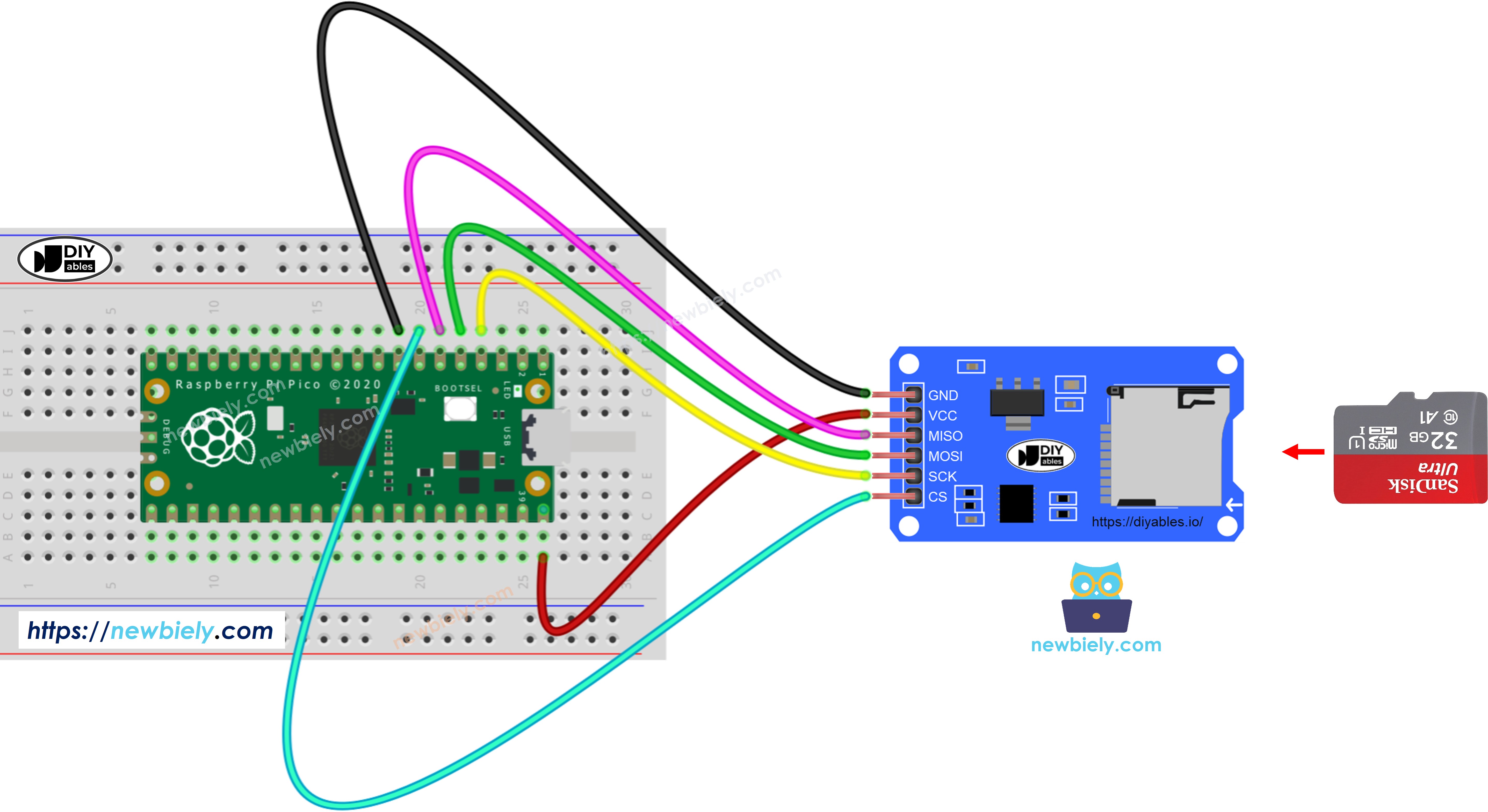
The wiring diagram between Raspberry Pi and Pico Micro SD Card Module

This image is created using Fritzing. Click to enlarge image

The wiring table below shows how to connect the Micro SD Card Module to the Raspberry Pi Pico:

Micro SD Card Module Raspberry Pi Pico
VCC VBUS (5V)
GND GND
MISO GP4
MOSI GP3
SCK GP2
CS GP5

※ NOTE THAT:

When using a shield that already includes a Micro SD Card slot (for example, an Ethernet shield), no additional SD Card Module is required — just slide the card straight into the shield's built-in slot.

How to Load Config Settings into Variables

  • Open Notepad or Notepad++ and create a new file named config.txt. Add the key-value pairs shown below:
myString_1=Hello myString_2=newbiely.com myInt_1=2 myInt_2=-105 myFloat_1=0.74 myFloat_2=-46.08
  1. Plug the Micro SD Card into your computer with a USB 3.0 SD Card Reader.
  2. Confirm the card is formatted as FAT16 or FAT32 (search online for formatting instructions if necessary).
  3. Copy the config.txt file to the root folder of the Micro SD Card.
  4. Safely eject the Micro SD Card from the computer.
  5. Attach the Micro SD Card to the Raspberry Pi Pico through the SD Card Module, following the wiring diagram.
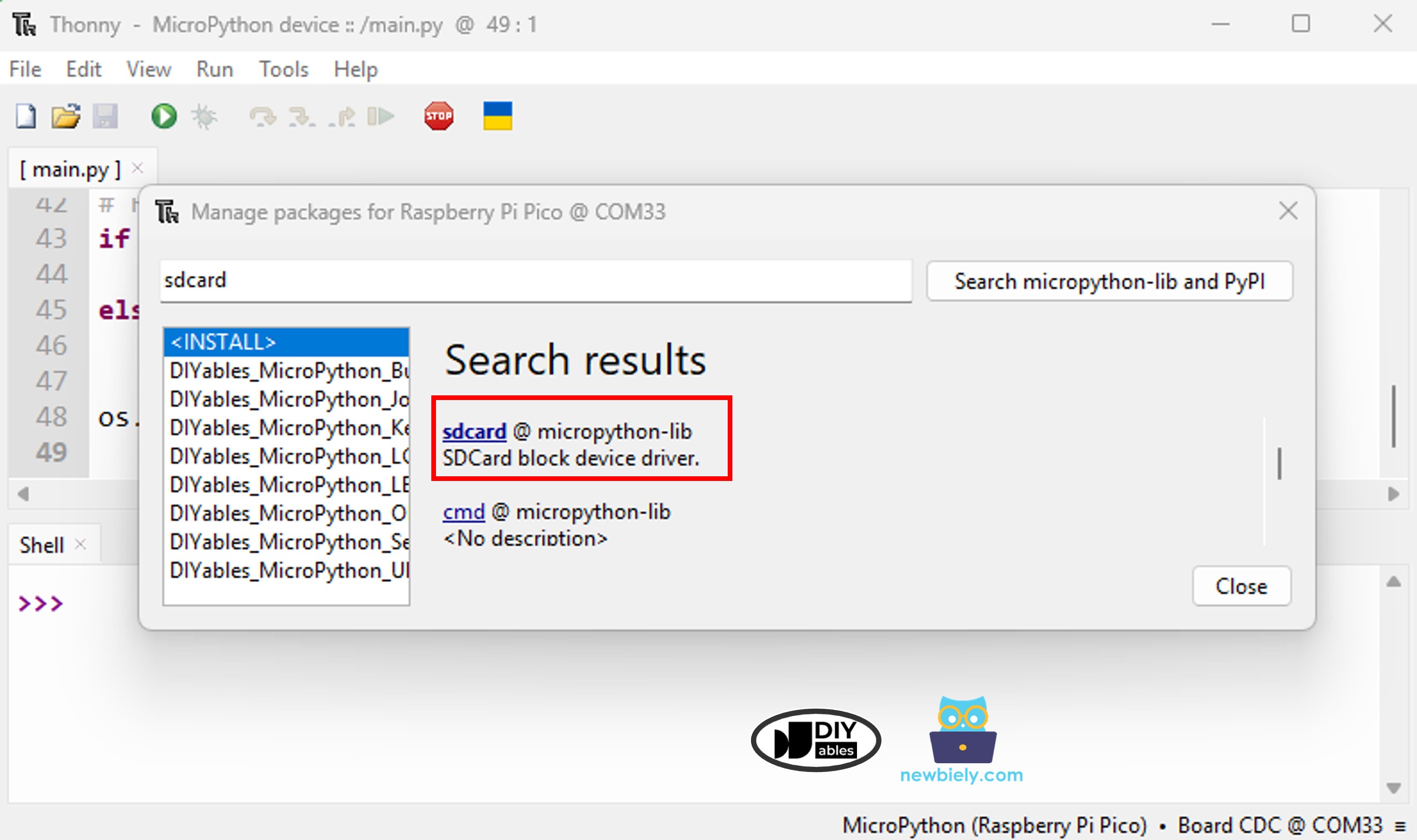
  6. Install the sdcard library on the Raspberry Pi Pico via Thonny IDE:
    • Go to Tools Manage packages in Thonny IDE.
    • Type sdcard in the search box and install the micropython-sdcard package.
    Raspberry Pi Pico SD Card library
    1. Paste the following MicroPython code into Thonny's editor.
    """ This Raspberry Pi Pico MicroPython code was developed by newbiely.com This Raspberry Pi Pico code is made available for public use without any restriction For comprehensive instructions and wiring diagrams, please visit: https://newbiely.com/tutorials/raspberry-pico/raspberry-pi-pico-read-config-from-sd-card """ import machine import os import sdcard # Define SPI pins for the Micro SD Card module SPI_SCK_PIN = 2 # The Raspberry Pi Pico pin GP2 connected to SCK SPI_MOSI_PIN = 3 # The Raspberry Pi Pico pin GP3 connected to MOSI SPI_MISO_PIN = 4 # The Raspberry Pi Pico pin GP4 connected to MISO SPI_CS_PIN = 5 # The Raspberry Pi Pico pin GP5 connected to SS (CS) FILE_NAME = "/sd/config.txt" # Variables my_int_1 = 0 my_int_2 = 0 my_float_1 = 0.0 my_float_2 = 0.0 my_string_1 = "" my_string_2 = "" def sd_find_key(key): """Search for a key in the config file and return its value as a string.""" try: f = open(FILE_NAME, "r") for line in f: line = line.strip() if "=" in line: k, v = line.split("=", 1) if k == key: f.close() return v f.close() except Exception as e: print("SD Card: Issue encountered while attempting to open the file", FILE_NAME, e) return None def sd_find_int(key): """Read a key from config file and return as int. """ value = sd_find_key(key) if value is not None: return int(value) return 0 def sd_find_float(key): """Read a key from config file and return as float.""" value = sd_find_key(key) if value is not None: return float(value) return 0.0 def sd_find_string(key): """Read a key from config file and return as string. """ value = sd_find_key(key) if value is not None: return value return "" # Initialize SD card using SoftSPI and sdcard driver spi = machine.SoftSPI(baudrate=1000000, polarity=0, phase=0, sck=machine.Pin(SPI_SCK_PIN), mosi=machine.Pin(SPI_MOSI_PIN), miso=machine.Pin(SPI_MISO_PIN)) cs = machine.Pin(SPI_CS_PIN, machine.Pin.OUT) try: sd = sdcard.SDCard(spi, cs) os.mount(sd, "/sd") print("SD Card initialized.") except Exception as e: print("SD CARD FAILED, OR NOT PRESENT!", e) raise SystemExit my_int_1 = sd_find_int("myInt_1") my_int_2 = sd_find_int("myInt_2") my_float_1 = sd_find_float("myFloat_1") my_float_2 = sd_find_float("myFloat_2") my_string_1 = sd_find_string("myString_1") my_string_2 = sd_find_string("myString_2") print("myInt_1 =", my_int_1) print("myInt_2 =", my_int_2) print("myFloat_1 =", my_float_1) print("myFloat_2 =", my_float_2) print("myString_1 =", my_string_1) print("myString_2 =", my_string_2) os.umount("/sd")
    • Click Run to execute the code on the Raspberry Pi Pico.
    • Check the Shell for the output:
    Shell x
    >>> %Run -c $EDITOR_CONTENT
    MPY: soft reboot SD Card initialized. myInt_1 = 2 myInt_2 = -105 myFloat_1 = 0.74 myFloat_2 = -46.08 myString_1 = Hello myString_2 = newbiely.com
    MicroPython (Raspberry Pi Pico) • Board CDC @ COM29 ≡
    • The parsed values in the Shell match exactly with the entries saved in the config file on the Micro SD Card.
    You can extend the code by adding more key-value pairs to suit your project.

    ※ NOTE THAT:

    The lookup order of entries in the config file does not matter. The code scans from top to bottom until a matching key is found.

Video Tutorial

※ OUR MESSAGES

  • As freelancers, We are AVAILABLE for HIRE. See how to outsource your project to us
  • Please feel free to share the link of this tutorial. However, Please do not use our content on any other websites. We invested a lot of effort and time to create the content, please respect our work!