ESP32 C3 Super Mini - Button - Debounce

Learn how to eliminate button chattering on your ESP32 C3 Super Mini with proper debounce techniques. This tutorial shows you simple methods to handle button presses accurately.

In this tutorial, you'll learn:

ESP32 C3 Super Mini - Button - Debounce

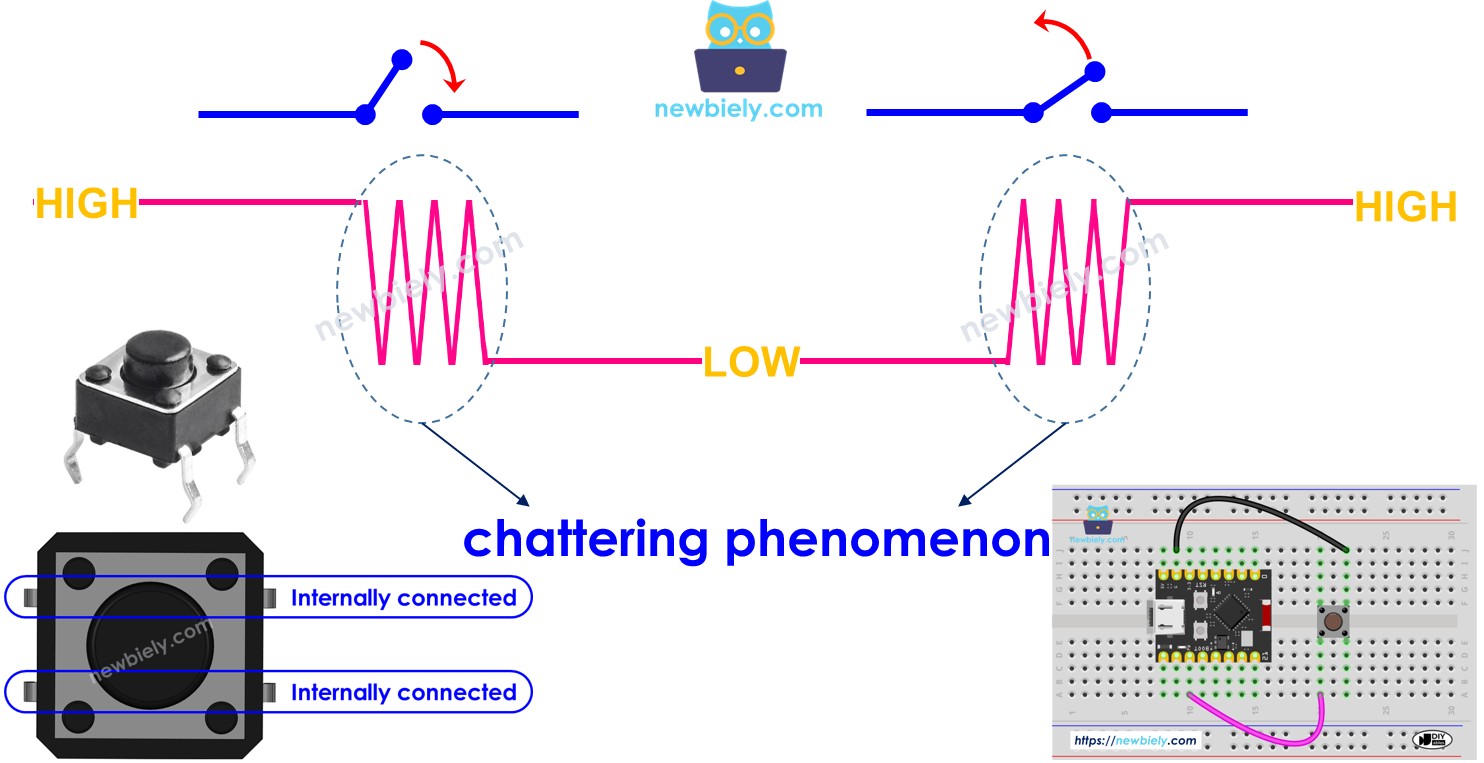
When you press a button, does its state change from LOW to HIGH (or HIGH to LOW) just once? Not quite! In the real world, a single button press causes the state to toggle between LOW and HIGH multiple times very quickly. This is a physical characteristic of mechanical buttons called chattering. The chattering phenomenon makes your ESP32 C3 Super Mini read multiple button presses when you only pressed it once, causing errors in your projects. The solution to eliminate this issue is called button debounce.
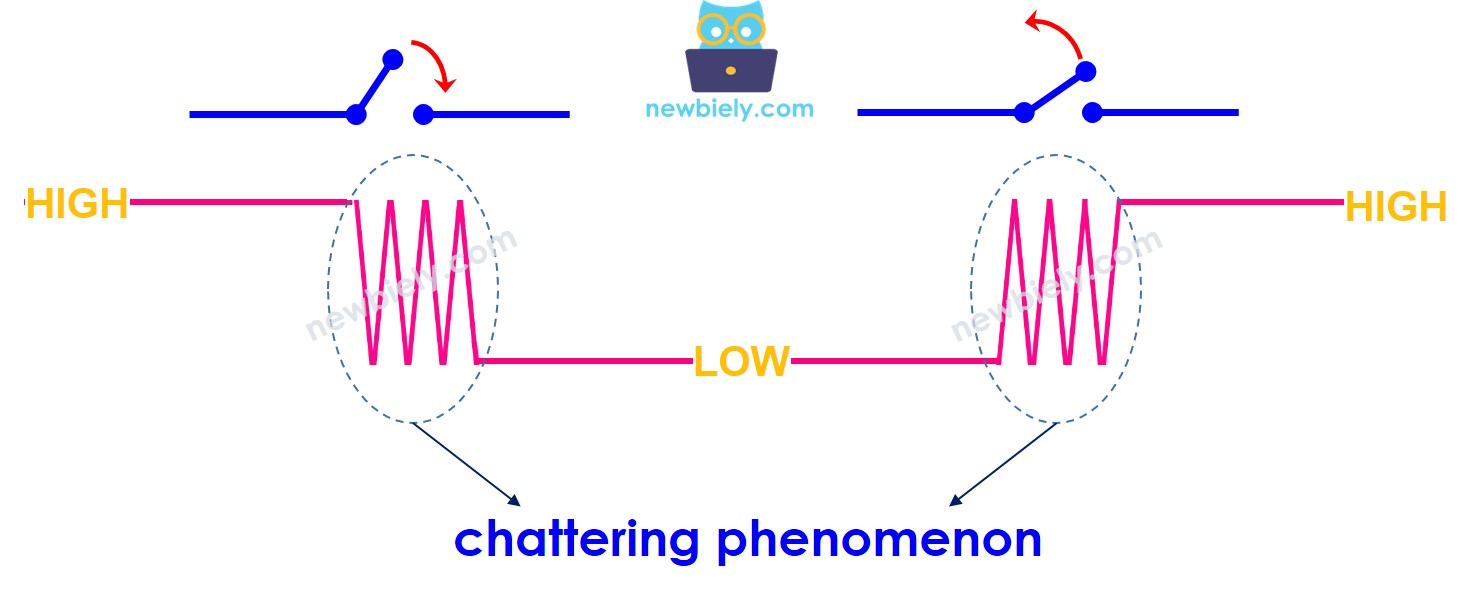
ESP32 C3 Super Mini chattering phenomenon

This tutorial covers:

Hardware Preparation

1×ESP32 C3 Super Mini
1×USB Cable Type-A to Type-C (for USB-A PC)
1×USB Cable Type-C to Type-C (for USB-C PC)
1×Breadboard-mount Button with Cap
1×Breadboard-mount Button Kit
1×Panel-mount Push Button
1×Push Button Module
1×Breadboard
1×Jumper Wires
1×Optionally, DC Power Jack

Or you can buy the following kits:

1×DIYables Sensor Kit (18 sensors/displays)
Disclosure: Some of the links provided in this section are Amazon affiliate links. We may receive a commission for any purchases made through these links at no additional cost to you.
Additionally, some of these links are for products from our own brand, DIYables .

Overview of Button

Buttons are input devices that detect when they are pressed or released.

We have a dedicated tutorial covering everything about buttons with ESP32 C3 Super Mini:

  • Complete pinout details
  • How buttons work
  • Wiring connections
  • Sample code examples
  • Step-by-step instructions

Learn more: ESP32 C3 Super Mini - Button tutorial

Wiring Diagram

The wiring diagram below shows how to connect a button to your ESP32 C3 Super Mini.
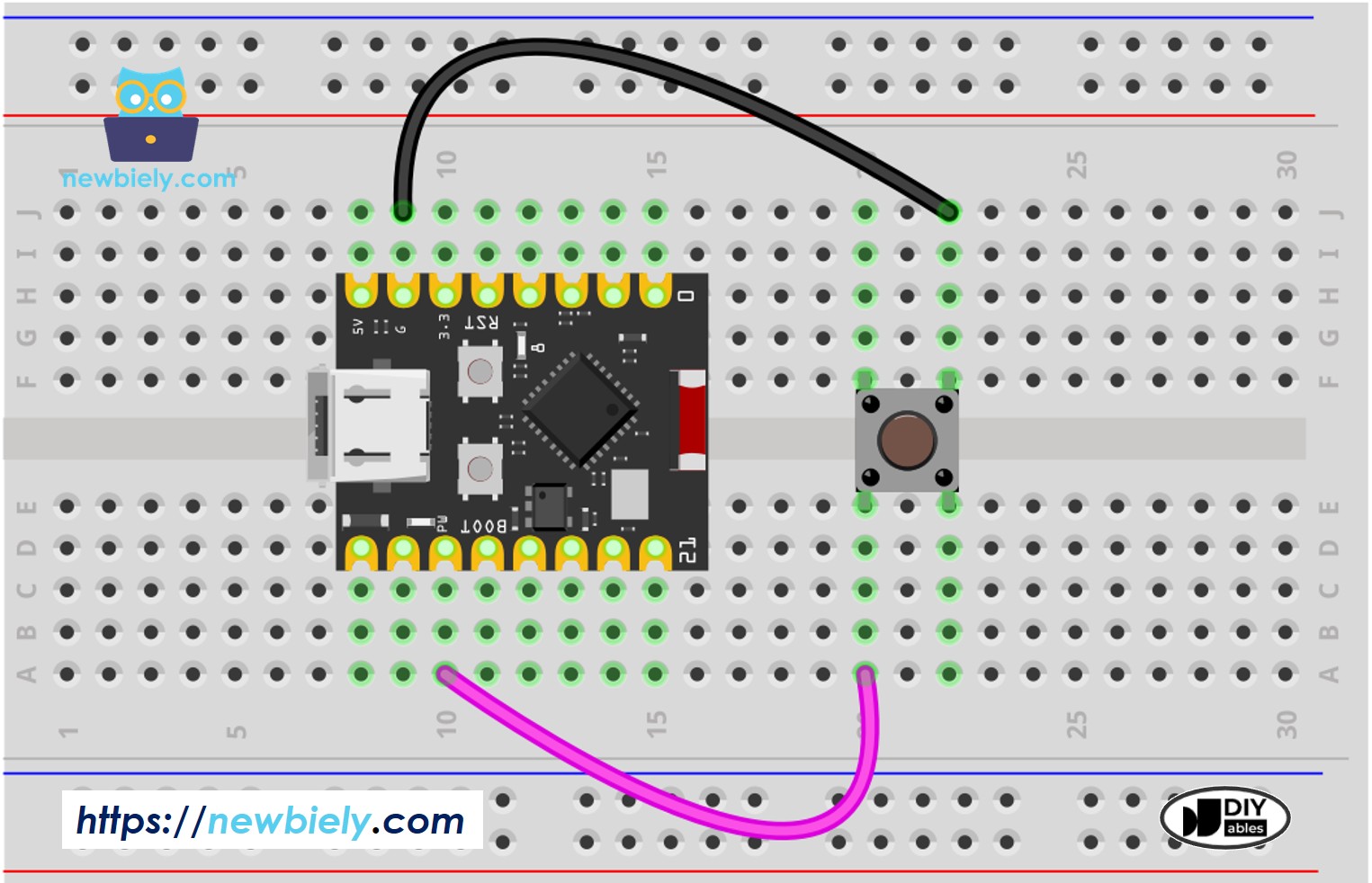
The wiring diagram between ESP32 C3 Super Mini Button

This image is created using Fritzing. Click to enlarge image

Button Pin ESP32 C3 Super Mini Pin
One pin GPIO7
Other pin GND

To see the difference clearly, we'll run ESP32 C3 Super Mini code WITHOUT debounce first, then WITH debounce, and compare the results.

Reading Button without Debounce

Detailed Instructions

  • New to Arduino? Start with our ESP32 C3 Super Mini Getting Started guide first.
  • Wire the components: Follow the wiring diagram shown above to connect the button to pin GPIO7.
  • Connect the board: Plug your ESP32 C3 Super Mini into your computer using a USB Type-C cable.
  • Open Arduino IDE: Launch the Arduino IDE on your computer.
  • Select your board: Choose "ESP32 C3 Super Mini" and the correct COM port from the Tools menu.
  • Upload the code: Copy the code below and upload it to your ESP32 C3 Super Mini board.
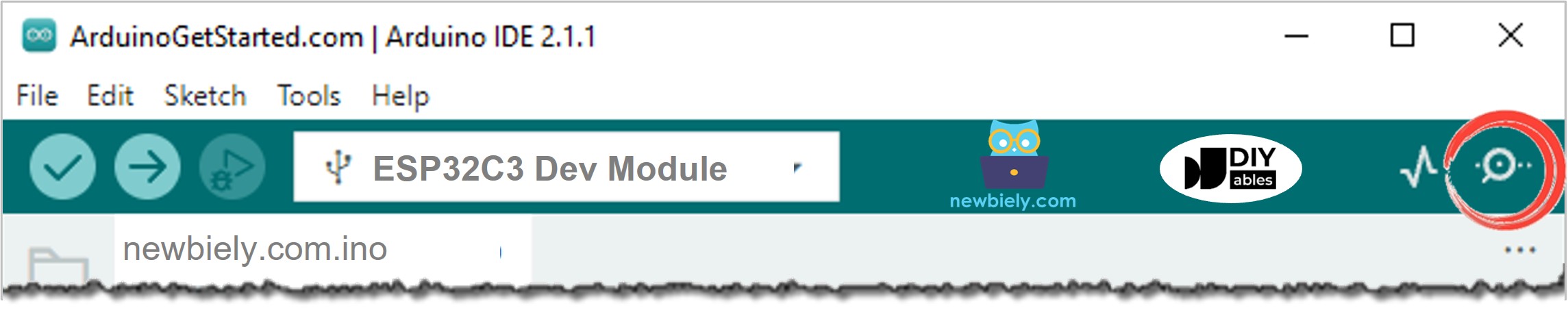
  • Open Serial Monitor: Click the Serial Monitor icon to view the output.
  • Test the button: Press the button once and hold it for several seconds, then release it.
  • Observe the results: Watch the Serial Monitor output showing multiple press/release events.
  • Pro Tip: If you don't see chattering immediately, try pressing the button several times - it's a random phenomenon that appears intermittently.
/* * This ESP32 C3 Super Mini code was developed by newbiely.com * * This ESP32 C3 Super Mini code is made available for public use without any restriction * * For comprehensive instructions and wiring diagrams, please visit: * https://newbiely.com/tutorials/esp32-c3/esp32-c3-super-mini-button-debounce */ #define BUTTON_PIN D7 // The ESP32 C3 SuperMini pin GPIO7 pin connected to button int prev_state = LOW; // The previous state from the input pin int button_state; // The current reading from the input pin void setup() { // Initialize the Serial to communicate with the Serial Monitor. Serial.begin(9600); // initialize the button pin as an pull-up input (HIGH when the switch is open and LOW when the switch is closed) pinMode(BUTTON_PIN, INPUT_PULLUP); } void loop() { // read the state of the switch/button: button_state = digitalRead(BUTTON_PIN); if (prev_state == HIGH && button_state == LOW) Serial.println("The button is pressed"); else if (prev_state == LOW && button_state == HIGH) Serial.println("The button is released"); // save the the last state prev_state = button_state; }
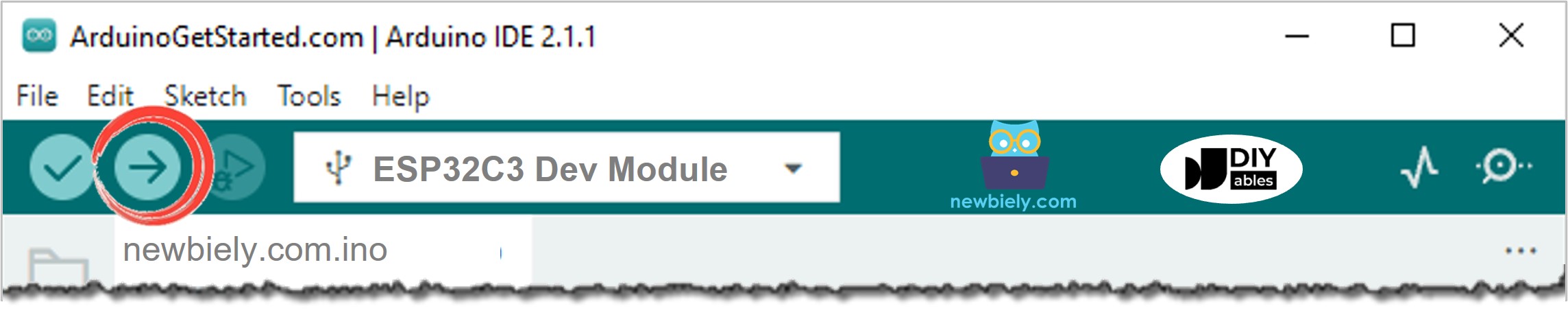
Arduino IDE Upload Code
How to open serial monitor on Arduino IDE

Serial Monitor Output:

Newbiely | Arduino IDE 2.3.8
──
File
Edit
Sketch
Tools
Help
ESP32C3 Dev Module
Newbiely.ino
···
8 Serial.println("Hello World!");
Output
Serial Monitor
Message (Enter to send message to 'ESP32C3 Dev Module' on 'COM15')
New Line
9600 baud
The button is pressed The button is pressed The button is pressed The button is pressed The button is released The button is released The button is released
Ln 11, Col 1
ESP32C3 Dev Module on COM15
2

⇒ As you can see, you pressed the button only once and released it once, but the ESP32 C3 Super Mini detected multiple presses and releases due to chattering.

※ NOTE THAT:

The chattering phenomenon does not happen all the time. If it does not happen, please try the above test several times to observe it.

Reading Button with Debounce

This code eliminates chattering by implementing button debounce on your ESP32 C3 Super Mini.

What this debounce code does:

  • Records the time when the button state changes
  • Waits for a short delay (debounce time) before confirming the change
  • Ignores rapid state changes during the debounce period
  • Only reports stable button presses and releases

Detailed Instructions

  • New to Arduino? Start with our ESP32 C3 Super Mini Getting Started guide first.
  • Copy the code: Copy the debounce code below into Arduino IDE.
  • Upload the code: Click the Upload button to program your ESP32 C3 Super Mini.
  • Open Serial Monitor: Click the Serial Monitor icon to view the output.
  • Test the button: Press the button and hold it for several seconds, then release it.
  • Observe the results: Notice that you now see only one press and one release event.
  • Pro Tip: If you still see chattering, try increasing the DEBOUNCE_TIME value from 50 to 100 milliseconds.
/* * This ESP32 C3 Super Mini code was developed by newbiely.com * * This ESP32 C3 Super Mini code is made available for public use without any restriction * * For comprehensive instructions and wiring diagrams, please visit: * https://newbiely.com/tutorials/esp32-c3/esp32-c3-super-mini-button-debounce */ #define BUTTON_PIN D7 // The ESP32 C3 SuperMini pin GPIO7 pin connected to button #define DEBOUNCE_TIME 50 // The debounce time in millisecond, increase this time if it still chatters int prev_state_steady = LOW; // The previous steady state from the input pin int prev_state_flick = LOW; // The previous flickerable state from the input pin int button_state; // The current reading from the input pin unsigned long last_debounce_time = 0; // The last time the output pin was toggled void setup() { // Initialize the Serial to communicate with the Serial Monitor. Serial.begin(9600); // initialize the button pin as an pull-up input (HIGH when the switch is open and LOW when the switch is closed) pinMode(BUTTON_PIN, INPUT_PULLUP); } void loop() { // read the state of the switch/button: button_state = digitalRead(BUTTON_PIN); // check to see if you just pressed the button // (i.e. the input went from LOW to HIGH), and you've waited long enough // since the last press to ignore any noise: // If the switch/button changed, due to noise or pressing: if (button_state != prev_state_flick) { // reset the debouncing timer last_debounce_time = millis(); // save the the last flickerable state prev_state_flick = button_state; } if ((millis() - last_debounce_time) > DEBOUNCE_TIME) { // whatever the reading is at, it's been there for longer than the debounce // delay, so take it as the actual current state: // if the button state has changed: if(prev_state_steady == HIGH && button_state == LOW) Serial.println("The button is pressed"); else if(prev_state_steady == LOW && button_state == HIGH) Serial.println("The button is released"); // save the the last steady state prev_state_steady = button_state; } }

Serial Monitor Output:

Newbiely | Arduino IDE 2.3.8
──
File
Edit
Sketch
Tools
Help
ESP32C3 Dev Module
Newbiely.ino
···
8 Serial.println("Hello World!");
Output
Serial Monitor
Message (Enter to send message to 'ESP32C3 Dev Module' on 'COM15')
New Line
9600 baud
The button is pressed The button is released
Ln 11, Col 1
ESP32C3 Dev Module on COM15
2

⇒ Perfect! You pressed once and released once, and the ESP32 C3 Super Mini correctly read one press and one release. The chattering has been eliminated with proper button debounce.

We Made It Simple - ESP32 C3 Super Mini Button Debounce Code with Library

We created the ezButton library to make button debouncing much easier, especially when working with multiple buttons on your ESP32 C3 Super Mini.

Benefits of using ezButton library:

  • Simple one-line setup for button debounce
  • Clean, readable code
  • Easy to manage multiple buttons
  • Built-in functions for press and release detection
  • No complex timing code needed

Learn more: ezButton library documentation

ESP32 C3 Super Mini Button Debounce Code for A Single Button

This example shows how to debounce a single button using the ezButton library on ESP32 C3 Super Mini.

/* * This ESP32 C3 Super Mini code was developed by newbiely.com * * This ESP32 C3 Super Mini code is made available for public use without any restriction * * For comprehensive instructions and wiring diagrams, please visit: * https://newbiely.com/tutorials/esp32-c3/esp32-c3-super-mini-button-debounce */ #include <ezButton.h> #define DEBOUNCE_TIME 50 // the debounce time in millisecond, increase this time if it still chatters ezButton button(D7); // create ezButton object for pin GPIO7 void setup() { Serial.begin(9600); button.setDebounceTime(DEBOUNCE_TIME); // set debounce time to 50 milliseconds } void loop() { button.loop(); // MUST call the loop() function first if (button.isPressed()) Serial.println("The button is pressed"); if (button.isReleased()) Serial.println("The button is released"); }

ESP32 C3 Super Mini Button Debounce Code for Multiple Buttons

This example demonstrates how to debounce three buttons simultaneously on your ESP32 C3 Super Mini using the ezButton library.

The wiring diagram

Connect three buttons to your ESP32 C3 Super Mini as shown below.
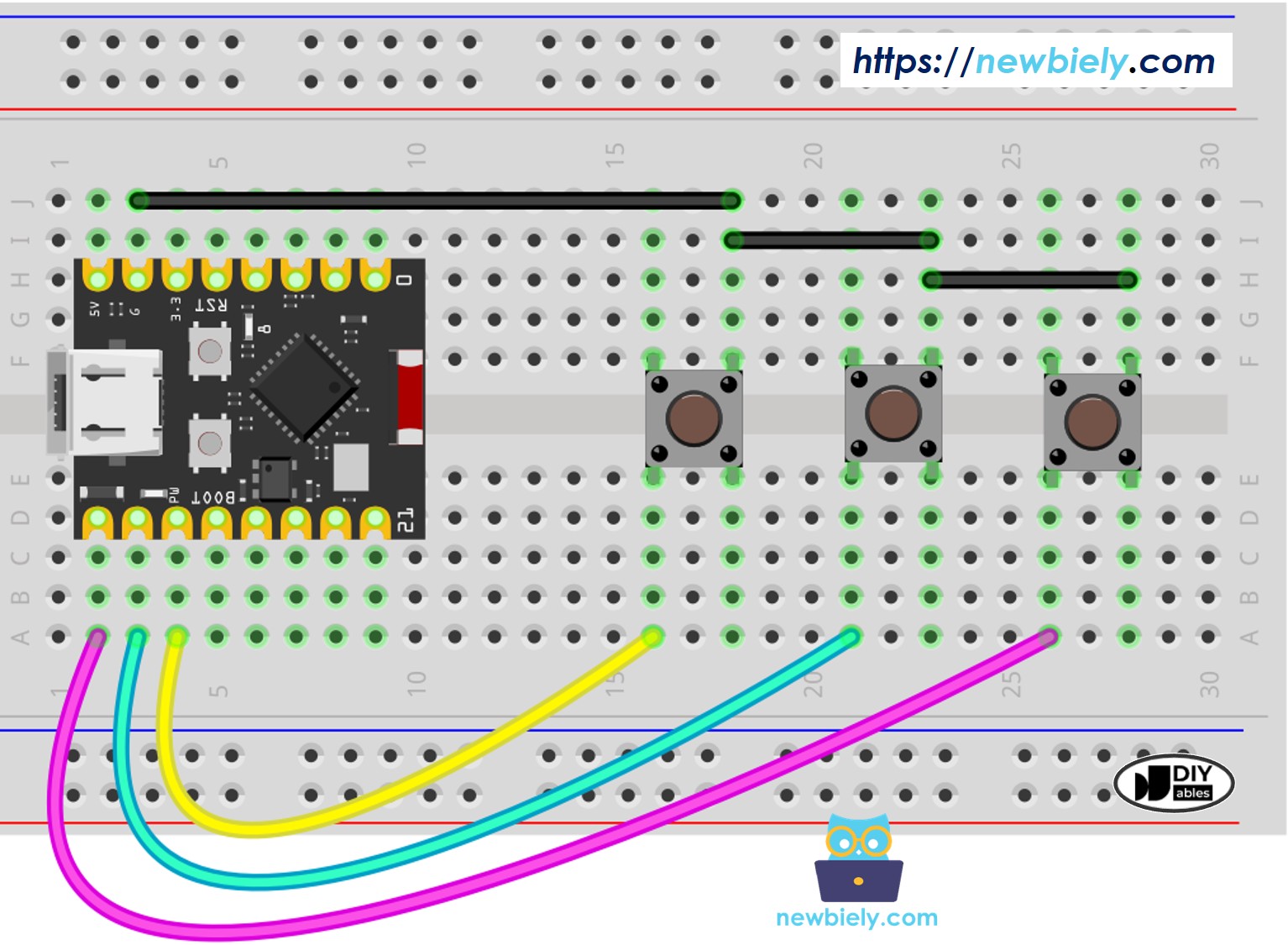
The wiring diagram between ESP32 C3 Super Mini Button Library

This image is created using Fritzing. Click to enlarge image

Button ESP32 C3 Super Mini Pin
Button 1 D5 and GND
Button 2 D6 and GND
Button 3 D7 and GND
/* * This ESP32 C3 Super Mini code was developed by newbiely.com * * This ESP32 C3 Super Mini code is made available for public use without any restriction * * For comprehensive instructions and wiring diagrams, please visit: * https://newbiely.com/tutorials/esp32-c3/esp32-c3-super-mini-button-debounce */ #include <ezButton.h> #define DEBOUNCE_TIME 50 // the debounce time in millisecond, increase this time if it still chatters ezButton button1(D5); // create ezButton object for pin D5 ezButton button2(D6); // create ezButton object for pin D6 ezButton button3(D7); // create ezButton object for pin D7 void setup() { Serial.begin(9600); button1.setDebounceTime(DEBOUNCE_TIME); // set debounce time to 50 milliseconds button2.setDebounceTime(DEBOUNCE_TIME); // set debounce time to 50 milliseconds button3.setDebounceTime(DEBOUNCE_TIME); // set debounce time to 50 milliseconds } void loop() { button1.loop(); // MUST call the loop() function first button2.loop(); // MUST call the loop() function first button3.loop(); // MUST call the loop() function first if (button1.isPressed()) Serial.println("The button 1 is pressed"); if (button1.isReleased()) Serial.println("The button 1 is released"); if (button2.isPressed()) Serial.println("The button 2 is pressed"); if (button2.isReleased()) Serial.println("The button 2 is released"); if (button3.isPressed()) Serial.println("The button 3 is pressed"); if (button3.isReleased()) Serial.println("The button 3 is released"); }

Serial Monitor Output:

Newbiely | Arduino IDE 2.3.8
──
File
Edit
Sketch
Tools
Help
ESP32C3 Dev Module
Newbiely.ino
···
8 Serial.println("Hello World!");
Output
Serial Monitor
Message (Enter to send message to 'ESP32C3 Dev Module' on 'COM15')
New Line
9600 baud
The button 1 is pressed The button 2 is pressed The button 1 is released The button 3 is pressed The button 2 is released The button 3 is released
Ln 11, Col 1
ESP32C3 Dev Module on COM15
2

Application Ideas

Here are some practical projects where button debounce is essential for your ESP32 C3 Super Mini:

  • Door lock systems with keypad entry
  • Game controllers with responsive button input
  • Remote control devices for home automation
  • Menu navigation systems with multiple buttons
  • Counter circuits that need accurate press detection
  • Security alarm keypads with reliable input

Challenge Yourself

Try these challenges to improve your ESP32 C3 Super Mini button debounce skills:

  • Easy: Change the debounce time to different values and observe how it affects button response
  • Medium: Add an LED that toggles on/off with each button press using debounced input
  • Medium: Create a counter that increments only once per button press, displaying the count on Serial Monitor
  • Advanced: Build a 4-button menu system with debounce where each button performs a different action
  • Advanced: Implement long-press detection that triggers different actions for short vs. long button presses

Additional Knowledge

Important debounce tips for ESP32 C3 Super Mini:

  • The DEBOUNCE_TIME value depends on your specific button hardware
  • Different buttons may require different debounce times (typically 20-100ms)
  • Start with 50ms and adjust if you still see chattering
  • Debounce techniques also work for switches, limit switches, reed switches, and touch sensors
  • Hardware debounce (using capacitors) can complement software debounce for critical applications

※ OUR MESSAGES

  • As freelancers, We are AVAILABLE for HIRE. See how to outsource your project to us
  • Please feel free to share the link of this tutorial. However, Please do not use our content on any other websites. We invested a lot of effort and time to create the content, please respect our work!