
ESP32 C3 Super Mini - Force Sensor
Learn how to interface a force sensor (FSR) with your ESP32 C3 Super Mini to detect physical pressure and squeeze in your Arduino projects. This beginner-friendly guide walks you through wiring, coding, and reading analog values from a force sensitive resistor.
In this tutorial, you'll learn:
- What a force sensor (FSR) is and how it works
- How to wire a force sensing resistor to ESP32 C3 Super Mini
- How to program ESP32 C3 Super Mini to read analog values from the force sensor
- How to interpret pressure readings on the Serial Monitor
- Practical applications for force sensitive resistor projects
Hardware Preparation
| 1 | × | ESP32 C3 Super Mini | |
| 1 | × | USB Cable Type-A to Type-C (for USB-A PC) | |
| 1 | × | USB Cable Type-C to Type-C (for USB-C PC) | |
| 1 | × | Force Sensor | |
| 1 | × | 10 kΩ Resistor | |
| 1 | × | Breadboard | |
| 1 | × | Jumper Wires | |
| 1 | × | Optionally, DC Power Jack |
Or you can buy the following kits:
| 1 | × | DIYables Sensor Kit (18 sensors/displays) |
Additionally, some of these links are for products from our own brand, DIYables .
Overview of Force Sensor
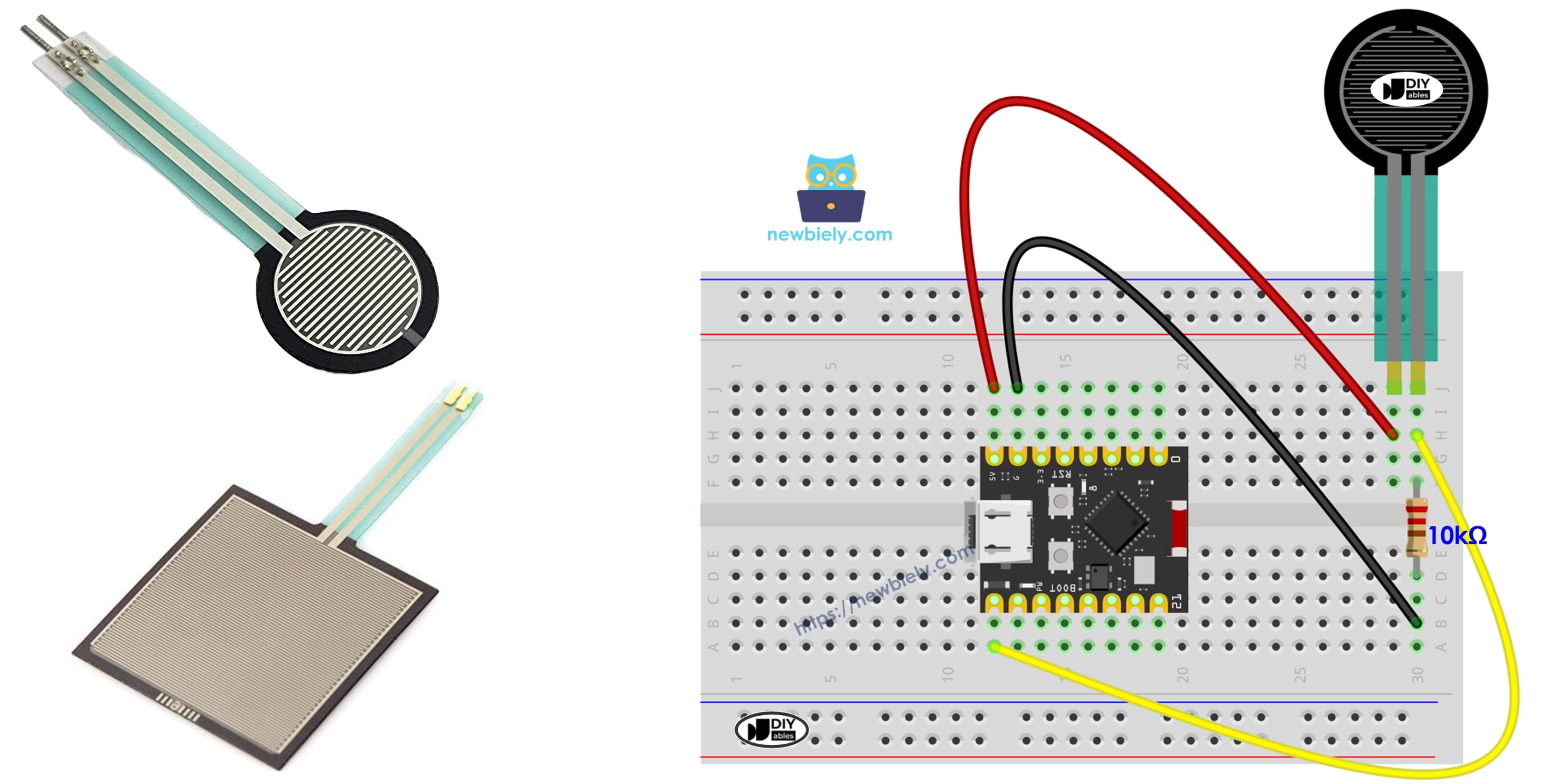
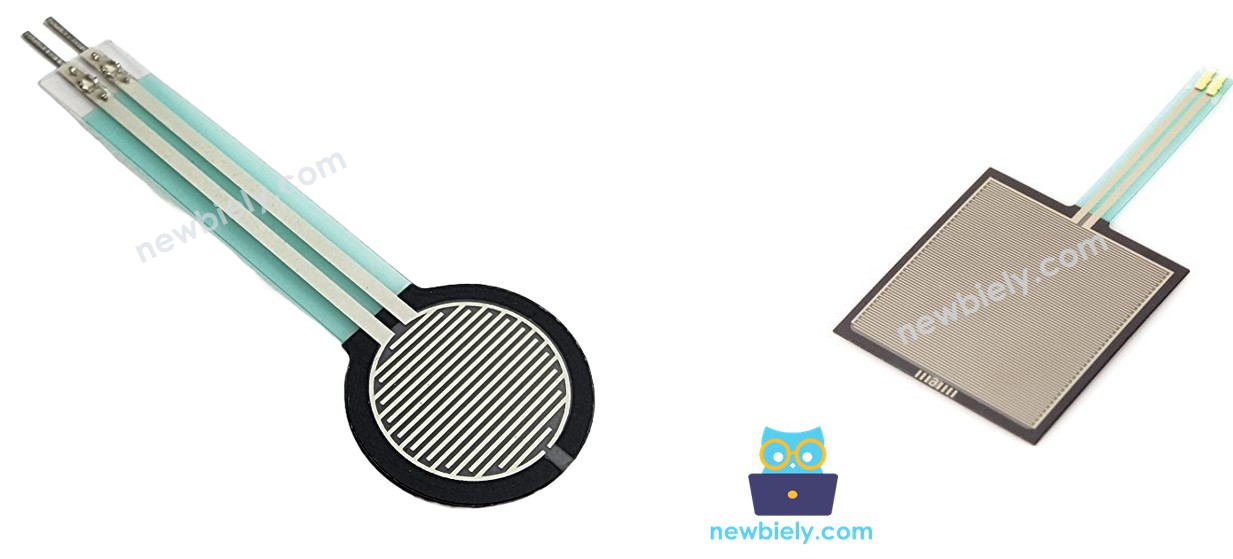
A force sensor (also called force sensitive resistor or FSR) is a component that changes resistance based on applied pressure.
- Resistance behavior: Resistance decreases when pressure increases
- Function: Detects physical squeeze, touch, and pressure
- Output type: Analog signal (0-4095 on ESP32 C3 Super Mini)
- Best for: Touch detection, pressure-sensitive buttons, grip sensors
- Not ideal for: Precise weight measurement in pounds or kilograms
- Advantage: Simple to use, no external power needed, works with analog pins
- Beginner-friendly: Easy wiring with just two pins like a resistor
Force Sensor Pinout
The force sensor has two pins that work like a variable resistor.
- Pin 1: Connect to analog input or voltage divider circuit
- Pin 2: Connect to GND or the resistor in voltage divider setup
Note: Pins are interchangeable - polarity doesn't matter for FSR sensors.
Wiring Diagram between Force Sensor and ESP32 C3 Super Mini
Connect your force sensor to the ESP32 C3 Super Mini using a voltage divider circuit with a 10kΩ resistor.
- Note: The 10kΩ resistor creates a voltage divider to produce readable analog values
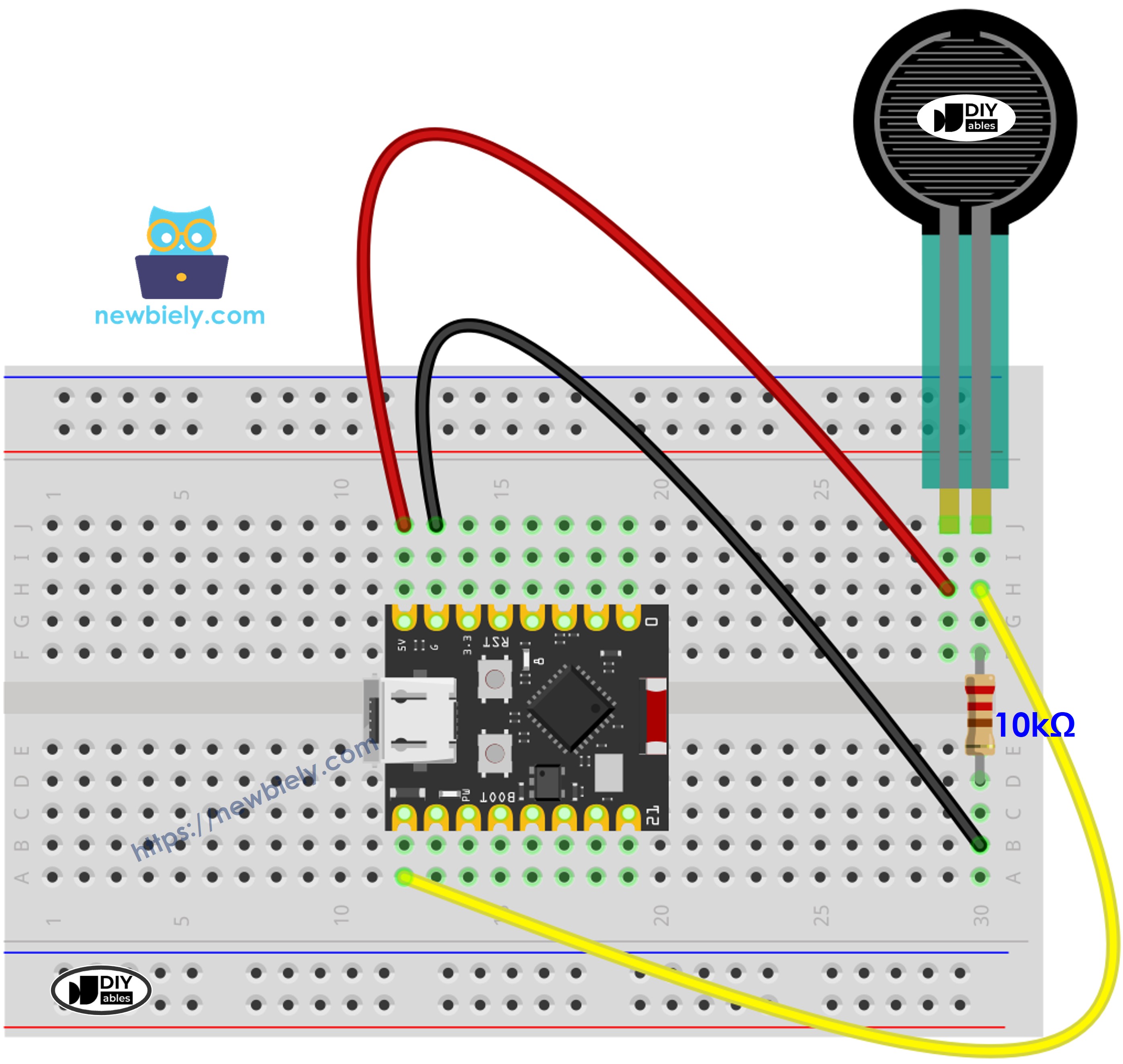
This image is created using Fritzing. Click to enlarge image
| Force Sensor Pin 1 | GPIO2 (Analog Input) |
|---|---|
| Force Sensor Pin 2 | GND (via 10kΩ resistor) |
| 10kΩ Resistor | Between Pin 2 and GND |
| Power for divider | 3.3V to Force Sensor Pin 1 |
How To Program Force Sensor
The ESP32 C3 Super Mini reads force sensor values through its analog input pin using a simple voltage measurement principle.
- Voltage divider: The FSR and 10kΩ resistor create a voltage divider circuit
- Analog reading: ESP32 measures voltage at the analog pin (0-3.3V range)
- Value range: analogRead() returns values from 0 (no pressure) to 4095 (maximum pressure)
- Interpretation: Higher values = more pressure applied to the sensor
- Reading method: Use analogRead() function on the connected GPIO pin
ESP32 C3 Super Mini Code
The following code reads analog values from the force sensor and displays pressure levels on the Serial Monitor.
What this code does:
- Reads analog values from the force sensor connected to GPIO2
- Converts readings to pressure levels (no pressure to big squeeze)
- Displays real-time force sensor values on Serial Monitor
- Updates readings every 500 milliseconds
- Helps you understand FSR sensitivity and response
Detailed Instructions
- New to ESP32 C3 Mini? Complete our Getting Started with ESP32 C3 Mini tutorial first to set up your development environment.
- Install Arduino IDE: If this is the first time you use ESP32 C3 Super Mini, see how to setup environment for ESP32 C3 Super Mini on Arduino IDE.
- Copy the code: Copy the above code and paste it to Arduino IDE.
- Connect your board: Plug the ESP32 C3 Super Mini into your computer via USB Type-C cable.
- Upload the code: Compile and upload code to ESP32 C3 Super Mini board by clicking Upload button on Arduino IDE.
- Open Serial Monitor: Set baud rate to 115200 to view readings.
- Test the sensor: Press the force sensor with varying pressure levels.
- Observe results: Check the Serial Monitor to see real-time analog values and pressure descriptions.
- Pro Tip: Experiment with different pressure levels to find the threshold values that work best for your specific application.
Serial Monitor Output
※ NOTE THAT:
This tutorial uses the analogRead() function to read values from an ADC (Analog-to-Digital Converter) connected to a sensor or component. The ESP32 C3 Super Mini's ADC is suitable for projects that do not require high accuracy. However, for projects needing precise measurements, keep the following in mind:
- The ESP32 C3 Super Mini's ADC is not perfectly accurate and might require calibration for correct results. Each ESP32 C3 Super Mini board can vary slightly, so calibration is necessary for each individual board.
- Calibration can be challenging, especially for beginners, and might not always yield the exact results you want.
For projects requiring high precision, consider using an external ADC (e.g ADS1115) with the ESP32 C3 Super Mini or using another Arduino, such as the Arduino Uno R4 WiFi, which has a more reliable ADC. If you still want to calibrate the ESP32 C3 Super Mini's ADC, refer to the ESP32 ADC Calibration Driver.
Application Ideas
Use your ESP32 C3 Super Mini and force sensor to build these practical pressure-sensing projects:
- Smart doorbell: Detect when someone presses against a door or panel
- Gaming controllers: Create pressure-sensitive buttons for custom game controllers
- Robot grip sensors: Measure how hard a robotic gripper holds objects
- Musical instruments: Build touch-sensitive pads for electronic drums or keyboards
- 床 presence detection: Detect when someone sits on a chair or lies on a bed
- Handshake strength meter: Measure grip strength for fitness or medical applications
- Touch lamp controls: Create dimming lights that respond to touch pressure
Video Section
Watch the video below for a visual walkthrough of this project.
Challenge Yourself
Test your skills by enhancing this ESP32 C3 Super Mini force sensor project with these challenges:
- Easy: Add an LED that lights up when pressure exceeds a threshold value
- Easy: Display "Pressed" and "Released" messages instead of analog values
- Medium: Use multiple force sensors to detect pressure in different locations simultaneously
- Medium: Create a pressure-activated alarm system that triggers at specific force levels
- Advanced: Build a data logging system that records pressure patterns over time with timestamps
- Advanced: Combine force sensor with a servo motor to control movement based on pressure intensity