
ESP32 C3 Super Mini - OLED 128x32 Display
Create custom displays and visualize data with the OLED 128x32 display! The compact SSD1306 OLED screen provides high-contrast visuals perfect for showing sensor readings, status information, and graphics. This beginner-friendly tutorial shows you how to connect an OLED 128x32 display to your ESP32 C3 Super Mini and program it to display text, numbers, shapes, and custom images using I2C communication.
What You'll Learn:
- What the OLED 128x32 display is and how it works
- How to wire the OLED display to ESP32 C3 Super Mini I2C pins
- How to install and use the SSD1306 OLED library
- How to display text, numbers, and sensor data on the screen
- How to center text horizontally and vertically
- How to draw shapes and graphics using ESP32 C3 Super Mini
- How to display custom images and bitmaps
- How to troubleshoot common OLED display issues
Real-World Applications:
- Sensor displays showing temperature, humidity, and distance readings
- Status indicators displaying system state and WiFi connection
- Data loggers showing live sensor updates
- Menu systems providing interactive user interfaces
- Weather stations displaying forecasts and measurements
- Digital clocks and countdown timers
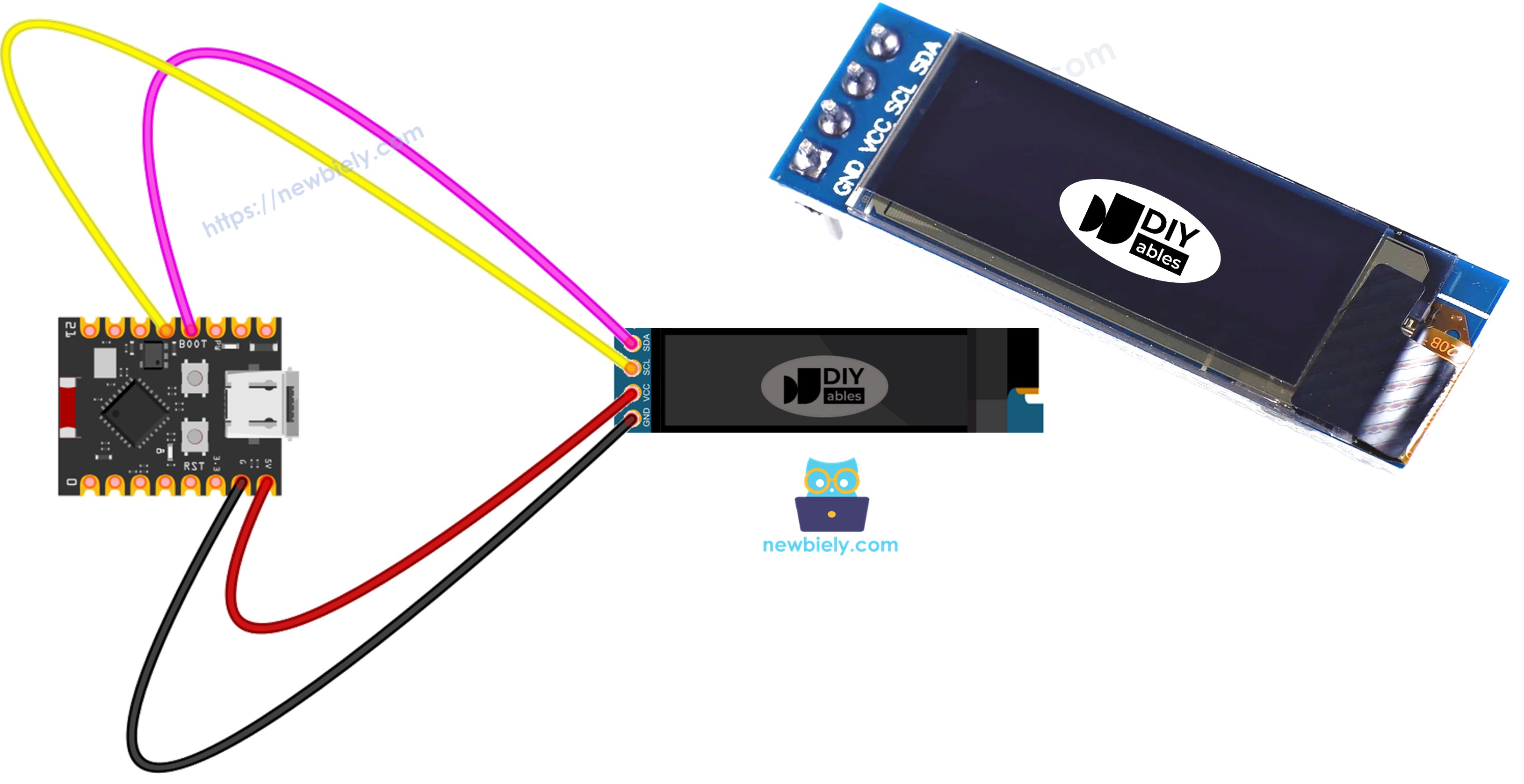
Display Technology:
OLED (Organic Light-Emitting Diode) displays produce their own light, eliminating the need for a backlight. Each pixel emits light independently, providing perfect blacks, high contrast ratios, and wide viewing angles compared to traditional LCD displays.
Hardware Preparation
| 1 | × | ESP32 C3 Super Mini | |
| 1 | × | Micro USB Cable | |
| 1 | × | SSD1306 I2C OLED Display 128x32 | |
| 1 | × | Jumper Wires |
Or you can buy the following kits:
| 1 | × | DIYables Sensor Kit (18 sensors/displays) |
Additionally, some of these links are for products from our own brand, DIYables .
Overview of OLED 128x32 Display
The OLED 128x32 is a compact monochrome display module using self-illuminating OLED technology with the SSD1306 driver chip.
Key Features:
- Resolution: 128 pixels wide × 32 pixels tall (4,096 total pixels)
- Screen size: Typically 0.91 inches diagonal
- Technology: Organic Light-Emitting Diode (self-lit pixels)
- Communication: I2C interface (2-wire connection)
- Driver chip: SSD1306
- Color: Monochrome (white or blue pixels on black background)
- Voltage: 3.3V - 5V power supply
- Current draw: 10-20mA (depends on pixels lit)
- Contrast: Perfect blacks (pixels turn completely off)
- Viewing angle: ~170 degrees
- Response time: <1ms
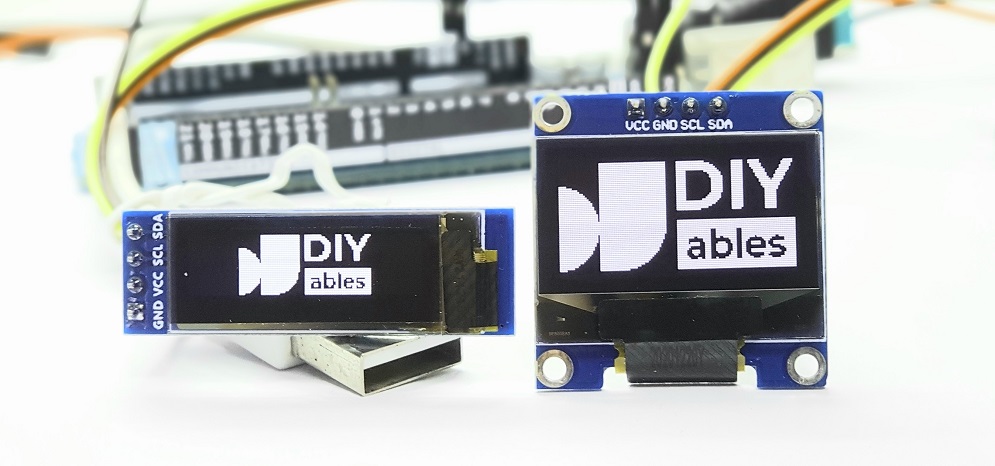
Why Beginners Love It:
- Simple I2C wiring (only 4 connections)
- No backlight needed (self-illuminating)
- High contrast makes text very readable
- Large Arduino library support
- Low power consumption
- Compact size fits small projects
OLED vs LCD Comparison:
| Feature | OLED | LCD |
|---|---|---|
| Backlight | None (self-lit) | Required |
| Contrast | Perfect (infinite) | Limited |
| Black Level | True black | Gray/lit |
| Viewing Angle | ~170° | ~120° |
| Power Usage | Low (black areas) | Constant |
| Thickness | Very thin | Thicker |
| Response Time | Fast (<1ms) | Slower |
OLED Display Pinout
The OLED 128x32 display module typically has four pins for power and I2C communication.
- VCC: Power supply pin (3.3V or 5V)
- GND: Ground pin (0V reference)
- SCL: I2C Serial Clock pin (connects to ESP32 C3 Super Mini pin 12)
- SDA: I2C Serial Data pin (connects to ESP32 C3 Super Mini pin 11)
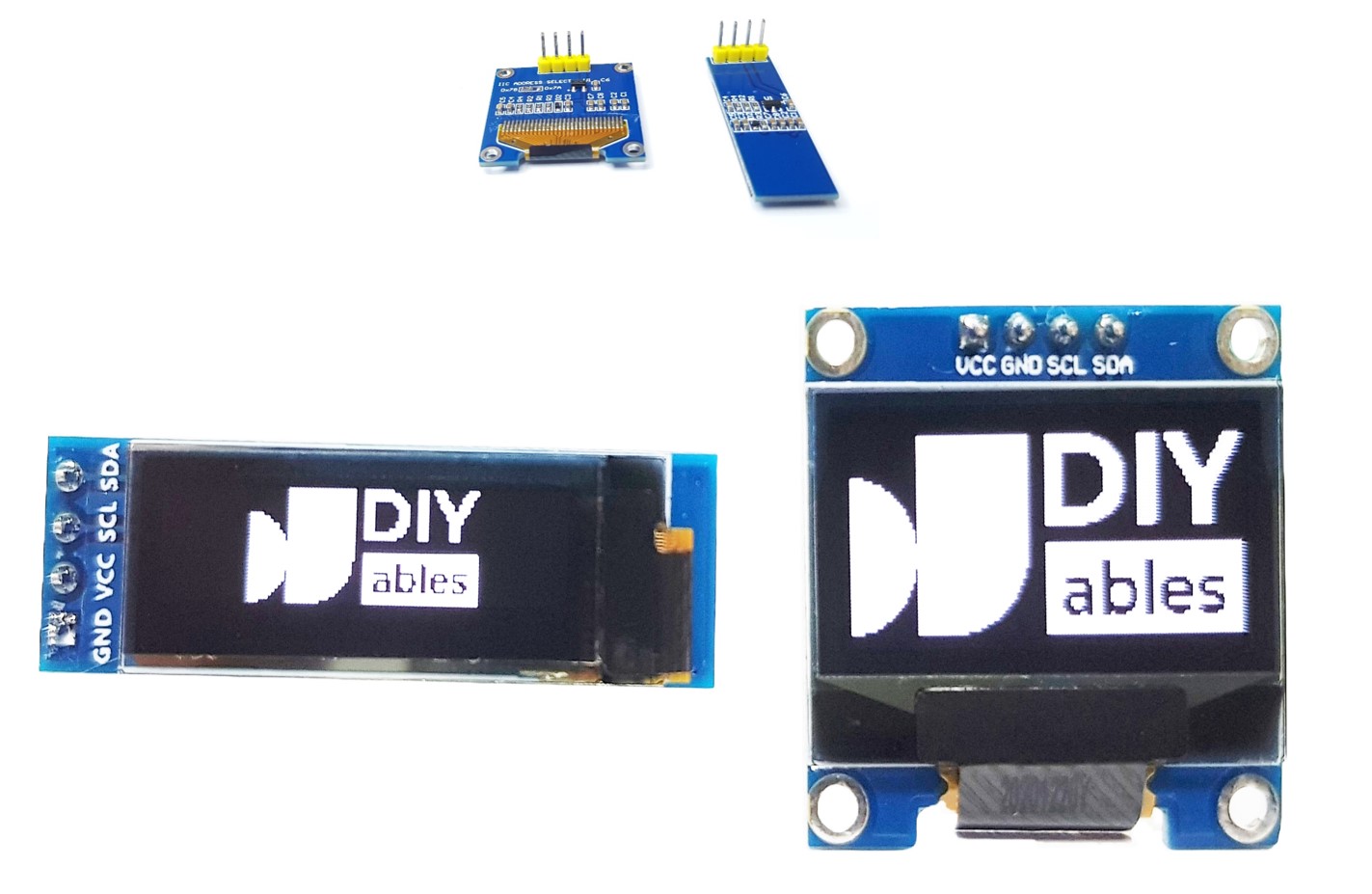
I2C Communication:
- Uses only 2 wires (SCL + SDA) for data transfer
- Default I2C address: 0x3C (some modules use 0x3D)
- Built-in pull-up resistors (usually included on module)
- Multiple devices can share same I2C bus
※ NOTE THAT:
- Pin connections on OLED modules may vary by manufacturer - always check the labels on your specific module
- This tutorial uses SSD1306 I2C driver OLED displays (tested with DIYables modules)
- Pin order varies: some modules have GND-VCC-SCL-SDA, others have VCC-GND-SCL-SDA
Wiring Diagram
Connect the OLED 128x32 display to your ESP32 C3 Super Mini following the I2C connections below.
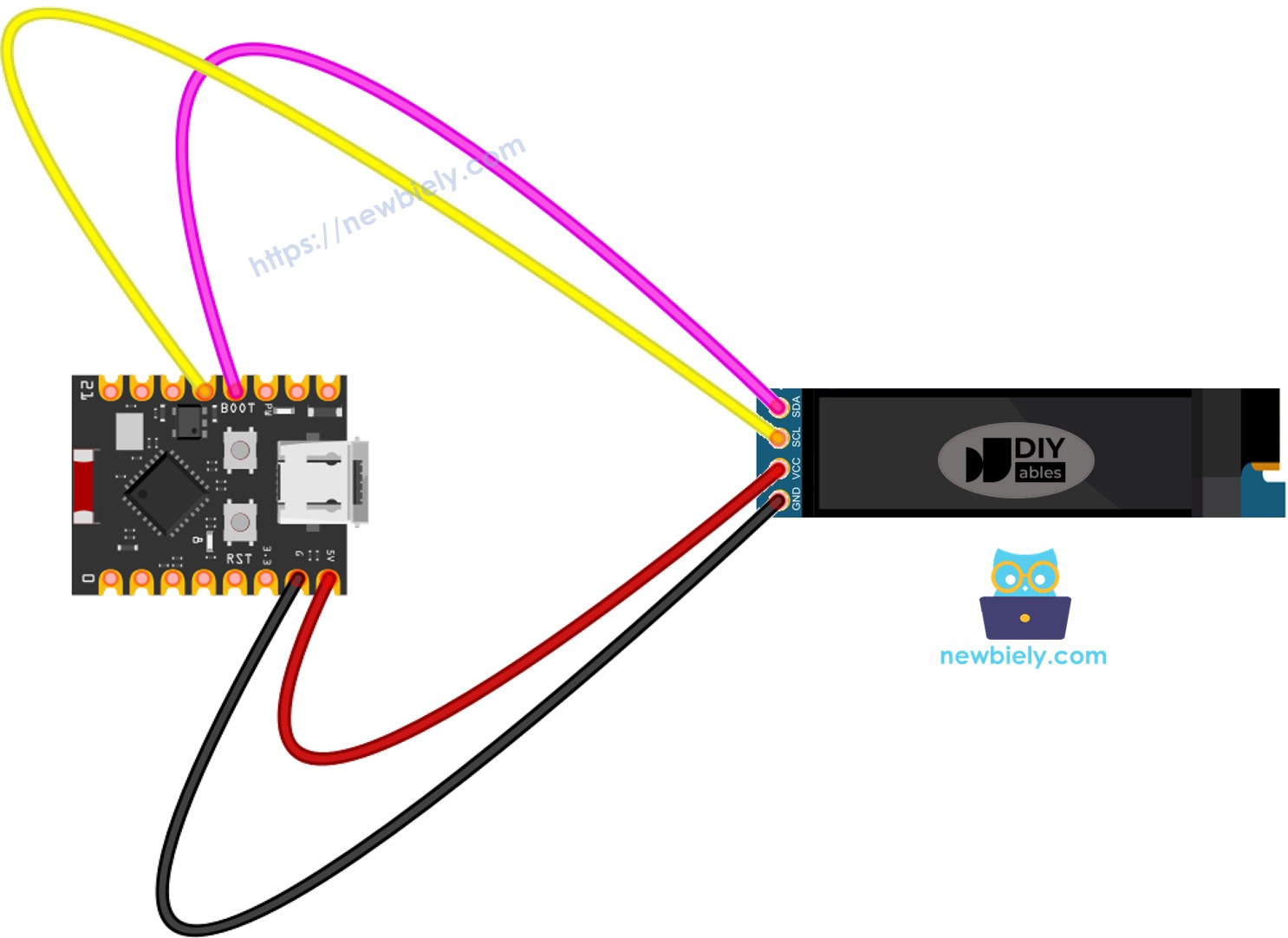
This image is created using Fritzing. Click to enlarge image
Connection Table:
| OLED Module | ESP32 C3 Super Mini |
|---|---|
| VCC | 3.3V |
| GND | GND |
| SDA | SDA (pin 11) |
| SCL | SCL (pin 12) |
Wiring Tips:
- Double-check pin labels on your specific OLED module before connecting
- Ensure SDA connects to pin 11 and SCL to pin 12 on ESP32 C3 Super Mini
- Use short jumper wires to minimize signal noise
- The ESP32 C3 Super Mini's USB power is sufficient (OLED draws only 10-20mA)
Programming ESP32 C3 Super Mini with OLED Display
Install SSD1306 OLED Library
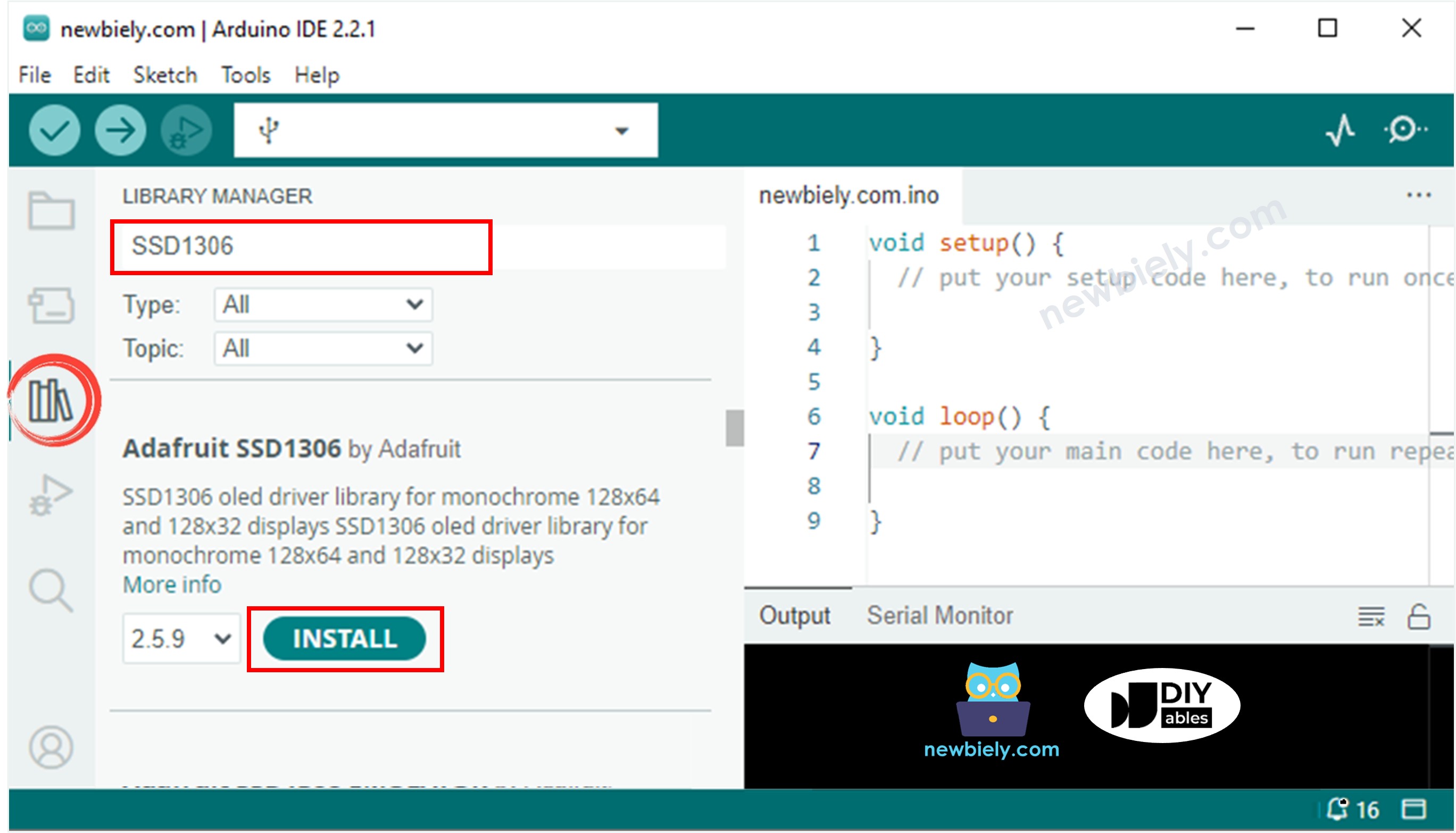
- Click the Libraries icon on the left side of Arduino IDE
- Search for SSD1306
- Find the Adafruit SSD1306 library by Adafruit
- Click Install to add the library
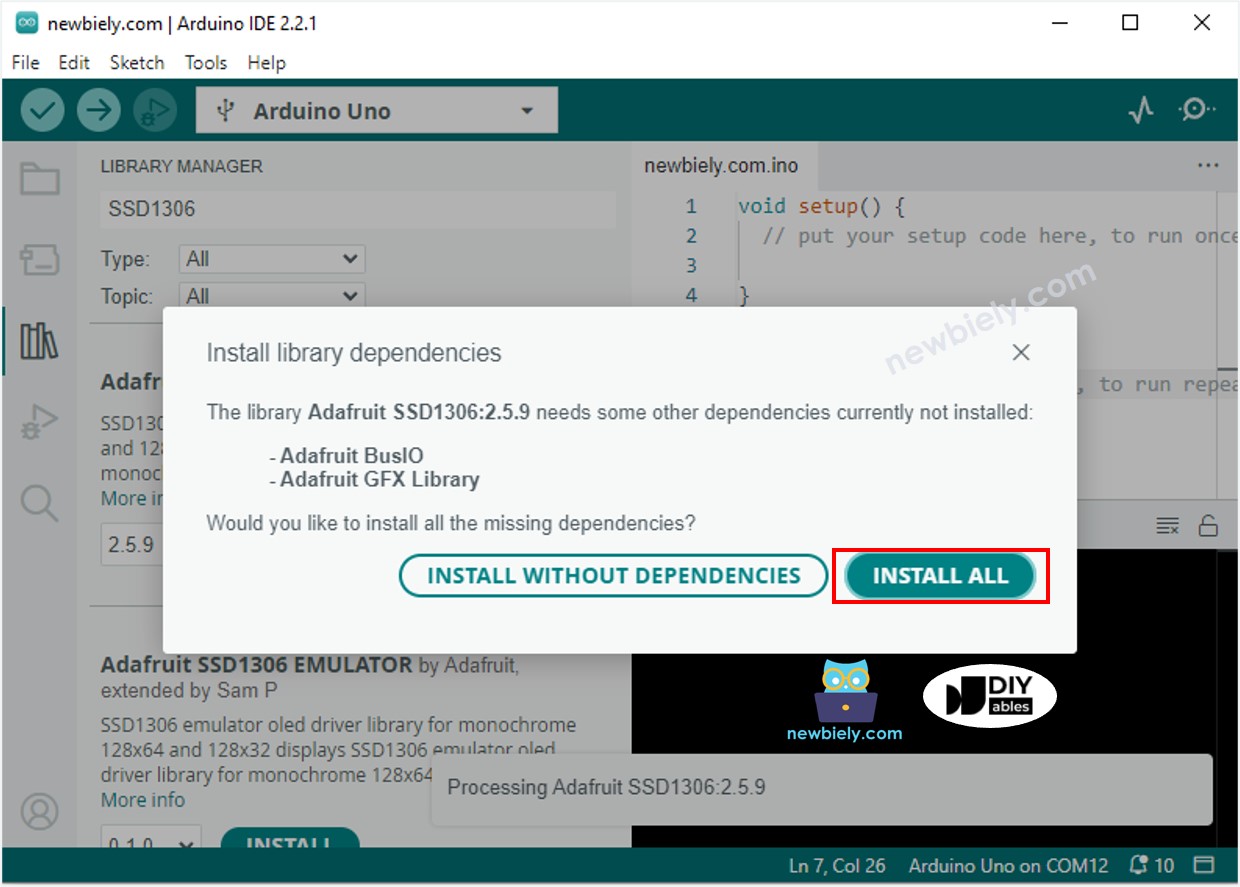
- When prompted to install dependencies, click Install All to add required libraries (including Adafruit GFX)
Basic OLED Programming Steps
Include Required Libraries:
Define Display Dimensions:
Create Display Object:
Initialize Display in setup():
Display Content:
- Use drawing functions to add text, shapes, and images
- Call oled.display() to show your content on screen
ESP32 C3 Super Mini Code - Display Text on OLED
Essential OLED Text Functions:
- oled.clearDisplay() – Clears all pixels on screen
- oled.setTextSize(n) – Sets text size (1-8, where 1 is smallest)
- oled.setCursor(x, y) – Sets starting position for text
- oled.setTextColor(WHITE) – Sets text color to white
- oled.setTextColor(BLACK, WHITE) – Sets text color to black with white background
- oled.print("text") – Prints text without newline
- oled.println("text") – Prints text with newline
- oled.println(number) – Prints number value
- oled.println(number, HEX) – Prints number in hexadecimal format
- oled.display() – Updates screen to show all changes
Scrolling Functions:
- oled.startscrollright(start, stop) – Scrolls text left to right
- oled.startscrollleft(start, stop) – Scrolls text right to left
- oled.startscrolldiagright(start, stop) – Scrolls diagonally (bottom-left to top-right)
- oled.startscrolldiagleft(start, stop) – Scrolls diagonally (bottom-right to top-left)
- oled.stopscroll() – Stops scrolling animation
Text Size Reference for 128x32 Display:
- Size 1: ~21 characters per line, 4 lines (6×8 pixels per character)
- Size 2: ~10 characters per line, 2 lines (12×16 pixels per character)
- Size 3: ~7 characters per line, 1 line (18×24 pixels per character)
Center Aligning Text on OLED Display
To learn how to center text and numbers both horizontally and vertically on the OLED 128x32 display using ESP32 C3 Super Mini, check out this detailed guide:
How to Vertical/Horizontal Center Align Text on OLED
Quick Centering Formula:
- Horizontal center: x = (128 - textWidth) / 2
- Vertical center: y = (32 - textHeight) / 2
- Text width = characters × 6 × textSize
- Text height = 8 × textSize
ESP32 C3 Super Mini Code - Drawing Shapes on OLED
Essential Drawing Functions:
- oled.drawPixel(x, y, color) – Draws single pixel at position
- oled.drawLine(x0, y0, x1, y1, color) – Draws line between two points
- oled.drawRect(x, y, width, height, color) – Draws rectangle outline
- oled.fillRect(x, y, width, height, color) – Draws filled rectangle
- oled.drawCircle(x, y, radius, color) – Draws circle outline
- oled.fillCircle(x, y, radius, color) – Draws filled circle
- oled.drawTriangle(x0, y0, x1, y1, x2, y2, color) – Draws triangle outline
- oled.fillTriangle(x0, y0, x1, y1, x2, y2, color) – Draws filled triangle
- oled.drawRoundRect(x, y, width, height, radius, color) – Draws rounded rectangle
- oled.fillRoundRect(x, y, width, height, radius, color) – Draws filled rounded rectangle
ESP32 C3 Super Mini Code - Display Images on OLED
To display custom images on the OLED 128x32 display, convert your image to a bitmap array using the online converter tool.
Image Conversion Steps:
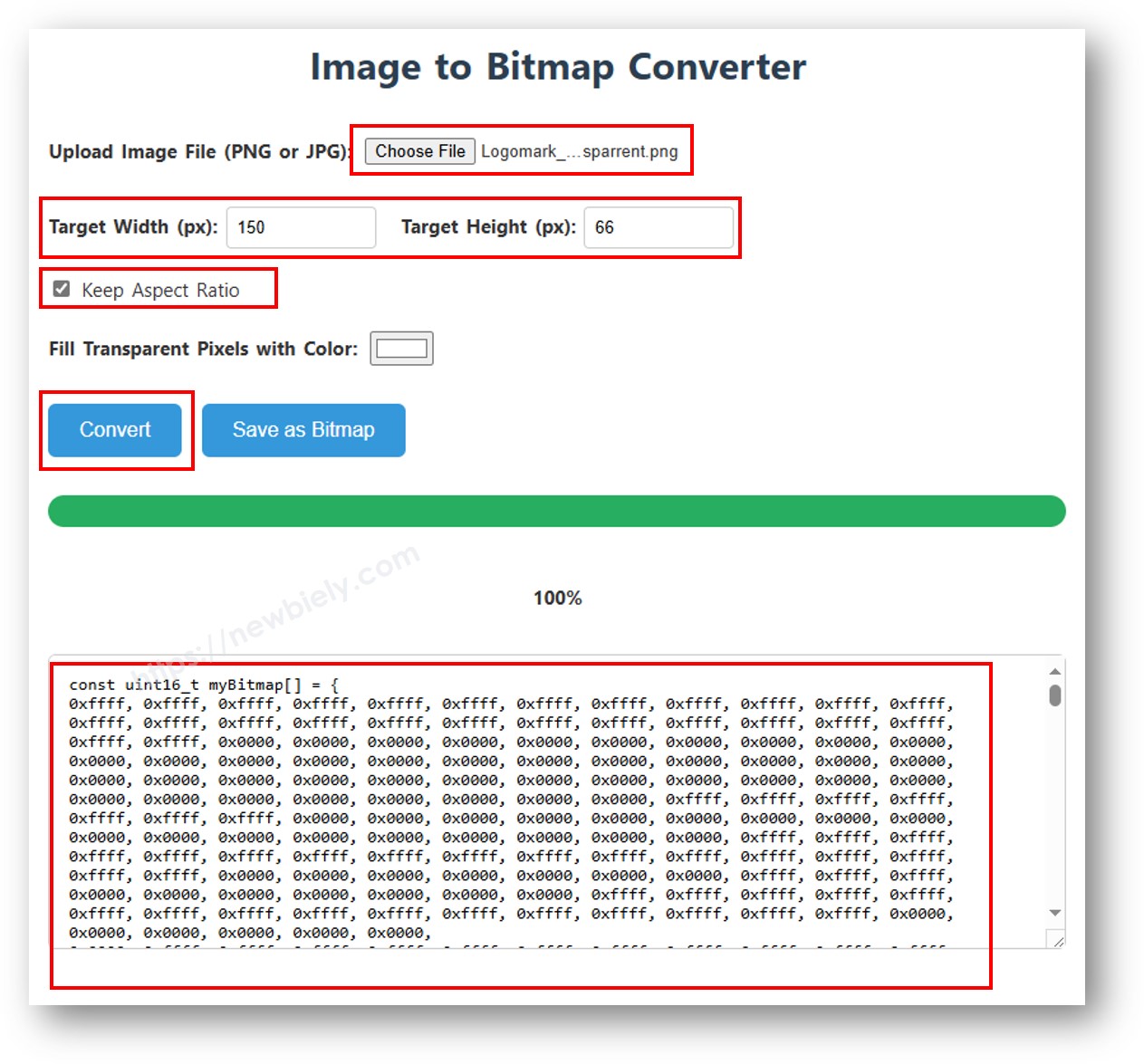
- Visit the Image to Bitmap Converter
- Upload your image file (JPG, PNG, etc.)
- Set width and height (max 128×32 for this display)
- Select settings: Monochrome, Horizontal orientation
- Click Convert and copy the generated bitmap array
Using Custom Images:
Important Notes:
- Image dimensions must not exceed 128×32 pixels
- Resize images before conversion if too large
- Update width and height parameters in oled.drawBitmap() function to match your image size
- Replace the ArduinoIcon array with your converted bitmap array
Display Image Function:
- oled.drawBitmap(x, y, bitmap_array, width, height, color) – Draws bitmap image at position
Detailed Instructions
- New to ESP32 C3 Mini? Complete our Getting Started with ESP32 C3 Mini tutorial first to set up your development environment.
- Connect OLED to ESP32: Wire VCC to 3.3V, GND to GND, SDA to pin 11, SCL to pin 12
- Install libraries: Add Adafruit SSD1306 and Adafruit GFX libraries via Arduino IDE Library Manager
- Copy code: Use one of the example codes above (text, drawing, or image display)
- Verify I2C address: Most OLED modules use 0x3C (change to 0x3D if needed)
- Upload code: Select correct ESP32 C3 Super Mini board and COM port, then upload
- Check display: OLED should show text, graphics, or images based on your code
- Modify content: Customize text, positions, and graphics to match your project needs
- Pro Tip: Always call oled.clearDisplay() before updating content and oled.display() after to refresh the screen properly
Troubleshooting OLED Display Issues
Problem: Blank Screen (Nothing Displays)
- Check wiring: Verify SDA to pin 11, SCL to pin 12, VCC to 3.3V, GND to GND
- Test I2C address: Run I2C scanner code to detect actual address
- Change address: Try 0x3D if 0x3C doesn't work in oled.begin() function
- Check power: Ensure 3.3V or 5V properly connected to VCC pin
- Verify connections: Push jumper wires firmly into breadboard holes
- Test module: Try OLED on another Arduino to rule out faulty display
I2C Scanner Code:
Problem: Garbled or Partial Display
- Secure connections: Check for loose jumper wires
- Verify resolution: Ensure code uses 128×32 (not 128×64)
- Add initialization delay: Include delay(2000) after oled.begin()
- Reset display: Call oled.clearDisplay() and oled.display() after initialization
Problem: Text Too Small or Too Large
- Adjust text size: Use oled.setTextSize(1) for small, setTextSize(2) for medium
- Size 1: Fits ~21 characters per line (6×8 pixels each)
- Size 2: Fits ~10 characters per line (12×16 pixels each)
- Size 3: Fits ~7 characters per line (only 1 line on 32-pixel height)
Problem: Display Flickers
- Optimize refresh: Call oled.clearDisplay() once, then oled.display() once per update
- Add delay: Include delay(100) in loop to limit update speed
- Avoid rapid clearing: Don't repeatedly clear display unnecessarily
Problem: Only First Line Shows
- Check coordinates: Ensure Y position within 0-31 range (32 pixels tall)
- Set cursor properly: Use oled.setCursor(x, y) before each line
- Text size overflow: Large text sizes may push content off screen
Project Ideas with OLED Display
Expand your ESP32 C3 Super Mini skills with these OLED display project ideas:
- Temperature and humidity monitor: Display DHT11 or DHT22 sensor readings in real-time
- Ultrasonic distance meter: Show HC-SR04 measurements with visual progress bar
- WiFi signal strength indicator: Display RSSI values with bar graph
- Scrolling message board: Create news ticker with scrolling text animation
- Digital clock with RTC module: Show time and date from DS3231 real-time clock
- Button-controlled menu system: Navigate settings using push buttons
- Weather station display: Show temperature, humidity, pressure from BME280 sensor
- Motion detector alert: Display PIR sensor status and trigger count
- Battery voltage monitor: Show real-time battery level with percentage bar
- Simple game console: Create Pong, Snake, or breakout games
Video Tutorial
Watch the video below for a visual walkthrough of this ESP32 C3 Super Mini OLED display project.
Challenge Yourself
Try these progressively challenging modifications to enhance your OLED display skills:
- Easy: Change text size, color, and position to customize your display layout
- Easy: Display sensor readings from a DHT11 temperature/humidity sensor on the OLED
- Medium: Create an animated loading bar that fills from 0% to 100%
- Medium: Build a scrolling text ticker that continuously loops your message
- Medium: Design a multi-page menu system controlled by push buttons
- Advanced: Plot real-time sensor data as a scrolling graph on the OLED
- Advanced: Create a mini game (Pong or Snake) with button controls
- Advanced: Build a WiFi-connected weather display showing live forecast data