
ESP32 C3 Super Mini - 74HC595 4-Digit 7-Segment Display
Learn how to connect a 74HC595 4-digit 7-segment display to your ESP32 C3 Super Mini and display numbers, text, and sensor readings. This beginner-friendly tutorial shows you everything you need to create digital clocks, temperature displays, and counters with just three GPIO pins.
In this tutorial you will learn:
- What a 74HC595 shift register display module is and how it works
- How to wire the 4-digit 7-segment display to ESP32 C3 Super Mini
- How to install and use the DIYables library for easy control
- How to display integers, floats, text, and custom characters
- How to create time displays with blinking separators
- How to show temperature readings with degree symbols
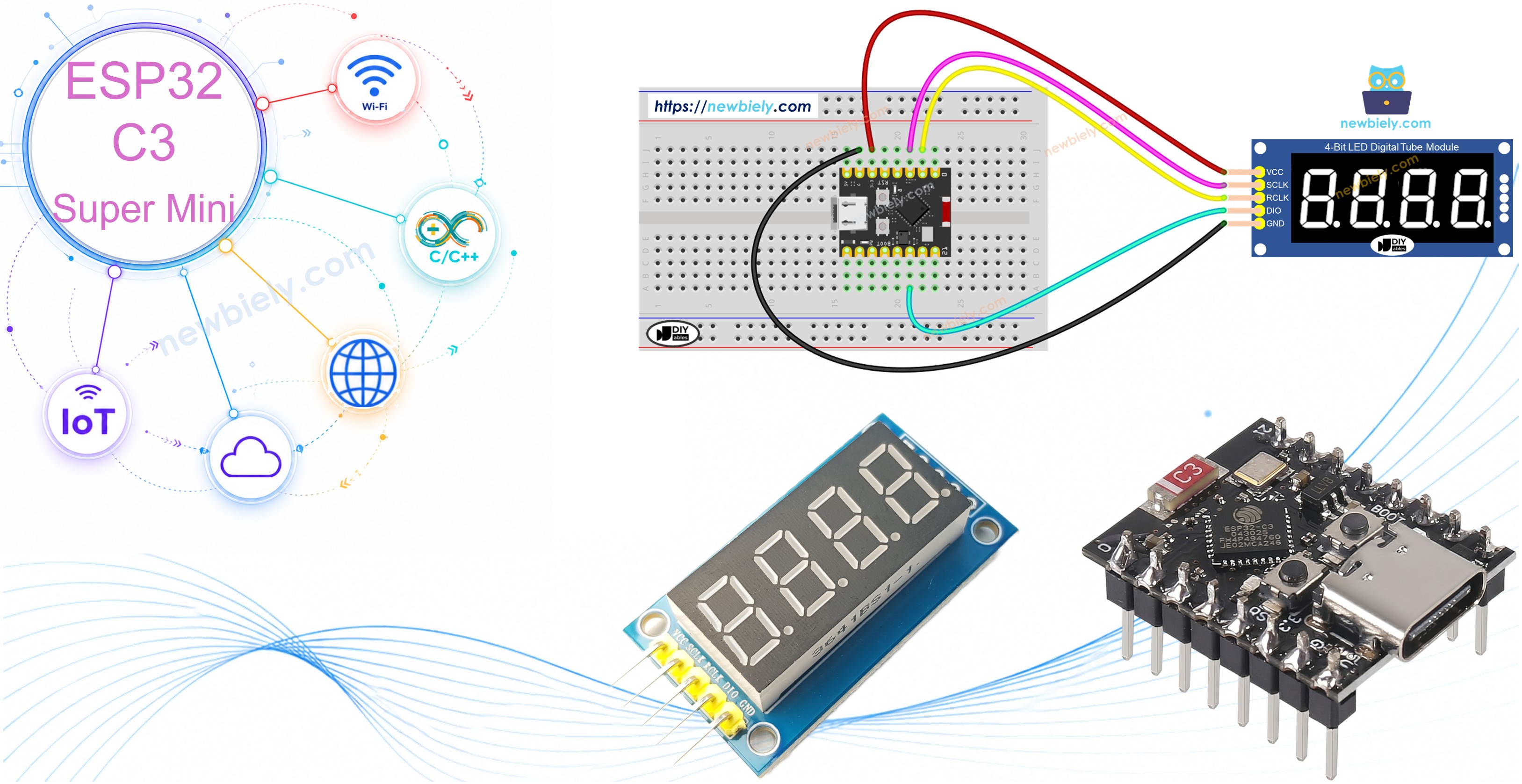
Hardware Preparation
| 1 | × | ESP32 C3 Super Mini | |
| 1 | × | USB Cable Type-A to Type-C (for USB-A PC) | |
| 1 | × | USB Cable Type-C to Type-C (for USB-C PC) | |
| 1 | × | 74HC595 4-digit 7-segment Display | |
| 1 | × | Jumper Wires |
Or you can buy the following kits:
| 1 | × | DIYables Sensor Kit (18 sensors/displays) |
Additionally, some of these links are for products from our own brand, DIYables .
Overview of the 74HC595 4-Digit 7-Segment Display
The 74HC595 4-digit 7-segment display is a serial-to-parallel shift register module that controls four LED digit displays using only three control pins instead of twelve.
Key features and specifications:
- Uses 74HC595 shift register IC for serial data control
- Saves GPIO pins - only needs 3 pins instead of 12+
- Common anode configuration (most modules)
- Operating voltage: 3.3V to 5V compatible
- Displays numbers 0-9, letters A-F, and some text characters
- Built-in decimal points between digits
- Multiplexing handled automatically by library
- Perfect for beginners - simple serial interface
- Great for counters, clocks, temperature displays, and scoreboards
- Each digit contains 7 LED segments plus 1 decimal point
How it works:
- Data is shifted in serially one bit at a time
- Register clock latches the data to display outputs
- Library handles all timing and multiplexing automatically
- You simply call print() and the display updates
Pin Functions:
The module has five essential pins:
- SCLK (SH_CP): Serial clock pin - pulses data bits into the shift register
- RCLK (ST_CP): Register clock pin - latches shifted data to the LED outputs
- DIO (DS): Data input pin - receives serial data stream
- VCC: Power supply - connect to 3.3V or 5V
- GND: Ground - connect to common ground
Wiring Diagram
Connect the 74HC595 display module to your ESP32 C3 Super Mini following this wiring guide:
| Display Pin | ESP32 C3 Super Mini Pin |
|---|---|
| SCLK (SH_CP) | D2 |
| RCLK (ST_CP) | D1 |
| DIO (DS) | D10 |
| VCC | 3.3V |
| GND | GND |
Safety notes:
- Note: The ESP32 C3 Super Mini operates at 3.3V logic levels - the 74HC595 module works perfectly at 3.3V
- Note: Do not connect VCC to 5V if your module doesn't have level shifters
- Note: Double-check polarity on VCC and GND before powering on
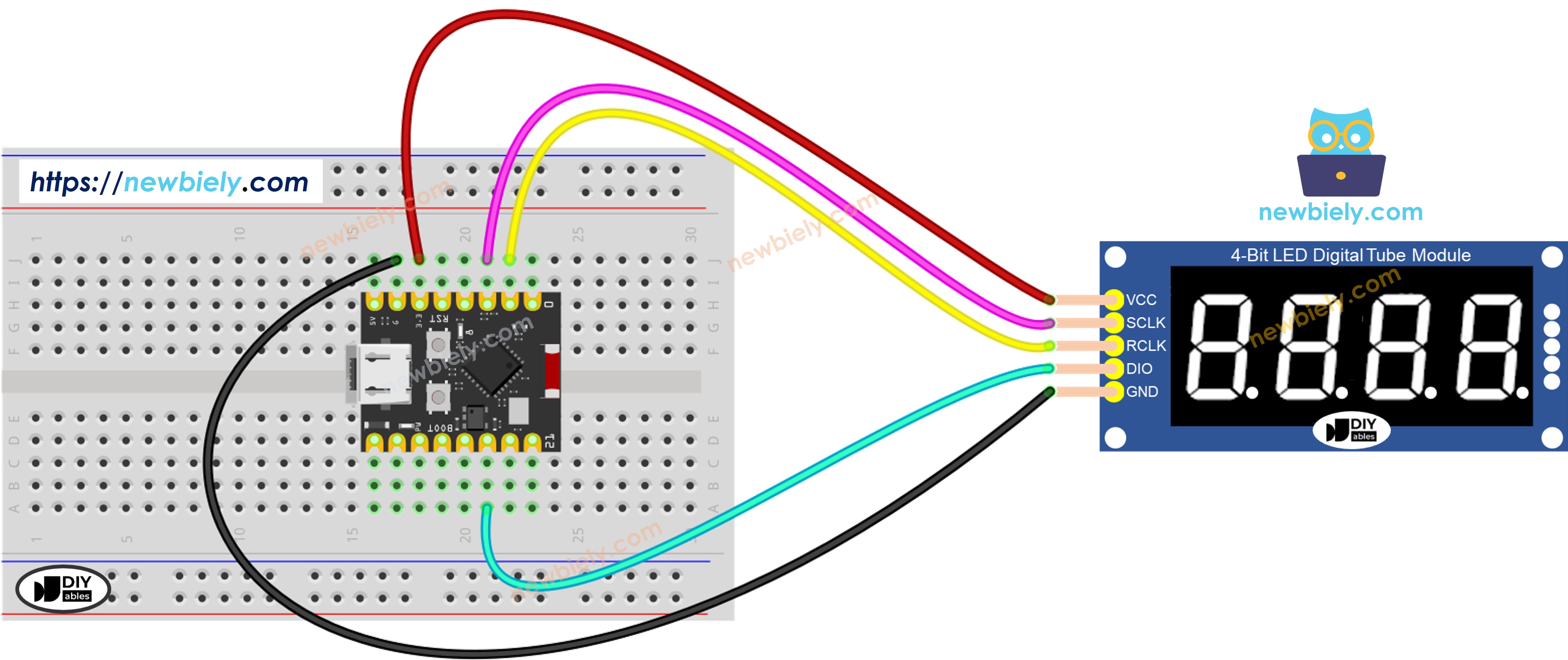
This image is created using Fritzing. Click to enlarge image
Library Setup
New to ESP32 C3 Mini? Complete our Getting Started with ESP32 C3 Mini tutorial first to set up your development environment.
Follow these steps to install the required library:
- Connect board: Plug your ESP32 C3 Super Mini into your computer using the USB-C cable
- Open Arduino IDE: Launch the Arduino IDE software on your computer
- Select board: Choose ESP32 C3 Super Mini from the board list
- Select port: Choose the correct COM port for your ESP32 C3 Super Mini
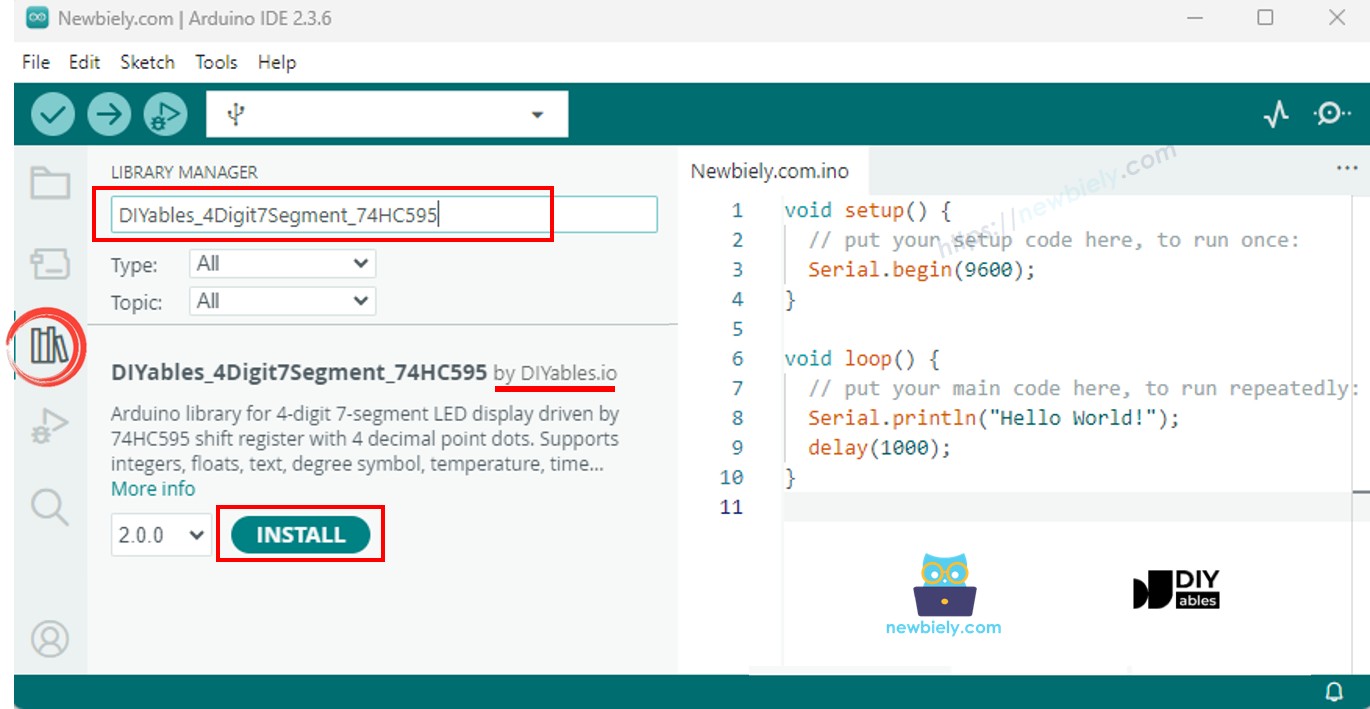
- Open Library Manager: Click the Libraries icon on the left sidebar
- Search library: Type "DIYables_4Digit7Segment_74HC595" in the search field
- Install library: Find the DIYables entry and click Install
- Select version: Choose version 2.0.0 or later for best compatibility
- Pro Tip: This library has no dependencies - installation is quick and simple
Starter Sketch
Here's the minimum code needed to get your 74HC595 4-digit display working with ESP32 C3 Super Mini:
What this code does:
- Includes the DIYables 7-segment library
- Defines GPIO pins for SCLK, RCLK, and DIO connections
- Creates a display object with the three control pins
- Initializes the display in setup() with begin()
- Displays the number 1234 on the screen
- Refreshes the display continuously in loop() to keep it lit
Important notes:
- display.begin() configures the GPIO pins for output
- display.loop() must be called frequently to maintain display brightness through multiplexing
- Use display.delay() instead of standard delay() to keep the display refreshed during waits
- The display stays lit with your last print() command as long as loop() keeps running
Tutorial - Display Integers
This tutorial shows how to display integer values on the ESP32 C3 Super Mini 74HC595 4-digit 7-segment display including negative numbers and zero-padding.
Detailed Instructions
- Wire the display: Connect the 74HC595 module to your ESP32 C3 Super Mini following the wiring diagram above
- Connect to computer: Plug the ESP32 C3 Super Mini into your computer via USB-C cable
- Open Arduino IDE: Launch the Arduino IDE software
- Select board and port: Choose ESP32 C3 Super Mini and the correct COM port
- Copy code: Paste the integer display code into Arduino IDE
- Upload: Click the Upload button to transfer code to your board
- Open Serial Monitor: Click the Serial Monitor icon to view output messages
- Observe display: Watch the 7-segment display cycle through different integers
- Pro Tip: The second parameter in print(42, true) enables zero-padding for consistent width displays
Serial Monitor Output
The display cycles through various integers including zero, positive numbers, negative numbers, maximum value, and zero-padded format.
Method Reference
| Method | Action | Syntax |
|---|---|---|
| print(int) | Display an integer value | display.print(1234) |
| print(int, true) | Display integer with zero-padding | display.print(42, true) |
| loop() | Refresh display multiplexing | display.loop() |
| begin() | Initialize display pins | display.begin() |
Tutorial - Display Floats
This tutorial demonstrates displaying floating-point numbers on your ESP32 C3 Super Mini with automatic and fixed decimal places.
Detailed Instructions
- Upload code: Copy the float display code and upload it to your ESP32 C3 Super Mini
- Open Serial Monitor: View the serial output to track what's being displayed
- Watch display: Observe floats with different decimal place settings
- Note formatting: See how auto-decimal adjusts versus fixed decimal places
- Pro Tip: Use fixed decimal places for consistent sensor readings like temperature or voltage
Serial Monitor Output
Tutorial - Text and Temperature
This tutorial shows how to display text strings, temperature readings with degree symbols, and custom characters on the ESP32 C3 Super Mini 7-segment display.
Detailed Instructions
- Upload code: Transfer the text and temperature code to your ESP32 C3 Super Mini
- Open Serial Monitor: Track what text and symbols are being displayed
- Observe text: Watch how letters appear on the 7-segment display
- See degree symbol: Note the small degree circle for temperature displays
- Try decimal points: See inline dots between digits
- Pro Tip: Not all letters display clearly on 7-segment - stick to numbers, H, E, L, P, C, O, and similar characters for best results
Serial Monitor Output
Tutorial - Time
This tutorial demonstrates creating a digital clock display on your ESP32 C3 Super Mini with HH.MM format and a blinking colon separator.
Detailed Instructions
- Upload code: Transfer the time display code to your ESP32 C3 Super Mini
- Open Serial Monitor: View timestamp updates
- Watch display: See time in HH.MM format with blinking separator
- Note blink rate: The colon blinks every 500ms like a real clock
- Pro Tip: Combine this with an RTC module for an actual working clock project
Serial Monitor Output
Tutorial - Blink
This tutorial shows how to blink the entire display content on and off for attention-getting effects on your ESP32 C3 Super Mini.
Detailed Instructions
- Upload code: Transfer the blink demo code to your ESP32 C3 Super Mini
- Open Serial Monitor: Track blink cycles and content changes
- Watch display: Observe numbers, decimals, and text blinking on and off
- Count blinks: Each content type blinks five times before switching
- Pro Tip: Use blinking to draw attention to alarm conditions or important notifications in your projects
Serial Monitor Output
Troubleshoot
Common issues when using the 74HC595 4-digit 7-segment display with ESP32 C3 Super Mini and their solutions:
| Issue | Possible Cause | Resolution |
|---|---|---|
| Display blank | Wiring problem | Check VCC, GND, and all three data pin connections |
| Display blank | Power issue | Verify 3.3V is present at VCC pin with multimeter |
| Wrong characters | Anode/cathode mismatch | Pass false as 4th parameter to constructor for common cathode modules |
| Flickering display | delay() blocking loop() | Replace all delay() calls with display.delay() to maintain multiplexing |
| Random segments | Loose wiring | Secure jumper wire connections and check for shorts |
| Dim display | Low voltage | Ensure stable 3.3V power supply to VCC pin |
| Upload fails | Board in wrong mode | Hold BOOT button while pressing RESET, then retry upload |
| No Serial output | Wrong baud rate | Set Serial Monitor to 115200 baud to match code |
| Code won't compile | Library not installed | Install DIYables_4Digit7Segment_74HC595 library version 2.0.0+ |
| Port not found | Driver issue | Install CH340 or CP2102 USB driver for ESP32 C3 Super Mini |
Applications and Project Ideas
Use your ESP32 C3 Super Mini with 74HC595 4-digit display to create these beginner-friendly projects:
- Digital thermometer: Display room temperature from DHT11 or DS18B20 sensor with degree symbol
- Countdown timer: Create a kitchen timer or event countdown with hours and minutes
- Score keeper: Build a simple scoreboard for games or competitions
- Stopwatch: Make a digital stopwatch with split-time capability
- Voltage meter: Monitor battery voltage or power supply levels in real-time
- Visitor counter: Count people entering through a door with IR sensor
- RPM display: Show motor speed for robotics or RC projects
- Clock with WiFi sync: Build an NTP-synchronized clock using ESP32 WiFi
- Lap timer: Track lap times for slot car racing or running
- Temperature alarm: Display temp and blink when threshold exceeded
Video Tutorial
Watch the video below for a visual walkthrough of connecting and programming the 74HC595 4-digit 7-segment display with your ESP32 C3 Super Mini.
Challenge Yourself
Test your skills with these progressive challenges for the ESP32 C3 Super Mini and 74HC595 display:
- Easy: Modify the integer tutorial to count from 0 to 9999 continuously at one-second intervals
- Easy: Display your age or birth year on the screen with zero-padding
- Medium: Create a two-button counter with one button to increment and one to decrement
- Medium: Build a temperature display that alternates between Celsius and Fahrenheit every 3 seconds
- Advanced: Make a WiFi-connected clock that gets time from an NTP server and displays it in HH.MM format with blinking colon
- Advanced: Create a countdown timer that accepts input from Serial Monitor and sounds a buzzer when it reaches zero
- Expert: Build a multi-function display that cycles between time, temperature, and a custom message using a mode button
Platform Support
The DIYables_4Digit7Segment_74HC595 library uses standard Arduino APIs and works on all Arduino-compatible platforms.
Supported boards include:
- ESP32 C3 Super Mini (featured in this tutorial)
- Arduino Uno, Nano, Mega
- ESP8266, ESP32, ESP32-S2, ESP32-S3
- Raspberry Pi Pico
- STM32 boards
- Any board with 3 available GPIO pins
The library architecture is set to * for universal compatibility across all Arduino platforms.