
ESP32 C3 Super Mini - Temperature Sensor
Learn how to connect a DS18B20 temperature sensor to your ESP32 C3 Super Mini and read accurate temperature data. This beginner-friendly tutorial covers everything from wiring to code.
In this tutorial, you'll learn:
- What the DS18B20 temperature sensor is and how it works
- How to wire the DS18B20 sensor to ESP32 C3 Super Mini
- How to install the required Arduino libraries
- How to write code to read temperature data
- How to display temperature readings in Celsius and Fahrenheit
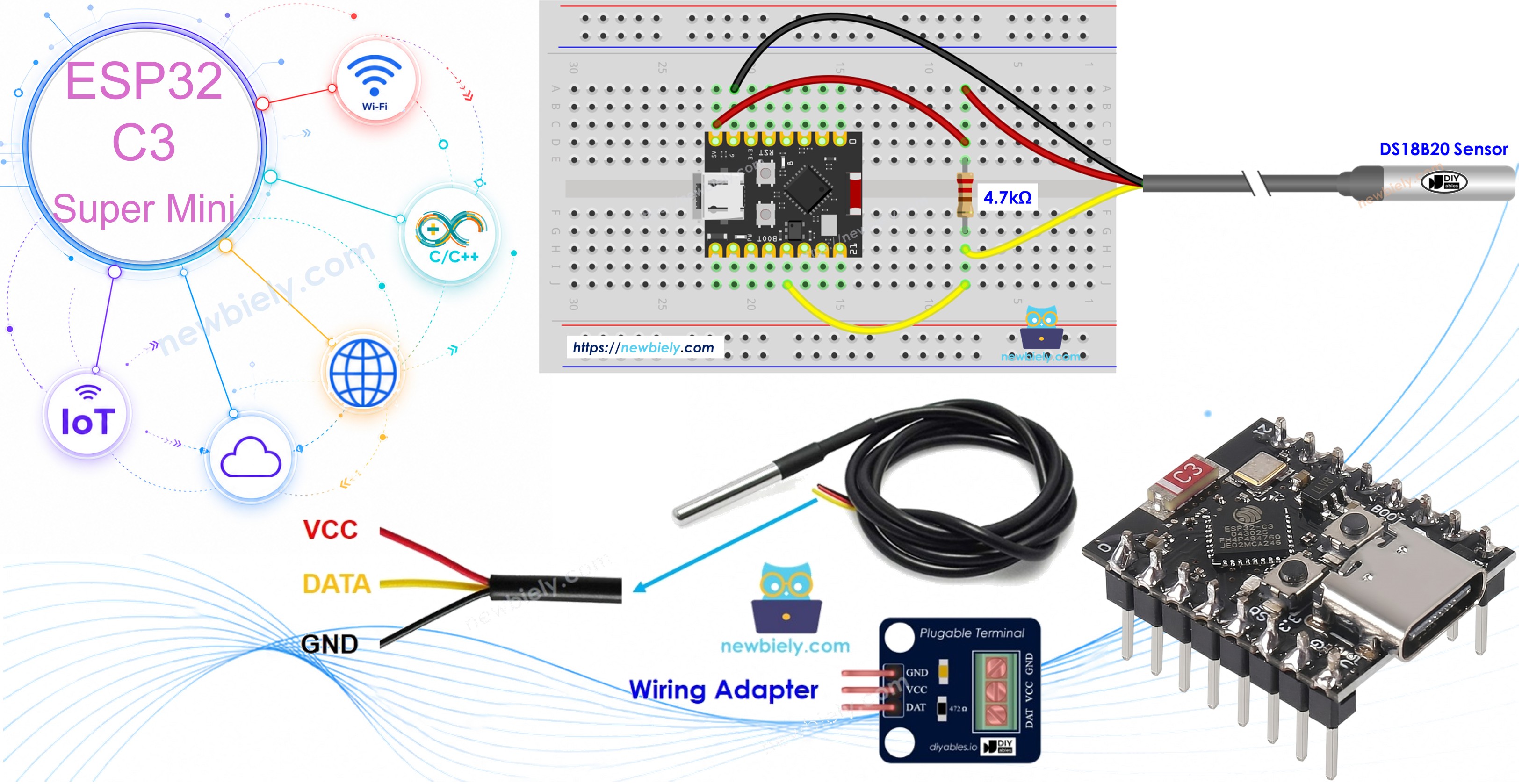
Hardware Preparation
Or you can buy the following kits:
| 1 | × | DIYables Sensor Kit (18 sensors/displays) |
Additionally, some of these links are for products from our own brand, DIYables .
Buy Note: Many DS18B20 sensors available in the market are unreliable. We strongly recommend buying the sensor from the DIYables brand using the link provided above. We tested it, and it worked reliably.
Overview of DS18B20 Temperature Sensor
The DS18B20 is a digital temperature sensor that communicates using the 1-Wire protocol.
- Operating voltage: 3.0V to 5.5V (compatible with ESP32 C3 Super Mini)
- Temperature range: -55°C to +125°C (-67°F to +257°F)
- Accuracy: ±0.5°C between -10°C and +85°C
- Resolution: 9-bit to 12-bit adjustable
- Single data wire: Uses only one digital pin for communication
- Multiple sensors: You can connect multiple DS18B20 sensors on the same wire
- Waterproof option: Available in waterproof probe format
- Perfect for beginners: Simple wiring and easy-to-use Arduino libraries
Why choose DS18B20 for your projects:
- No analog-to-digital conversion needed
- Long cable lengths possible (up to 100 meters)
- Great for weather stations, aquariums, and HVAC projects
- Affordable and widely available
DS18B20 Temperature Sensor Pinout
The DS18B20 sensor comes in two common forms: a TO-92 transistor-like package and a waterproof probe version.
- GND pin: Connect to ground (0V)
- VCC pin: Connect to power supply (3.3V or 5V)
- DATA pin: 1-Wire data bus - connect to any digital pin on ESP32 C3 Super Mini
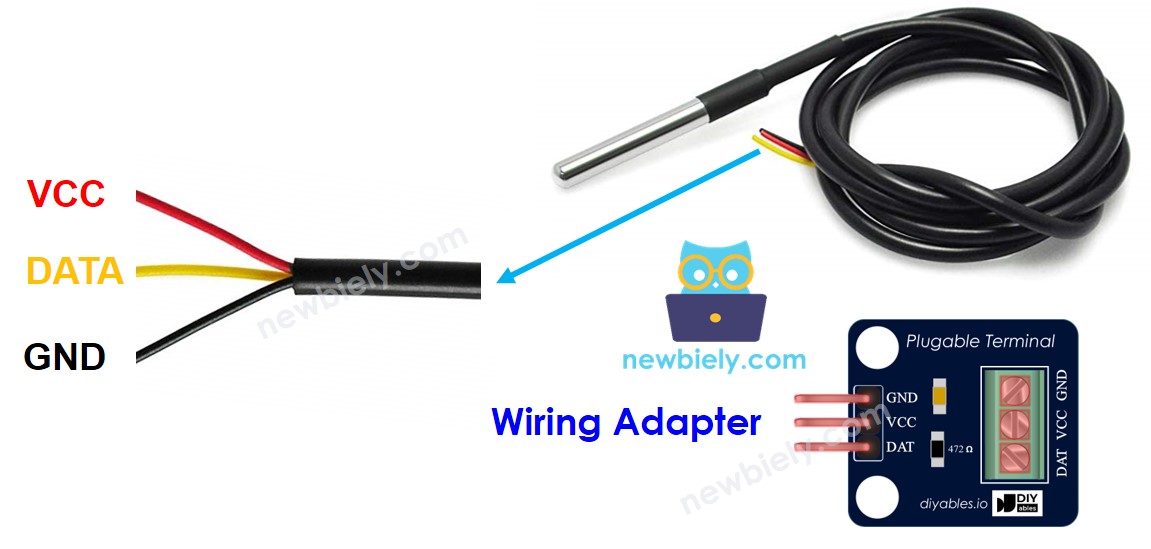
Note about the pull-up resistor:
- Traditional DS18B20 wiring requires a 4.7kΩ pull-up resistor between DATA and VCC
- Many DS18B20 modules now include a built-in pull-up resistor and screw terminals
- Using an adapter module simplifies your wiring significantly
Wiring Diagram
Connect your DS18B20 temperature sensor to the ESP32 C3 Super Mini following the diagrams below.
- Note: For beginners, we recommend using a DS18B20 sensor with an adapter module that includes a built-in pull-up resistor
Wiring with breadboard (without adapter):
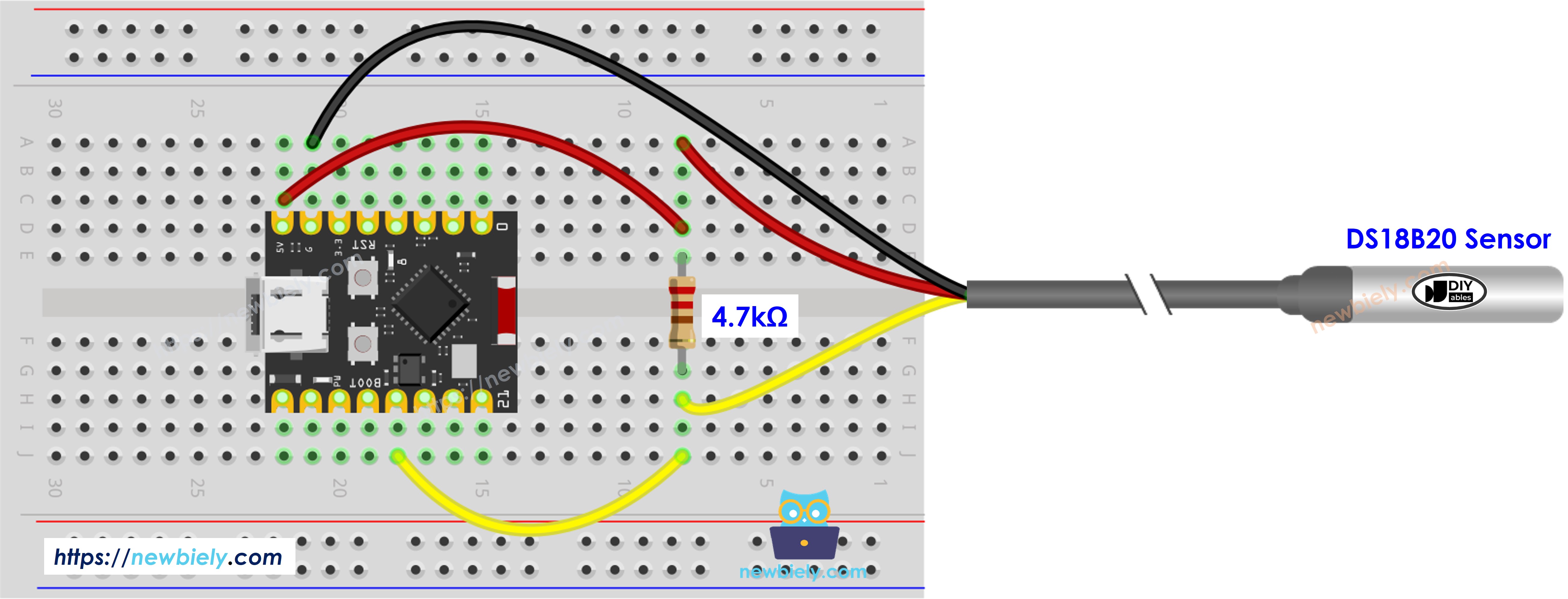
This image is created using Fritzing. Click to enlarge image
| DS18B20 Pin | ESP32 C3 Super Mini Pin |
|---|---|
| GND | GND |
| VCC | 3.3V |
| DATA | D9 (or any digital pin) |
| Pull-up Resistor | 4.7kΩ between DATA and VCC |
Wiring with adapter module (recommended):
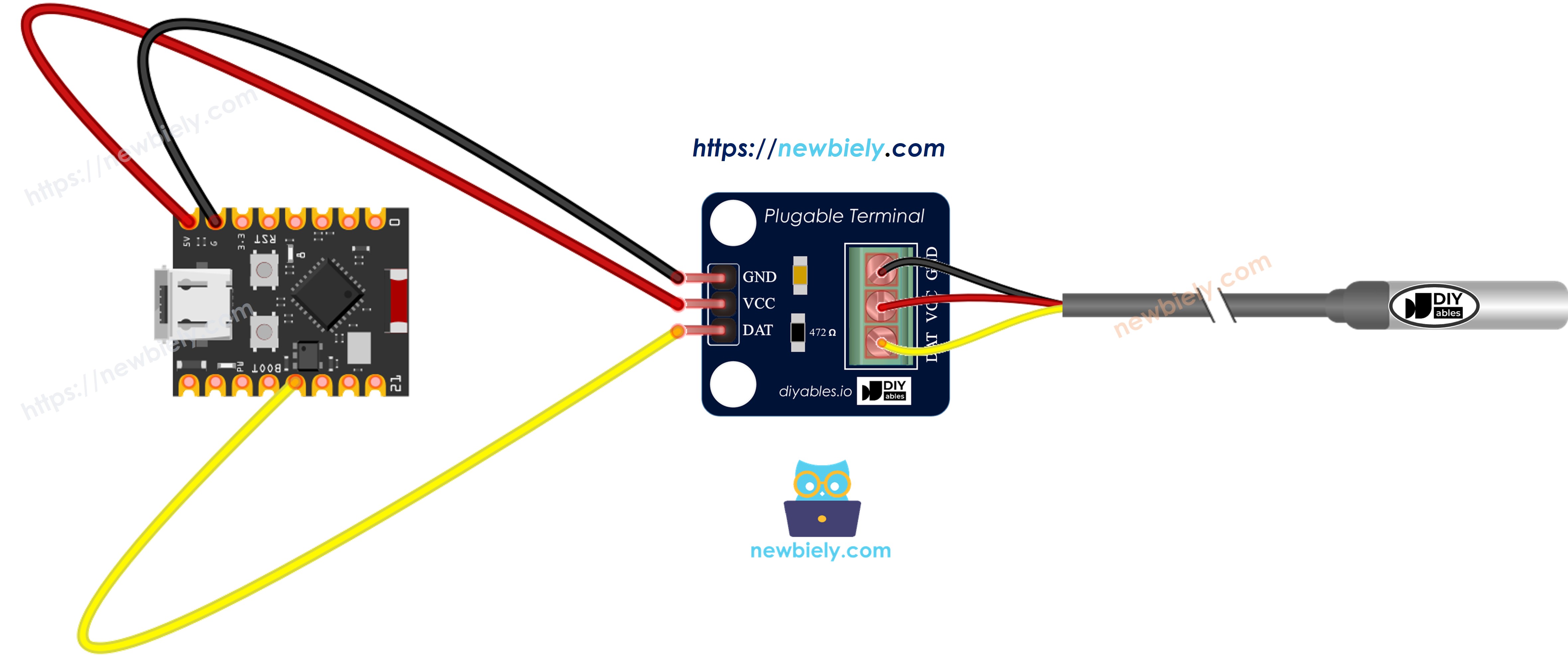
This image is created using Fritzing. Click to enlarge image
| DS18B20 Module Pin | ESP32 C3 Super Mini Pin |
|---|---|
| GND (or -) | GND |
| VCC (or +) | 3.3V |
| DATA (or S) | D9 (or any digital pin) |
For easier setup, purchase a DS18B20 sensor with a wiring adapter that includes the built-in resistor.
ESP32 C3 Super Mini Code
The code below reads temperature data from the DS18B20 sensor and displays it on the Serial Monitor.
What this code does:
- Initializes the DS18B20 temperature sensor using the OneWire protocol
- Requests temperature readings from the sensor
- Converts the raw data to Celsius
- Calculates and displays temperature in both Celsius and Fahrenheit
- Updates readings every second
Detailed Instructions
- New to ESP32 C3 Mini? Complete our Getting Started with ESP32 C3 Mini tutorial first to set up your development environment.
- Install required libraries: Open Library Manager in Arduino IDE (click the library icon on the left sidebar)
- Search for DallasTemperature: Type "DallasTemperature" in the search box
- Install the library: Find the DallasTemperature library by Miles Burton and click Install
- Search for DallasTemperature created by Miles Burton
- Install dependency: When prompted, click Install All to also install the OneWire library
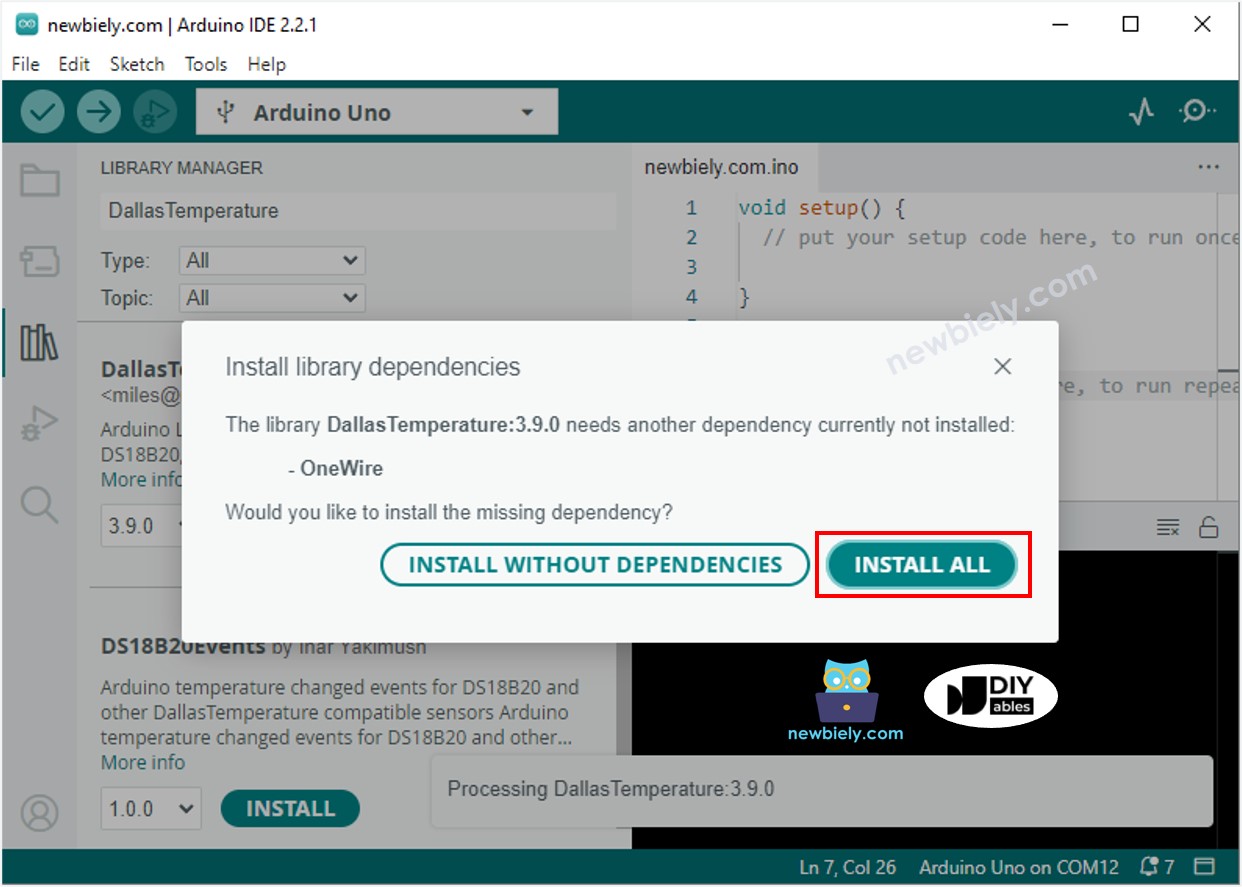
- Wire the components: Follow the wiring diagram above to connect the DS18B20 sensor to your ESP32 C3 Super Mini
- Connect your board: Plug the ESP32 C3 Super Mini into your computer using a USB Type-C cable
- Select your board: In Arduino IDE, choose ESP32 C3 Super Mini and the correct COM port
- Upload the code: Copy the code above, paste it into Arduino IDE, and click Upload
- Open Serial Monitor: Set the baud rate to 115200 to view temperature readings
- Test the sensor: Hold the DS18B20 probe in your hand to warm it up, or place it in hot/cold water to see temperature changes
- Pro Tip: If readings show -127°C or 185°F, check your wiring connections - this usually indicates a communication error with the sensor.
Serial Monitor Output
Once you upload the code and open the Serial Monitor, you'll see continuous temperature readings like this:
Applications and Project Ideas
The DS18B20 temperature sensor with ESP32 C3 Super Mini opens up many practical applications:
- Home weather station: Monitor indoor and outdoor temperatures with wireless connectivity
- Aquarium temperature monitor: Keep track of water temperature for fish tanks
- Smart thermostat: Create an automated heating/cooling control system
- Refrigerator monitor: Get alerts when your fridge temperature goes out of safe range
- Greenhouse automation: Monitor and log temperature for optimal plant growth
- Server room monitoring: Track temperature in computer or server rooms with remote alerts
Video Tutorial
Watch the video below for a visual walkthrough of this project.
Challenge Yourself
Ready to take your DS18B20 temperature sensor project further? Try these challenges:
- Easy: Add an LED that turns on when temperature exceeds a certain threshold
- Easy: Display temperature data on an OLED screen instead of Serial Monitor
- Medium: Connect multiple DS18B20 sensors to one ESP32 C3 Super Mini and read all simultaneously
- Medium: Send temperature data to your smartphone via Bluetooth
- Advanced: Create a web server to display real-time temperature graphs accessible from any browser
- Advanced: Log temperature data to an SD card with timestamps for long-term monitoring