ESP32 C3 Super Mini - OLED 128x64 Display

Introduction

Want to display sensor readings, system status, or custom graphics in your ESP32 C3 Super Mini projects? This tutorial shows you how to connect and program an OLED 128x64 display with your ESP32 C3 Super Mini - perfect for beginners!

In this tutorial, you'll learn:

ESP32 C3 Super Mini OLED 128x64 display

Hardware Preparation

1×ESP32 C3 Super Mini
1×Micro USB Cable
1×SSD1306 I2C OLED Display 128x64
1×Jumper Wires

Or you can buy the following kits:

1×DIYables Sensor Kit (18 sensors/displays)
Disclosure: Some of the links provided in this section are Amazon affiliate links. We may receive a commission for any purchases made through these links at no additional cost to you.
Additionally, some of these links are for products from our own brand, DIYables .

About OLED Displays

An OLED (Organic Light-Emitting Diode) display is a screen where each pixel produces its own light.

Key features of OLED displays:

  • Perfect blacks - pixels turn completely off when not needed
  • High contrast - sharp, clear visuals
  • Wide viewing angles - readable from any direction
  • No backlight required - lower power consumption
  • Thin and lightweight - compact design

Popular OLED types for ESP32 C3 Super Mini:

  • SSD1306 I2C OLED 128x64 - Most common size, ideal for text and simple graphics
  • SSD1306 I2C OLED 128x32 - Smaller version for compact projects
  • I2C interface - Only needs two wires for communication with ESP32 C3 Super Mini
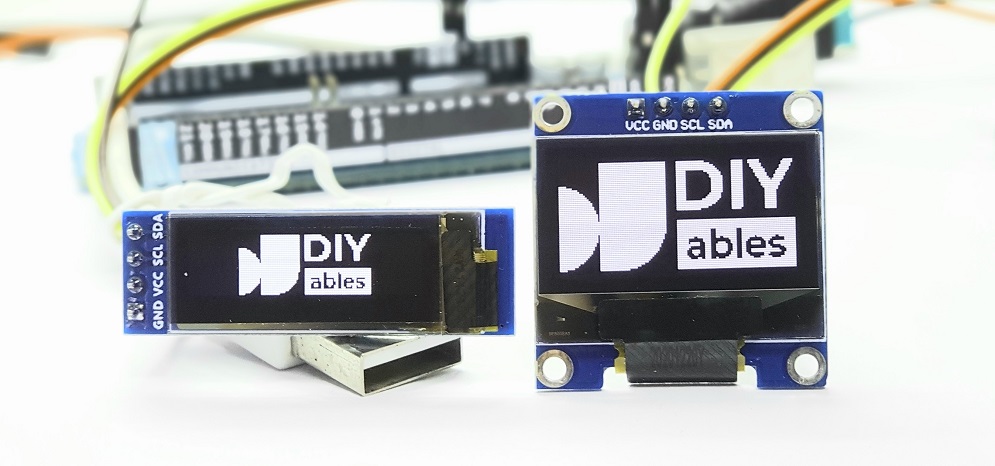
OLED display

I2C OLED Display Pinout

The SSD1306 OLED display typically has four pins for easy connection to your ESP32 C3 Super Mini:

  • GND pin: Connect to ground (GND) on ESP32 C3 Super Mini
  • VCC pin: Power supply - connect to 3.3V on ESP32 C3 Super Mini (some modules accept 5V)
  • SCL pin: Serial Clock Line for I2C communication with ESP32 C3 Super Mini
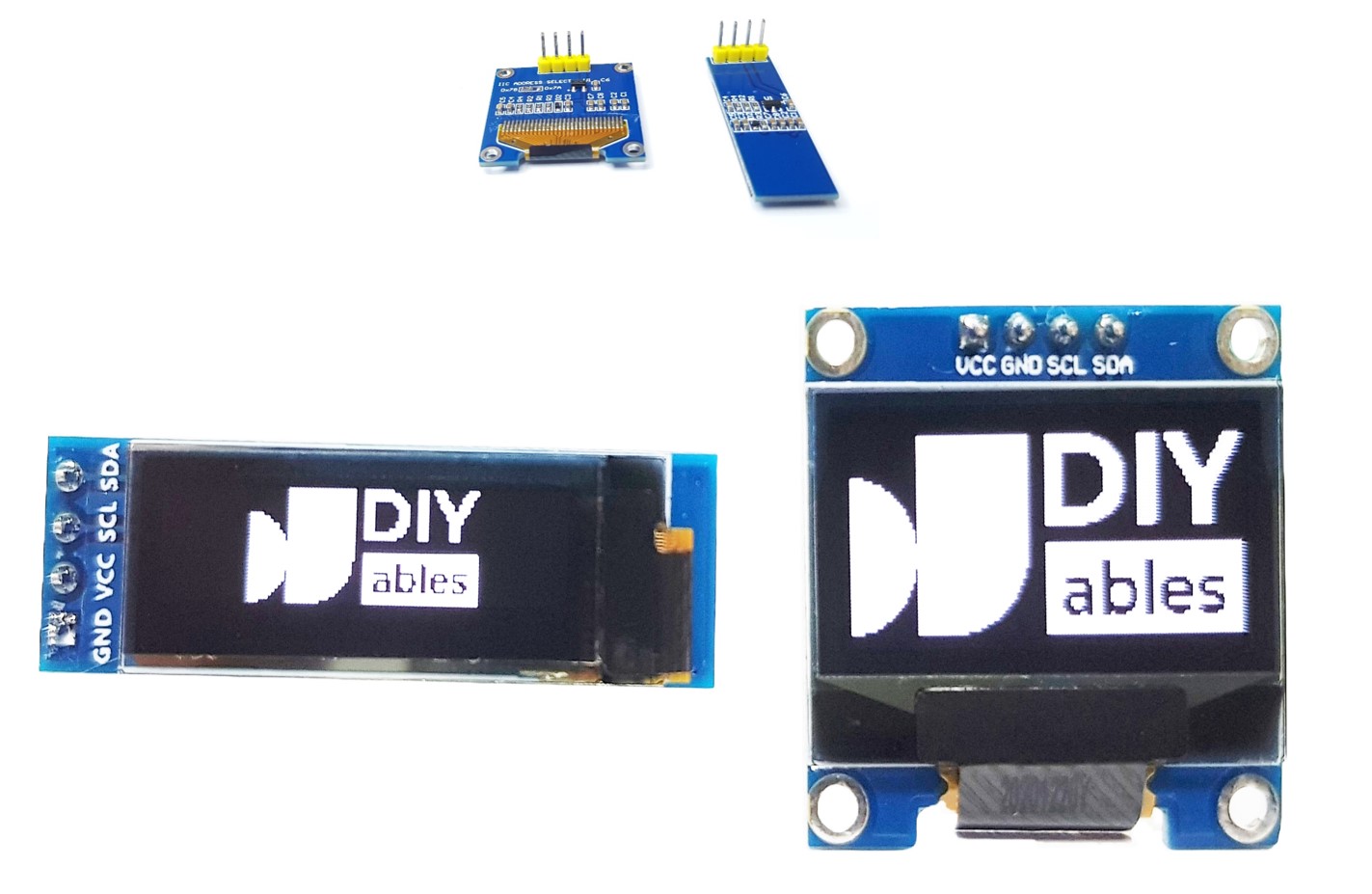
  • SDA pin: Serial Data Line for I2C communication with ESP32 C3 Super Mini
OLED pinout

※ NOTE THAT:

  • Pin labels may vary by manufacturer - always check the markings on your specific OLED module
  • This tutorial uses an SSD1306 I2C OLED display - tested with the DIYables OLED module

Wiring Diagram

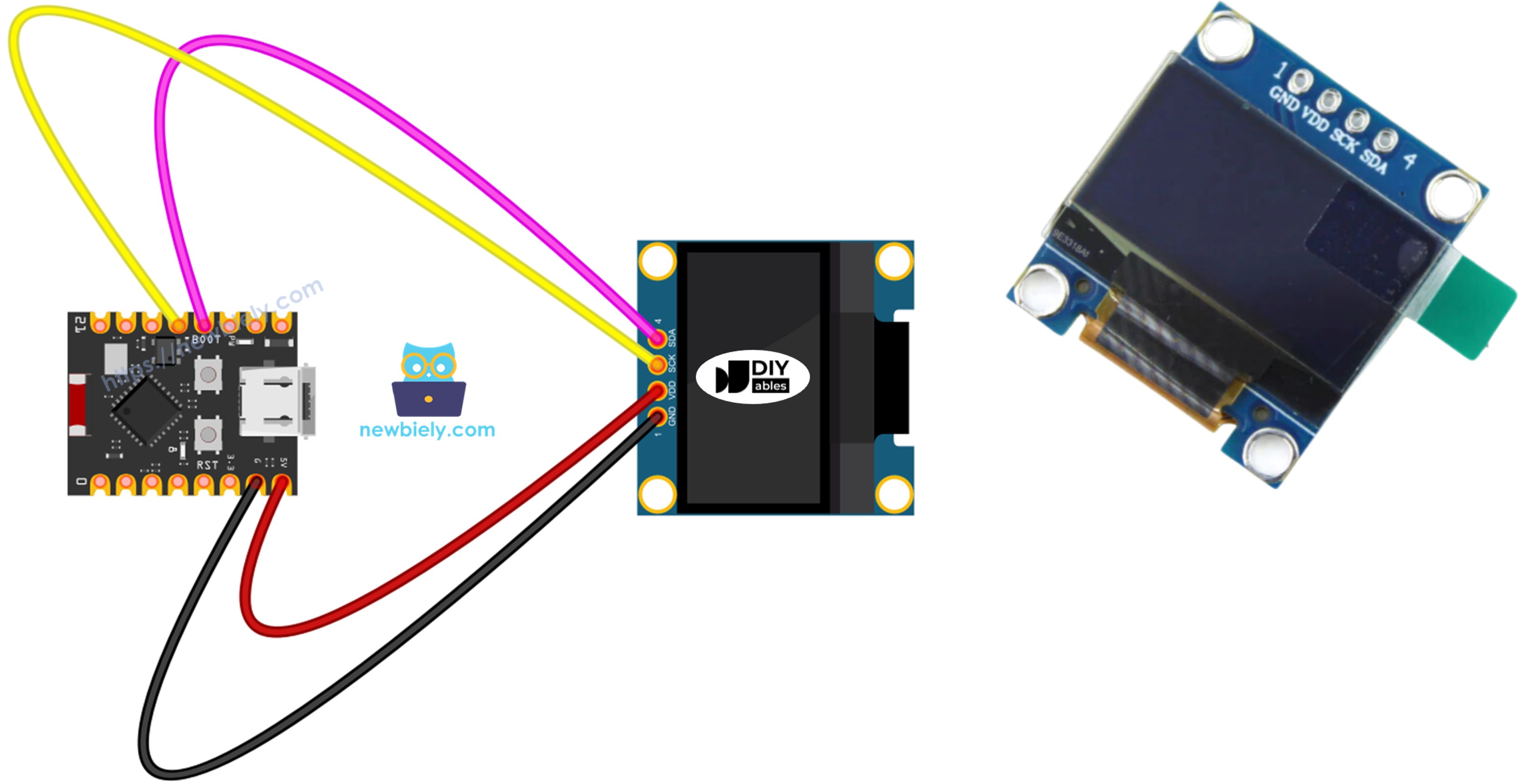
Here's how to connect your OLED 128x64 display to the ESP32 C3 Super Mini using the I2C interface:

  • Wiring diagram between ESP32 C3 Super Mini and OLED display using breadboard
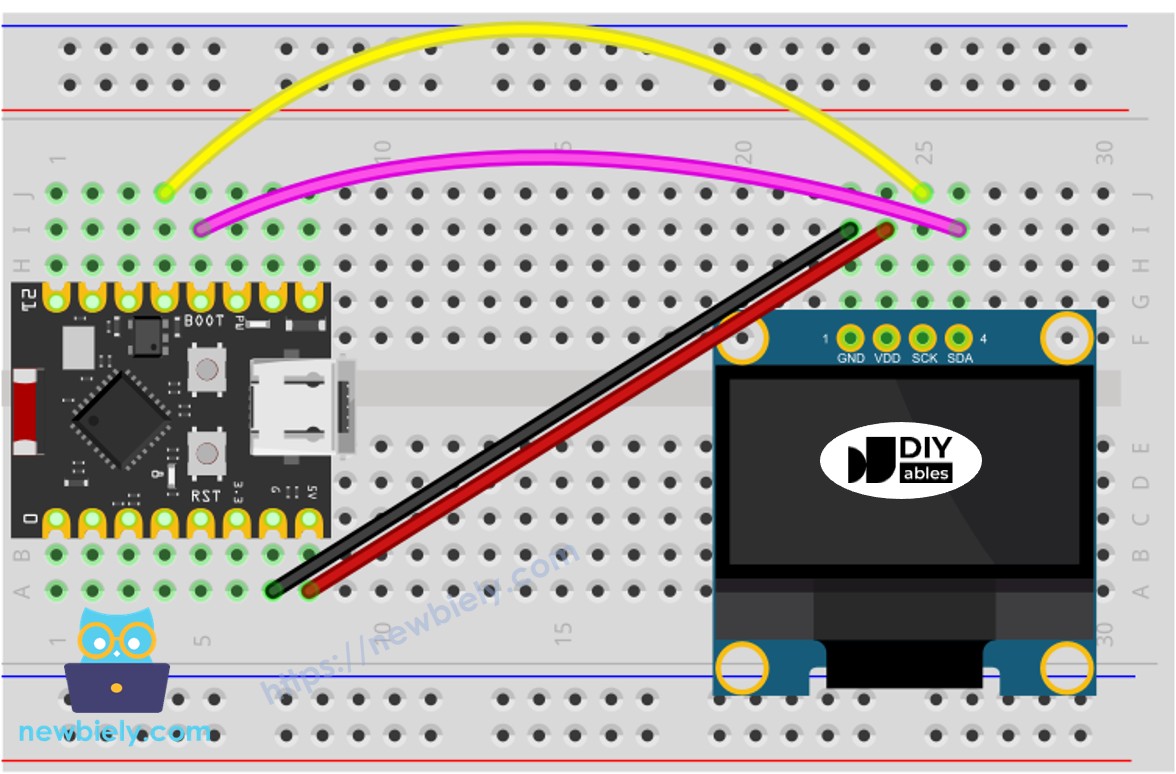
The wiring diagram between ESP32 C3 Super Mini OLED

This image is created using Fritzing. Click to enlarge image

  • Wiring diagram between ESP32 C3 Super Mini and OLED display directly
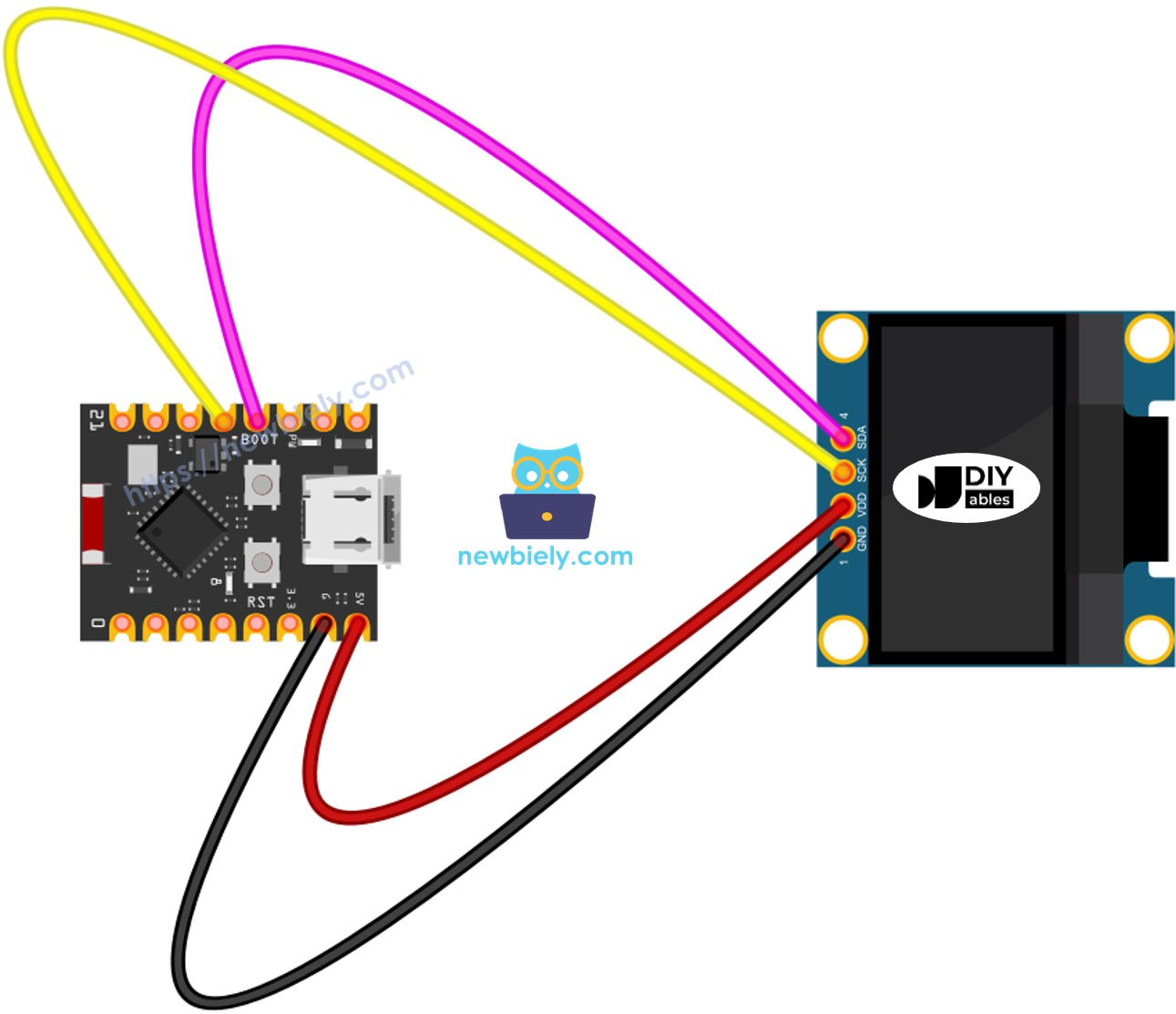
The wiring diagram between ESP32 C3 Super Mini OLED

This image is created using Fritzing. Click to enlarge image

Connection table for ESP32 C3 Super Mini and OLED display:

OLED Module ESP32 C3 Super Mini
Vin 3.3V
GND GND
SDA SDA (pin 11)
SCL SCL (pin 12)

How To Use OLED with ESP32 C3 Super Mini

Install SSD1306 OLED Library

Before programming your OLED display with ESP32 C3 Super Mini, install the required libraries:

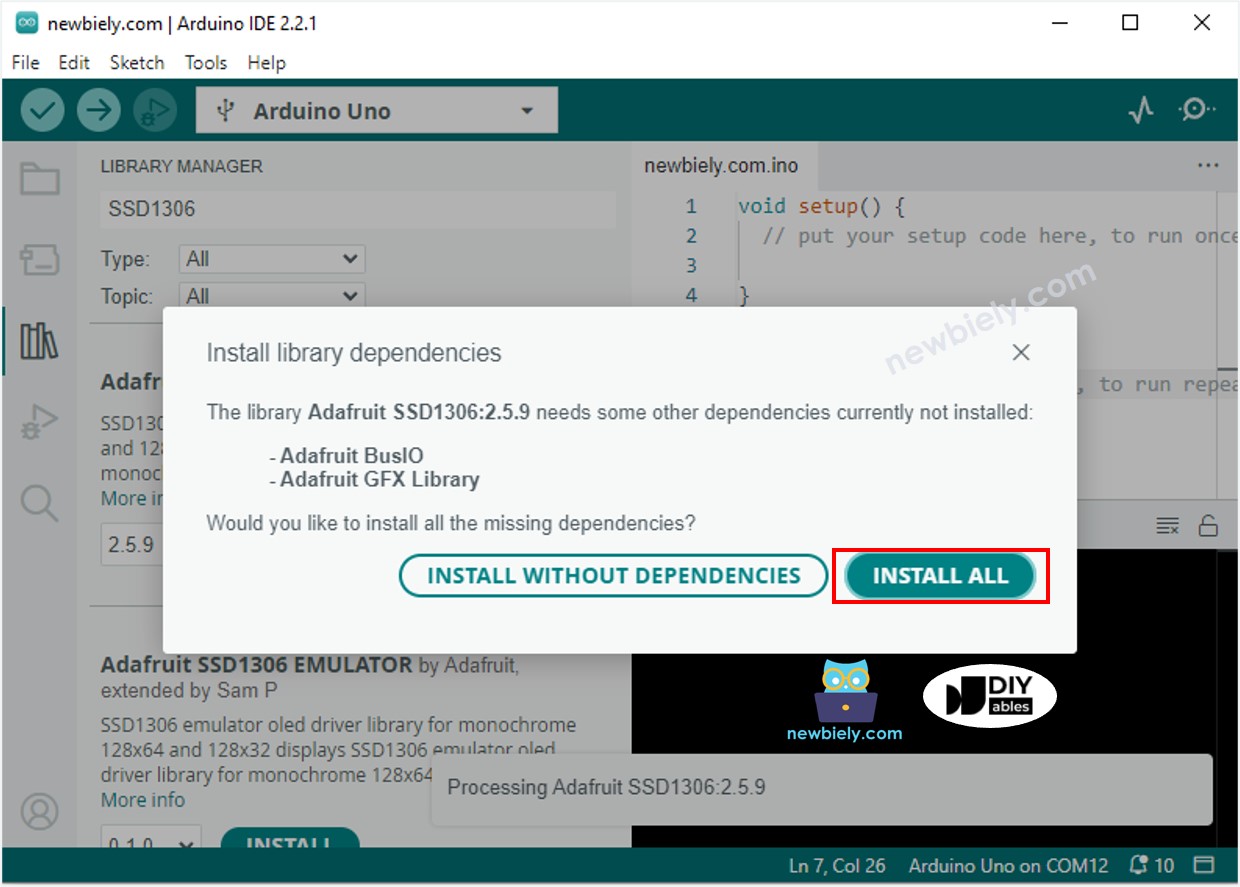
  • Open Library Manager: Click the Libraries icon in the left sidebar of Arduino IDE
  • Search for SSD1306: Type "SSD1306" in the search box
  • Install Adafruit SSD1306: Click Install next to the Adafruit SSD1306 library
  • Install dependencies: When prompted, click "Install All" to add Adafruit GFX library
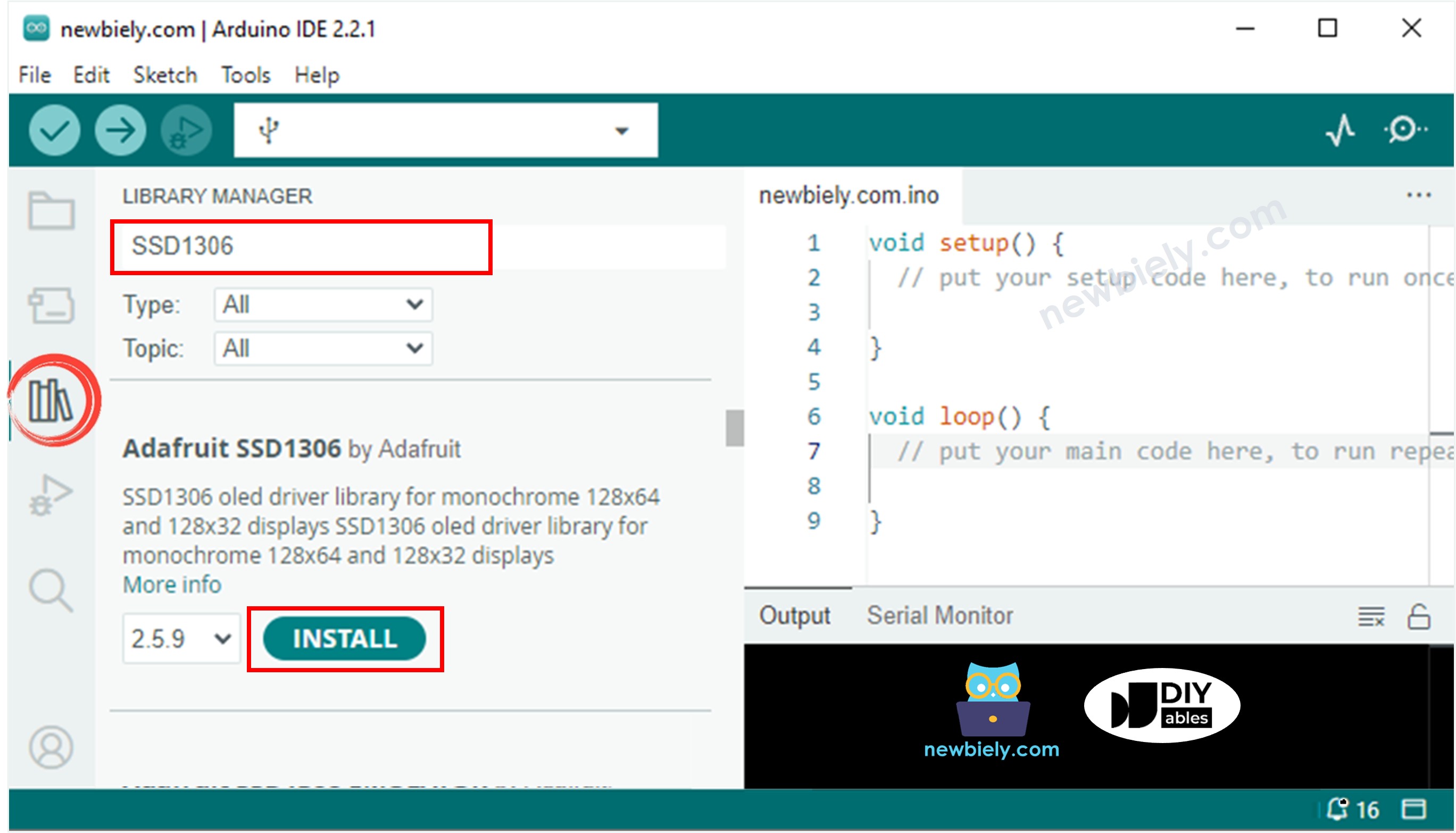
ESP32 C3 Super Mini OLED library
ESP32 C3 Super Mini Adafruit GFX sensor library

What these libraries do:

  • Adafruit_SSD1306 - Controls the OLED display hardware on ESP32 C3 Super Mini
  • Adafruit_GFX - Provides graphics functions for drawing on the OLED

Programming Your ESP32 C3 Super Mini OLED Display

Here's the basic code structure for using an OLED display with ESP32 C3 Super Mini:

Include libraries:

#include <Wire.h> #include <Adafruit_GFX.h> #include <Adafruit_SSD1306.h>

Define OLED dimensions:

#define OLED_WIDTH 128 // OLED display width in pixels #define OLED_HEIGHT 64 // OLED display height in pixels

Create OLED object:

// Create SSD1306 display object for I2C communication Adafruit_SSD1306 oled(OLED_WIDTH, OLED_HEIGHT, &Wire, -1);

Initialize OLED in setup():

// Initialize OLED display at I2C address 0x3C if (!oled.begin(SSD1306_SWITCHCAPVCC, 0x3C)) { Serial.println(F("SSD1306 allocation failed")); while (true); }

What this does:

  • SSD1306_SWITCHCAPVCC - Uses internal voltage generation
  • 0x3C - Default I2C address for most OLED displays (some use 0x3D)
  • Error handling stops the program if OLED initialization fails

ESP32 C3 Super Mini Code - Display Text on OLED

This example shows how to display text on your OLED screen using ESP32 C3 Super Mini:

/* * This ESP32 C3 Super Mini code was developed by newbiely.com * * This ESP32 C3 Super Mini code is made available for public use without any restriction * * For comprehensive instructions and wiring diagrams, please visit: * https://newbiely.com/tutorials/esp32-c3/esp32-c3-super-mini-oled-128x64-display */ #include <Wire.h> #include <Adafruit_GFX.h> #include <Adafruit_SSD1306.h> #define OLED_WIDTH 128 // OLED width, in pixels #define OLED_HEIGHT 64 // OLED height, in pixels // create an OLED display object connected to I2C Adafruit_SSD1306 oled(OLED_WIDTH, OLED_HEIGHT, &Wire, -1); void setup() { Serial.begin(9600); // initialize OLED display with I2C address 0x3C if (!oled.begin(SSD1306_SWITCHCAPVCC, 0x3C)) { Serial.println(F("failed to start SSD1306 OLED")); while (1); } delay(2000); // wait two seconds for initializing oled.clearDisplay(); // clear display oled.setTextSize(1); // set text size oled.setTextColor(WHITE); // set text color oled.setCursor(0, 10); // set position to display oled.println("esp32io.com"); // set text oled.display(); // display on OLED } void loop() { }

Essential OLED Text Functions

Key functions for displaying text on OLED with ESP32 C3 Super Mini:

  • oled.clearDisplay() - Clears all pixels on the OLED screen
  • oled.drawPixel(x, y, color) - Draws a single pixel at coordinates x, y
  • oled.setTextSize(n) - Sets text size (1-8, where 1 is smallest)
  • oled.setCursor(x, y) - Sets starting position for text
  • oled.setTextColor(WHITE) - Sets text color to white
  • oled.setTextColor(BLACK, WHITE) - Sets text color to black with white background
  • oled.println("message") - Prints text message on OLED
  • oled.println(number) - Prints number on OLED
  • oled.println(number, HEX) - Prints number in hexadecimal format
  • oled.display() - Updates the OLED screen with changes
  • oled.startscrollright(start, stop) - Scrolls text left to right
  • oled.startscrollleft(start, stop) - Scrolls text right to left
  • oled.startscrolldiagright(start, stop) - Scrolls diagonally bottom-left to top-right
  • oled.startscrolldiagleft(start, stop) - Scrolls diagonally bottom-right to top-left
  • oled.stopscroll() - Stops scrolling animation

Centering Text on Your OLED Display

Want to center text on your OLED 128x64 display? It requires calculating text dimensions.

For detailed instructions on centering text (horizontal and vertical):

Quick centering method:

  • Use getTextBounds() to calculate text width and height
  • Center horizontally: x = (OLED_WIDTH - textWidth) / 2
  • Center vertically: y = (OLED_HEIGHT - textHeight) / 2

ESP32 C3 Super Mini Code - Drawing Shapes on OLED

Create lines, circles, rectangles, and other shapes on your OLED display with ESP32 C3 Super Mini:

/* * This ESP32 C3 Super Mini code was developed by newbiely.com * * This ESP32 C3 Super Mini code is made available for public use without any restriction * * For comprehensive instructions and wiring diagrams, please visit: * https://newbiely.com/tutorials/esp32-c3/esp32-c3-super-mini-oled-128x64-display */ #include <Wire.h> #include <Adafruit_GFX.h> #include <Adafruit_SSD1306.h> #define OLED_WIDTH 128 // OLED width, in pixels #define OLED_HEIGHT 64 // OLED height, in pixels // create an OLED display object connected to I2C Adafruit_SSD1306 oled(OLED_WIDTH, OLED_HEIGHT, &Wire, -1); void setup() { Serial.begin(9600); // initialize OLED display with I2C address 0x3C if (!oled.begin(SSD1306_SWITCHCAPVCC, 0x3C)) { Serial.println(F("failed to start SSD1306 OLED")); while (1); } delay(2000); // wait two seconds for initializing oled.setCursor(0, 0); } void loop() { // draw a circle oled.clearDisplay(); oled.drawCircle(20, 35, 20, WHITE); oled.display(); delay(1000); // fill a circle oled.clearDisplay(); oled.fillCircle(20, 35, 20, WHITE); oled.display(); delay(1000); // draw a triangle oled.clearDisplay(); oled.drawTriangle(30, 15, 0, 60, 60, 60, WHITE); oled.display(); delay(1000); // fill a triangle oled.clearDisplay(); oled.fillTriangle(30, 15, 0, 60, 60, 60, WHITE); oled.display(); delay(1000); // draw a rectangle oled.clearDisplay(); oled.drawRect(0, 15, 60, 40, WHITE); oled.display(); delay(1000); // fill a rectangle oled.clearDisplay(); oled.fillRect(0, 15, 60, 40, WHITE); oled.display(); delay(1000); // draw a round rectangle oled.clearDisplay(); oled.drawRoundRect(0, 15, 60, 40, 8, WHITE); oled.display(); delay(1000); // fill a round rectangle oled.clearDisplay(); oled.fillRoundRect(0, 15, 60, 40, 8, WHITE); oled.display(); delay(1000); }

Common drawing functions for ESP32 C3 Super Mini OLED:

  • drawLine(x1, y1, x2, y2, color) - Draws a line between two points
  • drawRect(x, y, width, height, color) - Draws rectangle outline
  • fillRect(x, y, width, height, color) - Draws filled rectangle
  • drawCircle(x, y, radius, color) - Draws circle outline
  • fillCircle(x, y, radius, color) - Draws filled circle
  • drawTriangle(x1, y1, x2, y2, x3, y3, color) - Draws triangle outline
  • fillTriangle(x1, y1, x2, y2, x3, y3, color) - Draws filled triangle
  • drawRoundRect(x, y, width, height, radius, color) - Draws rounded rectangle

ESP32 C3 Super Mini Code - Display Images on OLED

Display custom images, logos, or icons on your OLED by converting them to bitmap arrays.

Converting Images to Bitmap Arrays

Steps to convert images for ESP32 C3 Super Mini OLED:

  • Choose your image file (JPG, PNG, GIF, etc.)
  • Open the online converter: image2cpp
  • Set canvas size to 128x64 (match your OLED resolution)
  • Select "Arduino code" as output format
  • Choose "Vertical - 1 bit per pixel" for drawing mode
  • Click generate and copy the bitmap array

Example conversion process:
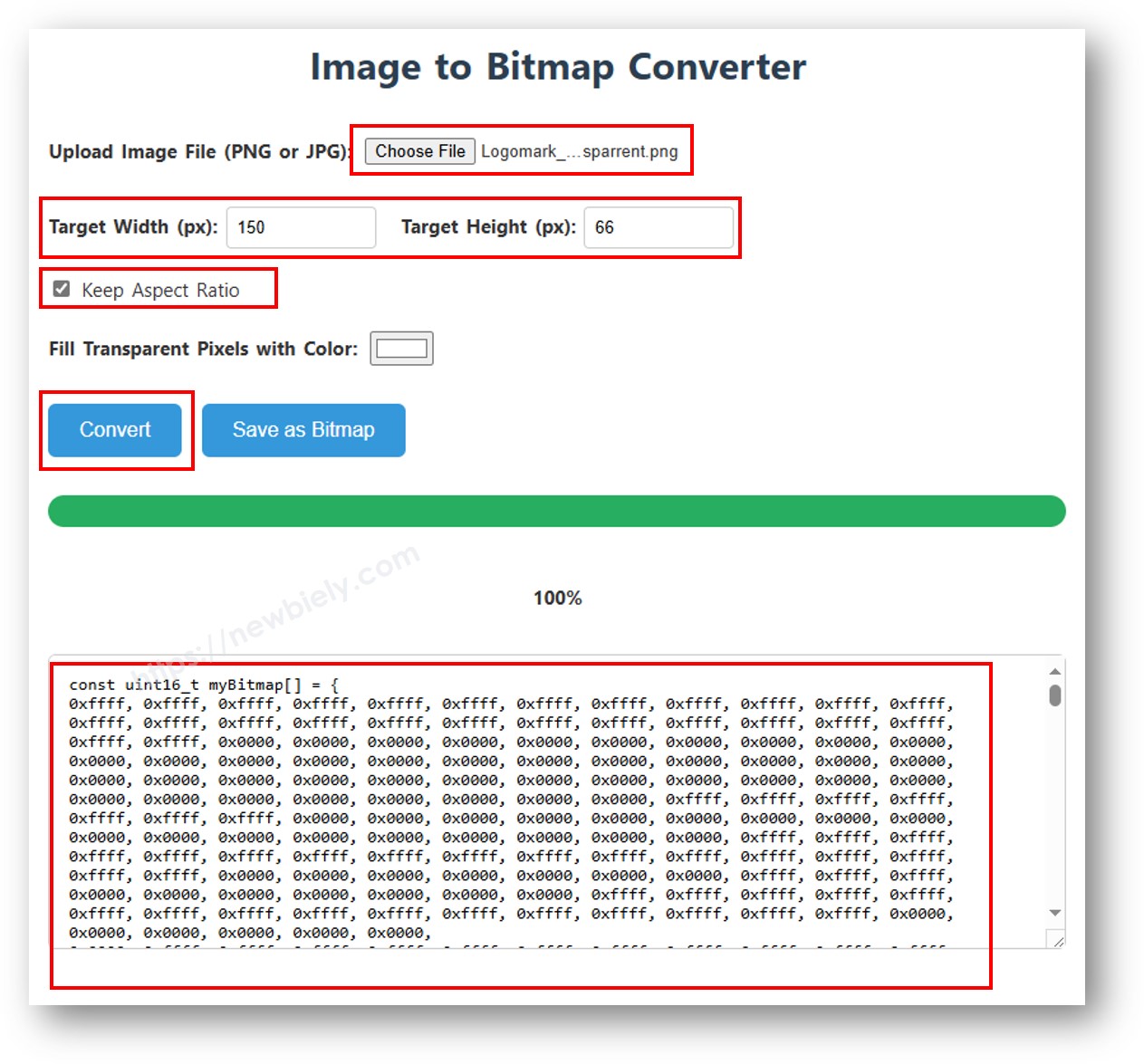
image to bitmap array

Using Bitmap in ESP32 C3 Super Mini Code

Replace the ArduinoIcon array in this code with your generated bitmap:

/* * This ESP32 C3 Super Mini code was developed by newbiely.com * * This ESP32 C3 Super Mini code is made available for public use without any restriction * * For comprehensive instructions and wiring diagrams, please visit: * https://newbiely.com/tutorials/esp32-c3/esp32-c3-super-mini-oled-128x64-display */ #include <Wire.h> #include <Adafruit_GFX.h> #include <Adafruit_SSD1306.h> #define OLED_WIDTH 128 // OLED width, in pixels #define OLED_HEIGHT 64 // OLED height, in pixels // create an OLED display object connected to I2C Adafruit_SSD1306 oled(OLED_WIDTH, OLED_HEIGHT, &Wire, -1); // bitmap of arduino-icon image const unsigned char arduino_icon [] PROGMEM = { // 'arduino-icon', 128x64px 0xff, 0xff, 0xff, 0xff, 0xff, 0xff, 0xff, 0xff, 0xff, 0xff, 0xff, 0xff, 0xff, 0xff, 0xff, 0xff, 0xff, 0xff, 0xff, 0xff, 0xff, 0xff, 0xff, 0xff, 0xff, 0xff, 0xff, 0xff, 0xff, 0xff, 0xff, 0xff, 0xff, 0xff, 0xfe, 0x00, 0x07, 0xff, 0xff, 0xff, 0xff, 0xff, 0xff, 0x80, 0x01, 0xff, 0xff, 0xff, 0xff, 0xff, 0xe0, 0x00, 0x00, 0xff, 0xff, 0xff, 0xff, 0xff, 0xfc, 0x00, 0x00, 0x3f, 0xff, 0xff, 0xff, 0xff, 0x80, 0x00, 0x00, 0x1f, 0xff, 0xff, 0xff, 0xff, 0xe0, 0x00, 0x00, 0x07, 0xff, 0xff, 0xff, 0xfe, 0x00, 0x00, 0x00, 0x07, 0xff, 0xff, 0xff, 0xff, 0x80, 0x00, 0x00, 0x01, 0xff, 0xff, 0xff, 0xfc, 0x00, 0x00, 0x00, 0x03, 0xff, 0xff, 0xff, 0xff, 0x00, 0x00, 0x00, 0x00, 0xff, 0xff, 0xff, 0xf0, 0x00, 0x00, 0x00, 0x00, 0xff, 0xff, 0xff, 0xfc, 0x00, 0x00, 0x00, 0x00, 0x3f, 0xff, 0xff, 0xe0, 0x00, 0x00, 0x00, 0x00, 0x3f, 0xff, 0xff, 0xf0, 0x00, 0x00, 0x00, 0x00, 0x1f, 0xff, 0xff, 0xc0, 0x00, 0x00, 0x00, 0x00, 0x1f, 0xff, 0xff, 0xe0, 0x00, 0x00, 0x00, 0x00, 0x0f, 0xff, 0xff, 0x80, 0x00, 0x00, 0x00, 0x00, 0x0f, 0xff, 0xff, 0xc0, 0x00, 0x00, 0x00, 0x00, 0x07, 0xff, 0xff, 0x00, 0x00, 0x00, 0x00, 0x00, 0x03, 0xff, 0xff, 0x80, 0x00, 0x00, 0x00, 0x00, 0x03, 0xff, 0xfe, 0x00, 0x00, 0x00, 0x00, 0x00, 0x01, 0xff, 0xfe, 0x00, 0x00, 0x00, 0x00, 0x00, 0x01, 0xff, 0xfc, 0x00, 0x00, 0xff, 0xf0, 0x00, 0x00, 0xff, 0xfc, 0x00, 0x00, 0x3f, 0xfc, 0x00, 0x00, 0xff, 0xfc, 0x00, 0x03, 0xff, 0xfc, 0x00, 0x00, 0x7f, 0xf8, 0x00, 0x00, 0xff, 0xff, 0x00, 0x00, 0xff, 0xf8, 0x00, 0x0f, 0xff, 0xff, 0x00, 0x00, 0x3f, 0xf0, 0x00, 0x03, 0xff, 0xff, 0xc0, 0x00, 0x7f, 0xf0, 0x00, 0x1f, 0xff, 0xff, 0xc0, 0x00, 0x1f, 0xe0, 0x00, 0x0f, 0xff, 0xff, 0xe0, 0x00, 0x7f, 0xf0, 0x00, 0x7f, 0xff, 0xff, 0xe0, 0x00, 0x0f, 0xc0, 0x00, 0x1f, 0xff, 0xff, 0xf8, 0x00, 0x3f, 0xe0, 0x00, 0xff, 0xff, 0xff, 0xf8, 0x00, 0x07, 0x80, 0x00, 0x7f, 0xff, 0xff, 0xfc, 0x00, 0x1f, 0xe0, 0x00, 0xff, 0xff, 0xff, 0xfc, 0x00, 0x03, 0x80, 0x00, 0xff, 0xff, 0xff, 0xfc, 0x00, 0x1f, 0xc0, 0x01, 0xff, 0xff, 0xff, 0xfe, 0x00, 0x03, 0x00, 0x01, 0xff, 0xff, 0xff, 0xfe, 0x00, 0x1f, 0xc0, 0x03, 0xff, 0xff, 0xff, 0xff, 0x00, 0x00, 0x00, 0x03, 0xff, 0xff, 0xff, 0xff, 0x00, 0x0f, 0xc0, 0x03, 0xff, 0xff, 0xff, 0xff, 0x80, 0x00, 0x00, 0x07, 0xff, 0xf0, 0x7f, 0xff, 0x00, 0x0f, 0xc0, 0x07, 0xff, 0xff, 0xff, 0xff, 0xc0, 0x00, 0x00, 0x0f, 0xff, 0xf0, 0x7f, 0xff, 0x80, 0x0f, 0x80, 0x07, 0xff, 0xff, 0xff, 0xff, 0xe0, 0x00, 0x00, 0x1f, 0xff, 0xf0, 0x7f, 0xff, 0x80, 0x07, 0x80, 0x0f, 0xff, 0xff, 0xff, 0xff, 0xf0, 0x00, 0x00, 0x3f, 0xff, 0xf0, 0x7f, 0xff, 0xc0, 0x07, 0x80, 0x0f, 0xff, 0xff, 0xff, 0xff, 0xf8, 0x00, 0x00, 0x7f, 0xff, 0xf0, 0x7f, 0xff, 0xc0, 0x07, 0x80, 0x0f, 0xfe, 0x00, 0x00, 0xff, 0xfc, 0x00, 0x00, 0xff, 0xfc, 0x00, 0x03, 0xff, 0xc0, 0x07, 0x80, 0x0f, 0xfe, 0x00, 0x00, 0xff, 0xfe, 0x00, 0x01, 0xff, 0xfc, 0x00, 0x01, 0xff, 0xc0, 0x07, 0x80, 0x0f, 0xfe, 0x00, 0x00, 0xff, 0xff, 0x00, 0x03, 0xff, 0xfc, 0x00, 0x01, 0xff, 0xc0, 0x07, 0x80, 0x0f, 0xfe, 0x00, 0x00, 0xff, 0xff, 0x00, 0x03, 0xff, 0xfc, 0x00, 0x01, 0xff, 0xc0, 0x07, 0x80, 0x0f, 0xfe, 0x00, 0x00, 0xff, 0xff, 0x00, 0x03, 0xff, 0xfc, 0x00, 0x01, 0xff, 0xc0, 0x07, 0x80, 0x0f, 0xff, 0xff, 0xff, 0xff, 0xfe, 0x00, 0x01, 0xff, 0xff, 0xe0, 0x7f, 0xff, 0xc0, 0x07, 0x80, 0x0f, 0xff, 0xff, 0xff, 0xff, 0xfc, 0x00, 0x00, 0xff, 0xff, 0xf0, 0x7f, 0xff, 0xc0, 0x07, 0x80, 0x0f, 0xff, 0xff, 0xff, 0xff, 0xfc, 0x00, 0x00, 0xff, 0xff, 0xf0, 0x7f, 0xff, 0xc0, 0x07, 0x80, 0x0f, 0xff, 0xff, 0xff, 0xff, 0xf8, 0x00, 0x00, 0x7f, 0xff, 0xf0, 0x7f, 0xff, 0xc0, 0x07, 0x80, 0x0f, 0xff, 0xff, 0xff, 0xff, 0xf0, 0x00, 0x00, 0x3f, 0xff, 0xf0, 0x7f, 0xff, 0x80, 0x07, 0x80, 0x07, 0xff, 0xff, 0xff, 0xff, 0xe0, 0x00, 0x00, 0x1f, 0xff, 0xf0, 0x7f, 0xff, 0x80, 0x07, 0xc0, 0x07, 0xff, 0xff, 0xff, 0xff, 0xc0, 0x00, 0x00, 0x0f, 0xff, 0xff, 0xff, 0xff, 0x80, 0x0f, 0xc0, 0x03, 0xff, 0xff, 0xff, 0xff, 0x80, 0x00, 0x00, 0x07, 0xff, 0xff, 0xff, 0xff, 0x00, 0x0f, 0xc0, 0x03, 0xff, 0xff, 0xff, 0xff, 0x00, 0x00, 0x00, 0x03, 0xff, 0xff, 0xff, 0xff, 0x00, 0x0f, 0xe0, 0x01, 0xff, 0xff, 0xff, 0xfe, 0x00, 0x03, 0x00, 0x01, 0xff, 0xff, 0xff, 0xfe, 0x00, 0x1f, 0xe0, 0x00, 0xff, 0xff, 0xff, 0xfc, 0x00, 0x07, 0x80, 0x00, 0xff, 0xff, 0xff, 0xfc, 0x00, 0x1f, 0xe0, 0x00, 0x7f, 0xff, 0xff, 0xf0, 0x00, 0x0f, 0xc0, 0x00, 0x3f, 0xff, 0xff, 0xf8, 0x00, 0x3f, 0xf0, 0x00, 0x3f, 0xff, 0xff, 0xe0, 0x00, 0x1f, 0xe0, 0x00, 0x1f, 0xff, 0xff, 0xf0, 0x00, 0x3f, 0xf8, 0x00, 0x1f, 0xff, 0xff, 0x80, 0x00, 0x3f, 0xe0, 0x00, 0x07, 0xff, 0xff, 0xe0, 0x00, 0x7f, 0xf8, 0x00, 0x0f, 0xff, 0xff, 0x00, 0x00, 0x7f, 0xf8, 0x00, 0x03, 0xff, 0xff, 0xc0, 0x00, 0x7f, 0xfc, 0x00, 0x03, 0xff, 0xf8, 0x00, 0x00, 0xff, 0xfc, 0x00, 0x00, 0xff, 0xff, 0x00, 0x00, 0xff, 0xfe, 0x00, 0x00, 0x7f, 0xe0, 0x00, 0x01, 0xff, 0xfe, 0x00, 0x00, 0x1f, 0xf8, 0x00, 0x01, 0xff, 0xfe, 0x00, 0x00, 0x00, 0x00, 0x00, 0x03, 0xff, 0xff, 0x00, 0x00, 0x00, 0x00, 0x00, 0x03, 0xff, 0xff, 0x00, 0x00, 0x00, 0x00, 0x00, 0x07, 0xff, 0xff, 0x80, 0x00, 0x00, 0x00, 0x00, 0x03, 0xff, 0xff, 0x80, 0x00, 0x00, 0x00, 0x00, 0x0f, 0xff, 0xff, 0xc0, 0x00, 0x00, 0x00, 0x00, 0x07, 0xff, 0xff, 0xc0, 0x00, 0x00, 0x00, 0x00, 0x1f, 0xff, 0xff, 0xe0, 0x00, 0x00, 0x00, 0x00, 0x0f, 0xff, 0xff, 0xe0, 0x00, 0x00, 0x00, 0x00, 0x7f, 0xff, 0xff, 0xf8, 0x00, 0x00, 0x00, 0x00, 0x3f, 0xff, 0xff, 0xf8, 0x00, 0x00, 0x00, 0x01, 0xff, 0xff, 0xff, 0xfe, 0x00, 0x00, 0x00, 0x00, 0x7f, 0xff, 0xff, 0xfc, 0x00, 0x00, 0x00, 0x03, 0xff, 0xff, 0xff, 0xff, 0x00, 0x00, 0x00, 0x00, 0xff, 0xff, 0xff, 0xff, 0x00, 0x00, 0x00, 0x0f, 0xff, 0xff, 0xff, 0xff, 0xc0, 0x00, 0x00, 0x03, 0xff, 0xff, 0xff, 0xff, 0xc0, 0x00, 0x00, 0x3f, 0xff, 0xff, 0xff, 0xff, 0xf0, 0x00, 0x00, 0x0f, 0xff, 0xff, 0xff, 0xff, 0xf0, 0x00, 0x01, 0xff, 0xff, 0xff, 0xff, 0xff, 0xfe, 0x00, 0x00, 0x3f, 0xff, 0xff, 0xff, 0xff, 0xff, 0x00, 0x0f, 0xff, 0xff, 0xff, 0xff, 0xff, 0xff, 0xc0, 0x03, 0xff, 0xff, 0xff, 0xff, 0xff, 0xff, 0xff, 0xff, 0xff, 0xff, 0xff, 0xff, 0xff, 0xff, 0xff, 0xff, 0xff, 0xff, 0xff, 0xff, 0xff, 0xff, 0xff, 0xff, 0xff, 0xff, 0xff, 0xff, 0xff, 0xff, 0xff, 0xff, 0xff, 0xff, 0xff, 0xff, 0xff, 0xff, 0xff, 0xff, 0xff, 0xff, 0xff, 0xff, 0xff, 0xff, 0xff, 0xff, 0xff, 0xff, 0xff, 0xff, 0xff, 0xff, 0xff, 0xff, 0xff, 0xff, 0xff, 0xff, 0xff, 0xff, 0xff, 0xff, 0xff, 0xff, 0xff }; void setup() { Serial.begin(9600); // initialize OLED display with I2C address 0x3C if (!oled.begin(SSD1306_SWITCHCAPVCC, 0x3C)) { Serial.println(F("failed to start SSD1306 OLED")); while (1); } delay(2000); // wait two seconds for initializing oled.setCursor(0, 0); } void loop() { oled.clearDisplay(); // display bitmap oled.drawBitmap(0, 0, arduino_icon, 128, 64, WHITE); oled.display(); delay(1000); // invert display oled.invertDisplay(1); delay(1000); }

Tips for best image results on OLED:

  • Use high-contrast black and white images
  • Resize images to 128x64 before converting
  • Simple graphics work better than complex photos
  • Smaller images use less ESP32 C3 Super Mini memory
  • Test different dithering settings for photo quality

OLED Troubleshooting Guide

If your OLED display isn't working with ESP32 C3 Super Mini, try these solutions:

Display Not Turning On

Check your wiring:

  • VCC connects to 3.3V on ESP32 C3 Super Mini
  • GND connects to GND
  • SDA connects to SDA (pin 11) on ESP32 C3 Super Mini
  • SCL connects to SCL (pin 12) on ESP32 C3 Super Mini
  • Look for loose connections or damaged wires

Verify the driver chip:

  • Most OLED displays use SSD1306 driver
  • Check your module specifications
  • Some use SH1106 or other drivers (need different libraries)

Finding Your OLED's I2C Address

Most OLED displays use I2C address 0x3C, but some use 0x3D. Run this scanner code on your ESP32 C3 Super Mini:

// I2C address scanner program #include <Wire.h> void setup() { Wire.begin(); Serial.begin(9600); Serial.println("I2C Scanner"); } void loop() { byte error, address; int nDevices; Serial.println("Scanning..."); nDevices = 0; for (address = 1; address < 127; address++ ) { Wire.beginTransmission(address); error = Wire.endTransmission(); if (error == 0) { Serial.print("I2C device found at address 0x"); if (address < 16) Serial.print("0"); Serial.print(address, HEX); Serial.println(" !"); nDevices++; } else if (error == 4) { Serial.print("Unknown error at address 0x"); if (address < 16) Serial.print("0"); Serial.println(address, HEX); } } if (nDevices == 0) Serial.println("No I2C devices found"); else Serial.println("done"); delay(5000); // wait 5 seconds for next scan }

Upload and check Serial Monitor - you should see:

Newbiely | Arduino IDE 2.3.8
──
File
Edit
Sketch
Tools
Help
ESP32C3 Dev Module
Newbiely.ino
···
8 Serial.println("Hello World!");
Output
Serial Monitor
Message (Enter to send message to 'ESP32C3 Dev Module' on 'COM15')
New Line
9600 baud
Scanning for I2C devices... I2C device found at address 0x3C Scan complete. 1 device(s) found. Scanning for I2C devices... I2C device found at address 0x3C Scan complete. 1 device(s) found. Scanning for I2C devices... I2C device found at address 0x3C Scan complete. 1 device(s) found.
Ln 11, Col 1
ESP32C3 Dev Module on COM15
2

If your address differs, update your code:

// Change 0x3C to your detected address (e.g., 0x3D) if (!oled.begin(SSD1306_SWITCHCAPVCC, 0x3D)) {

Common Issues and Solutions

"SSD1306 allocation failed" error:

  • Wrong I2C address - run scanner code above
  • Incorrect wiring to ESP32 C3 Super Mini
  • Faulty OLED module - try different display

Random pixels on screen:

  • Add oled.clearDisplay() at start of loop
  • Always call oled.display() to update screen

Text too small or large:

  • Use oled.setTextSize(2) or higher for larger text
  • Size range: 1 (smallest) to 8 (largest)

Display upside down:

  • Physically rotate the OLED, or
  • Add oled.setRotation(2) after initialization

Screen not updating:

  • Ensure you call oled.display() after drawing
  • Check I2C connections to ESP32 C3 Super Mini

Detailed Instructions

  • New to ESP32 C3 Super Mini? Complete our Getting Started with ESP32 C3 Super Mini tutorial first to set up your development environment.
  • Wire the OLED: Connect OLED to ESP32 C3 Super Mini (VCC→3.3V, GND→GND, SDA→pin 11, SCL→pin 12)
  • Install libraries: Open Library Manager and install Adafruit SSD1306 and Adafruit GFX
  • Connect ESP32 C3 Super Mini: Plug your board into computer via USB cable
  • Select board: Choose "ESP32 C3 Super Mini" and correct COM port in Arduino IDE
  • Upload code: Copy an example above, paste into Arduino IDE, and click Upload
  • Verify display: OLED should light up and show your programmed content
  • Pro Tip: Always call oled.display() after drawing to update the OLED screen

Application Ideas

Put your new OLED display skills to work with these ESP32 C3 Super Mini project ideas:

  • Temperature monitor - Display DHT22 sensor readings on OLED with ESP32 C3 Super Mini
  • WiFi status display - Show connection status and IP address on OLED
  • Smart doorbell - Display visitor notifications on OLED 128x64 screen
  • Weather station - Show temperature, humidity, and forecast on OLED
  • System monitor - Display ESP32 C3 Super Mini CPU usage and uptime
  • Countdown timer - Create visual timer on OLED display
  • Music player interface - Show song info and playback controls
  • Game display - Build simple games like Snake or Pong on OLED

Video

Watch the video below for a visual walkthrough of this project.

Challenge Yourself

Ready to take your ESP32 C3 Super Mini OLED skills further? Try these challenges:

  • Easy: Display live temperature readings from a DHT11 sensor on your OLED
  • Easy: Create scrolling text that displays a long message across the OLED screen
  • Medium: Build an animated bouncing ball that moves around the OLED display
  • Medium: Design a simple menu system with multiple pages on your OLED
  • Advanced: Create a real-time graph that plots sensor data on the OLED 128x64 screen
  • Advanced: Display QR codes generated by your ESP32 C3 Super Mini on the OLED
  • Expert: Build a complete weather station with icons and forecasts on OLED display

Language References

※ OUR MESSAGES

  • As freelancers, We are AVAILABLE for HIRE. See how to outsource your project to us
  • Please feel free to share the link of this tutorial. However, Please do not use our content on any other websites. We invested a lot of effort and time to create the content, please respect our work!