
ESP32 C3 Super Mini - Button
Learning to use a button with your ESP32 C3 Super Mini is one of the most important skills for any Arduino project. This tutorial makes it easy for beginners to understand button wiring, coding, and common troubleshooting.
In this tutorial, you'll learn:
- What a push button is and how it works with ESP32 C3 Super Mini
- How to wire buttons (PCB-mount and panel-mount) to your ESP32
- How to write code to read button states and detect presses
- How to avoid common beginner mistakes like floating inputs and debounce issues
※ NOTE THAT:
Before presenting about the button, We would like to notice that there are two common mistakes that newbies usually meet:
- The floating input problem:
- Symptom: When connecting a button to ESP32 C3 Super Mini input pin, the state of the input pin is random and not matched with the button's pressing state.
- Cause: The button pin is NOT used a pull-down resistor or a pull-up resistor.
- Solution: ⇒ Use a pull-down resistor or a pull-up resistor on the input pin. The detail will be described later in this tutorial.
- Symptom: The code on ESP32 C3 Super Mini reads the state of the button and identifies the pressing event by detecting the state change (HIGH to LOW, or LOW to HIGH). When the button is actually pressed only one time, ESP32 C3 Super Mini code detects multiple presses rather than once.
- Cause: Due to mechanical and physical characteristics, when you do a single press on a button, the state of the input pin is quickly toggled between LOW and HIGH several times rather than once
- Solution: ⇒ Debounce. The detail will be described in ESP32 C3 Super Mini - Button - Debounce tutorial.
The chattering phenomenon causes the malfunction in only some kinds of application that needs to detect exactly number of the pressing. In some kind of application, it is harmless.
Hardware Preparation
Or you can buy the following kits:
| 1 | × | DIYables Sensor Kit (18 sensors/displays) |
Additionally, some of these links are for products from our own brand, DIYables .
Overview of Button
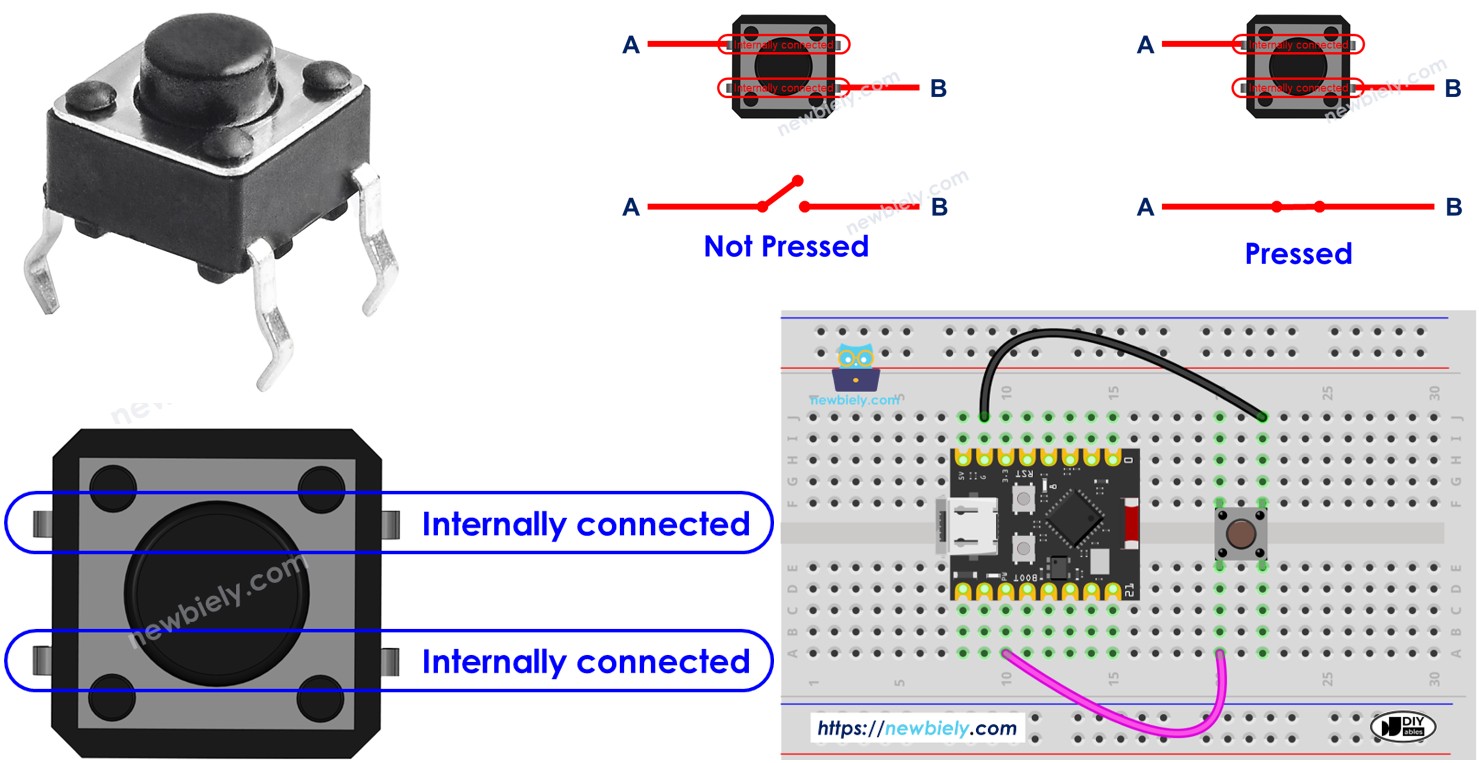
A push button is a simple switch that closes when pressed and opens when released.
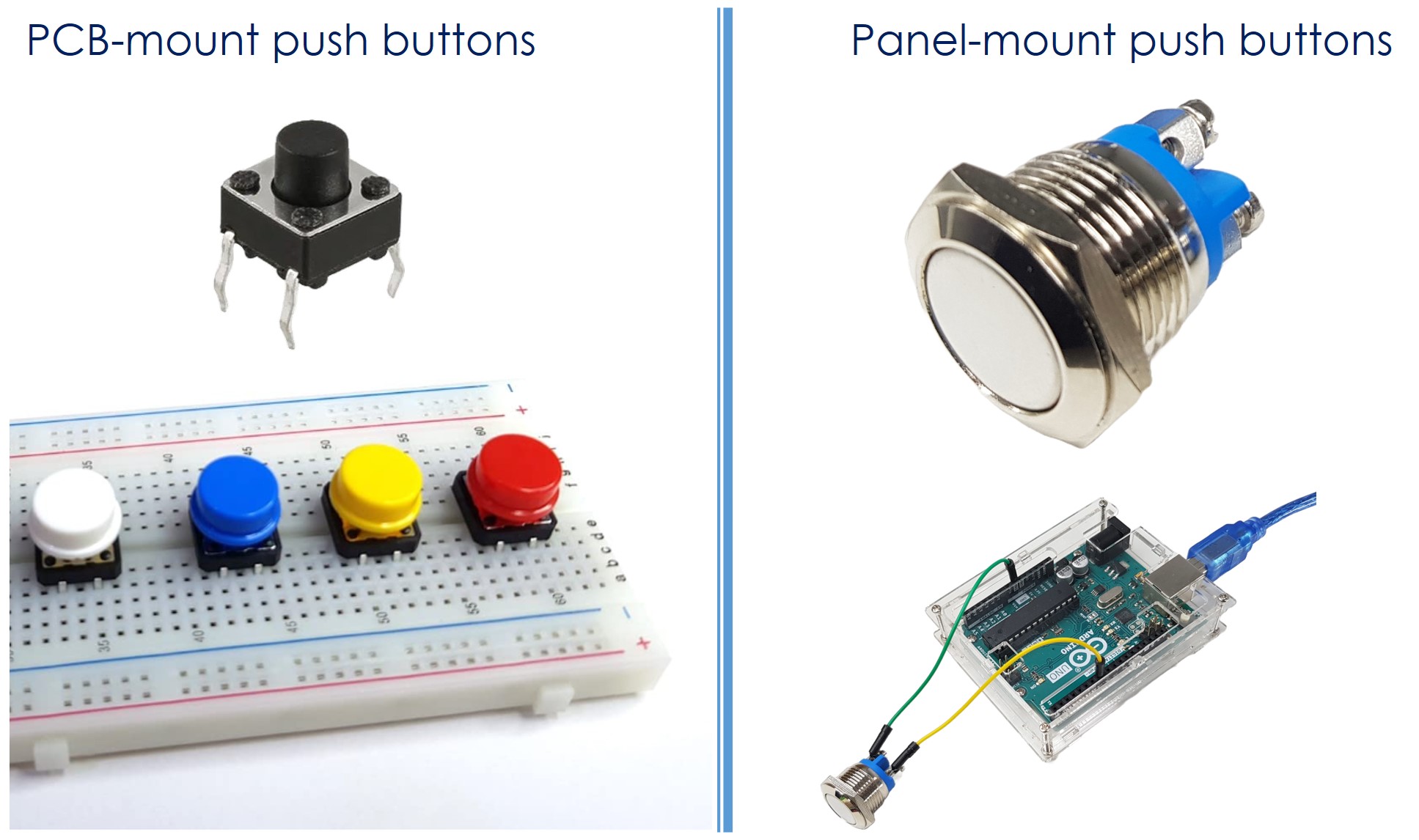
Common types of buttons:
- PCB-mount push buttons (perfect for breadboards)
- Panel-mount push buttons (for project enclosures)
- Button modules (with built-in pull-down resistors)
Why buttons are useful:
- Simple user input for ESP32 C3 Super Mini projects
- Control LEDs, motors, and other outputs
- Trigger actions and events in your code
Button Pinout
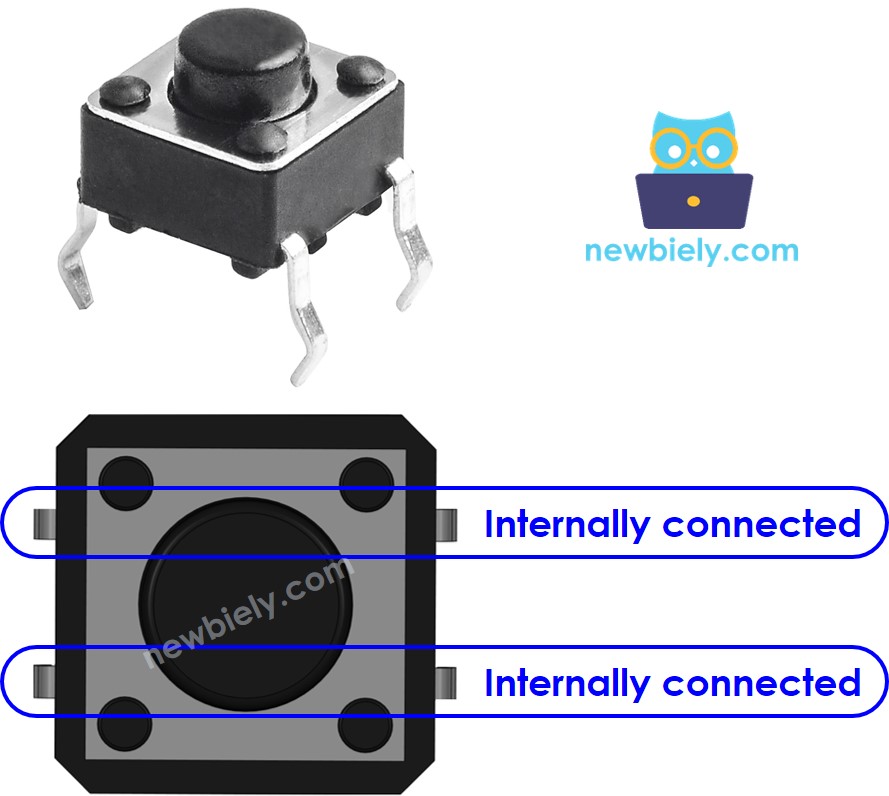
PCB-Mount Button (4 pins)
A PCB-mount button has four pins internally connected in pairs.
Key points:
- Only two pins are needed (from different pairs)
- Four wiring options exist, but they reduce to two practical methods
- Four pins provide stability against pressing force

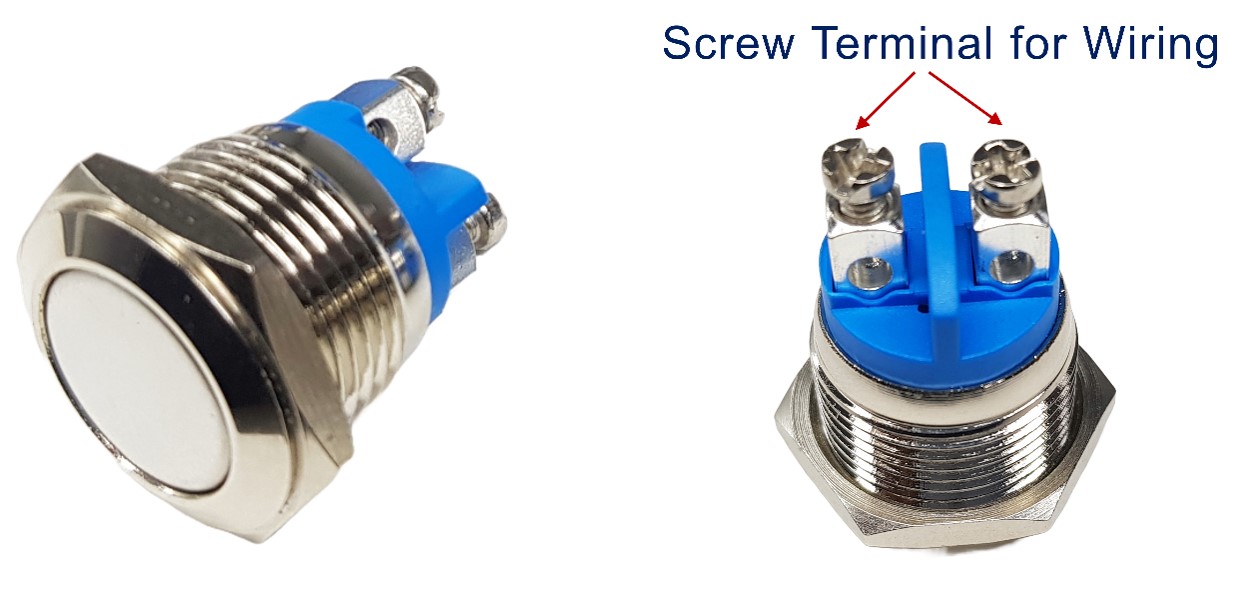
Panel-Mount Button (2 pins)
A panel-mount button has two simple pins.
Button Module (3 pins)
The button module includes a built-in pull-down resistor for reliable operation.
- GND: Connect to ground
- VCC: Connect to 3.3V power supply
- OUT: Connect to ESP32 C3 Super Mini digital input pin (outputs LOW when not pressed, HIGH when pressed)
How Button Works
The button connects or disconnects two pins based on its state.
- When pressed: Pin A connects to Pin B
- When released: Pin A disconnects from Pin B
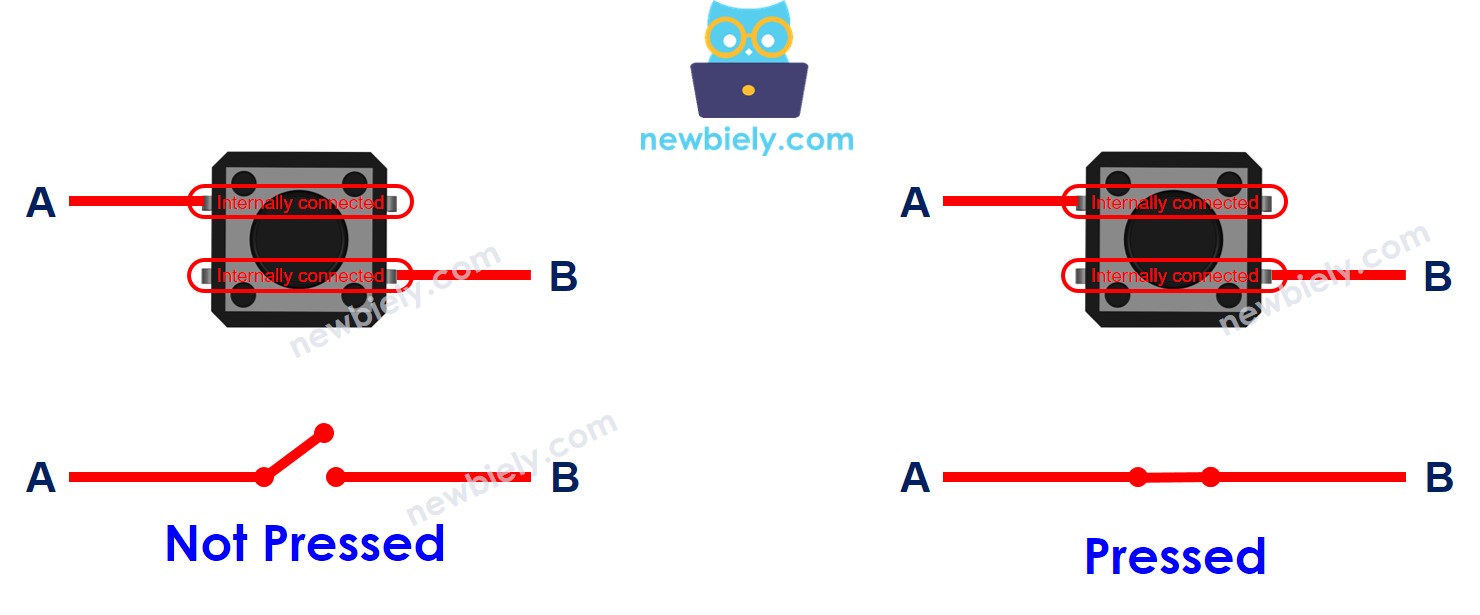
ESP32 C3 Super Mini - Button
One button pin connects to an ESP32 C3 Super Mini digital input pin, the other connects to VCC or GND.
Reading button state:
- Your ESP32 code reads the input pin state
- The state tells you if the button is pressed or not
Input State and Pressing State
The relationship between input pin state and button pressing depends on your wiring configuration.
Two common wiring methods:
- Button connected to VCC:
- Requires a pull-down resistor
- Button pressed = HIGH signal
- Button released = LOW signal
- Requires a pull-up resistor
- Button pressed = LOW signal
- Button released = HIGH signal
※ NOTE THAT:
If neither a pull-down resistor nor a pull-up resistor is used, the state of the input pin is random between HIGH or LOW (unstable, unfixed) when the button is NOT pressed. This is called The "floating input problem". This results in the malfunction.
Beginner tip:
- Use the ESP32's internal pull-up resistor (no external components needed)
- Simplifies wiring and reduces hardware requirements
Wiring Diagram between Button and ESP32 C3 Super Mini
Here's how to wire different button types to your ESP32 C3 Super Mini.
Wiring with PCB-mount button:
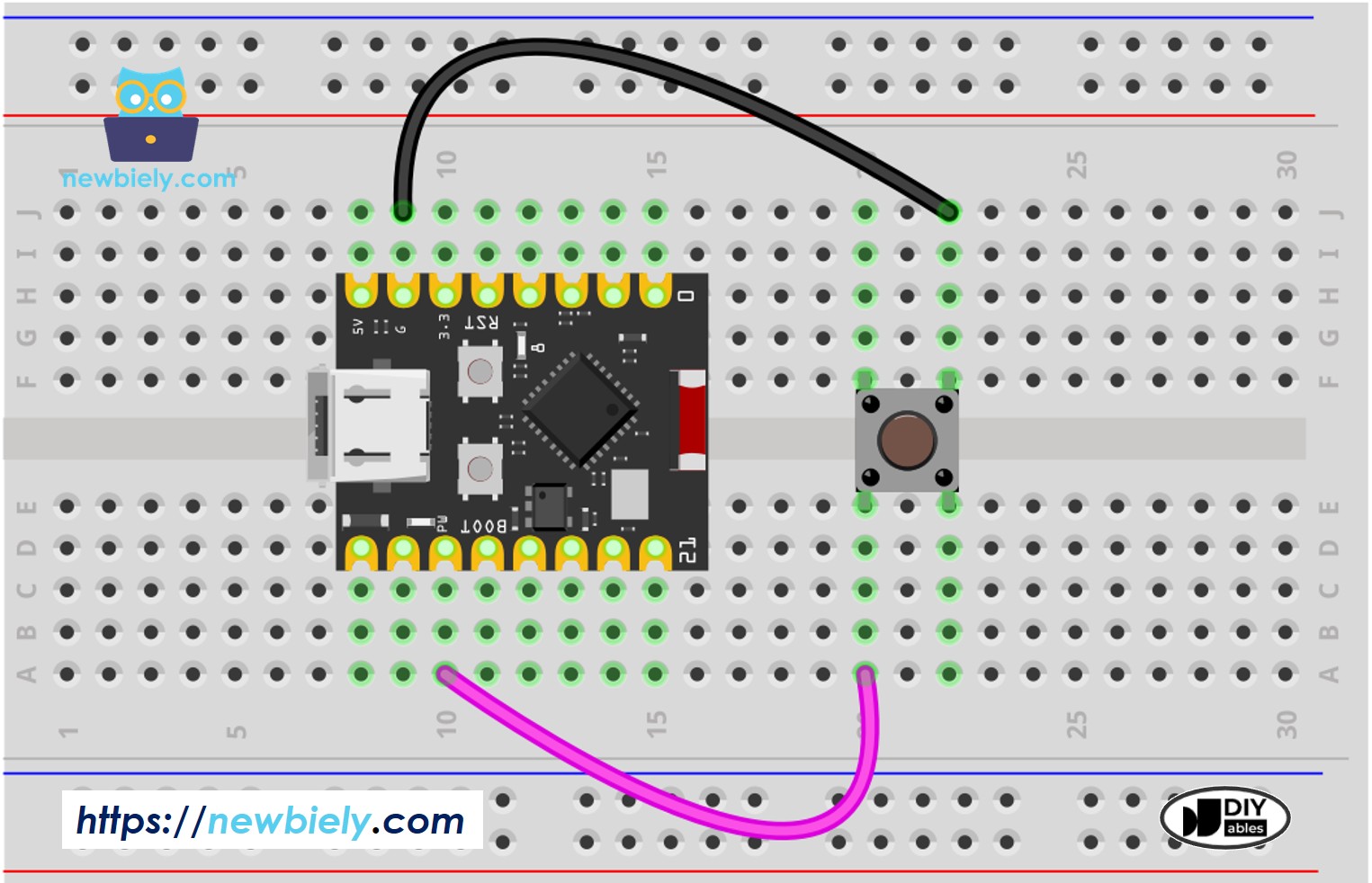
This image is created using Fritzing. Click to enlarge image
| Button Pin | ESP32 C3 Super Mini Pin |
|---|---|
| Pin A | GPIO7 |
| Pin B | GND |
Wiring with panel-mount button:
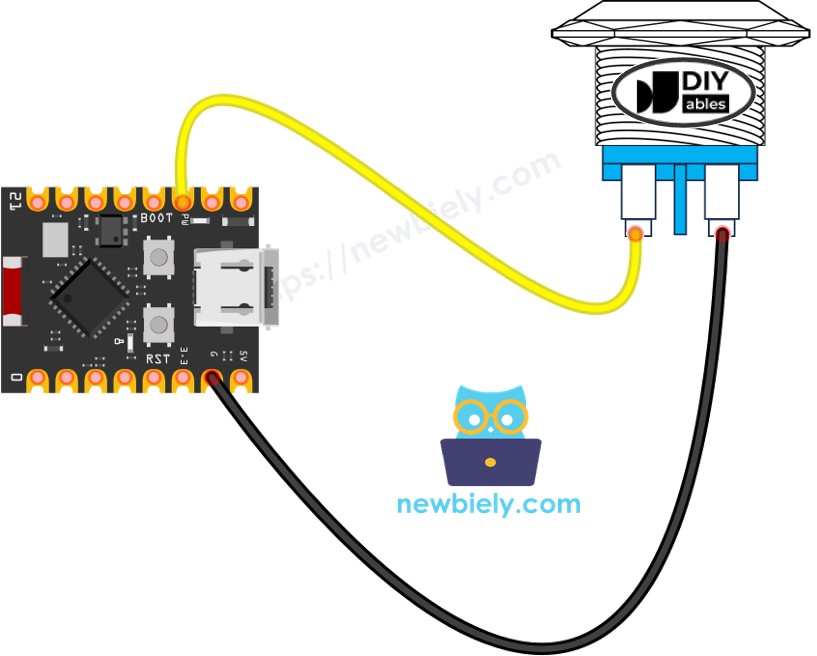
This image is created using Fritzing. Click to enlarge image
| Button Pin | ESP32 C3 Super Mini Pin |
|---|---|
| Pin 1 | GPIO7 |
| Pin 2 | GND |
ESP32 C3 Super Mini Code
This code reads and displays the button state on the Serial Monitor.
What the code does:
- Configures pin D2 as an input with internal pull-up resistor
- Continuously reads the button state
- Prints the state (HIGH or LOW) to Serial Monitor
- Updates every 100 milliseconds
Detailed Instructions
- New to Arduino? Start with our ESP32 C3 Super Mini Getting Started guide first.
- Wire the components: Follow the wiring diagram shown above.
- Connect your board: Plug the ESP32 C3 Super Mini into your computer via USB cable.
- Open Arduino IDE: Launch the software on your computer.
- Select your board: Choose ESP32 C3 Super Mini and the correct COM port.
- Upload the code: Copy the code below and paste it into Arduino IDE.
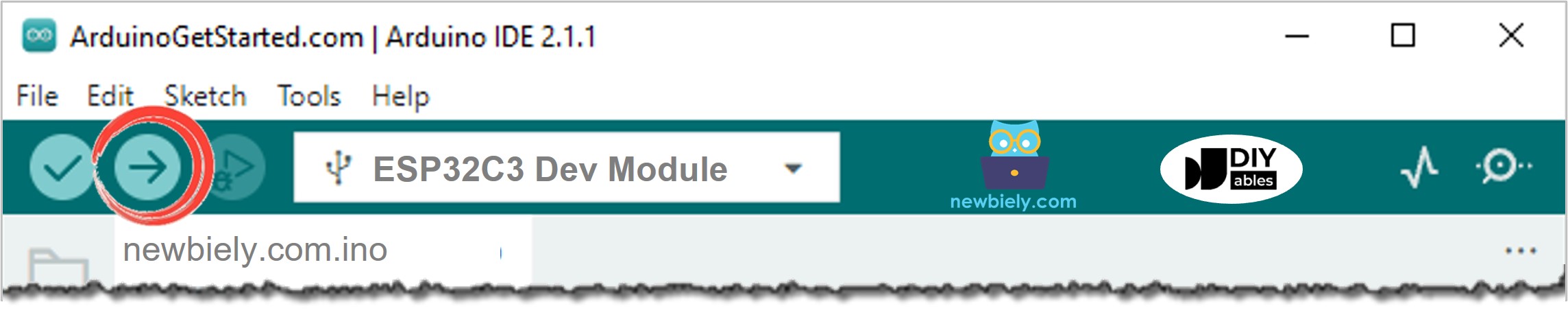
- Compile and upload: Click the Upload button in Arduino IDE.
- Open Serial Monitor: Click the Serial Monitor icon in Arduino IDE.
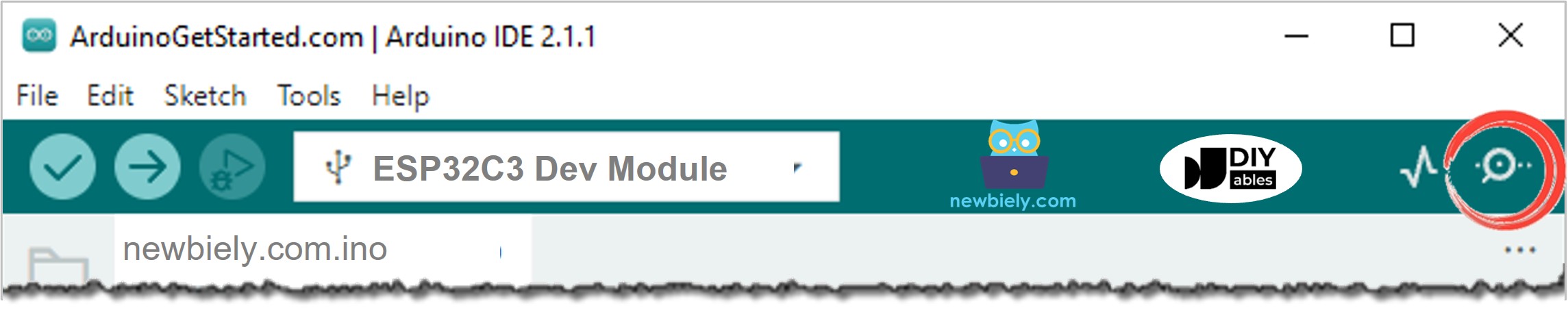
- Test the button: Press and release the button several times.
- View results: Check the Serial Monitor output.
- Pro Tip: Keep the Serial Monitor baud rate set to 115200 to match your code.
Serial Monitor Output
Note: 1 represents HIGH (button released), 0 represents LOW (button pressed).
Line-by-line Code Explanation
The above ESP32 C3 Super Mini code contains line-by-line explanation. Please read the comments in the code!
Modifying ESP32 C3 Super Mini Code
Let's enhance the code to detect press and release events instead of just reading states.
What this modified code does:
- Detects when the button is pressed (state changes from HIGH to LOW)
- Detects when the button is released (state changes from LOW to HIGH)
- Prints clear messages for each event
- Tracks previous state to identify changes
Detailed Instructions
- Setup environment: If this is the first time you use ESP32 C3 Super Mini, see how to setup environment for ESP32 C3 Super Mini on Arduino IDE.
- Modify the code: Replace your previous code with the code below.
- Upload code: Compile and upload to your ESP32 C3 Super Mini board.
- Open Serial Monitor: View the output window.
- Test: Press and release the button.
- Observe results: Check the Serial Monitor for event messages.
Serial Monitor Output
※ NOTE THAT:
- The Serial Monitor may print several pressed and released events even though you did only one press and release. This is a normal behavior of the button. This behavior is called the "chattering phenomenon". In some application, we need a method to eliminate it. You can learn more in ESP32 C3 Super Mini - Button Debounce tutorial.
- To make it simple for beginners, especially when using multiple buttons, we created a library, called ezButton. You can learn about ezButton library here.
- When using the button module, set the pin as pinMode(BUTTON_PIN, INPUT). The module outputs LOW when unpressed and HIGH when pressed.
Application/Project Ideas
Here are creative ways to use buttons with your ESP32 C3 Super Mini projects.
- Control LED brightness or colors with button presses
- Create a digital counter or scoreboard
- Build a quiz buzzer system with multiple buttons
- Design a security system with button-activated alarms
- Make a music player controller (play, pause, skip)
- Develop a smart home light switch replacement
Video Section
Watch the video below for a visual walkthrough of this project.
Challenge Yourself
Take your button skills to the next level with these challenges.
- Easy: Add an LED that turns on when the button is pressed
- Easy: Count how many times the button is pressed and display the count
- Medium: Create a long-press detector that triggers different actions for short vs long presses
- Medium: Implement proper debouncing to eliminate multiple press detections
- Advanced: Build a combination lock using multiple buttons with a secret code sequence
Additional Knowledge
Understanding when to use pull-up or pull-down resistors is essential for reliable ESP32 C3 Super Mini projects.
When to use pull-up/pull-down resistors:
- SHOULD use: Sensors with two states (open/closed) need resistors to create clear HIGH/LOW signals
- Examples: push-button, switch, magnetic contact switch (door sensor)
- SHOULD NOT use: Sensors that output voltage levels (LOW/HIGH) don't need resistors
- Examples: motion sensor, touch sensor