ESP32 C3 Super Mini - Button LED

This tutorial shows you how to use the ESP32 C3 Super Mini with a button to control an LED. Whether you're syncing the LED to button presses or toggling states, you'll learn both methods with simple code examples.

In this tutorial, you'll learn:

ESP32 C3 Super Mini - Button LED

We'll cover two distinct use cases for ESP32 C3 Super Mini button LED control:

Use-Case 1 - Synchronized LED and button states:

Use-Case 2 - Toggle LED state with button presses:

In Use-Case 2, button debouncing is critical. We'll demonstrate the difference between ESP32 C3 Super Mini code with and without debouncing so you can see why it matters.

Hardware Preparation

1×ESP32 C3 Super Mini
1×USB Cable Type-A to Type-C (for USB-A PC)
1×USB Cable Type-C to Type-C (for USB-C PC)
1×Breadboard-mount Button with Cap
1×Breadboard-mount Button Kit
1×Panel-mount Push Button
1×Push Button Module
1×LED Kit
1×LED (red)
1×LED Module
1×220Ω Resistor
1×Breadboard
1×Jumper Wires
1×Optionally, 5V Power Adapter for ESP32 C3 Super Mini

Or you can buy the following kits:

1×DIYables Sensor Kit (18 sensors/displays)
Disclosure: Some of the links provided in this section are Amazon affiliate links. We may receive a commission for any purchases made through these links at no additional cost to you.
Additionally, some of these links are for products from our own brand, DIYables .

Buy Note: Use the LED Module for easier wiring. It includes an integrated resistor.

Overview of LED and Button

LEDs and buttons are fundamental components for ESP32 C3 Super Mini projects.

For complete beginner guides, check these tutorials:

Key points about this setup:

  • LEDs require current-limiting resistors (220 ohm recommended)
  • Buttons can be wired with internal or external pull-up/pull-down resistors
  • ESP32 C3 Super Mini supports both digital input (button) and output (LED) simultaneously
  • Combining buttons and LEDs creates interactive projects perfect for beginners

Wiring Diagram

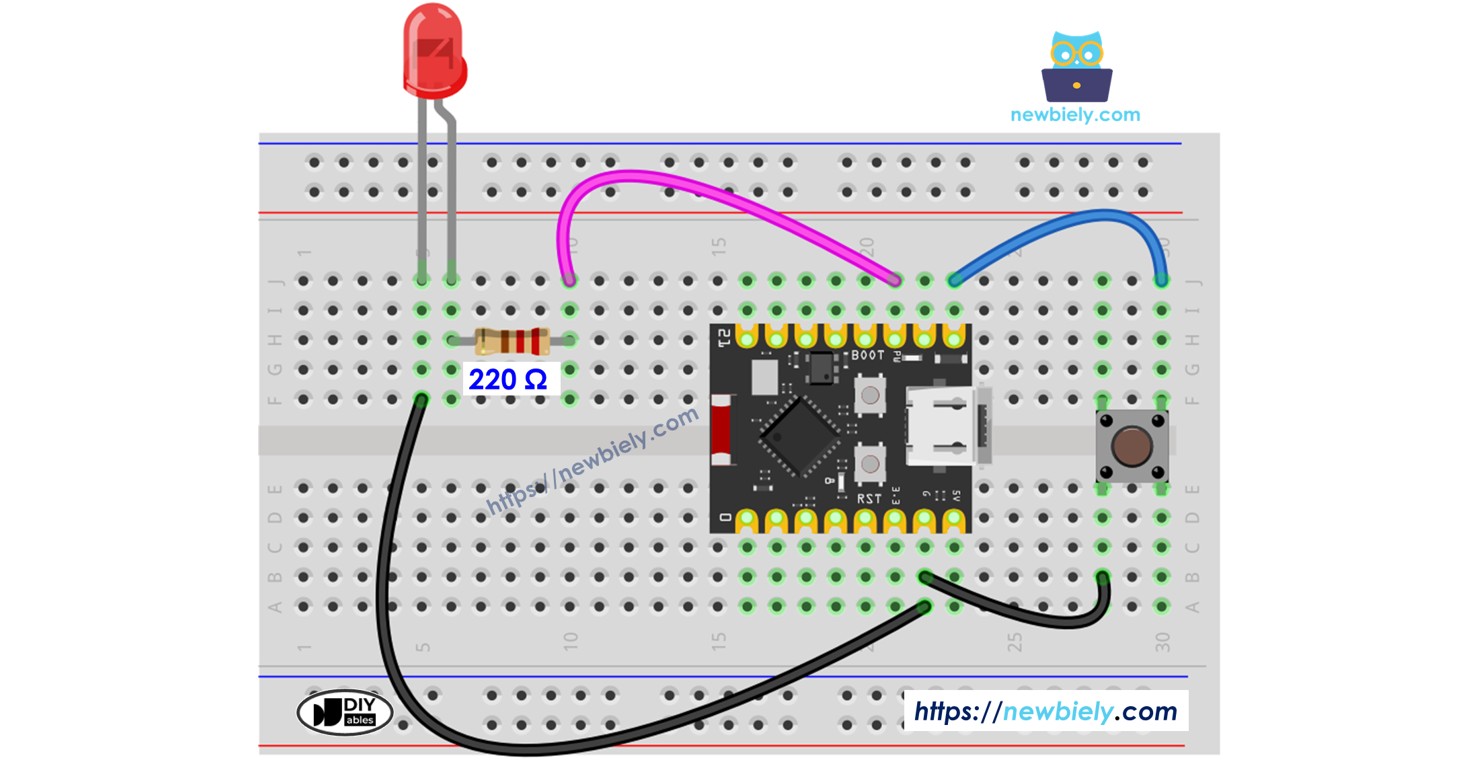
Connect the button and LED to your ESP32 C3 Super Mini following the diagram below.
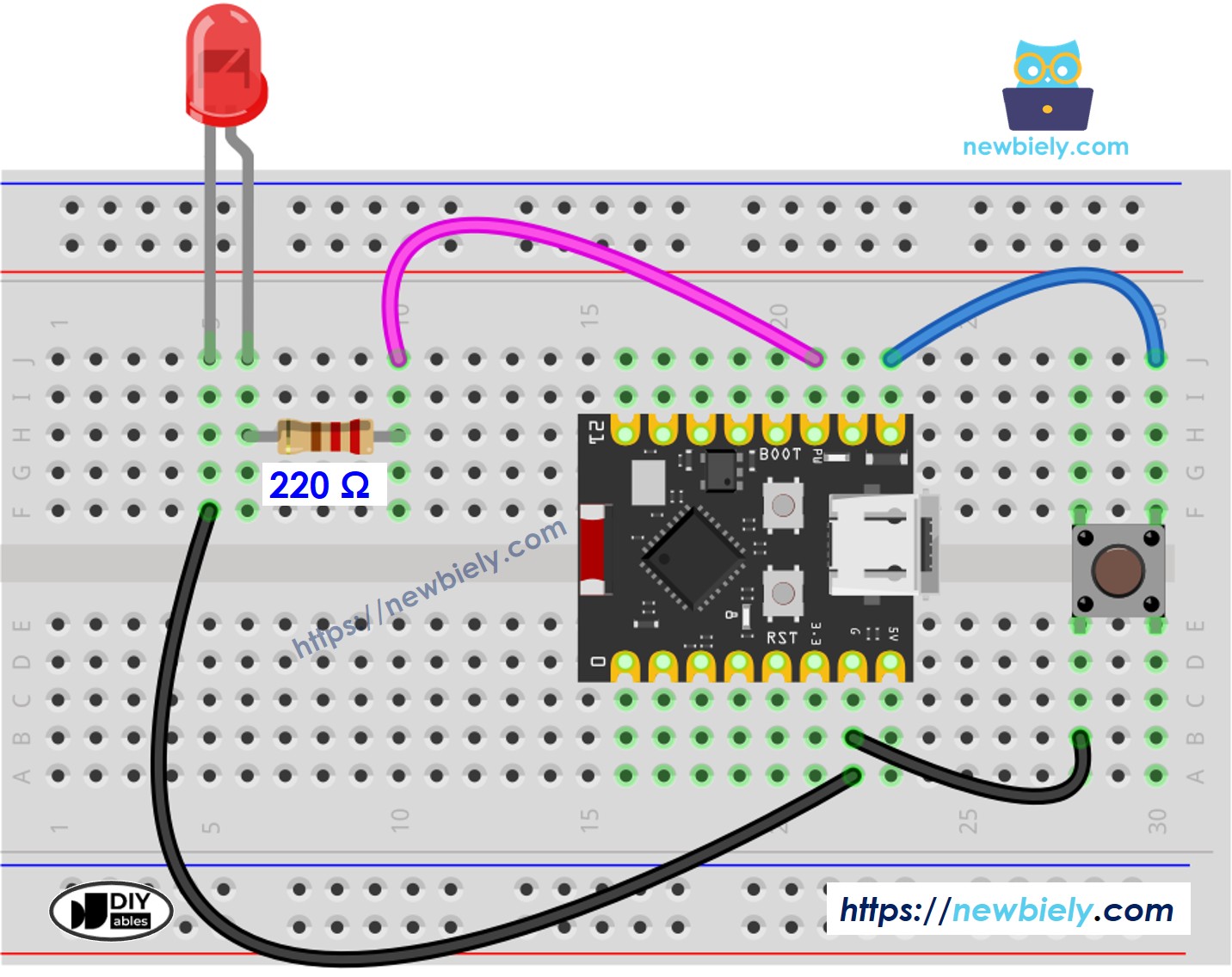
The wiring diagram between ESP32 C3 Super Mini Button LED

This image is created using Fritzing. Click to enlarge image

Wiring connections:

Component Pin ESP32 C3 Super Mini Pin
Button One terminal D5
Button Other terminal GND
LED Anode (long leg) D7
LED Cathode (short leg) 220Ω resistor to GND

Important notes:

  • Note: Ensure the LED is connected through the 220 ohm resistor to prevent damage
  • Note: The button uses the internal pull-up resistor on D5

Application 1 - The LED state is in sync with the button state

This ESP32 C3 Super Mini application demonstrates direct LED control with a button.

What this code does:

  • Reads the button state continuously on ESP32 C3 Super Mini
  • Turns the LED ON immediately when button is pressed
  • Turns the LED OFF immediately when button is released
  • Creates a simple, real-time synchronized response

ESP32 C3 Super Mini Code

/* * This ESP32 C3 Super Mini code was developed by newbiely.com * * This ESP32 C3 Super Mini code is made available for public use without any restriction * * For comprehensive instructions and wiring diagrams, please visit: * https://newbiely.com/tutorials/esp32-c3/esp32-c3-super-mini-button-led */ #define BUTTON_PIN D5 // The ESP32 C3 SuperMini pin connected to the button #define LED_PIN D7 // The ESP32 C3 SuperMini pin connected to the LED int button_state = 0; // variable for reading the pushbutton status void setup() { // Configure the LED pin as a digital output pinMode(LED_PIN, OUTPUT); // initialize the button pin as an pull-up input (HIGH when the switch is open and LOW when the switch is closed) pinMode(BUTTON_PIN, INPUT_PULLUP); } void loop() { // read the state of the pushbutton value: button_state = digitalRead(BUTTON_PIN); // control LED according to the state of button if(button_state == LOW) // If button is pressing digitalWrite(LED_PIN, HIGH); // turn on LED else // otherwise, button is not pressing digitalWrite(LED_PIN, LOW); // turn off LED }

Detailed Instructions

  • New to ESP32 C3 Mini? Complete our Getting Started with ESP32 C3 Mini tutorial first to set up your development environment.
  • Wire the components: Follow the wiring diagram shown above.
  • Connect ESP32 C3 Super Mini: Use a USB Type-C cable to connect to your computer.
  • Setup Arduino IDE: If this is the first time you use ESP32 C3 Super Mini, see how to setup environment for ESP32 C3 Super Mini on Arduino IDE.
  • Select your board: Choose the ESP32 C3 Super Mini board and its COM port in Arduino IDE.
  • Upload the code: Copy the code above and upload it to your ESP32 C3 Super Mini.
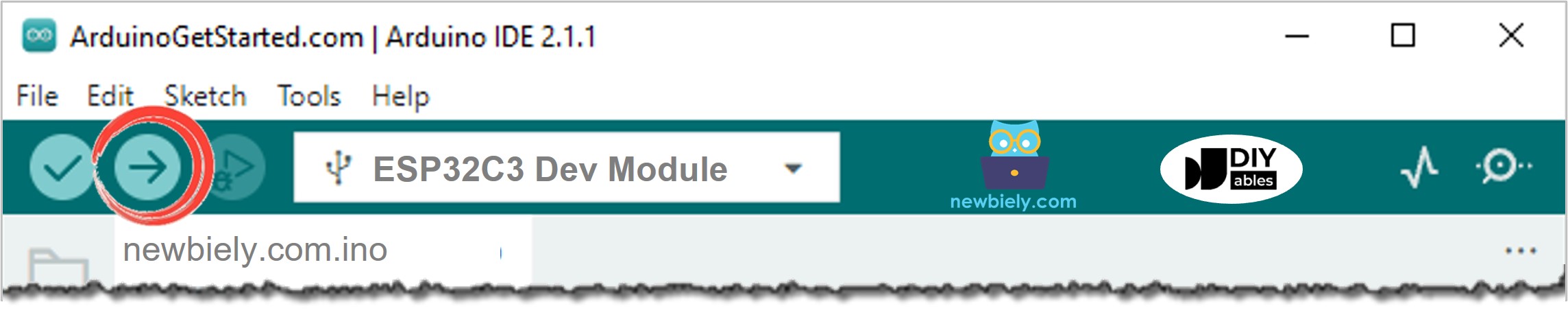
Arduino IDE Upload Code
  • Test the button: Press and hold the button for a few seconds.
  • Observe the LED: Watch the LED turn ON and OFF with button presses.
  • Pro Tip: If the LED behavior seems reversed, check that you've correctly identified the button pressed state.

You will see that the LED state is in sync with the button state on your ESP32 C3 Super Mini.

Code Explanation

Check out the line-by-line explanation contained in the comments of the source code!

Application 2 - Button toggles LED

This ESP32 C3 Super Mini application shows how to toggle an LED with button presses instead of direct synchronization.

Toggle behavior on ESP32 C3 Super Mini:

  • First button press turns LED ON
  • Second button press turns LED OFF
  • Each press switches to the opposite state
  • Requires debouncing for reliable operation

ESP32 C3 Super Mini Code - Button Toggles LED Without Debouncing

This first example demonstrates the problem with button toggling on ESP32 C3 Super Mini without debouncing.

/* * This ESP32 C3 Super Mini code was developed by newbiely.com * * This ESP32 C3 Super Mini code is made available for public use without any restriction * * For comprehensive instructions and wiring diagrams, please visit: * https://newbiely.com/tutorials/esp32-c3/esp32-c3-super-mini-button-led */ #define BUTTON_PIN D5 // The ESP32 C3 SuperMini pin connected to the button #define LED_PIN D7 // The ESP32 C3 SuperMini pin connected to the LED int led_state = LOW; // The current state of LED int prev_button_state; // The previous state of button int button_state; // The current state of button void setup() { Serial.begin(9600); // Initialize the Serial to communicate with the Serial Monitor. pinMode(BUTTON_PIN, INPUT_PULLUP); // set arduino pin to input pull-up mode pinMode(LED_PIN, OUTPUT); // set arduino pin to output mode button_state = digitalRead(BUTTON_PIN); } void loop() { prev_button_state = button_state; // save the last state button_state = digitalRead(BUTTON_PIN); // read new state if(prev_button_state == HIGH && button_state == LOW) { Serial.println("The button is pressed"); // toggle state of LED led_state = !led_state; // control LED according to the toggled state digitalWrite(LED_PIN, led_state); } }

Code Explanation

You can locate the explanation in the comment lines of the ESP32 C3 Super Mini code above.

Understanding the toggle logic:

In the code, the expression led_state = !led_state is equal to the following code:

if(led_state == LOW) led_state = HIGH; else led_state = LOW;

Why this shorthand works:

  • The ! operator inverts the boolean value
  • More compact and easier to read
  • Common pattern in ESP32 C3 Super Mini toggle applications

Detailed Instructions

  • Upload the code: Copy the code above and upload it to your ESP32 C3 Super Mini.
  • Test multiple presses: Press and release the button several times.
  • Observe erratic behavior: Notice the LED may toggle inconsistently.
  • Understand the problem: Single presses might toggle the LED multiple times or not at all.
  • Pro Tip: This inconsistency happens because buttons "bounce" electrically when pressed, creating multiple signals.

You may observe that the LED state is toggled every time the button is pressed. However, this behavior may not always be consistent. At times, the LED state may be rapidly toggled multiple times within a single button press, or it may not toggle at all (toggling twice in quick succession which can be difficult to see with the naked eye).

⇒ To solve this problem, we need to debounce for the button.

ESP32 C3 Super Mini Code - Button Toggles LED With Debouncing

Now we'll use proper debouncing to make the ESP32 C3 Super Mini button LED toggle reliable.

Why use the ezButton library:

  • Handles all debouncing automatically for ESP32 C3 Super Mini
  • Simple, beginner-friendly commands
  • Eliminates button bounce problems completely
  • Makes ESP32 C3 Super Mini projects more professional

Debouncing a button can be challenging for beginners. Fortunately, the ezButton library makes it easy.

Why is debouncing necessary? See the ESP32 C3 Super Mini - Button Debounce tutorial for more information.

/* * This ESP32 C3 Super Mini code was developed by newbiely.com * * This ESP32 C3 Super Mini code is made available for public use without any restriction * * For comprehensive instructions and wiring diagrams, please visit: * https://newbiely.com/tutorials/esp32-c3/esp32-c3-super-mini-button-led */ #include <ezButton.h> #define BUTTON_PIN D5 // The ESP32 C3 SuperMini pin connected to the button #define LED_PIN D7 // The ESP32 C3 SuperMini pin connected to the LED ezButton button(BUTTON_PIN); // create ezButton object int led_state = LOW; // The current state of LED void setup() { Serial.begin(9600); // Initialize the Serial to communicate with the Serial Monitor. pinMode(LED_PIN, OUTPUT); // set arduino pin to output mode button.setDebounceTime(50); // set debounce time to 50 milliseconds } void loop() { button.loop(); // MUST call the loop() function first if(button.isPressed()) { Serial.println("The button is pressed"); // toggle state of LED led_state = !led_state; // control LED according to the toggleed sate digitalWrite(LED_PIN, led_state); } }

Detailed Instructions

  • Install ezButton library: Install the ezButton library. Refer to How To for instructions.
  • Upload debounced code: Copy the code above and upload it to your ESP32 C3 Super Mini.
  • Test button presses: Press and release the button multiple times.
  • Observe reliable toggling: Notice the LED toggles exactly once per press.
  • Compare behaviors: Notice how much more reliable this is compared to the non-debounced version.
  • Pro Tip: The ezButton library works with all ESP32 C3 Super Mini projects requiring button input.

You will see that the LED state is toggled exactly once each time the button is pressed on your ESP32 C3 Super Mini.

Application Ideas

Here are some creative ways to use ESP32 C3 Super Mini button LED control in your projects:

  • Build a simple ESP32 C3 Super Mini desk lamp with manual ON/OFF toggle control
  • Create a doorbell indicator that lights up when the button is pressed
  • Design a game buzzer system with visual LED feedback using ESP32 C3 Super Mini
  • Make a status indicator for equipment (ON/OFF state) with ESP32 C3 Super Mini
  • Build a simple lock indicator showing locked/unlocked status with button control
  • Create a reaction time game measuring how fast you can toggle the LED

Video Section

Watch the video below for a visual walkthrough of this ESP32 C3 Super Mini button LED project.

Challenge Yourself

Try these challenges to improve your ESP32 C3 Super Mini button LED skills:

  • Easy: Modify the code to control two LEDs with a single button (one ON when pressed, one OFF)
  • Easy: Change the LED to blink three times when the button is pressed instead of staying solid
  • Medium: Add a second button to your ESP32 C3 Super Mini to control LED brightness (dim/bright toggle)
  • Medium: Create a traffic light sequence that advances to the next state with each button press
  • Advanced: Implement a long-press detection that behaves differently than a short press on ESP32 C3 Super Mini
  • Advanced: Build a combination lock using multiple buttons where the LED only turns ON with the correct sequence

※ OUR MESSAGES

  • As freelancers, We are AVAILABLE for HIRE. See how to outsource your project to us
  • Please feel free to share the link of this tutorial. However, Please do not use our content on any other websites. We invested a lot of effort and time to create the content, please respect our work!