
ESP32 C3 Super Mini - LED - Blink
Learn how to blink an LED with the ESP32 C3 Super Mini in this beginner-friendly tutorial. This is one of the most fundamental Arduino projects that teaches digital output control—perfect for absolute beginners starting with ESP32 development.
In this tutorial, you'll learn:
- What an LED is and how it works with microcontrollers
- How to wire an LED safely to ESP32 C3 Super Mini
- How to write Arduino code to control LED blinking
- How to apply this knowledge to control any ON/OFF device
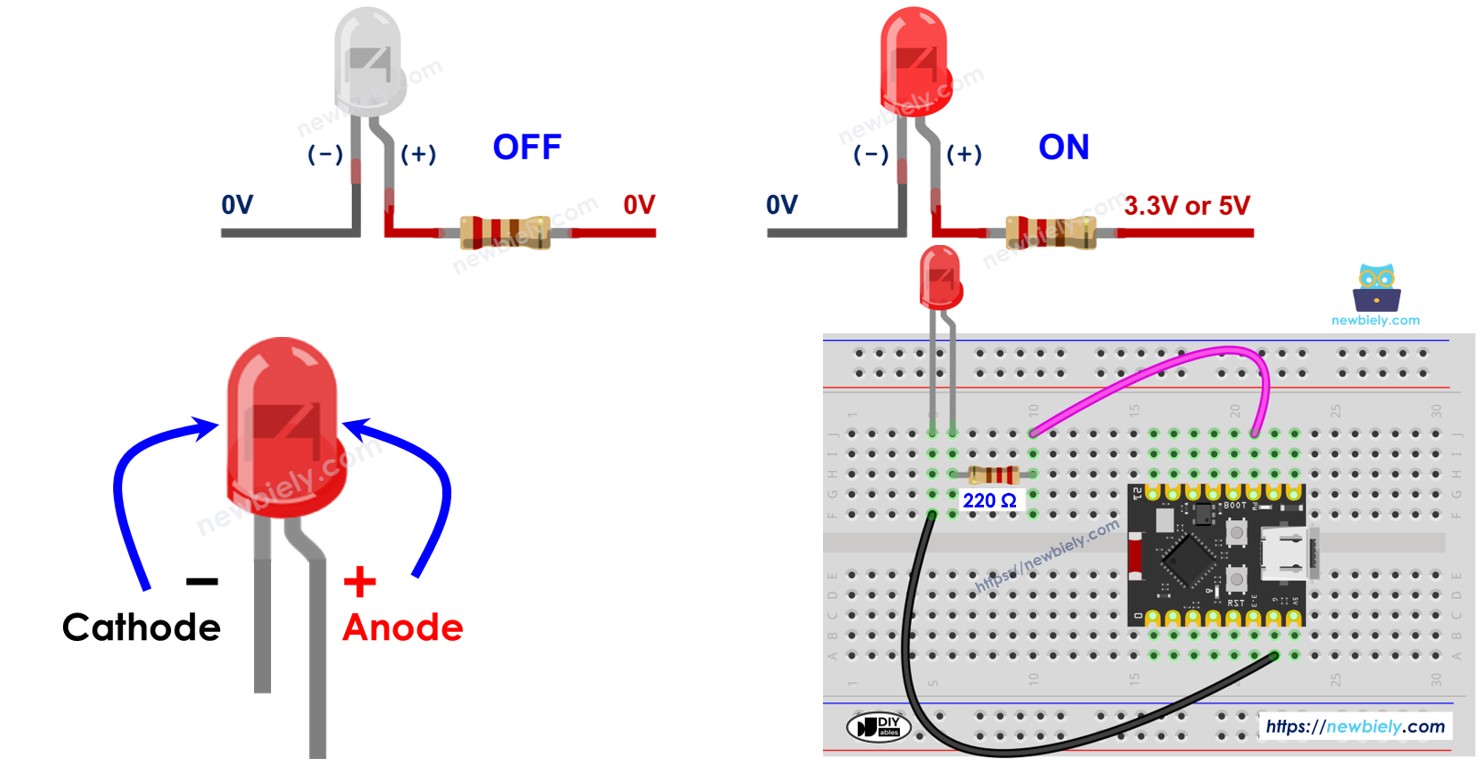
Hardware Preparation
Or you can buy the following kits:
| 1 | × | DIYables Sensor Kit (18 sensors/displays) |
Additionally, some of these links are for products from our own brand, DIYables .
Buy Note: Use the LED Module for easier wiring. It includes an integrated resistor.
Overview of LED
An LED (Light Emitting Diode) is a semiconductor component that emits light when electric current flows through it.
- Operating Voltage: Typically 1.8V to 3.3V (varies by color)
- Current Rating: Usually 20mA for standard LEDs
- Polarity Sensitive: Must be connected correctly to work
- Colors Available: Red, green, blue, yellow, white, and more
- Beginner-Friendly: Easy to use and provides instant visual feedback
- Low Power: Consumes minimal energy compared to traditional bulbs
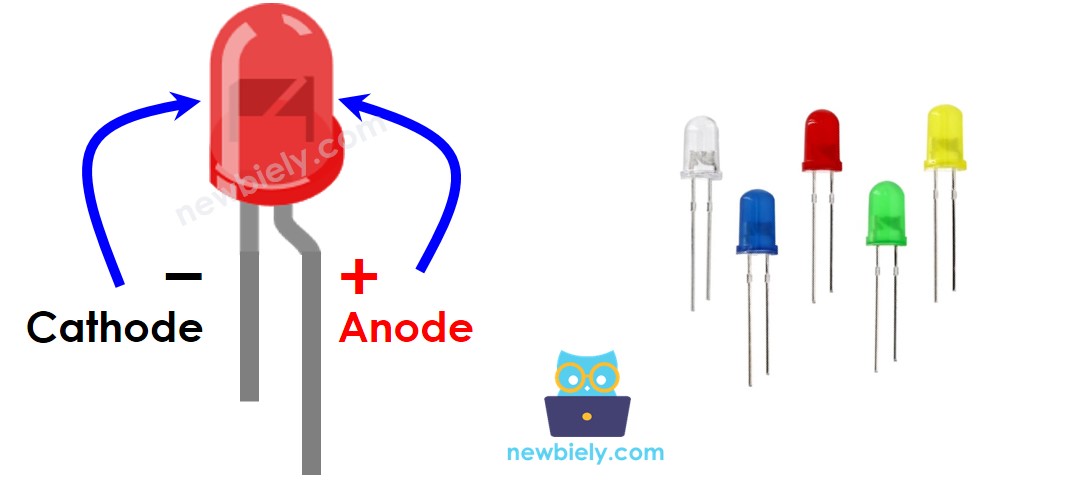
LED Pinout
The LED has two pins with different lengths for easy identification:
- Cathode (-) pin: The shorter leg; connect this pin to GND (0V)
- Anode (+) pin: The longer leg; connect to the control pin or VCC
How LED Works
After connecting the cathode(-) to GND:
- If we connect VCC to the anode(+), LED is ON.
- If we connect GND to the anode(+), LED is OFF.
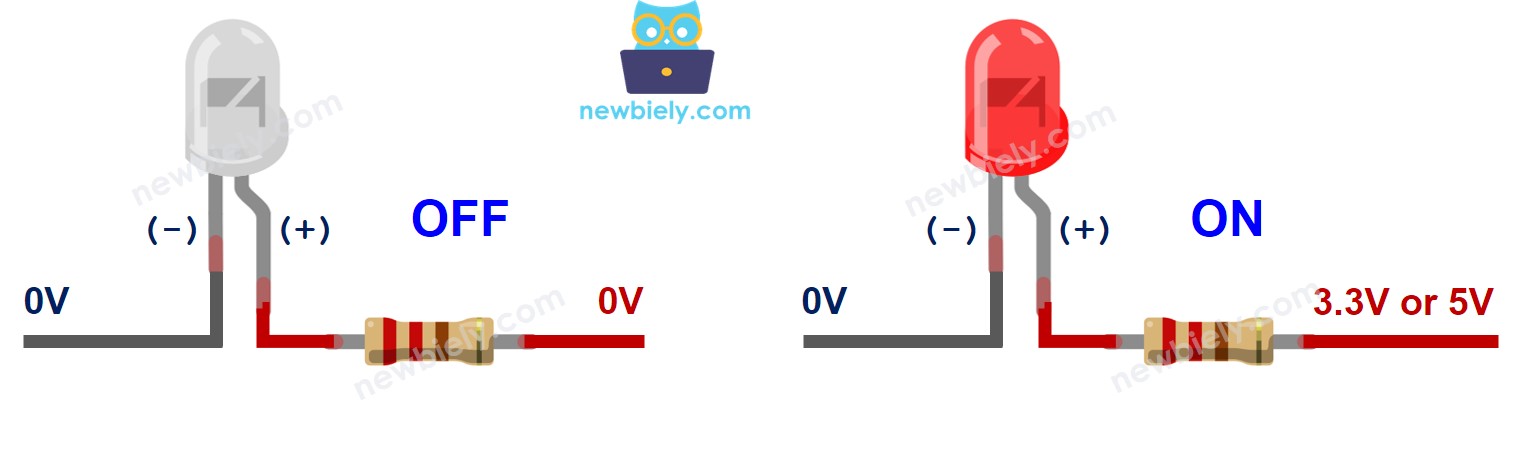
In addition, if a PWM signal is generated to the anode(+), the LED's brightness is changed in proportion to the PWM duty cycle. See more detailed in ESP32 C3 Super Mini fade LED tutorial.
※ NOTE THAT:
- Usually, a resistor is required to protect LED from burning. The resistor can be placed between the anode(+) and VCC or between the cathode(-) and GND. The resistance value depends on the LED's specification.
- Some LEDs have a built-in resistor, so there is no need to use a resistor for them.
- For standard 5mm LEDs with ESP32 C3 Super Mini (3.3V output), a 220 ohm resistor is recommended.
ESP32 C3 Super Mini - LED
The ESP32 C3 Super Mini's digital output pin voltage can be programmed to VCC (3.3V) or GND (0V).
- Digital Control: Each GPIO pin can be set HIGH or LOW
- Direct Connection: Connect LED directly to any GPIO pin with a resistor
- Programmable: Control LED state using simple Arduino functions
- Multiple LEDs: Control several LEDs independently using different pins
- Foundation Skill: LED control is the basis for controlling relays, motors, and other devices
Wiring Diagram between LED and ESP32 C3 Super Mini
Connect the LED to your ESP32 C3 Super Mini following the wiring diagram below:
- Safety Note: Always use a current-limiting resistor (220 ohm) to prevent LED damage
- Polarity Matters: Connect the longer LED leg (anode) to the resistor, and shorter leg (cathode) to GND
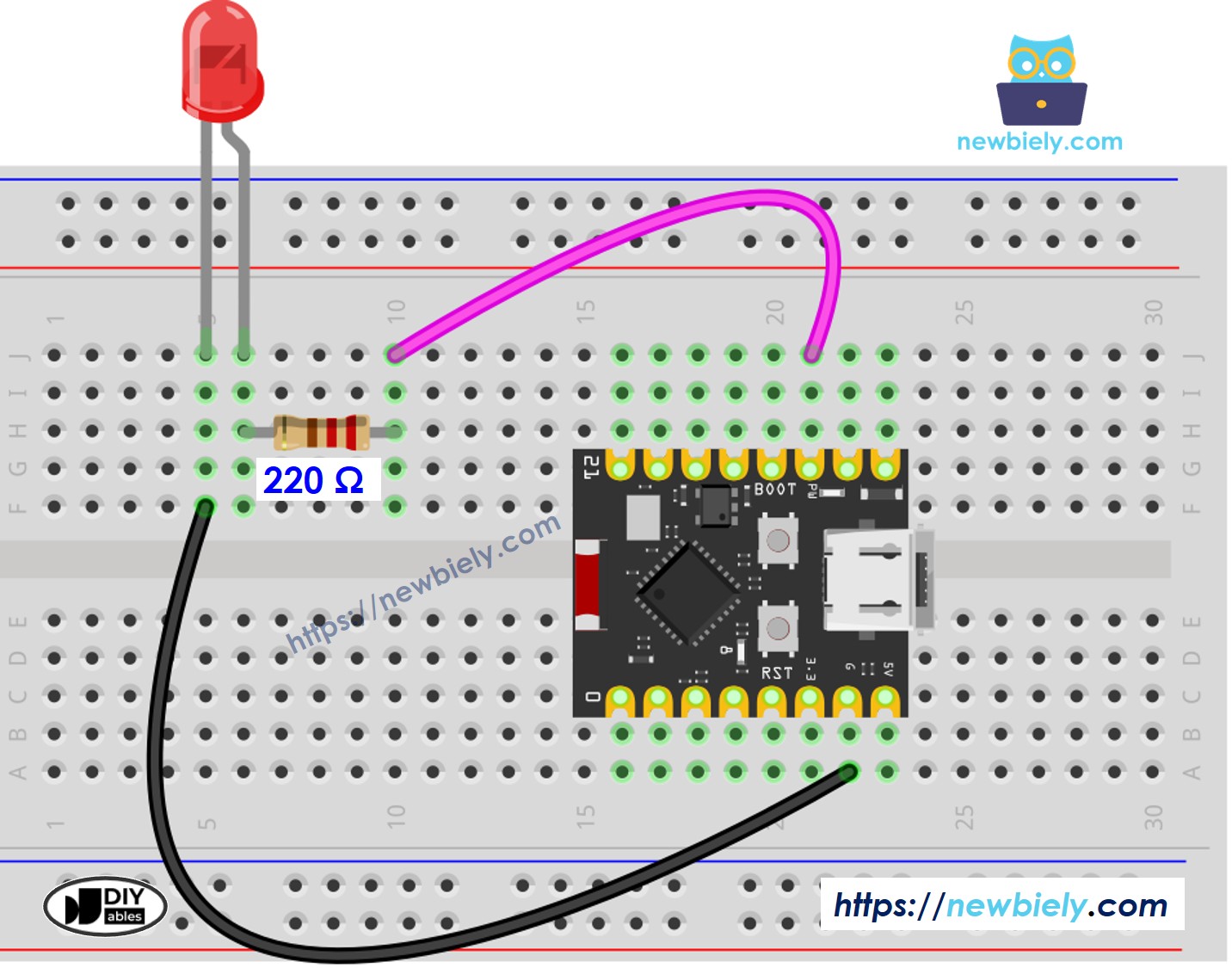
This image is created using Fritzing. Click to enlarge image
| LED Pin | Component | ESP32 C3 Super Mini Pin |
|---|---|---|
| Anode (+) | 220Ω Resistor | D7 |
| Cathode (-) | Direct Wire | GND |
How To Program
This code demonstrates basic digital output control on the ESP32 C3 Super Mini:
- Set up the GPIO pin as a digital output
- Turn the LED on and off repeatedly
- Create a blinking effect with time delays
- Configure an ESP32 C3 Super Mini's pin to the digital output mode by using pinMode() function. For example, pin D7:
ESP32 C3 Super Mini Code
Detailed Instructions
- New to ESP32 C3 Mini? Complete our Getting Started with ESP32 C3 Mini tutorial first to set up your development environment.
- Set Up Environment: If you are new to ESP32 C3 Super Mini, refer to the tutorial on how to set up the environment for ESP32 C3 Super Mini in the Arduino IDE
- Wire the Circuit: Connect the components according to the wiring diagram above
- Connect Board: Plug the ESP32 C3 Super Mini into your computer using a USB Type-C cable
- Open Arduino IDE: Launch the Arduino IDE on your computer
- Select Board: Choose ESP32 C3 Super Mini and its corresponding COM port
- Copy Code: Copy the code below and paste it into Arduino IDE
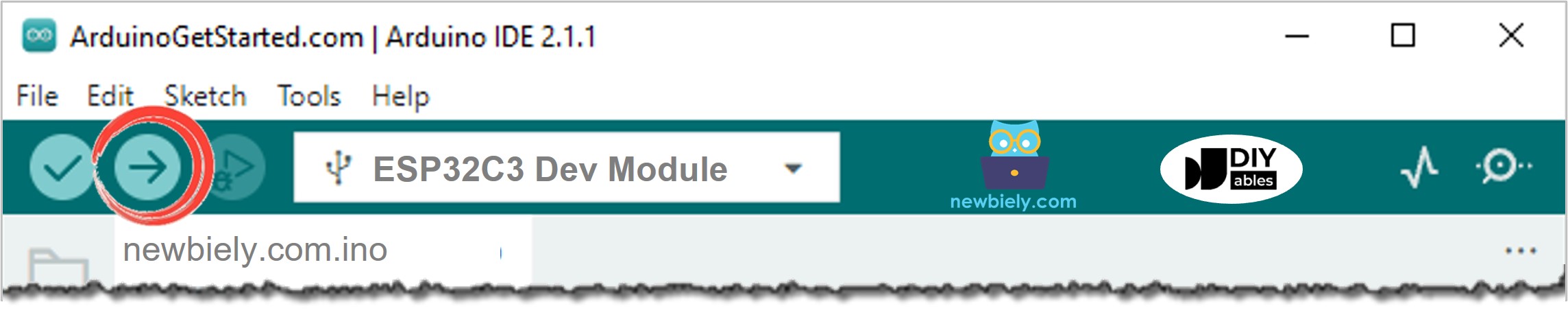
- Upload Code: Click the Upload button in Arduino IDE to compile and upload
- Observe Results: Watch the LED blink on and off once per second
- Pro Tip: Try changing the delay values to make the LED blink faster or slower—experiment with 100, 1000, or 2000 milliseconds!
Line-by-line Code Explanation
The above ESP32 C3 Super Mini code contains line-by-line explanation. Please read the comments in the code!
※ NOTE THAT:
The above code uses the delay() function. This function blocks ESP32 C3 Super Mini from doing other tasks. To avoid blocking ESP32, see ESP32 C3 Super Mini blink without delay
Application and Project Ideas
Here are some practical ways to apply LED control with your ESP32 C3 Super Mini:
- Status Indicator: Create visual alerts for temperature, humidity, or sensor thresholds
- Smart Home Lighting: Build a WiFi-controlled LED system using ESP32's wireless capabilities
- Notification System: Flash LEDs when receiving emails, messages, or IoT events
- Security Alarm: Design a motion-activated LED warning system
- Traffic Light Controller: Simulate a traffic light with red, yellow, and green LEDs
- Visual Timer: Create a countdown timer with blinking patterns
Video Tutorial
Watch the video below for a visual walkthrough of this project.
Challenge Yourself
Try these challenges to enhance your ESP32 C3 Super Mini LED control skills:
- Easy: Change the blink speed to flash 3 times per second instead of once per second
- Easy: Create an SOS pattern in Morse code (3 short, 3 long, 3 short blinks)
- Medium: Connect 3 LEDs and make them blink in sequence like a traffic light
- Medium: Use the Serial Monitor to control LED on/off with keyboard commands
- Advanced: Implement LED brightness control using PWM and fade effects