
ESP32 C3 Super Mini - LCD
This tutorial shows you how to use an LCD I2C display with your ESP32 C3 Super Mini board. Learn to display text, special characters, and create interactive projects with this popular LCD module.
In this tutorial, you'll learn:
- What LCD I2C is and how it works with ESP32 C3 Super Mini
- How to wire LCD I2C 16x2 display to ESP32 C3 Super Mini
- How to write code to display text on the LCD screen
- How to display special characters and symbols
- Troubleshooting tips for common LCD I2C issues
Hardware Preparation
Or you can buy the following kits:
| 1 | × | DIYables Sensor Kit (18 sensors/displays) |
Additionally, some of these links are for products from our own brand, DIYables .
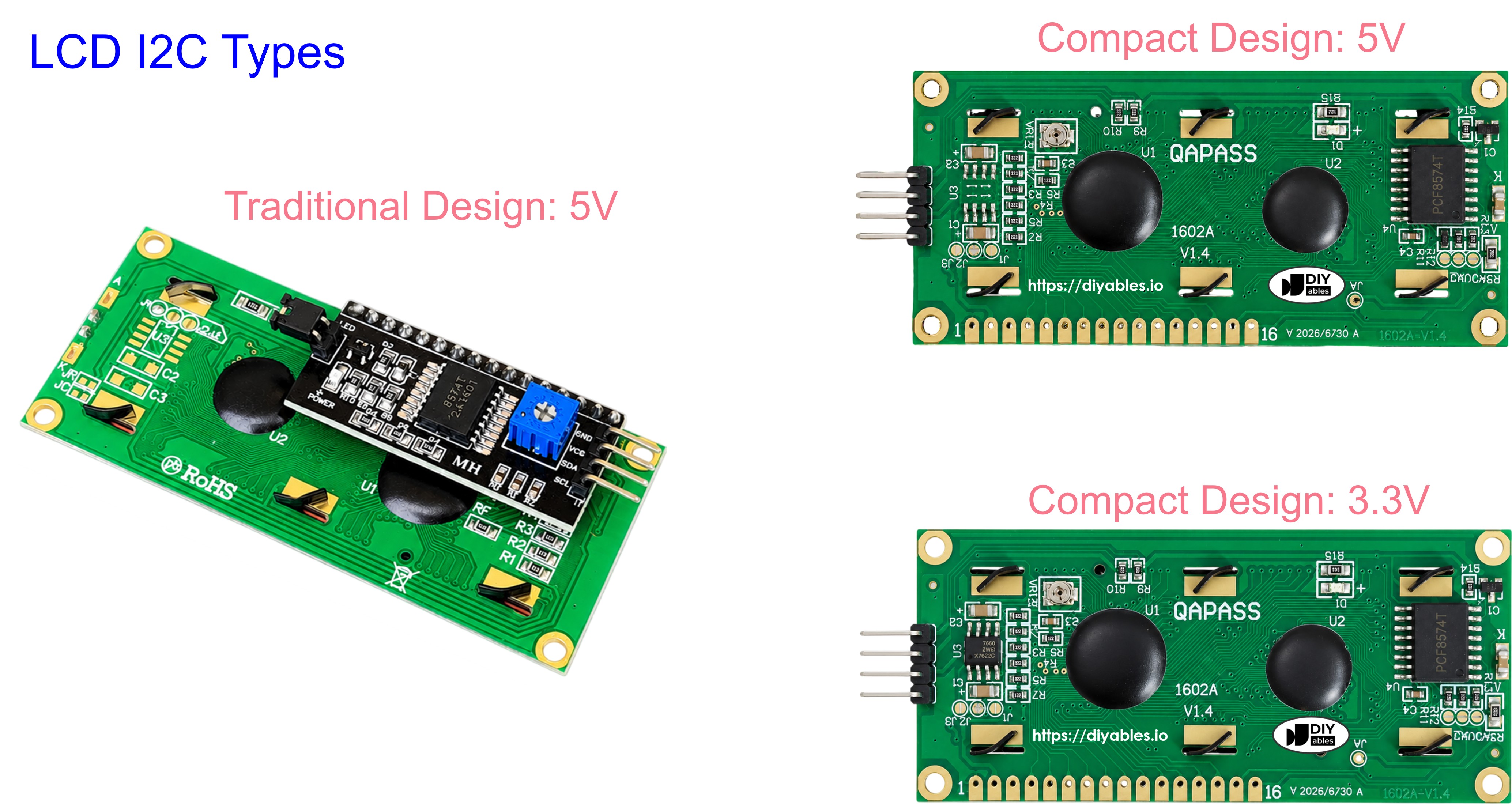
Buy Note: Most LCD I2C displays available on the market are 5V displays. They may work with this board, but it is unsafe and can damage the board. We strongly recommend using the 3.3V LCD I2C display recommended above.
Overview of LCD I2C 16x2
LCD I2C is a liquid crystal display module that uses the I2C communication protocol to simplify wiring and save GPIO pins on your ESP32 C3 Super Mini.
Key features of LCD I2C 16x2:
- 16 columns x 2 rows character display
- Uses I2C interface (only 2 data pins needed)
- Built-in backlight for better visibility
- Operates at 5V power supply
- Address typically 0x27 or 0x3F (depends on manufacturer)
- Adjustable contrast via potentiometer on the back
- Perfect for beginners due to simple wiring
Why LCD I2C is great for ESP32 projects:
- Saves GPIO pins compared to parallel LCD displays
- Easy to connect with just 4 wires total
- Large library support for quick programming
- Affordable and widely available
- Can display text, numbers, and custom characters
LCD I2C Pinout
The LCD I2C module has 4 pins for simple connection:
- VCC: Power supply pin, connect to 5V
- GND: Ground pin, connect to GND (0V)
- SCL: I2C clock signal pin for communication
- SDA: I2C data signal pin for communication
LCD 16x2 Coordinates
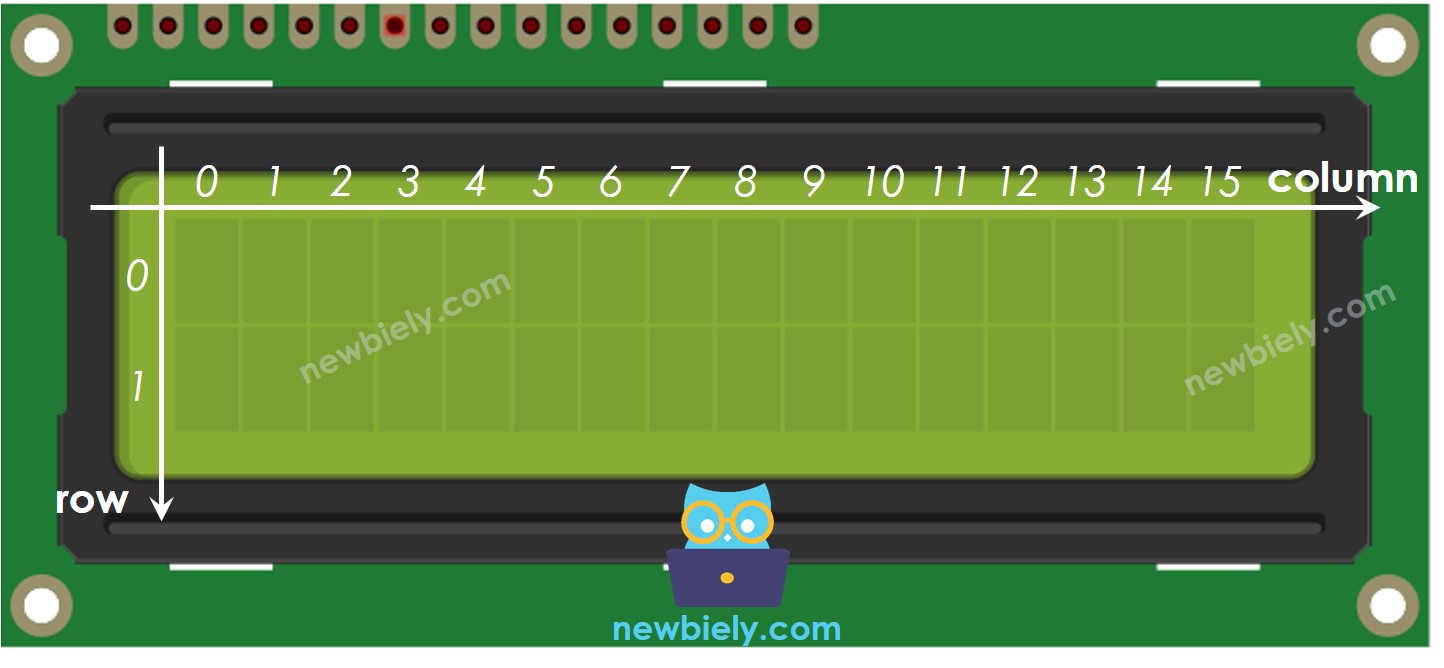
LCD I2C 16x2 has 2 rows and 16 columns indexed from 0.
Understanding LCD coordinates:
- Columns are numbered 0 to 15 (16 total)
- Rows are numbered 0 to 1 (2 total)
- First position is (0, 0) - top left corner
- Last position is (15, 1) - bottom right corner
- Use setCursor(column, row) to position text
Wiring Diagram between LCD I2C and ESP32 C3 Super Mini
Connect your LCD I2C display to the ESP32 C3 Super Mini using the I2C pins.
Two power options available:
- Option 1: Power ESP32 C3 Super Mini via USB (LCD powered from VBUS)
- Option 2: Power ESP32 C3 Super Mini via Vin pin with external power source
Wiring diagram when powering via USB:
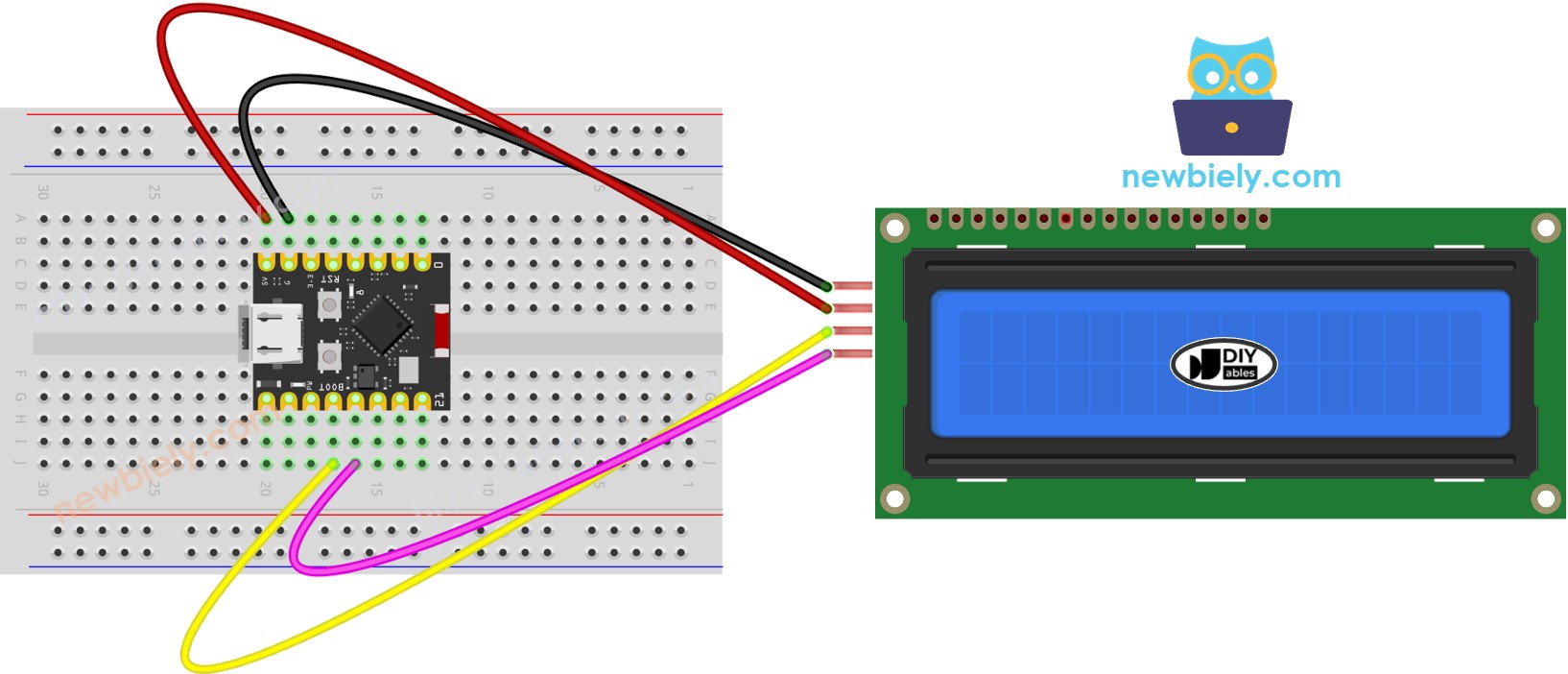
This image is created using Fritzing. Click to enlarge image
| LCD I2C Pin | ESP32 C3 Super Mini Pin |
|---|---|
| VCC | VBUS (5V) |
| GND | GND |
| SCL | GPIO8 (I2C Clock) |
| SDA | GPIO10 (I2C Data) |
Wiring diagram when powering via Vin pin:
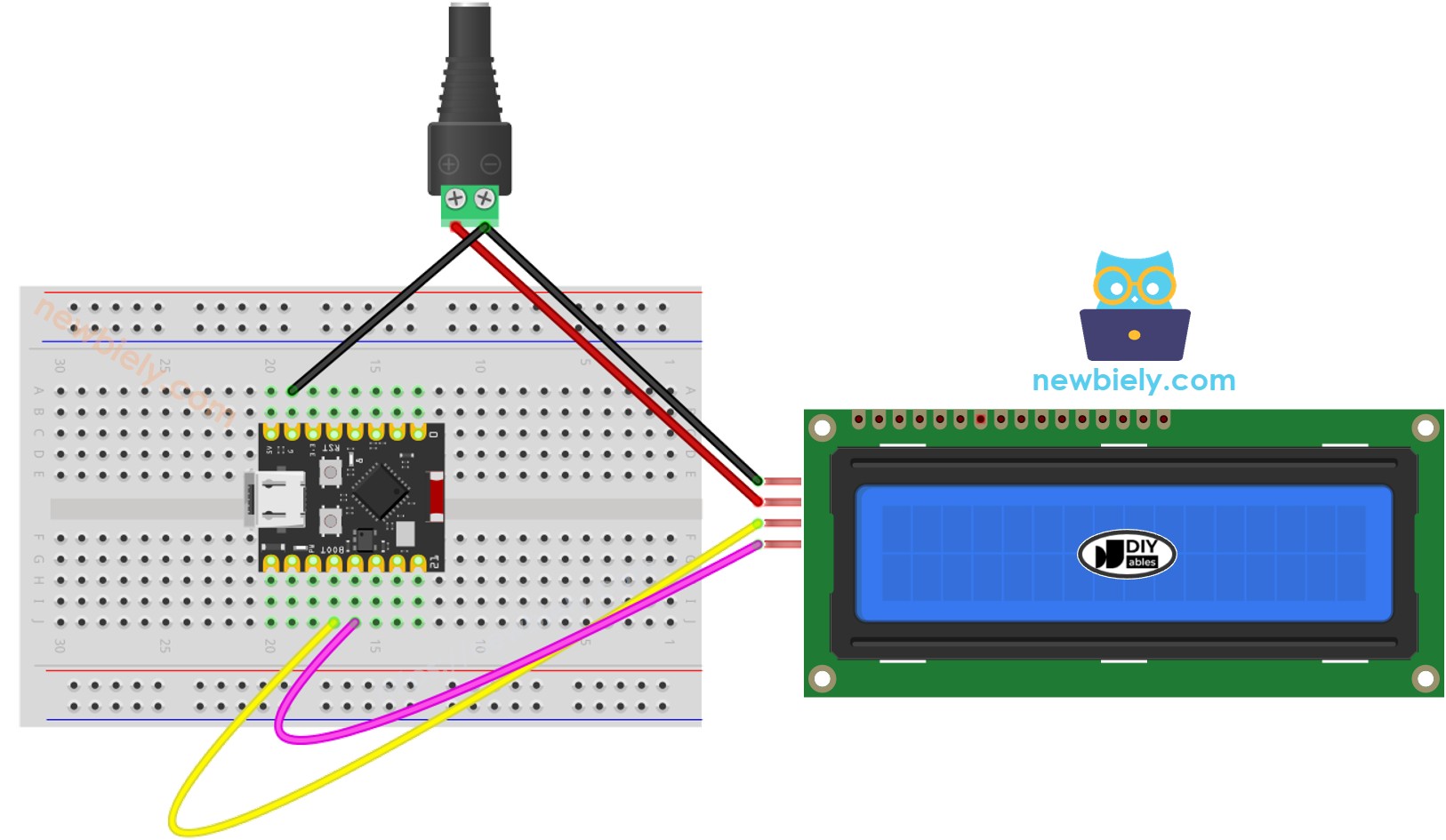
This image is created using Fritzing. Click to enlarge image
| LCD I2C Pin | ESP32 C3 Super Mini Pin |
|---|---|
| VCC | External 5V Power Source |
| GND | GND (shared with ESP32) |
| SCL | GPIO8 (I2C Clock) |
| SDA | GPIO10 (I2C Data) |
※ NOTE THAT:
When powering the ESP32 C3 Super Mini through the USB port, it is possible to power the LCD display using the VBUS pin of the ESP32 C3 Super Mini, eliminating the need for an external power source. However, it is important to note that this approach may not work as the power provided by the VBUS pin might be insufficient for the proper functioning of the LCD display.
How To Program LCD I2C using ESP32 C3 Super Mini
Follow these steps to program your ESP32 C3 Super Mini to control the LCD I2C display:
Include the DIYables LCD I2C library:
Declare a DIYables_LCD_I2C object:
Initialize the LCD in setup():
Move cursor to desired position:
Print text to the LCD:
Clear the display:
※ NOTE THAT:
The LCD I2C address can be different from each manufacturer. In the code, we used address of 0x27 that is specified by DIYables manufacturer. If your LCD doesn't work, try address 0x3F instead.
ESP32 C3 Super Mini Code
Here's a complete example that displays text on your LCD I2C 16x2 display:
What this code does:
- Initializes the LCD I2C display with backlight
- Displays "Hello" and "newbiely.com" for 2 seconds
- Clears the screen and displays "DIYables" and "www.diyables.io"
- Repeats the pattern continuously
- Demonstrates cursor positioning and text printing
Detailed Instructions
- New to ESP32 C3 Mini? Complete our Getting Started with ESP32 C3 Mini tutorial first to set up your development environment.
- Set up Arduino IDE: If this is the first time you use ESP32 C3 Super Mini, see how to setup environment for ESP32 C3 Super Mini on Arduino IDE
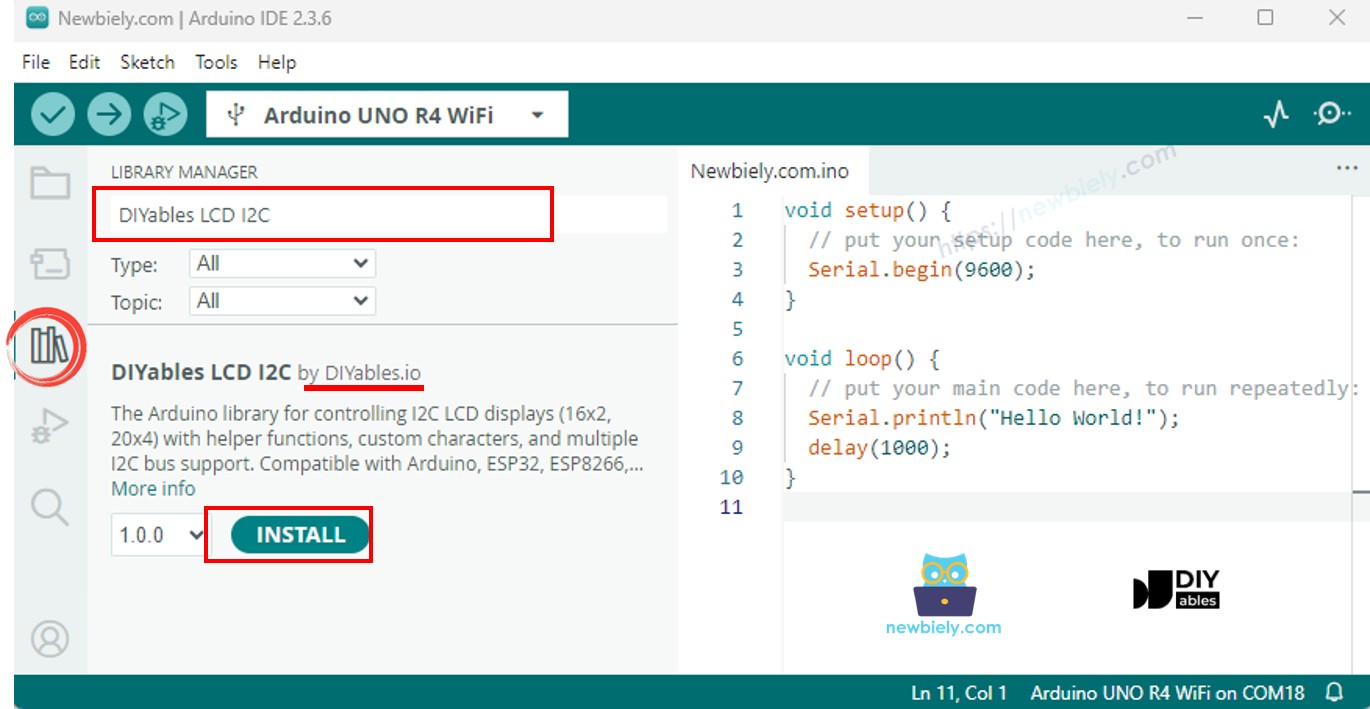
- Open Library Manager: Click on the Library Manager icon on the left navigation bar of Arduino IDE
- Search for library: Type "DIYables LCD I2C" in the search box
- Install library: Look for the DIYables_LCD_I2C library by DIYables and click Install button
- Copy the code: Copy the code above and paste it into Arduino IDE
- Connect your board: Plug your ESP32 C3 Super Mini into your computer via USB Type-C cable
- Select board and port: Choose the correct board and COM port in Arduino IDE
- Upload the code: Click the Upload button to compile and upload code to your ESP32 C3 Super Mini
- View the results: Watch the text display on your LCD screen
- Experiment: Try modifying the text, cursor positions, and delay times to customize your display
- Pro Tip: Adjust the potentiometer on the back of the LCD module if text contrast is too light or dark
Do More with LCD
Custom Character
Want to display emoticons, degree symbols, or other special characters on your LCD I2C display?
Creating custom characters:
- LCD I2C supports up to 8 custom characters
- Each character is 5x8 pixels
- Define characters using byte arrays
- Great for icons, symbols, and simple graphics
- See how to display special characters on LCD for detailed instructions
Common custom character uses:
- Temperature degree symbol (°)
- Heart icons for visual feedback
- Battery level indicators
- Custom progress bars
- Emoticons and faces
Application Ideas for ESP32 C3 Super Mini LCD I2C Projects
Here are some popular project ideas using ESP32 C3 Super Mini with LCD I2C display:
- Temperature and humidity monitor with sensor readings displayed on screen
- Real-time clock display showing date and time
- Countdown timer for kitchen or tutorial applications
- Menu system for multi-function projects with button navigation
- WiFi signal strength indicator and network status display
- Scrolling message board for announcements or alerts
- Smart home control panel showing device status
Troubleshooting on LCD I2C
If your LCD I2C doesn't display anything, check these common issues:
Common problems and solutions:
- Blank screen: Check if backlight is enabled with lcd_i2c.backlight()
- No text visible: Adjust the contrast potentiometer on the back of LCD module
- Nothing displays: Try I2C address 0x3F instead of 0x27 in code
- Wiring issues: Verify SCL and SDA connections to correct GPIO pins
- Power problems: Ensure LCD is receiving 5V (use external power if USB insufficient)
- Library errors: Confirm DIYables_LCD_I2C library is properly installed
For a complete troubleshooting checklist, see LCD does not work! - Checklist
Challenge Yourself
Take your ESP32 C3 Super Mini LCD I2C skills to the next level with these challenges:
- Easy: Create a counter that displays numbers from 0 to 99 on the LCD with 1-second intervals
- Easy: Display your name scrolling across the screen from right to left
- Medium: Add a DHT11 sensor and display temperature and humidity readings that update every 2 seconds
- Medium: Create a simple menu system with two options using button navigation
- Advanced: Build a WiFi-connected clock that displays time from an NTP server with automatic timezone adjustment
- Advanced: Design a custom character set of 5 emoticons and create an animation sequence on the display