
ESP32 C3 Super Mini - Sound Sensor
Sound sensors detect the presence of sound and enable your ESP32 C3 Super Mini to create interactive, sound-responsive projects like clap-activated lights or voice-triggered devices. This tutorial will show you how to connect and program a sound sensor with your ESP32 C3 Super Mini board.
In this tutorial, you'll learn:
- What a sound sensor is and how it detects sound
- How to wire a sound sensor to ESP32 C3 Super Mini
- How to program ESP32 C3 Super Mini to detect sound
- How to read digital and analog sound sensor outputs
- How to adjust sensor sensitivity for your project
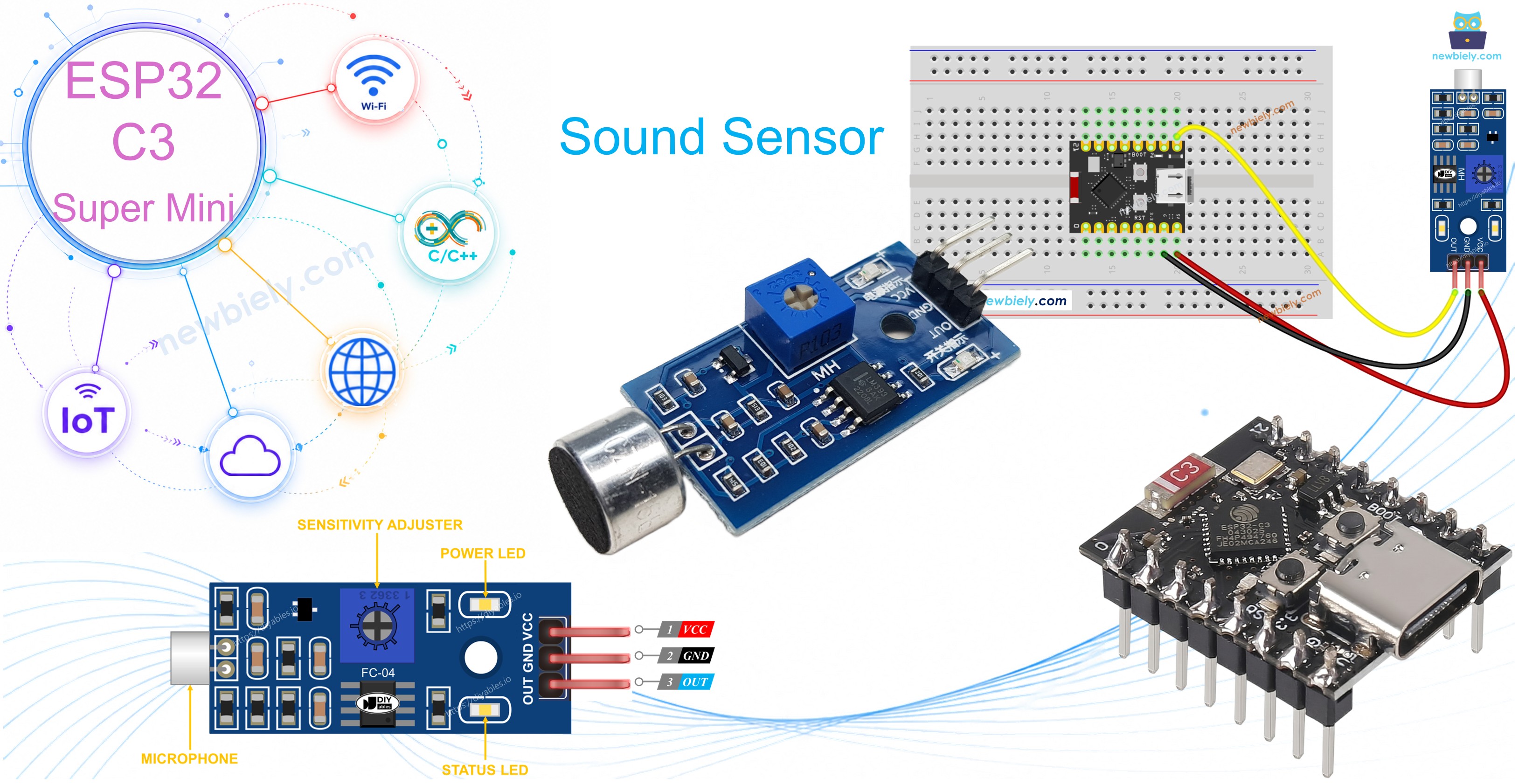
After completing this tutorial, you can modify the code to trigger actions when sound is detected - turn on an LED, activate a relay to control lights, or rotate a servo motor based on sound input.
Hardware Preparation
Or you can buy the following kits:
| 1 | × | DIYables Sensor Kit (18 sensors/displays) |
Additionally, some of these links are for products from our own brand, DIYables .
Overview of Sound Sensor
A sound sensor is a detection module that senses sound waves in the surrounding environment and converts them to electrical signals.
Two types of sound sensor modules:
- Digital sound sensor module: Outputs a digital signal (HIGH/LOW or ON/OFF)
- Analog sound sensor module: Outputs both analog values (sound level) and digital signals (sound detected/not detected)
Key features:
- Adjustable sensitivity using built-in potentiometer
- Works with 3.3V to 5V microcontrollers like ESP32 C3 Super Mini
- LED indicators for power and sound detection status
- Perfect for beginners learning sound detection projects
- Low cost and easy to integrate
The Digital Sound Sensor Pinout
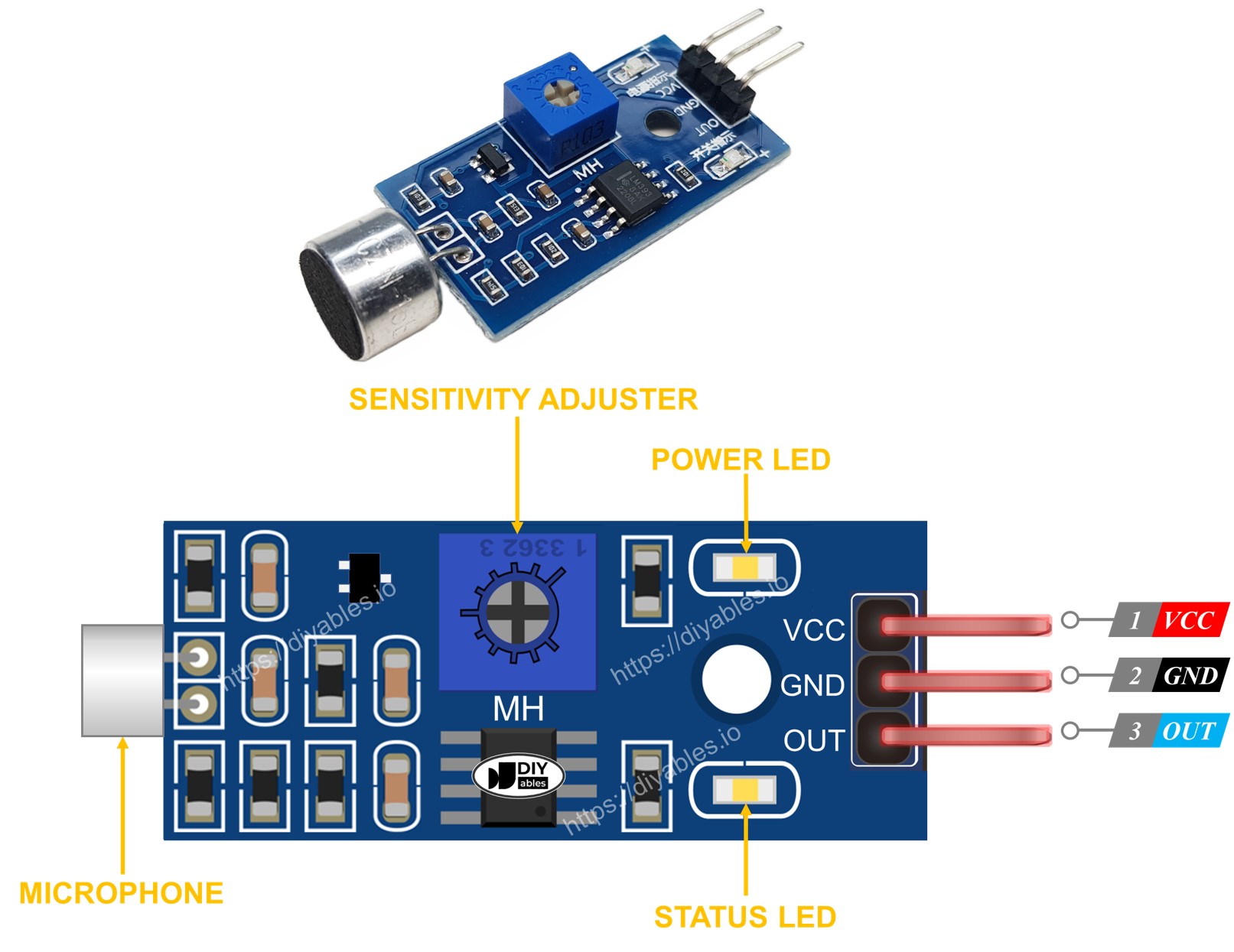
The digital sound sensor has three connection pins for easy wiring.
- VCC pin: Connect to power supply (3.3V to 5V)
- GND pin: Connect to ground (0V)
- OUT pin: Digital output pin - outputs HIGH when quiet, LOW when sound is detected - connect to ESP32 C3 Super Mini digital input pin
Additional features:
- Built-in potentiometer for adjusting sound sensitivity threshold
- Power LED indicator shows when the sensor is powered
- Status LED indicator lights up when sound is detected
The Analog Sound Sensor Pinout
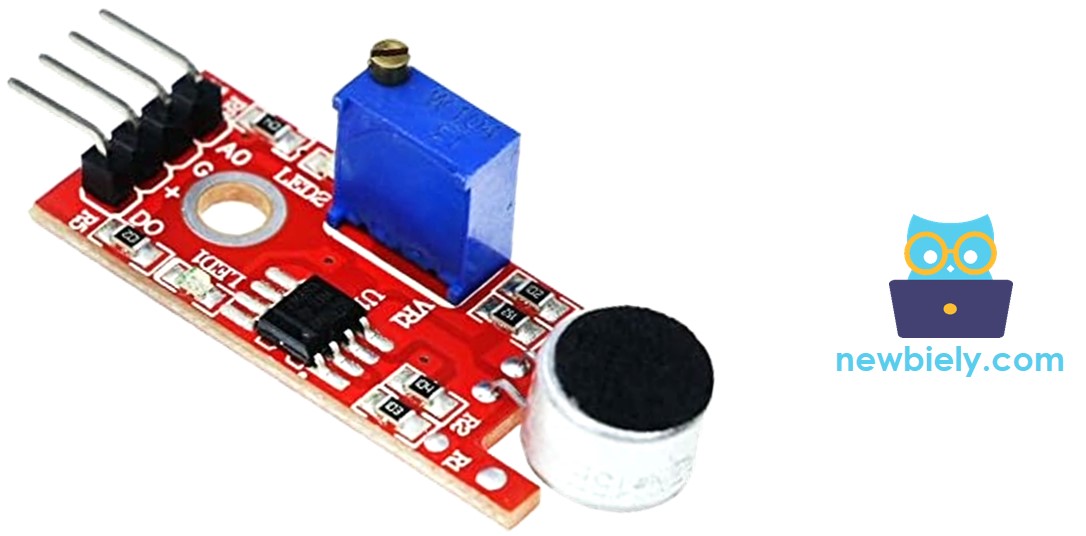
The analog sound sensor has four connection pins offering both digital and analog outputs.
- + pin: Connect to 5V power supply
- G pin: Connect to ground (0V)
- DO pin: Digital output - outputs HIGH when quiet, LOW when sound detected - connect to ESP32 C3 Super Mini digital input pin
- AO pin: Analog output - outputs analog voltage representing sound level - connect to ESP32 C3 Super Mini analog input pin
How It Works
The sound sensor module detects sound and converts it to electrical signals your ESP32 C3 Super Mini can read.
Digital output behavior:
- When sound is detected: Output pin goes LOW
- When no sound (quiet): Output pin stays HIGH
- Sensitivity threshold adjustable via onboard potentiometer
How to adjust sensitivity:
- Rotate the potentiometer clockwise to decrease sensitivity (require louder sounds)
- Rotate counterclockwise to increase sensitivity (detect quieter sounds)
- Test and adjust until the sensor responds to your desired sound level
Wiring Diagram
Connect your sound sensor to the ESP32 C3 Super Mini following the diagram below.
Important notes:
- Note: Double-check all connections before powering on to avoid damaging your components
- Note: The digital sound sensor uses 3 wires while the analog sensor uses 4 wires
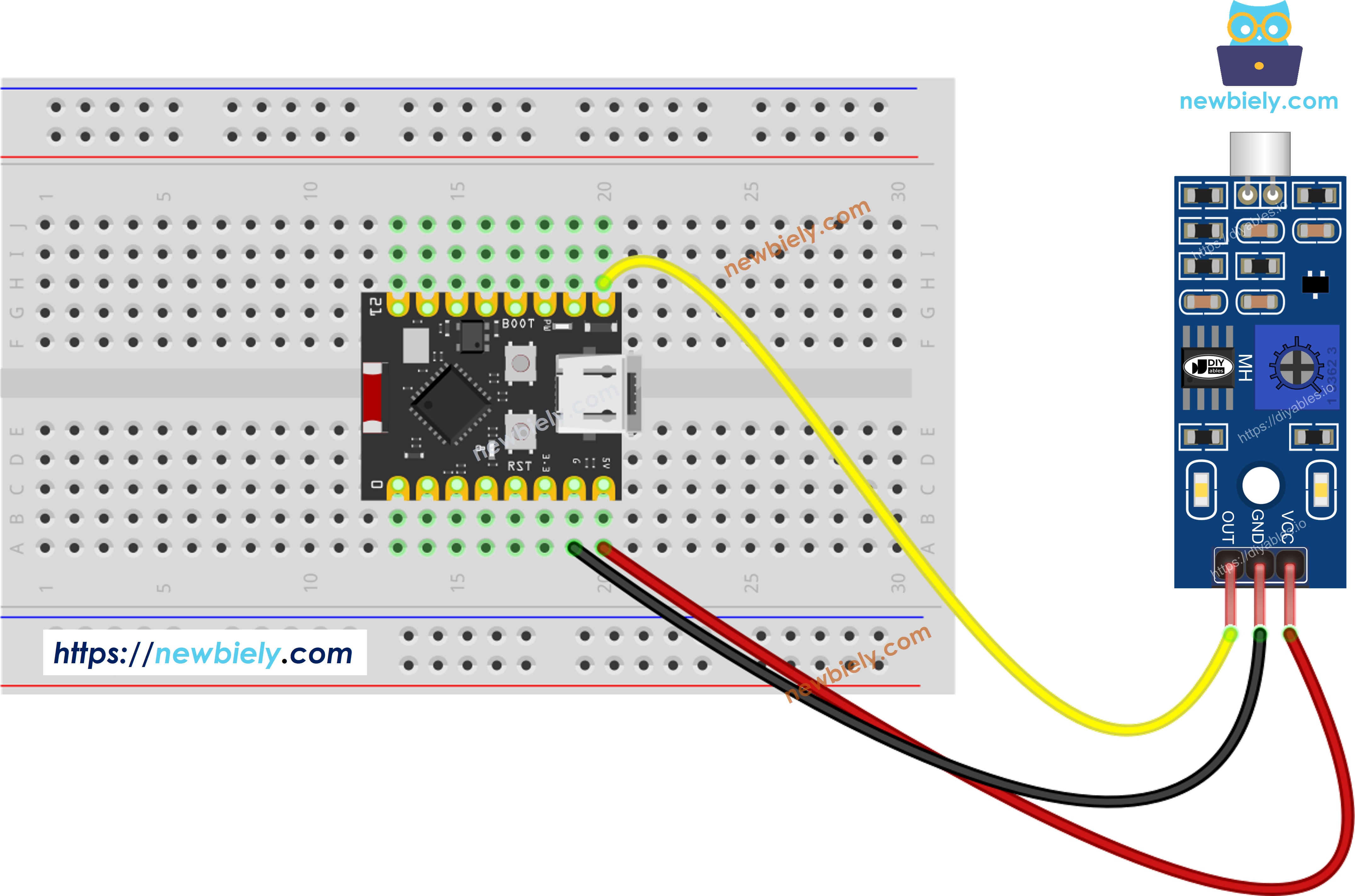
This image is created using Fritzing. Click to enlarge image
| Sound Sensor Pin | ESP32 C3 Super Mini Pin |
|---|---|
| VCC | 3.3V or 5V |
| GND | GND |
| OUT (or DO) | D3 (GPIO3) |
How To Program For Sound Sensor
Programming the ESP32 C3 Super Mini to read a sound sensor involves two simple steps.
What the code does:
- Configures the ESP32 C3 Super Mini pin as a digital input
- Reads the sound sensor state (HIGH or LOW)
- Determines if sound is detected based on the pin state
- Displays the detection status on Serial Monitor
Step 1 - Initialize the pin:
Step 2 - Read the sensor state:
ESP32 C3 Super Mini Code - Detecting the sound
Detailed Instructions
- New to ESP32 C3 Mini? Complete our Getting Started with ESP32 C3 Mini tutorial first to set up your development environment.
- Check the wiring: Verify all connections match the wiring diagram above
- Copy the code: Copy the provided code and open it in Arduino IDE
- Select your board: Choose ESP32 C3 Super Mini from the boards menu
- Upload the code: Click the Upload button to transfer code to your ESP32 C3 Super Mini
- Open Serial Monitor: Set baud rate to 115200 in the Serial Monitor
- Test the sensor: Clap your hands or make noise near the sound sensor
- Observe the output: Check the Serial Monitor for sound detection messages
- Adjust sensitivity: If needed, turn the potentiometer to fine-tune detection threshold
- Pro Tip: If the status LED stays constantly on or off regardless of sound, adjust the potentiometer slowly while making noise until the LED blinks in response to sound.
If the LED indicator stays constantly on or off even when sound is present, rotate the potentiometer to adjust the sound sensitivity threshold until the sensor responds correctly.
Now you can customize the code to trigger actions when sound is detected - activate an LED, control a relay to switch lights, or rotate a servo motor in response to sound. Check the application ideas and challenge sections below for inspiration.
Application and Project Ideas
Use your ESP32 C3 Super Mini sound sensor setup to create interactive sound-responsive projects.
- Build a clap-activated light switch using a relay module
- Create a sound-level meter display with LED bar graph
- Design a knock-detection door lock system
- Make a sound-triggered pet feeder or treat dispenser
- Build a noise monitoring system for quiet zones
- Create a voice-activated notification system with buzzer alerts
Video Tutorial
Watch the video below for a visual walkthrough of this project.
Challenge Yourself
Take your ESP32 C3 Super Mini sound sensor skills to the next level with these challenges.
- Easy: Add an LED that lights up when sound is detected and turns off when quiet
- Easy: Display the sound state on an LCD screen instead of Serial Monitor
- Medium: Create a clap counter that counts the number of claps detected within a time window
- Medium: Combine the sound sensor with a relay to build a clap-activated lamp
- Advanced: Build a sound pattern recognition system that responds to specific clap sequences (e.g., double-clap vs triple-clap)
Troubleshooting
If your ESP32 C3 Super Mini sound sensor isn't working properly, try these solutions.
Common issues and fixes:
- Reduce vibrations: Mount the sound sensor on a stable, vibration-free surface - mechanical vibrations and wind noise interfere with detection accuracy
- Check sensing range: This sound sensor detects sound within approximately 10 inches - move closer to the sensor when testing
- Verify power supply: Ensure clean, noise-free power - the sound sensor's analog components are sensitive to power supply interference
- Adjust sensitivity: Rotate the potentiometer while testing until the sensor responds appropriately to your sound level
- Check wiring: Verify all connections match the wiring diagram - loose or incorrect connections cause erratic behavior
- Test LED indicators: Power LED should be on constantly; status LED should blink when sound is detected