
ESP32 MicroPython Mini Mp3 Player Module
The ESP32 is a versatile 3.3V microcontroller with WiFi, Bluetooth, and multiple hardware UART ports. Combined with the DIYables Mini Mp3 Player module and MicroPython, you can build anything from a simple sound effect board to a WiFi-controlled jukebox.
This tutorial walks you through:
- Connecting the Mini Mp3 Player to an ESP32 — directly, without a resistor.
- Loading mp3 files onto the SD card correctly.
- Playing, pausing, resuming, stopping, and skipping tracks.
- Adjusting volume with physical buttons.
- Repeating tracks, shuffling, and organizing audio into folders.
- Monitoring playback status from your code.
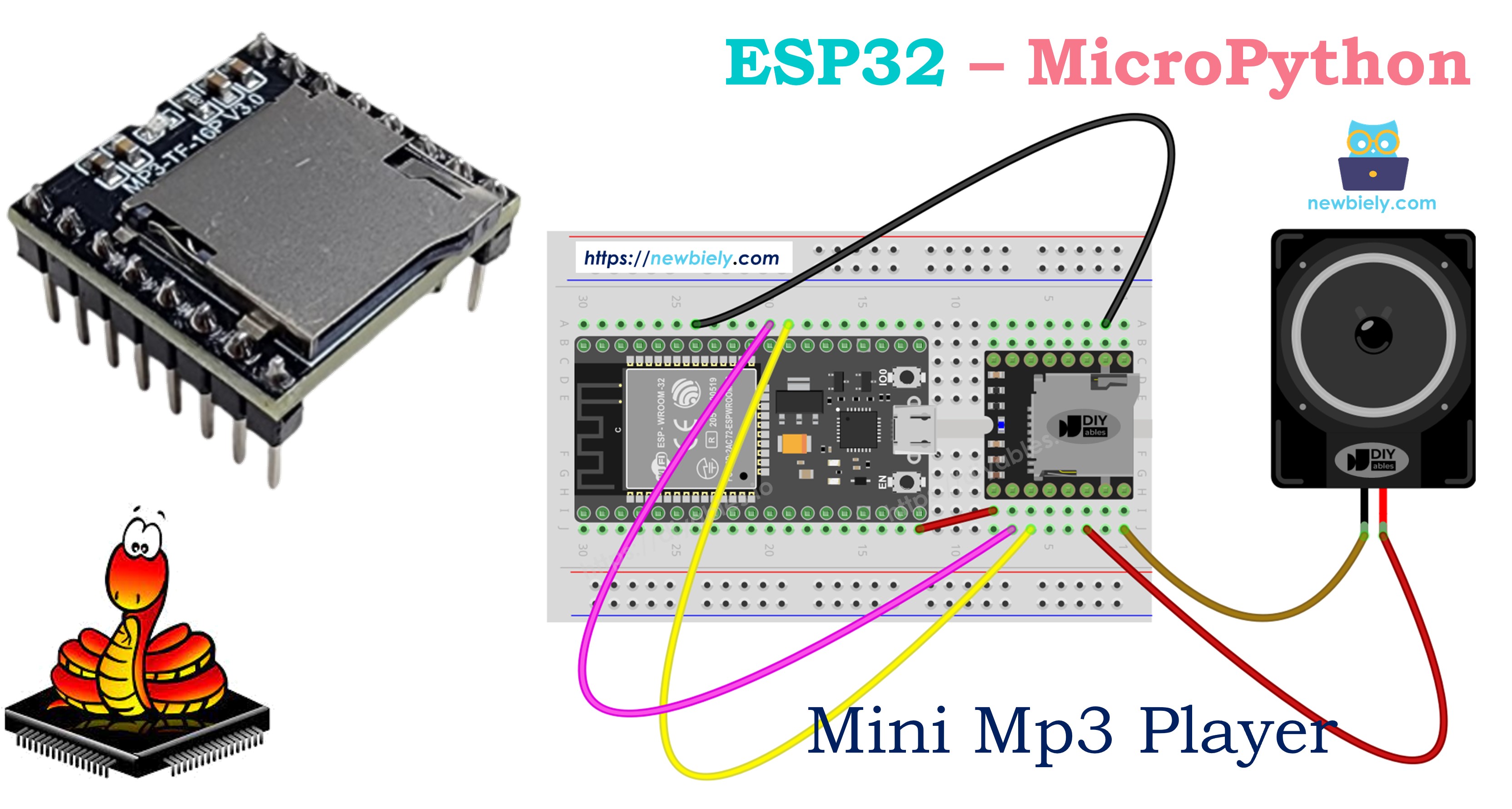
Components Needed
Or you can buy the following kits:
| 1 | × | DIYables ESP32 Starter Kit (ESP32 included) | |
| 1 | × | DIYables ESP32 S3 Starter Kit (ESP32 S3 included) | |
| 1 | × | DIYables Sensor Kit (18 sensors/displays) |
Additionally, some of these links are for products from our own brand, DIYables .
No resistor required. The ESP32 operates at 3.3V — the same voltage the Mini Mp3 Player's UART expects.
The Mini Mp3 Player Module
The DIYables Mini Mp3 Player is a compact audio decoder board based on the YX5200-24SS chip. It reads mp3 files from a micro SD card and outputs audio through a built-in 3W amplifier or via DAC pins for an external amplifier.
The ESP32 communicates with this module over UART at 9600 baud — a perfect match because the ESP32 has three hardware UART ports. You can dedicate UART2 to the mp3 module while keeping UART0 free for MicroPython's REPL console.
The module supports a rich set of serial commands:
- Transport: play, pause, resume, stop, next, previous
- Volume: 31 levels (0–30), adjustable on the fly
- Equalizer: 6 presets — Normal, Pop, Rock, Jazz, Classic, Bass
- Repeat modes: loop a single track, loop a folder, loop everything, or shuffle
- Folder playback: organize audio into numbered directories
- Advertisements: interrupt the current track with an announcement, then auto-resume
- Status queries: read track number, volume level, play state, and file counts
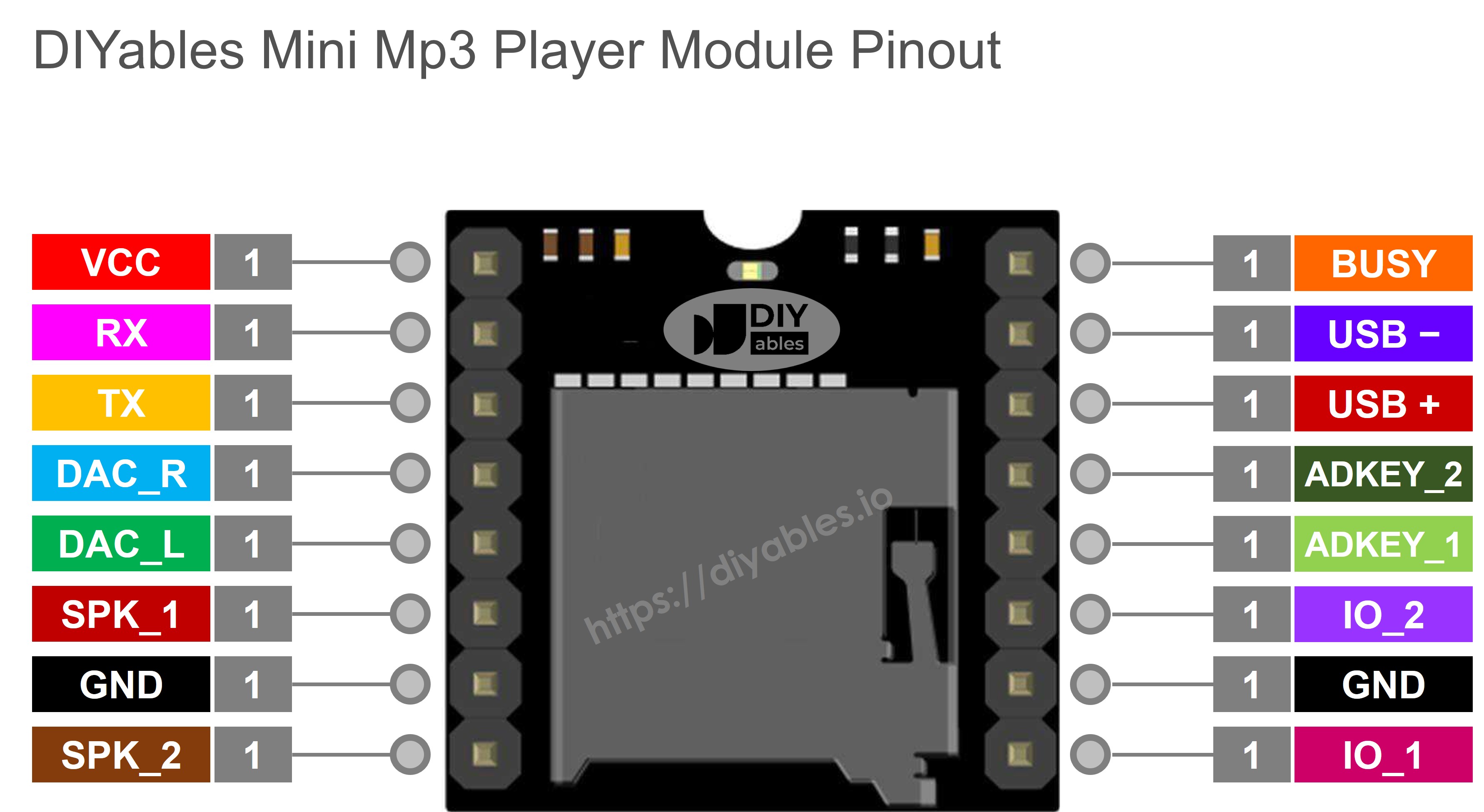
Pin Description
| Pin | Purpose | ESP32 Connection |
|---|---|---|
| VCC | 3.2V to 5.0V power input | Connect to ESP32 3.3V or 5V (VIN) |
| GND | Ground | Connect to ESP32 GND |
| RX | Serial data input | Connect to ESP32 GPIO17 (TX2) |
| TX | Serial data output | Connect to ESP32 GPIO16 (RX2) |
| SPK_1 | Speaker + (built-in amp, 3W max) | Connect to speaker |
| SPK_2 | Speaker − | Connect to speaker |
| DAC_R | Right channel line output | Optional — for external amp |
| DAC_L | Left channel line output | Optional — for external amp |
| BUSY | LOW = playing, HIGH = stopped | Optional — read with GPIO |
| IO_1 | Short press → prev; long press → vol down | Not used (controlled via UART) |
| IO_2 | Short press → next; long press → vol up | Not used (controlled via UART) |
Wiring
The ESP32 uses 3.3V logic natively, so you wire the serial lines directly — no level shifting or resistors needed.
We recommend using UART2 (available by default on most ESP32 DevKit boards):
| Mini Mp3 Player | ESP32 | Notes |
|---|---|---|
| VCC | 3.3V | Or 5V from VIN if available |
| GND | GND | |
| RX | GPIO 17 (TX2) | Direct connection |
| TX | GPIO 16 (RX2) | Direct connection |
| SPK_1 | Speaker + | |
| SPK_2 | Speaker − |
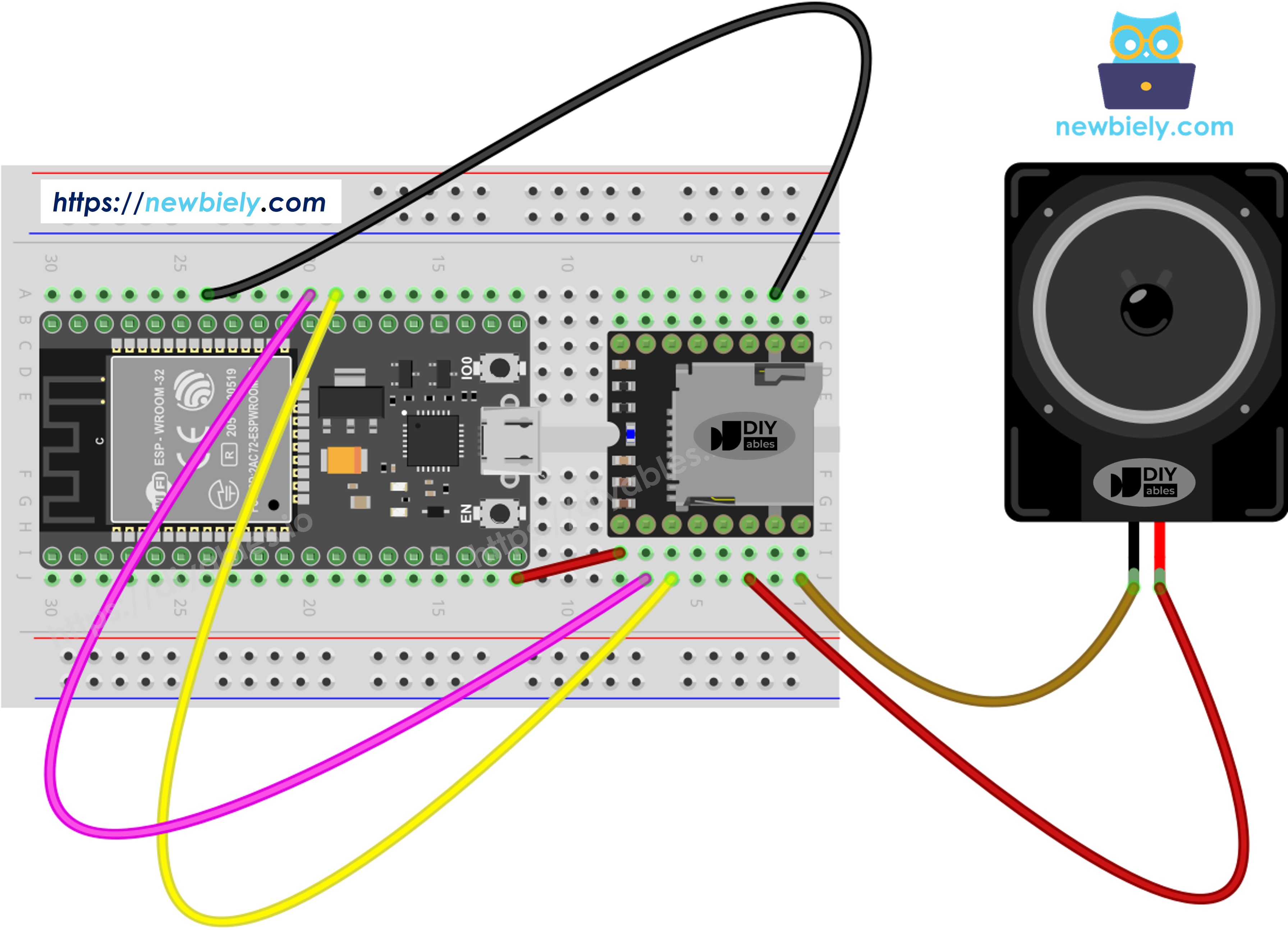
This image is created using Fritzing. Click to enlarge image
Tip: If your ESP32 variant does not expose GPIO 16/17 (some DevKit-C V4 boards use them for PSRAM), you can reassign UART pins in code:
Getting the SD Card Ready
Before uploading any MicroPython code to the ESP32, prepare the micro SD card:
- Format the card as FAT16 or FAT32 (use your computer's disk utility).
- Copy mp3 files to the root directory with zero-padded names:
- Optionally, organize tracks into numbered folders for multi-category playback:
Key rules for the ESP32 + Mini Mp3 Player setup:
- Track numbers start at 1, not 0.
- The module determines track order by the sequence files were copied to the card — not by filename. Format the card first, then copy files one at a time in order.
- Folder names must be 2-digit zero-padded (01–99). File names inside folders must be 3-digit zero-padded (001–255).
- Insert the SD card into the Mini Mp3 Player module before powering the ESP32.
Detailed Instructions
Here's instructions on how to set up and run your MicroPython code on the ESP32 using Thonny IDE:
- Make sure Thonny IDE is installed on your computer.
- Confirm that MicroPython firmware is loaded on your ESP32 board.
- If this is your first time using an ESP32 with MicroPython, check out the ESP32 MicroPython Getting Started guide for step-by-step instructions.
- Connect the ESP32 board to the Mini Mp3 Player module according to the provided diagram.
- Connect the ESP32 board to your computer with a USB cable.
- Open Thonny IDE on your computer.
- In Thonny IDE, go to Tools Options.
- Under the Interpreter tab, choose MicroPython (ESP32) from the dropdown menu.
- Make sure the correct port is selected. Thonny IDE usually detects it automatically, but you might need to select it manually (like COM12 on Windows or /dev/ttyACM0 on Linux).
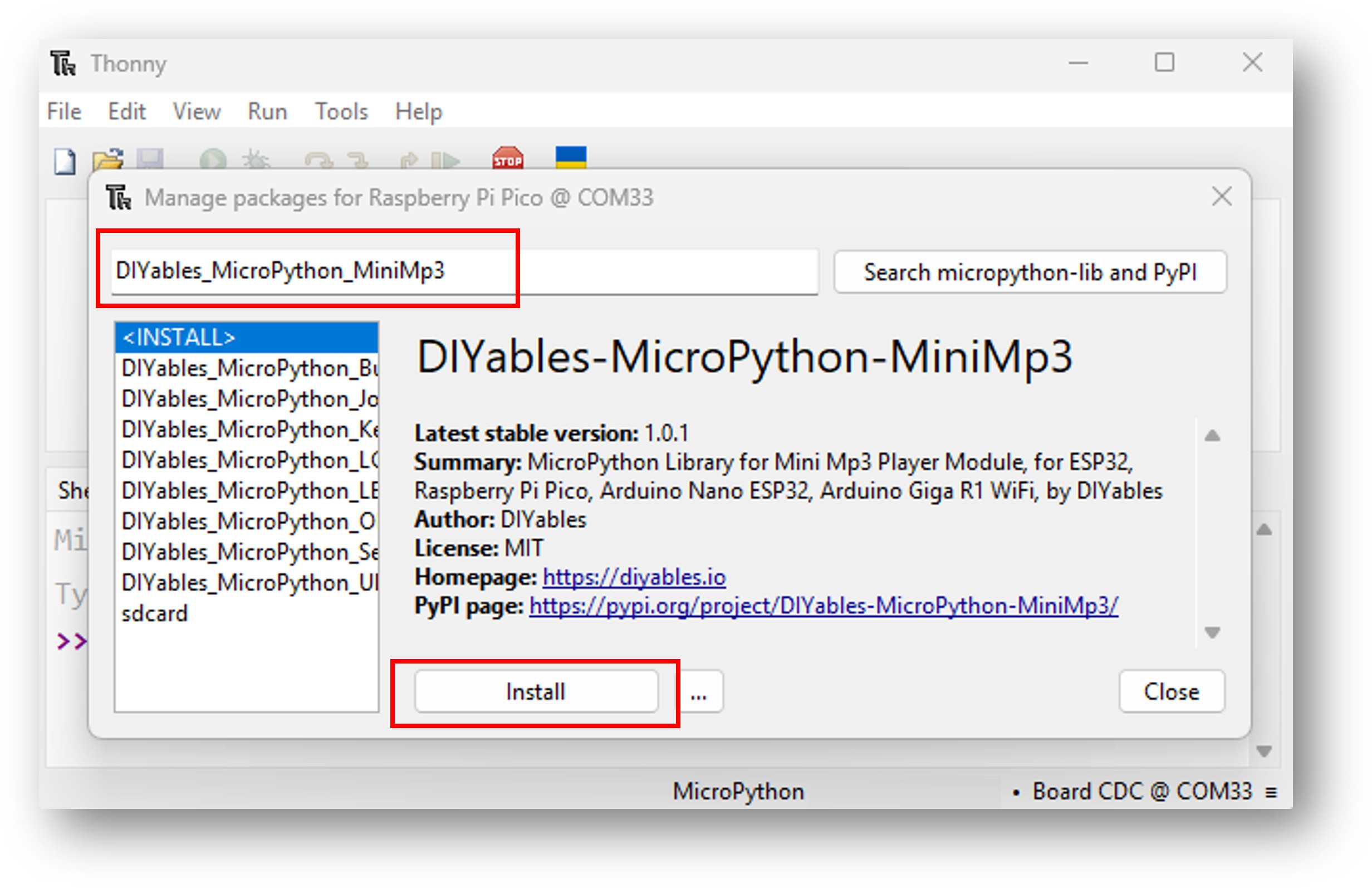
- Navigate to the Tools Manage packages on the Thonny IDE.
- Search "DIYables-MicroPython-MiniMp3", then find the Mini Mp3 Player library created by DIYables.
- Click on DIYables-MicroPython-MiniMp3, then click Install button to install the Mini Mp3 Player library.
- Copy the provided MicroPython code and paste it into Thonny's editor.
- Save the code to your ESP32 by:
- Clicking the Save button or pressing Ctrl+S.
- In the save dialog, choose MicroPython device.
- Name the file main.py.
- Click the green Run button (or press F5) to execute the script.
- Insert the SD card with mp3 files into the Mini Mp3 Player module.
- Listen for audio playback through the connected speaker.
Starter Code Template
ESP32 MicroPython Code — Play a Track
Try It
- Load the SD card, wire the module, connect the ESP32 via USB.
- Upload the code using Thonny IDE or your preferred MicroPython tool.
Playback Control
All playback commands are non-blocking — the ESP32 sends the command via UART2 and returns immediately, so your MicroPython code keeps running.
| Method | What Happens | Code Example |
|---|---|---|
| play(n) | Plays track number n from root | mp3.play(1) |
| play_next() | Jumps to the next track | mp3.play_next() |
| play_previous() | Goes back one track | mp3.play_previous() |
| pause() | Freezes playback at current position | mp3.pause() |
| resume() | Continues from the paused position | mp3.resume() |
| stop() | Stops playback entirely | mp3.stop() |
ESP32 MicroPython Code — Multiple Tracks
ESP32 MicroPython Code — Next/Previous
ESP32 MicroPython Code — Pause/Resume
ESP32 MicroPython Code — Loop a Track
Repeat & Shuffle
These repeat modes run entirely on the mp3 module — the ESP32 just sends the command once and the module handles continuous playback on its own.
| Method | Behavior | Example |
|---|---|---|
| loop_track(n) | Repeat one track endlessly | mp3.loop_track(1) |
| loop_folder(f) | Cycle through all tracks in a folder | mp3.loop_folder(1) |
| loop_all() | Play every track on the SD card, then restart | mp3.loop_all() |
| stop_loop() | Stop repeating after the current track ends | mp3.stop_loop() |
| shuffle() | Play all tracks in random order | mp3.shuffle() |
ESP32 MicroPython Code — Folder Playback
Folder API
Folder-based playback is great for ESP32 projects that need categorized audio — for example, different languages, sound categories, or playlists.
| Method | Description | Example |
|---|---|---|
| play_folder(f, t) | Play track t from folder f (up to 99 folders, 255 tracks each) | mp3.play_folder(1, 1) |
| play_large_folder(f, t) | Large folder mode (up to 15 folders, 3000 tracks each) | mp3.play_large_folder(1, 2000) |
| play_from_mp3_folder(t) | Play from the special /mp3 folder (up to 9999 tracks) | mp3.play_from_mp3_folder(1) |
ESP32 MicroPython Code — Serial Console Control
| Command | Effect |
|---|---|
| 1–9 | Play track |
| + / − | Volume |
| p / r / s | Pause / Resume / Stop |
| n / b | Next / Previous |
| ? | Status |
Equalizer Options
The module has a built-in DSP with six EQ presets. On the ESP32, you can switch EQ modes in real time — even while a track is playing. This is useful for IoT projects where users select audio profiles via a web interface or Bluetooth.
| Constant | ID | Sound Profile |
|---|---|---|
| EQ_NORMAL | 0 | Flat / neutral response |
| EQ_POP | 1 | Bright vocals and highs |
| EQ_ROCK | 2 | Punchy mids and lows |
| EQ_JAZZ | 3 | Warm, smooth tone |
| EQ_CLASSIC | 4 | Balanced across all frequencies |
| EQ_BASS | 5 | Heavy low-end boost |
Checking Module Status
Status queries send a request over UART2 and wait for the module's reply. They block for up to 100 ms (configurable with set_timeout()). If no response arrives, they return −1.
On the ESP32, you might use these in a web server handler or a periodic check loop — just keep in mind the brief blocking time.
| Function | Return | Description |
|---|---|---|
| is_playing() | bool | True if a track is currently playing |
| get_volume() | int | Current volume level (0–30) |
| get_eq() | int | Active equalizer preset (0–5) |
| get_track_count() | int | Number of tracks on the SD card |
| get_current_track() | int | Track number currently playing |
| get_folder_count() | int | Number of folders on the SD card |
| get_track_count_in_folder(f) | int | Number of tracks in folder f |