In this guide, we will learn how to use a 3-pin button module as a user input for the Arduino Giga R1 WiFi, so a finger press can start, stop or change something in your sketch. In detail, we will learn:
Why the button module is easier to wire than a bare 4-leg push button.
Which pin of the Giga R1 WiFi powers the module safely, and why 5V is the wrong choice here.
How to see the raw HIGH/LOW level of the button on the Serial Monitor.
How to turn each press into exactly one "pressed" and one "released" message with a short delay.
How to let the ezButton library do the debounce for you without stopping the rest of the program.
A typical use: a big friendly "start" key for a timer, a "next page" key for a display, or a mode selector for a Giga project that already runs WiFi and other tasks at the same time.
Disclosure: Some of the links provided in this section are Amazon affiliate links. We may receive a commission for any purchases made through these links at no additional cost to you. Additionally, some of these links are for products from our own brand, DIYables .
Overview of Button Module
In short, the button module is a push button with its resistor already on board. A small tactile switch with a colored cap is soldered to a tiny PCB together with a pull-down resistor. That resistor keeps the OUT pin at LOW while nobody touches the cap. When you push it, the switch connects OUT to VCC, so OUT goes HIGH. Pressed means HIGH, released means LOW, which is easy to remember.
Like every mechanical switch, the metal contacts inside do not close cleanly. They bounce for a few milliseconds, so one press can look like several quick presses to a fast board such as the Giga. The second and third examples below fix this.
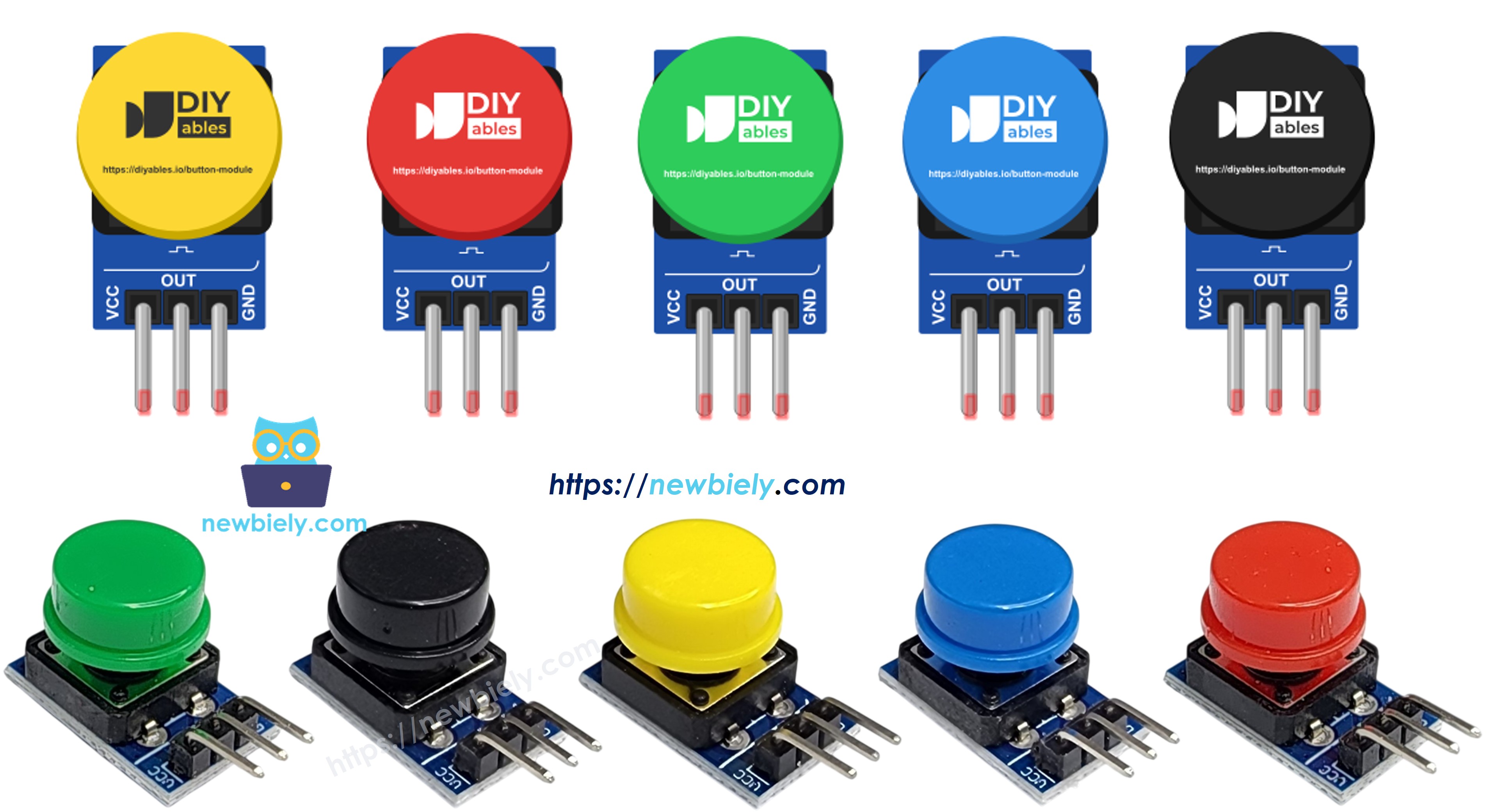
The modules are sold as a set of 5, one in each cap color: red, yellow, green, blue and white. Different colors make it simple to build a small panel where each key has its own job.
Button Module
Switch type
momentary tactile push button with colored cap
Operating voltage
3.3V to 5V DC
Onboard resistor
pull-down on the OUT line
Output logic
active HIGH (pressed = HIGH, released = LOW)
Connector
3-pin 2.54mm header
Pack
5 modules (red, yellow, green, blue, white)
Pinout
image source: diyables.io
The three header pins are printed on the board as VCC, OUT and GND:
VCC pin: connect to the 3.3V pin of the Arduino Giga R1 WiFi.
OUT pin: connect to a digital input pin of the Giga. It reads HIGH while the cap is held down.
GND pin: connect to a GND pin of the Giga (0V).
※ NOTE THAT:
Use 3.3V for VCC on the Giga R1 WiFi, not 5V. When the button is pressed, the OUT pin gives out the same voltage as VCC. The Giga pins work at 3.3V, so a 5V VCC would send 5V straight into a 3.3V input pin and can damage it.
Compared with a bare 4-leg push button, the module saves you two jobs. A bare button needs a pull-up or pull-down resistor (or INPUT_PULLUP), and its four legs are easy to put in the wrong way. It also reads LOW when pressed if you use INPUT_PULLUP, so the logic is upside down. The module has labeled pins, its own pull-down, and normal logic: pressed = HIGH.
Wiring Diagram
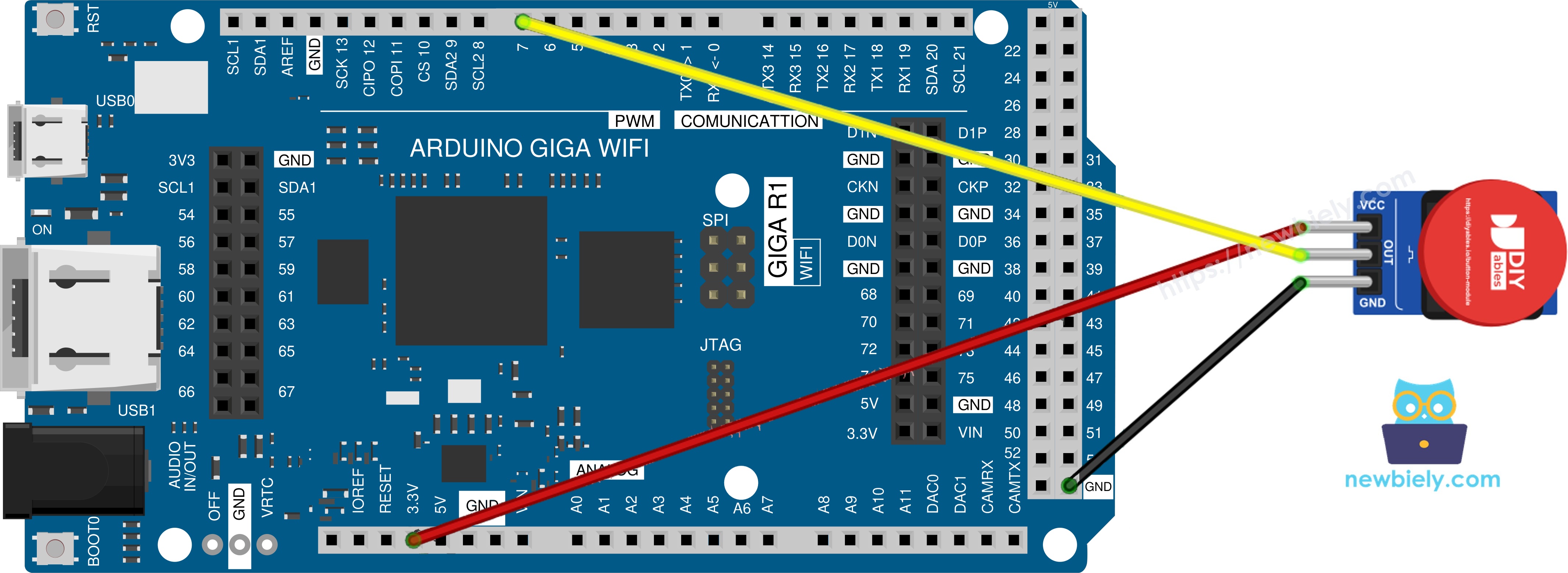
Three jumper wires are all you need. The module has its own header, so you can leave the breadboard in the drawer.
This image is created using Fritzing. Click to enlarge image
Button Module Pin
Arduino Giga R1 WiFi Pin
VCC
3.3V
OUT
Pin 7
GND
GND
The pull-down resistor is already on the module, so there's no need to add one. This makes wiring or soldering easier. Pin 7 is just our choice; any free digital pin works if you change the number in the code too.
How To Program For Button Module
All three sketches share the same few lines. Only the way they handle bouncing is different.
Name the Giga pin that listens to the OUT pin:
constint BUTTON_MODULE_PIN = 7;
Make it a plain input. Keep away from INPUT_PULLUP, because it would fight the pull-down on the module:
pinMode(BUTTON_MODULE_PIN, INPUT);
Read the level. HIGH means the cap is held down:
int state = digitalRead(BUTTON_MODULE_PIN);
Arduino Giga R1 WiFi Code - Button Module Raw State
Start simple. This sketch reads pin 7 five times per second and prints the level it sees, so you can check the wiring before you write any real logic.
/* * This Arduino Giga R1 WiFi code was developed by newbiely.com * * This Arduino Giga R1 WiFi code is made available for public use without any restriction * * For comprehensive instructions and wiring diagrams, please visit: * https://newbiely.com/tutorials/arduino-giga/arduino-giga-r1-wifi-button-module */constint BUTTON_MODULE_PIN = 7; // Arduino Giga R1 WiFi pin wired to the OUT pin of the button modulevoidsetup() {Serial.begin(9600);// Plain INPUT: the module already has its own pull-down resistor.// Do not use INPUT_PULLUP here.pinMode(BUTTON_MODULE_PIN, INPUT);}voidloop() {int state = digitalRead(BUTTON_MODULE_PIN); // HIGH (1) = pressed, LOW (0) = releasedSerial.print("OUT pin level: ");Serial.print(state);if (state == HIGH)Serial.println(" -> button is DOWN");elseSerial.println(" -> button is UP");delay(200); // slow down the printing so it is easy to read}
Wire the components according to the provided diagram: VCC to 3.3V, OUT to pin 7, GND to GND.
Connect the Giga R1 WiFi to your PC with the USB Type-C cable.
Launch the Arduino IDE on your computer.
Select the appropriate Arduino Giga R1 WiFi board (e.g., Arduino Giga R1 WiFi) and COM port.
Copy the code above into the editor and click Upload.
Open the Serial Monitor at 9600 baud.
Leave the cap alone for a moment, then hold it down for about a second, then let go.
Newbiely | Arduino IDE 2.3.8
──
☐
✕
File
Edit
Sketch
Tools
Help
Arduino Giga R1
Newbiely.ino
···
8Serial.println("Hello World!");
Output
Serial Monitor
Message (Enter to send message to 'Arduino Giga R1' on 'COM15')
New Line
9600 baud
OUT pin level: 0 -> button is UP
OUT pin level: 0 -> button is UP
OUT pin level: 1 -> button is DOWN
OUT pin level: 1 -> button is DOWN
OUT pin level: 1 -> button is DOWN
OUT pin level: 1 -> button is DOWN
OUT pin level: 0 -> button is UP
OUT pin level: 0 -> button is UP
Ln 11, Col 1
Arduino Giga R1 on COM15
2
If the value stays at 1 all the time, OUT is probably on the 3.3V pin by mistake. If it stays at 0 even while pressing, check that VCC really goes to 3.3V. Thanks to the pull-down, the idle value is a clean 0, not a random jump between 0 and 1.
This sketch shows the level, but it does not tell you when a press starts or ends. That is the next step.
Arduino Giga R1 WiFi Code - Button Module Pressed and Released Events
Now we want one message when the cap goes down and one when it comes up. The sketch remembers the last level. When a new reading is different, it waits 50 ms for the contacts to stop bouncing, reads again, and only reports the change if it is still there.
/* * This Arduino Giga R1 WiFi code was developed by newbiely.com * * This Arduino Giga R1 WiFi code is made available for public use without any restriction * * For comprehensive instructions and wiring diagrams, please visit: * https://newbiely.com/tutorials/arduino-giga/arduino-giga-r1-wifi-button-module */constint BUTTON_MODULE_PIN = 7; // Arduino Giga R1 WiFi pin wired to the OUT pin of the button moduleconstint DEBOUNCE_WAIT_MS = 50; // time to let the contacts settleint lastState = LOW; // the module gives LOW while the button is not pressedvoidsetup() {Serial.begin(9600);pinMode(BUTTON_MODULE_PIN, INPUT); // the module has a built-in pull-down resistor}voidloop() {int reading = digitalRead(BUTTON_MODULE_PIN);if (reading != lastState) {// The level changed. It may be real, or it may be a bounce.delay(DEBOUNCE_WAIT_MS); // wait (this blocks the loop) reading = digitalRead(BUTTON_MODULE_PIN); // read again after the waitif (reading != lastState) { // the change is still there, so it is realif (reading == HIGH)Serial.println("The button is pressed");elseSerial.println("The button is released"); lastState = reading; // remember the confirmed state } }}
Detailed Instructions
Keep the wiring from the first example.
Upload this sketch in the same way and open the Serial Monitor at 9600 baud.
Give the cap three short taps, then one long press.
Newbiely | Arduino IDE 2.3.8
──
☐
✕
File
Edit
Sketch
Tools
Help
Arduino Giga R1
Newbiely.ino
···
8Serial.println("Hello World!");
Output
Serial Monitor
Message (Enter to send message to 'Arduino Giga R1' on 'COM15')
New Line
9600 baud
The button is pressed
The button is released
The button is pressed
The button is released
The button is pressed
The button is released
The button is pressed
The button is released
Ln 11, Col 1
Arduino Giga R1 on COM15
2
Each tap gives one clean pair of lines, even though the contacts bounced. The catch: delay() blocks the loop, so for those 50 ms the Giga does nothing else. In a small test that is fine, but in a bigger project with WiFi, a display or a motor, those pauses add up.
The ezButton library does the same debounce job, but it checks the time with millis() instead of waiting. Its loop() function returns at once every time, so the rest of your sketch keeps running. It also gives you the steady state and the press and release events with one call each.
Because our module pulls OUT down, we create the object with the EXTERNAL_PULLDOWN option (ezButton 1.0.6 or newer). This tells the library that HIGH means pressed. The main calls are:
Button.setDebounceTime(50) in setup() to set the debounce time.
Button.loop() as the first line in loop().
Button.isPressed() and button.isReleased() for the events.
Button.getState() for the steady level.
To install the library:
Click the Libraries icon on the left bar of the Arduino IDE.
Type "ezButton" in the search field and find the library by ArduinoGetStarted.com.
Click Install. If an older version is installed, update it to 1.0.6 or newer.
Search for ezButton created by ArduinoGetStarted.com and click the Install button.
Newbiely | Arduino IDE 2.3.8
──
☐
✕
File
Edit
Sketch
Tools
Help
Arduino Giga R1
Library Manager
ezButton
Type:
All
Topic:
All
ezButtonby ArduinoGetStarted.com
Button library supports debounce, pressed/released events and the press counting. It is easy to use with multiple buttons. The library can be used for push-button, momentary switches, toggle switch, magnetic contact switch (door sensor)... It is designed for not only beginners but also experienced users.
More info
1.0.6
INSTALL
Newbiely.ino
···
1
voidsetup() {
Output
Serial Monitor
Ln 1, Col 1
Arduino Giga R1 on COM15
1
/* * This Arduino Giga R1 WiFi code was developed by newbiely.com * * This Arduino Giga R1 WiFi code is made available for public use without any restriction * * For comprehensive instructions and wiring diagrams, please visit: * https://newbiely.com/tutorials/arduino-giga/arduino-giga-r1-wifi-button-module */#include <ezButton.h>constint BUTTON_MODULE_PIN = 7; // Arduino Giga R1 WiFi pin wired to the OUT pin of the button module// EXTERNAL_PULLDOWN: the module has its own pull-down, so HIGH means pressedezButtonbutton(BUTTON_MODULE_PIN, EXTERNAL_PULLDOWN);int pressCount = 0;voidsetup() {Serial.begin(9600);button.setDebounceTime(50); // 50 milliseconds of debounce}voidloop() {button.loop(); // MUST be called first. It never blocks.if (button.isPressed()) { pressCount++;Serial.print("The button is pressed (press #");Serial.print(pressCount);Serial.println(")"); }if (button.isReleased())Serial.println("The button is released");// getState() gives the steady (debounced) level at any timestaticunsignedlong lastReport = 0;if (millis() - lastReport >= 3000) { lastReport = millis();if (button.getState() == HIGH)Serial.println("Steady state: held down");elseSerial.println("Steady state: not touched"); }}
Detailed Instructions
The wiring stays the same: VCC to 3.3V, OUT to pin 7, GND to GND.
Install ezButton as shown above, then upload the sketch.
Open the Serial Monitor at 9600 baud.
Press the cap a few times, and once hold it down for more than three seconds.
Newbiely | Arduino IDE 2.3.8
──
☐
✕
File
Edit
Sketch
Tools
Help
Arduino Giga R1
Newbiely.ino
···
8Serial.println("Hello World!");
Output
Serial Monitor
Message (Enter to send message to 'Arduino Giga R1' on 'COM15')
New Line
9600 baud
Steady state: not touched
The button is pressed (press #1)
The button is released
The button is pressed (press #2)
The button is released
Steady state: not touched
The button is pressed (press #3)
Steady state: held down
Steady state: held down
The button is released
Steady state: not touched
Ln 11, Col 1
Arduino Giga R1 on COM15
2
The press counter goes up by exactly one per push, which proves the debounce works. The "Steady state" line every three seconds comes from getState(), and it is printed while the button events are still being caught, because nothing in the loop waits.
Please feel free to share the link of this tutorial. However, Please do not use our content on any other websites. We invested a lot of effort and time to create the content, please respect our work!