
Arduino Giga R1 WiFi GUVA-S12SD UV Sensor
In this guide, we will learn how to use the GUVA-S12SD UV sensor with the Arduino Giga R1 WiFi to find out how strong the sun's ultraviolet light is right now. In detail, we will learn:
- What the small purple UV board carries, and why it shows almost zero on your desk.
- How to hook its three pins to the 3.3V, GND and A0 pins of the Giga R1 WiFi.
- How to print the raw ADC number and the real SIG voltage side by side.
- How to change that voltage into a rough UV index from 0 to 11+, with a name such as "Moderate" or "Very High".
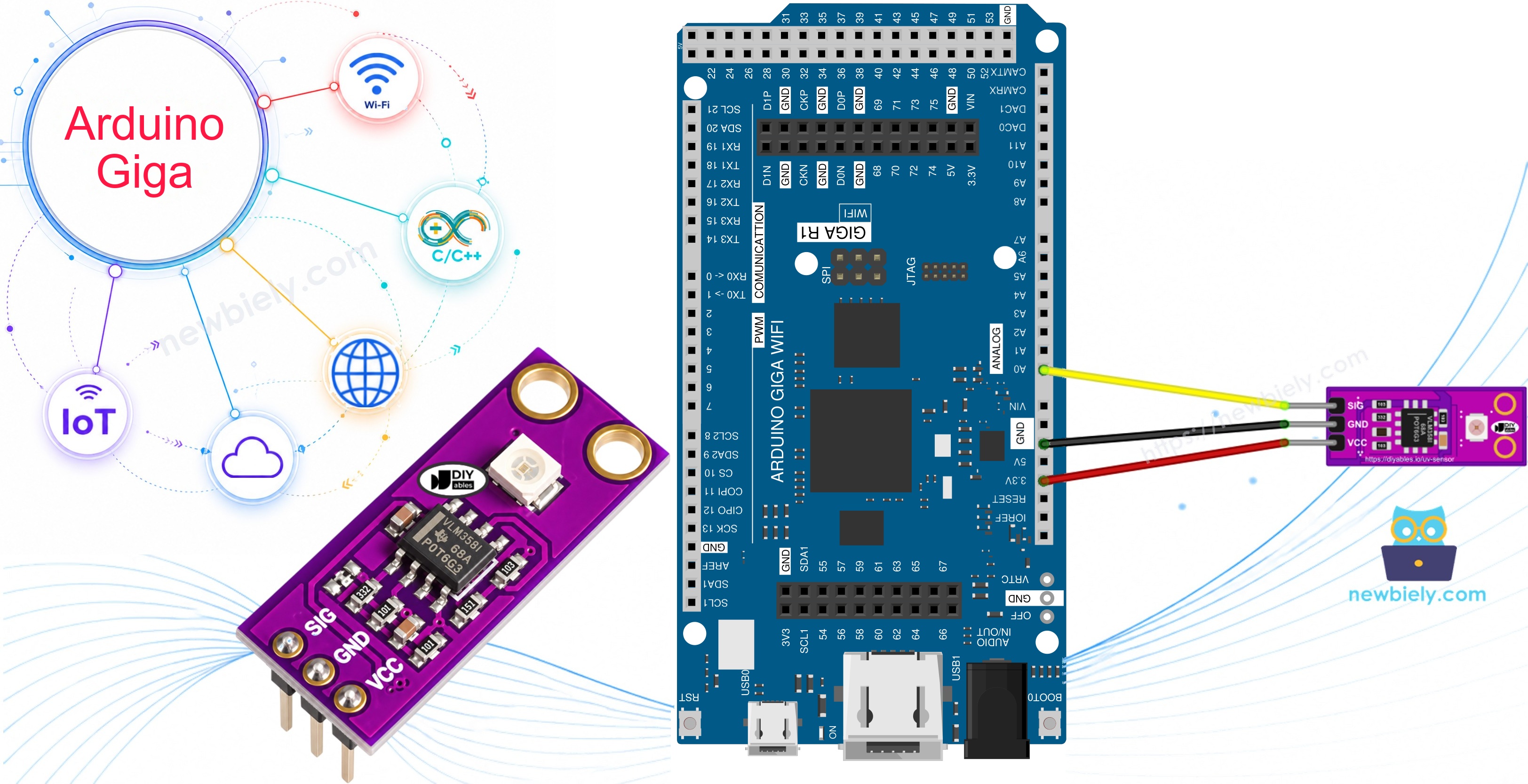
Sunlight you cannot see is the part that burns skin. With this sensor, a Giga project can warn you before that happens: a sunscreen reminder on the balcony, a UV column for a WiFi weather station, or a quick test to see whether a cheap "UV" flashlight really gives out UV.
Hardware Preparation
Or you can buy the following kits:
| 1 | × | DIYables Sensor Kit (18 sensors/displays) |
Additionally, some of these links are for products from our own brand, DIYables .
Overview of GUVA-S12SD UV Sensor
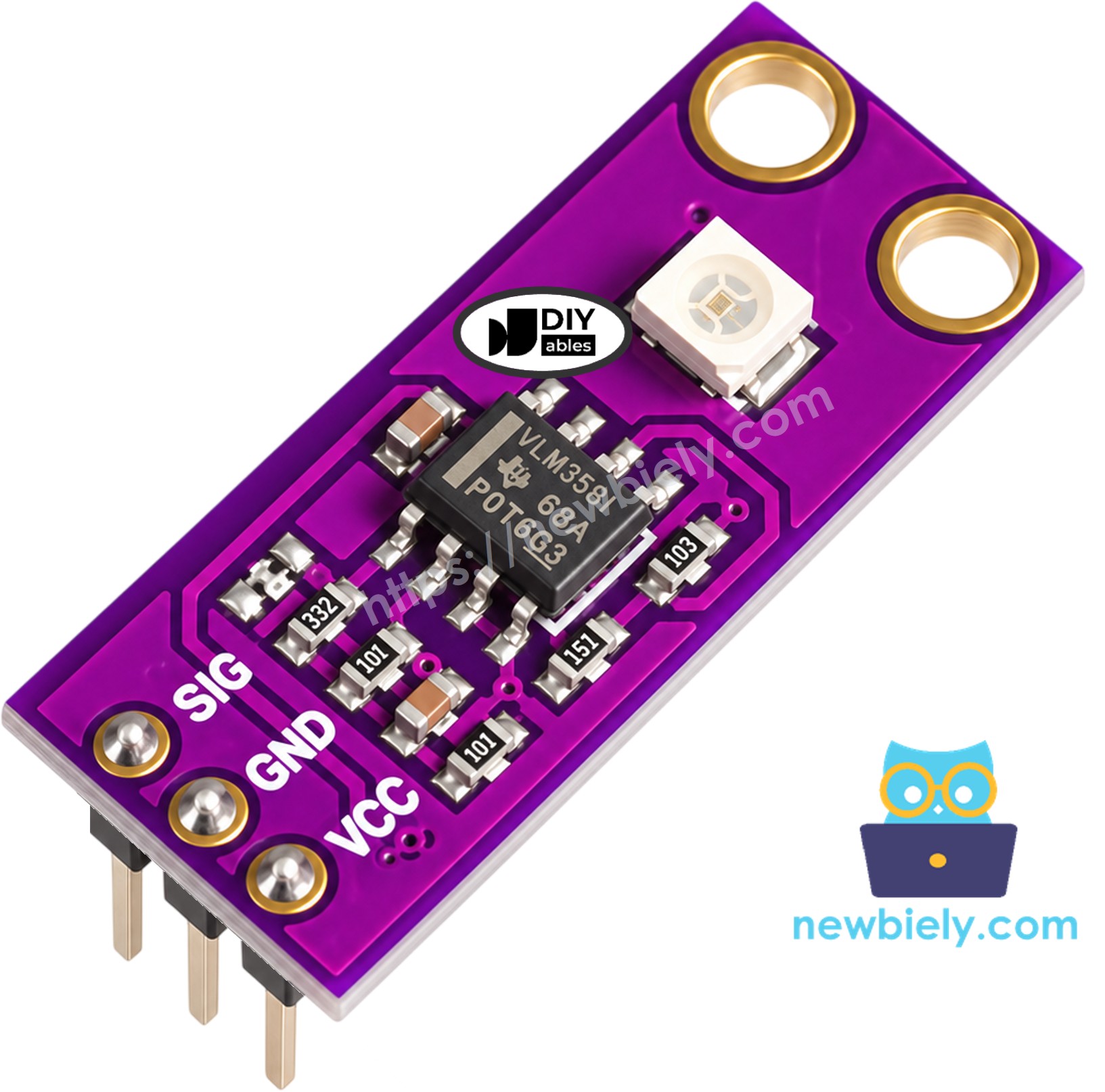
The module is a purple board of about 11mm x 27mm with two mounting holes. Look for the little white square near one end: that is the GUVA-S12SD UV photodiode. Beside it sits a VLM358 op-amp chip. Here is the idea in one breath: when UV light lands on the photodiode, it lets through a very tiny current, far too small for any board to read. The op-amp makes it bigger and hands it to the SIG pin as a voltage, and the Giga measures that voltage with analogRead(). More UV gives a higher voltage.
The photodiode reacts to UV-A and UV-B (240nm to 370nm) and looks at a wide 130 degree cone of sky. Normal room lamps and visible light give it almost nothing to work with, so a reading close to 0V indoors is correct, not a fault. Take it outside into direct sun, or shine a UV flashlight at it, to see the numbers climb. A window is not a good test spot either: glass stops most UV-B.
DIYables sells the module in a pack of 2, with the header pins already soldered.
| GUVA-S12SD UV Sensor Module | |
|---|---|
| Sensing element | GUVA-S12SD UV photodiode |
| Amplifier | VLM358 op-amp |
| Light it responds to | UV-A and UV-B, 240nm to 370nm |
| Viewing angle | 130 degrees |
| Supply voltage | 2.5V to 5V DC |
| Output | analog voltage, about 0V (no UV) to about 1V or more in strong sun |
| Board size | about 11mm x 27mm, 2 mounting holes |
| Pack | 2 modules, presoldered |
The three pins are labeled SIG, GND and VCC, in that order:
- SIG pin: connect to an analog input of the Arduino Giga R1 WiFi (A0 in this guide). It carries the UV voltage.
- GND pin: connect to a GND pin of the Giga (0V).
- VCC pin: connect to the 3.3V pin of the Giga.
The module can run from 5V too, but on the Giga keep it on 3.3V. Every Giga pin is a 3.3V pin, so feeding the board from the same rail keeps everything at one level.
How to read the voltage as a UV index: most makers use the simple rule "UV index is about the SIG voltage divided by 0.1". So 0.1V is about index 1, 0.5V is about index 5, and so on. This is fine for a hobby project, but it is not a calibrated lab meter. The World Health Organization groups the UV index like this:
| UV Index | Level | What it means for you |
|---|---|---|
| 0 - 2 | Low | safe for most people |
| 3 - 5 | Moderate | shade at midday, use sunscreen |
| 6 - 7 | High | cover up, hat and sunglasses |
| 8 - 10 | Very High | avoid the sun around noon |
| 11+ | Extreme | stay inside or fully covered |
Wiring Diagram
The UV module needs no resistor and no breadboard. Three jumper wires go straight from its header to the Giga.
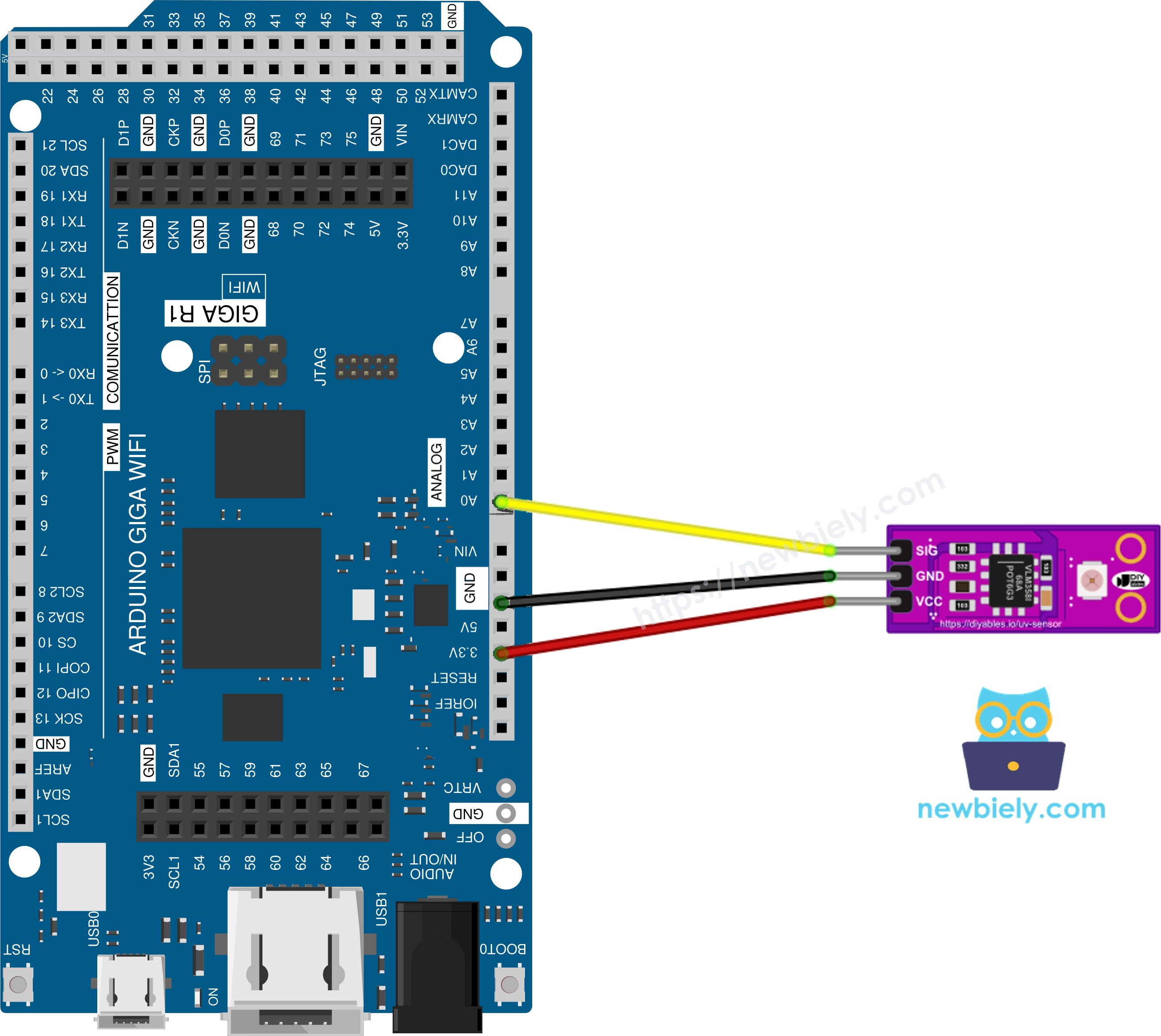
This image is created using Fritzing. Click to enlarge image
| GUVA-S12SD Pin | Arduino Giga R1 WiFi Pin |
|---|---|
| SIG | A0 |
| GND | GND |
| VCC | 3.3V |
The op-amp is already on the module, so there's no need to add one. This makes wiring or soldering easier. If A0 is busy in your project, any other analog pin of the Giga works; just change UV_SIG_PIN in the code.
How To Program For GUVA-S12SD UV Sensor
No library is needed. Reading this sensor is the same as reading a potentiometer.
- Give a name to the analog pin that listens to SIG:
- Read the raw value. With the default 10-bit setting, the Giga returns 0 to 1023:
- Turn it into volts. The analog pins of the Giga measure from 0V up to 3.3V:
- Make a rough UV index from the voltage:
Arduino Giga R1 WiFi Code - GUVA-S12SD Raw Value and Voltage
The first sketch is a check of the wiring. Once per second it prints two things: the number that analogRead() gives back, and the same reading as a voltage.
Detailed Instructions
Follow these instructions step by step:
- First time with the Giga? Set up its board package with the Arduino Giga R1 WiFi getting started guide.
- Wire the components according to the provided diagram: SIG to A0, GND to GND, VCC to 3.3V.
- Plug the Giga R1 WiFi into your computer with the USB Type-C cable.
- Launch the Arduino IDE on your computer.
- Select the appropriate Arduino Giga R1 WiFi board (e.g., Arduino Giga R1 WiFi) and COM port.
- Paste the code above into the editor and click Upload.
- Open the Serial Monitor and set it to 9600 baud.
- Watch a few lines on your desk, then carry the board (on a laptop) out into direct sunlight with the white square facing the sky.
The first lines are from indoors: just a few counts, a few millivolts. That is normal, because room light holds almost no UV. Outside the value jumps to around 0.6V on a sunny afternoon. If the number does not move at all in the sun, check that SIG really goes to A0 and not to a digital pin.
One count of the 10-bit reading is about 3.2mV, which is fine for a UV index. If you want finer steps, add analogReadResolution(12) to setup() and change 1023 to 4095 in the code.
Arduino Giga R1 WiFi Code - GUVA-S12SD UV Index Meter
Now let us make the numbers useful. This sketch reads A0 16 times and takes the average, so a passing cloud edge or a little electrical noise does not make the value jump. Then it divides the voltage by 0.1 to get the UV index and prints its WHO level name.
Detailed Instructions
- Keep the same three wires.
- Upload this sketch and open the Serial Monitor at 9600 baud.
- Start in the shade, then step into full sun, then cover the sensor with your hand for a moment.
The shade gives a Moderate value, open sun gives High or Very High, and your hand drops it to Low at once. Compare your result with the UV index in a weather app for your town: if yours is always a little higher or lower, you can change the 0.1 in the code to match. Remember it is a guide for a hobby project, not a medical tool.
A next step for the Giga: show the UV level on a display, or switch on a buzzer when it goes above 6. For a sensor that measures visible light instead of UV, see the Arduino Giga R1 WiFi - Light Sensor tutorial.