
Arduino Mega - Temperature Sensor - OLED
This guide shows you how to use an Arduino Mega to read the temperature from a DS18B20 sensor and display it on an OLED screen.
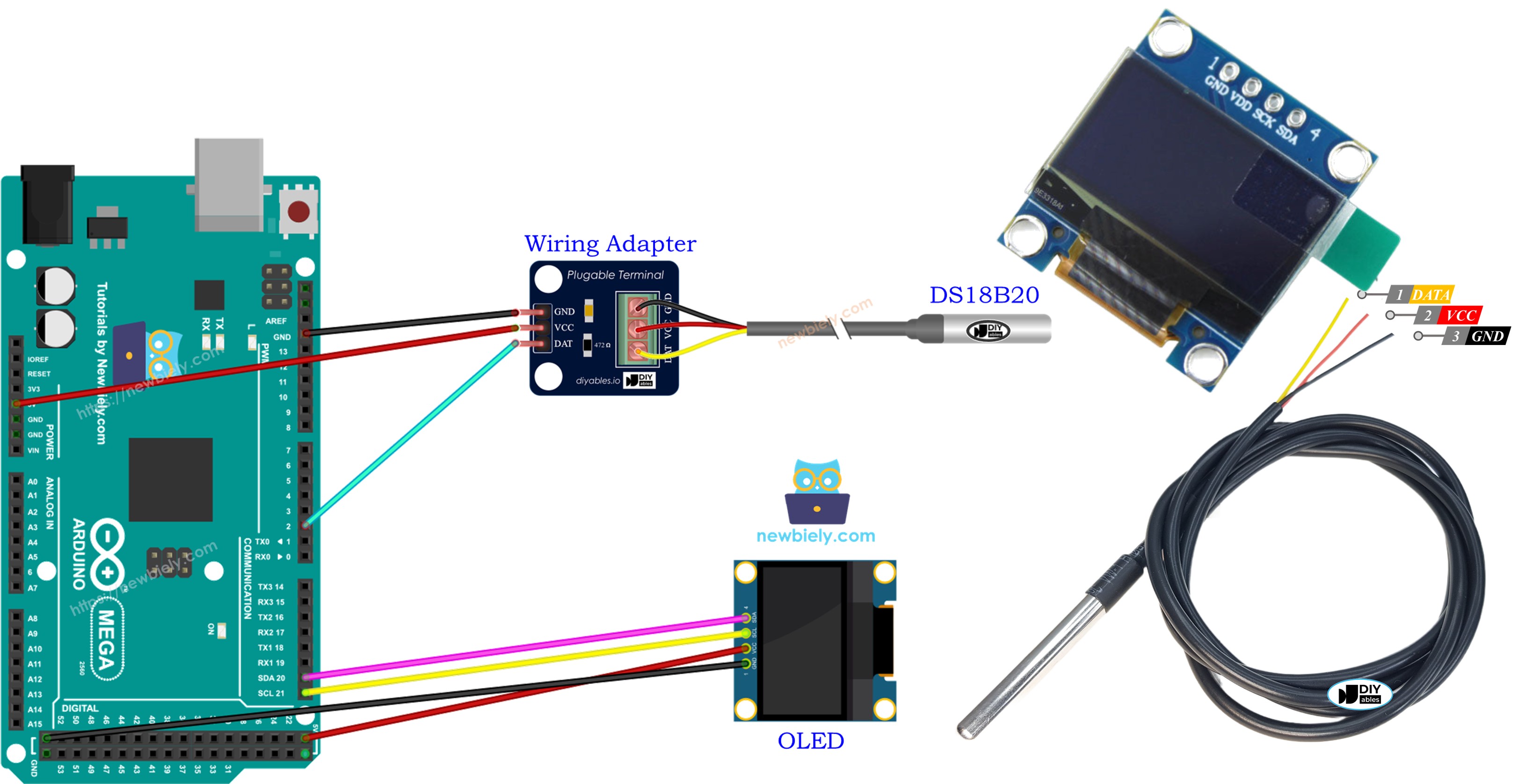
Hardware Preparation
Or you can buy the following kits:
| 1 | × | DIYables Sensor Kit (30 sensors/displays) | |
| 1 | × | DIYables Sensor Kit (18 sensors/displays) |
Additionally, some of these links are for products from our own brand, DIYables .
Buy Note: Many DS18B20 sensors available in the market are unreliable. We strongly recommend buying the sensor from the DIYables brand using the link provided above. We tested it, and it worked reliably.
Overview of OLED and DS18B20 Temperature Sensor
If you're new to using the OLED, DS18B20 Temperature Sensor, and Arduino Mega, please check out these tutorials:
- Getting Started with Arduino Mega tutorial
These tutorials explain how OLED and DS18B20 Temperature Sensor work, their pinouts, how to connect them to the Arduino Mega, and how to program Arduino Mega to work with the OLED and DS18B20 Temperature Sensor.
Wiring Diagram
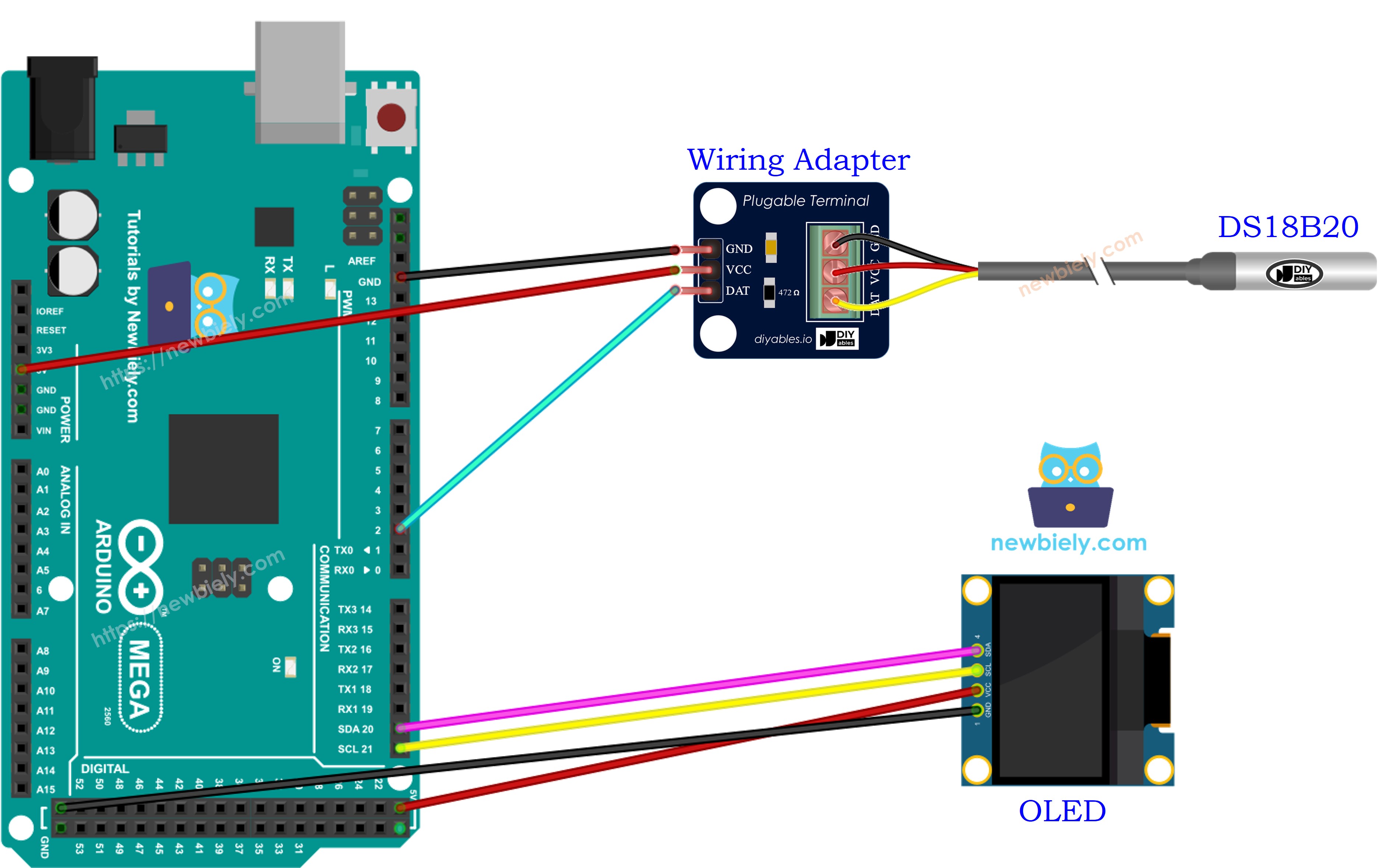
This image is created using Fritzing. Click to enlarge image
We suggest buying a DS18B20 temperature sensor with a wiring adapter for easy setup. The adapter has a resistor, so you don’t need to buy another one for the wiring.
Arduino Mega Code - Temperature from DS18B20 Temperature Sensor and display it on OLED
Detailed Instructions
Follow these steps one by one.
- Connect the OLED and the temperature sensor to the Arduino Mega board following the diagram.
- Connect the Arduino Mega to your computer with a USB cable.
- Open the Arduino IDE on your computer.
- Choose the correct board (Arduino Mega) and the COM port.
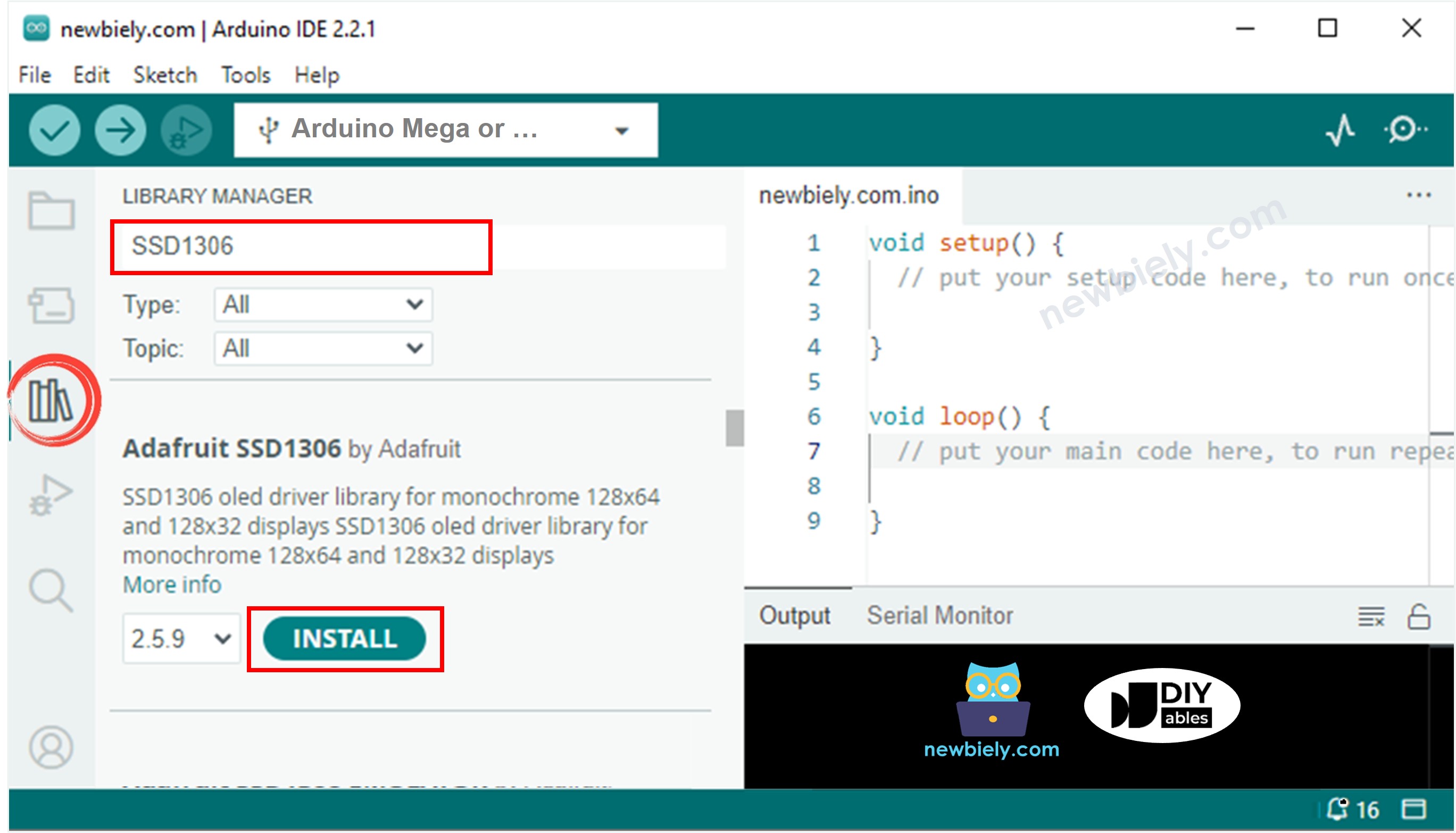
- Click the Libraries icon on the left side of the Arduino IDE.
- Type SSD1306 in the search box, then find the SSD1306 library by Adafruit.
- Click Install to add the library.
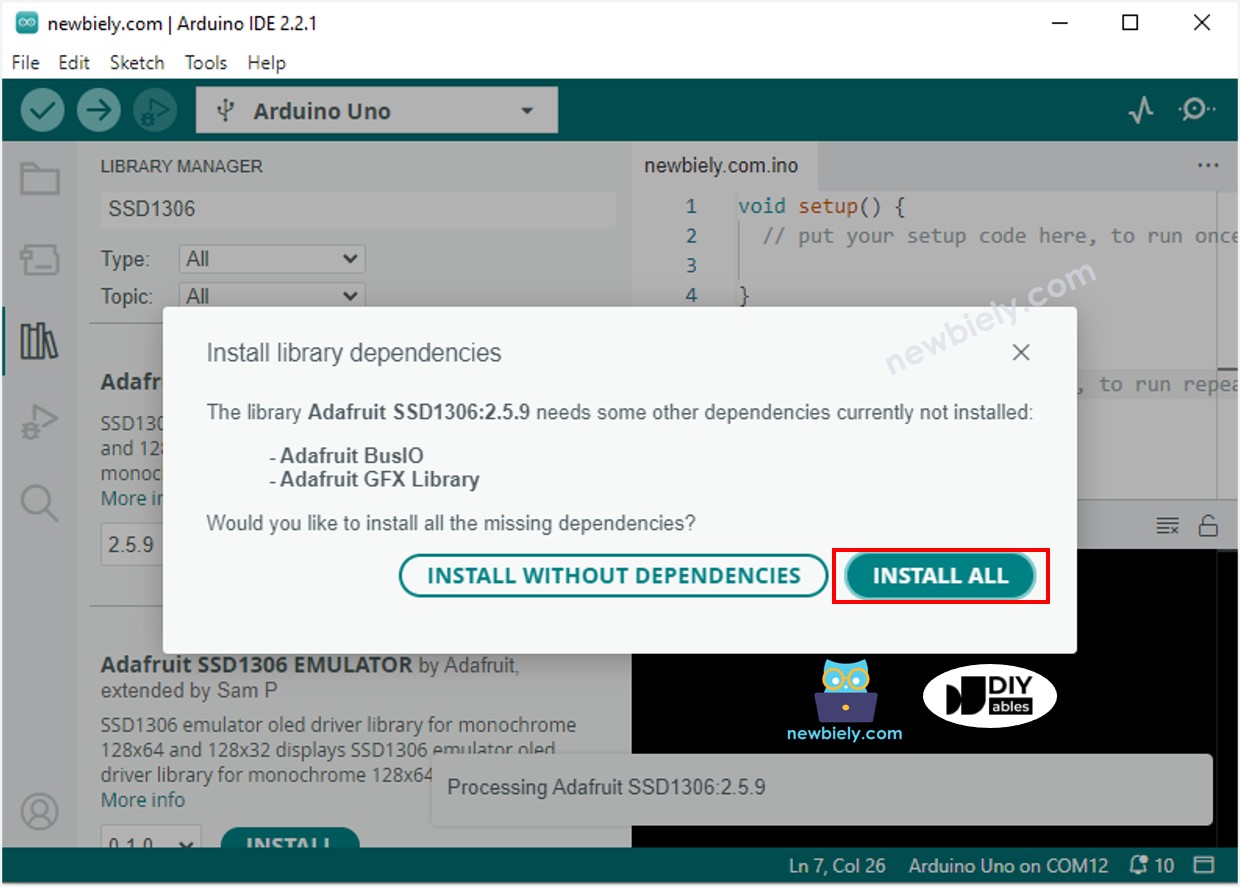
- You need to install some extra libraries.
- Click the Install All button to install all the libraries you need.
- Type "DallasTemperature" in the search box and find the DallasTemperature library by Miles Burton.
- Press the Install button to install the DallasTemperature library.
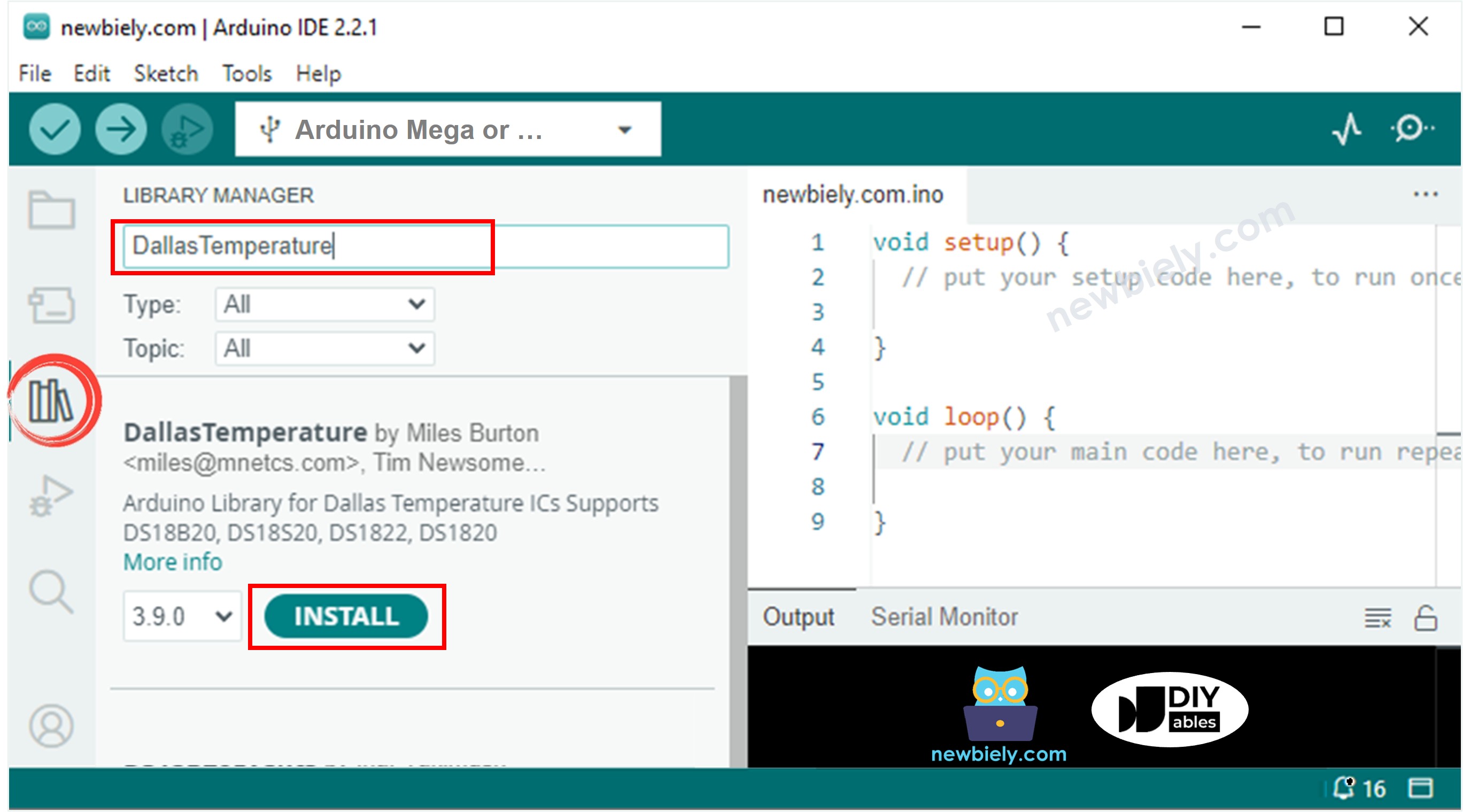
- You need to install the required library.
- Click the Install All button to install the OneWire library.
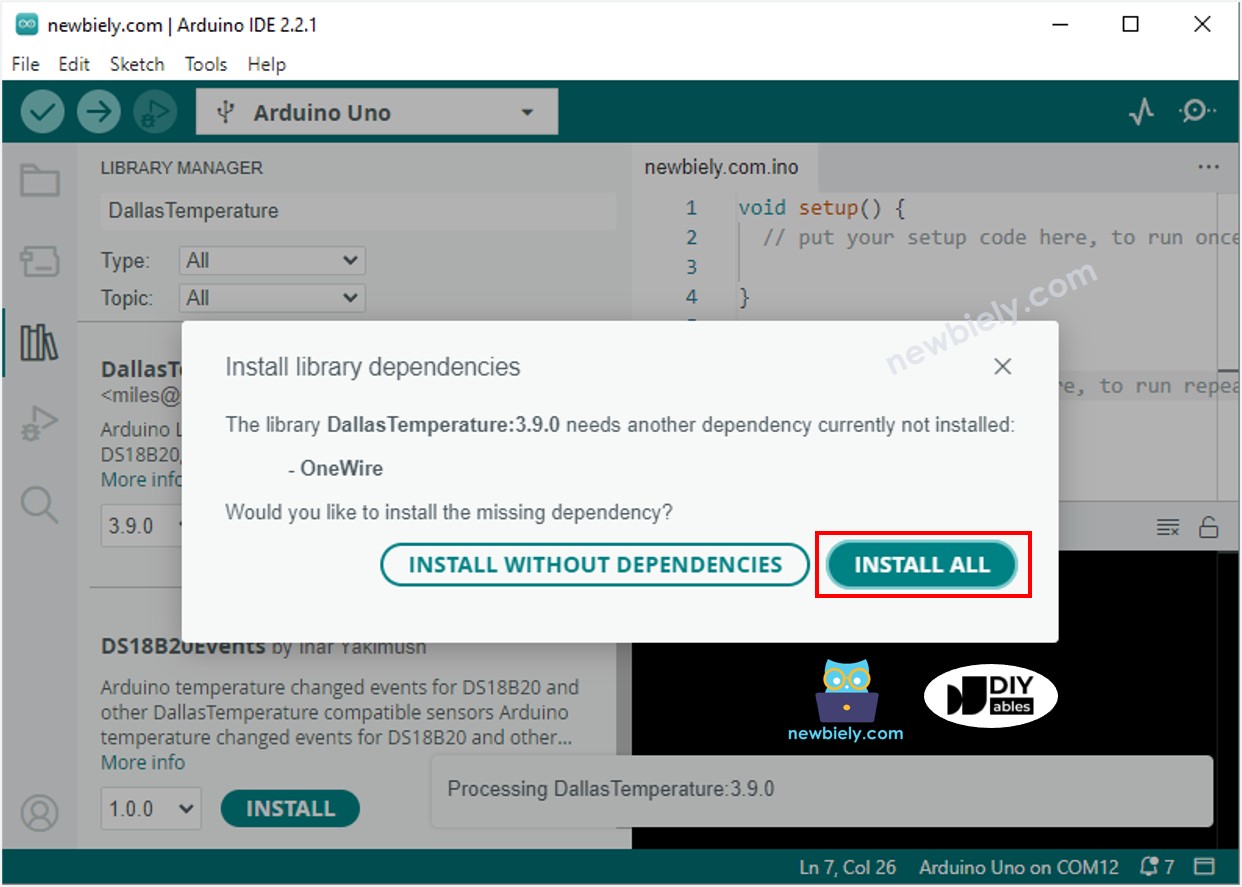
- Copy the code above and open it in the Arduino IDE.
- Click the Upload button in the Arduino IDE to send the code to the Arduino Mega.
- Put the sensor in hot or cold water, or hold it in your hand.
- Look at the OLED screen to see the results.
※ NOTE THAT:
The code automatically puts the text in the middle of the OLED screen, both left-right and up-down.