
Arduino Mega - Temperature Sensor
This guide shows you how to use the DS18B20 1-Wire temperature sensor with the Arduino Mega board. We will learn in detail:
- How to connect DS18B20 temperature sensor to Arduino Mega.
- How to connect DS18B20 to Arduino Mega using an adapter.
- How to program Arduino Mega to read the temperature from the DS18B20 sensor.
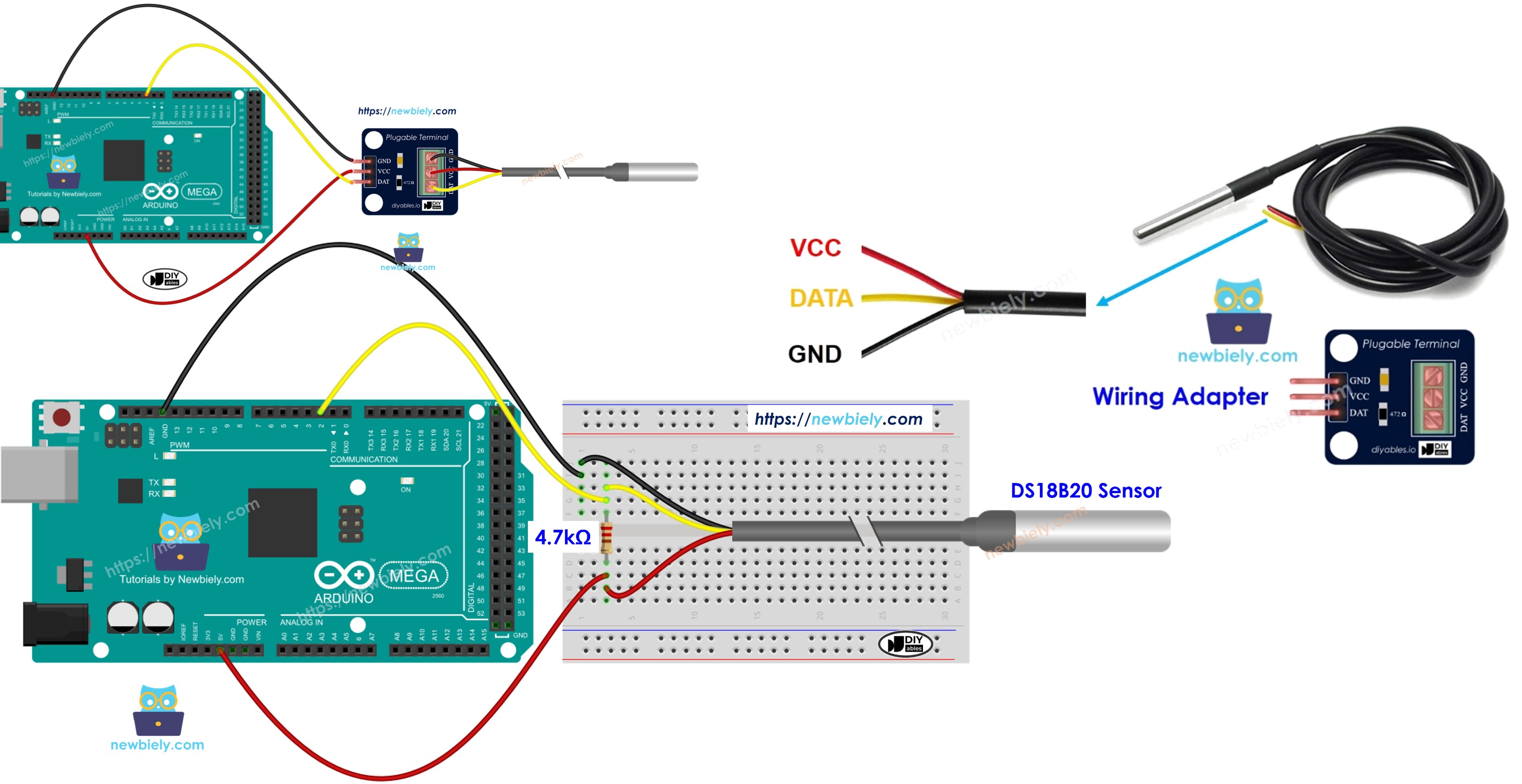
Hardware Preparation
Or you can buy the following kits:
| 1 | × | DIYables Sensor Kit (18 sensors/displays) |
Additionally, some of these links are for products from our own brand, DIYables .
Buy Note: Many DS18B20 sensors available in the market are unreliable. We strongly recommend buying the sensor from the DIYables brand using the link provided above. We tested it, and it worked reliably.
Overview of One Wire Temperature Sensor DS18B20
Pinout
The DS18B20 temperature sensor has three pins.
- GND pin: connect to ground (0 V).
- VCC pin: connect to VCC (5 V or 3.3 V).
- DATA pin: this is the 1-Wire data line. Connect it to a digital pin on the Arduino Mega.
The sensor comes in two kinds: a TO-92 package that looks like a transistor, and a waterproof probe. In this tutorial, we will use the waterproof probe.
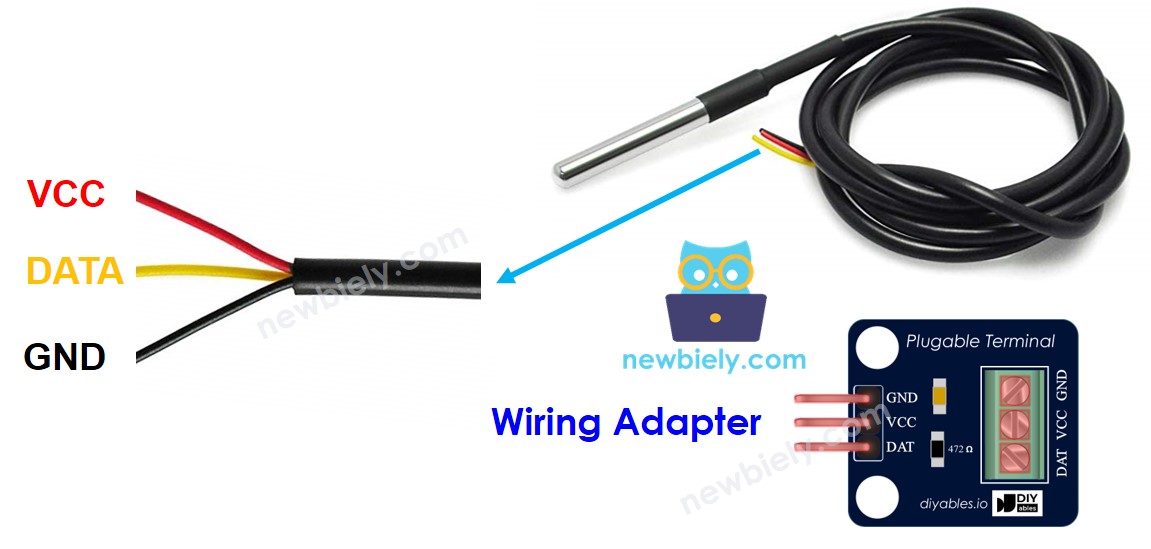
To connect a DS18B20 temperature sensor to an Arduino Mega, you need a pull-up resistor, and this can be tricky. Some manufacturers offer a wiring adapter that already includes a pull-up resistor and a screw terminal block, which makes the setup easier.
Wiring Diagram
- How to wire a breadboard
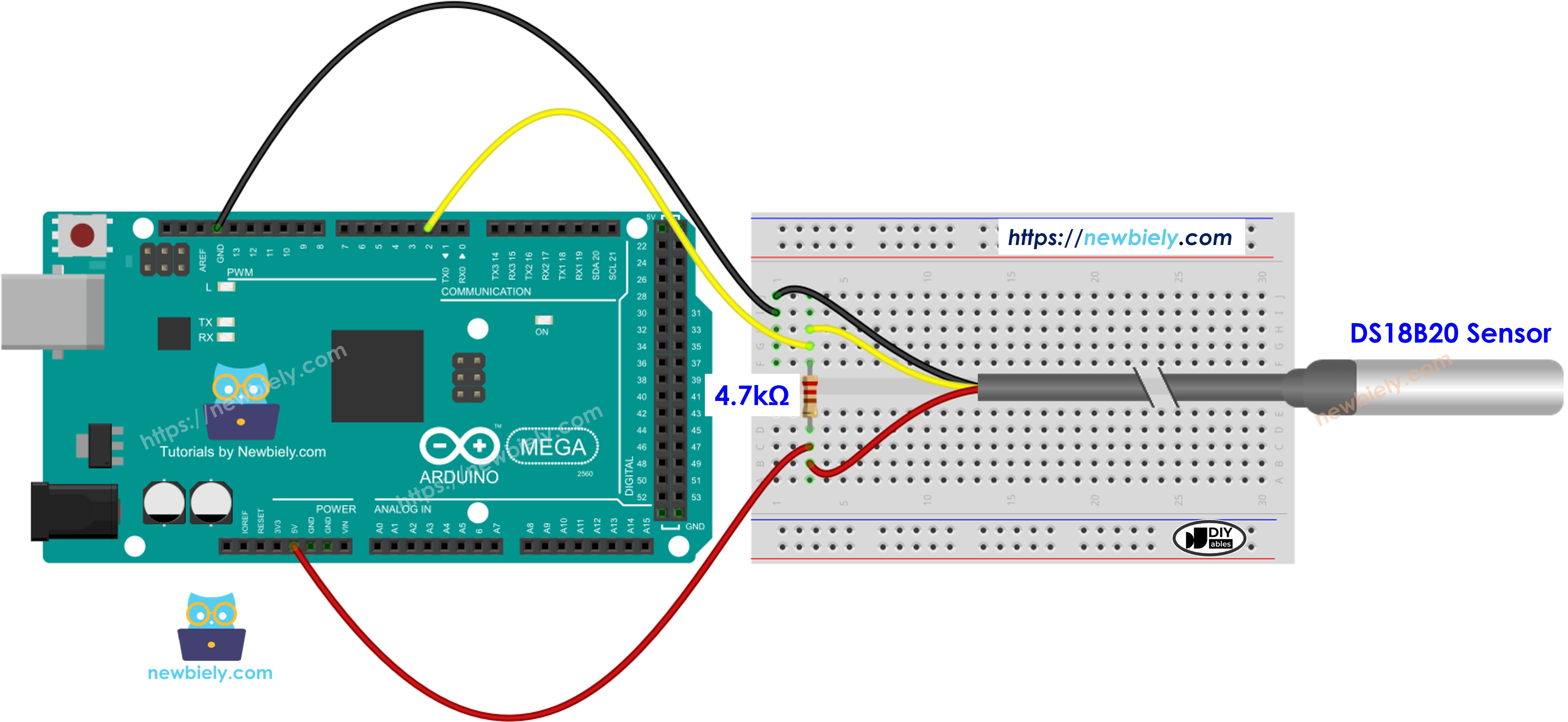
This image is created using Fritzing. Click to enlarge image
- Diagram showing how wires connect and the adapter
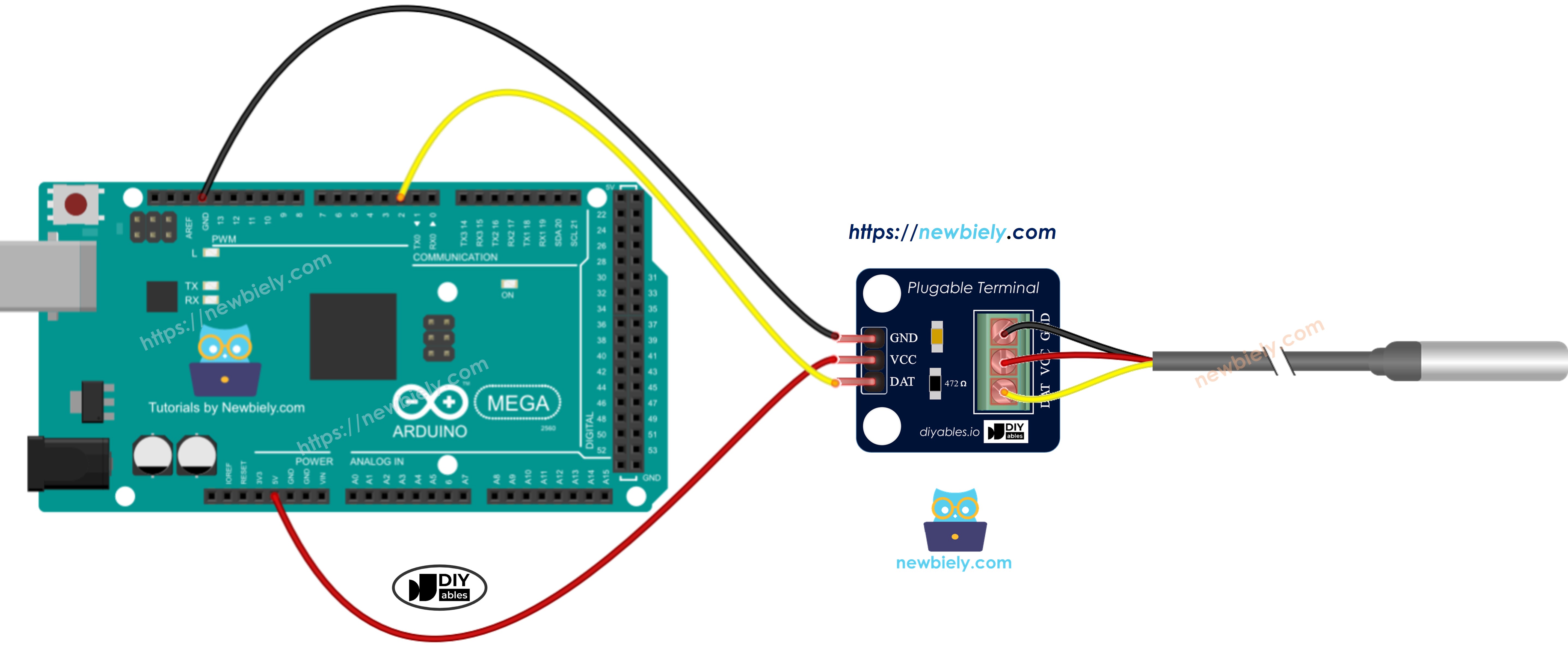
This image is created using Fritzing. Click to enlarge image
We suggest getting a DS18B20 temperature sensor with a wiring adapter. This adapter is easy to connect because it has a built-in resistor, so you don’t need to add another one.
How To Program For DS18B20 Temperature Sensor
- Add the library:
- Make a OneWire object and a DallasTemperature object for the pin that connects to the sensor's DATA pin.
- Install the sensor
- Run the command to check the temperatures:
- Find out what the temperature is in Celsius.
- (Optional) Convert Celsius temperature to Fahrenheit.
Arduino Mega Code
Detailed Instructions
Follow these instructions one step at a time.
- Connect the DS18B20 1-wire temperature sensor to the Arduino Mega as shown in the diagram.
- Connect the Arduino Mega to your computer with a USB cable.
- Open the Arduino IDE on your computer.
- Choose Arduino Mega as your board and the correct COM port.
- Click the Libraries icon on the left side of the Arduino IDE.
- Search for DallasTemperature and select the library by Miles Burton.
- Click the Install button to add the DallasTemperature library.
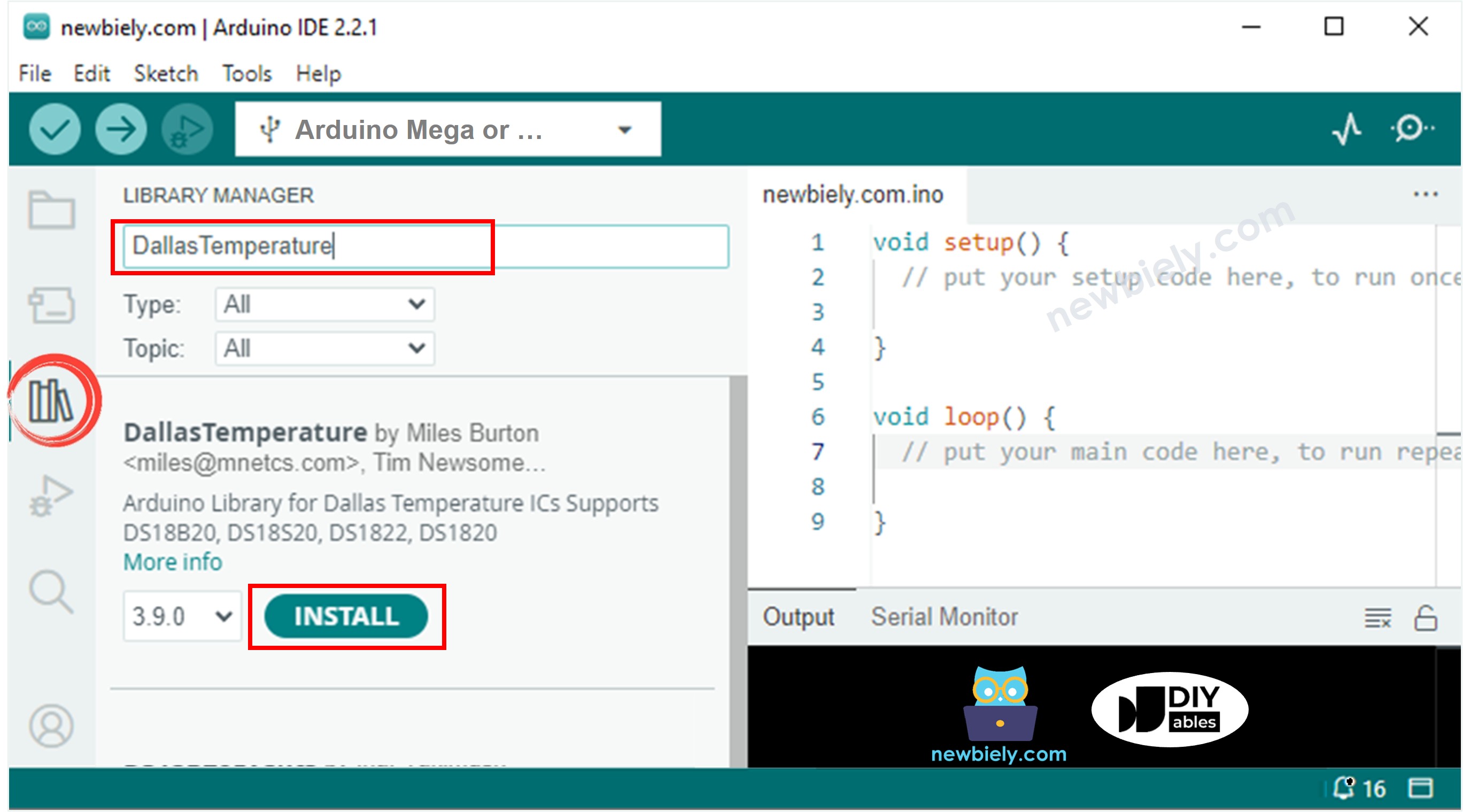
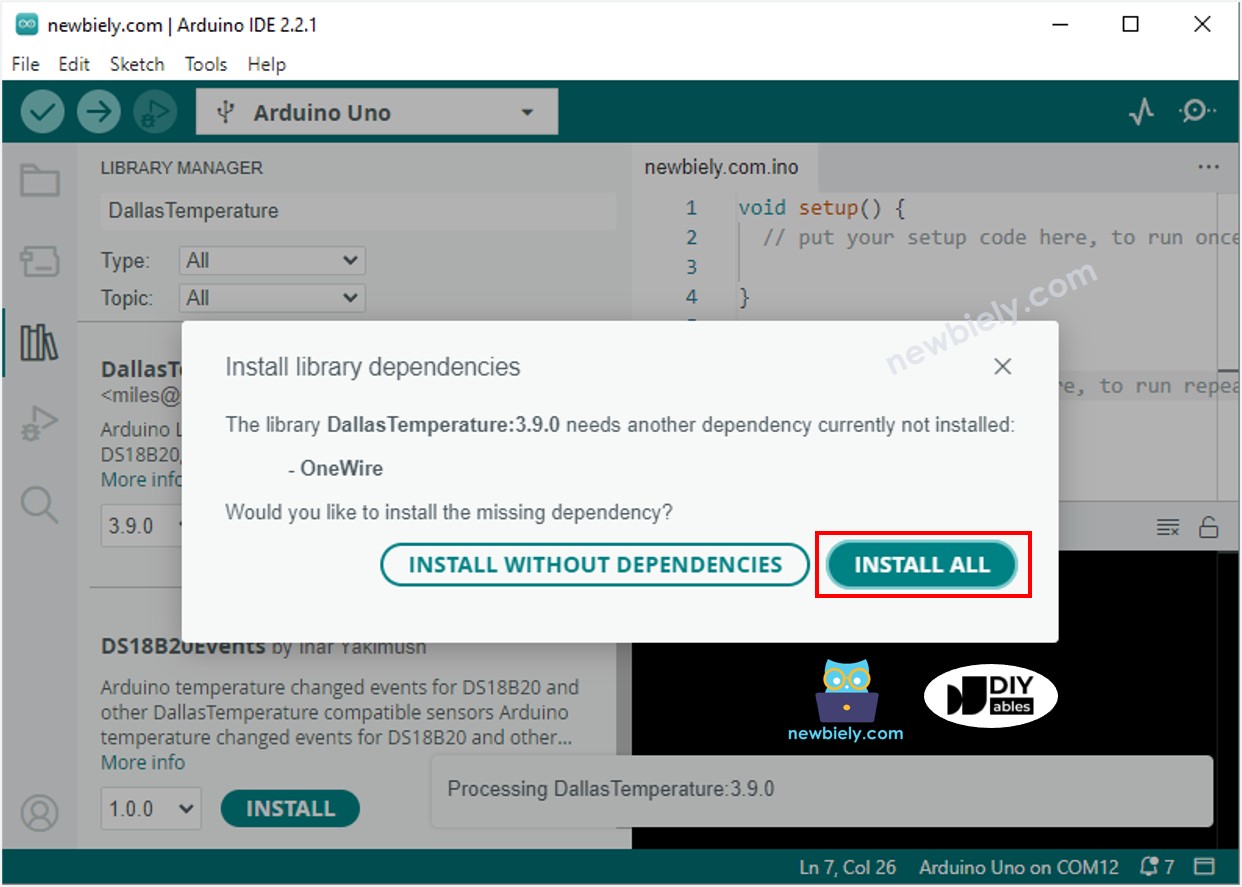
- You need to install a library the program needs.
- Click the Install All button to install the OneWire library.
- Copy the code and open it in the Arduino IDE.
- Click the Upload button in the Arduino IDE to send the code to the Arduino Mega.
- Put the sensor in hot water and in cold water, or just hold it in your hand.
- See the results on the Serial Monitor.