
Arduino Mega - Switch
In this guide, we will learn how to use the on/off switch with an Arduino Mega. Specifically, we will cover:
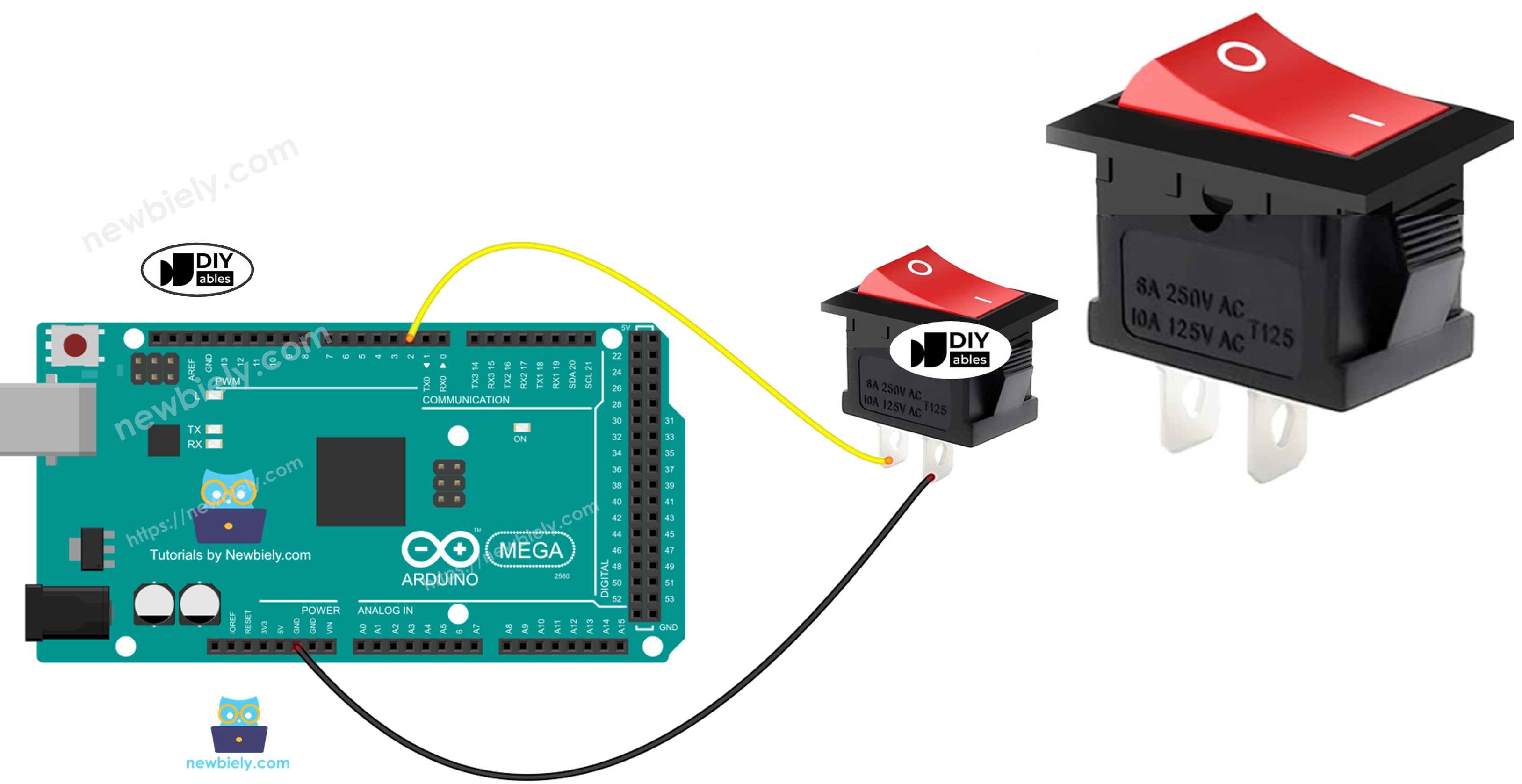
- How to connect the on/off switch to the Arduino Mega.
- How to write code for the Arduino Mega to read the switch’s status.
- How to write code for the Arduino Mega to detect when the switch turns on or off.
Hardware Preparation
Or you can buy the following kits:
| 1 | × | DIYables Sensor Kit (18 sensors/displays) |
Additionally, some of these links are for products from our own brand, DIYables .
Overview of ON/OFF Switch
A switch labeled ON/OFF changes from ON to OFF, or from OFF to ON, when you flip it. It stays in the new position when you let go. Press it again to change it back.
Pinout
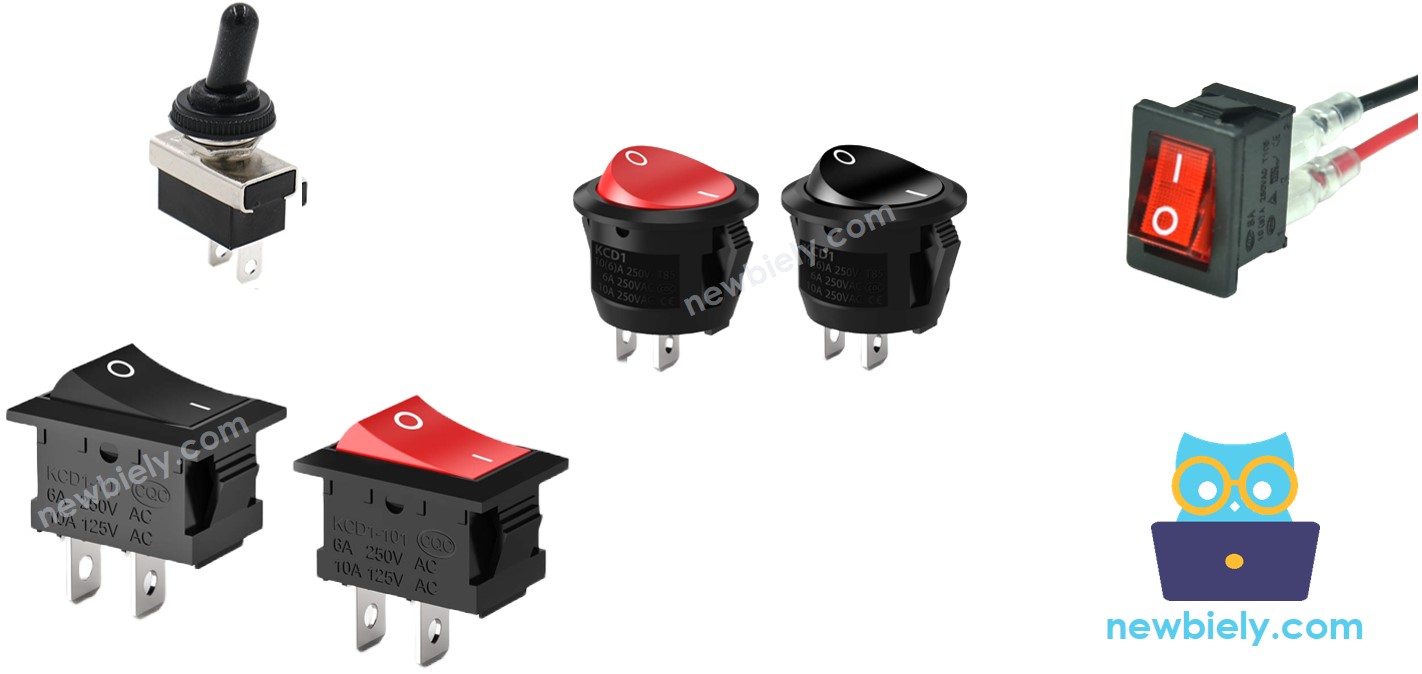
There are two common kinds of on/off switches: the two-pin switch and the three-pin switch.
In this guide, we will use a two-pin switch. For this switch, you don’t need to tell the two pins apart.
How It Works
Here are two easy ways to operate an ON/OFF switch. Below is the wiring guide for the switch and the readings you will see on the Arduino Mega for each method:
| pin 1 | pin 2 | Arduino Mega Input Pin's State | |
|---|---|---|---|
| 1 | GND | Arduino Mega Input Pin (with pull-up) | HIGH ⇒ OFF, LOW ⇒ ON |
| 2 | VCC | Arduino Mega Input Pin (with pull-down) | HIGH ⇒ ON, LOW ⇒ OFF |
We only need to choose one of the two methods. The rest of this guide will use the first method.
Wiring Diagram
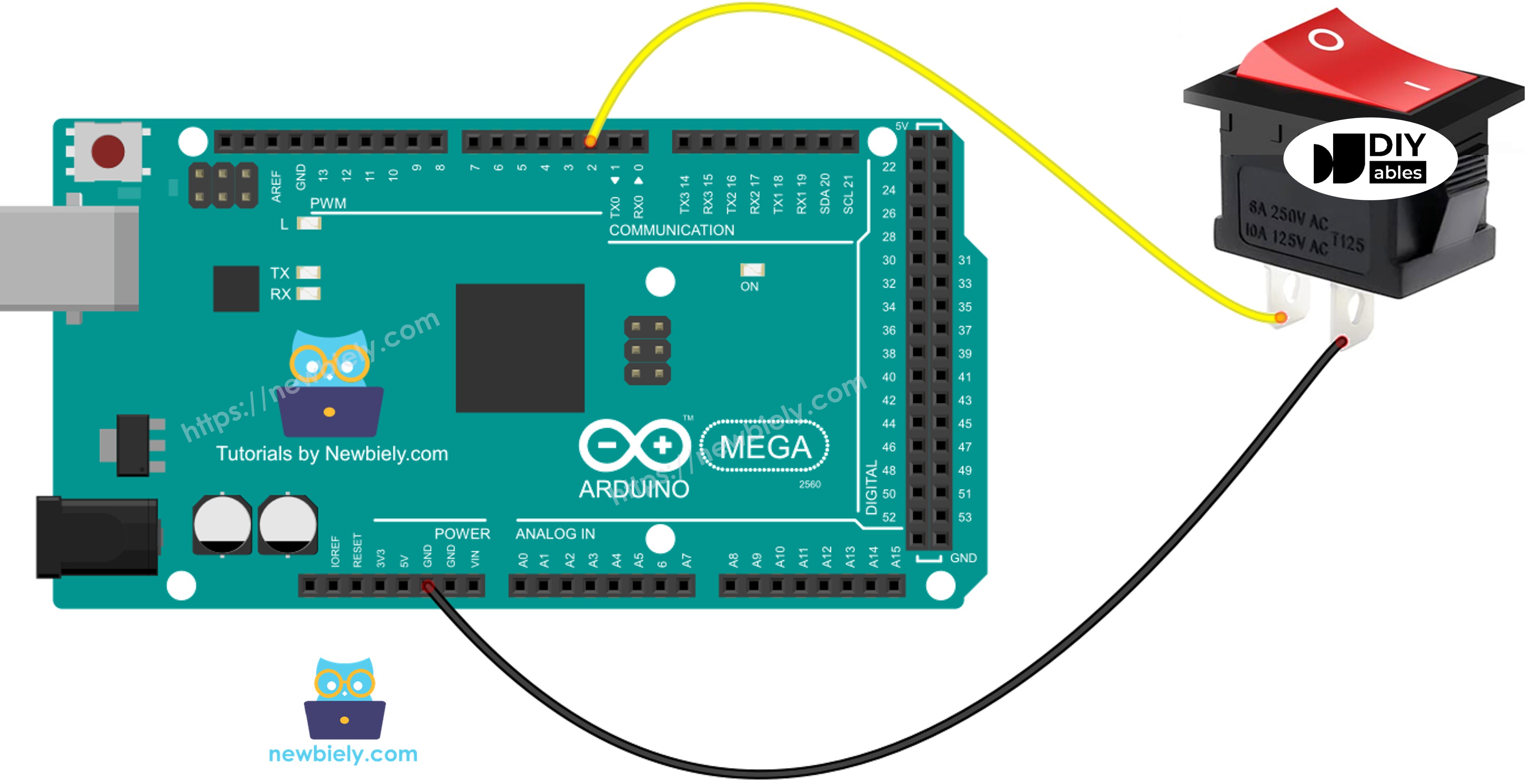
This image is created using Fritzing. Click to enlarge image
We recommend using a soldering iron to securely solder the wires and the ON/OFF switch pin. Then cover them with heat shrink tubing to keep things safe.
Arduino Mega Code - ON/OFF Switch
Just like a button, an ON/OFF switch also needs debouncing (Learn more at https://arduinogetstarted.com/faq/why-needs-debounce-for-button). Debouncing can make the code harder. Luckily, the ezButton library (https://arduinogetstarted.com/tutorials/arduino-button-library) includes a debouncing feature and uses an internal pull-up resistor, which makes programming easier.
※ NOTE THAT:
There are two common situations:
1) If the switch is ON, do something. If it's OFF, do the opposite.
2) If the switch changes from ON to OFF or from OFF to ON, do something.
Detailed Instructions
Follow these steps one by one:
- Connect the ON/OFF switch to the Arduino Mega as shown in the diagram.
- Connect the Arduino Mega to your computer with a USB cable.
- Open the Arduino IDE on your computer.
- In the IDE, select the board Arduino Mega and the correct serial port.
- Install the ezButton library. Follow the guide here: https://arduinogetstarted.com/tutorials/arduino-button-library#content_how_to_install_library
- Make sure the correct board and port are selected in the IDE.
- Click the Upload button in the Arduino IDE to send the code to your Arduino Mega.
- Turn the switch to ON.
- Check the Serial Monitor for the output.
- Turn the switch to OFF.
- Check the Serial Monitor again for the output.