
Arduino Mega - Traffic Light
In this guide, you will learn how to control a traffic light module with an Arduino Mega. We will cover:
- How to hook up the traffic light module to an Arduino Mega
- How to program an Arduino Mega to control the traffic light
- How to program an Arduino Mega to control the traffic light without using the delay() function
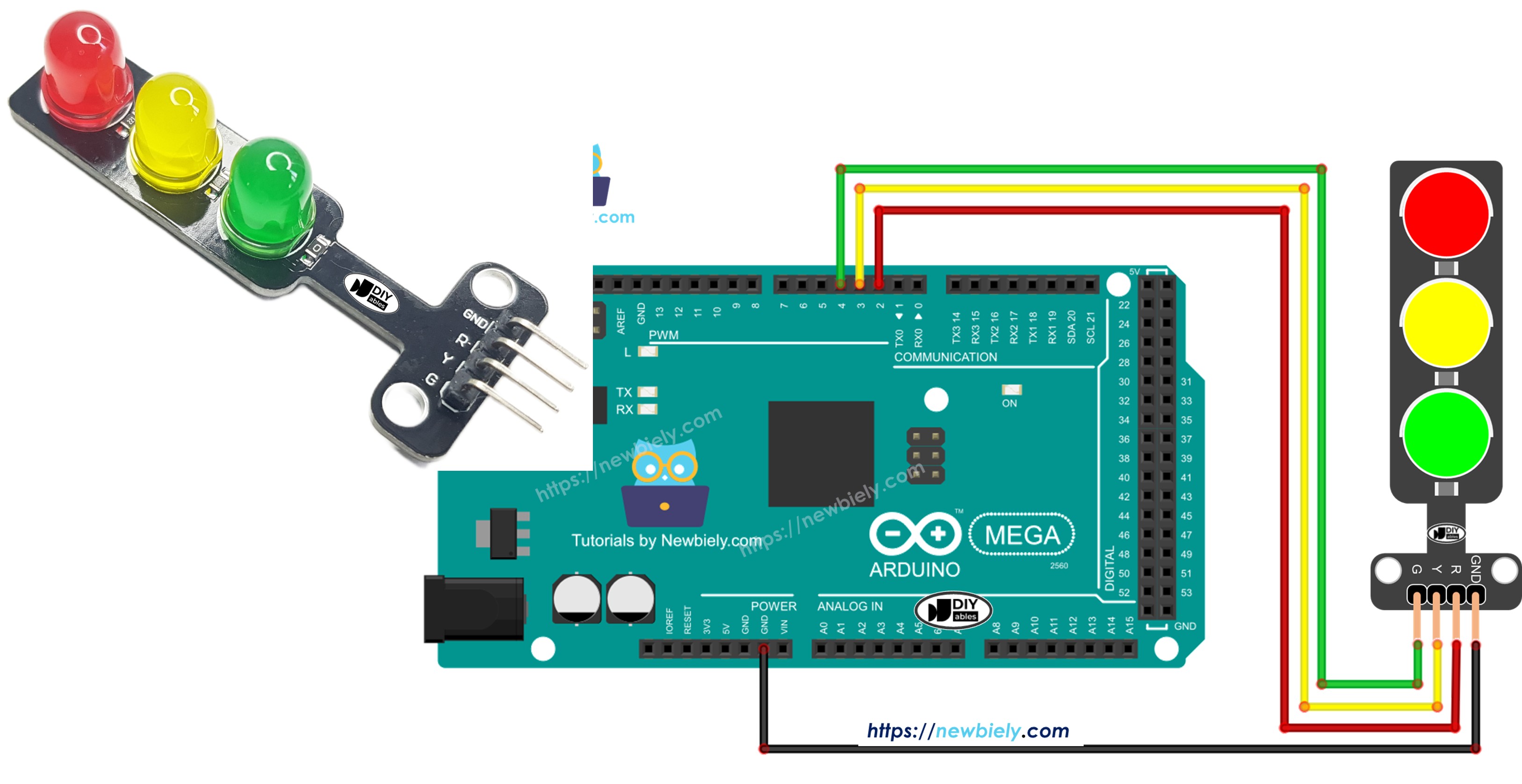
Hardware Preparation
Or you can buy the following kits:
| 1 | × | DIYables Sensor Kit (18 sensors/displays) |
Disclosure: Some of the links provided in this section are Amazon affiliate links. We may receive a commission for any purchases made through these links at no additional cost to you.
Additionally, some of these links are for products from our own brand, DIYables .
Additionally, some of these links are for products from our own brand, DIYables .
Overview of Traffic Light Module
Pinout
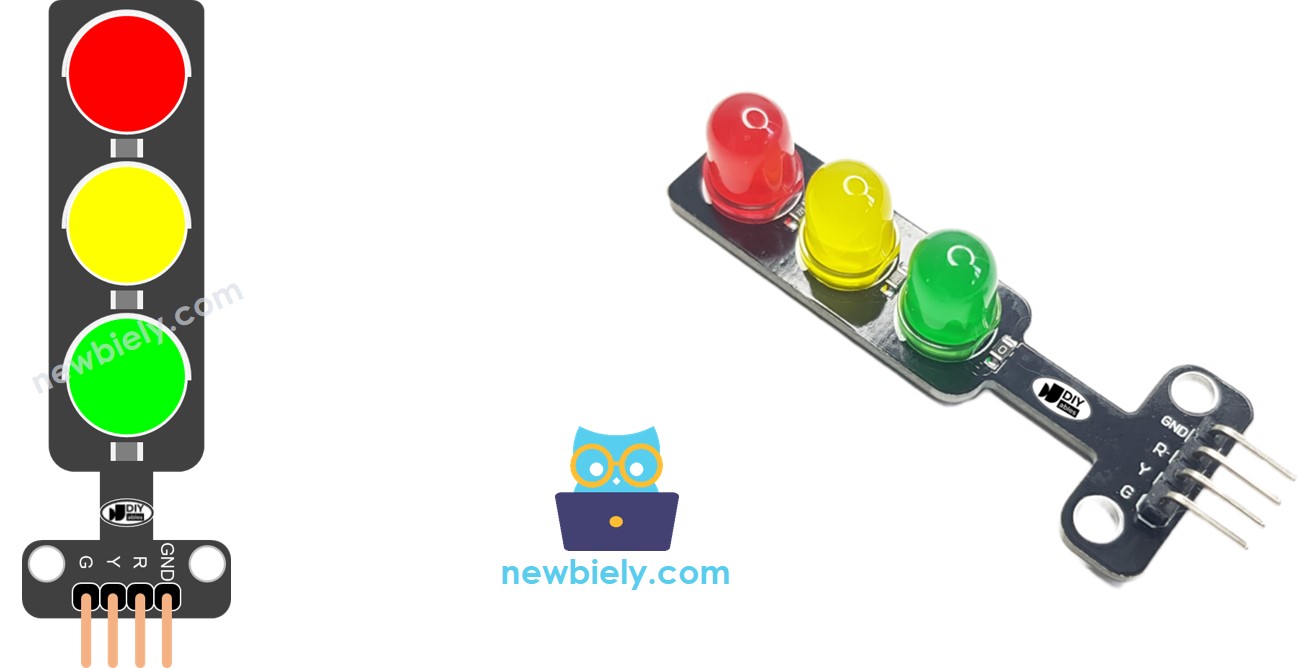
A traffic light unit has four pins.
- Ground pin: This is the ground pin. Connect it to the Arduino Mega's ground.
- Red (R) pin: This pin turns the red light on or off. Connect it to a digital output on the Arduino Mega.
- Yellow (Y) pin: This pin turns the yellow light on or off. Connect it to a digital output on the Arduino Mega.
- Green (G) pin: This pin turns the green light on or off. Connect it to a digital output on the Arduino Mega.
How It Works
Wiring Diagram
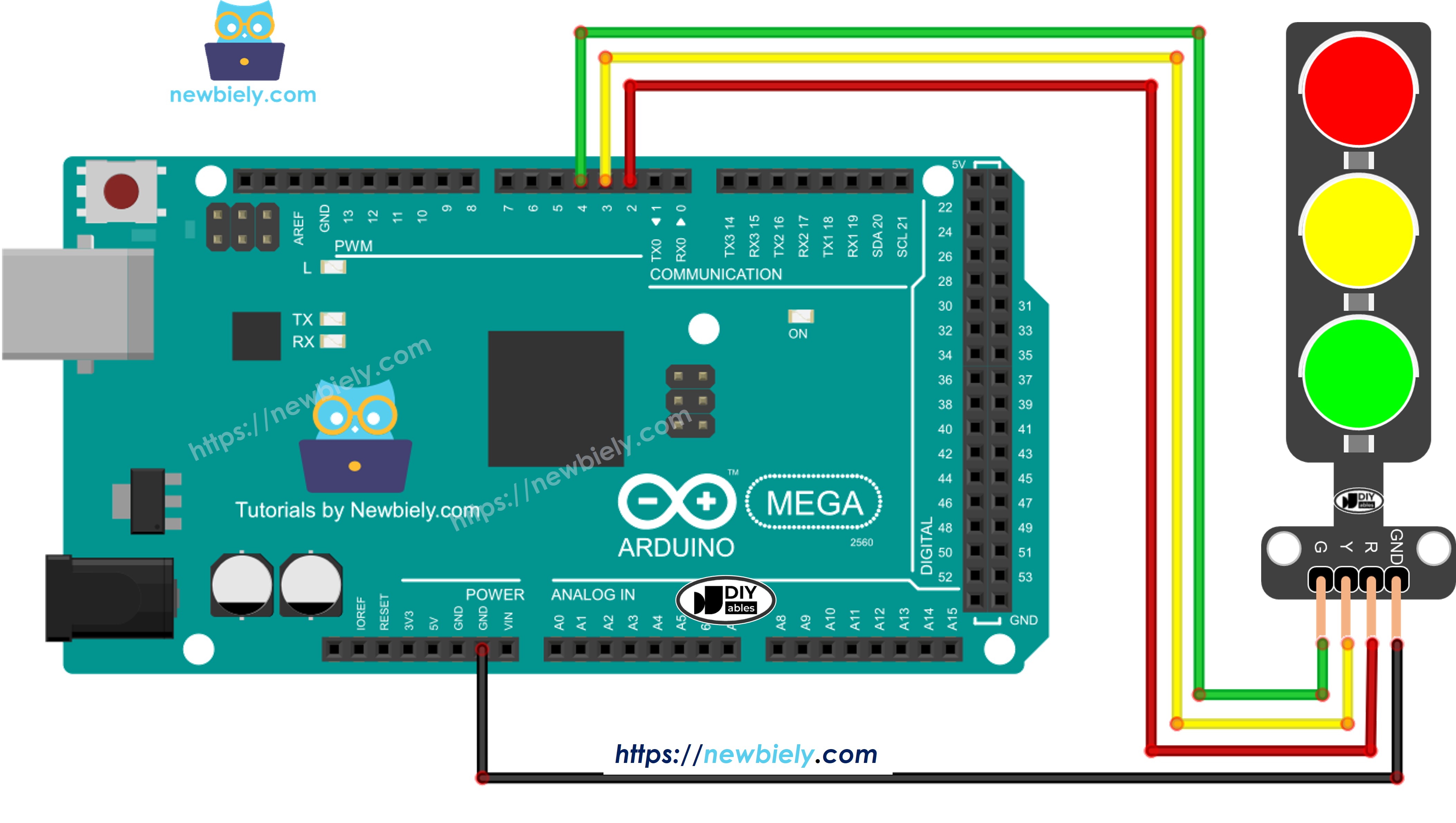
This image is created using Fritzing. Click to enlarge image
How To Program For Traffic Light module
- Set the pins on an Arduino Mega to digital outputs using the pinMode() function.
pinMode(PIN_RED, OUTPUT);
pinMode(PIN_YELLOW, OUTPUT);
pinMode(PIN_GREEN, OUTPUT);
- Program to turn on the red light using the digitalWrite() function.
digital-Write(PIN_RED, HIGH); // Turn the RED LED on
digitalWrite(PIN_YELLOW, LOW); // Turn the YELLOW LED off
digitalWrite(PIN_GREEN, LOW); // Turn the GREEN LED off
delay(RED_TIME); // Keep the RED LED on for RED_TIME milliseconds
Arduino Mega Code
/*
* This Arduino Mega code was developed by newbiely.com
*
* This Arduino Mega code is made available for public use without any restriction
*
* For comprehensive instructions and wiring diagrams, please visit:
* https://newbiely.com/tutorials/arduino-mega/arduino-mega-traffic-light
*/
#define PIN_RED 2 // The Arduino Mega pin connected to R pin of traffic light module
#define PIN_YELLOW 3 // The Arduino Mega pin connected to Y pin of traffic light module
#define PIN_GREEN 4 // The Arduino Mega pin connected to G pin of traffic light module
#define RED_TIME 4000 // RED time in millisecond
#define YELLOW_TIME 4000 // YELLOW time in millisecond
#define GREEN_TIME 4000 // GREEN time in millisecond
void setup() {
pinMode(PIN_RED, OUTPUT);
pinMode(PIN_YELLOW, OUTPUT);
pinMode(PIN_GREEN, OUTPUT);
}
// the loop function runs over and over again forever
void loop() {
// red light on
digitalWrite(PIN_RED, HIGH); // turn on
digitalWrite(PIN_YELLOW, LOW); // turn off
digitalWrite(PIN_GREEN, LOW); // turn off
delay(RED_TIME); // keep red light on during a period of time
// yellow light on
digitalWrite(PIN_RED, LOW); // turn off
digitalWrite(PIN_YELLOW, HIGH); // turn on
digitalWrite(PIN_GREEN, LOW); // turn off
delay(YELLOW_TIME); // keep yellow light on during a period of time
// green light on
digitalWrite(PIN_RED, LOW); // turn off
digitalWrite(PIN_YELLOW, LOW); // turn off
digitalWrite(PIN_GREEN, HIGH); // turn on
delay(GREEN_TIME); // keep green light on during a period of time
}
Detailed Instructions
Follow these steps one by one.
- Connect the traffic light module to the Arduino Mega following the diagram.
- Connect the Arduino Mega board to your computer with a USB cable.
- Open the Arduino IDE on your computer.
- Choose the right board (Arduino Mega) and the correct port.
- Copy the code and open it in the Arduino IDE.
- Click the Upload button in the Arduino IDE to send the code to the Arduino Mega.
- See if the traffic light module works.
Traffic lights work in different ways depending on how they are designed in each place. This simple explanation gives a basic idea of how traffic lights help control traffic.
The code above lets you control every light separately. Now we will improve the code to make it work better.
Arduino Mega Code Optimization
- Let's improve the code by adding a function to turn the light on and off.
/*
* This Arduino Mega code was developed by newbiely.com
*
* This Arduino Mega code is made available for public use without any restriction
*
* For comprehensive instructions and wiring diagrams, please visit:
* https://newbiely.com/tutorials/arduino-mega/arduino-mega-traffic-light
*/
#define PIN_RED 2 // The Arduino Mega pin connected to R pin of traffic light module
#define PIN_YELLOW 3 // The Arduino Mega pin connected to Y pin of traffic light module
#define PIN_GREEN 4 // The Arduino Mega pin connected to G pin of traffic light module
#define RED_TIME 2000 // RED time in millisecond
#define YELLOW_TIME 1000 // YELLOW time in millisecond
#define GREEN_TIME 2000 // GREEN time in millisecond
#define RED 0 // Index in array
#define YELLOW 1 // Index in array
#define GREEN 2 // Index in array
const int pins[] = { PIN_RED, PIN_YELLOW, PIN_GREEN };
const int times[] = { RED_TIME, YELLOW_TIME, GREEN_TIME };
void setup() {
pinMode(PIN_RED, OUTPUT);
pinMode(PIN_YELLOW, OUTPUT);
pinMode(PIN_GREEN, OUTPUT);
}
// the loop function runs over and over again forever
void loop() {
// red light on
trafic_light_on(RED);
delay(times[RED]); // keep red light on during a period of time
// yellow light on
trafic_light_on(YELLOW);
delay(times[YELLOW]); // keep yellow light on during a period of time
// green light on
trafic_light_on(GREEN);
delay(times[GREEN]); // keep green light on during a period of time
}
void trafic_light_on(int light) {
for (int i = RED; i <= GREEN; i++) {
if (i == light)
digitalWrite(pins[i], HIGH); // turn on
else
digitalWrite(pins[i], LOW); // turn off
}
}
- We can make the code easier by using a for loop.
/*
* This Arduino Mega code was developed by newbiely.com
*
* This Arduino Mega code is made available for public use without any restriction
*
* For comprehensive instructions and wiring diagrams, please visit:
* https://newbiely.com/tutorials/arduino-mega/arduino-mega-traffic-light
*/
#define PIN_RED 2 // The Arduino Mega pin connected to R pin of traffic light module
#define PIN_YELLOW 3 // The Arduino Mega pin connected to Y pin of traffic light module
#define PIN_GREEN 4 // The Arduino Mega pin connected to G pin of traffic light module
#define RED_TIME 2000 // RED time in millisecond
#define YELLOW_TIME 1000 // YELLOW time in millisecond
#define GREEN_TIME 2000 // GREEN time in millisecond
#define RED 0 // Index in array
#define YELLOW 1 // Index in array
#define GREEN 2 // Index in array
const int pins[] = {PIN_RED, PIN_YELLOW, PIN_GREEN};
const int times[] = {RED_TIME, YELLOW_TIME, GREEN_TIME};
void setup() {
pinMode(PIN_RED, OUTPUT);
pinMode(PIN_YELLOW, OUTPUT);
pinMode(PIN_GREEN, OUTPUT);
}
// the loop function runs over and over again forever
void loop() {
for (int light = RED; light <= GREEN; light ++) {
trafic_light_on(light);
delay(times[light]); // keep light on during a period of time
}
}
void trafic_light_on(int light) {
for (int i = RED; i <= GREEN; i ++) {
if (i == light)
digitalWrite(pins[i], HIGH); // turn on
else
digitalWrite(pins[i], LOW); // turn off
}
}
- Let's improve the code by using millis() instead of delay().
/*
* This Arduino Mega code was developed by newbiely.com
*
* This Arduino Mega code is made available for public use without any restriction
*
* For comprehensive instructions and wiring diagrams, please visit:
* https://newbiely.com/tutorials/arduino-mega/arduino-mega-traffic-light
*/
#define PIN_RED 2 // The Arduino Mega pin connected to R pin of traffic light module
#define PIN_YELLOW 3 // The Arduino Mega pin connected to Y pin of traffic light module
#define PIN_GREEN 4 // The Arduino Mega pin connected to G pin of traffic light module
#define RED_TIME 2000 // RED time in millisecond
#define YELLOW_TIME 1000 // YELLOW time in millisecond
#define GREEN_TIME 2000 // GREEN time in millisecond
#define RED 0 // Index in array
#define YELLOW 1 // Index in array
#define GREEN 2 // Index in array
const int pins[] = { PIN_RED, PIN_YELLOW, PIN_GREEN };
const int times[] = { RED_TIME, YELLOW_TIME, GREEN_TIME };
unsigned long last_time = 0;
int light = RED; // start with RED light
void setup() {
pinMode(PIN_RED, OUTPUT);
pinMode(PIN_YELLOW, OUTPUT);
pinMode(PIN_GREEN, OUTPUT);
trafic_light_on(light);
last_time = millis();
}
// the loop function runs over and over again forever
void loop() {
if ((millis() - last_time) > times[light]) {
light++;
if (light >= 3)
light = RED; // new circle
trafic_light_on(light);
last_time = millis();
}
// TO DO: your other code
}
void trafic_light_on(int light) {
for (int i = RED; i <= GREEN; i++) {
if (i == light)
digitalWrite(pins[i], HIGH); // turn on
else
digitalWrite(pins[i], LOW); // turn off
}
}