
Arduino Mega - Potentiometer fade LED
This guide shows you how to use the Arduino Mega to make an LED brighter or dimmer based on the potentiometer’s setting.
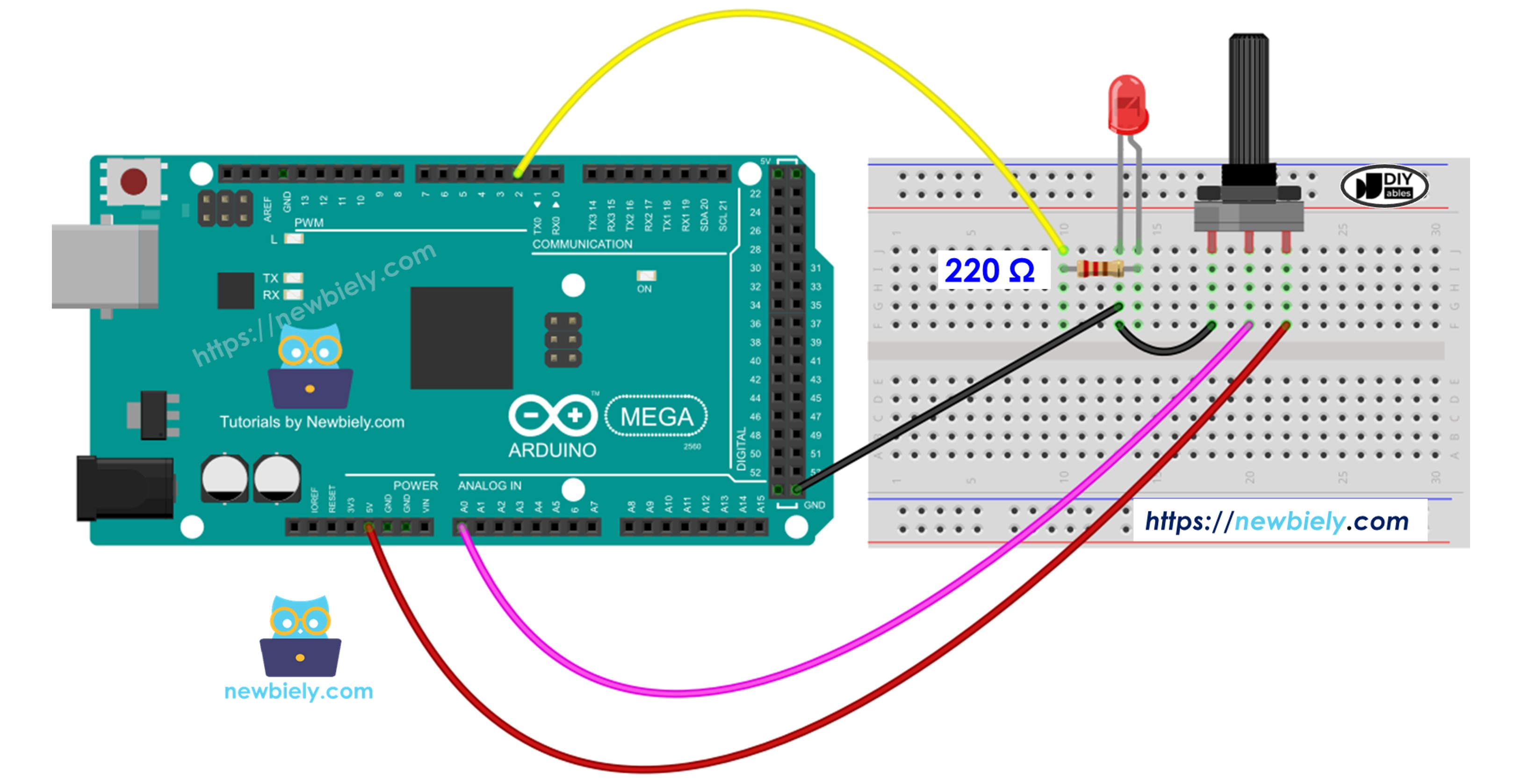
Hardware Preparation
Or you can buy the following kits:
| 1 | × | DIYables Sensor Kit (18 sensors/displays) |
Disclosure: Some of the links provided in this section are Amazon affiliate links. We may receive a commission for any purchases made through these links at no additional cost to you.
Additionally, some of these links are for products from our own brand, DIYables .
Additionally, some of these links are for products from our own brand, DIYables .
Buy Note: Use the LED Module for easier wiring. It includes an integrated resistor.
Overview of LED and Potentiometer
If you're new to using the LED, Potentiometer, and Arduino Mega, please check out these tutorials:
- Getting Started with Arduino Mega tutorial
These tutorials explain how LED and Potentiometer work, their pinouts, how to connect them to the Arduino Mega, and how to program Arduino Mega to work with the LED and Potentiometer.
Wiring Diagram
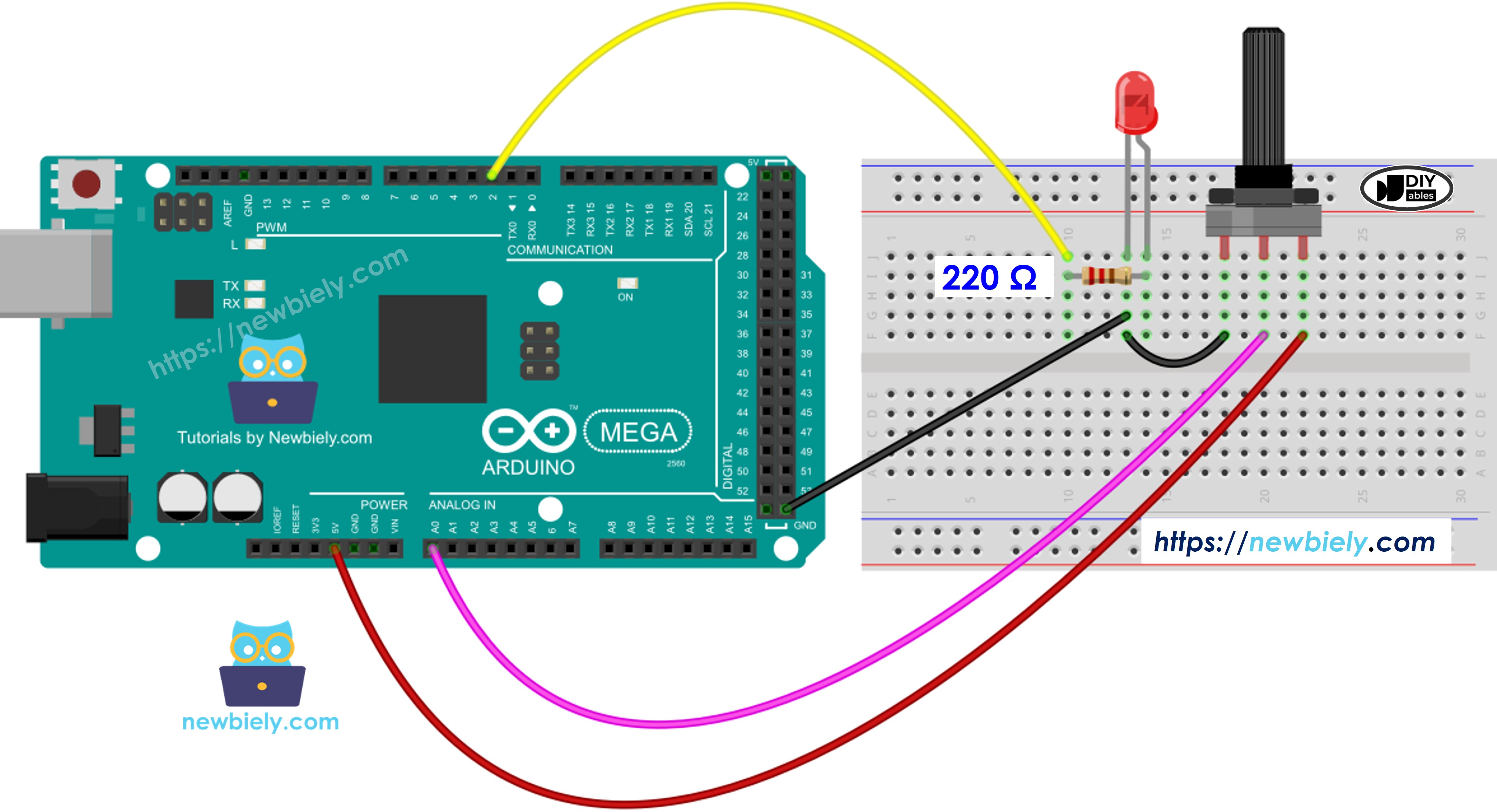
This image is created using Fritzing. Click to enlarge image
How To Program
- Reads the input from the analog pin A0 (values from 0 to 1023).
int adc_value = analogRead(A0);
- Turn it into a brightness level (a number from 0 to 255)
int brightness = map(adc_value, 0, 1023, 0, 255);
- Sets how bright the LED on pin 3 is.
analogWrite(LED_PIN, brightness);
Arduino Mega Code
/*
* This Arduino Mega code was developed by newbiely.com
*
* This Arduino Mega code is made available for public use without any restriction
*
* For comprehensive instructions and wiring diagrams, please visit:
* https://newbiely.com/tutorials/arduino-mega/arduino-mega-potentiometer-fade-led
*/
#define LED_PIN 3 // The Arduino Mega pin connected LED
#define POTENTIOMETER_PIN A0 // The Arduino Mega pin connected potentiometer
void setup() {
// initialize serial communication at 9600 bits per second:
Serial.begin(9600);
// declare LED pin to be an output:
pinMode(LED_PIN, OUTPUT);
}
void loop() {
// reads the input on analog pin A0 (value between 0 and 1023)
int adc_value = analogRead(POTENTIOMETER_PIN);
// scales it to brightness (value between 0 and 255)
int brightness = map(adc_value, 0, 1023, 0, 255);
// sets the brightness LED that connects to pin 3
analogWrite(LED_PIN, brightness);
// print out the value
Serial.print("Analog: ");
Serial.print(adc_value);
Serial.print(", Brightness: ");
Serial.println(brightness);
delay(100);
}
Detailed Instructions
Follow these steps one by one.
- Connect the parts according to the diagram.
- Connect the Arduino Mega to your computer with a USB cable.
- Open the Arduino IDE on your computer.
- Choose the right Arduino Mega board (for example, Arduino Mega) and the COM port.
- Copy the code and open it in the Arduino IDE.
- Click the Upload button in the Arduino IDE to send the code to the Arduino Mega.
- Open the Serial Monitor.
- Turn the potentiometer.
- Watch the LED.
- Check the result in the Serial Monitor.
8
Serial.println("Hello World!");
Message (Enter to send message to 'Arduino Mega Or...' on 'COM15')
New Line
9600 baud
Analog: 6, Brightness: 1
Analog: 34, Brightness: 8
Analog: 89, Brightness: 22
Analog: 149, Brightness: 37
Analog: 214, Brightness: 53
Analog: 297, Brightness: 74
Analog: 365, Brightness: 90
Analog: 431, Brightness: 107
Analog: 510, Brightness: 127
Analog: 589, Brightness: 146
Analog: 695, Brightness: 173
Analog: 790, Brightness: 196
Analog: 970, Brightness: 241
Analog: 996, Brightness: 248
Analog: 1018, Brightness: 253
Analog: 1023, Brightness: 255