
Arduino Mega - LED - Blink
This guide shows you how to use an LED with the Arduino Mega. You will learn to write a simple program for the Arduino Mega to turn an LED on and off, and to make it blink.
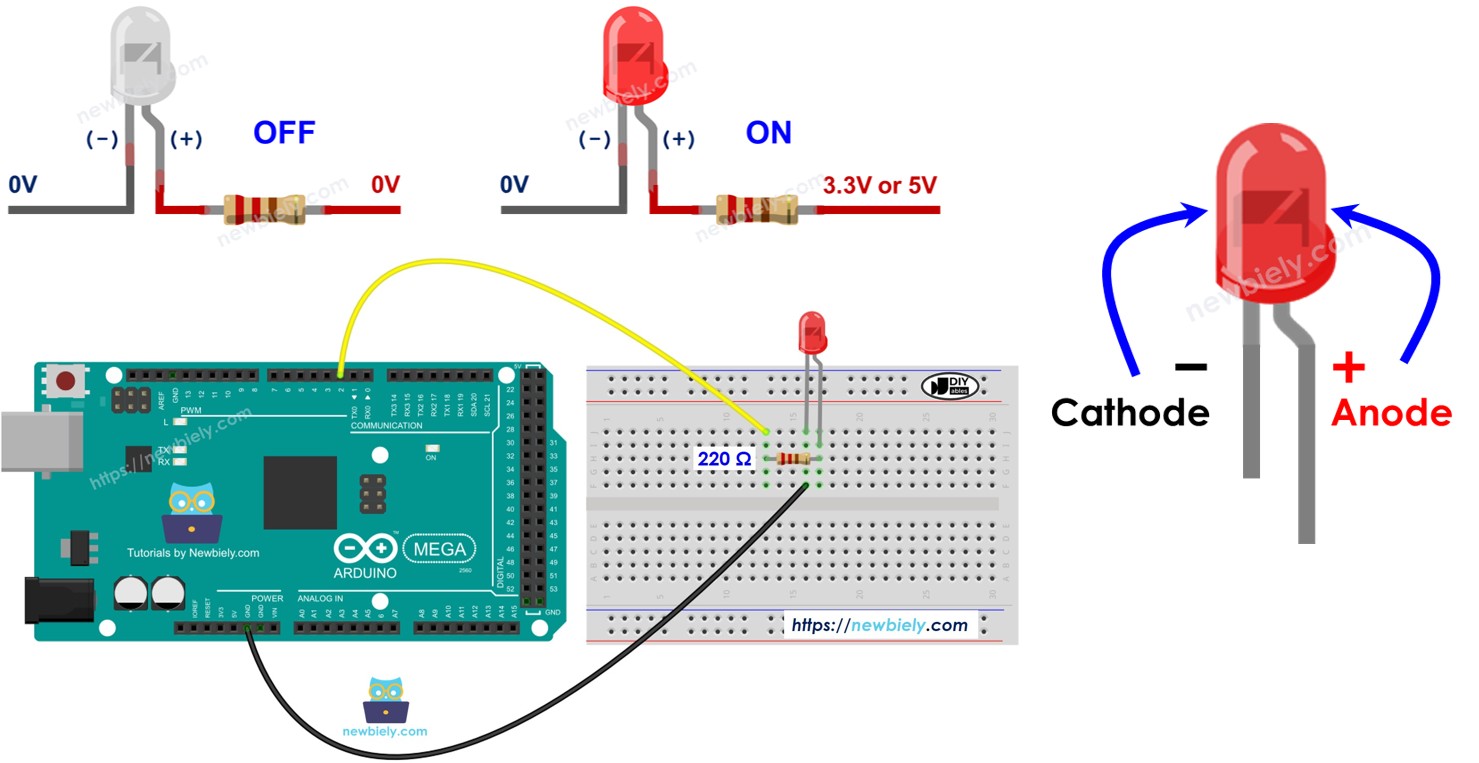
Hardware Preparation
Or you can buy the following kits:
| 1 | × | DIYables Sensor Kit (18 sensors/displays) |
Additionally, some of these links are for products from our own brand, DIYables .
Buy Note: Use the LED Module for easier wiring. It includes an integrated resistor.
Overview of LED
Pinout
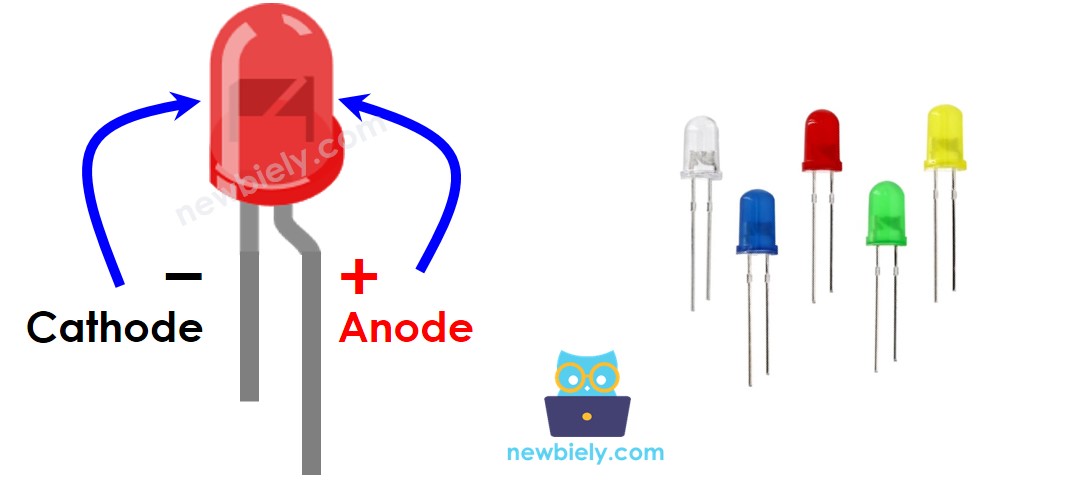
An LED has two pins:
- Negative pin: connect to ground (0V)
- Positive pin: controls whether the LED is on or off
How It Works
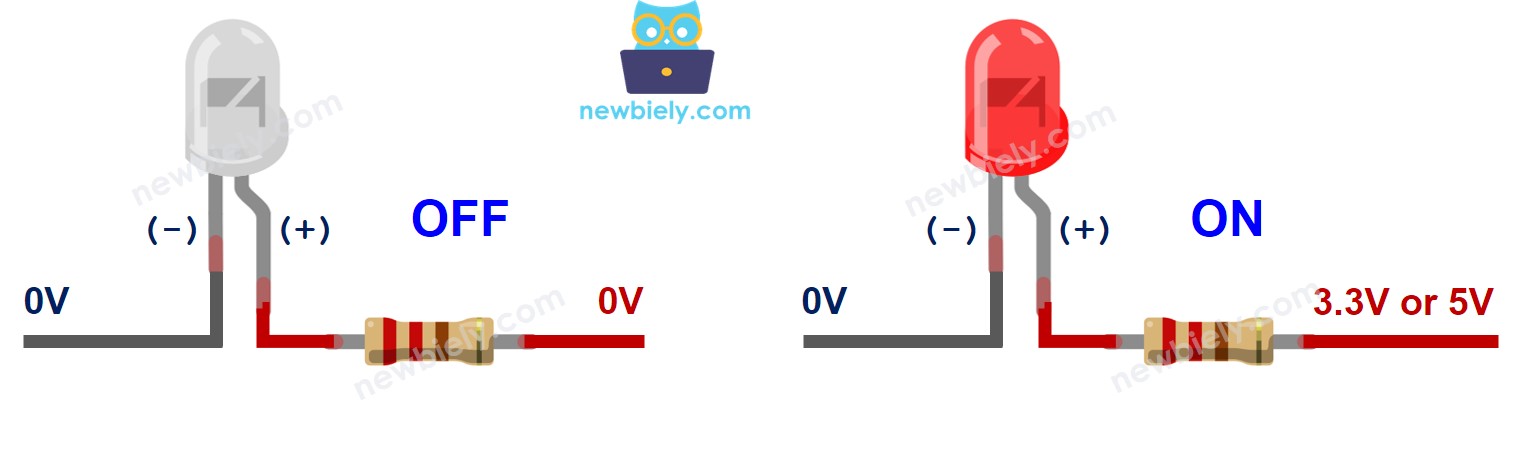
After you connect the negative side (cathode) to the ground (GND):
- If GND is connected to the LED's positive side, the LED will be off.
- If VCC is connected to the LED's positive side, the LED will be on.
Also, by sending a PWM signal to the LED’s positive side, you can adjust how bright the LED is based on the PWM value. Details are in this tutorial: this tutorial.
※ NOTE THAT:
Most LED lights need a resistor. You can connect the resistor to the positive side (the +) and the power supply, or to the negative side (the −) and the ground. The resistor value depends on the LED’s specifications. Some LEDs already have a resistor built in. For these LEDs, you might not need an extra resistor.
Arduino Mega - LED
Set a pin on the Arduino Mega to be a digital output, then you can choose to send ground or power from that pin. To drive an LED, connect the Arduino Mega pin to the LED's positive leg through a resistor.
Wiring Diagram
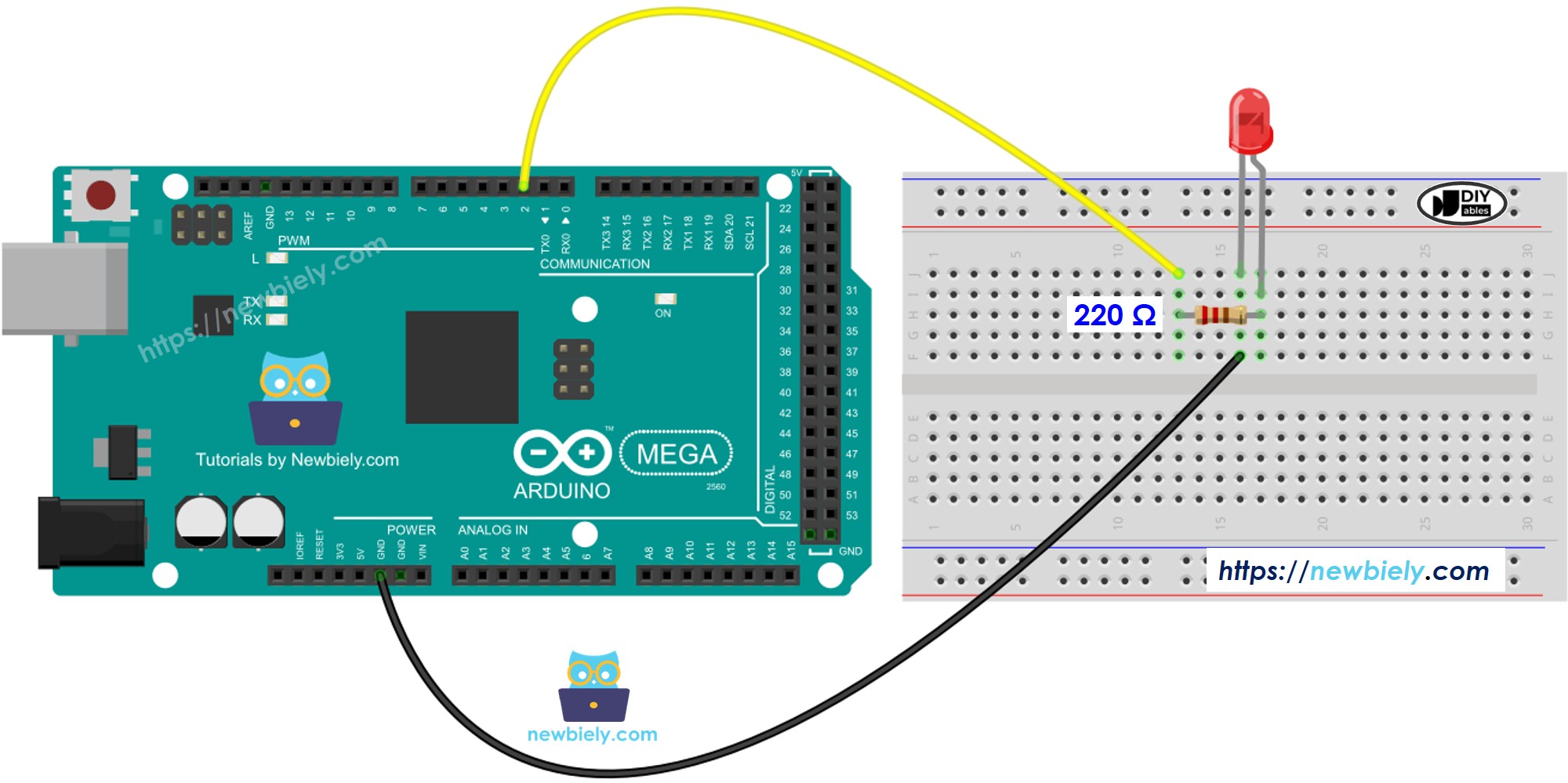
This image is created using Fritzing. Click to enlarge image
How To Program
- Set a pin on the Arduino Mega as a digital output using the pinMode() function. For example, pin 9:
- Set the pin to ground to turn off the LED using the digitalWrite() function.
- Set the pin high (to VCC) to turn on the LED with digitalWrite().
Arduino Mega Code
Detailed Instructions
Follow these steps one by one.
- Connect the LED to the Arduino Mega as shown in the diagram.
- Connect the Arduino Mega to your computer with a USB cable.
- Open the Arduino IDE on your computer.
- Select the board Arduino Mega and the correct port (COM port).
- Copy the code above and paste it into the Arduino IDE.
- Click the Upload button in the Arduino IDE to upload the code to the Arduino Mega.
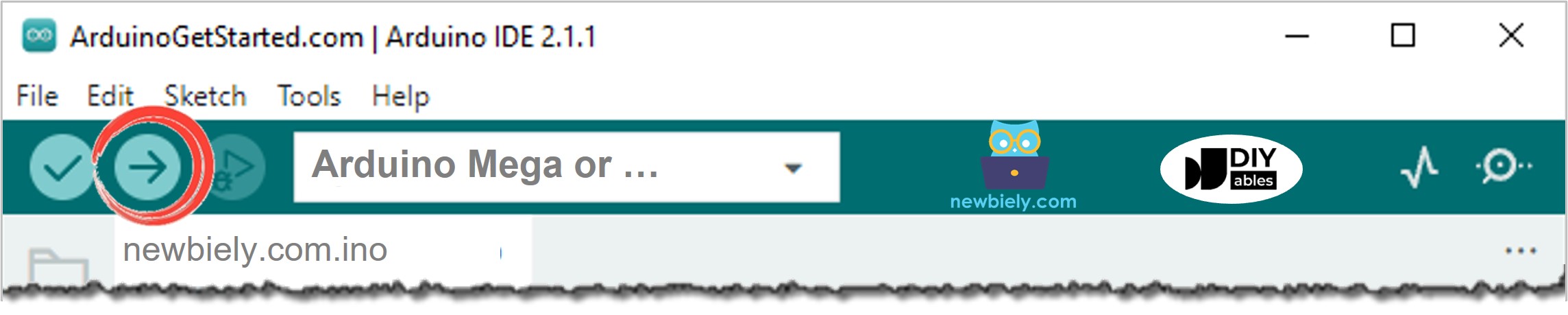
- Look at the LED status.
Code Explanation
The simple explanation is in the comments of the Arduino code shown above.
※ NOTE THAT:
- The code above uses the delay() function. Delay stops the Arduino Mega from doing other tasks. If your project needs to run several tasks at the same time, you should avoid stopping the Arduino Mega. Instead, use a method that doesn't stop other tasks for Arduino Mega.
- This guide has easy-to-understand information to help you learn how it works. To control an LED easily, you can use the Arduino Mega - LED library
Video Tutorial
Additional Knowledge
Which pins on the Arduino Mega can be used as outputs to drive an LED?
- Pins 0 to 13
- Pins A0 to A5
※ NOTE THAT:
Only use each pin for one job at a time. For example, if you already set a pin to read a digital input or to do PWM, don’t use the same pin to drive an LED. Also, don’t use pins 0 and 1 for other tasks if you are using the Serial.println() function, because these pins are reserved for Serial communication.