
Arduino Mega - LED Matrix
This guide explains how to use the Arduino UNO R4 with external LED matrix displays. We'll learn:
- How to hook up Arduino Mega to an 8x8 LED matrix
- How to hook up Arduino Mega to a 32x8 LED matrix
- How to program Arduino Mega to show letters, numbers, and animations on the LED matrix
Then you can easily change the code for other LED matrices, such as the 16x8 or 64x8 ones.
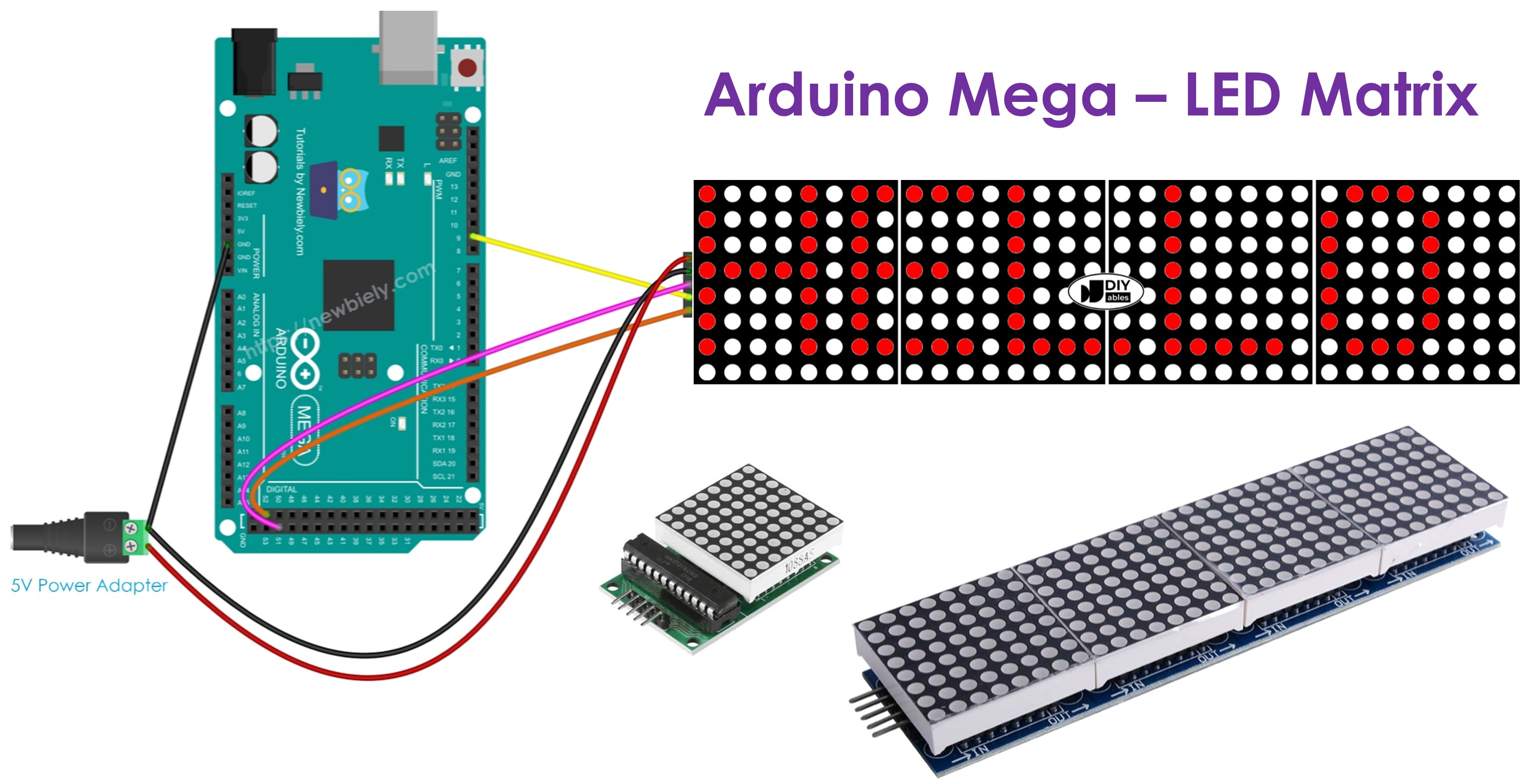
If you want to learn how to use the Arduino R4 with its built-in LED matrix, check out Arduino Mega - Built-in LED Matrix.
Hardware Preparation
Or you can buy the following kits:
| 1 | × | DIYables Sensor Kit (18 sensors/displays) |
Additionally, some of these links are for products from our own brand, DIYables .
Overview of LED Matrix
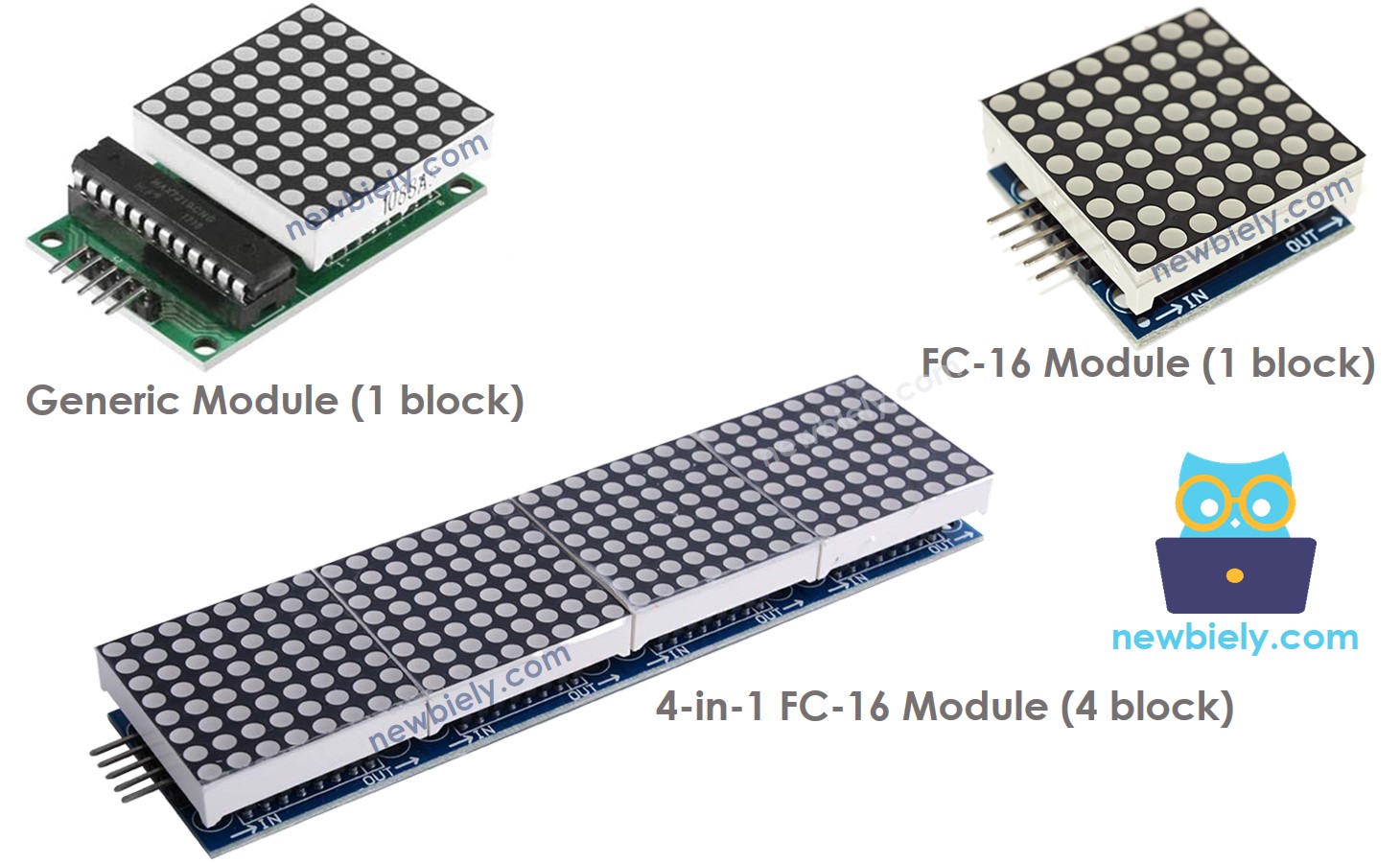
There are many kinds of LED matrices. The MAX7219 LED matrix is often used with the Arduino Mega board. This LED matrix has several features:
- The basic part of an LED matrix is called a block.
- Each block has an 8 by 8 grid of LEDs, 64 LEDs in total, and is controlled by a MAX7219 chip.
- There are two main block types: the generic module and the FC-16 module.
- An LED matrix can have just one block or be made bigger by connecting many blocks together in a chain.
- You can buy LED matrices that already have several blocks connected, such as 4-block or 8-block versions.
- Or you can buy separate blocks and connect them yourself to make the size you need.
- In your Arduino Mega program, you must tell the program the size of the LED matrix you are using.
Pinout
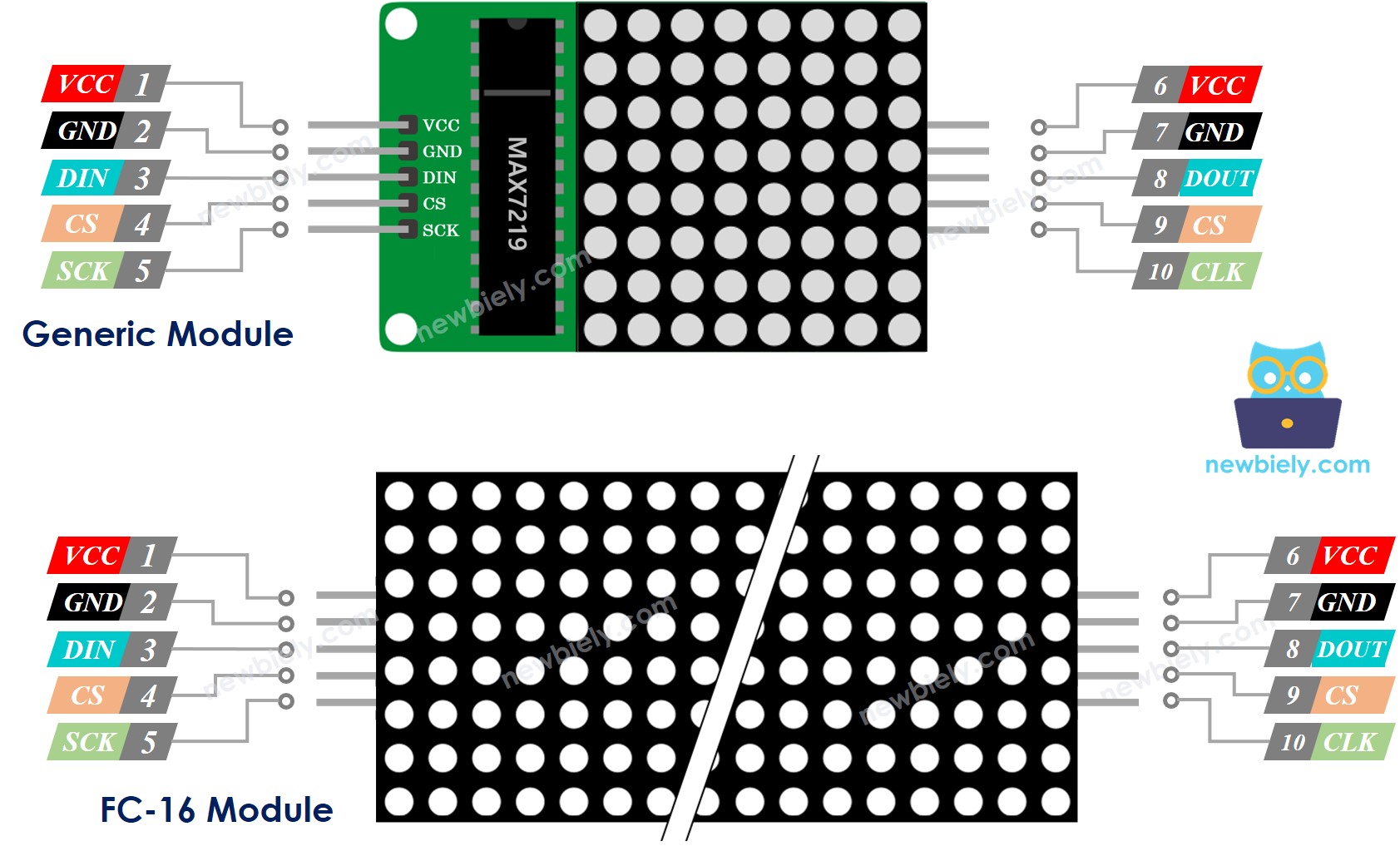
An LED matrix is made from one or more blocks. Each block has two groups of pins:
- Group of Input Pins:
- VCC: Connect to 5V.
- GND: Connect to GND.
- DIN: Data pin. Connect to the SPI MOSI pin on the Arduino Mega.
- CS: Chip Select. Connect to any digital pin on the Arduino Mega.
- CLK: Clock pin. Connect to the SPI CLK pin on the Arduino Mega.
- Group of Output Pins:
- VCC: Connect to VCC on the next module.
- GND: Connect to GND on the next module.
- DOUT: Data Out. Connect to the DIN pin on the next module.
- CS: Connect to CS on the next module.
- CLK: Connect to CLK on the next module.
Wiring Diagram
If the LED grid has only one block:
- Connect the input pin groups to the Arduino Mega.
- Leave the output pin groups unconnected.
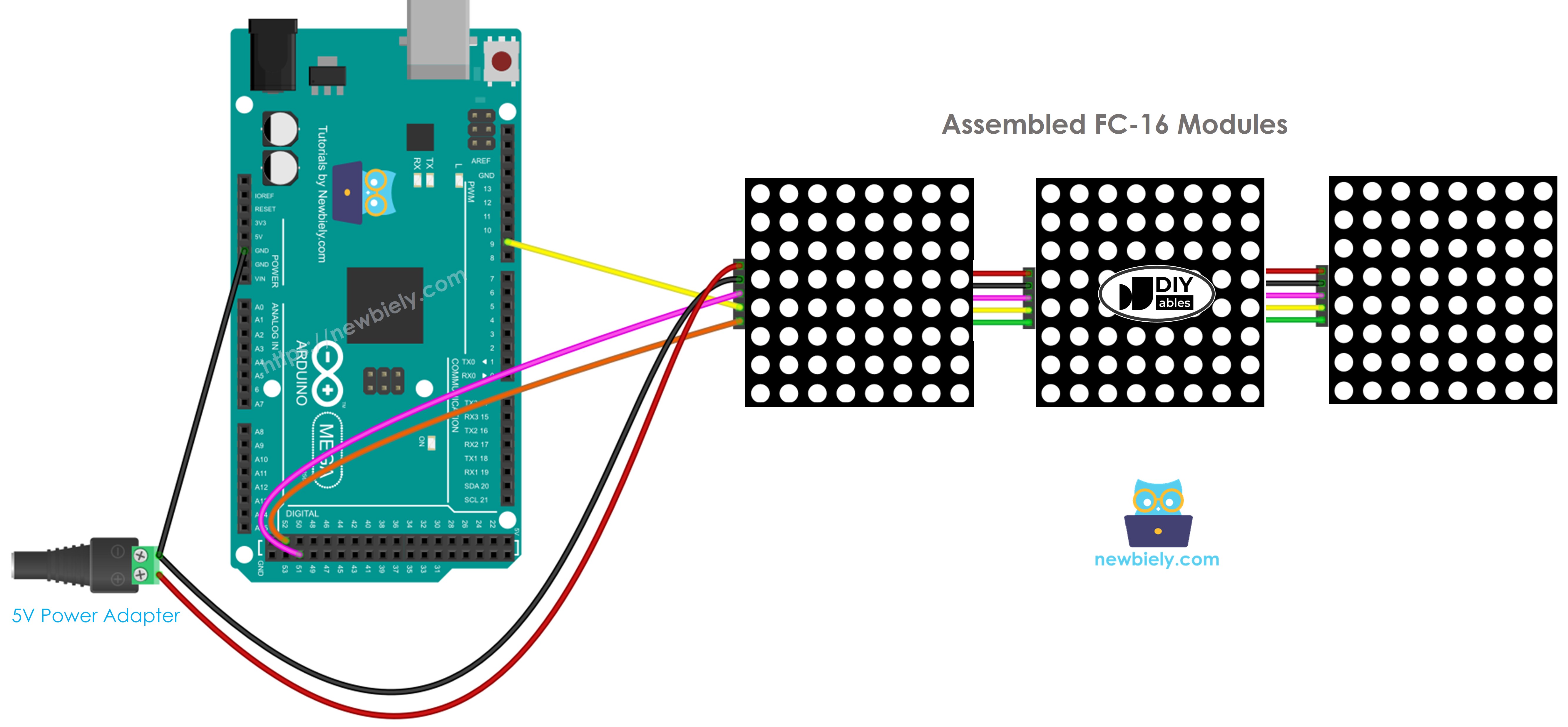
This image is created using Fritzing. Click to enlarge image
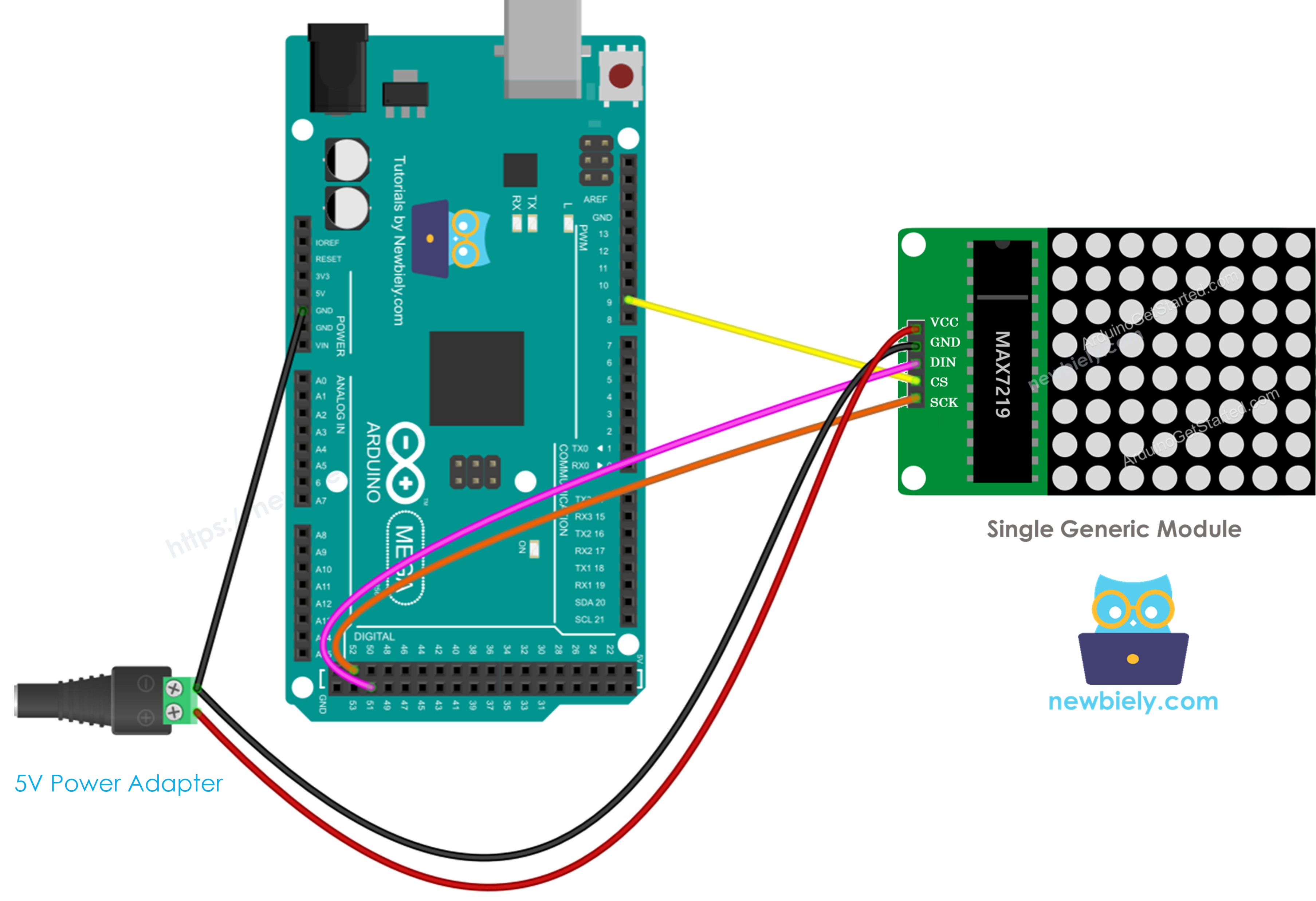
This image is created using Fritzing. Click to enlarge image
If the LED matrix is already put together in several blocks:
- Connect the input pin group to the Arduino Mega board.
- Leave the output pin group unconnected.
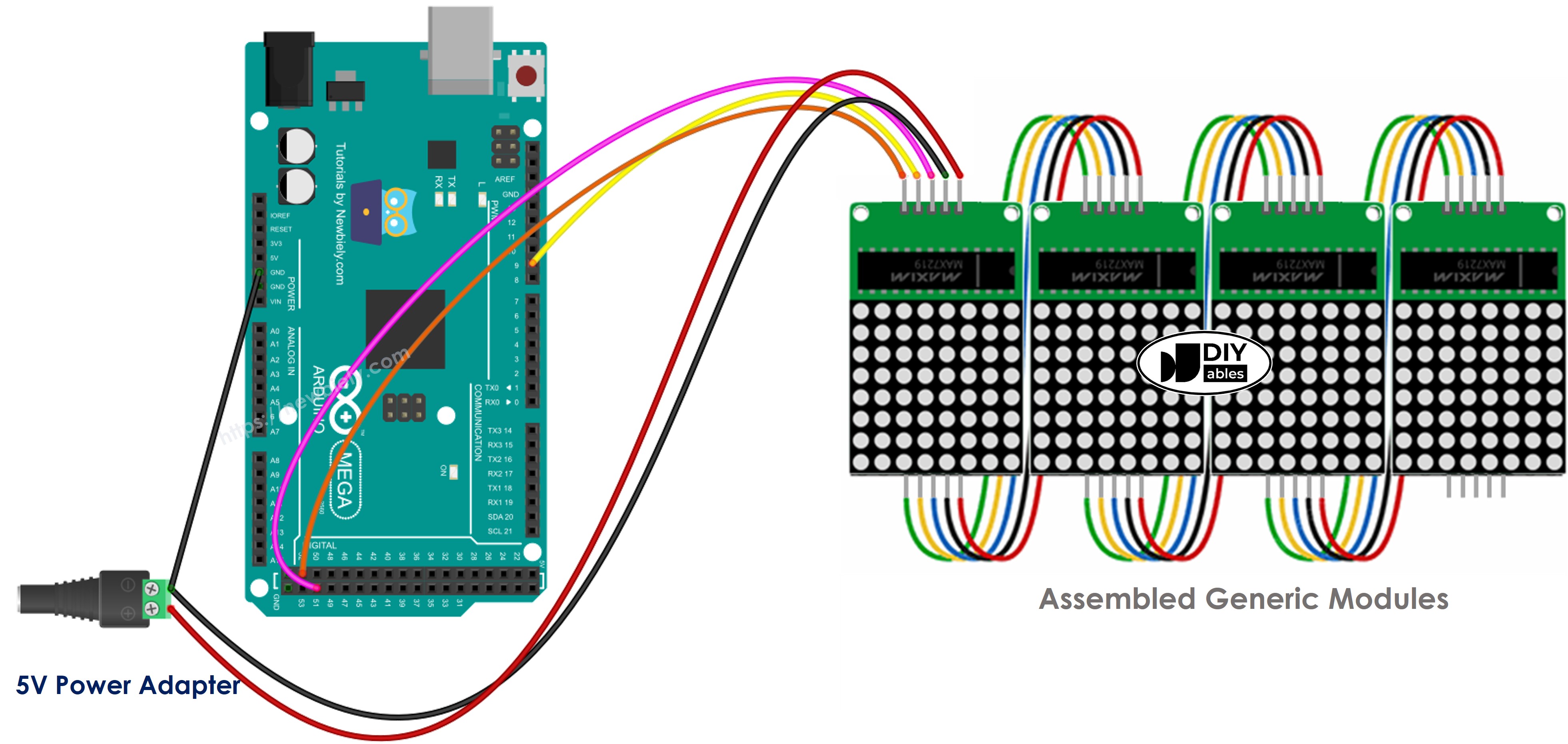
This image is created using Fritzing. Click to enlarge image
If you put together the LED matrix from several parts:
- Connect the input pins of the first block to the Arduino Mega board.
- Connect the output pins of each block to the input pins of the next block.
- Leave the output pins of the last block unconnected.
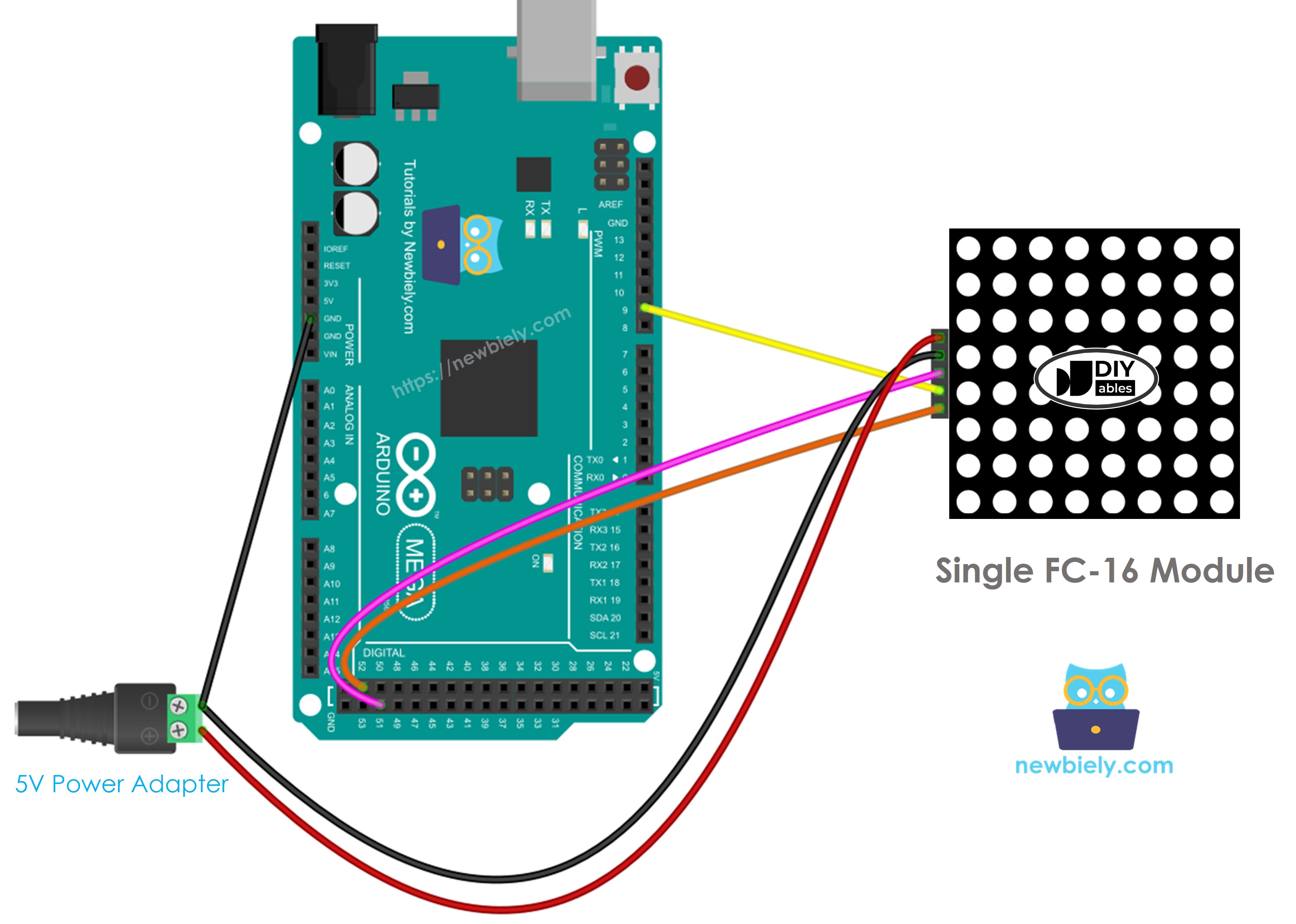
This image is created using Fritzing. Click to enlarge image
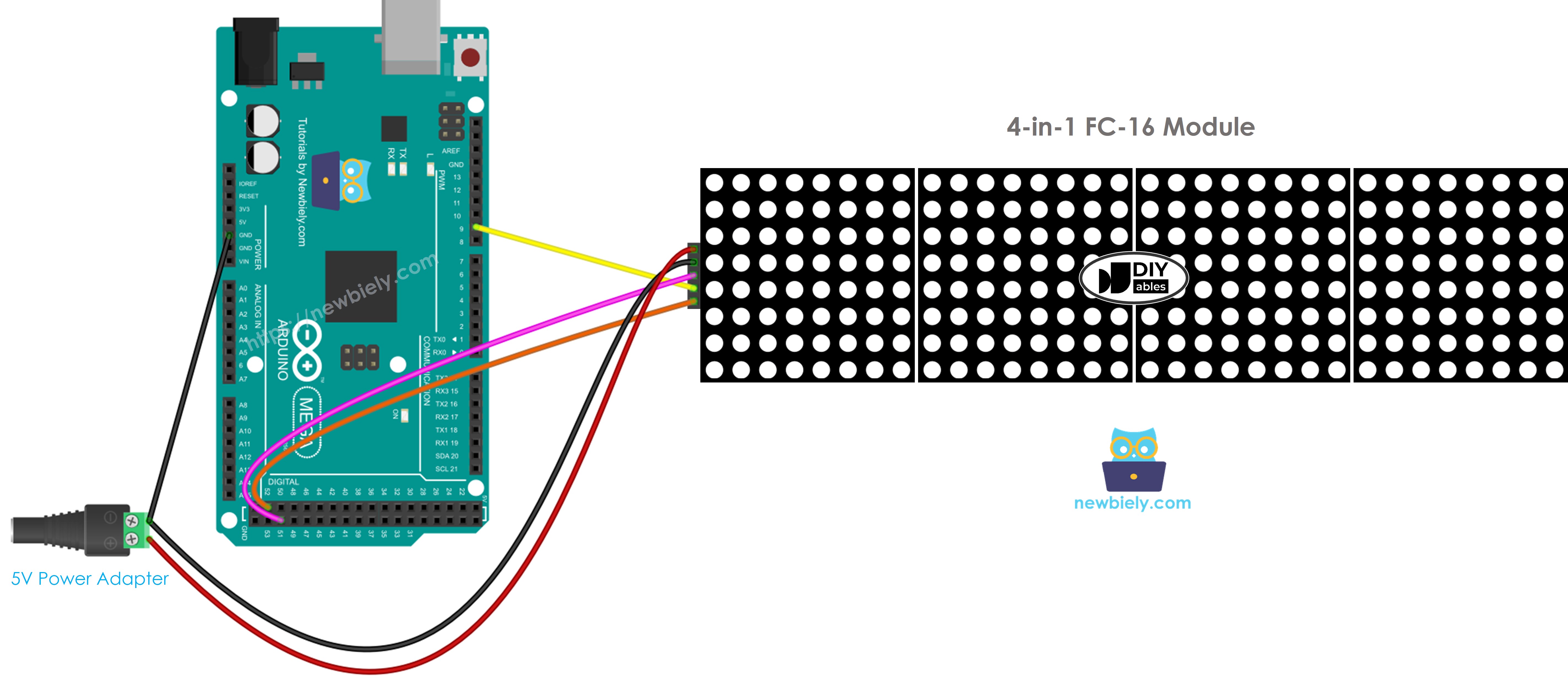
This image is created using Fritzing. Click to enlarge image
The screen uses a lot of power, up to 1 amp at full brightness.
- Don’t power the Arduino Mega from its 5V pin.
- Use an external 5V power supply. The Arduino Mega and the LED matrix can both be powered by the same 5V adapter.
The Arduino Mega uses SPI pins to connect to the LED matrix.
- Use pin 13 for SCK and pin 11 for MOSI on Arduino Mega. If you have a different Mega board, see the official guide for the same SPI pins.
- You can use any other pin for pin 3 (CS, chip select).
How To Program For LED Matrix
Controlling the LED matrix can be hard. Fortunately, there are libraries that make it easier. Here are the steps to program an Arduino Mega to control the LED matrix.
- Add libraries:
- Pick the kind of hardware you are using: GENERIC_HW or FC16_HW.
- Find out how many LED blocks are used. For example, a 4-in-1 LED matrix has 4 blocks.
- Set the pin that connects to the CS pin on the LED matrix. For example, use pin D9.
- Create a new version of the MD_Parola class for the LED matrix display.
- Put the code in the setup() function.
- Show text, numbers, and animations: see the next part.
Arduino Mega - LED Matrix Code
The code shown is for a 32x8 FC-16 LED matrix display made of four blocks. You can change it for other sizes, such as 8x8, 16x8, 64x8, and so on.
Detailed Instructions
Follow these steps one by one.
- Connect the Arduino Mega board to the LED matrix as shown in the diagram.
- Connect the Arduino Mega board to your computer with a USB cable.
- Open the Arduino IDE on your computer.
- Select the correct board (Arduino Mega) and the COM port.
- In the Arduino IDE, click the Libraries icon on the left side.
- Search for "MD_Parola" and find the MD_Parola library.
- Click the Install button.
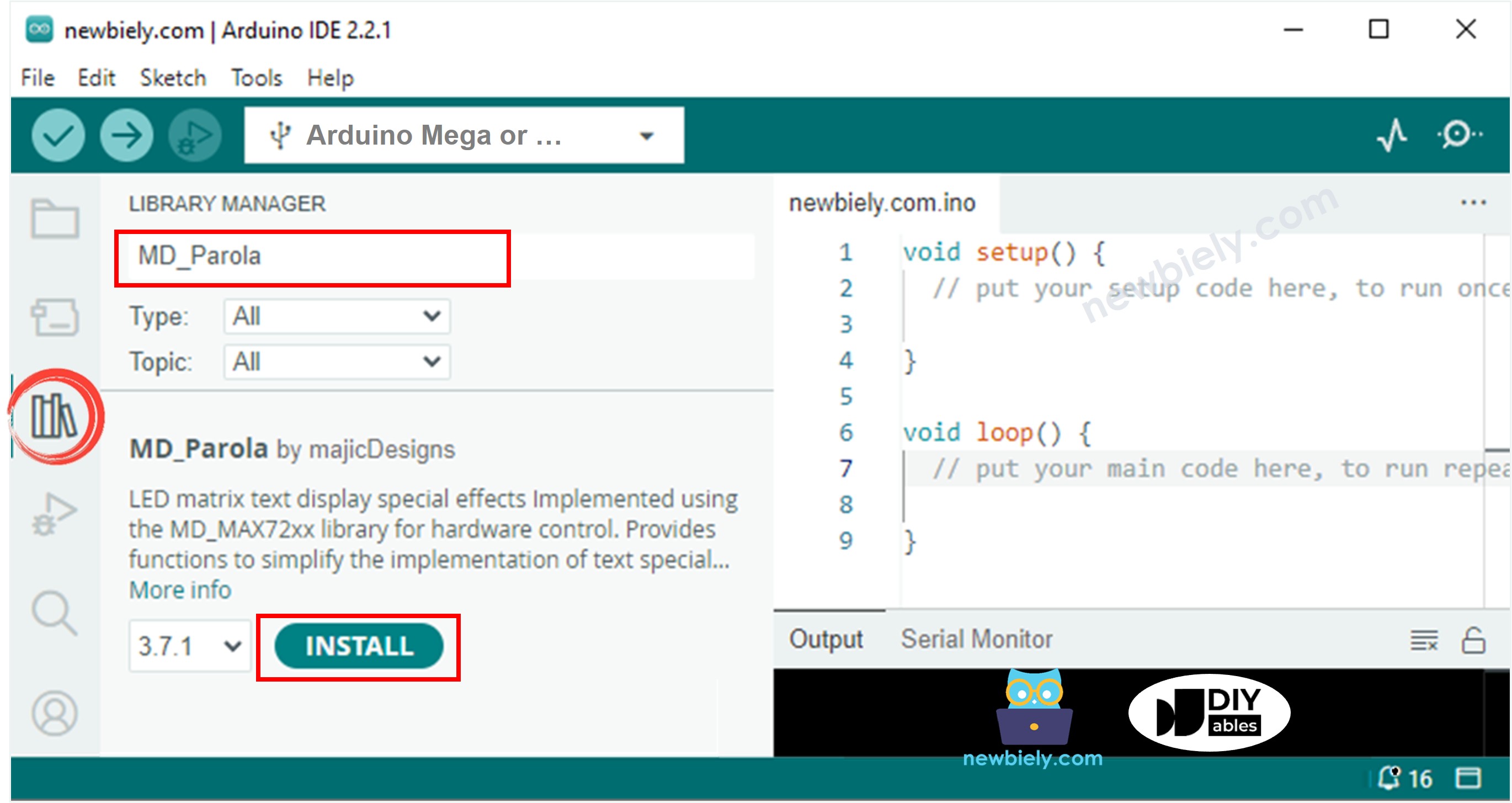
- You need to install the MD_MAX72XX library. Click the Install All button.
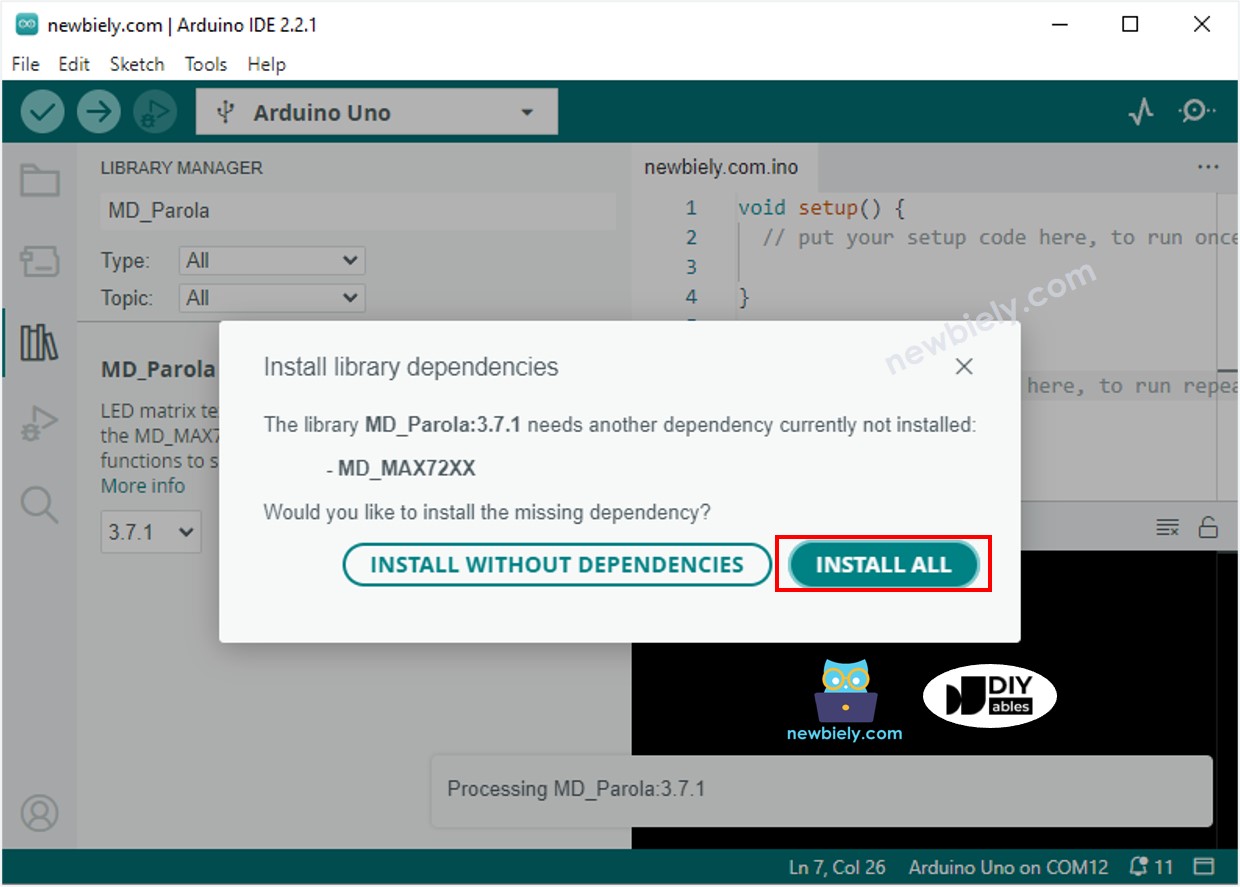
- Copy the code above and open it in the Arduino IDE.
- Click the Upload button in the Arduino IDE to upload the code to the Arduino Mega.
- See the LED matrix display.
Arduino Mega LED Matrix Code – Scrolling Text
If the message is too long to fit on a LED matrix display, you can use scrolling text.
This Arduino Mega program shows how to slide a message across the LED matrix.
For more text effects, visit the MD_Parola Library Reference: https://github.com/MajicDesigns/MD_Parola.