
Arduino Mega - Door Sensor
This guide shows you how to use an Arduino Mega and a door sensor to check if your door or window is open or closed. We'll learn how to install the door sensor, connect it to the Arduino, and how to write a program for the Arduino to read the sensor's status.
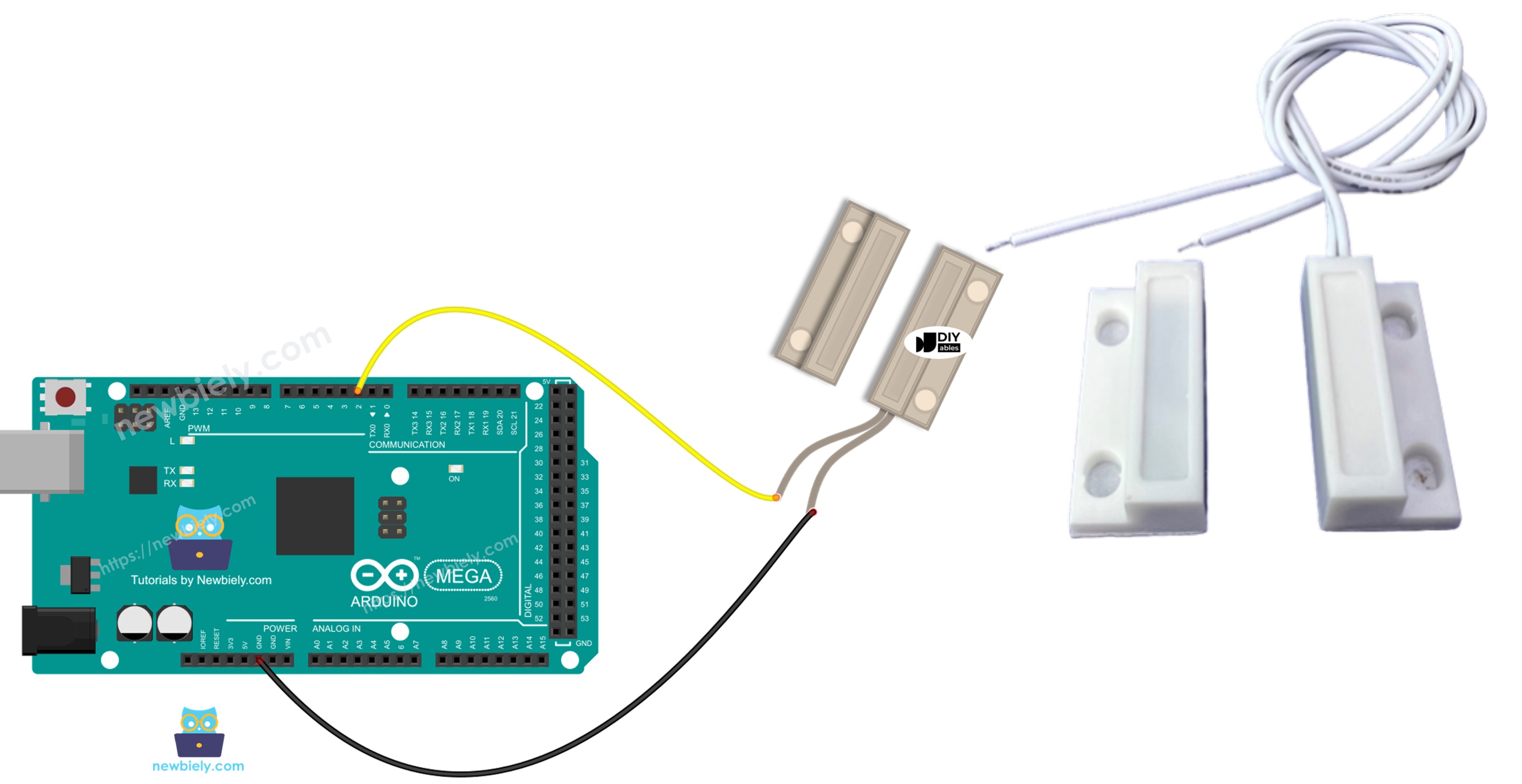
Hardware Preparation
Or you can buy the following kits:
| 1 | × | DIYables Sensor Kit (18 sensors/displays) |
Additionally, some of these links are for products from our own brand, DIYables .
Overview of Door Sensor
Pinout
The door sensor has two parts.
- One reed switch with two metal terminals
- One magnet
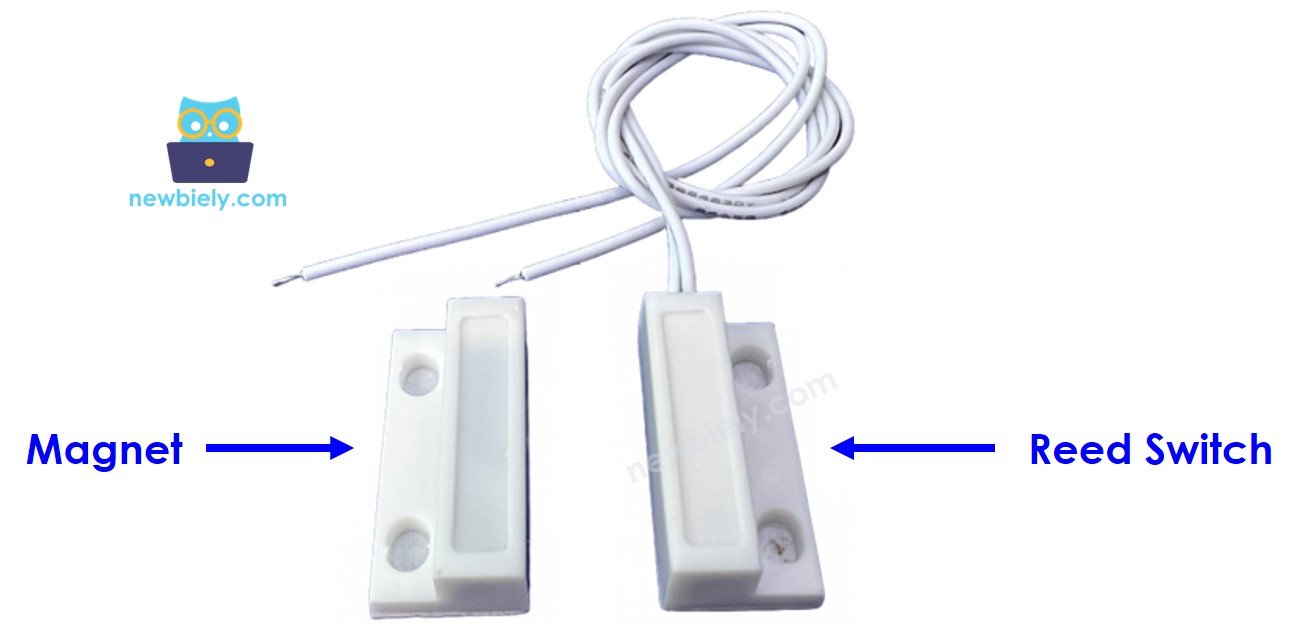
Like a normal switch or button, you don’t need to tell the two pins of the reed switch apart.
How It Works
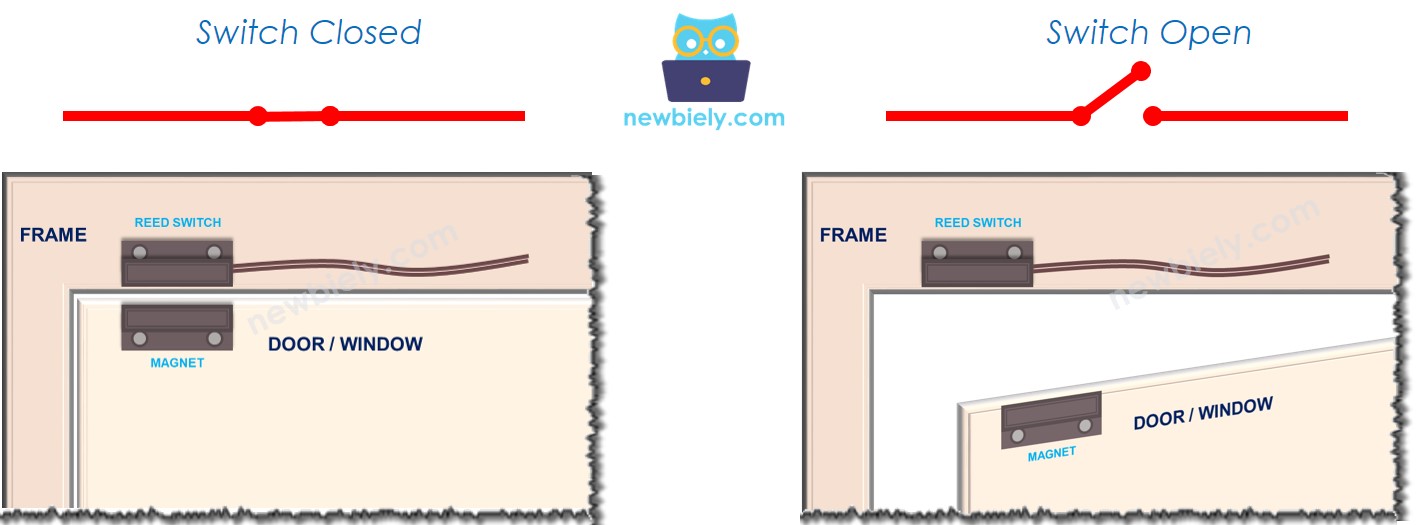
A magnet is attached to the door or window, which moves. The reed switch is attached to the door frame, which stays still. When the door closes, the magnet and the reed switch come together.
- When the magnet is close to the reed switch, the circuit closes.
- When the magnet is far from the reed switch, the circuit opens.
※ NOTE THAT:
Reed switch doesn’t give a low or high signal by itself. It only shows open or closed. The way you connect it to the Arduino Mega decides if the pin reads LOW, HIGH, or floats (unpredictable). To avoid floating, add a pull-up or pull-down resistor to the pin on the Arduino Mega.
If we connect one pin of the reed switch to ground, and the other pin to an input pin on the Arduino Mega with a pull-up resistor (it can be built-in or added separately):
- When the magnet is close to the reed switch, the Arduino Mega's input pin shows LOW.
- When the magnet is far from the reed switch, the Arduino Mega's input pin shows HIGH.
So:
- To see if the door is open or closed, look at the pin on the Arduino Mega.
- If the pin is LOW, the door is closed.
- If the pin is HIGH, the door is open.
- To know when the door opens or closes, watch for changes on that pin:
- A change from LOW to HIGH means the door is opening.
- A change from HIGH to LOW means the door is closing.
Wiring Diagram
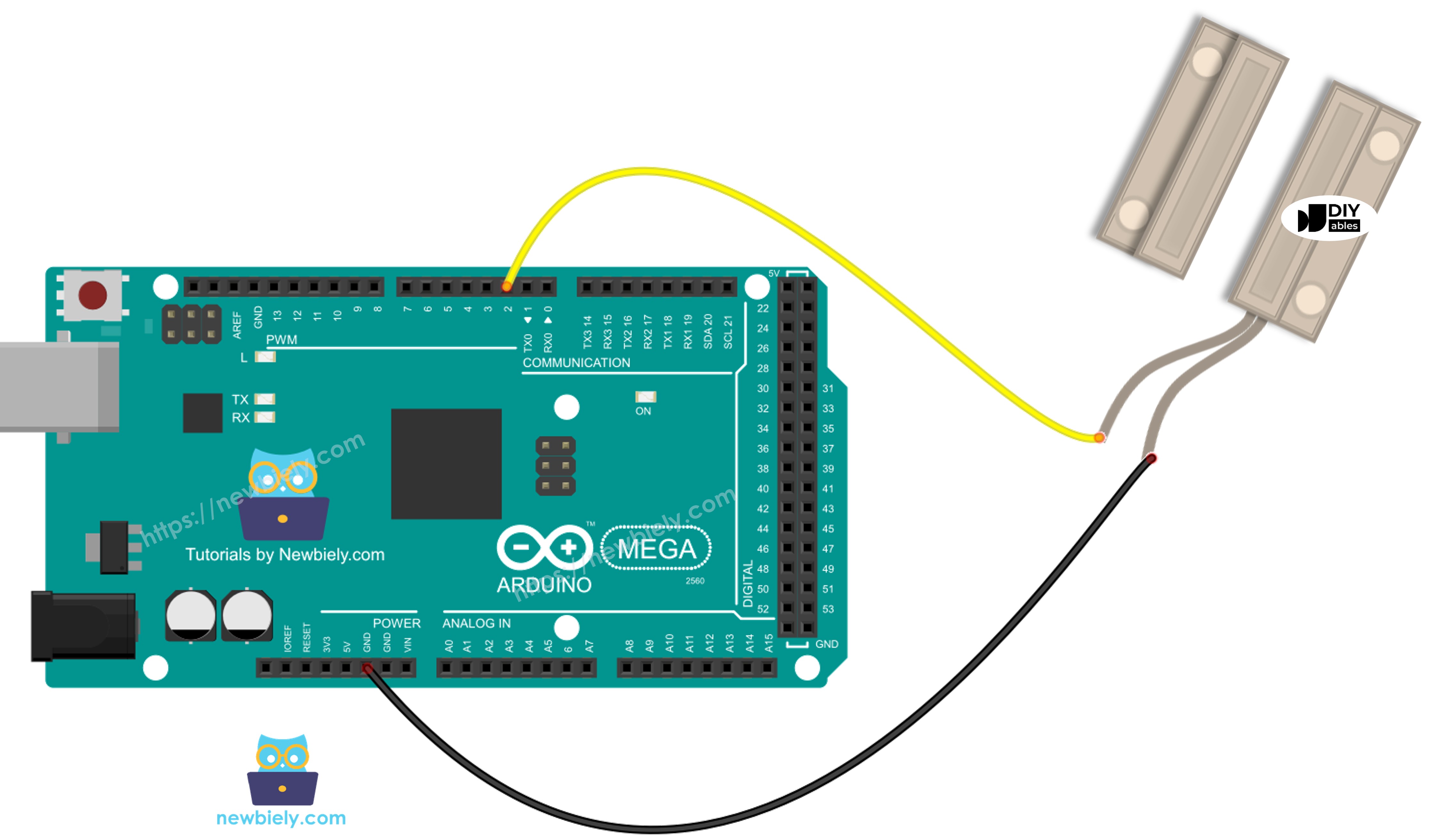
This image is created using Fritzing. Click to enlarge image
How To Program For Door Sensor
- On the Arduino Mega, a pin is set as a digital input using the pinMode() function. For example, pin 9.
- Reads the pin status on the Arduino Mega using the digitalRead() function.
Arduino Mega Code - Check Door Open and Close State
Detailed Instructions
Follow these steps one by one.
- Connect the parts following the diagram.
- Connect the Arduino Mega to your computer with a USB cable.
- Open the Arduino IDE on your computer.
- Choose the correct board: Arduino Mega, and the right COM port.
- Copy the code above and open it in the Arduino IDE.
- Click the Upload button to send the code to the Arduino Mega.
- Bring the magnet close to the reed switch, then move it away.
- Check the results in the Serial Monitor.
Arduino Mega Code - Detect Door-opening and Door-closing Events
- Copy the code and open it in the Arduino IDE.
- Click the Upload button in the Arduino IDE to upload the code to your Arduino Mega.
- Bring a magnet near the reed switch, then move it away.
- Check the results in the Serial Monitor.