
Arduino Mega - Light Sensor
This guide shows you how to use the LDR light sensor with the Arduino Mega board. We will learn in detail:
- How an LDR light sensor works.
- How to connect a light sensor to an Arduino Mega.
- How to write a program for an Arduino Mega to read the light level from the sensor.
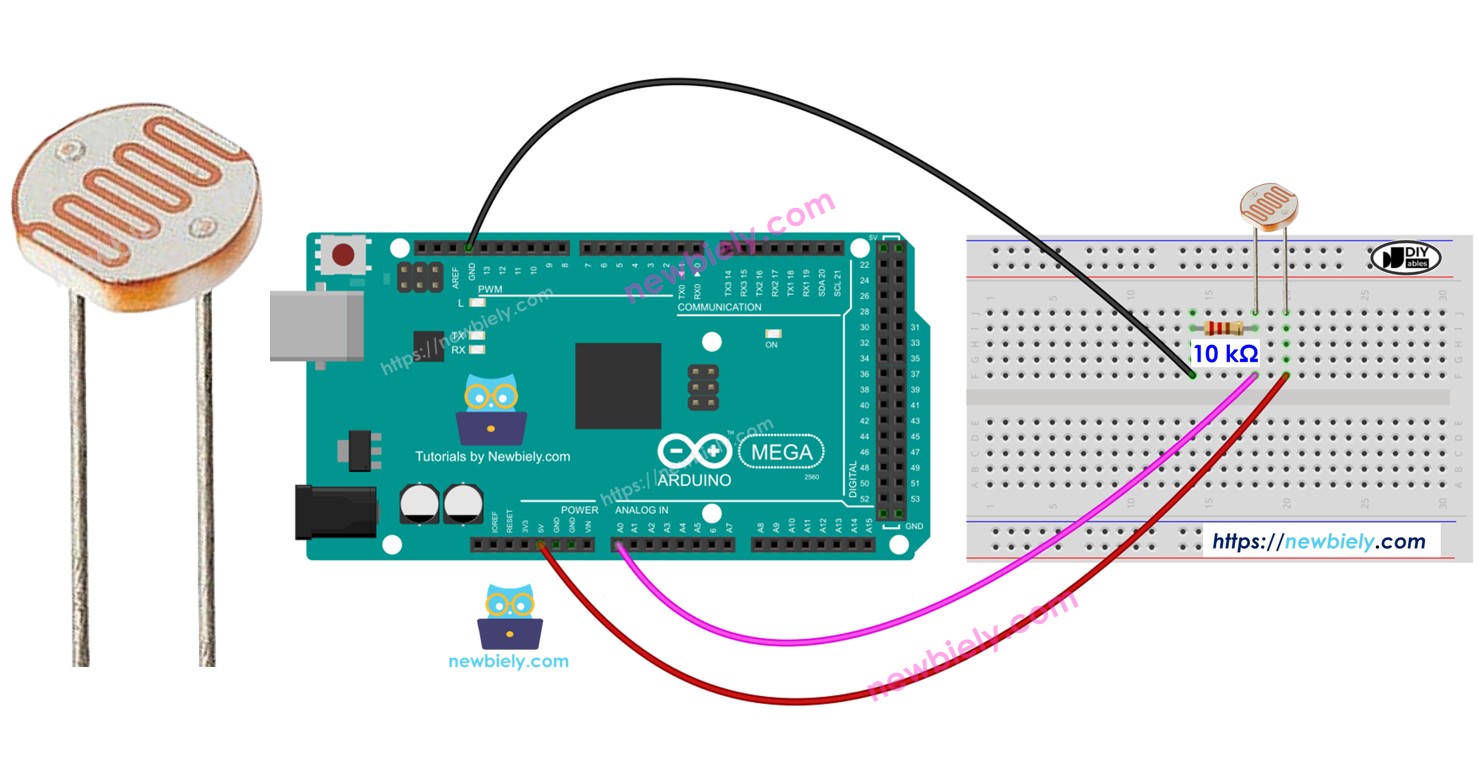
Hardware Preparation
Or you can buy the following kits:
| 1 | × | DIYables Sensor Kit (18 sensors/displays) |
Additionally, some of these links are for products from our own brand, DIYables .
The LDR light sensor (LINK_MAIN_LIGHT_SENSOR) is cheap, but you need a resistor to connect it, which makes the wiring harder. To make the wiring easier, you can use an LDR light sensor module (LINK_MAIN_DIGITAL_LIGHT_SENSOR) instead.
Overview of Light Sensor
This tutorial uses a light sensor called a photoresistor, also known as an LDR (Light-Dependent Resistor) or photocell. It helps us know how bright the light around us is.
Pinout
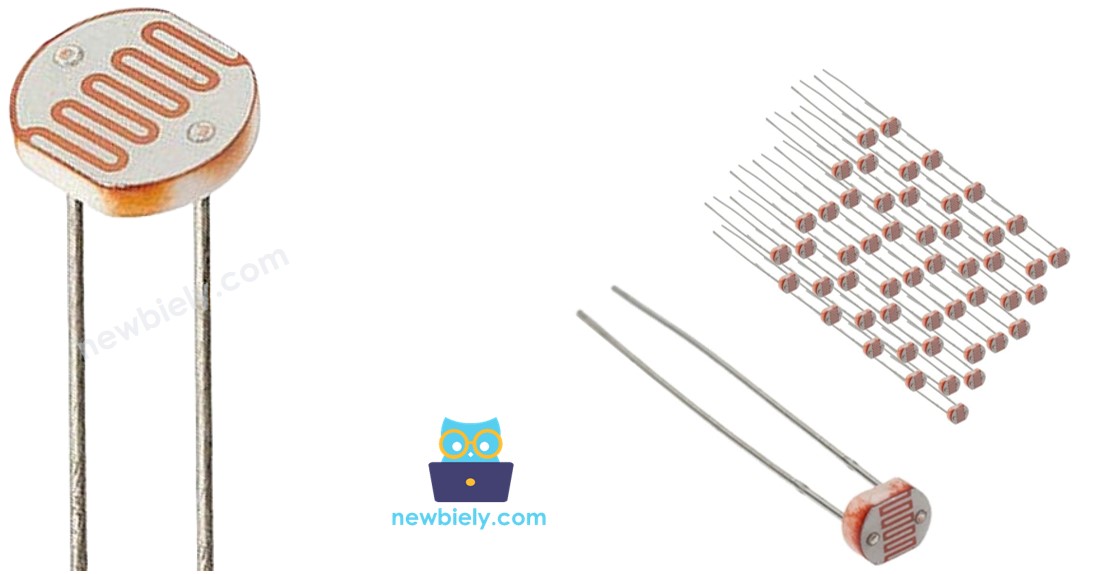
A photoresistor has two pins. Since it is a type of resistor, you don’t need to tell the pins apart. Both pins are the same.
How It Works
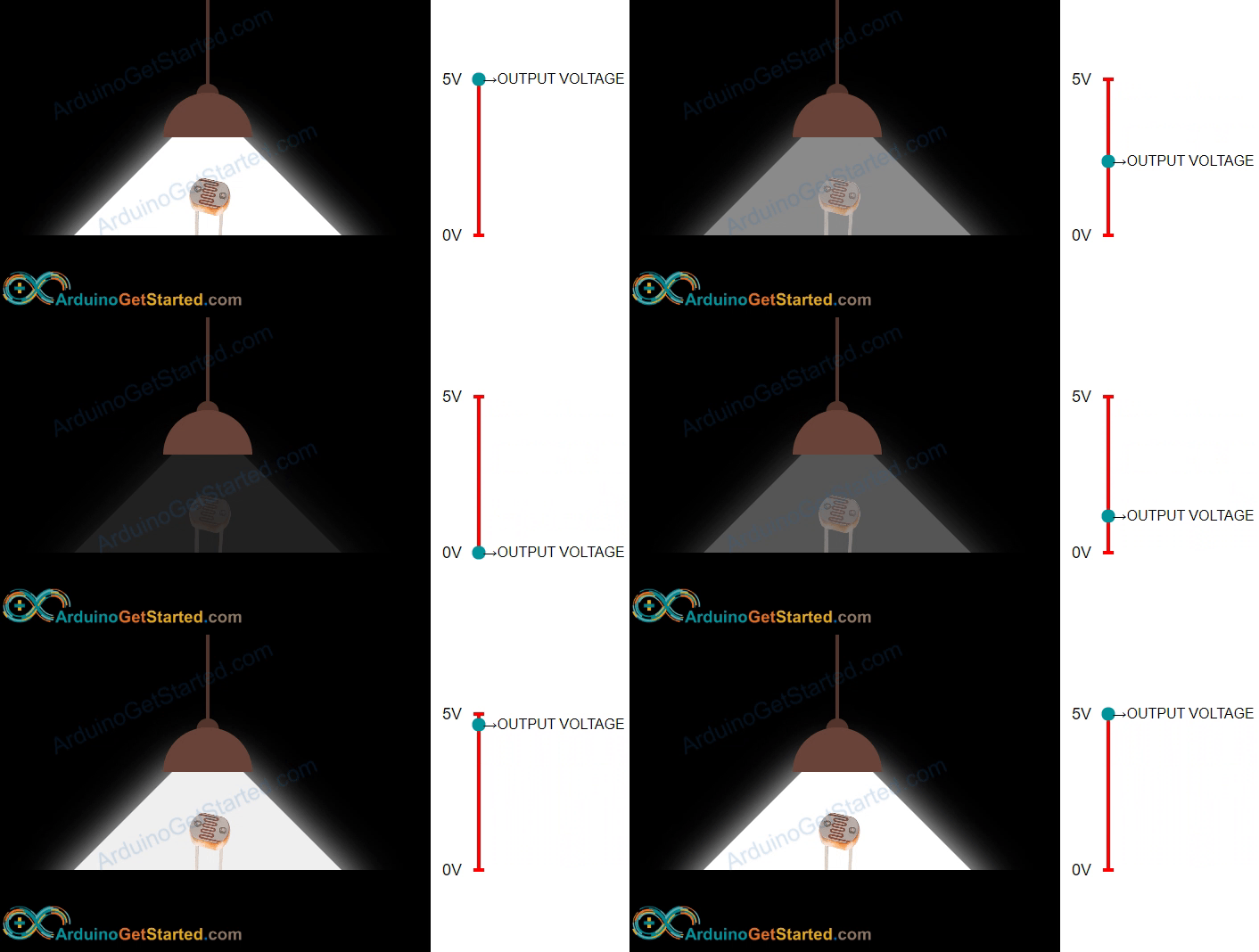
A photoresistor is a type of resistor that changes its resistance with light. When there is a lot of light, its resistance is very low. When there is little light, its resistance is very high. By measuring the resistance, we can tell how bright or dark the light around us is. This helps us detect and measure light levels in different places.
WARNING
The light sensor shows roughly how bright it is. It doesn’t give the exact amount of light. Use it only when you don’t need very precise measurements.
Arduino Mega - Light Sensor
Arduino Mega has pins A0 to A5 that you can use as analog inputs. These pins convert a voltage (from 0 volts up to the supply voltage, VCC) into numbers from 0 to 1023. These numbers are called ADC values (analog values).
Connect one pin of the light sensor to an analog input pin on the Arduino Mega. Then write code so the Arduino reads the value with analogRead(). This tells you how bright the light is.
Wiring Diagram
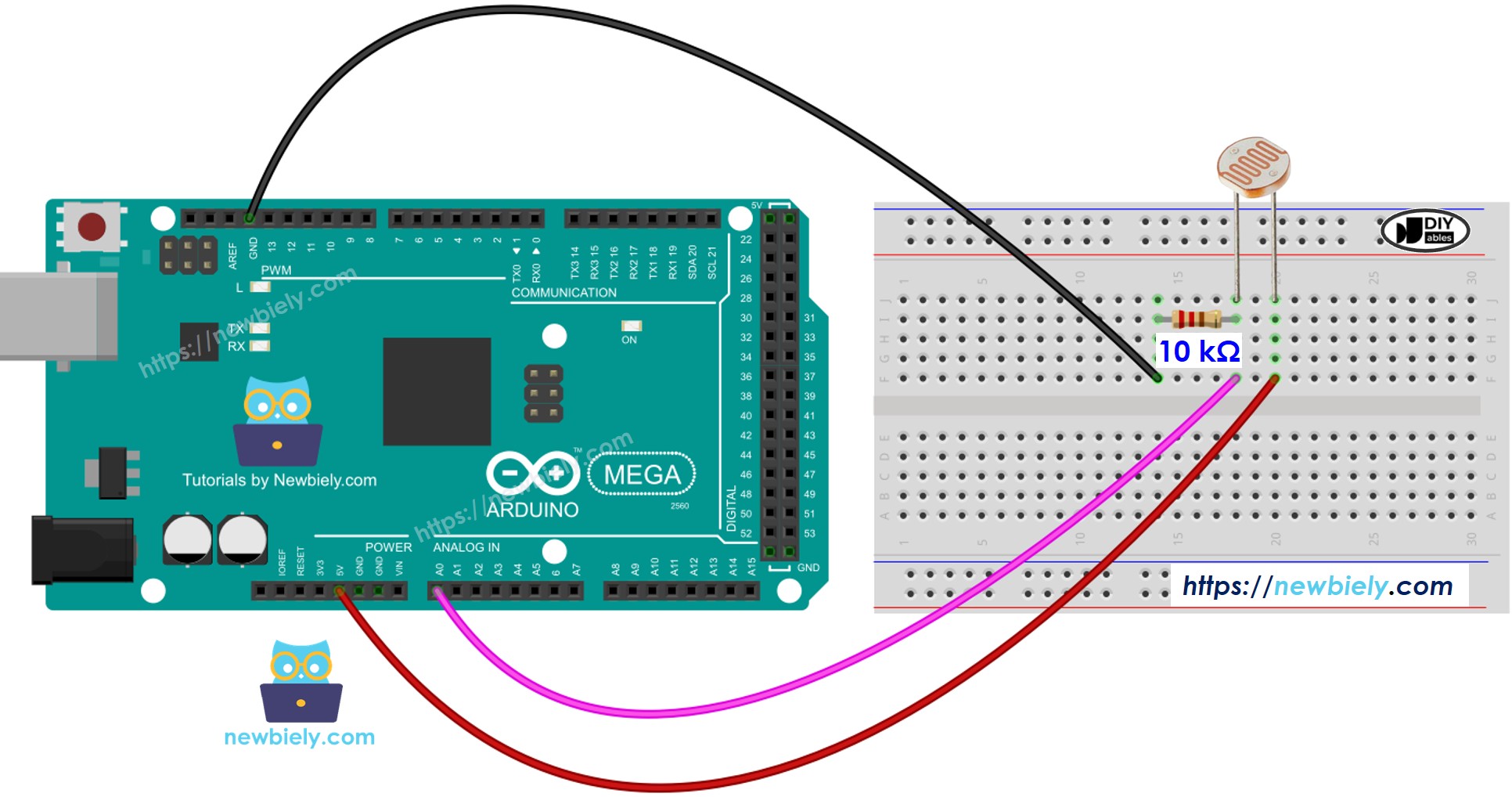
This image is created using Fritzing. Click to enlarge image
Arduino Mega Code
The code below reads a value from a light sensor and gives a rough idea of how bright the light is.
Detailed Instructions
Follow these steps one by one.
- Connect the LDR light sensor to the Arduino Mega as shown in the diagram.
- Connect the Arduino Mega to your computer with a USB cable.
- Open the Arduino IDE on your computer.
- Choose the right board (Arduino Mega) and the correct port.
- Copy the code and open it in the Arduino IDE.
- Click the Upload button in the Arduino IDE to send the code to the Arduino Mega.
- Open the Serial Monitor.
- Shine light on the sensor.
- Check the Serial Monitor to see the results.