
Arduino Mega - DHT22
This guide shows you how to use Arduino Mega with the DHT22 temperature and humidity sensor. We will learn in detail:
- How to connect a DHT22 sensor to an Arduino Mega board
- How to connect a DHT22 module to an Arduino Mega board
- How to program an Arduino Mega to read temperature and humidity from a DHT22 sensor or module
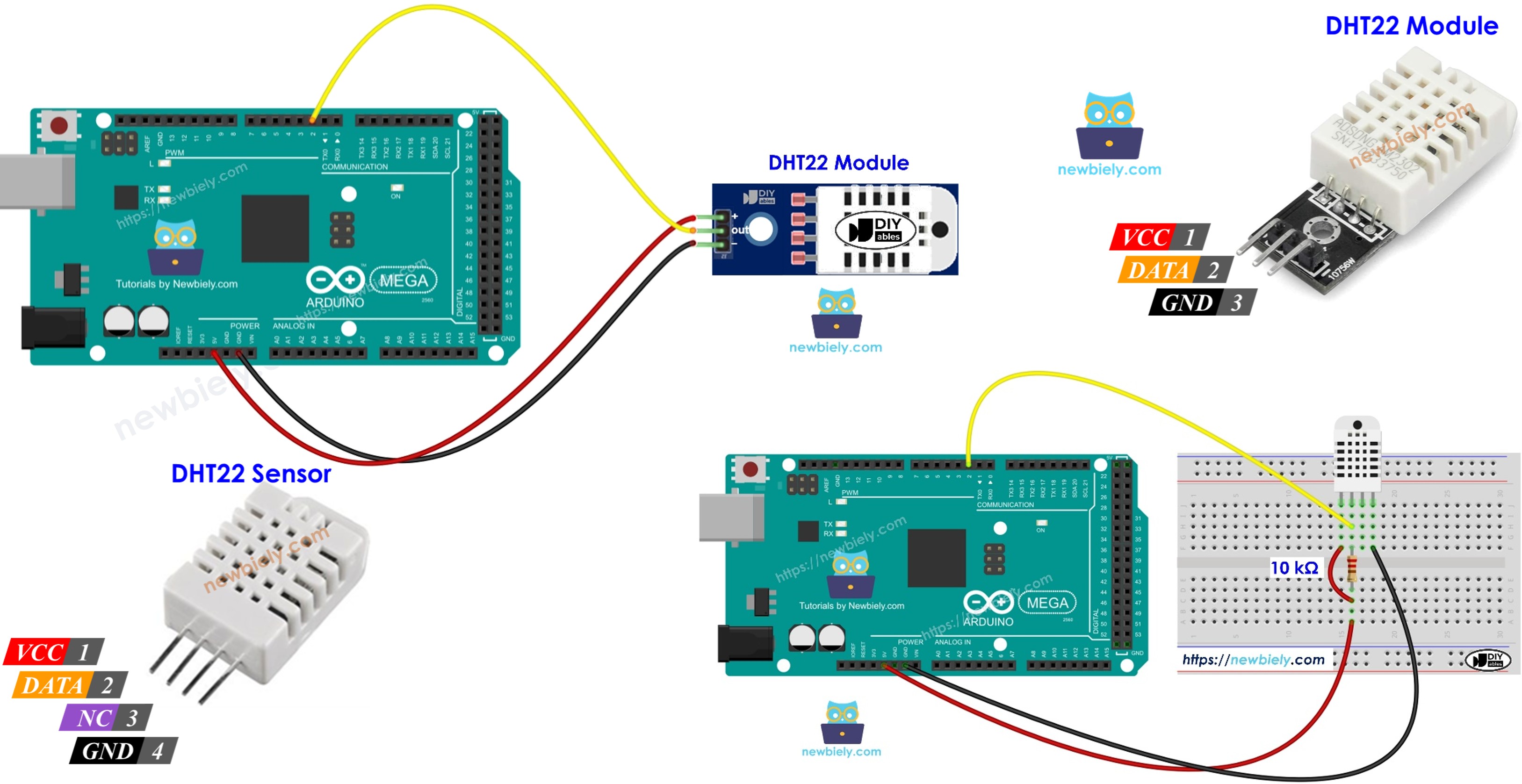
Hardware Preparation
Or you can buy the following kits:
| 1 | × | DIYables Sensor Kit (18 sensors/displays) |
Additionally, some of these links are for products from our own brand, DIYables .
Overview of DHT22 Temperature and Humidity Sensor
| DHT22 | |
|---|---|
| Temperature Range | -40°C to 80°CW |
| Temperature Accuracy | ± 0.5°C |
| Humidity Range | 0% to 100% |
| Humidity Accuracy | ± 2 to 5% |
| Reading Rate | 0.5Hz (once every 2 seconds) |
| Operating Voltage | 3 to 5V |
Pinout
DHT22 has two types: the sensor and the module.
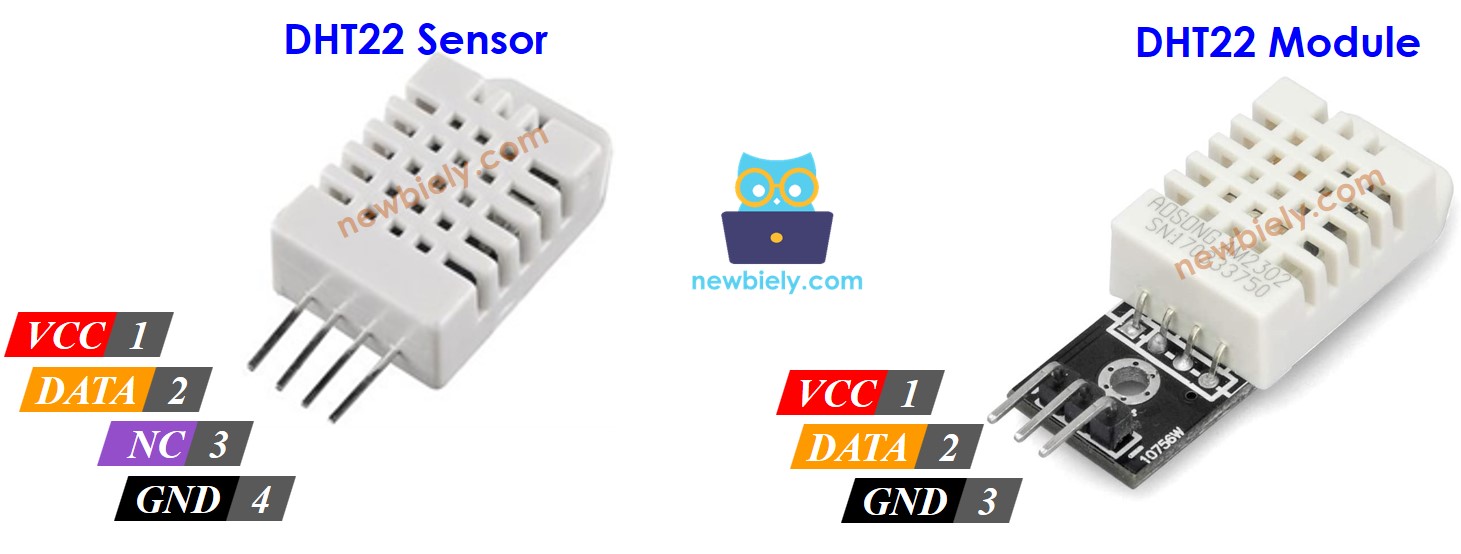
The DHT22 sensor has four pins:
- GND pin: connect to ground (0V).
- VCC pin: connect to the supply voltage (5V or 3.3V).
- DATA pin: this pin lets the sensor talk to the Arduino Mega.
- NC pin: not connected; ignore it.
The DHT22 sensor has three pins:
- GND pin: connect to ground (0V)
- VCC pin: connect to power (5V or 3.3V)
- DATA pin: used to send and receive data between the sensor and the Arduino Mega
Some makers sell the DHT22 sensor as a small module with three pins: GND, VCC, and DATA (or -, +, and OUT).
Wiring Diagram
Use a pull-up resistor of about 5k–10k ohms on the data line between the DHT22 sensor and the Arduino Mega to keep the line high and allow communication.
Arduino Mega - DHT22 Sensor Wiring
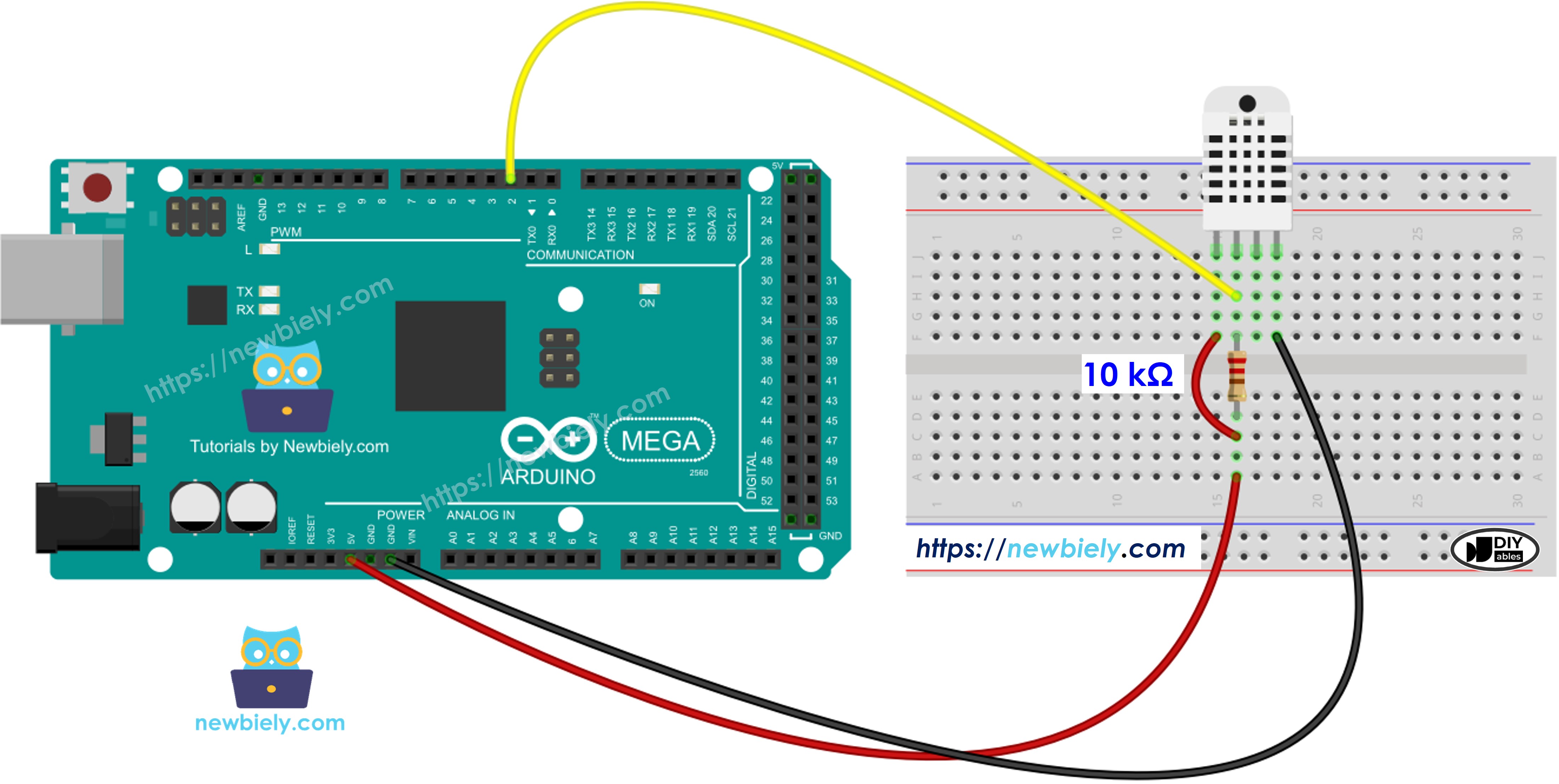
This image is created using Fritzing. Click to enlarge image
Arduino Mega - DHT22 Module Wiring
Most DHT22 sensor modules already have a resistor built in, so you don’t need to add one. This saves you time and effort in wiring or soldering.
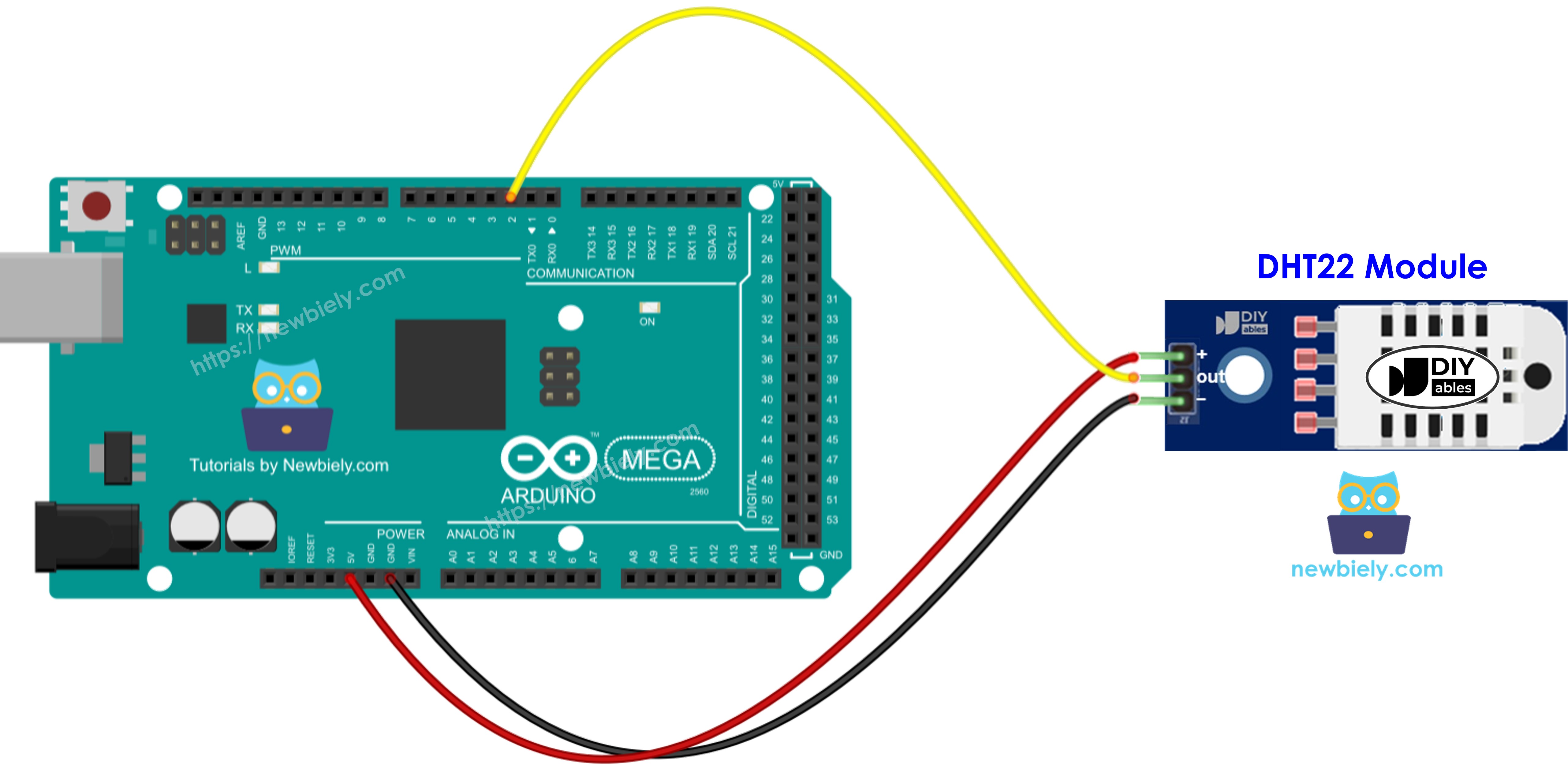
This image is created using Fritzing. Click to enlarge image
How To Program For DHT22 Temperature Sensor
Both the DHT22 sensor and its module are programmed in the same way.
- Install the library
- Choose the Arduino Mega pin that connects to the DHT sensor:
- Make a DHT22 sensor object
- Put the sensor in place
- Check how humid it is.
- Check the temperature in degrees Celsius.
- Check the temperature in Fahrenheit
Arduino Mega Code - DHT22
Detailed Instructions
Follow these steps one by one:
- Connect the parts as shown in the diagram.
- Connect the Arduino Mega board to your computer with a USB cable.
- Open the Arduino IDE on your computer.
- Choose the correct board (Arduino Mega) and the COM port.
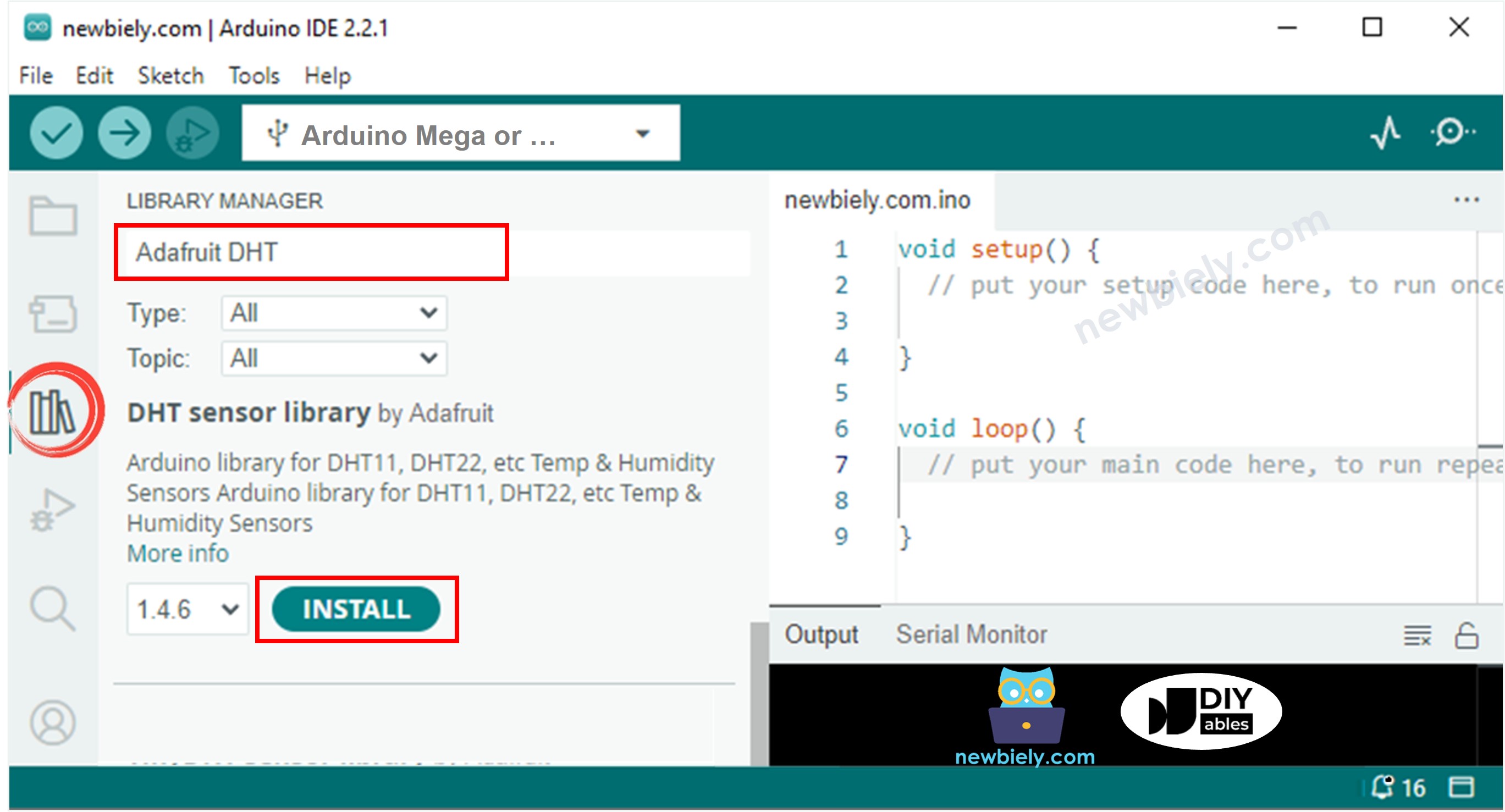
- Click the Libraries icon on the left side of the Arduino IDE.
- Type DHT in the search box and find the Adafruit DHT sensor library.
- Click Install to add the library.
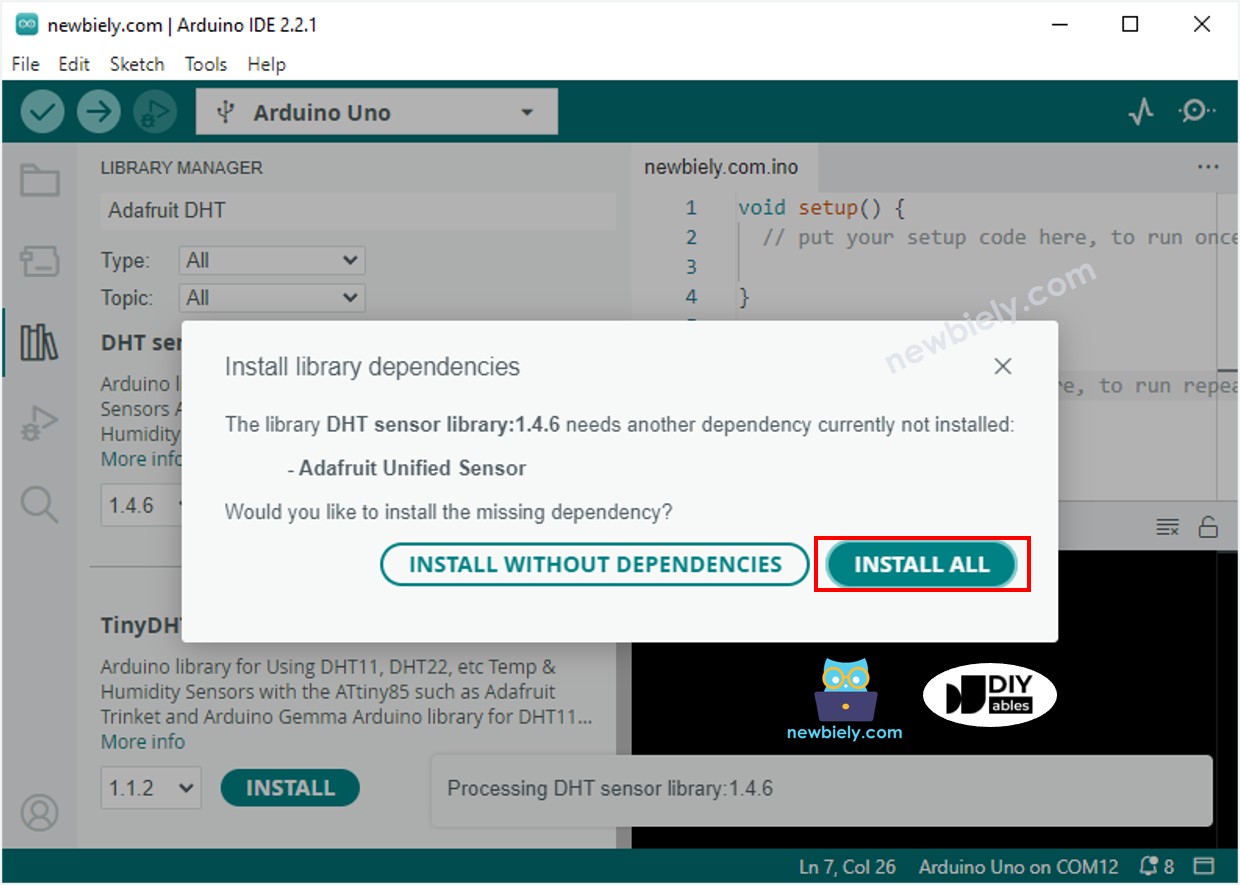
- You need to install extra libraries.
- Click the Install All button to install all needed libraries.
- Pick and copy the code for your sensor, then open it in the Arduino IDE.
- Click the Upload button in the Arduino IDE to send the code to your Arduino Mega.
- Change the temperature near the sensor by making it hotter or cooler.
- See the results in the Serial Monitor.