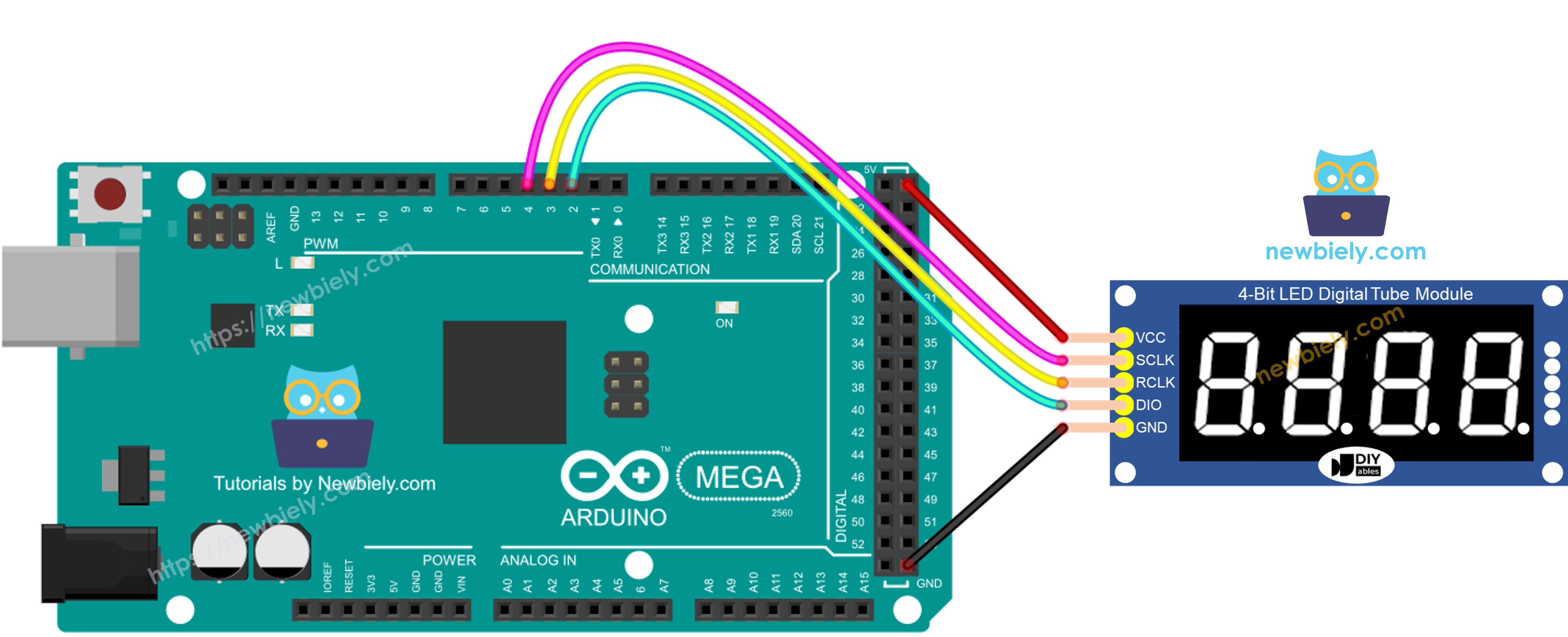
Arduino Mega - 74HC595 4-Digit 7-Segment Display

The 74HC595 4-digit 7-segment display module is an essential component for Arduino Mega projects that need to show numerical information in a clear, easily readable format. This display module combines four individual 7-segment LED digits with integrated 74HC595 shift register chips, dramatically simplifying the wiring and programming complexity compared to directly controlling raw 7-segment displays.

Why Use a 74HC595 Module for Multi-Digit Displays?

Traditional 4-digit 7-segment displays without integrated drivers require 12 or more Arduino pins (8 segment lines + 4 digit select lines). This consumes a significant portion of your Arduino Mega's GPIO pins and makes wiring complex and error-prone. The 74HC595-based module solves this problem elegantly by using serial-to-parallel shift registers to control all segments and digits using only 3 control pins (plus power and ground), freeing up your Arduino pins for sensors, motors, buttons, and other components.

Arduino Mega 74HC595 4-digit 7-segment display

Common Applications:

Key Advantages of This Module:

This comprehensive tutorial teaches you how to interface the 74HC595 4-digit 7-segment display module with your Arduino Mega, install the necessary libraries, wire the connections properly, and program various display modes including integers, floating-point numbers, and custom character patterns. Whether you're building a digital thermometer, a countdown timer, or a data display panel, this guide provides everything you need to get your multi-digit display working quickly and reliably.

Module Variations: This guide covers 4-digit 7-segment displays with four individual decimal points (one per digit), ideal for showing decimal numbers like temperatures (23.5°C) or voltages (12.6V). If your project requires displaying time with a center colon separator (12:45), consider using the TM1637 4-digit 7-segment Display Module instead, which features a built-in colon between the second and third digits specifically designed for clock applications.

Hardware Preparation

1×Arduino Mega
1×USB 2.0 cable type A/B (for USB-A PC)
1×USB 2.0 cable type C/B (for USB-C PC)
1×74HC595 4-digit 7-segment Display
1×Jumper Wires

Or you can buy the following kits:

1×DIYables Sensor Kit (30 sensors/displays)
1×DIYables Sensor Kit (18 sensors/displays)
Disclosure: Some of the links provided in this section are Amazon affiliate links. We may receive a commission for any purchases made through these links at no additional cost to you.
Additionally, some of these links are for products from our own brand, DIYables .

Overview of 74HC595 4-digit 7-segment Display

The 74HC595 4-digit 7-segment display module is an intelligent LED display system that combines multiple components on a single PCB to provide an easy-to-use numerical display solution for microcontroller projects. Understanding the module's architecture helps you appreciate why it's such an efficient choice for multi-digit displays.

Module Architecture and Components:

1. Four 7-Segment LED Digits: Each digit consists of seven LED segments arranged in a figure-8 pattern (labeled A through G), plus an eighth decimal point LED. By illuminating different combinations of these segments, the display can show digits 0-9, some letters (A, b, C, d, E, F, etc.), and basic symbols. The common cathode or common anode configuration groups the cathodes or anodes of each digit together for multiplexed control.

2. 74HC595 Shift Registers: Two cascaded 74HC595 8-bit serial-in, parallel-out shift register ICs form the heart of the module. These chips convert the serial data stream from your Arduino into parallel outputs that control the individual LED segments and digit selection lines. The first shift register typically controls which segments illuminate (A-G plus decimal point), while the second controls which digit is active (digit 1, 2, 3, or 4).

3. Current-Limiting Resistors: Built-in resistors (usually 220Ω to 470Ω) protect the LEDs from excessive current, eliminating the need for external resistors and preventing LED damage from overcurrent.

4. Multiplexing Circuit: Rather than illuminating all four digits simultaneously (which would require separate control lines for each digit), the module uses time-division multiplexing. It rapidly cycles through the digits, illuminating only one at a time in quick succession. Due to persistence of vision, your eye perceives all four digits as continuously lit when the refresh rate exceeds approximately 50Hz. This technique dramatically reduces the number of control pins required.

How the 74HC595 Shift Register Works:

The 74HC595 receives serial data bit-by-bit from the Arduino, shifts it into an internal storage register, then outputs all 8 bits in parallel to control the LEDs. Three control signals coordinate this process:

  • SCLK (Serial Clock): Each clock pulse shifts one bit into the register
  • DIO (Data In/Out): Carries the serial data stream of 1s and 0s
  • RCLK (Register Clock/Latch): When pulsed, transfers the shifted data to the output pins, updating the display

By cascading two 74HC595 chips, the module gains 16 parallel output lines—enough to control 8 segments per digit (including decimal point) plus 4 digit selection lines, all through a single serial data stream.

Display Characteristics:

  • Digit Height: Typically 0.36" (9mm) to 0.56" (14mm) depending on model
  • Color: Most commonly red, but also available in green, blue, or white LEDs
  • Viewing Angle: Approximately 120° to 160° for clear visibility
  • Brightness: Adjustable through refresh timing or PWM control
  • Operating Voltage: 3.3V to 5V compatible (check your specific module)
  • Current Draw: Approximately 20mA to 80mA depending on how many segments are illuminated
  • Display Range: -999 to 9999 for integers, or decimal numbers with adjustable precision

Advantages Over Direct-Wired 7-Segment Displays:

  • Pin Savings: Requires only 3 Arduino pins instead of 12+
  • Simplified Code: Libraries handle the complex multiplexing timing
  • Cleaner Wiring: Five total connections reduce breadboard clutter
  • Expandability: Can cascade additional shift registers for more digits
  • Protection: Built-in current limiting prevents LED damage

This module is perfect for any Arduino Mega project requiring clear numerical display of sensor data, measurements, counts, or time information without consuming excessive GPIO pins.

Pinout

The 74HC595 4-digit 7-segment display module features a 5-pin interface that provides complete control over the display using minimal connections. Understanding each pin's function ensures correct wiring and helps troubleshoot connection issues.

74HC595 module pinout

Pin Descriptions:

1. SCLK (Serial Clock) Pin:

  • Function: Clock signal that synchronizes data transfer to the shift register
  • Operation: Each rising edge (LOW to HIGH transition) shifts one data bit from DIO into the internal shift register
  • Connection: Connect to any digital output pin on Arduino Mega (example: pin 4)
  • Electrical: TTL/CMOS compatible, 5V tolerant
  • Timing: Clock frequency up to 25MHz (though Arduino typically operates much slower, around 1-2MHz)
  • Note: The SCLK line must be stable (not floating) to prevent random shifts

2. RCLK (Register Clock / Latch) Pin:

  • Function: Latch signal that transfers shifted data from the storage register to the output pins
  • Operation: When pulsed HIGH then LOW, the 16 bits stored in the shift registers immediately appear on the LED outputs
  • Connection: Connect to any digital output pin on Arduino Mega (example: pin 3)
  • Purpose: Allows smooth display updates by buffering data before displaying it
  • Timing: Pulse after sending all 16 data bits to update the display without flickering
  • Alternative Names: Sometimes called LATCH or STCP (storage clock pulse) pin

3. DIO (Data In/Out) Pin:

  • Function: Serial data line that carries the bit pattern to be displayed
  • Operation: Data bits are shifted in MSB-first (most significant bit first) or LSB-first depending on library configuration
  • Connection: Connect to any digital output pin on Arduino Mega (example: pin 2)
  • Data Format: 16-bit stream (8 bits for segment control + 8 bits for digit selection)
  • Electrical: Standard digital I/O, 5V logic level
  • Alternative Names: May be labeled DS (data serial), SER (serial input), or DIN (data input)

4. VCC (Power Supply) Pin:

  • Function: Positive power supply voltage for the module
  • Voltage Range: 3.3V to 5V DC (verify your specific module's datasheet)
  • Connection: Connect to Arduino Mega 5V pin for maximum brightness
  • Current Draw: Approximately 20mA to 80mA depending on how many LED segments are illuminated
  • Note: If using 3.3V, display brightness will be reduced but still functional
  • Recommendation: Use 5V from Arduino for standard operation; external power supply needed only for multiple displays

5. GND (Ground) Pin:

  • Function: Common ground reference for the module
  • Connection: Connect to Arduino Mega GND pin
  • Importance: CRITICAL—ground must be shared between Arduino and display module for proper signal communication
  • Troubleshooting: If display shows random characters or doesn't respond, verify ground connection first

Pin Connection Summary Table:

74HC595 Module PinArduino Mega PinSignal TypeFunction
SCLKAny Digital (e.g., D4)Output (from Arduino)Serial clock signal
RCLKAny Digital (e.g., D3)Output (from Arduino)Latch/register clock
DIOAny Digital (e.g., D2)Output (from Arduino)Serial data stream
VCC5VPowerPositive power supply
GNDGNDGroundCommon ground reference

Important Pin Connection Notes:

  • Flexible Pin Assignment: The SCLK, RCLK, and DIO pins can connect to any Arduino Mega digital pins. Just ensure your code reflects your chosen pin assignments.
  • PWM Not Required: Standard digital output pins work perfectly; no need for PWM-capable pins.
  • No Pull-up/Pull-down Needed: The shift register inputs have sufficient internal stability; external resistors are unnecessary.
  • Signal Integrity: For long wire runs (>30cm), consider using shorter wires or adding small capacitors (0.1µF) near the module's VCC and GND pins to reduce electrical noise.
  • Multiple Displays: To control multiple 74HC595 display modules, you can share SCLK and RCLK lines while using separate DIO pins for each module, or cascade them serially for unlimited digits.

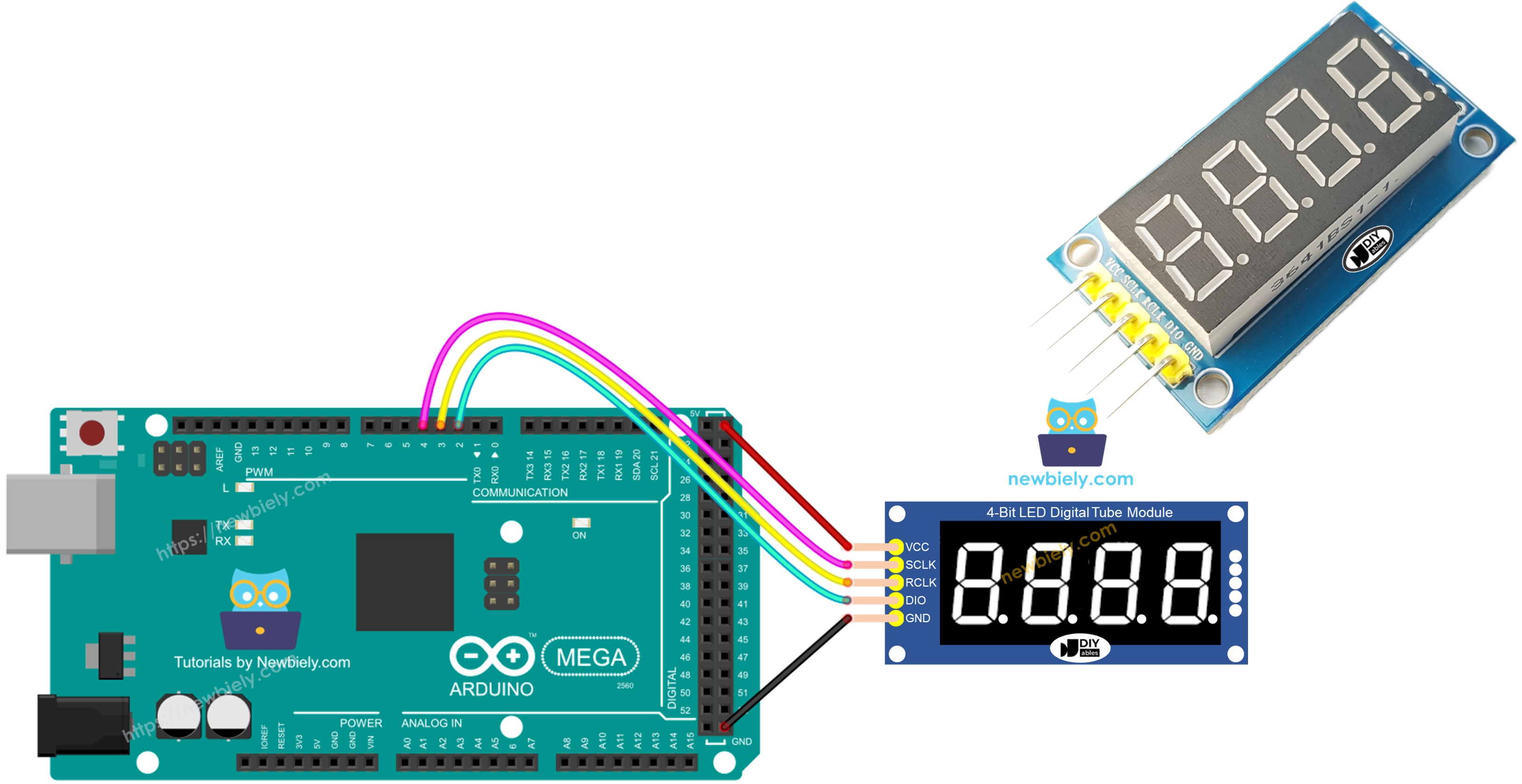
Wiring Diagram

Proper wiring between your Arduino Mega and the 74HC595 4-digit 7-segment display module is critical for reliable operation. This section provides a complete connection guide with detailed explanations to ensure successful setup.

Pin-to-Pin Connection Table:

Arduino Mega Pin74HC595 Display PinWire Color SuggestionSignal Description
5VVCCRedPower supply (+5V)
GNDGNDBlackCommon ground reference
Digital Pin 4SCLKYellowSerial clock signal
Digital Pin 3RCLKGreenRegister clock / latch signal
Digital Pin 2DIOBlueSerial data input

Note: The pin numbers used here (2, 3, 4) are recommendations for this tutorial. You can connect SCLK, RCLK, and DIO to any available digital pins on your Arduino Mega (pins 2-53). Just remember to update the pin definitions in your Arduino code to match your physical wiring.

The wiring diagram between Arduino Mega 74HC595 Module

This image is created using Fritzing. Click to enlarge image

Detailed Wiring Instructions:

Step 1: Power Connections

  • Connect the VCC pin of the display module to the 5V pin on Arduino Mega
  • Connect the GND pin of the display module to any GND pin on Arduino Mega
  • Verify these connections first, as incorrect power wiring can damage the module

Step 2: Control Signal Connections

  • Connect SCLK (serial clock) on the display to digital pin 4 on Arduino Mega
  • Connect RCLK (register clock/latch) on the display to digital pin 3 on Arduino Mega
  • Connect DIO (data) on the display to digital pin 2 on Arduino Mega

Step 3: Verification

  • Double-check all five connections against the table above
  • Ensure no wires are loose or making unintended contact with adjacent pins
  • Verify the display module is oriented correctly (check pinout labels on the PCB)

Breadboard Wiring Tips:

  • Module Placement: Position the display module at the edge of your breadboard for easy viewing
  • Wire Organization: Use different colored jumper wires to distinguish power (red), ground (black), and signal lines (other colors)
  • Wire Length: Keep wires as short as practical to minimize electromagnetic interference
  • Neat Layout: Route wires around the breadboard edges rather than crossing over components
  • Stability: Ensure the module is firmly seated in the breadboard to prevent intermittent connections

Alternative Pin Configurations:

If pins 2, 3, and 4 are already in use by other components in your project, you can reassign the display control signals to any other digital pins.

IMPORTANT: Whenever you change pin assignments, you must update the pin definitions in your Arduino sketch:

Common Wiring Mistakes and Troubleshooting:

Problem: Display shows nothing (all segments off)

  • Cause: No power or reversed power connections
  • Solution: Verify VCC connected to 5V and GND to GND; check continuity with multimeter

Problem: Display shows random characters or flickers erratically

  • Cause: Missing or intermittent ground connection
  • Solution: Ensure GND connection is solid; try a different ground wire or breadboard row

Problem: Display shows wrong numbers or garbled output

  • Cause: Control signal pins swapped or connected to wrong Arduino pins
  • Solution: Verify SCLK, RCLK, and DIO are connected as specified; check code pin definitions match physical wiring

Problem: Display is very dim or barely visible

  • Cause: Insufficient power supply or low battery voltage
  • Solution: Connect to Arduino's 5V pin (not 3.3V); if using external power, verify voltage is 5V; check USB cable and power source

Problem: Only some digits work, others remain blank

  • Cause: Faulty module or incorrect library configuration
  • Solution: Test with example code from library; try different display positions in code; module may be defective

Power Consumption Considerations:

The 74HC595 4-digit display draws approximately 20mA to 80mA depending on how many segments are illuminated (more lit segments = higher current). This is well within the Arduino Mega's 5V pin capacity (which can supply up to 500mA from USB, or more from external power). However, if your project includes multiple high-current devices (motors, many LEDs, etc.), consider:

  • Using a separate 5V power supply for peripherals
  • Powering Arduino Mega through the DC barrel jack (7-12V) rather than USB
  • Adding a 100µF capacitor across the display's VCC and GND pins to smooth power surges

Safety Notes:

  • Polarity Matters: Always connect VCC to positive and GND to ground; reversing polarity may damage the module
  • Hot Plugging: Avoid connecting or disconnecting wires while Arduino is powered on
  • Static Discharge: Touch a grounded metal object before handling the display module to prevent electrostatic damage to the 74HC595 chips
  • Verify Voltage: Some 74HC595 modules are 3.3V-only; check your module's specifications before connecting to 5V

Library Installation

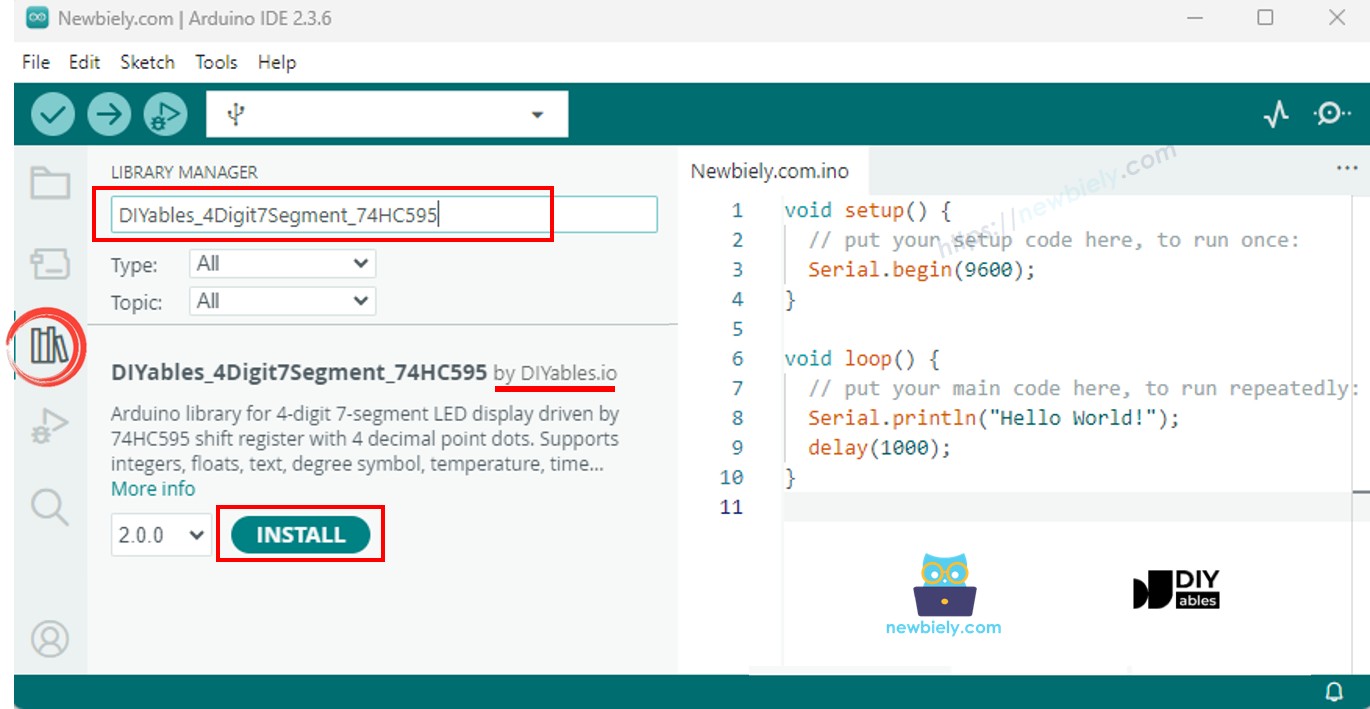
To quickly program a 74HC595 4-digit 7-segment display, install the DIYables_4Digit7Segment_74HC595 library from DIYables.io. Here are the steps to install the library:

  • Click the Libraries icon on the left side of the Arduino IDE.
  • Type DIYables_4Digit7Segment_74HC595 in the search box, and find the DIYables_4Digit7Segment_74HC595 library from DIYables.io.
  • Click the Install button.
Arduino Mega 74HC595 4-digit 7-segment display library

You can also check out this library on Github

How To Program For 74HC595 4-digit 7-segment using Arduino Mega

This section teaches you the essential programming techniques for controlling the 74HC595 4-digit 7-segment display using the DIYables library. Understanding these concepts allows you to display any numerical or textual information your Arduino Mega project requires.

Step 1: Include the Library

At the top of every Arduino sketch that uses the 74HC595 display, include the library header file:

#include <DIYables_4Digit7Segment_74HC595.h>

This statement tells the Arduino compiler to include all the functions and definitions from the DIYables library, making the display control functions available in your code.

Step 2: Define Pin Connections

Define constants for the Arduino Mega pins connected to the display module. Using #define or const int makes your code more readable and easier to modify if you change wiring:

#define SCLK 4 // Arduino Mega pin connected to the shift register serial clock (SCLK) #define RCLK 3 // Arduino Mega pin connected to the storage register clock (RCLK / latch) #define DIO 2 // Arduino Mega pin connected to the data line (DIO)

Pin Naming Conventions:

  • SCLK (Serial Clock): Also called CLK, SHCP, or SCK in some documentation
  • RCLK (Register Clock): Also called LATCH, STCP, or RCK
  • DIO (Data In/Out): Also called DATA, DS, or SER

Important: The pin numbers (4, 3, 2) must match your physical wiring. If you connected SCLK to pin 10 instead of pin 4, change the definition to #define SCLK 10.

Step 3: Create Display Object

Instantiate a display object that represents your 74HC595 module. This object provides all the methods for controlling the display:

DIYables_4Digit7Segment_74HC595 display(SCLK, RCLK, DIO);

This creates a global display object named display (you can choose any name) and tells the library which Arduino pins control the module. The order of parameters is important: SCLK, RCLK, DIO.

Step 4: Initialize in setup()

In your setup() function, initialize the display:

void setup() { display.begin(); // Initialize the display module display.clear(); // Clear any random segments (optional but recommended) }

The begin() method configures the Arduino pins as outputs and prepares the shift registers for communication.

Step 5: Display Numbers and Text

The library provides several methods for displaying different types of content:

Displaying Integers

Show whole numbers with optional leading zeros:

// Display integer without leading zeros: " 42" (spaces in unused digits) display.printInt(42, false); // Display integer with leading zeros: "0042" display.printInt(42, true); // Display negative numbers: " -13" display.printInt(-13, false); // Display range: -999 to 9999 display.printInt(1234, false);

Parameters:

  • First parameter: The integer to display (-999 to 9999)
  • Second parameter: true = show leading zeros, false = blank unused digits

Displaying Floating-Point Numbers

Show decimal numbers with a decimal point:

// Display "23.5" (1 decimal place) display.printFloat(23.5, 1, false); // Display "9.25" (2 decimal places) display.printFloat(9.25, 2, false); // Display "-0.7" (1 decimal place, negative) display.printFloat(-0.7, 1, false); // Display "003.14" (2 decimals, with leading zeros) display.printFloat(3.14159, 2, true);

Parameters:

  • First parameter: The floating-point number to display
  • Second parameter: Number of decimal places (0-3)
  • Third parameter: true = leading zeros, false = blank unused digits

Displaying Custom Characters

Control individual digits and decimal points for specialized displays like temperature readings:

// Display "9.3°C" (temperature with degree symbol) display.clear(); // Clear previous content display.setNumber(1, 9); // Set position 1 to digit '9' display.setDot(1); // Turn on decimal point at position 1 display.setNumber(2, 3); // Set position 2 to digit '3' display.setChar(3, SegChars::DEGREE); // Set position 3 to degree symbol (°) display.setChar(4, SegChars::C); // Set position 4 to letter 'C' display.show(); // Update the display with new values

Available Special Characters:

The library provides these predefined characters in the SegChars namespace:

SegChars::DEGREE → ° (degree symbol) SegChars::C → C (letter C) SegChars::F → F (letter F) SegChars::H → H (letter H) SegChars::L → L (letter L) SegChars::P → P (letter P) SegChars::MINUS → - (minus sign) SegChars::BLANK → (blank/off)

Digit Positions:

The display uses 1-based indexing for digit positions:

Position: 1 2 3 4 Display: [8] [8] [8] [8] Left Right

Position 1 is the leftmost digit, position 4 is the rightmost digit.

Individual Digit Control Methods

// Set individual digits (0-9) display.setNumber(position, digit); // Set decimal point on/off display.setDot(position); // Turn on decimal point at position display.clearDot(position); // Turn off decimal point at position // Set custom characters display.setChar(position, SegChars::CHARACTER); // Clear specific digit display.clearDigit(position); // Turn off all segments at position // Clear entire display display.clear(); // Turn off all segments and dots

Step 6: Implement Loop Code Properly

CRITICAL MULTIPLEXING REQUIREMENT:

The 74HC595 display uses multiplexing, which means only one digit is illuminated at a time, cycling rapidly through all four digits to create the illusion of simultaneous display. For this to work correctly, your Arduino code must follow these rules:

Required: Call display.show() in loop()

void loop() { display.show(); // MUST be called repeatedly in loop() // Your other code here }

The show() method must be called continuously (hundreds of times per second) to maintain the multiplexing cycle. Without regular show() calls, the display will flicker, show incorrect data, or appear blank.

Prohibited: Do NOT use delay() in loop()

void loop() { display.printInt(1234, false); delay(1000); // ❌ WRONG! This will cause flickering! display.show(); }

Why delay() Causes Problems:

The delay() function completely halts code execution, preventing show() from being called. During the delay period, the display stops refreshing, causing visible flickering or blank segments.

Solution: Use Timed Actions Without Blocking

Instead of delay(), use the millis() timer approach:

unsigned long previousMillis = 0; const long interval = 1000; // Update every 1000ms (1 second) void loop() { display.show(); // Keep display refreshing unsigned long currentMillis = millis(); if (currentMillis - previousMillis >= interval) { previousMillis = currentMillis; // Update display content here display.printInt(readSensorValue(), false); } }

This approach allows show() to be called continuously while still performing timed updates.

Complete Programming Example

Here's a complete sketch demonstrating all concepts:

#include <DIYables_4Digit7Segment_74HC595.h> // Pin definitions #define SCLK 7 #define RCLK 6 #define DIO 5 // Create display object DIYables_4Digit7Segment_74HC595 display(SCLK, RCLK, DIO); void setup() { display.begin(); // Initialize display display.clear(); // Clear all segments } void loop() { display.show(); // Maintain multiplexing (REQUIRED) // Example 1: Display counter static int counter = 0; static unsigned long lastUpdate = 0; if (millis() - lastUpdate >= 1000) { lastUpdate = millis(); counter++; if (counter > 9999) counter = 0; display.printInt(counter, false); } }

Additional Resources

For complete API documentation, advanced features, and more examples, visit the library reference.

Key Library Methods Summary:

MethodDescriptionExample
display.begin()Initialize the displaydisplay.begin();
display.clear()Clear all segmentsdisplay.clear();
display.printInt(num, leadingZeros)Display integerdisplay.printInt(42, false);
display.printFloat(num, decimals, leadingZeros)Display floatdisplay.printFloat(23.5, 1, false);
display.setNumber(pos, digit)Set individual digitdisplay.setNumber(1, 9);
display.setChar(pos, char)Set special characterdisplay.setChar(3, SegCharsDEGREE);
display.setDot(pos)Turn on decimal pointdisplay.setDot(2);
display.show()Refresh display (required in loop)display.show();

Arduino Mega Code - Display Integer

This example demonstrates how to display whole numbers (integers) on the 74HC595 4-digit 7-segment display. The code creates a simple counter that increments every second, showing values from 0 to 9999 before resetting. This is perfect for applications like event counters, timers, scoreboards, or production quantity displays.

What This Code Does:

  • Initializes Display: Sets up the 74HC595 module and clears any random segments
  • Counts Up: Increments a counter variable every 1000 milliseconds (1 second)
  • Displays Numbers: Shows the current count value without leading zeros
  • Resets Automatically: When count reaches 9999, it wraps back to 0
  • Non-Blocking Timing: Uses millis() instead of delay() to maintain smooth display refresh
  • Continuous Multiplexing: Calls display.show() repeatedly to keep all digits visible

Key Programming Concepts:

  • Static Variables: The counter variable retains its value between loop iterations
  • Millis Timing: The millis() function returns elapsed time without blocking execution
  • Integer Display: printInt(counter, false) displays the integer without leading zeros ("42" not "0042")
  • Range Handling: Integers can display from -999 to 9999 (4 digits including optional minus sign)

Customization Ideas:

  • Change interval from 1000 to 100 for faster counting (10 times per second)
  • Add button input to manually increment/decrement the counter
  • Display sensor readings (temperature, distance, light level) instead of counter
  • Show leading zeros by changing false to true in printInt() call
  • Add reset button to set counter back to zero on demand
#include <DIYables_4Digit7Segment_74HC595.h> // DIYables_4Digit7Segment_74HC595 library #define SCLK 4 // The Arduino Mega pin connected to SCLK #define RCLK 3 // The Arduino Mega pin connected to RCLK #define DIO 2 // The Arduino Mega pin connected to DIO DIYables_4Digit7Segment_74HC595 display(SCLK, RCLK, DIO); void setup() { Serial.begin(9600); display.printInt(-13, false); // you can display a value from -999 to 9999 //display.printInt(-132, false); //display.printInt(9132, false); //display.printInt(132, false); //display.printInt(32, false); //display.printInt(2, false); //display.printInt(2, true); } void loop() { display.loop(); // MUST call the display.loop() function in loop() // DO SOMETHING HERE // NOTE: do NOT use the delay() function in loop because it affects to the multiplexing }

Detailed Instructions

Follow these comprehensive step-by-step instructions to get your counter display working:

1. Verify Wiring: Ensure the 74HC595 4-digit 7-segment display is properly connected to your Arduino Mega following the wiring diagram in the previous section. Check all five connections: VCC to 5V, GND to GND, SCLK to pin 7, RCLK to pin 6, and DIO to pin 5.

2. USB Connection: Connect your Arduino Mega board to your computer using a USB cable. Wait for your operating system to recognize the device (you may hear a connection sound on Windows).

3. Launch Arduino IDE: Open the Arduino IDE software on your computer.

4. Board Selection: Navigate to Tools → Board and select "Arduino Mega or Mega 2560" from the board list.

5. Port Selection: Go to Tools → Port and choose the COM port (Windows) or /dev/ttyUSB*/dev/ttyACM* port (Mac/Linux) that corresponds to your Arduino Mega. The port name usually includes "Arduino Mega" or "Mega 2560" to help identify it.

6. Verify Library Installation: Ensure you've already installed the DIYables_4Digit7Segment_74HC595 library as described in the Library Installation section above. Without this library, the code will not compile.

7. Copy Code: Select and copy the entire integer display code provided above (from the #include line to the closing brace of loop()).

8. Paste into IDE: Create a new sketch in Arduino IDE (File → New) and paste the copied code, replacing any existing template code.

9. Verify Code: Click the Verify button (checkmark icon) to compile the code and check for errors. The compilation should complete successfully with a message like "Done compiling."

10. Upload Code: Click the Upload button (right arrow icon) in the Arduino IDE toolbar. You'll see "Compiling sketch..." followed by "Uploading..." in the status bar. Wait for the upload to complete (the Arduino's built-in LED will flash rapidly during upload).

11. Observe Display: Once the upload finishes, the Arduino automatically restarts and begins running your code. Watch the 7-segment display—you should see a counter starting at 0 and incrementing by 1 every second: 0, 1, 2, 3, 4... continuing up to 9999, then wrapping back to 0.

12. Verify Smooth Display: The numbers should appear steady and clear without flickering. If you see flickering, review the "Multiplexing Requirement" section in the programming guide—your code may be blocking the display.show() calls.

Expected Behavior:

Time Display Shows 0s 0 1s 1 2s 2 3s 3 ... 10s 10 ... 100s 100 ... 9999s 9999 10000s 0 (wraps around)

Troubleshooting:

  • Display blank: Check power connections (VCC and GND); verify library is installed
  • Display shows wrong numbers: Verify pin definitions in code match your physical wiring
  • Display flickers: Make sure no delay() calls are blocking display.show() in the loop
  • Compilation errors: Confirm DIYables library is installed; check for typos in code
  • Numbers don't increment: Check Serial Monitor (9600 baud) for error messages; verify timing logic
  • Upload fails: Verify correct board and port selected; try a different USB cable

Arduino Mega Code - Display Float

This example demonstrates displaying floating-point numbers (decimals) on the 74HC595 4-digit 7-segment display. The code increments a decimal counter by 0.1 every second, ideal for applications requiring decimal precision like voltage meters, temperature sensors, or measurement displays.

What This Code Does:

  • Decimal Display: Shows floating-point numbers with one decimal place (e.g., "12.3")
  • Incremental Counting: Adds 0.1 to the counter every 1000 milliseconds
  • Decimal Point Control: Automatically positions the decimal point between digits
  • Range Management: Resets to 0.0 when reaching 999.9 (4-digit limit with decimal)
  • Precision Control: Displays one decimal place of accuracy

Key Differences from Integer Display:

  • Uses printFloat() instead of printInt() to enable decimal point display
  • Second parameter (1) specifies number of decimal places to show
  • Counter increments by 0.1 (fractional value) instead of 1 (whole number)
  • Maximum displayable value is 999.9 (one digit reserved for decimal precision)

Practical Applications:

  • Thermometer: Display temperature readings from DHT22 or DS18B20 sensors ("23.5°C")
  • Voltmeter: Show battery voltage or power supply readings ("12.6V")
  • Distance Meter: Display ultrasonic sensor measurements ("45.2cm")
  • Weight Scale: Show precise weight measurements ("123.4g")
  • Speed Display: Show velocity or frequency with decimal precision ("56.7mph")

Decimal Place Options:

You can adjust the precision by changing the second parameter:

display.printFloat(value, 0, false); → "1234" (no decimal) display.printFloat(value, 1, false); → "123.4" (1 decimal place) display.printFloat(value, 2, false); → "12.34" (2 decimal places) display.printFloat(value, 3, false); → "1.234" (3 decimal places)

Note that more decimal places reduce the range of the integer portion (fewer digits available for the whole number part).

#include <DIYables_4Digit7Segment_74HC595.h> // DIYables_4Digit7Segment_74HC595 library #define SCLK 4 // The Arduino Mega pin connected to SCLK #define RCLK 3 // The Arduino Mega pin connected to RCLK #define DIO 2 // The Arduino Mega pin connected to DIO DIYables_4Digit7Segment_74HC595 display(SCLK, RCLK, DIO); void setup() { Serial.begin(9600); display.printFloat(-9.2, 1, false); //display.printFloat(-92.4, 1, false); //display.printFloat(-9.24, 2, false); //display.printFloat(192.4, 1, false); //display.printFloat(19.24, 2, false); //display.printFloat(1.924, 3, false); } void loop() { display.loop(); // MUST call the display.loop() function in loop() // DO SOMETHING HERE // NOTE: do NOT use the delay() function in loop because it affects to the multiplexing }

Arduino Mega Code - Display Temperature

This advanced example demonstrates displaying a simulated temperature reading in the format "23.5°C" using custom character control. The code showcases how to display non-numeric characters (degree symbol and letter C) alongside numerical data, perfect for creating professional-looking sensor readouts.

What This Code Does:

  • Simulated Temperature: Generates fake temperature values between 20.0°C and 30.0°C for demonstration
  • Custom Character Display: Uses individual digit control to show degree symbol (°) and letter C
  • Decimal Precision: Displays temperature with one decimal place (e.g., "23.5")
  • Professional Format: Creates a properly formatted temperature display with units
  • Position Control: Manually places each character at specific digit positions

Display Format Breakdown:

Position: 1 2 3 4 Example: [2] . [3] [°] [C] └──┴──┘ Temperature Units (23.3°C)

Code Explanation:

  • Position 1: Tens digit of temperature (2 in "23.5")
  • Position 1 Dot: Decimal point after position 1
  • Position 2: Ones and tenths digits (3 in "23.5")
  • Position 3: Degree symbol (°)
  • Position 4: Temperature unit letter (C for Celsius)

How Individual Character Control Works:

display.clear(); // Clear previous content display.setNumber(1, tensDigit); // Set leftmost digit to tens place display.setDot(1); // Turn on decimal point after position 1 display.setNumber(2, onesDecimal); // Set second digit display.setChar(3, SegChars::DEGREE); // Set third position to ° symbol display.setChar(4, SegChars::C); // Set fourth position to C letter display.show(); // Update display with all new values

This approach gives you complete control over what appears in each digit position, allowing custom formats beyond simple numbers.

Real Temperature Sensor Integration:

To display actual temperature readings, replace the simulated value with real sensor data:

With DHT22 Sensor:

#include <DHT.h> DHT dht(DHTPIN, DHT22); float temperature = dht.readTemperature(); // Read in Celsius

With DS18B20 Sensor:

#include <OneWire.h> #include <DallasTemperature.h> float temperature = sensors.getTempCByIndex(0);

With LM35 Analog Sensor:

int sensorValue = analogRead(A0); float temperature = (sensorValue * 5.0 / 1024.0) * 100; // Convert to °C

Adapting for Fahrenheit:

To display temperature in Fahrenheit instead of Celsius:

// Convert Celsius to Fahrenheit float tempF = (tempC * 9.0 / 5.0) + 32; // Display with F instead of C display.setChar(4, SegChars::F); // Change last character to 'F'

Additional Custom Display Ideas:

  • Humidity: "65.2%H" (humidity percentage)
  • Voltage: "12.6 V" (battery voltage)
  • Time: "12:45" (using TM1637 module with colon is better)
  • Distance: "45.2CM" (ultrasonic sensor)
  • Speed: "56.7 H" (for mph, rpm, etc.)
  • Pressure: "1013" (atmospheric pressure in hPa)

Available Letter Characters:

7-segment displays have limited character support. These letters are clearly readable:

Clear: A, C, E, F, H, L, P, U OK: b, d, o, r, t, J Poor: g, q, S (may be ambiguous) Impossible: K, M, N, V, W, X, Y, Z (not possible)

For best results, stick to letters that are easily recognizable on a 7-segment display.

Error Handling:

In production code with real sensors, add error handling:

float temperature = dht.readTemperature(); if (isnan(temperature)) { // Sensor read failed - display error display.clear(); display.setChar(1, SegChars::E); display.setChar(2, SegChars::R); display.setChar(3, SegChars::R); display.setChar(4, SegChars::BLANK); display.show(); } else { // Display valid temperature // ... temperature display code ... }

This displays "Err" on the display when sensor readings fail, helping with debugging.

#include <DIYables_4Digit7Segment_74HC595.h> // DIYables_4Digit7Segment_74HC595 library #define SCLK 4 // The Arduino Mega pin connected to SCLK #define RCLK 3 // The Arduino Mega pin connected to RCLK #define DIO 2 // The Arduino Mega pin connected to DIO DIYables_4Digit7Segment_74HC595 display(SCLK, RCLK, DIO); void setup() { Serial.begin(9600); // display 9.3°C by controlling digit by digit display.clear(); display.setNumber(1, 9); // set 9 at the 1st digit display.setDot(1); // set . at the 1st digit display.setNumber(2, 3); // set 3 at the 2nd digit display.setChar(3, SegChars::DEGREE); // set ° at the 3rd digit display.setChar(4, SegChars::C); // set C at the 3rd digit display.show(); // show on the display } void loop() { display.loop(); // MUST call the display.loop() function in loop() // DO SOMETHING HERE // NOTE: do NOT use the delay() function in loop because it affects to the multiplexing }

Video Tutorial

※ OUR MESSAGES

  • As freelancers, We are AVAILABLE for HIRE. See how to outsource your project to us
  • Please feel free to share the link of this tutorial. However, Please do not use our content on any other websites. We invested a lot of effort and time to create the content, please respect our work!