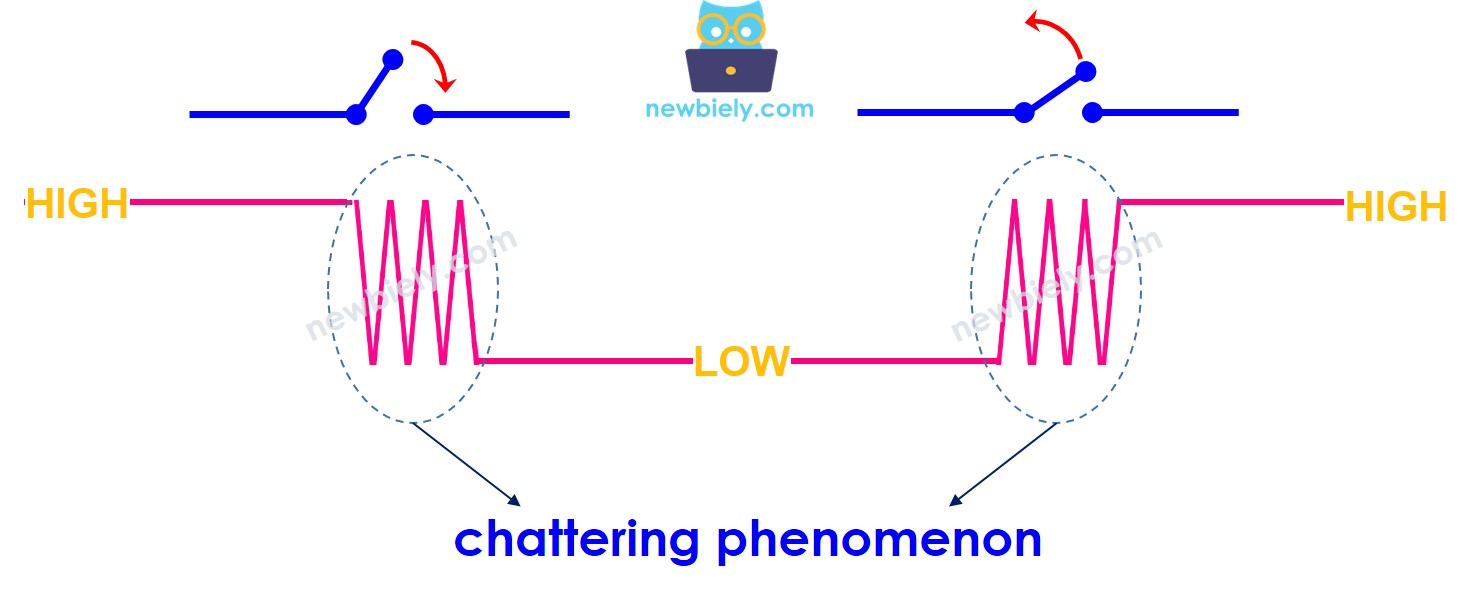
When you program the Arduino Mega to read a button press, you may see one press counted several times. This happens because the button can bounce and quickly switch between LOW and HIGH. This is called chattering. Chattering can make one press look like multiple presses and cause errors in some programs. This tutorial explains how to fix it, a process called debouncing the button.
Disclosure: Some of the links provided in this section are Amazon affiliate links. We may receive a commission for any purchases made through these links at no additional cost to you. Additionally, some of these links are for products from our own brand, DIYables .
Overview of Button
Learn about buttons (pin layout, how they work, and how to program them) in these simple tutorials if you're not familiar with them:
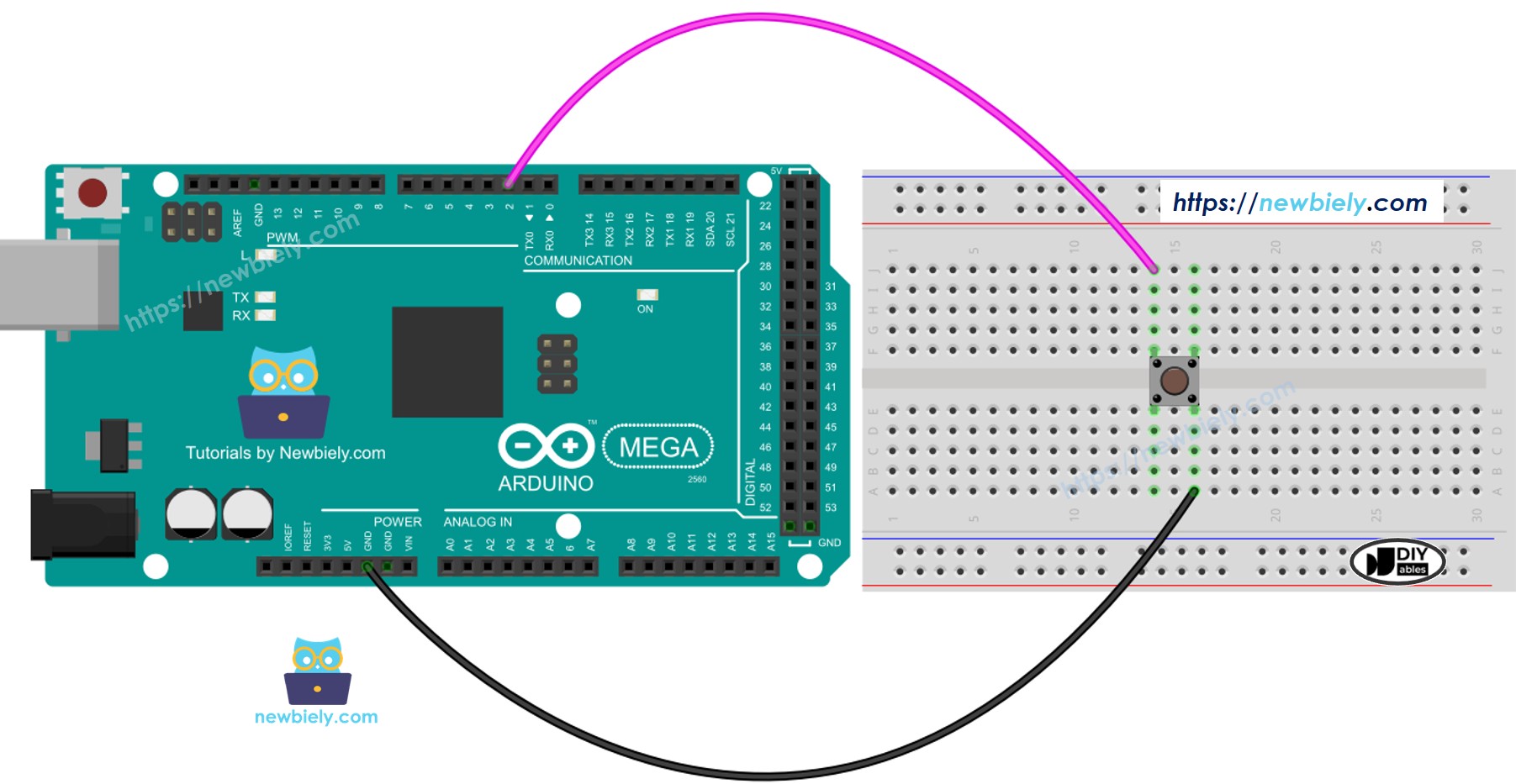
This image is created using Fritzing. Click to enlarge image
Let's compare Arduino Mega code that uses debounce with code that doesn't use debounce, and see how it behaves.
Arduino Mega - Button without Debounce
Before we learn about debouncing, let's look at the code without it and see how it works.
/* * This Arduino Mega code was developed by newbiely.com * * This Arduino Mega code is made available for public use without any restriction * * For comprehensive instructions and wiring diagrams, please visit: * https://newbiely.com/tutorials/arduino-mega/arduino-mega-button-debounce */#define BUTTON_PIN 7 // The Arduino Mega pin connected to the buttonint button_state; // the current state of buttonint prev_button_state = LOW; // the previous state of buttonvoidsetup() {// initialize serial communication at 9600 bits per second:Serial.begin(9600);// initialize the pushbutton pin as a pull-up inputpinMode(BUTTON_PIN, INPUT_PULLUP);}voidloop() {// read the state of the switch/button: button_state = digitalRead(BUTTON_PIN);if (prev_button_state == HIGH && button_state == LOW)Serial.println("The button is pressed");elseif (prev_button_state == LOW && button_state == HIGH)Serial.println("The button is released");// save the last state prev_button_state = button_state;}
Detailed Instructions
Do these steps one by one:
Connect the parts according to the diagram.
Plug the Arduino Mega into your computer with a USB cable.
Open the Arduino IDE on your computer.
Choose the right board (Arduino Mega) and the COM port.
Copy the code above and open it in the Arduino IDE.
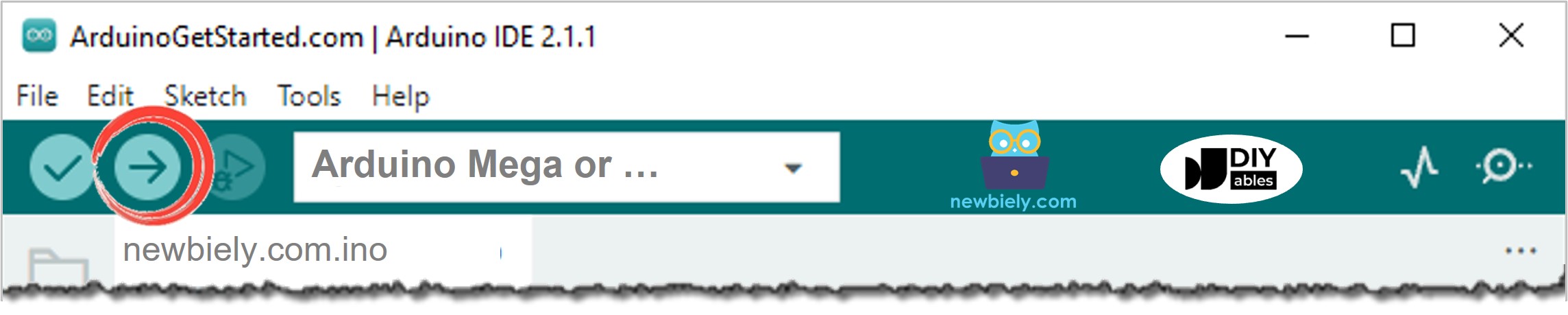
Click the Upload button in the Arduino IDE to upload the code to the Arduino Mega.
Open the Serial Monitor.
Hold the button for a few seconds, then let it go.
Look at the Serial Monitor to see the result.
Newbiely | Arduino IDE 2.3.8
──
☐
✕
File
Edit
Sketch
Tools
Help
Arduino Mega Or...
Newbiely.ino
···
8Serial.println("Hello World!");
Output
Serial Monitor
Message (Enter to send message to 'Arduino Mega Or...' on 'COM15')
New Line
9600 baud
The button is pressed
The button is pressed
The button is pressed
The button is released
The button is released
Ln 11, Col 1
Arduino Mega Or... on COM15
2
As you can see, you pressed and released the button just once. But the Arduino thinks it was several presses and releases.
※ NOTE THAT:
The DEBOUNCE_TIME value changes for different apps. Each app may use a different value.
Arduino Mega - Button with Debounce
/* * This Arduino Mega code was developed by newbiely.com * * This Arduino Mega code is made available for public use without any restriction * * For comprehensive instructions and wiring diagrams, please visit: * https://newbiely.com/tutorials/arduino-mega/arduino-mega-button-debounce */#define BUTTON_PIN 7 // The Arduino Mega pin connected to the button#define DEBOUNCE_TIME 50 // The debounce time; increase if the output flickersint last_steady_state = LOW; // the previous steady state from the input pinint last_flickerable_state = LOW; // the previous flickerable state from the input pinint current_state; // the current reading from the input pinunsignedlong last_debounce_time = 0; // the last time the output pin was toggledvoidsetup() {// initialize serial communication at 9600 bits per second:Serial.begin(9600);// initialize the pushbutton pin as a pull-up inputpinMode(BUTTON_PIN, INPUT_PULLUP);}voidloop() {// read the state of the switch/button: current_state = digitalRead(BUTTON_PIN);// If the switch/button changed, due to noise or pressing:if (current_state != last_flickerable_state) {// reset the debouncing timer last_debounce_time = millis();// save the the last flickerable state last_flickerable_state = current_state; }if ((millis() - last_debounce_time) > DEBOUNCE_TIME) {// if the button state has changed:if (last_steady_state == HIGH && current_state == LOW)Serial.println("The button is pressed");elseif (last_steady_state == LOW && current_state == HIGH)Serial.println("The button is released");// save the the last steady state last_steady_state = current_state; }}
Detailed Instructions
Copy the code above and open it in the Arduino IDE.
Click the Upload button in the Arduino IDE to send the code to the Arduino Mega.
Open the Serial Monitor.
Press and hold the reset button for a few seconds, then release it.
See the Serial Monitor.
Newbiely | Arduino IDE 2.3.8
──
☐
✕
File
Edit
Sketch
Tools
Help
Arduino Mega Or...
Newbiely.ino
···
8Serial.println("Hello World!");
Output
Serial Monitor
Message (Enter to send message to 'Arduino Mega Or...' on 'COM15')
New Line
9600 baud
The button is pressed
The button is released
Ln 11, Col 1
Arduino Mega Or... on COM15
2
As you can see, you pressed and released the button once. The Arduino reads it as one press and release, with no bouncing.
We Made It Simple: Arduino Mega Button Debounce Code Using a Library
We made an easier way for beginners who work with many buttons by creating a library called ezButton. You can learn more about the ezButton library here: https://arduinogetstarted.com/tutorials/arduino-button-library
Let's look at some example code.
Arduino Mega Button Debounce Code for A Single Button
/* * Created by ArduinoGetStarted.com * * This example code is in the public domain * * Tutorial page: https://arduinogetstarted.com/tutorials/arduino-button-library * * This example reads the state of a button with debounce and print it to Serial Monitor. */#include <ezButton.h>ezButtonbutton(7); // create ezButton object that attach to pin 7;voidsetup() {Serial.begin(9600);button.setDebounceTime(50); // set debounce time to 50 milliseconds}voidloop() {button.loop(); // MUST call the loop() function firstif(button.isPressed())Serial.println("The button is pressed");if(button.isReleased())Serial.println("The button is released");}
Arduino Mega Button Debounce Code for A Multiple Buttons
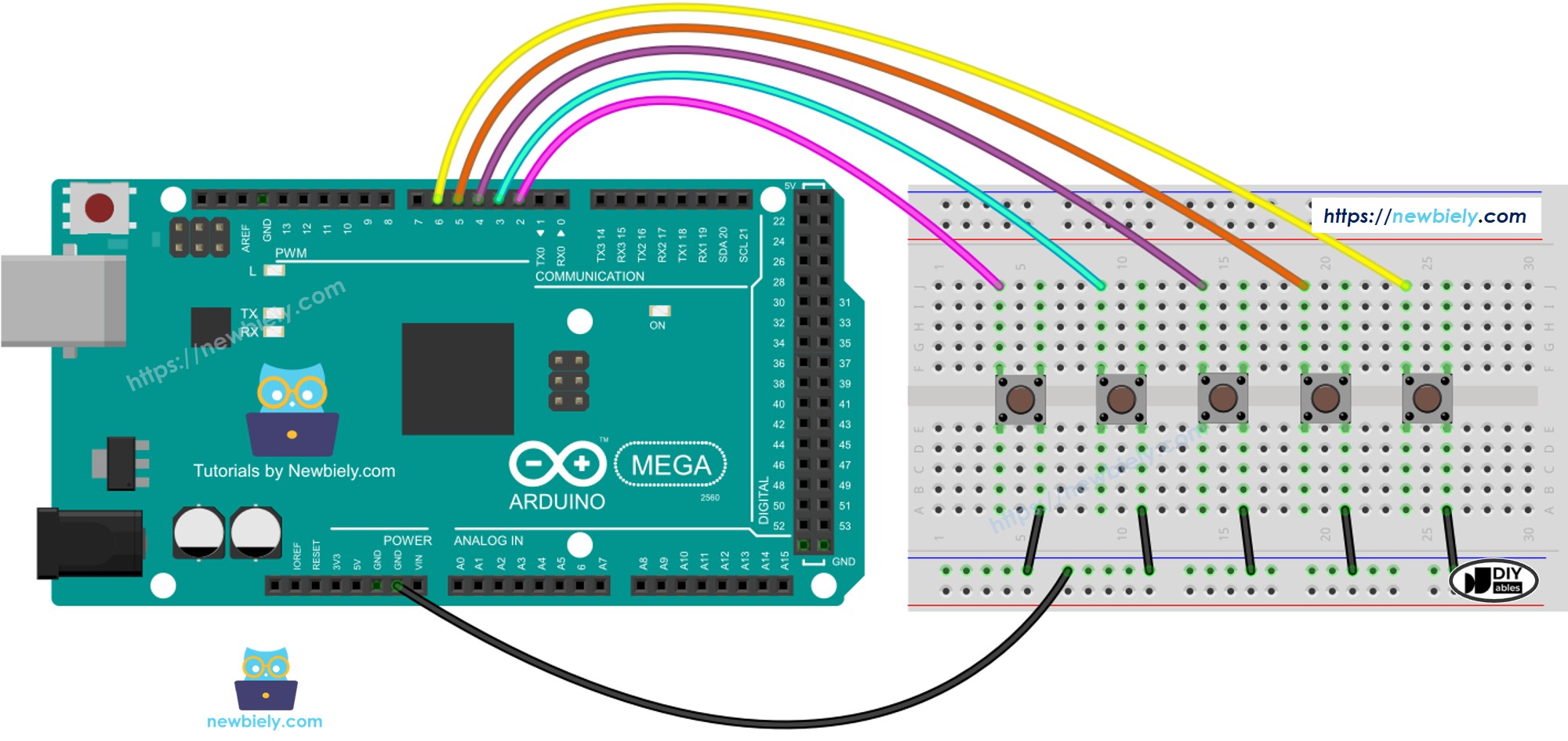
Let's debounce three buttons. Here is the wiring diagram for connecting an Arduino Mega to three buttons:
This image is created using Fritzing. Click to enlarge image
/* * This Arduino Mega code was developed by newbiely.com * * This Arduino Mega code is made available for public use without any restriction * * For comprehensive instructions and wiring diagrams, please visit: * https://newbiely.com/tutorials/arduino-mega/arduino-mega-button-debounce */#include <ezButton.h> // include ezButton library for button handlingezButton button_1(6); // ezButton linked to digital pin 6ezButton button_2(7); // ezButton linked to digital pin 7ezButton button_3(8); // ezButton linked to digital pin 8voidsetup() {Serial.begin(9600); // start serial communication at 9600 baud button_1.setDebounceTime(50); // set debounce to 50 ms for button_1 button_2.setDebounceTime(50); // set debounce to 50 ms for button_2 button_3.setDebounceTime(50); // set debounce to 50 ms for button_3}voidloop() { button_1.loop(); // refresh button_1 state button_2.loop(); // refresh button_2 state button_3.loop(); // refresh button_3 stateif(button_1.isPressed()) // check if button_1 is currently pressedSerial.println("The button 1 is pressed");if(button_1.isReleased()) // check if button_1 has been releasedSerial.println("The button 1 is released");if(button_2.isPressed()) // check if button_2 is currently pressedSerial.println("The button 2 is pressed");if(button_2.isReleased()) // check if button_2 has been releasedSerial.println("The button 2 is released");if(button_3.isPressed()) // check if button_3 is currently pressedSerial.println("The button 3 is pressed");if(button_3.isReleased()) // check if button_3 has been releasedSerial.println("The button 3 is released");}
Please feel free to share the link of this tutorial. However, Please do not use our content on any other websites. We invested a lot of effort and time to create the content, please respect our work!