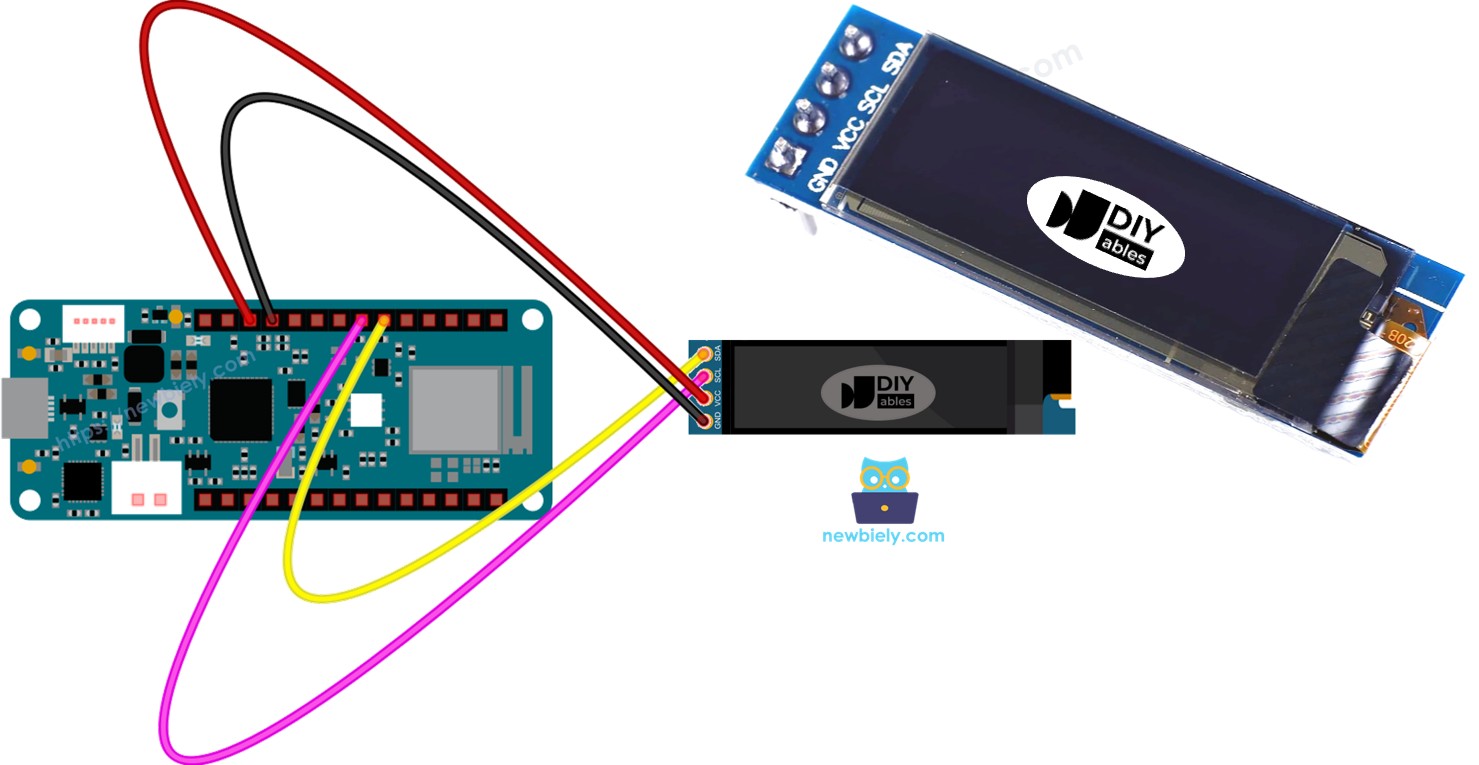
Arduino MKR WiFi 1010 - OLED 128x32 Display

Create custom displays and visualize data! The OLED 128x32 display provides a compact, high-contrast screen perfect for showing sensor readings, status information, and graphics. This tutorial teaches you how to connect an OLED 128x32 display to your Arduino MKR WiFi 1010 and program it to display text, numbers, shapes, and images.

What You'll Learn:

Real-World Applications:

Arduino MKR WiFi 1010 OLED 128x32 display

Display Technology:

OLED (Organic Light-Emitting Diode) displays produce their own light, eliminating the need for a backlight. Each pixel emits light independently, providing perfect blacks, high contrast ratios, and wide viewing angles compared to traditional LCD displays.

Hardware Preparation

1×Arduino MKR WiFi 1010
1×Micro USB Cable
1×SSD1306 I2C OLED Display 128x32
1×Jumper Wires

Or you can buy the following kits:

1×DIYables Sensor Kit (18 sensors/displays)
Disclosure: Some of the links provided in this section are Amazon affiliate links. We may receive a commission for any purchases made through these links at no additional cost to you.
Additionally, some of these links are for products from our own brand, DIYables .

Overview of OLED Display

What is an OLED Display?

The OLED 128x32 is a compact, monochrome display module using OLED (Organic Light-Emitting Diode) technology. The most common variant for Arduino projects is the SSD1306-based I2C OLED display.

How OLED Displays Work:

  • Self-illuminating pixels: Each pixel generates its own light (no backlight needed)
  • Organic compounds: Emit light when electric current applied
  • Perfect blacks: Pixels turn completely off when displaying black
  • High contrast: Bright whites against pure blacks
  • Wide viewing angle: Visible from nearly any direction
  • Low power: Only lit pixels consume power

Display Resolution:

  • 128x32: 128 pixels wide × 32 pixels tall = 4,096 total pixels
  • Screen size: Typically 0.91 inches diagonal
  • Color: Monochrome (white or blue pixels on black background)
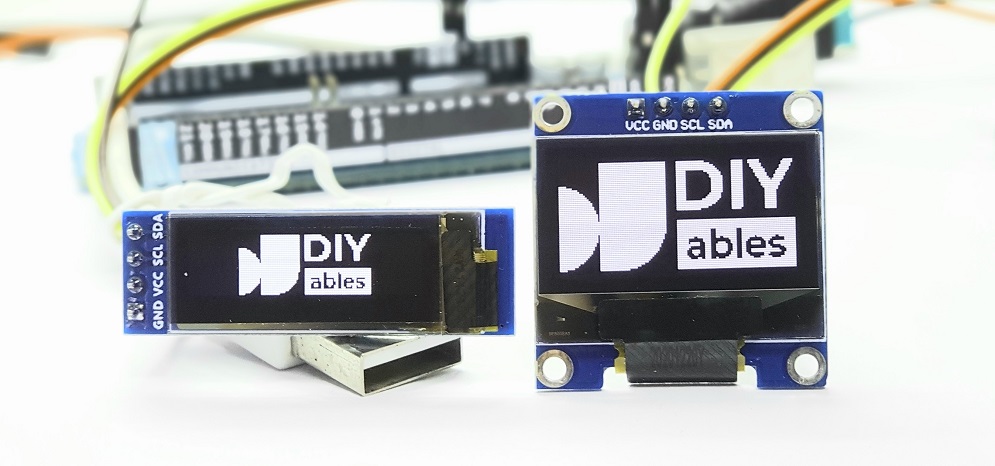
OLED display

OLED vs LCD:

Feature OLED LCD
Backlight None (self-lit) Required
Contrast Perfect (infinite) Limited
Black Level True black Gray/lit
Viewing Angle ~170° ~120°
Power Usage Low (black areas) Constant
Thickness Very thin Thicker
Response Time Fast (<1ms) Slower
Cost Moderate Lower

Common OLED Sizes:

  • 128x32: Compact, good for simple data (this tutorial)
  • 128x64: Larger, more information display
  • Both use same SSD1306 driver and I2C interface

Pinout
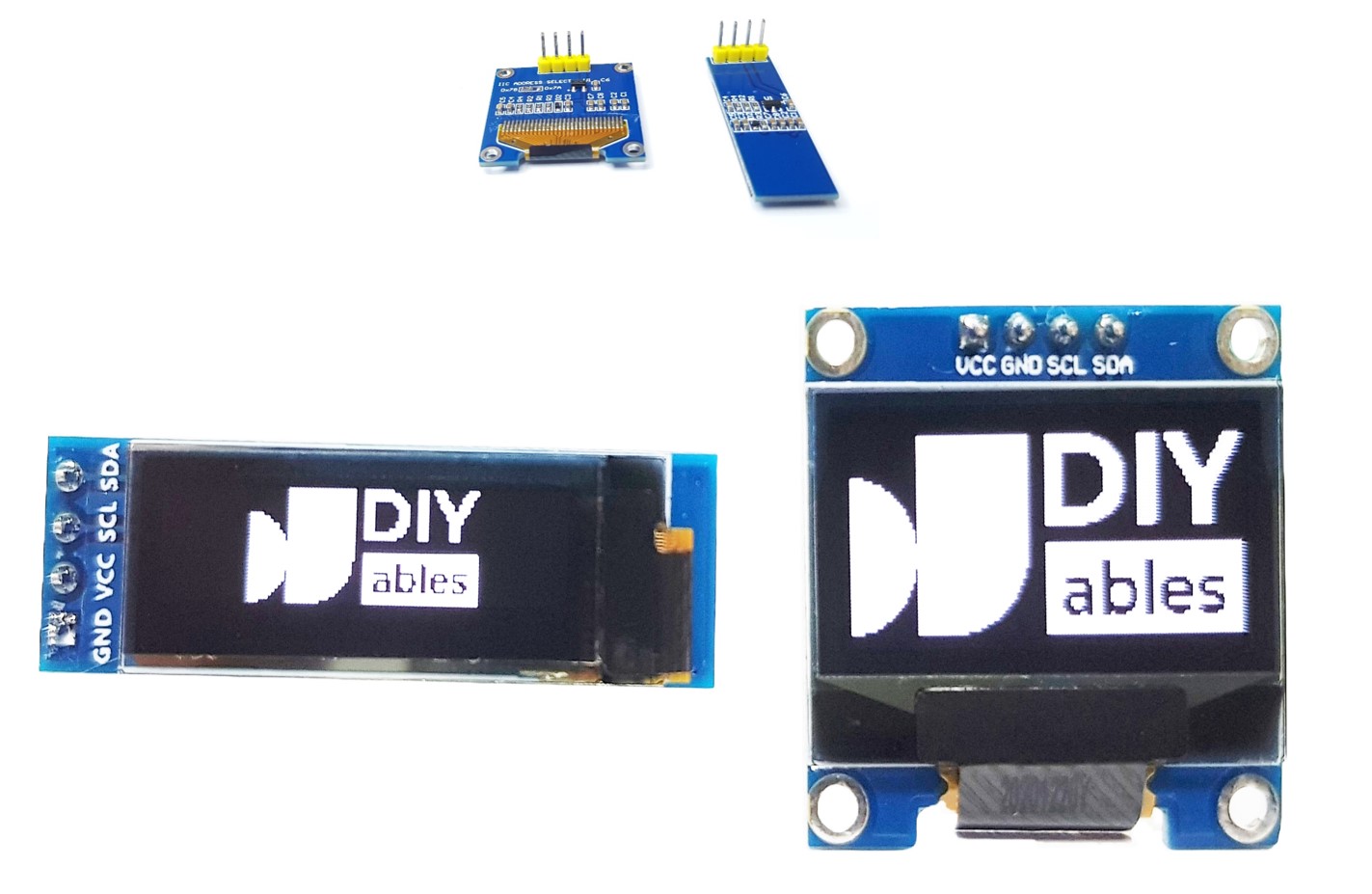
OLED pinout

The OLED 128x32 display has four pins:

Power Pins:

  • VCC pin: Connect to power supply (3.3V or 5V)
    • Module accepts wide voltage range
    • 3.3V sufficient for Arduino MKR WiFi 1010
    • Current consumption: ~10-20mA (depends on pixels lit)
  • GND pin: Connect to ground (0V)
    • Common ground with Arduino

    I2C Communication Pins:

    • SCL pin (Serial Clock): Clock signal for I2C
      • Connect to Arduino A5 (SCL)
      • Synchronizes data transmission
      • Has internal pull-up resistor (usually built-in)
    • SDA pin (Serial Data): Data signal for I2C
      • Connect to Arduino A4 (SDA)
      • Sends display commands and pixel data
      • Has internal pull-up resistor (usually built-in)

      Understanding I2C:

      I2C (Inter-Integrated Circuit) Communication: Advantages: → Only 2 wires (SCL + SDA) for data → Multiple devices on same bus → Addressable (0x3C or 0x3D typically) → Built-in error checking How It Works: ..*i. Arduino sends I2C address (0x3C) ..*i. Display acknowledges if address matches ..*i. Arduino sends command or data bytes ..*i. Display updates pixels accordingly

      I2C Address:

      • Most OLED modules use 0x3C (default)
      • Some modules use 0x3D (alternate)
      • Can be scanned using I2C scanner code (see Troubleshooting)

      ※ NOTE THAT:

      • The connections on the OLED module might be different depending on manufacturer. Please use the labels shown on your OLED module. Look carefully!
      • This guide uses an OLED screen with the SSD1306 I2C driver. Tested with DIYables OLED displays.
      • Pin order may vary: Some modules have GND-VCC-SCL-SDA, others have VCC-GND-SCL-SDA

Wiring Diagram

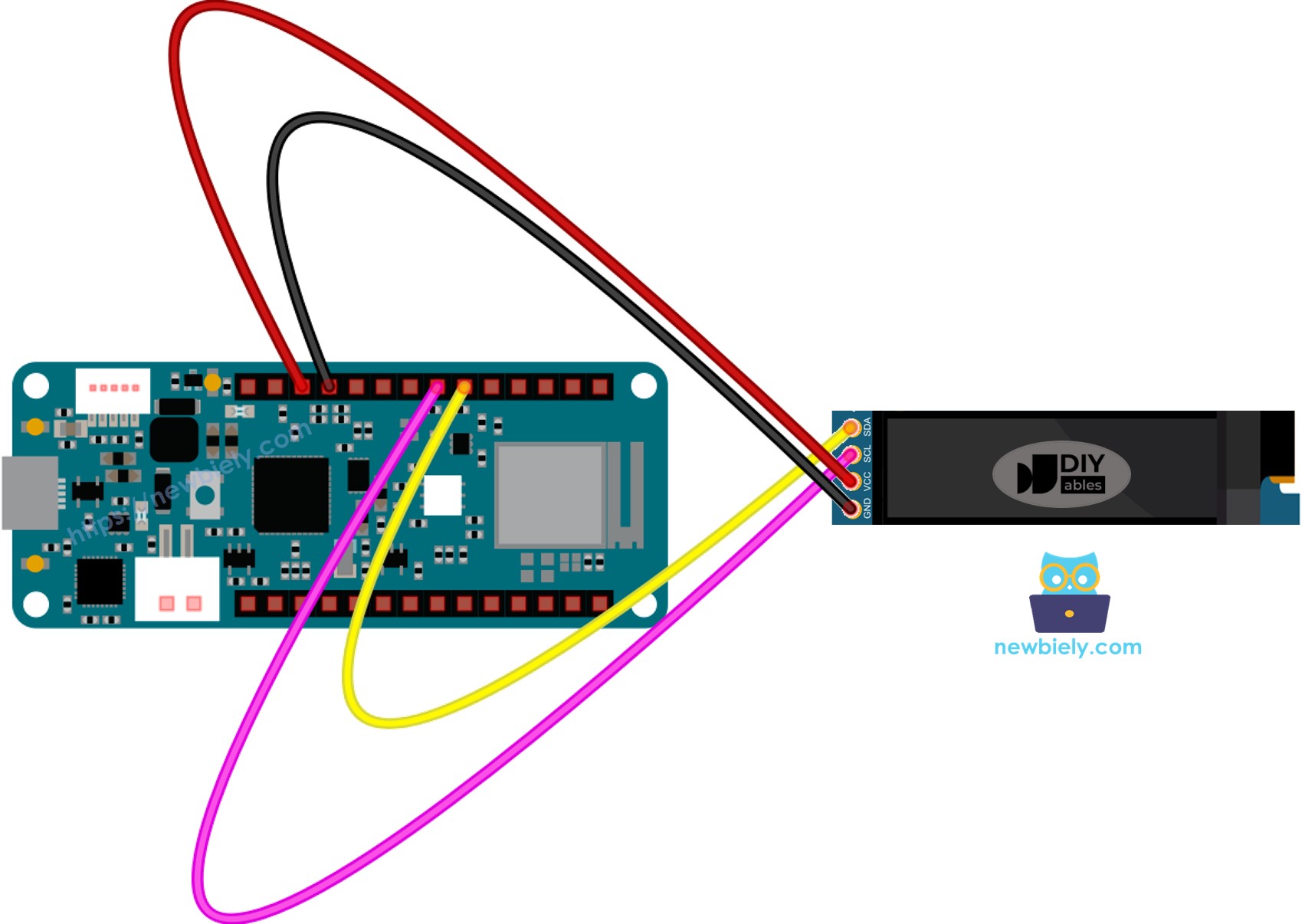
The wiring diagram between Arduino MKR WiFi 1010 OLED 128x32

This image is created using Fritzing. Click to enlarge image

Detailed Connections

OLED 128x32 Display Connections:

OLED Module Arduino MKR WiFi 1010
VCC 3.3V
GND GND
SDA A4
SCL A5

Connection Details:

  • OLED VCCArduino 3.3V
    • Provides power to display
    • 3.3V sufficient (5V also works but not necessary)
  • OLED GNDArduino GND
    • Common ground connection
  • OLED SDAArduino A4 (I2C Data)
    • Data communication pin
    • Hardware I2C on Arduino MKR WiFi 1010
  • OLED SCLArduino A5 (I2C Clock)
    • Clock signal pin
    • Hardware I2C on Arduino MKR WiFi 1010

    Power Supply:

    For This Project: Simply plug your Arduino MKR WiFi 1010 into your computer's USB port. The OLED display draws only 10-20mA, well within USB power limits.

    Wiring Tips:

    1. Double-check pin labels on your specific OLED module
    2. Ensure proper I2C connections (SDA to A4, SCL to A5)
    3. Use short jumper wires to reduce noise
    4. Keep wiring organized for easy troubleshooting

How To Use OLED with Arduino MKR WiFi 1010

Install SSD1306 OLED library

  • Click on the Libraries icon on the left side of the Arduino IDE.
  • Search for SSD1306 and find the SSD1306 library made by Adafruit.
  • Then, click the Install button to finish installing.
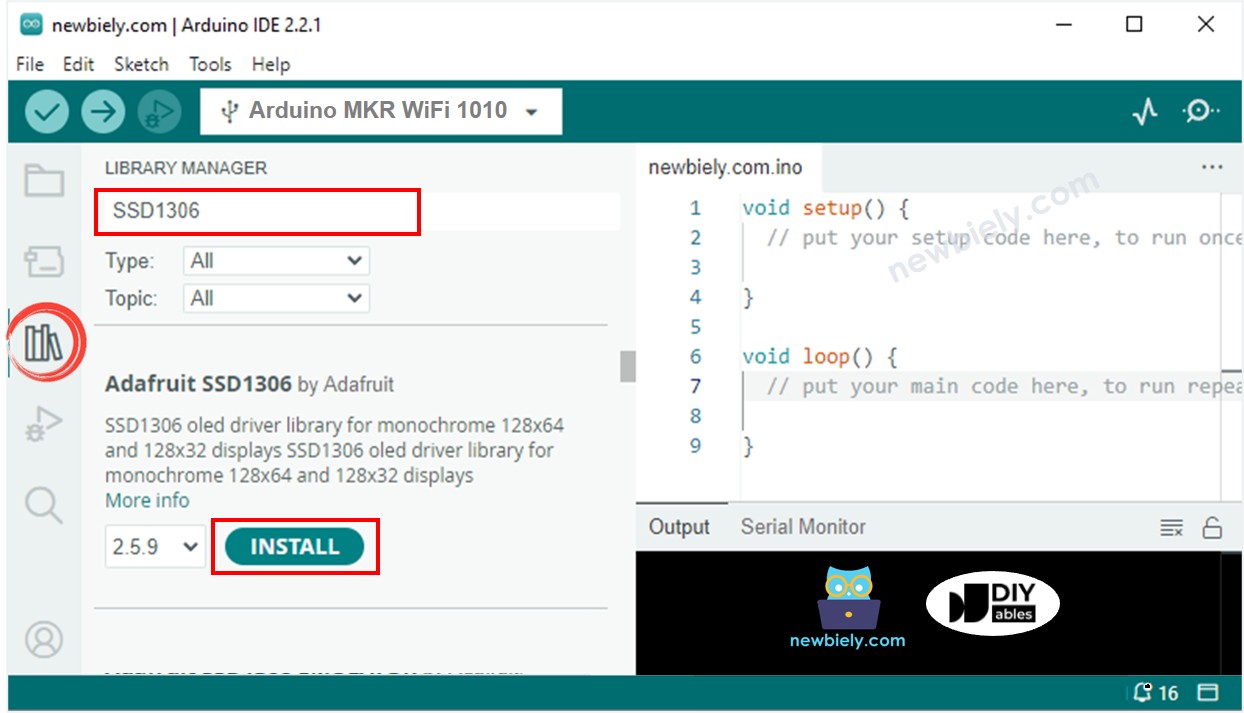
Arduino MKR WiFi 1010 OLED library
  • You might see a message asking you to install extra library files.
  • To add all of them, click the Install All button.
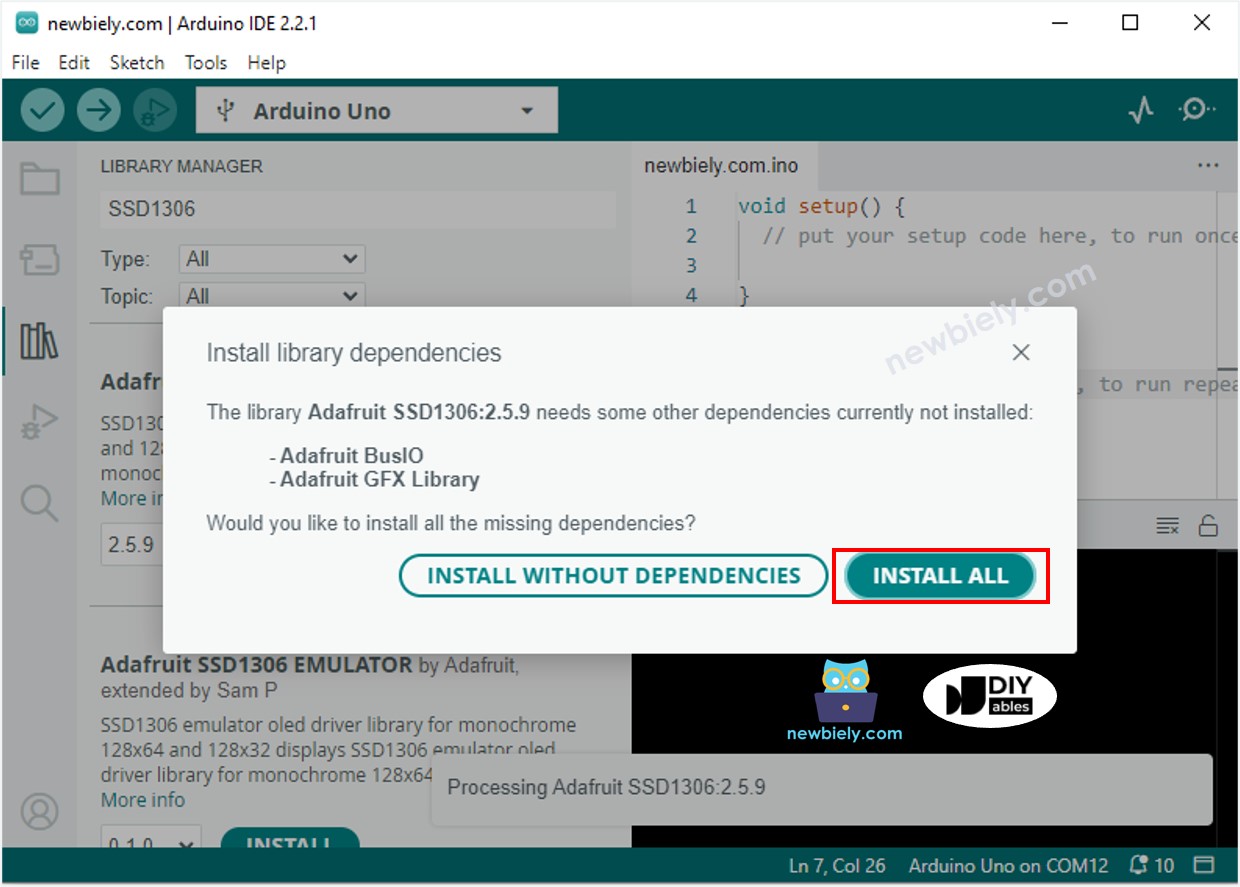
Arduino MKR WiFi 1010 Adafruit GFX sensor library

How to program for OLED

  • Add the library
#include <Wire.h> #include <Adafruit_GFX.h> #include <Adafruit_SSD1306.h>
  • Set the OLED screen size to 128 by 32.
#define OLED_WIDTH 128 // Defines the OLED display's width in pixels #define OLED_HEIGHT 32 // Defines the OLED display's height in pixels
  • Make a new SSD1306 OLED item.
// Initialize an SSD1306 display instance for I2C communication Adafruit_SSD1306 oled(OLED_WIDTH, OLED_HEIGHT, &Wire, -1);
  • In the setup() function, start the OLED display.
// Begin initializing the OLED display at I2C address 0x3C for a 128x32 resolution if (!oled.begin(SSD1306_SWITCHCAPVCC, 0x3C)) { Serial.println(F("SSD1306 allocation failed")); while (true); }
  • Then you can show text, images, and draw a line.

Arduino MKR WiFi 1010 Code - Display Text on OLED

/* * This Arduino MKR WiFi 1010 code was developed by newbiely.com * * This Arduino MKR WiFi 1010 code is made available for public use without any restriction * * For comprehensive instructions and wiring diagrams, please visit: * https://newbiely.com/tutorials/arduino-mkr/arduino-mkr-wifi-1010-oled-128x32-display */ #include <Wire.h> #include <Adafruit_GFX.h> #include <Adafruit_SSD1306.h> #define SCREEN_WIDTH 128 // OLED display width, in pixels #define SCREEN_HEIGHT 32 // OLED display height, in pixels // declare an SSD1306 display object connected to I2C Adafruit_SSD1306 oled(SCREEN_WIDTH, SCREEN_HEIGHT, &Wire, -1); void setup() { Serial.begin(9600); // initialize OLED display with address 0x3C for 128x32 if (!oled.begin(SSD1306_SWITCHCAPVCC, 0x3C)) { Serial.println(F("SSD1306 allocation failed")); while (true); } delay(2000); // wait for initializing oled.clearDisplay(); // clear display oled.setTextSize(1); // text size oled.setTextColor(WHITE); // text color oled.setCursor(0, 10); // position to display oled.println("Hello World!"); // text to display oled.display(); // show on OLED } void loop() { }

Here are some functions that can show text on the OLED:

  • Oled.clearDisplay() – Turns off every pixel on the screen.
  • Oled.drawPixel(x, y, color) – Draws a pixel at the specified x and y position.
  • Oled.setTextSize(n) – Sets how big the text will be; you can choose a size between 1 and 8.
  • Oled.setCursor(x, y) – Moves the starting point for writing text to the x and y coordinates.
  • Oled.setTextColor(WHITE) – Sets the text color to white.
  • Oled.setTextColor(BLACK, WHITE) – Sets the text color to black and the background color to white.
  • Oled.println("message") – Writes a text message on the screen.
  • Oled.println(number) – Writes a number on the screen.
  • Oled.println(number, HEX) – Writes a number in hexadecimal (base 16) format.
  • Oled.display() – Updates the screen so that your changes appear.
  • Oled.startscrollright(start, stop) – Scrolls the text from left to right between the chosen start and stop points.
  • Oled.startscrollleft(start, stop) – Scrolls the text from right to left between the chosen start and stop points.
  • Oled.startscrolldiagright(start, stop) – Scrolls the text from the bottom left to the top right.
  • Oled.startscrolldiagleft(start, stop) – Scrolls the text from the bottom right to the top left.
  • Oled.stopscroll() – Stops the scrolling text.

How to vertical and horizontal center align text/number on OLED

If you want to learn how to center text and numbers on an OLED display both vertically and horizontally, please check out this guide: How to vertical/horizontal center on OLED.

Arduino MKR WiFi 1010 Code - Drawing on OLED

/* * This Arduino MKR WiFi 1010 code was developed by newbiely.com * * This Arduino MKR WiFi 1010 code is made available for public use without any restriction * * For comprehensive instructions and wiring diagrams, please visit: * https://newbiely.com/tutorials/arduino-mkr/arduino-mkr-wifi-1010-oled-128x32-display */ #include <Wire.h> #include <Adafruit_GFX.h> #include <Adafruit_SSD1306.h> #define SCREEN_WIDTH 128 // OLED display width, in pixels #define SCREEN_HEIGHT 32 // OLED display height, in pixels // declare an SSD1306 display object connected to I2C Adafruit_SSD1306 oled(SCREEN_WIDTH, SCREEN_HEIGHT, &Wire, -1); void setup() { Serial.begin(9600); // initialize OLED display with address 0x3C for 128x32 if (!oled.begin(SSD1306_SWITCHCAPVCC, 0x3C)) { Serial.println(F("SSD1306 allocation failed")); while (true); } delay(2000); // wait for initializing oled.setCursor(0, 0); } void loop() { // draw rectangle oled.clearDisplay(); oled.drawRect(0, 15, 60, 40, WHITE); oled.display(); delay(2000); // fill rectangle oled.clearDisplay(); oled.fillRect(0, 15, 60, 40, WHITE); oled.display(); delay(2000); // draw the round rectangle oled.clearDisplay(); oled.drawRoundRect(0, 15, 60, 40, 8, WHITE); oled.display(); delay(2000); // fill the round rectangle oled.clearDisplay(); oled.fillRoundRect(0, 15, 60, 40, 8, WHITE); oled.display(); delay(2000); // draw circle oled.clearDisplay(); oled.drawCircle(20, 35, 20, WHITE); oled.display(); delay(2000); // fill circle oled.clearDisplay(); oled.fillCircle(20, 35, 20, WHITE); oled.display(); delay(2000); // draw triangle oled.clearDisplay(); oled.drawTriangle(30, 15, 0, 60, 60, 60, WHITE); oled.display(); delay(2000); // fill triangle oled.clearDisplay(); oled.fillTriangle(30, 15, 0, 60, 60, 60, WHITE); oled.display(); delay(2000); }

Arduino MKR WiFi 1010 Code – Display Image

To show a picture on an OLED, you need to first change the image (in any format) into a bitmap array. You can do this using an online tool. The picture below shows how to convert an image into a bitmap array; I used the Arduino MKR WiFi 1010 icon as an example.
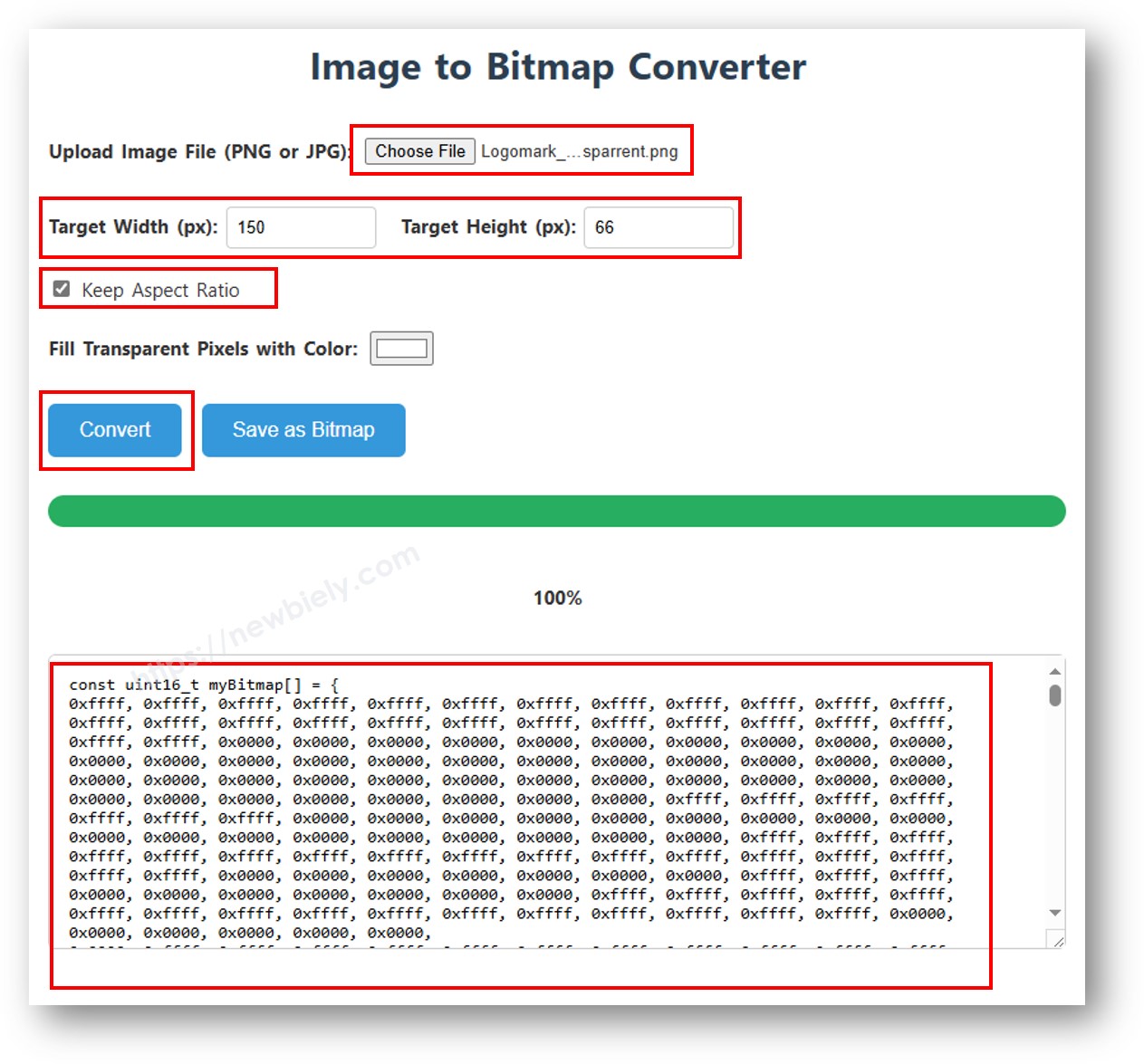
image to bitmap array

After converting, copy the new array code and replace the ArduinoIcon array in the code below.

/* * This Arduino MKR WiFi 1010 code was developed by newbiely.com * * This Arduino MKR WiFi 1010 code is made available for public use without any restriction * * For comprehensive instructions and wiring diagrams, please visit: * https://newbiely.com/tutorials/arduino-mkr/arduino-mkr-wifi-1010-oled-128x32-display */ #include <Wire.h> #include <Adafruit_GFX.h> #include <Adafruit_SSD1306.h> #define SCREEN_WIDTH 128 // OLED display width, in pixels #define SCREEN_HEIGHT 32 // OLED display height, in pixels // declare an SSD1306 display object connected to I2C Adafruit_SSD1306 oled(SCREEN_WIDTH, SCREEN_HEIGHT, &Wire, -1); // bitmap of DIYable-icon image int bitmap_width = 72; // MUST match to bitmap image size int bitmap_height = 32; // MUST match to bitmap image size const unsigned char bitmap_DIYables [] PROGMEM = { // 'DIYables Icon', 72x32 0x00, 0x0f, 0xff, 0xff, 0x8f, 0xf8, 0x07, 0x38, 0x07, 0x00, 0x0f, 0xff, 0xff, 0x8f, 0xfe, 0x07, 0x1c, 0x0e, 0x00, 0x0f, 0xff, 0xff, 0x8f, 0xff, 0x07, 0x1c, 0x1c, 0x00, 0x0f, 0xff, 0xff, 0x8e, 0x07, 0x87, 0x0e, 0x1c, 0x00, 0x0f, 0xff, 0xff, 0x8e, 0x03, 0xc7, 0x0f, 0x38, 0x00, 0x0f, 0xff, 0xff, 0x8e, 0x01, 0xc7, 0x07, 0x38, 0x00, 0x0f, 0xff, 0xff, 0x8e, 0x01, 0xc7, 0x03, 0xf0, 0xf0, 0x0f, 0xff, 0xff, 0x8e, 0x01, 0xc7, 0x03, 0xe0, 0xfc, 0x0f, 0xff, 0xff, 0x8e, 0x01, 0xc7, 0x01, 0xe0, 0xfe, 0x0f, 0xff, 0xff, 0x8e, 0x03, 0xc7, 0x01, 0xc0, 0xff, 0x8f, 0xff, 0xff, 0x8e, 0x03, 0x87, 0x01, 0xc0, 0xff, 0x8f, 0xff, 0xff, 0x8e, 0x0f, 0x87, 0x01, 0xc0, 0xff, 0xcf, 0xff, 0xff, 0x8f, 0xff, 0x07, 0x01, 0xc0, 0xff, 0xef, 0xff, 0xff, 0x8f, 0xfc, 0x07, 0x01, 0xc0, 0xff, 0xef, 0xff, 0xff, 0x80, 0x00, 0x00, 0x00, 0x00, 0xff, 0xff, 0xff, 0xff, 0x80, 0x00, 0x00, 0x00, 0x00, 0xff, 0xff, 0xff, 0xff, 0x80, 0x00, 0x00, 0x00, 0x00, 0xff, 0xff, 0xff, 0xff, 0x80, 0x00, 0x00, 0x00, 0x00, 0xff, 0xff, 0xff, 0xff, 0x8f, 0xff, 0xff, 0xff, 0xff, 0xff, 0xff, 0xff, 0xff, 0x8f, 0xff, 0xff, 0xff, 0xff, 0xff, 0xff, 0xff, 0xff, 0x0f, 0xfc, 0xfd, 0xff, 0xff, 0xff, 0xff, 0xff, 0xff, 0x0f, 0xfc, 0xfc, 0xff, 0xff, 0xff, 0xff, 0xff, 0xff, 0x0f, 0xfc, 0xfc, 0xff, 0xff, 0xff, 0xef, 0xff, 0xff, 0x0e, 0x0c, 0x0c, 0xc3, 0x07, 0xff, 0xef, 0xff, 0xfe, 0x0f, 0xec, 0xec, 0x99, 0x7f, 0xff, 0xef, 0xff, 0xfe, 0x0f, 0x04, 0xe4, 0x81, 0x0f, 0xff, 0xcf, 0xff, 0xfc, 0x0e, 0x32, 0xe4, 0x9f, 0xc7, 0xff, 0x8f, 0xff, 0xf8, 0x0e, 0x32, 0x4c, 0x9b, 0x67, 0xff, 0x0f, 0xff, 0xf0, 0x0e, 0x04, 0x0c, 0xc3, 0x0f, 0xfe, 0x0f, 0xff, 0xe0, 0x0f, 0xff, 0xff, 0xff, 0xff, 0xfc, 0x0f, 0xff, 0x80, 0x0f, 0xff, 0xff, 0xff, 0xff, 0xe0, 0x0f, 0xfc, 0x00, 0x0f, 0xff, 0xff, 0xff, 0xff }; void setup() { Serial.begin(9600); // initialize OLED display with address 0x3C for 128x32 if (!oled.begin(SSD1306_SWITCHCAPVCC, 0x3C)) { Serial.println(F("SSD1306 allocation failed")); while (true); } delay(2000); // wait for initializing } void loop() { oled.clearDisplay(); // display bitmap to the center int x = (SCREEN_WIDTH - bitmap_width) / 2; int y = (SCREEN_HEIGHT - bitmap_height) / 2; oled.drawBitmap(x, y, bitmap_DIYables, bitmap_width, bitmap_height, WHITE); oled.display(); delay(2000); }

※ NOTE THAT:

The image should not be bigger than the screen. You need to make the image smaller and change the width and height settings in the oled.drawBitmap() function.

Troubleshooting Common Issues

Problem: Display Shows Nothing (Blank Screen)

Possible Causes:

  • Incorrect wiring
  • Wrong I2C address
  • Power issue
  • Faulty module

Solutions:

  1. Check wiring: Verify SDA to A4, SCL to A5, VCC to 3.3V, GND to GND
  2. Verify power: Ensure VCC connected to 3.3V or 5V
  3. Scan I2C address: Run I2C scanner code:
#include <Wire.h> void setup() { Serial.begin(9600); Wire.begin(); Serial.println("Scanning I2C..."); for (byte address = 1; address < 127; address++) { Wire.beginTransmission(address); if (Wire.endTransmission() == 0) { Serial.print("Found at 0x"); Serial.println(address, HEX); } } } void loop() {}
  1. Update address in code: Change 0x3C to 0x3D if scanner shows different address:
if (!oled.begin(SSD1306_SWITCHCAPVCC, 0x3D)) { // Try 0x3D Serial.println(F("SSD1306 failed")); while (true); }
  1. Test with example code: Use simple text display to verify hardware

Problem: Display Garbled or Partial

Possible Causes:

  • Loose connection
  • Wrong display resolution setting
  • Incorrect driver

Solutions:

  1. Check connections: Ensure wires firmly connected
  2. Verify resolution: Must be 128x32 in code:
#define OLED_WIDTH 128 #define OLED_HEIGHT 32
  1. Confirm driver: Should be SSD1306 (most common)
  2. Reset display: Add delay after initialization:
if (!oled.begin(SSD1306_SWITCHCAPVCC, 0x3C)) { Serial.println(F("SSD1306 failed")); while (true); } delay(2000); // 2-second delay oled.clearDisplay(); oled.display();

Problem: Text Too Small or Too Large

Cause: Text size not set appropriately for 32-pixel height.

Solutions:

oled.setTextSize(1); // Smallest (6x8 pixels per char) oled.setTextSize(2); // Medium (12x16 pixels per char) oled.setTextSize(3); // Large (18x24 pixels per char)

For 128x32 display:

  • Size 1: ~21 characters per line, 4 lines
  • Size 2: ~10 characters per line, 2 lines
  • Size 3: ~7 characters per line, 1 line

Problem: Display Flickers

Cause: Calling oled.display() too frequently.

Solution: Use clearDisplay() once at start of update:

void loop() { oled.clearDisplay(); // Clear once oled.setCursor(0, 0); oled.println("Sensor: " + String(value)); oled.display(); // Update once delay(100); // Rate limit updates }

Problem: Display Dims After Time

Cause: Normal OLED behavior - static images can cause burn-in.

Solution: Use screensaver or vary content:

if (millis() - lastUpdate > 60000) { // 1 minute idle oled.clearDisplay(); oled.display(); // Blank screen }

Challenge Yourself - Creative Extensions

Once you have basic OLED display working, try these enhancements:

1. Sensor Dashboard

Display multiple sensor readings:

oled.clearDisplay(); oled.setTextSize(1); oled.setCursor(0, 0); oled.println("Temp: " + String(temperature) + "C"); oled.setCursor(0, 10); oled.println("Humidity: " + String(humidity) + "%"); oled.setCursor(0, 20); oled.println("Dist: " + String(distance) + "cm"); oled.display();

2. Animated Loading Bar

Show progress indicator:

void drawProgressBar(int percent) { int barWidth = 100; int x = 14; int y = 15; oled.drawRect(x, y, barWidth, 10, WHITE); int fillWidth = (barWidth - 4) * percent / 100; oled.fillRect(x + 2, y + 2, fillWidth, 6, WHITE); oled.setCursor(x + barWidth + 5, y); oled.print(percent); oled.print("%"); }

3. Scrolling Text Ticker

Create news ticker effect:

int xPos = 128; String message = "Arduino MKR WiFi 1010 with OLED Display"; void loop() { oled.clearDisplay(); oled.setTextSize(1); oled.setCursor(xPos, 12); oled.print(message); oled.display(); xPos -= 2; // Scroll speed if (xPos < -message.length() * 6) { xPos = 128; // Reset to right side } delay(50); }

4. Button Menu System

Interactive menu with button navigation:

int menuItem = 0; const int MENU_ITEMS = 3; String menuItems[] = {"Sensors", "Settings", "About"}; void displayMenu() { oled.clearDisplay(); oled.setTextSize(1); for (int i = 0; i < MENU_ITEMS; i++) { if (i == menuItem) { oled.setTextColor(BLACK, WHITE); // Highlight } else { oled.setTextColor(WHITE); } oled.setCursor(0, i * 10); oled.println(menuItems[i]); } oled.display(); }

5. Real-Time Clock Display

Show time with RTC module:

oled.clearDisplay(); oled.setTextSize(2); oled.setCursor(10, 8); if (hour < 10) oled.print("0"); oled.print(hour); oled.print(":"); if (minute < 10) oled.print("0"); oled.print(minute); oled.print(":"); if (second < 10) oled.print("0"); oled.print(second); oled.display();

6. Graph Plotter

Plot sensor data over time:

int readings[128]; int readIndex = 0; void plotGraph() { oled.clearDisplay(); for (int i = 0; i < 127; i++) { int y1 = 31 - (readings[i] * 30 / 100); // Scale to display int y2 = 31 - (readings[i + 1] * 30 / 100); oled.drawLine(i, y1, i + 1, y2, WHITE); } oled.display(); }

7. WiFi Status Indicator

Show connection status with icon:

void drawWiFiIcon(bool connected) { if (connected) { oled.fillCircle(118, 5, 2, WHITE); // Signal dot oled.drawLine(115, 8, 121, 8, WHITE); oled.drawLine(113, 11, 123, 11, WHITE); } else { oled.drawLine(115, 5, 121, 11, WHITE); // X mark oled.drawLine(121, 5, 115, 11, WHITE); } }

8. Custom Bitmap Animations

Animate custom images:

const unsigned char* frames[] = {frame1, frame2, frame3}; int currentFrame = 0; void loop() { oled.clearDisplay(); oled.drawBitmap(0, 0, frames[currentFrame], 128, 32, WHITE); oled.display(); currentFrame = (currentFrame + 1) % 3; delay(200); }

9. Temperature Graph with Min/Max

Show current, min, max temperatures:

oled.clearDisplay(); oled.setTextSize(1); oled.setCursor(0, 0); oled.print("Temp: "); oled.setTextSize(2); oled.print(currentTemp); oled.println("C"); oled.setTextSize(1); oled.print("Min: " + String(minTemp) + "C"); oled.setCursor(64, 24); oled.print("Max: " + String(maxTemp) + "C"); oled.display();

10. Pong Game

Simple game on OLED:

int paddleY = 12; int ballX = 64, ballY = 16; int ballSpeedX = 2, ballSpeedY = 1; void loop() { oled.clearDisplay(); // Draw paddle oled.fillRect(2, paddleY, 3, 8, WHITE); // Draw ball oled.fillCircle(ballX, ballY, 2, WHITE); // Update ball position ballX += ballSpeedX; ballY += ballSpeedY; // Bounce off walls if (ballX <= 0 || ballX >= 128) ballSpeedX *= -1; if (ballY <= 0 || ballY >= 32) ballSpeedY *= -1; oled.display(); delay(50); }

Experiment with OLED graphics and create custom displays!

Video Tutorial

※ OUR MESSAGES

  • As freelancers, We are AVAILABLE for HIRE. See how to outsource your project to us
  • Please feel free to share the link of this tutorial. However, Please do not use our content on any other websites. We invested a lot of effort and time to create the content, please respect our work!