
Raspberry Pi Pico - Button Module
A Pico project often needs one simple way for a person to talk to it: a start key for a timer, a "next song" key for a music box, or a fire key for a small game. A button module is the quickest way to add that key. You plug three wires into the Pico, and the board tells you 1 or 0. There is no resistor to pick and no four-leg button to turn the right way.
In this guide, we will learn to set up and use the Button Module with the Raspberry Pi Pico. We will cover the following details:
- What the three pins on the button module do, and why the module must be powered from 3.3 volts on the Pico.
- How to wire the module to GP0 of the Raspberry Pi Pico.
- How to watch the raw 1 and 0 of the button in the Thonny Shell.
- How to catch each press and each release with a short sleep_ms() debounce.
- How to do the same job without pausing the script, using the DIYables-MicroPython-Button library.
Hardware Preparation
| 1 | × | Raspberry Pi Pico W | |
| 1 | × | Raspberry Pi Pico Alternatively, | |
| 1 | × | Micro USB Cable | |
| 1 | × | Button Module | |
| 1 | × | Breadboard | |
| 1 | × | Jumper Wires | |
| 1 | × | Recommended: Screw Terminal Expansion Board for Raspberry Pi Pico |
Or you can buy the following kits:
| 1 | × | DIYables Sensor Kit (18 sensors/displays) |
Additionally, some of these links are for products from our own brand, DIYables .
Overview of Button Module
Think of the button module as a push button that brings its own resistor. The small board holds a momentary tactile switch with a colored cap and a pull-down resistor. While nobody touches the cap, the resistor holds the OUT pin at 0. While the cap is held down, the switch joins OUT to VCC, so OUT reads 1. When you let go, it goes back to 0. On the Pico, this means value() gives you 1 for "pressed" and 0 for "released", with no upside-down logic.
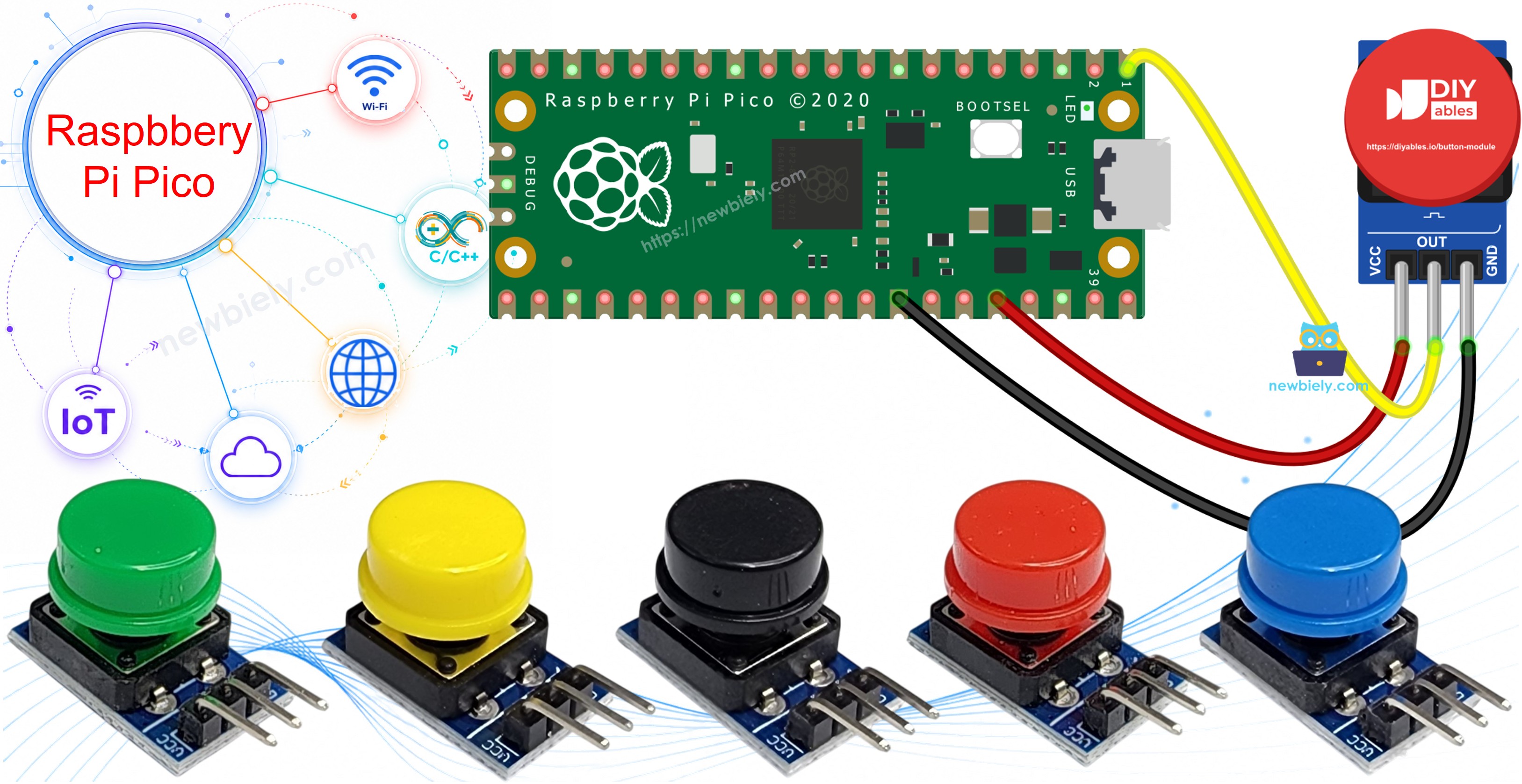
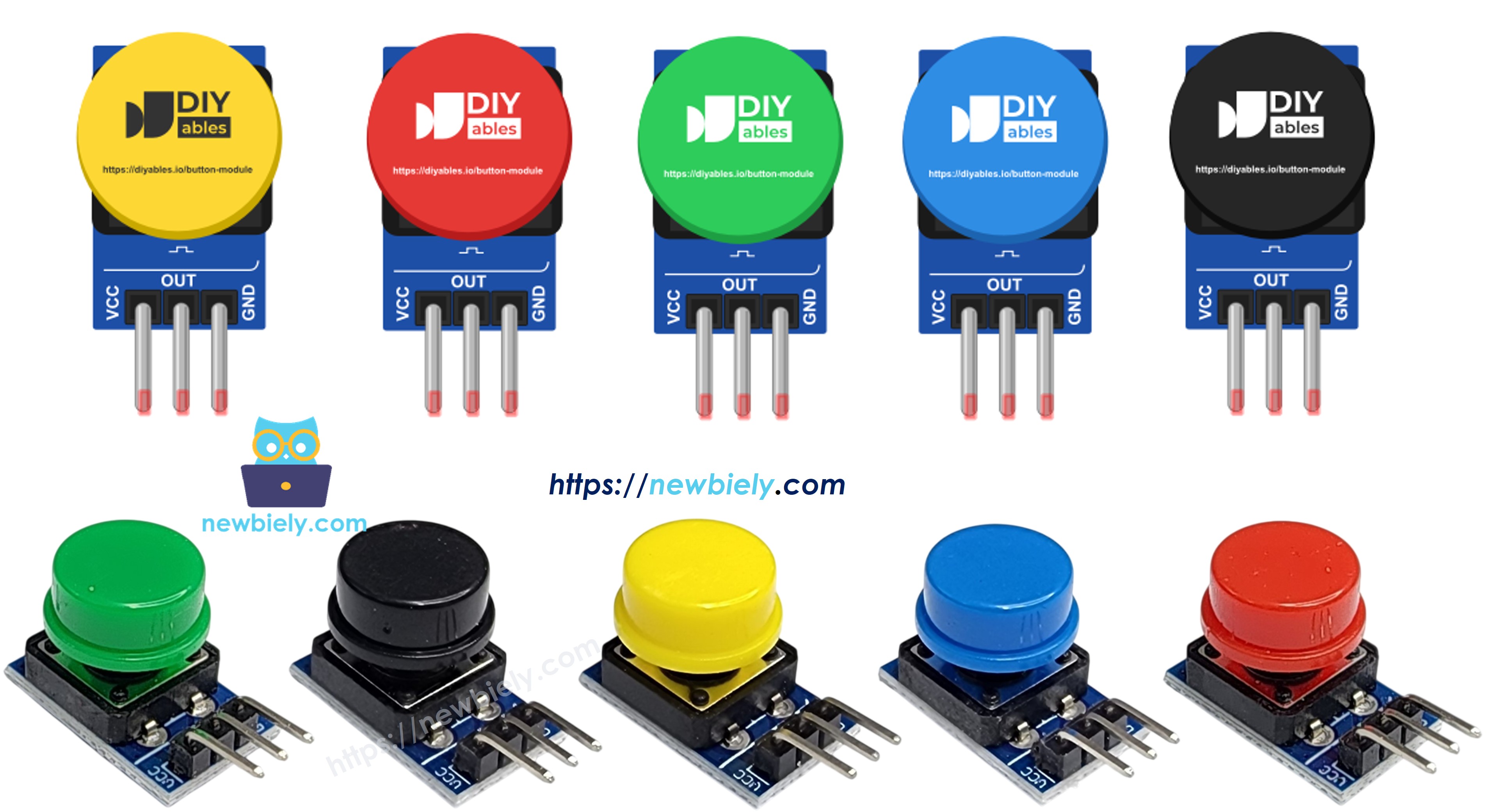
The DIYables button module is sold as a set of five, one in each color: red, yellow, green, blue and white. Use different colors for different jobs, for example green for start and red for stop.
| Button Module | |
|---|---|
| Switch Type | momentary tactile push button with cap |
| Cap Colors | red, yellow, green, blue, white |
| Operating Voltage | 3.3V to 5V DC |
| Output | OUT = 0 when released, 1 when pressed |
| Pull Resistor | pull-down, already on the board |
| Header | 3-pin, 2.54mm pitch |
Pinout
Read the labels on the module from left to right: VCC, OUT, GND.
- VCC pin: connect to the 3.3 volts pin of the Pico. When the cap is pressed, this same voltage comes out of the OUT pin.
- OUT pin: connect to a Pico GPIO pin. It gives 1 (3.3 volts) when pressed and 0 (0 volts) when released.
- GND pin: connect to GND (0 volts).
One more thing to know about any push button: the metal contacts inside do not close cleanly. For a few milliseconds they bounce, so a single press can look like several quick presses to a fast chip like the Pico. The second and third examples below show two ways to handle this.
If you have used the bare 4-pin button from our Raspberry Pi Pico - Button tutorial, you will notice two changes. The bare button needs Pin.PULL_UP (or your own resistor), and then it reads 0 when pressed. Its four legs are also easy to place wrong on a breadboard. The module has labeled pins and its own pull-down, so a press reads 1. Do not turn on Pin.PULL_UP for the module, because it would work against the pull-down on the board.
Wiring Diagram
The OUT pin goes to GP0, which is pin 1 at the top-left corner of the Pico, next to the USB connector. The GND wire can go to pin 3, the ground pin just below GP1. Power comes from 3V3(OUT), pin 36.
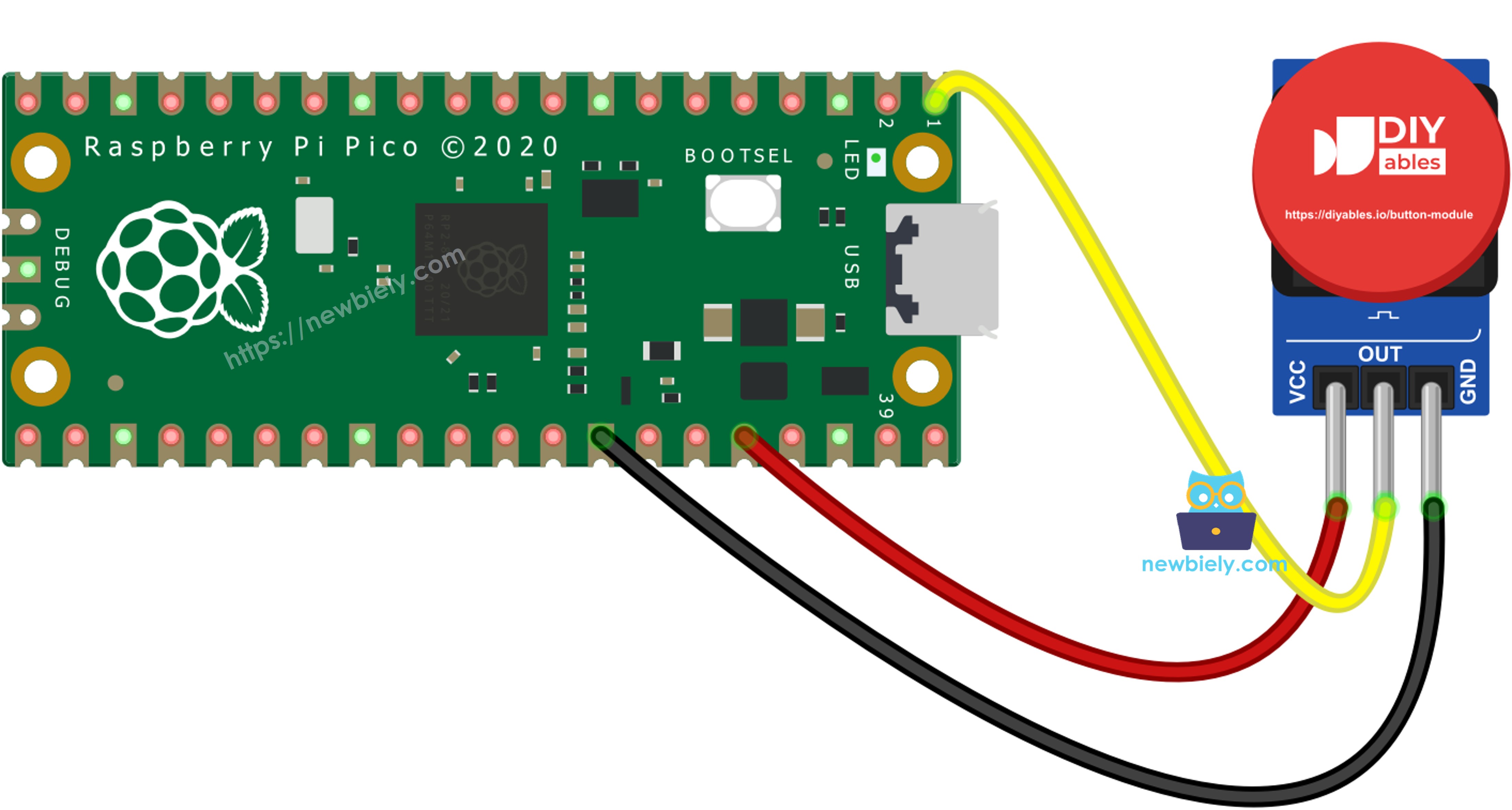
This image is created using Fritzing. Click to enlarge image
| Button Module | Raspberry Pi Pico |
|---|---|
| VCC | 3V3(OUT) (pin 36) |
| OUT | GP0 (pin 1) |
| GND | GND (pin 3) |
※ NOTE THAT:
Use only the 3V3(OUT) pin for VCC. Do not use VBUS (pin 40) or VSYS (pin 39). Those pins carry about 5 volts from USB, and the module would send that 5 volts straight into GP0 when you press the cap. The Pico's GPIO pins are made for 3.3 volts, and 5 volts can damage them.
Raspberry Pi Pico Code - Read the Raw State
The first script is the simplest possible check. It sets GP0 as a plain input, with no pull resistor from the Pico, and prints what it reads four times per second. This is a good way to confirm the wiring before you write any real project code.
Detailed Instructions
Please follow these instructions step by step:
- Ensure that Thonny IDE is installed on your computer.
- Ensure that MicroPython firmware is installed on your Raspberry Pi Pico.
- If this is your first time using a Raspberry Pico, refer to the Raspberry Pi Pico - Getting Started tutorial for detailed instructions.
- Place the button module on the breadboard and run the three wires as shown in the diagram. Check twice that VCC goes to 3V3(OUT).
- Connect the Raspberry Pi Pico to your computer using a USB cable.
- Launch the Thonny IDE on your computer.
- On Thonny IDE, select MicroPython (Raspberry Pi Pico) Interpreter by navigating to Tools Options.
- In the Interpreter tab, select MicroPython (Raspberry Pi Pico) from the drop-down menu.
- Ensure the correct port is selected. Thonny IDE should automatically detect the port, but you may need to select it manually (e.g., COM3 on Windows or /dev/ttyACM0 on Linux).
- Copy the above code and paste it to the Thonny IDE's editor.
- Save the script to your Raspberry Pi Pico by:
- Click the Save button, or use Ctrl+S keys.
- In the save dialog, you will see two sections: This computer and Raspberry Pi Pico. Select Raspberry Pi Pico
- Save the file as main.py
- Click the green Run button (or press F5) to run the script. The script will execute.
- Leave the button alone for a moment, then hold the cap down for about one second, then let it go.
- Read the lines in the Shell at the bottom of Thonny:
The value stays at 0 when the button is idle, without any random jumps. That is the module's pull-down at work. If you see 1 all the time, OUT may be touching VCC. If you see 0 even while pressing, check the VCC wire.
If you name your script main.py and save it to the root directory of the Raspberry Pi Pico, it will automatically run each time the Pico is powered on or reset.
Raspberry Pi Pico Code - Press and Release Events with sleep_ms()
Printing the level many times per second is fine for a test, but a real project wants one message per action, for example "start the timer" exactly once per press. This script remembers the last trusted state. When GP0 shows a different value, it waits 50 ms for the bounce to end, reads GP0 again, and only reports the change if it is still there. Keep in mind that time.sleep_ms() stops the whole script during those 50 ms, so nothing else can run in that time.
Detailed Instructions
The wiring does not change:
- Click the red Stop button in Thonny to end the first script.
- Replace the code in the editor with the script above.
- Save it to the Raspberry Pi Pico as main.py.
- Click the green Run button (or press F5).
- Give the button three short taps.
- Each tap now gives exactly two lines in the Shell:
To compare, the Raspberry Pi Pico - Button - Debounce tutorial shows what happens with no debounce at all: one press can print several "pressed" lines. If you still get a double line now and then, raise BOUNCE_MS to 80 or 100.
Raspberry Pi Pico Code - Non-blocking Debounce with a Library
The sleep method is short and easy, but the Pico is stuck while it waits. That becomes a problem when the same script also has to blink an LED, update a display or read a sensor. The DIYables-MicroPython-Button library solves this. Its loop() function looks at GP0 and returns right away, and it keeps track of the bounce time with the Pico's millisecond clock. You just call loop() on every pass and then ask:
- is_pressed(): True one time, right after a confirmed press.
- is_released(): True one time, right after a confirmed release.
- get_state(): the steady state now, 1 for pressed and 0 for released.
We create the button with Button(0, Pin.PULL_DOWN). The Pin.PULL_DOWN mode tells the library that 1 means pressed, which matches the module. The library also turns on the Pico's internal pull-down, which is harmless here because it pulls the same way as the resistor on the module.
Detailed Instructions
- Stop the script that is running in Thonny.
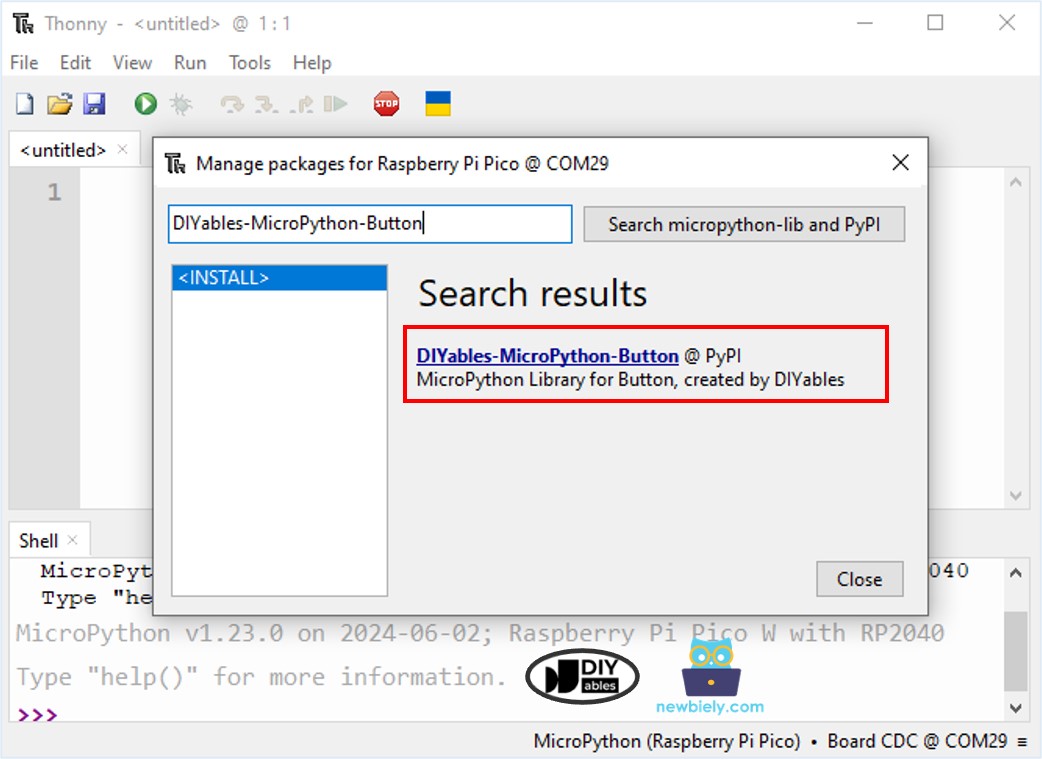
- On Thonny IDE, navigate to the Tools Manage packages on the Thonny IDE.
- Search “DIYables-MicroPython-Button”, then find the Button library created by DIYables.
- Click on DIYables-MicroPython-Button, then click Install button to install Button library.
- Copy the above code into the editor and save it to the Raspberry Pi Pico as main.py.
- Click the green Run button (or press F5).
- Press the button once quickly, then press it again and hold it for two seconds before you let go.
- The Shell shows one line for each action, and it does not matter how long you hold:
Because loop() never waits, you can add other work inside the while True: loop, as long as that work does not sleep for a long time itself. For more ideas, see Raspberry Pi Pico - Button - LED, where a press switches an LED. The button module works in that project too: wire it as shown on this page and use Pin.PULL_DOWN mode with "pressed = 1".