
Raspberry Pi Pico - GUVA-S12SD UV Sensor
A Raspberry Pi Pico runs happily from a small power bank, so it is a good base for a pocket UV meter that you carry out to the garden, the beach or the balcony. The GUVA-S12SD module is the sensing part. It looks only at ultraviolet light, the kind that tans and burns skin, and it gives the Pico one small voltage that grows as the UV gets stronger.
In this guide, we will learn to set up and use the GUVA-S12SD UV sensor with the Raspberry Pi Pico. We will cover the following details:
- What is on the little purple module, and why it reads almost zero under a desk lamp.
- How to connect its SIG, GND and VCC pins to GP28, AGND and 3V3(OUT) of the Pico.
- How to show the read_u16() number and the SIG voltage in the Thonny Shell.
- How to average a few readings and print an approximate UV index with its level name.
Hardware Preparation
Or you can buy the following kits:
| 1 | × | DIYables Sensor Kit (18 sensors/displays) |
Additionally, some of these links are for products from our own brand, DIYables .
Overview of GUVA-S12SD UV Sensor
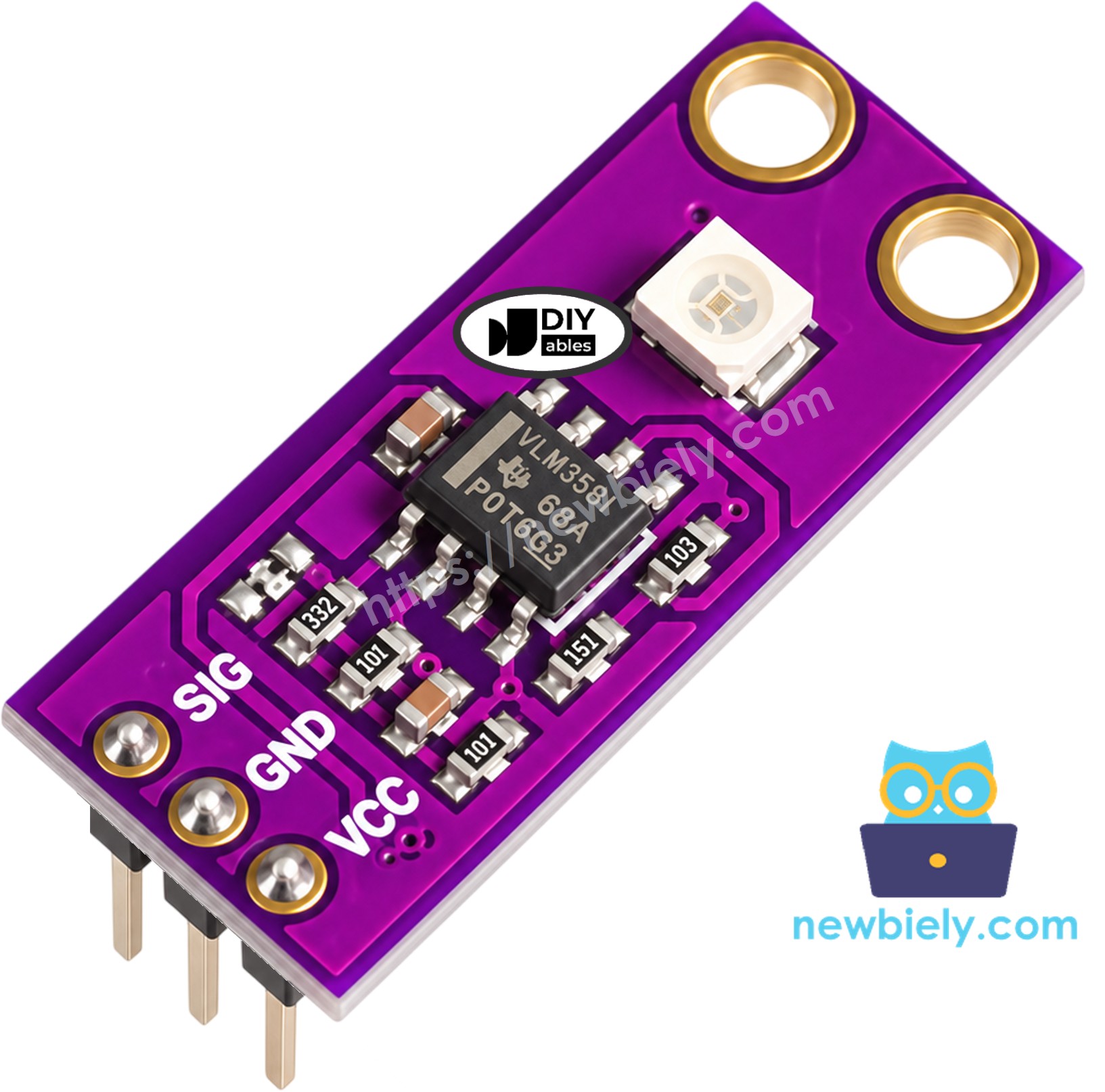
The DIYables GUVA-S12SD module is a purple board of about 11mm x 27mm with two holes for screws. The tiny white square on it is the GUVA-S12SD UV photodiode. Next to it sits a VLM358 op-amp chip. When UV light falls on the photodiode, it lets through a very small current. The op-amp makes that current into a voltage on the SIG pin, and the Pico measures this voltage with its ADC. More UV means a higher voltage. The module comes with its header already soldered and is sold in a pack of two.
The sensor only reacts to UV-A and UV-B light (240nm to 370nm). Normal room light has almost no UV, so do not worry if the first numbers are close to zero. Take the board outside into the sun, or shine a UV flashlight on it, to see it work.
| GUVA-S12SD UV Sensor Module | |
|---|---|
| Sensing Element | GUVA-S12SD UV photodiode + VLM358 op-amp |
| Light Range | 240nm to 370nm (UV-A and UV-B) |
| Viewing Angle | 130 degrees |
| Supply Voltage | 2.5V to 5V DC |
| Output | analog voltage, about 0V (no UV) to about 1V or a bit more (strong sun) |
| Board Size | about 11mm x 27mm, 2 mounting holes |
The pins are labeled SIG, GND and VCC, in this order.
- SIG pin: connect to an ADC pin of the Pico. It gives about 0 volts with no UV, and about 0.1 volts more for each point of UV index.
- GND pin: connect to ground (0 volts). On the Pico, AGND is the best choice.
- VCC pin: connect to the 3.3 volts output of the Pico.
To get a UV index from the voltage, most makers use one simple rule: UV index ≈ SIG voltage / 0.1. For example, 0.45 volts is about UV index 4.5. This is a rough number for hobby projects, not a reading from a calibrated UV meter. The UV index scale from the WHO has five levels:
| UV Index | Level |
|---|---|
| 0 to 2 | Low |
| 3 to 5 | Moderate |
| 6 to 7 | High |
| 8 to 10 | Very High |
| 11 and above | Extreme |
Some project ideas: a sunscreen reminder that tells you when the UV reaches "Moderate", a UV column for an outdoor weather station, a check of whether a UV LED or UV lamp still works, or a smart blind that closes when the sun gets too strong. You can also hold the sensor behind a window and see the reading fall, because ordinary glass stops most UV-B.
Wiring Diagram
The Pico can read analog voltages only on GP26, GP27 and GP28. We use GP28 (ADC2), which is pin 34 on the right side of the board.
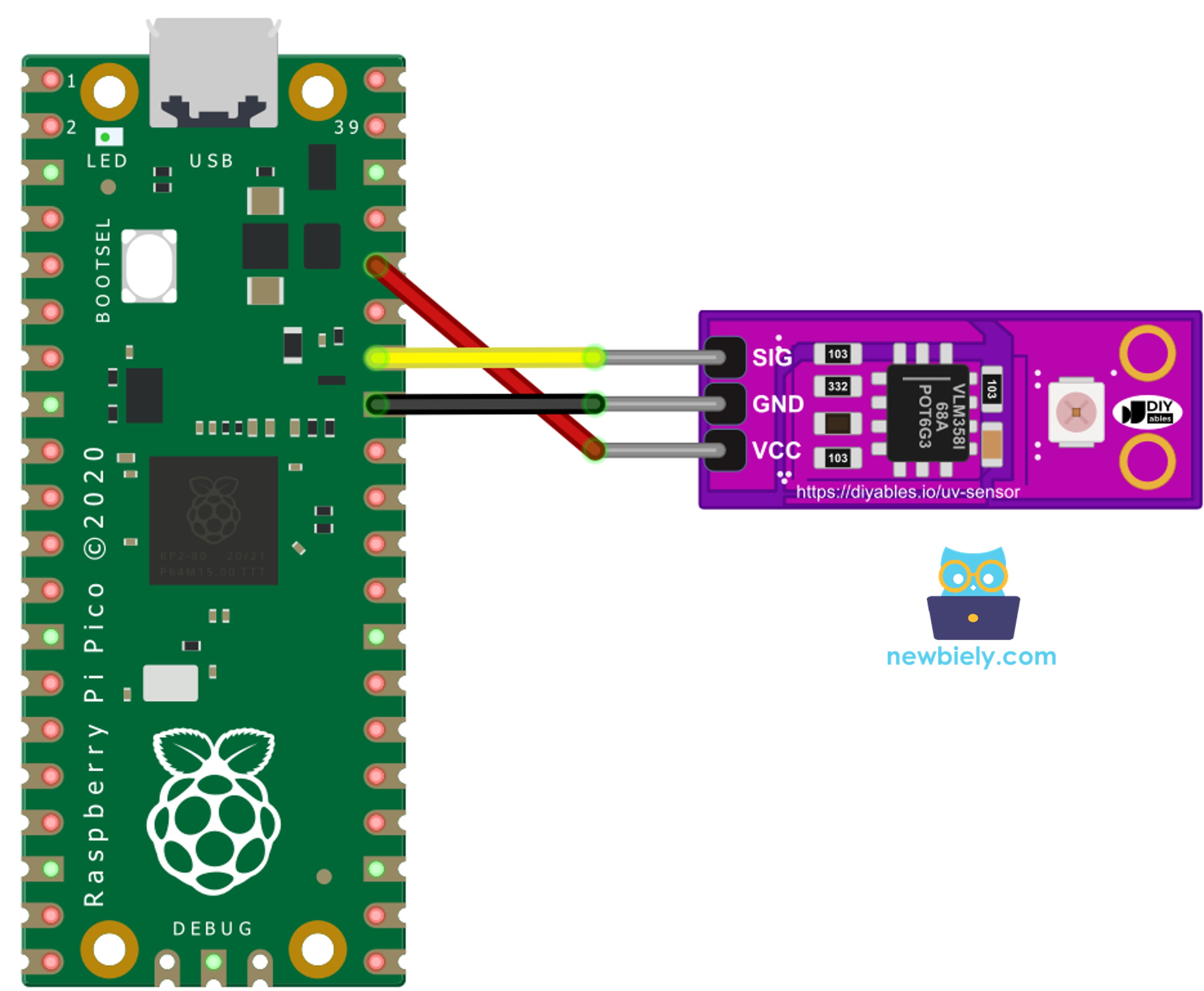
This image is created using Fritzing. Click to enlarge image
| GUVA-S12SD UV Sensor | Raspberry Pi Pico |
|---|---|
| SIG | GP28 / ADC2 (pin 34) |
| GND | AGND (pin 33) |
| VCC | 3V3(OUT) (pin 36) |
Why AGND and not just any GND pin? Pin 33 is the analog ground of the Pico. It is the ground that the ADC uses as its own 0 volts, and it sits right beside GP28. When the signal wire and its ground wire run side by side to these two pins, they pick up less electrical noise from the rest of the board, such as the power chip or the Wi-Fi chip on a Pico W. This matters here, because the UV signal is small: one point of UV index is only about 0.1 volts. Any GND pin will still work, but using AGND for analog sensors is a good habit.
※ NOTE THAT:
Power the module from 3V3(OUT) only, not from VBUS or VSYS. The sensor works at 3.3 volts, and this keeps the SIG voltage far below the 3.3 volts limit of the Pico's ADC pins.
Raspberry Pi Pico Code - Raw ADC Value and SIG Voltage
Start with a check of the wiring and the sensor. ADC(28) opens GP28 as an analog input. read_u16() gives a number from 0 to 65535, where 65535 stands for 3.3 volts, so the script multiplies by 3.3 and divides by 65535 to get volts. Both values are printed once per second.
Detailed Instructions
Please follow these instructions step by step:
- Ensure that Thonny IDE is installed on your computer.
- Ensure that MicroPython firmware is installed on your Raspberry Pi Pico.
- If this is your first time using a Raspberry Pico, refer to the Raspberry Pi Pico - Getting Started tutorial for detailed instructions.
- Wire the UV sensor to the Pico as in the diagram: SIG to GP28, GND to AGND, VCC to 3V3(OUT).
- Connect the Raspberry Pi Pico to your computer using a USB cable.
- Launch the Thonny IDE on your computer.
- On Thonny IDE, select MicroPython (Raspberry Pi Pico) Interpreter by navigating to Tools Options.
- In the Interpreter tab, select MicroPython (Raspberry Pi Pico) from the drop-down menu.
- Ensure the correct port is selected. Thonny IDE should automatically detect the port, but you may need to select it manually (e.g., COM3 on Windows or /dev/ttyACM0 on Linux).
- Copy the above code and paste it to the Thonny IDE's editor.
- Save the script to your Raspberry Pi Pico by:
- Click the Save button, or use Ctrl+S keys.
- In the save dialog, you will see two sections: This computer and Raspberry Pi Pico. Select Raspberry Pi Pico
- Save the file as main.py
- Click the green Run button (or press F5) to run the script. The script will execute.
- Let it run indoors for a few seconds. Then carry the laptop and the Pico to a sunny window that is open, or point a UV flashlight at the white square.
- Watch the Shell at the bottom of Thonny:
The first three lines are the room: a few hundred counts, under 0.02 volts. The Pico's ADC is never perfectly still, so a small number like this in a dark room is normal. The higher lines came from the open window in the sun. If the value stays near zero even in direct sun, check the SIG wire on GP28 and the VCC wire on pin 36.
If you name your script main.py and save it to the root directory of the Raspberry Pi Pico, it will automatically run each time the Pico is powered on or reset.
Raspberry Pi Pico Code - UV Index and Level Name
The second script gives you a number that people understand. The function read_sig_volts() takes 16 readings, 5 ms apart, and returns their average in volts. This removes most of the small jumps of the Pico's ADC. The script then divides the voltage by 0.1 to get the UV index, and uv_level() picks the WHO level name from the table above.
Detailed Instructions
The wiring stays the same:
- Click the red Stop button in Thonny to end the first script.
- Replace the code in the editor with the script above.
- Save it to the Raspberry Pi Pico as main.py.
- Click the green Run button (or press F5).
- Keep the sensor inside for one or two lines, then take it out into the sunlight and point the white square at the sky.
- A new line appears in the Shell every two seconds or so:
Your numbers depend on the time of day, the season, clouds and how you hold the sensor. The UV is strongest around midday, when the sun is high. If you want a calmer result, raise SAMPLES to 32 or 64. To build a simple sunscreen reminder, add an if uv_index >= 3: check and switch on an LED or a buzzer from that point.